Order Throttling on the Merchant Portal?
Order throttling allows merchants to manage online order volume by setting limits on the maximum number of online orders accepted during specific days, hours, or recurring peak times.

Usecase Scenario
Bella Bistro receives a large volume of online orders between 12:00 PM and 1:00 PM each weekday. To prevent kitchen delays and maintain food quality, they use the order throttling feature to set a limit on the number of orders during this time. they decided to allow only 25 orders during the lunch rush. Once this limit is reached, customers are unable to place additional orders for that time slot, helping the restaurant manage its workload and minimize delays.
Step 1
Login to "Applova Merchant Portal".
Step 2
Go to "Settings" and click on "Plugins".
Step 3
From there, click on the "Order Throttling" plugin card.
Step 4
Click on "Add Throttle Setting" to add a throttling rule for the business by filling in the given fields.
Time Range Type
- Day of Week
Example:
Every Monday from 01:00 PM to 02:59 PM, for every 20 minutes, the merchant wants to have a maximum of 10 online orders.
- Specific Hour
Example:Every day from 10.00 AM to 10:59 AM, for every 20 minutes, the merchant wants to have a maximum of 10 online orders.
- Any
Example:Every day, for every 20 minutes, the merchant wants to have a maximum of 10 online orders.
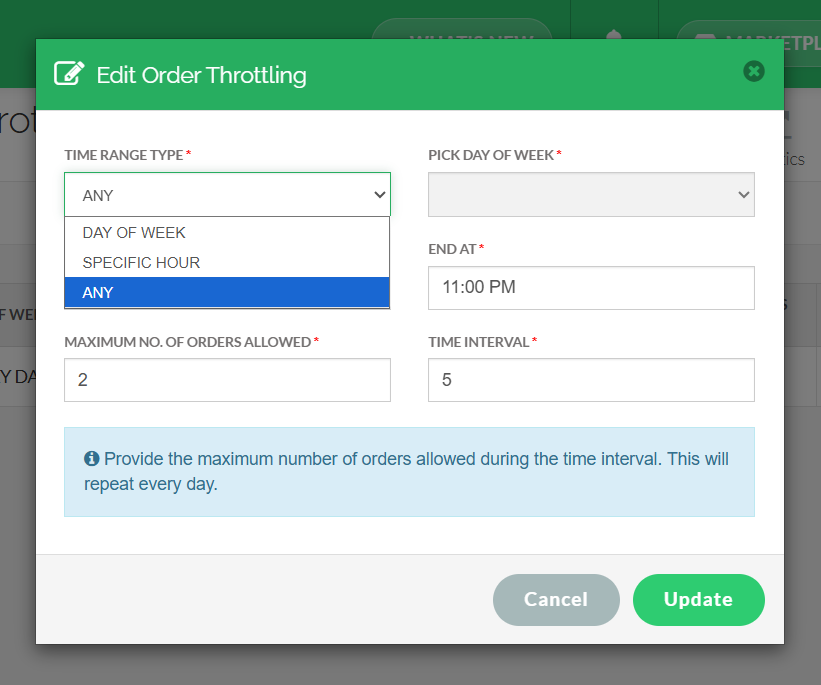
The "Pick Day of Week" field will only be editable if the time range type selected is "Day of Week".
Pick Day of Week
- Monday to Sunday
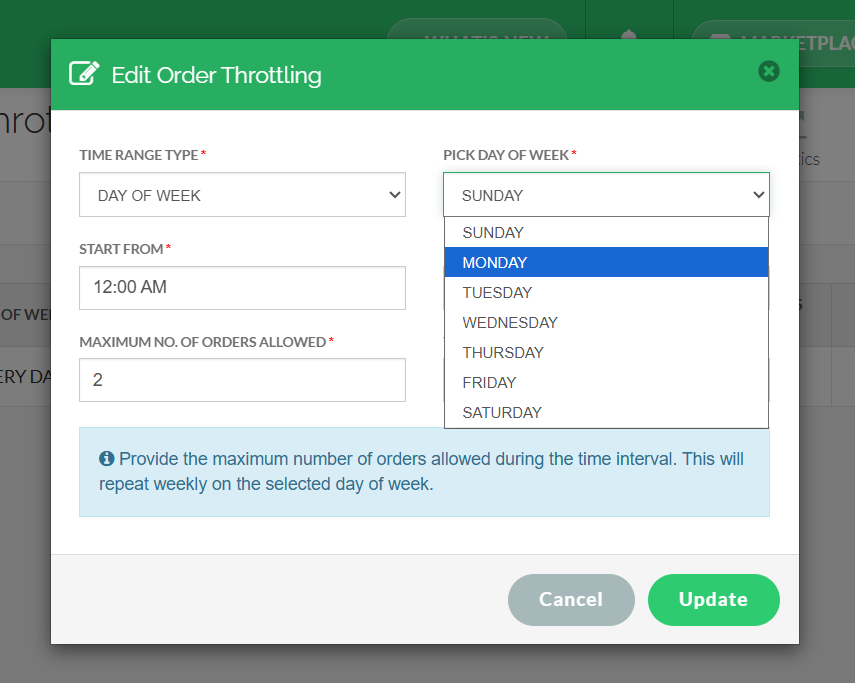
Starting From:
- 00:00 am to 11:59 pm (The value can be changed according to the merchant's requirement)
Ending At:
- 00:00 am to 11:59 pm (The value can be changed according to the merchant's requirement)
Max No of Orders allowed:
- Any number over 0 (The value can be changed according to the merchant's requirement)
Time Interval
- Any number above 0 (The value can be changed according to the merchant's requirement)
How it Reflects?
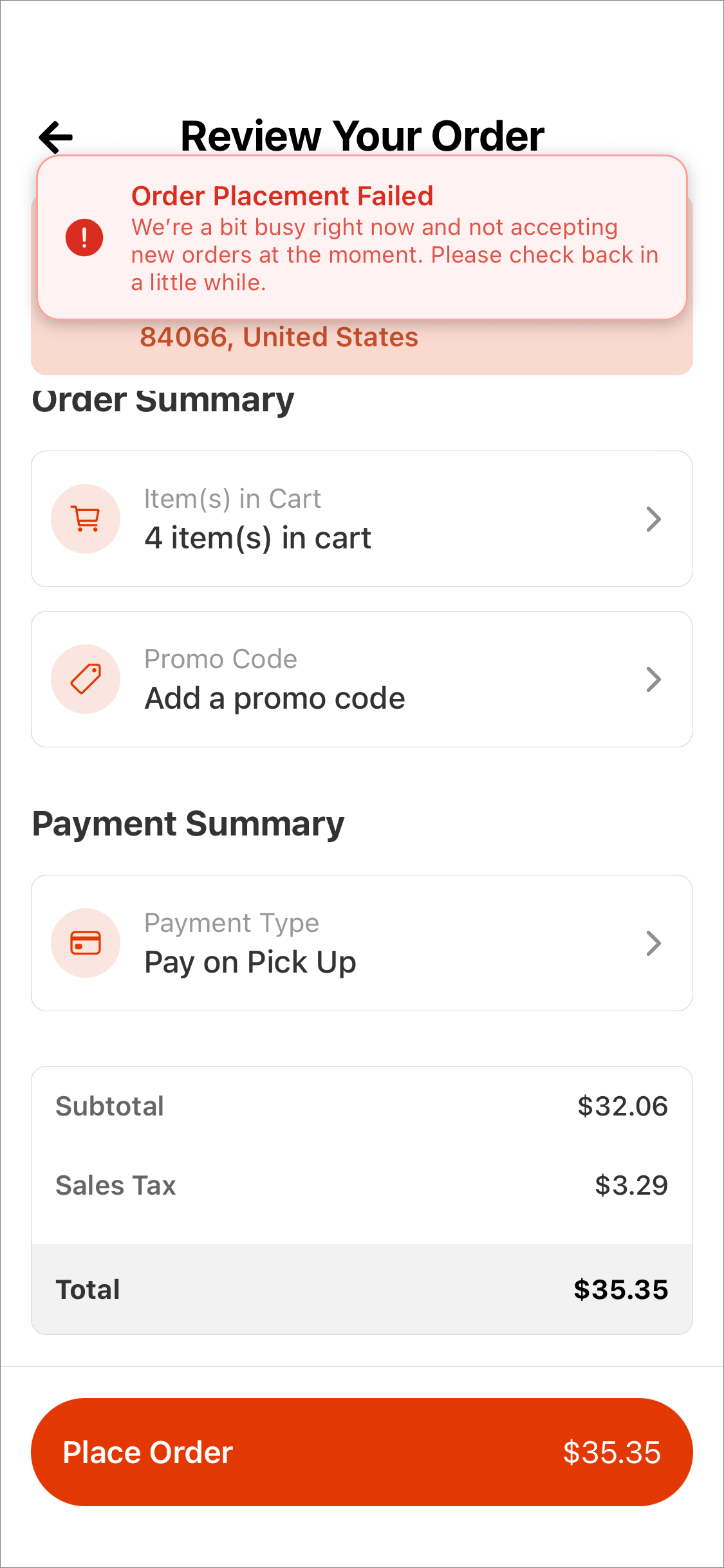
Webstore V3
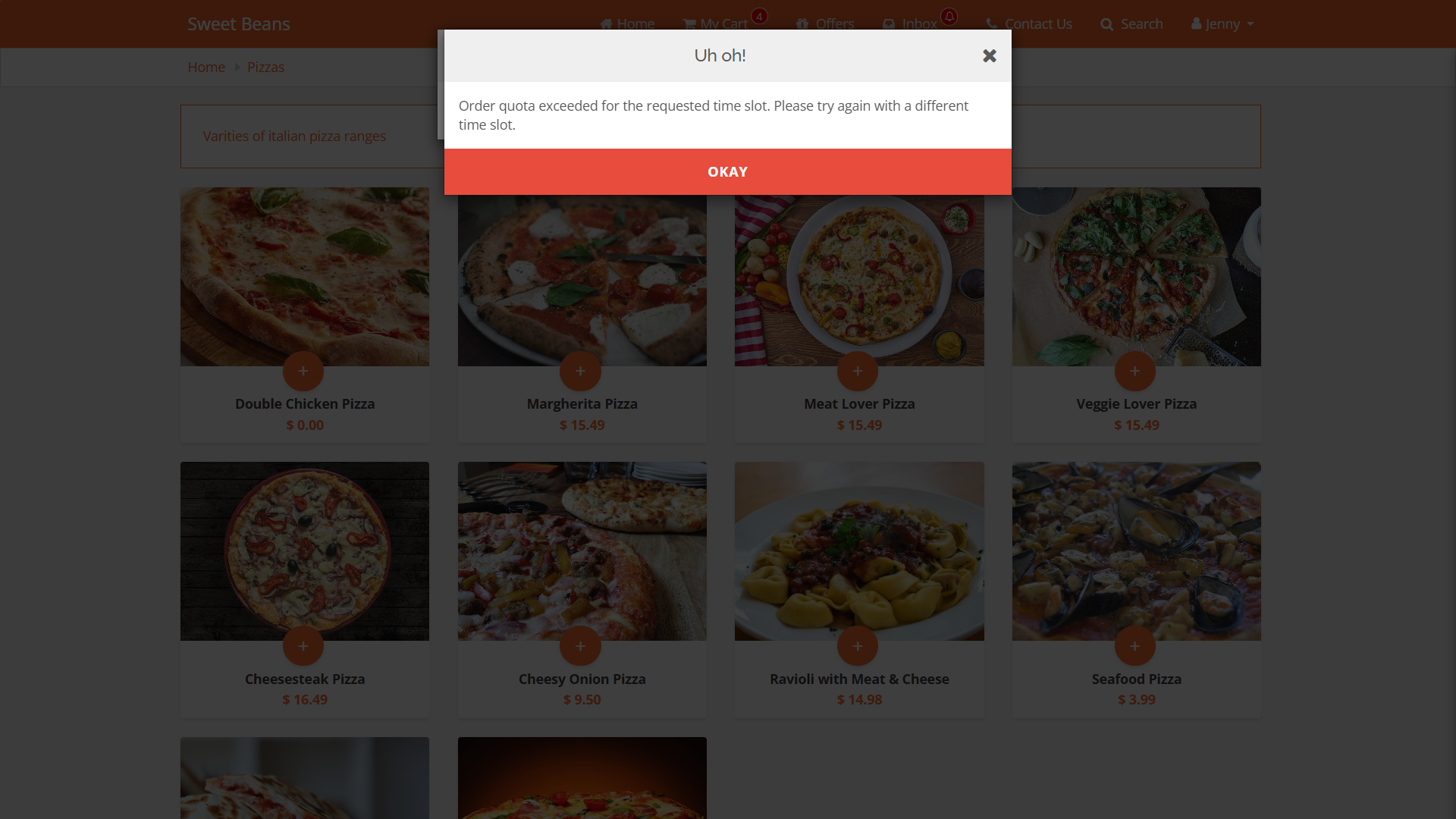
Webstore V3
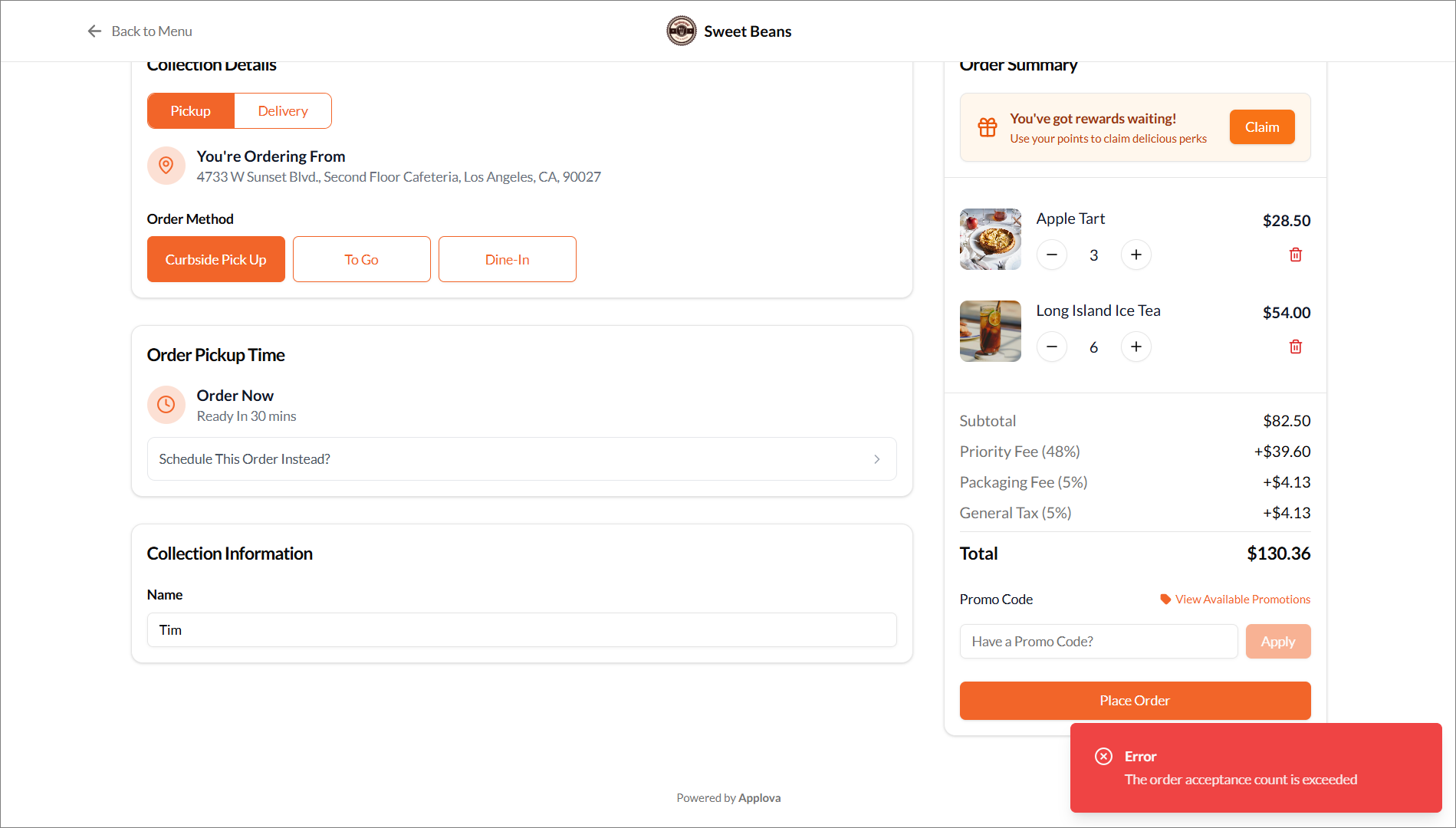
Order Ahead V2
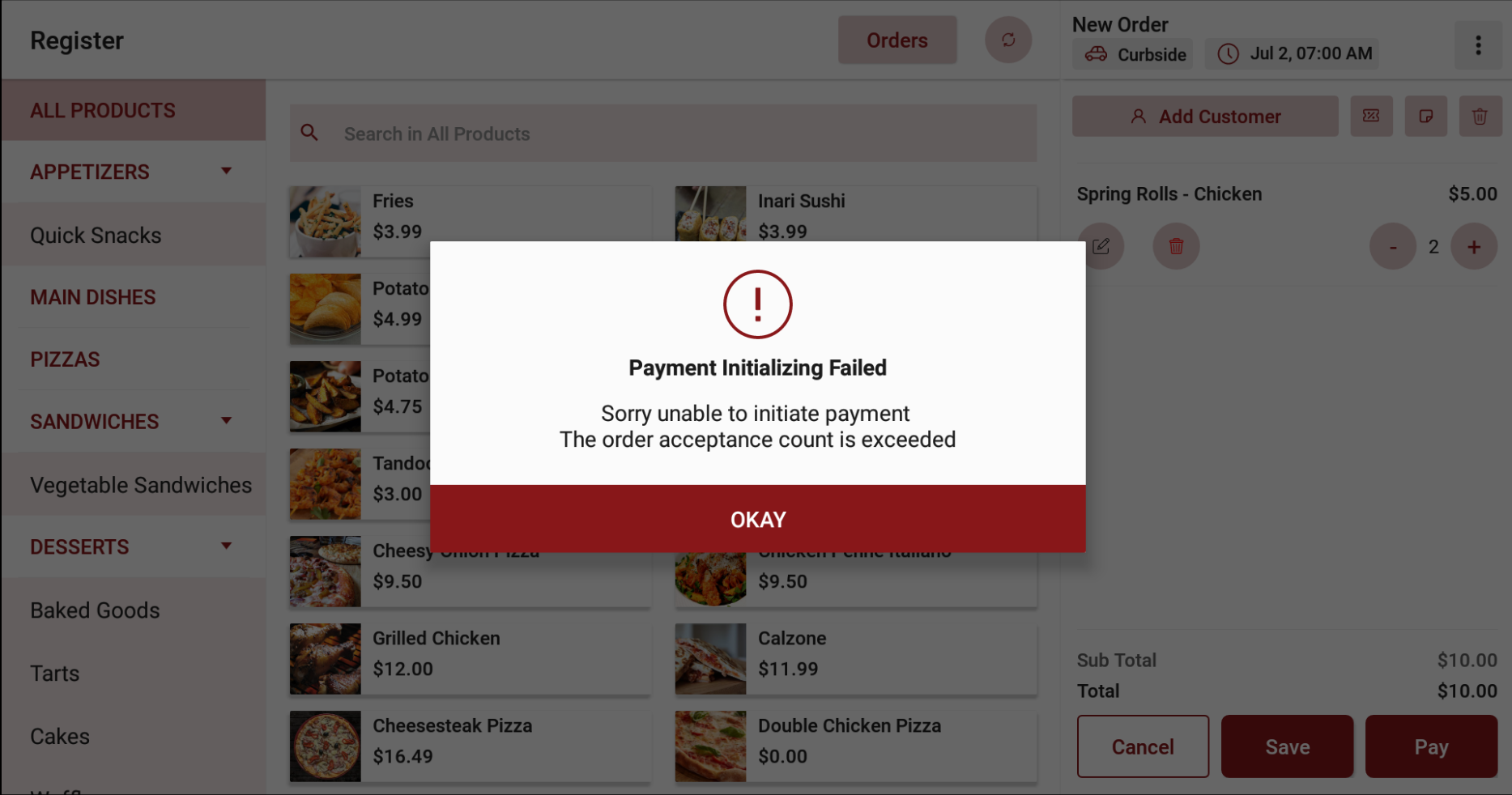
Standalone POS
 Feature in Action: Video Link
 Related Articles
How to Manage Applova Rewards on Merchant Web Portal?
This feature is available by default Customers are enrolled in Applova Rewards by default, even if the Rewards program is not currently enabled. This ensures merchants already have an enrolled customer base when they decide to enable Rewards or ...How to Configure Promo Codes for Specific Channels via Merchant Portal?
This feature allows merchants to control which sales channels (POS/ Kiosk/ Webstore/ Mobile App/ Digital Dining) accept specific promo codes. By enabling or disabling channels, merchants can tailor promotions to the platforms that best fit their ...Managing Order Level Promo Codes
This feature allows the merchant to add a promo discount for the whole order. A promotion can be added as a percentage and a flat amount as well. Promo code feature is enabled by default Note:Promo Codes can also be activated through the Applova ...How to Auto-Apply Promo Codes on the Merchant Portal
Normally, customers must enter a promo code during checkout to receive a discount, but now with the auto-apply feature, eligible promotions are now applied automatically when the order meets the configured conditions, removing the need for manual ...How to Schedule Push Notifications via Merchant Portal?
The Scheduled Notifications feature allows merchants to send automated SMS alerts to their customers at a specific date and time. These alerts can be used to share promotions, limited-time discounts, menu updates, or special events. Merchants can ...