How to Auto-Apply Promo Codes on the Merchant Portal
Normally, customers must enter a promo code during checkout to receive a discount, but now with the auto-apply feature, eligible promotions are now applied automatically when the order meets the configured conditions, removing the need for manual code entry and creating a smoother checkout experience.

This feature is not supported on the Self-Service Kiosk [Samsung Kiosk] as well as the POS

Use Case Scenario
ABC Hospital uses online ordering to serve different user groups and wants to provide specific discounts based on customer eligibility. For example, one discount may be automatically applied to users who register with an approved company or organization email domain [@abc.com].
Previously, eligible customers would need to manually enter a promo code at checkout, which could result in missed discounts or confusion. With this feature, the system automatically applies the correct discount when the user qualifies, reducing manual steps and creating a smoother ordering experience.
How to Auto-Apply Promotions?
Step 1
Login to "Applova Merchant Portal".
Step 2
Navigate to the "Settings" tab and then proceed to the "Plugins" section.
Step 3
Click on the "Promo Codes" plugin, and you'll be led to a new page called "Manage Promo Codes"
Step 4
Create a new promo code or select an existing one to edit.
Step 5
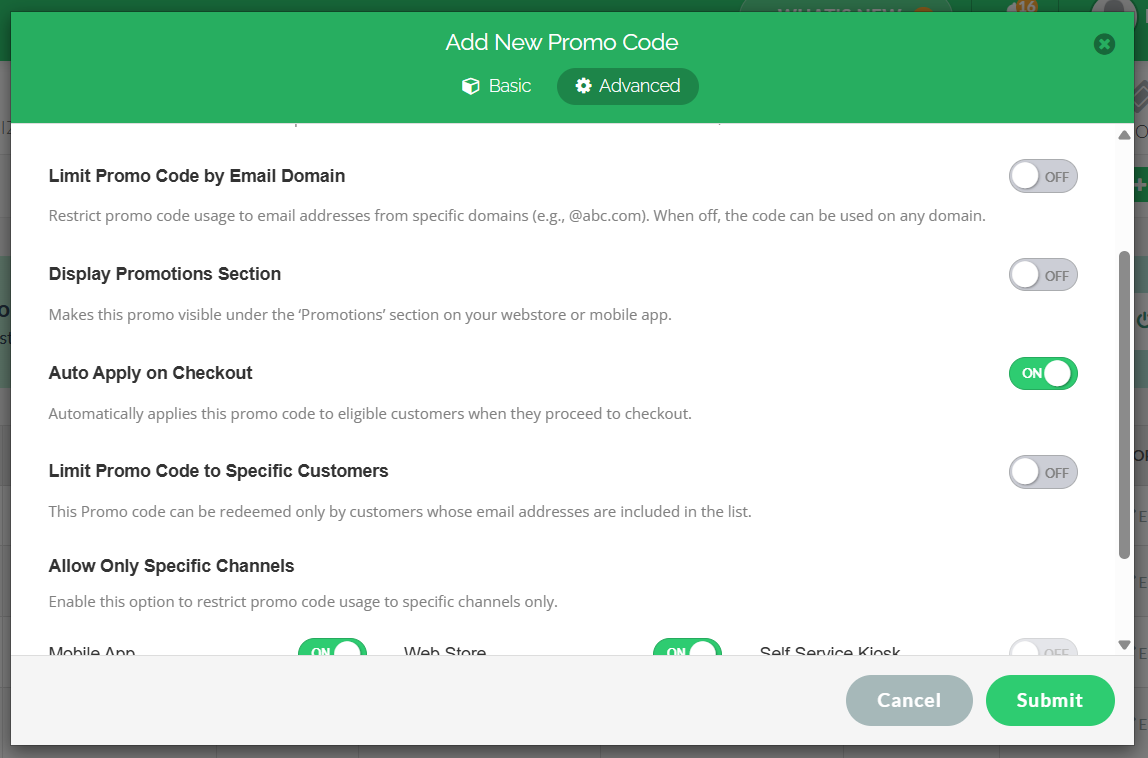
In the promo code window, click on the Advanced tab and toggle “Auto-Apply on Checkout” ON.

When using this feature, it’s recommended to pair it with either the “Limit Promo Code by Email Domain” feature [article link], so only customers with a specific email (e.g., your company or organization domain) can use the promo code, or the “Limit Promo Code to Specific Customers” feature [article link], which lets only a selected list of customers use the promo code.
Step 6
Click on "Submit" to save the promo code configuration.
Related Articles
Related Articles
Managing Order Level Promo Codes
This feature allows the merchant to add a promo discount for the whole order. A promotion can be added as a percentage and a flat amount as well. Promo code feature is enabled by default Note:Promo Codes can also be activated through the Applova ...How to Show Promo Codes in the Webstore Promo List View
The promo list view feature on the Webstore checkout page allows customers to browse and apply available promotions without needing to manually enter promo codes. This improves the ordering experience by making discounts more visible and accessible. ...Managing Promo Codes for Guest Users of a Business
You can use this plugin to let your guest users apply promo codes for their orders. Please check with Applova Support team to ensure that the promo code and guest checkout features are enabled for your business. Step 1 Login to "Applova Merchant ...Managing Product Level Promo Codes
This feature allows the merchant to add promo discount for a selected product. Promo code feature is enabled by default Note: Promo Codes can also be activated through the Applova Marketplace aswell. Once activated, Promo Codes will be enabled as a ...How to Configure Promo Codes for Specific Channels via Merchant Portal?
This feature allows merchants to control which sales channels (POS/ Kiosk/ Webstore/ Mobile App/ Digital Dining) accept specific promo codes. By enabling or disabling channels, merchants can tailor promotions to the platforms that best fit their ...