Order Ahead App Settings on Merchant Web
This guide explains how to manage the Order Ahead Mobile App settings through Applova Merchant Web. Merchants can upload, update, or remove the app banner image and submit a request to publish the mobile app on the Google Play Store and Apple App Store.
Managing the Banner Image

This feature has not yet been implemented in Order Ahead V2
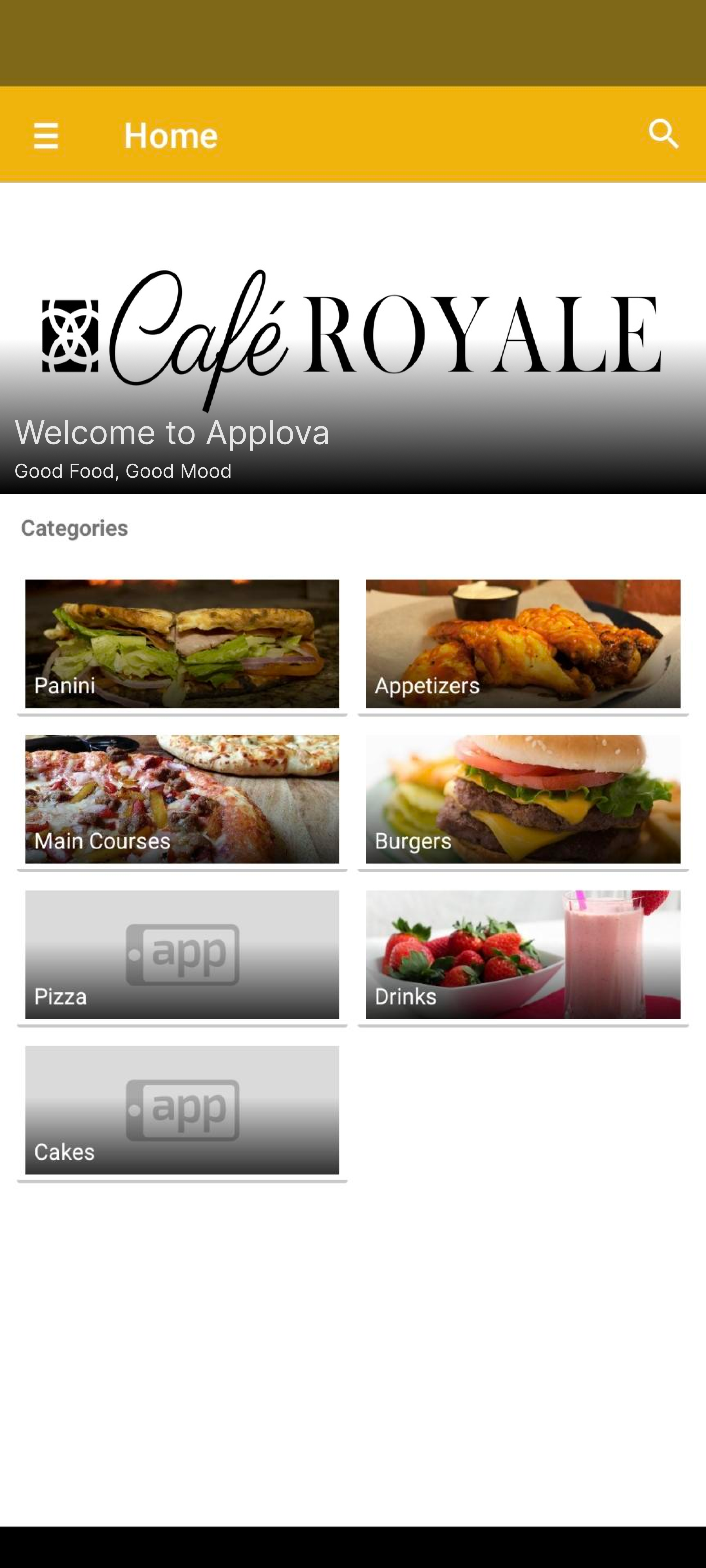
With this feature, merchants can upload, update, or delete the Order Ahead Banner image displayed at the top of the category list screen via the Merchant Web.
Uploading a Banner
Step 1
Login to the "Merchant Web Portal" and click on "Settings".
Step 2
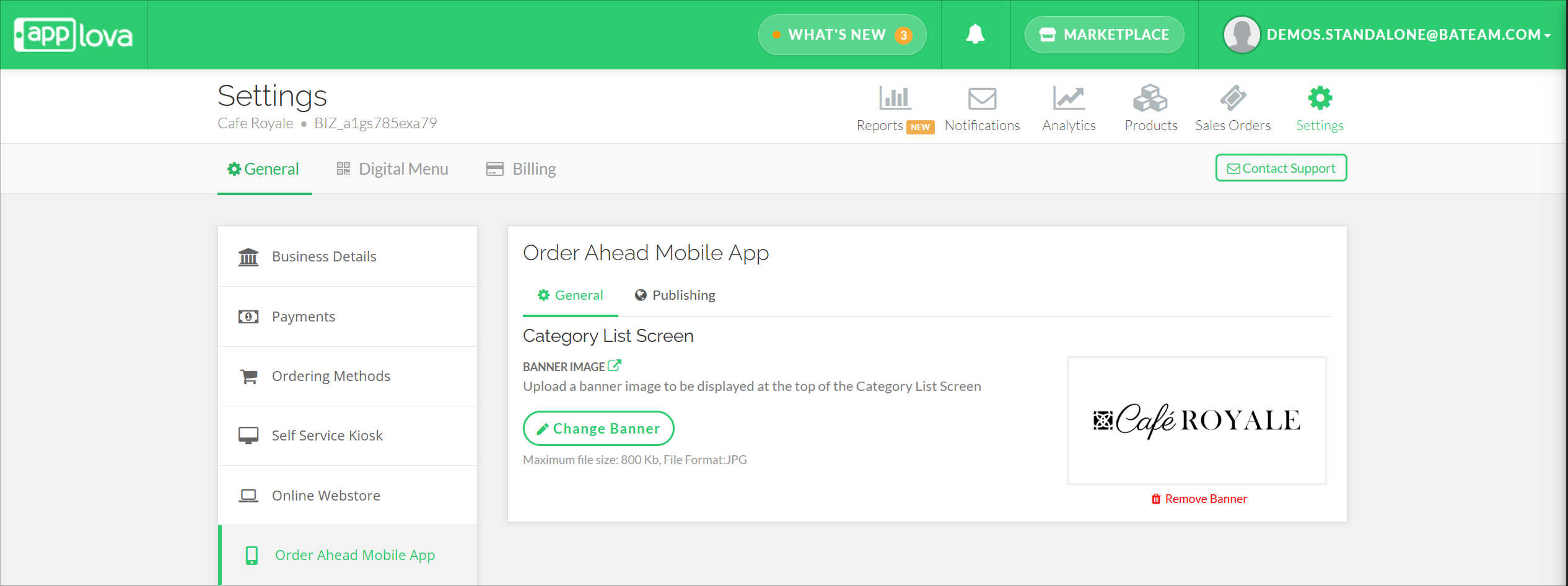
From the "General" settings, click on "Order Ahead Mobile App" from the side navigation bar.
Step 3
Then click on "Change Banner" and choose an image.
Image should be in the JPG format and the maximum file size should be 800 Kb

Changing/ Updating a Banner
Step 1
Click on the "Change Banner" option below the banner image that has been added already.
Removing a Banner
Step 1
Click on the "Remove Banner" option below the banner image that has been added already.
Publishing the Order Ahead App in Playstore or App Store
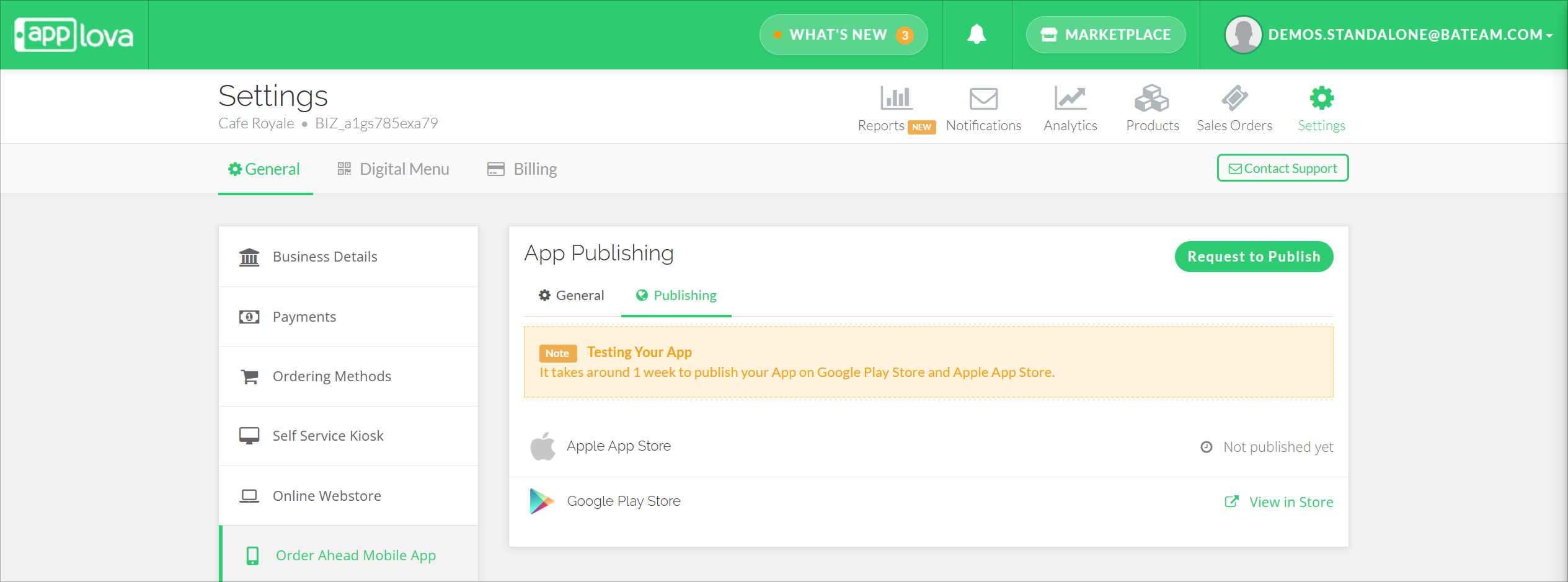
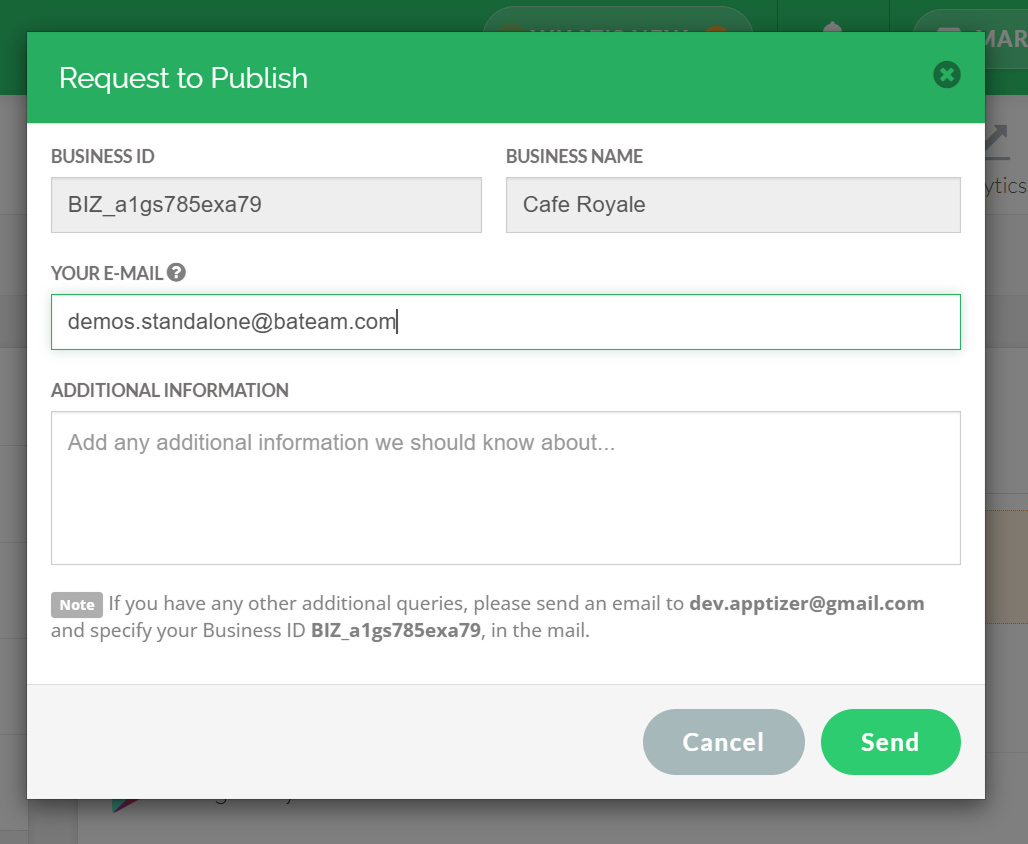
This feature will allow to publish the merchant's mobile app on Google Play Store and Apple App Store.
Step 1
Login to "Applova Merchant Web".
Step 2
Click "Settings" and go to "Order Ahead Mobile App" tab.
Related Articles
How to Manage Categories on Merchant Portal?
In this article, you will learn how to manage category-related settings in the Merchant Portal to keep products clearly organized and displayed correctly. How to Add Category? This feature allows the merchant to add a new product category. Step 1 ...How to Configure Order Pick Up Via Merchant Web?
Merchants can configure order pickup settings through Merchant Web. These settings allow merchants to manage pickup related details, and ensure customers can place pickup orders based on the business’s preferred setup. How to Enable Pick Up Option? ...How to Configure Order Delivery Via Merchant Web?
Merchants can configure order delivery settings through Merchant Web. These settings allow merchants to manage delivery related details, and ensure customers can place delivery orders based on the business’s preferred setup. How to Enable the ...How to Manage Online Ordering or Webstore Brand Settings via Merchant Web?
This guide explains how to manage the Online Webstore settings through Applova Merchant Web. Merchants can download the webstore QR code, copy and share the webstore URL, upload a banner image, and add a message to the webstore homepage. Image Link ...How to Change Order Statuses via Merchant Portal?
This feature allows merchants to update an order’s status throughout the order lifecycle, such as New, Accepted, Ready, Completed, Void, or Rejected. This helps merchants clearly track order progress and manage each order based on its current stage. ...