How to Use OTP-Based Sign-in on Webstore V3?
The OTP Sign-In feature introduces a secure, password-free login flow where users authenticate themselves through a One-Time Password (OTP) sent via SMS. This feature enhances convenience and security by allowing both existing and new customers to access the Webstore seamlessly without remembering passwords.

This feature is enabled by default
How to Use OTP-Based Sign-in on Webstore V3?
Step 1
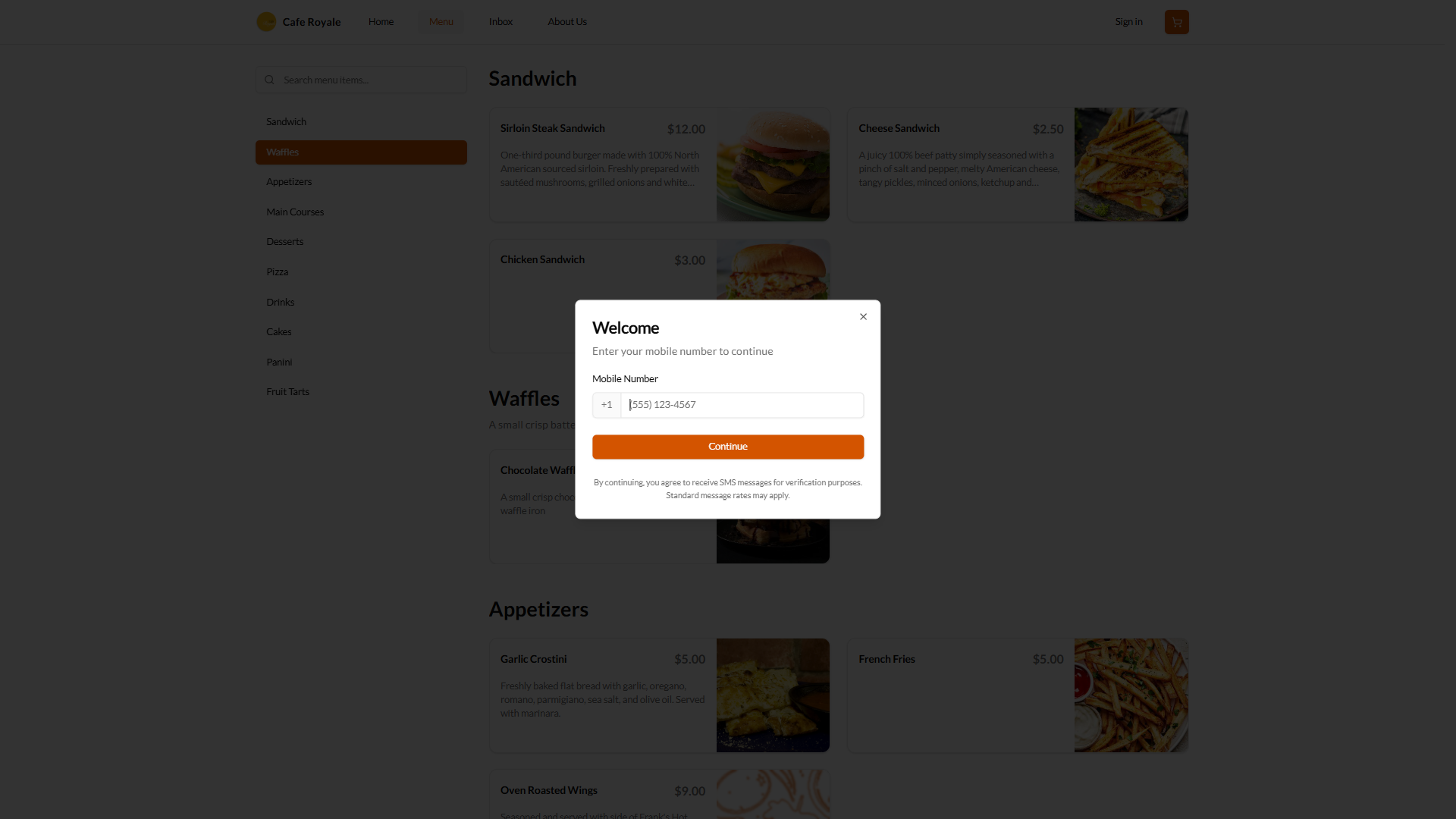
Log into the Webstore and enter your mobile number on the sign-in screen
Step 2
Step 2
Click on "Continue", which will trigger an OTP to be sent via SMS.
Step 3
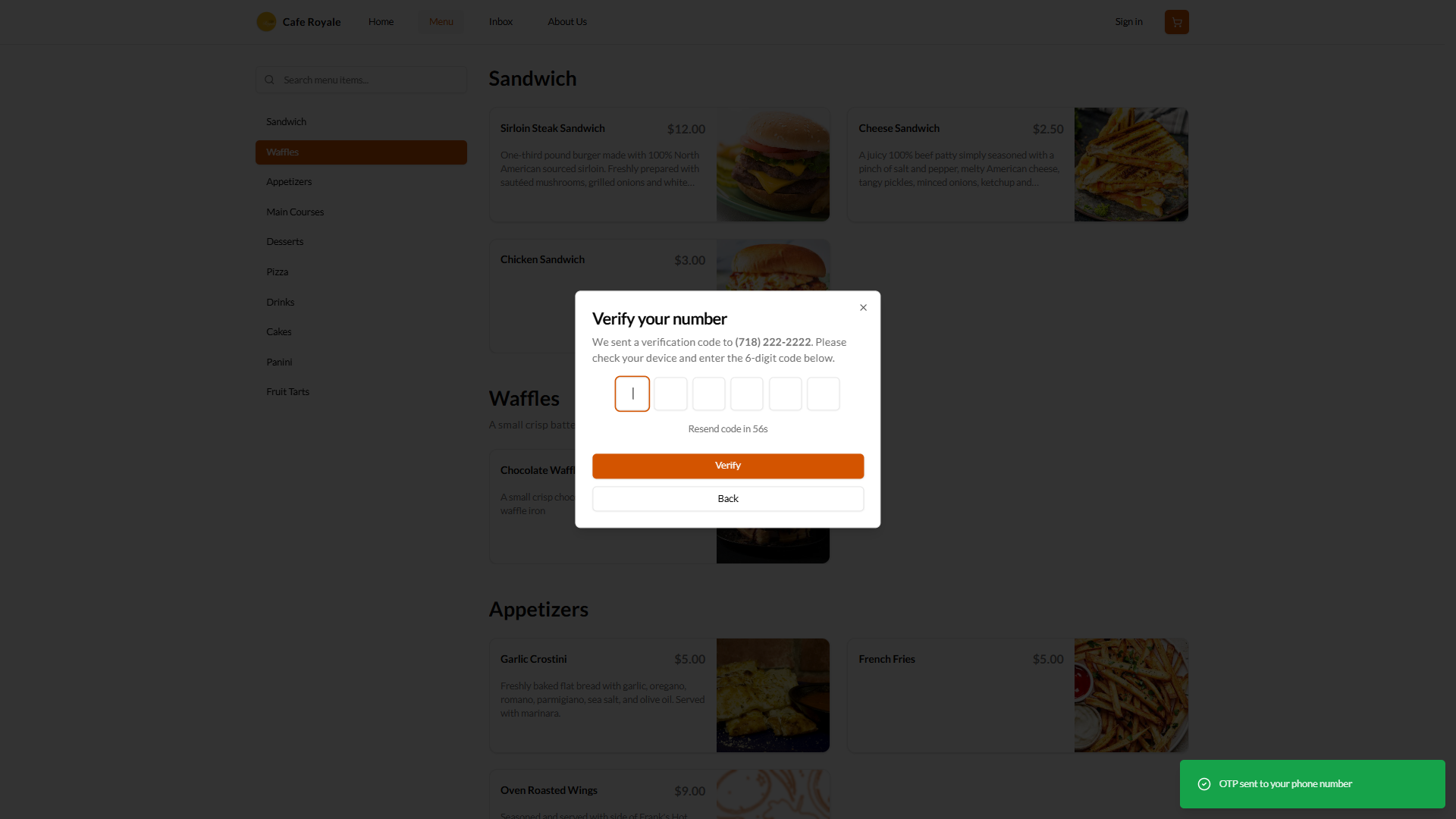
You will then receive an OTP, enter the OTP and then click on "Verify".
You will then receive an OTP, enter the OTP and then click on "Verify".
The system will check whether the mobile number is already registered with the business:
If existing user → The customer is logged in immediately.
If new user → A dialog prompting for additional details (name, email, etc.) to complete registration will appear.
Step 4
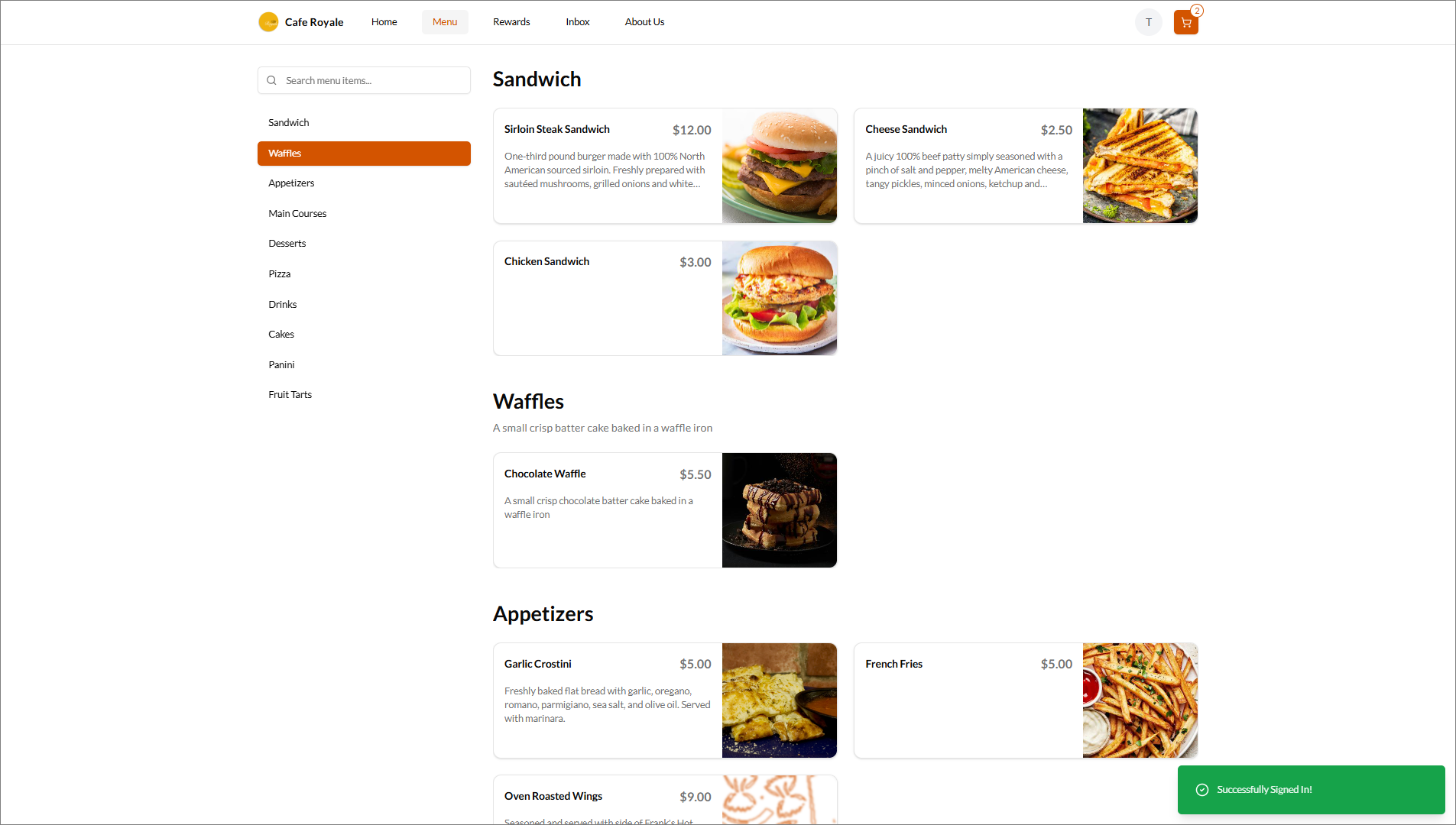
Once the OTP is authenticated you can sign in to the Webstore.
Related Articles
Smart Product Recommendations on Webstore V3
This is a default feature available only for registered customers. Smart Picks brings a personalized ordering experience by using AI to highlight products they’re most likely to enjoy based on their past purchase history. This feature helps repeat ...Building an Effective Webstore: Webstore V3 Layout Options
Webstore V3 provides restaurants with a modern, flexible online storefront. Each section is designed to highlight food, share the brand story, and guide customers toward placing orders. The following overview presents all available layout options and ...Top Sellers on Webstore V3
The Top Sellers feature on the Webstore highlights a restaurant’s most frequently purchased items. This allows customers to quickly identify and order trending products without needing to browse through the entire menu. By automatically showcasing ...How to Use Digital Dine-In on Webstore V3?
With the Digital Dine-In feature, customers can conveniently place orders right from their table by scanning a QR code. Once scanned, they are automatically directed to the restaurant’s Webstore, where their table is instantly recognized, allowing ...How to use Guest Checkout on Webstore V3?
This feature allows customers to place orders quickly without signing in or creating an account, improving checkout speed and convenience. Step 1 Log in to the Webstore and add your desired products to the cart. Step 2 After clicking on the cart, a ...