Building an Effective Webstore: Webstore V3 Layout Options
Webstore V3 provides restaurants with a modern, flexible online storefront. Each section is designed to highlight food, share the brand story, and guide customers toward placing orders. The following overview presents all available layout options and how each one can be used effectively.
Key Benefits
SEO-Optimized Architecture
Helps the store appear higher in Google search results, increasing organic traffic and visibility.Modern User Experience
Sleek, responsive design built for both mobile and desktop, encouraging smoother browsing and stronger customer engagement.Flexible Customization
Allows the Webstore to be tailored to match the restaurant’s brand while maintaining fast performance.Spanish Language Support
Enables customers to browse and order in Spanish, improving accessibility for bilingual communities.
Hero Banner (Main Visual at the Top of the Page)
The hero banner is the large promotional area at the top of the Webstore, designed to capture attention and highlight key offerings or messages.
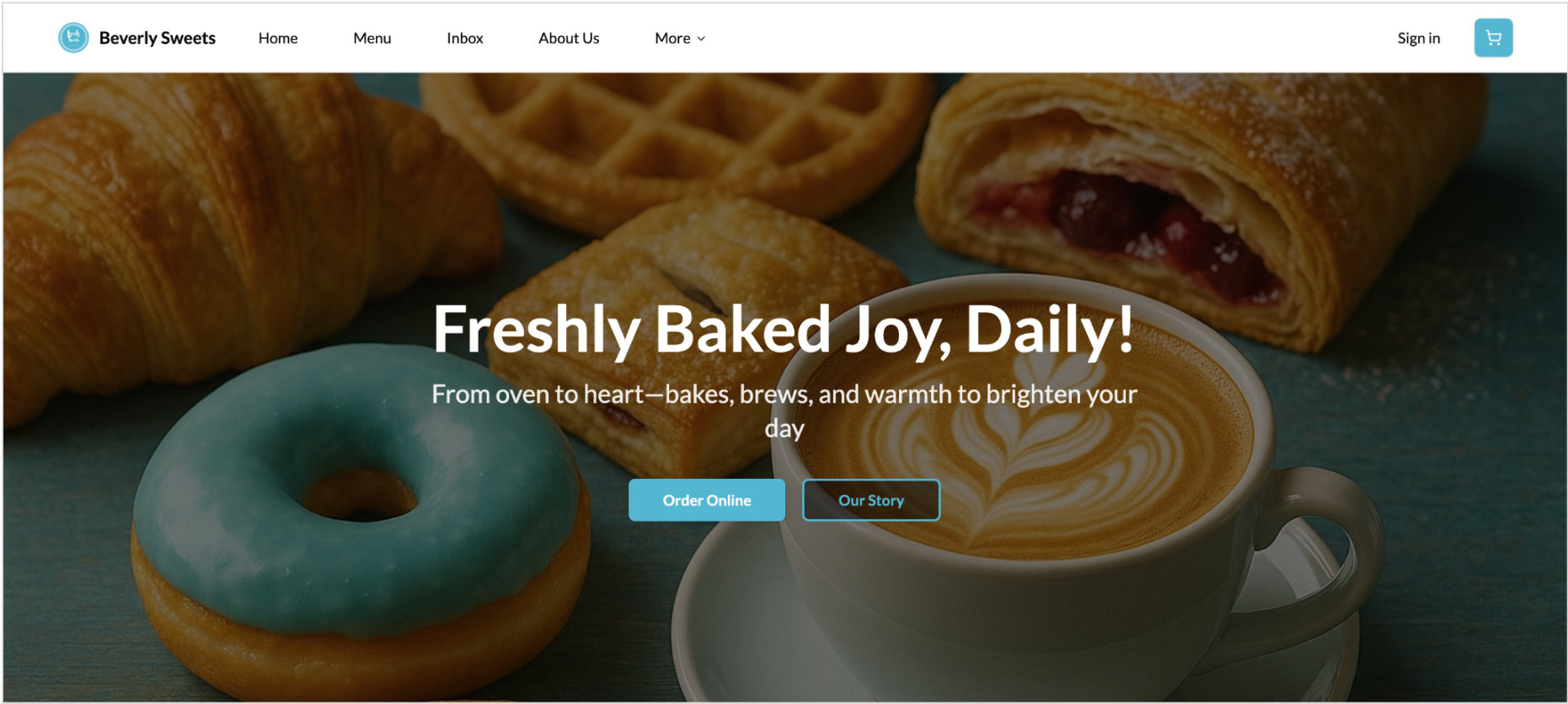
Option A — Center-Aligned Hero Banner
Centered headline, subtext, and buttons.
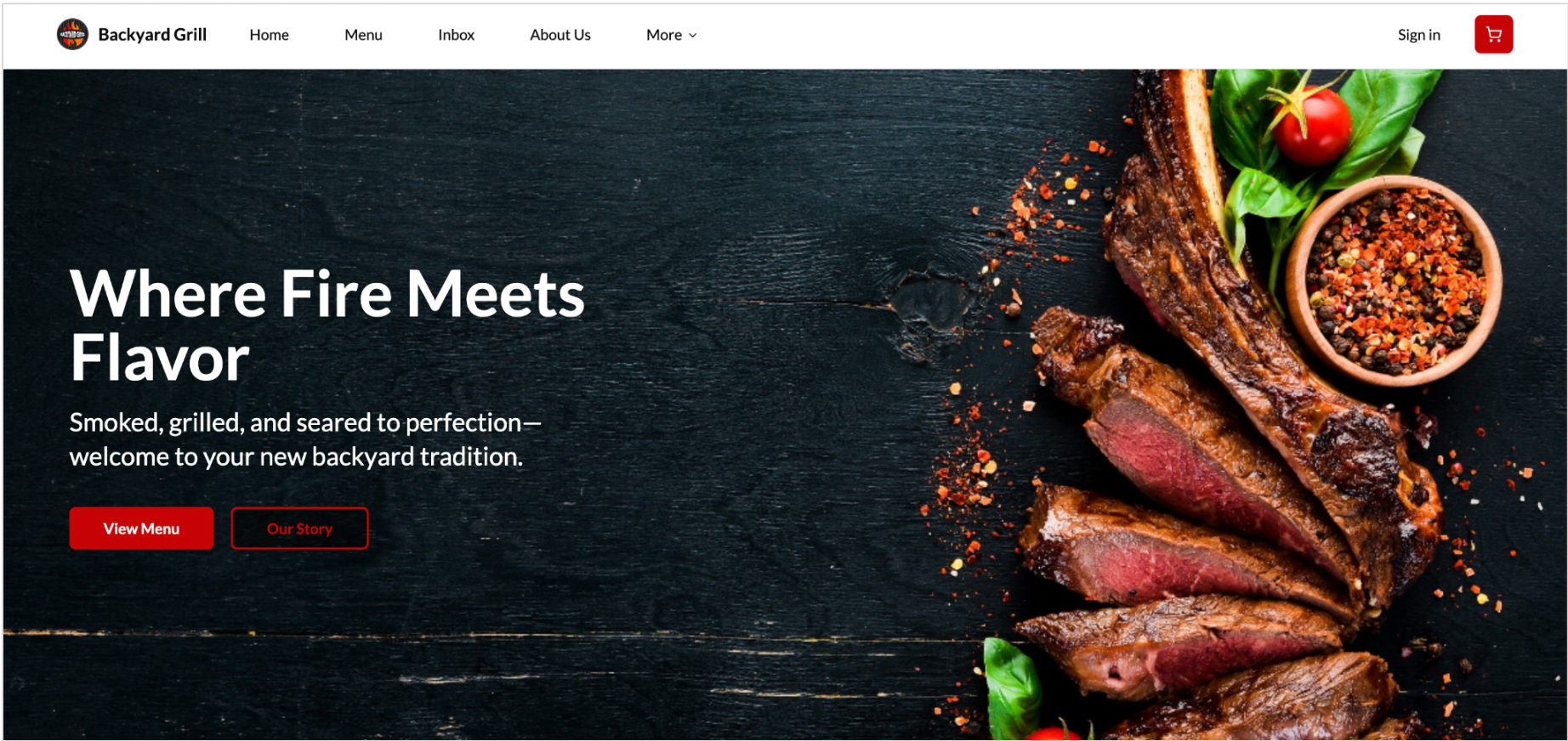
Option B — Left-Aligned Hero Banner
Headline and call-to-action placed on the left with an image
focus on the right.
Effective Ways to Use This Section:
- Promote new menu items or seasonal specials
- Highlight limited-time offers or discounts
- Announce new services (delivery, curbside, catering, etc.)
- Showcase brand messaging or signature dishes
- Feature high-impact images to create a strong first impression
Product Carousels (Static Grid or Carousel)
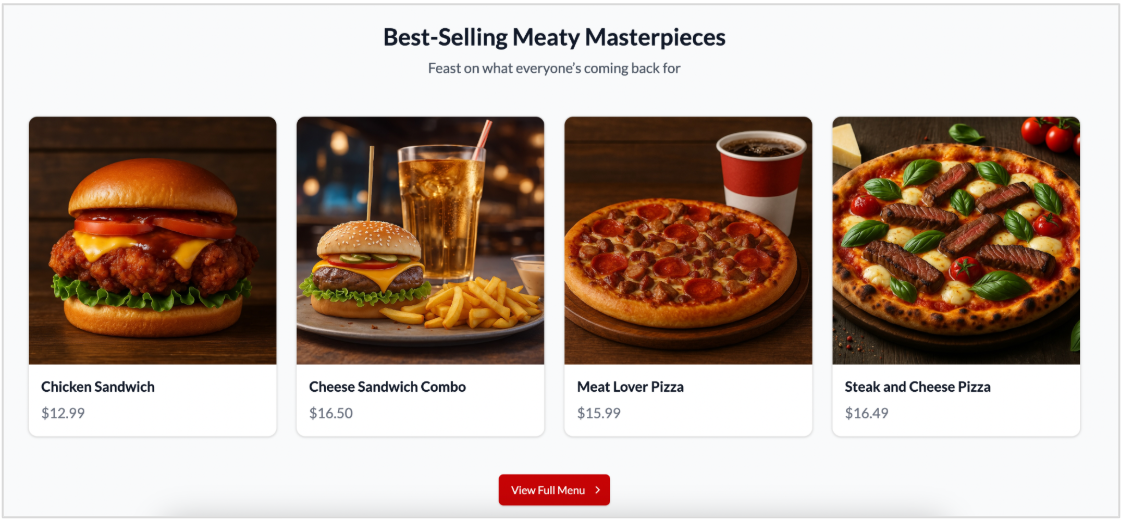
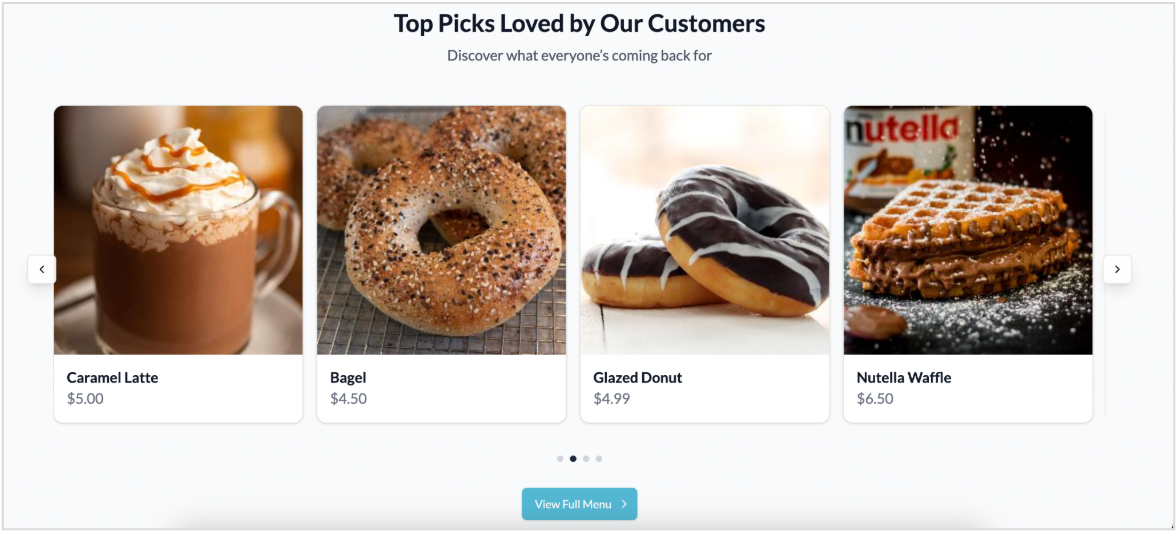
This section is used to showcase featured items directly on the homepage. The display automatically adjusts based on the number of items included.
How the Display Works:
- When 4 items or fewer are added, they appear as a static layout with all items visible at once (no scrolling).
- When more than 4 items are added, the section becomes a horizontal carousel, allowing customers to scroll through additional items.
Effective Ways to Use This Section:
- Highlight best-selling or high-margin items
- Feature newly added or seasonal dishes
- Promote curated selections like “Staff Picks” or “Popular Now”
- Draw attention to combos, specials, or signature items
Story Sections
Story sections help share brand messages, showcase values, or highlight unique aspects of the restaurant through a combination of images and text.
Option A
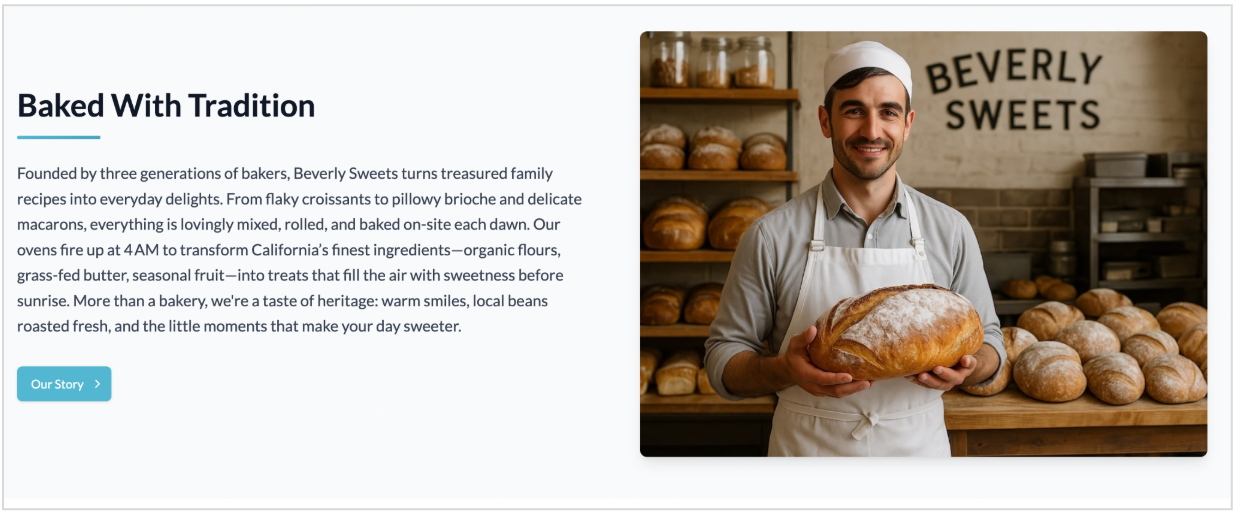
Option B
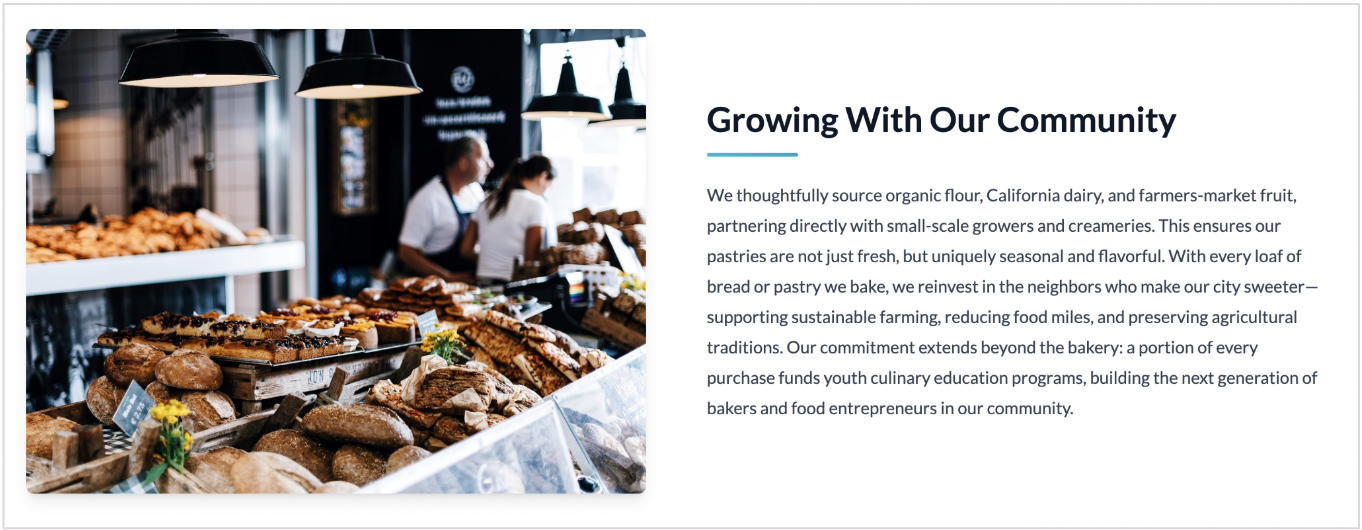
Effective Ways to Use This Section:
- Share the restaurant’s story or mission
- Highlight cooking style, ingredients, or sourcing values
- Introduce the team, chef, or founders
- Promote catering, meal plans, or special programs
- Communicate community involvement or brand values
Testimonials (Customer Social Proof)
Story sections help share brand messages, showcase values, or highlight unique aspects of the restaurant through a combination of imagery and text.
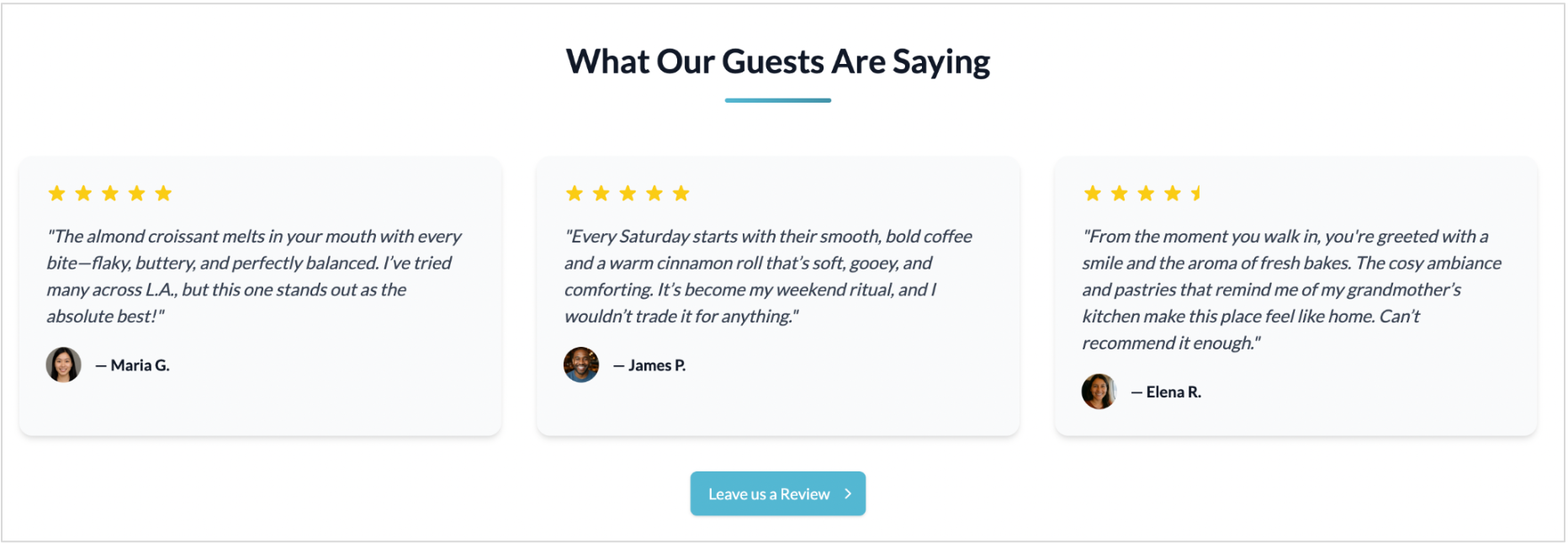
Effective Ways to Use This Section:
- Build trust with new visitors
- Highlight strong customer feedback
- Reinforce credibility before customers explore the menu
- Showcase public reviews from Google, Yelp, or social media
Icon Grids (Feature Highlights or Recognitions)
Icon grids use simple visual elements to highlight features, amenities, or recognitions that customers may find helpful during decision-making.
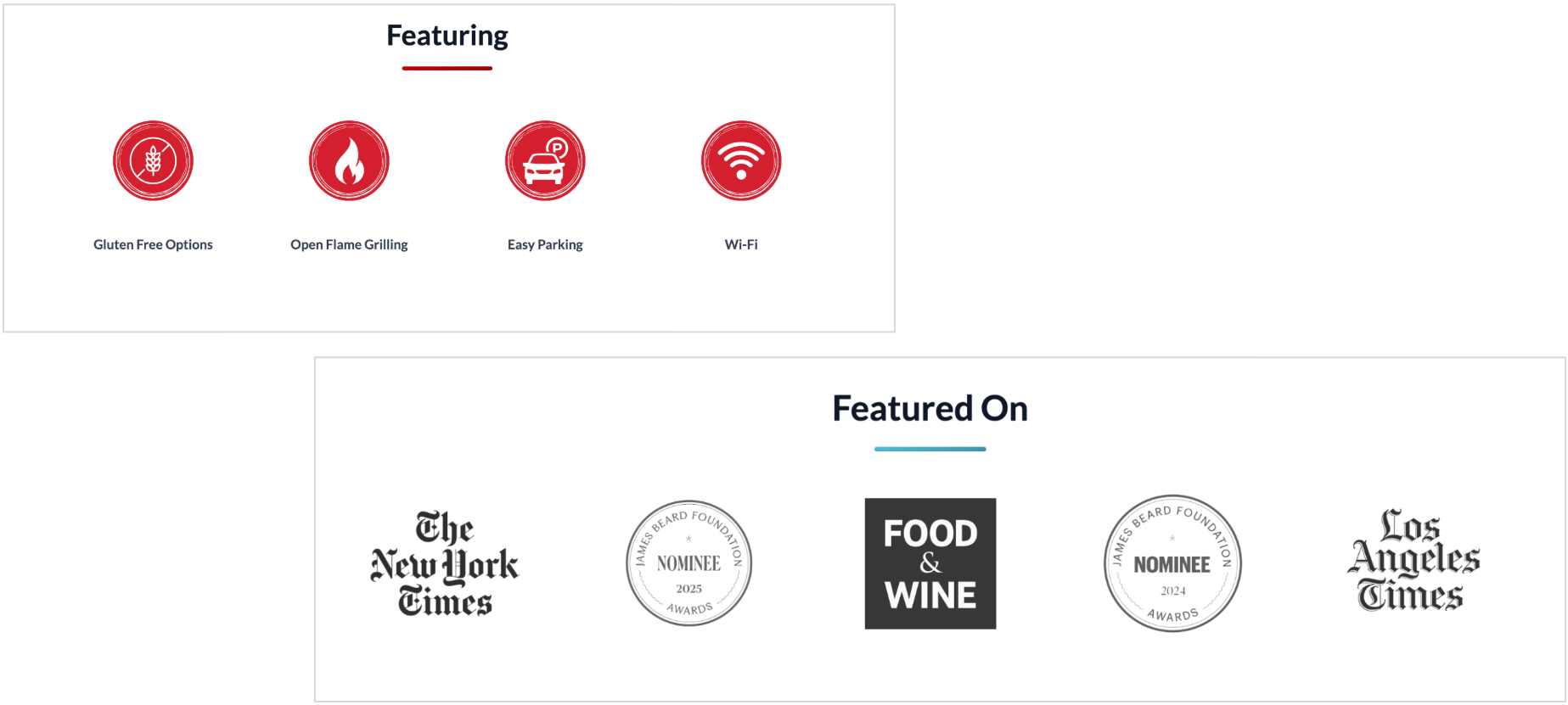
Effective Ways to Use This Section:
- Highlight amenities (parking, Wi-Fi, outdoor seating)
- Feature menu attributes (gluten-free, vegan, spicy, etc.)
- Communicate value propositions (fresh ingredients, made in-house)
- Display press mentions, awards, or recognitions
Store Locations Carousel (For Multi-Store Brands)
A visual display of multiple restaurant locations, helping customers easily identify and select the most convenient store.
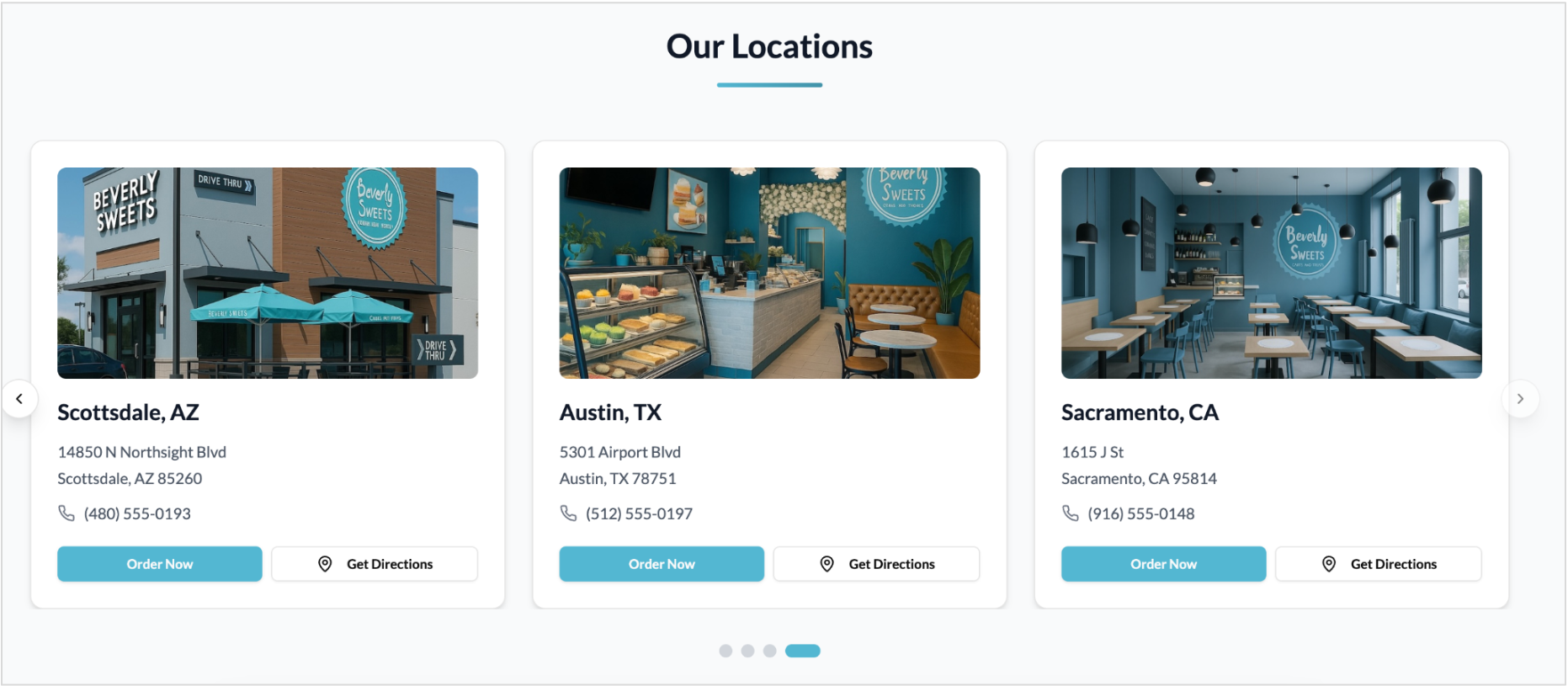
Effective Ways to Use This Section:
- Help customers quickly choose the correct location
- Promote new or upcoming store openings
- Highlight unique features at specific locations
- Make multi-store browsing easier and more visually appealing
Multi-Store Location List Page
A combined map and store list that helps customers choose the correct location before viewing the menu or placing an order.
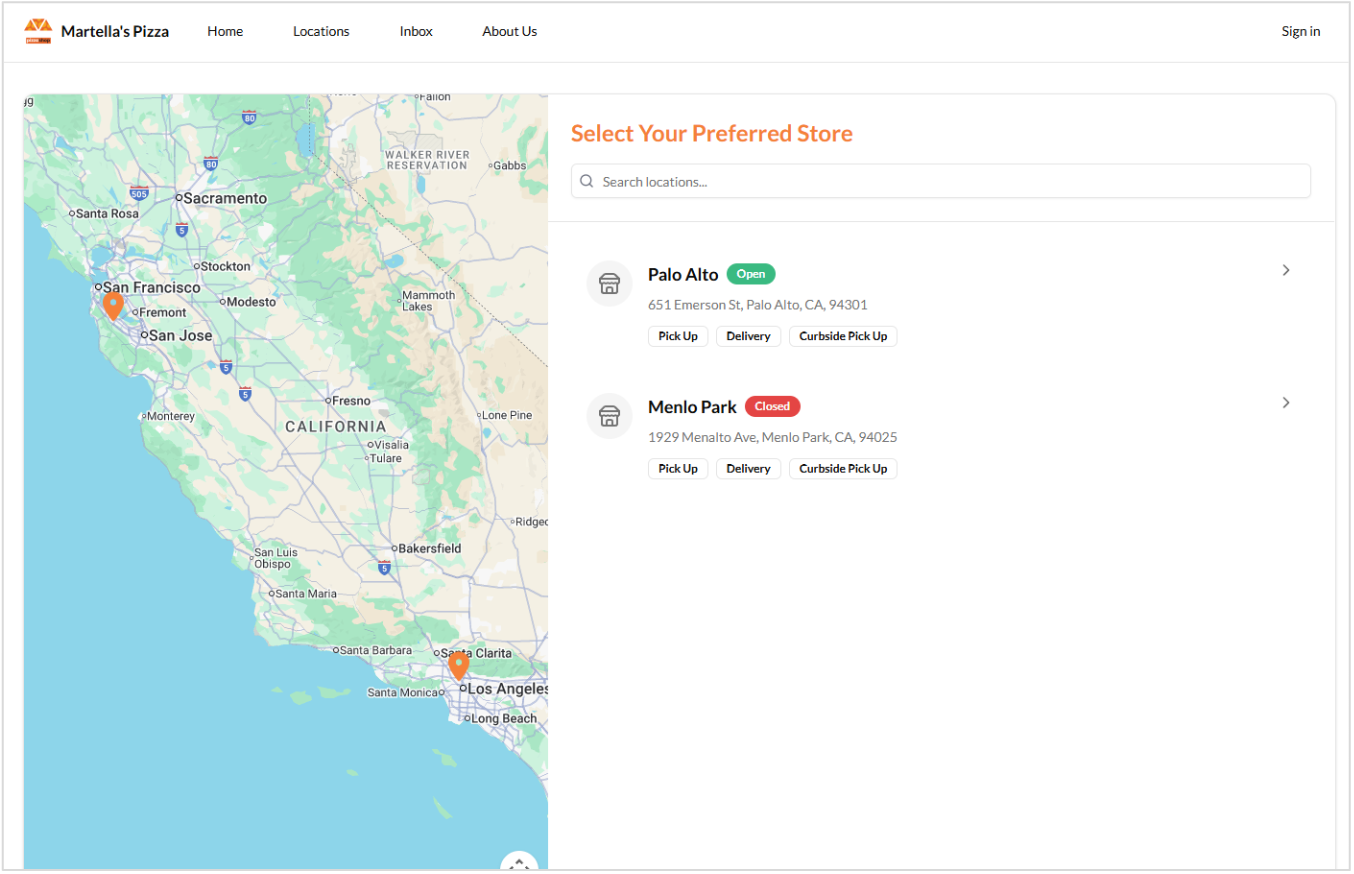
Effective Ways to Use This Section:
- Help customers choose the nearest or correct store
- Highlight which locations offer delivery, pickup, or curbside
- Support chains with distinct menus or service types
- Promote newly added locations
FAQ Section (Customer Support & Clarification)
An expandable list of common customer questions designed to provide quick answers and reduce support inquiries.
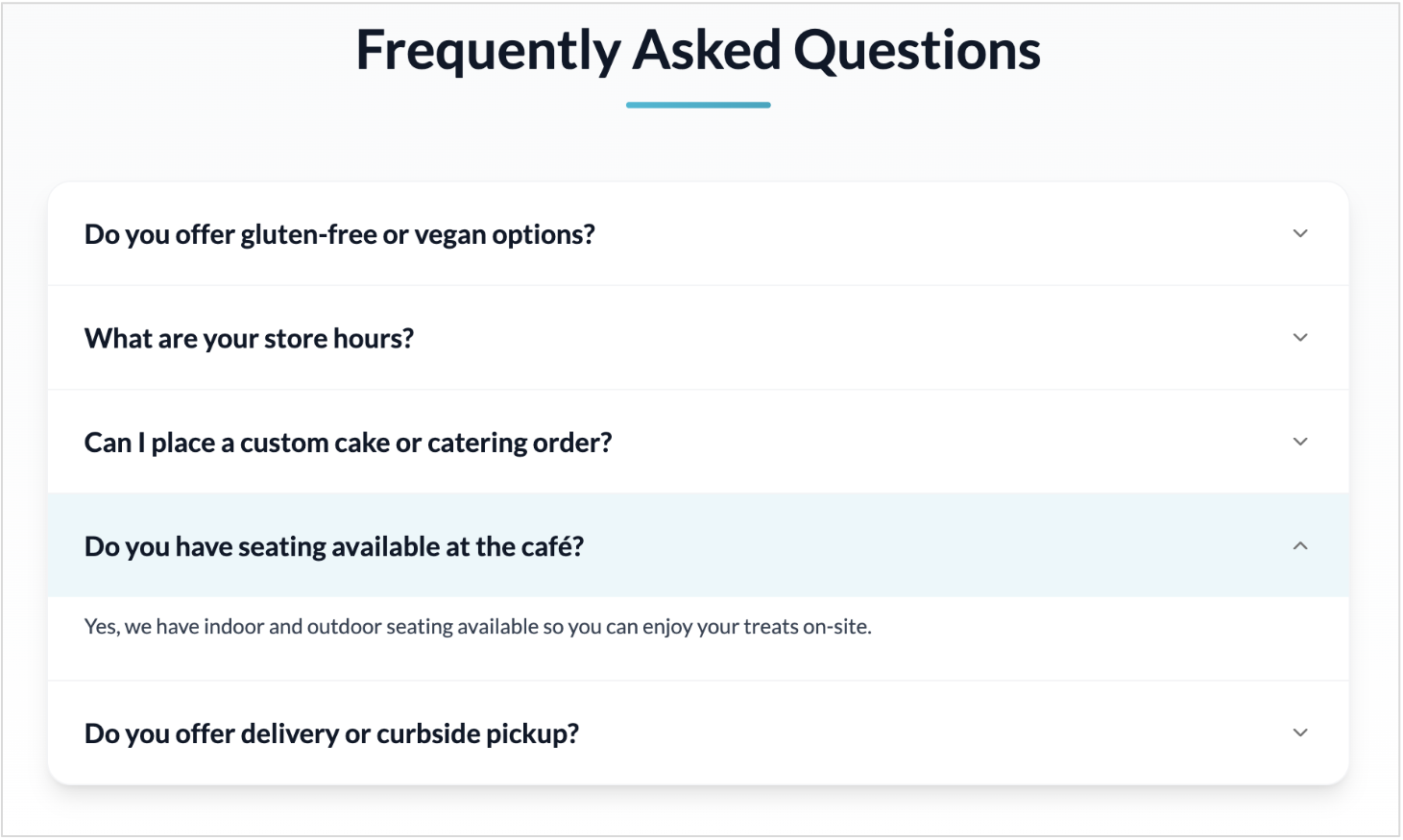
Effective Ways to Use This Section:
- Answer common customer questions ahead of time
- Reduce call volume about hours, delivery areas, or order issues
- Clarify rewards, payment methods, or pickup instructions
- Improve customer confidence and decrease friction
Footer Section
The footer displays essential business information and helpful links, serving as a professional and consistent closing section of the Webstore.
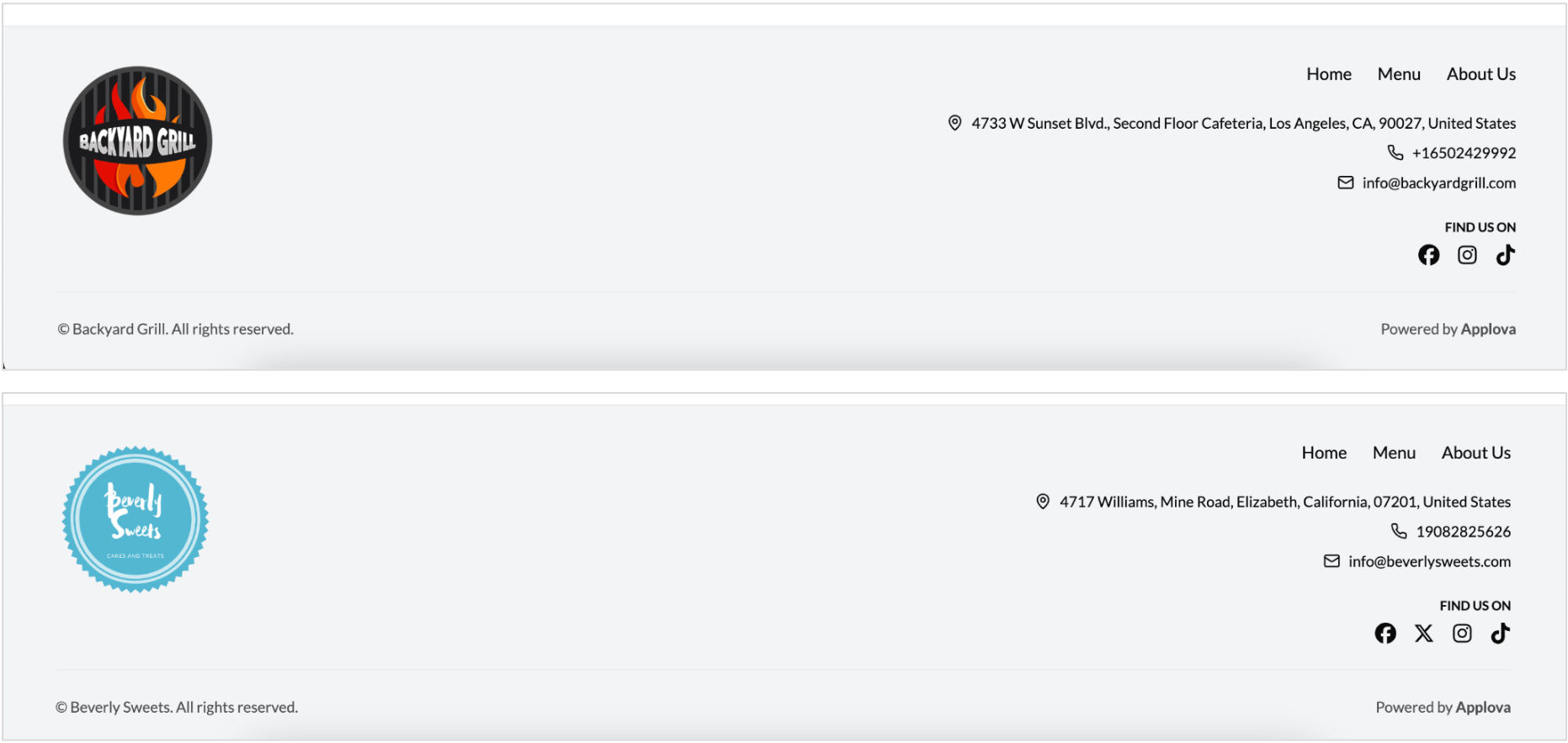
Effective Ways to Use This Section:
- Provide easy access to contact info and support
- Reinforce the brand with logo and social media links
- Link to policies such as refunds, privacy, or terms
- Improve SEO with consistent business details
Related Articles
Age Confirmation Banner on Webstore V3
This feature was introduced to ensure that only users who meet the required age (e.g., 21 or older) can access and interact with the Webstore. It does this by displaying an age confirmation banner as soon as the site is opened and requiring users to ...How to Change the Ordering Location from the Menu Page on Webstore V3
This feature improves location visibility by displaying the active ordering location directly on the Menu Page Banner on Webstore V3. The banner shows "Ordering From" followed by the selected store address, allowing customers to confirm the current ...Displaying Add-On Groups on Webstore V3
Add-on groups are now supported on the Webstore V3, providing a structured way to present available add-ons and allowing customers to easily review and select the options that best fit their needs. With Image and quantity selector support for product ...How to use Guest Checkout on Webstore V3?
This feature allows customers to place orders quickly without signing in or creating an account, improving checkout speed and convenience. Step 1 Log in to the Webstore and add your desired products to the cart. Step 2 After clicking on the cart, a ...Search Products via Webstore
This allows to search a product typing a product name on the search bar in the taskbar instead of browsing through all the products. Step 1 Go to "Webstore". Step 2 Click on the "Search" button on the top right corner of the taskbar. Image Link Step ...