Redeeming Item Based Rewards on Webstore
This feature allows registered customers to log in to Webstore and redeem eligible menu items using their earned reward points. Customers can view their available points in the "Rewards" tab, select qualifying reward options, and apply them during checkout. This ensures a smooth and transparent redemption experience while encouraging continued engagement through the loyalty program.
How to Redeem Rewards from the Menu Tab?
Step 1
Log in to the Webstore using a registered account.
Step 2
Click on the "Menu" tab and the redeemable rewards will be displayed.
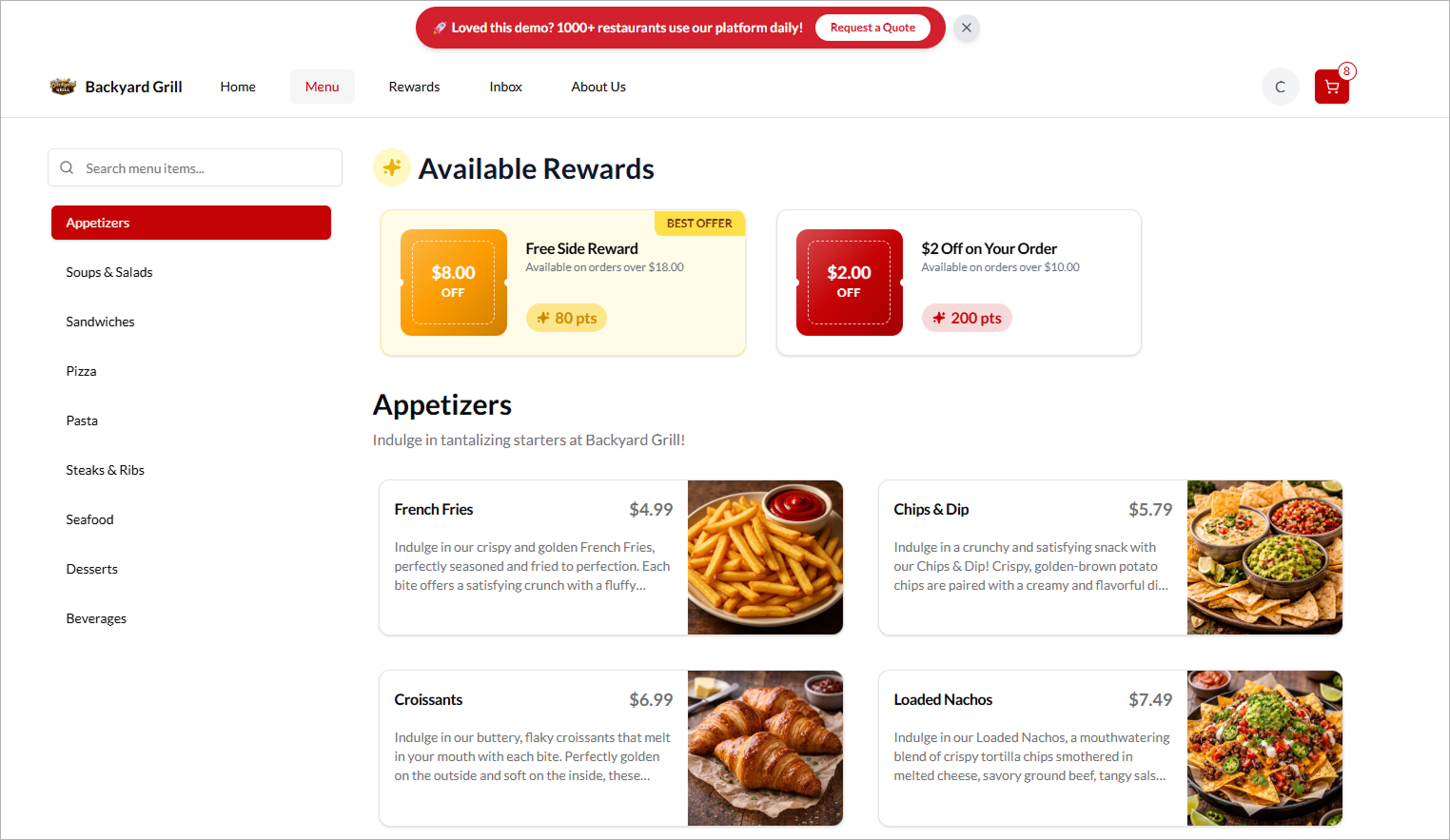
Step 3
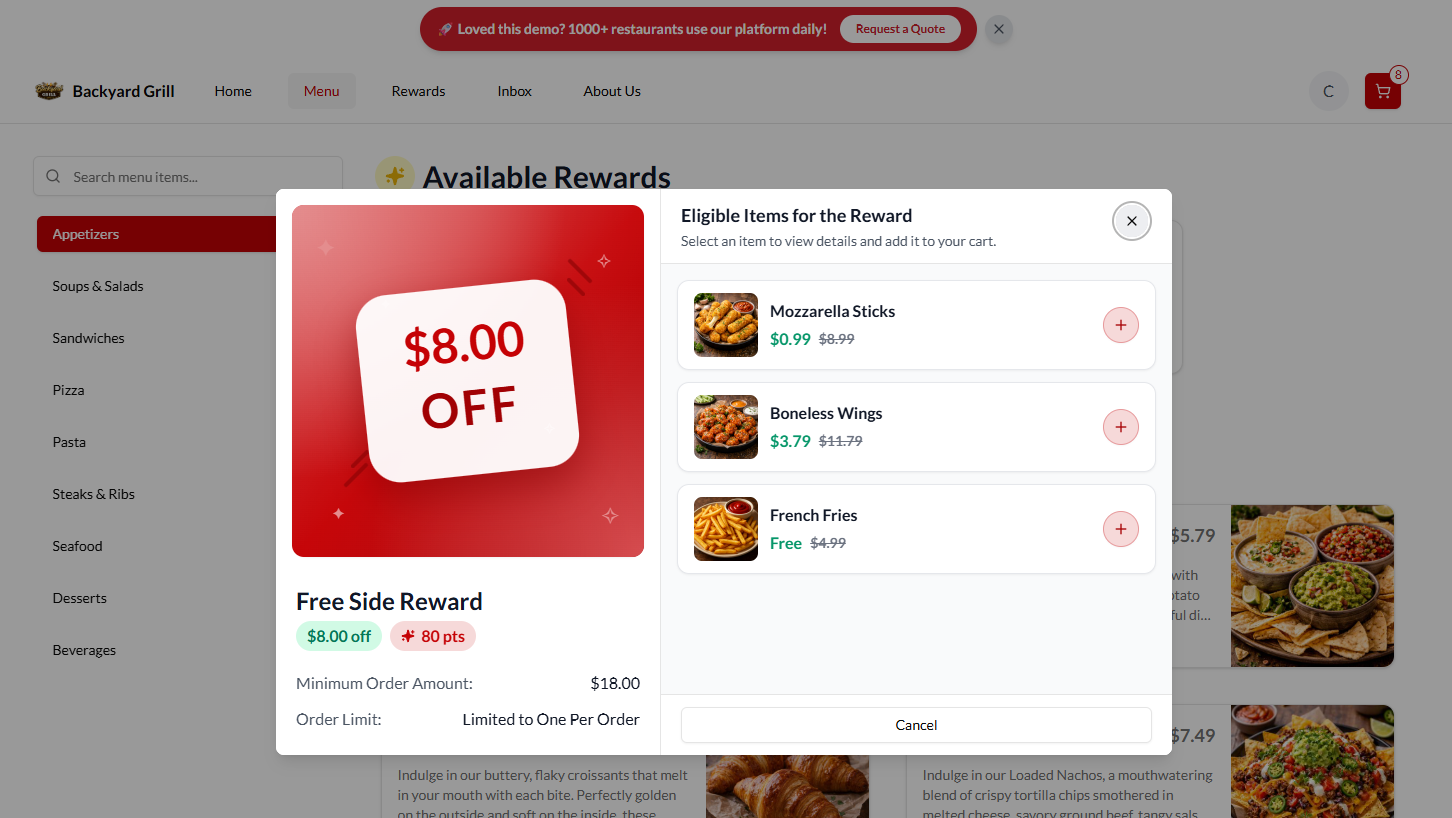
Select a preferred reward option and choose an eligible item from the pop-up list.
How to Redeem Rewards from the Rewards Tab?
Step 1
Log in to the Webstore using a registered account.
Step 2
Click on the "Rewards" tab to view your points balance and available rewards.
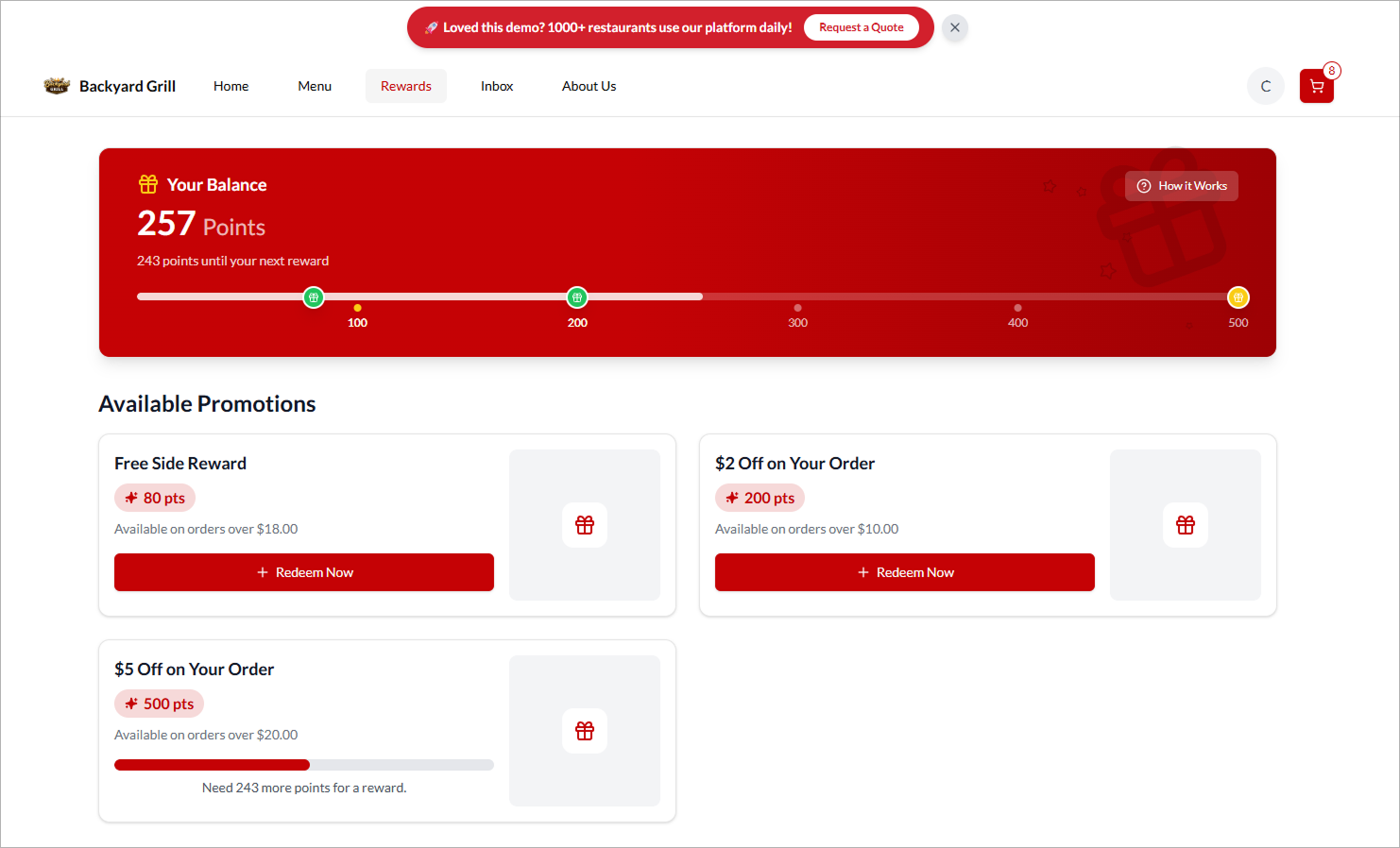
Step 3
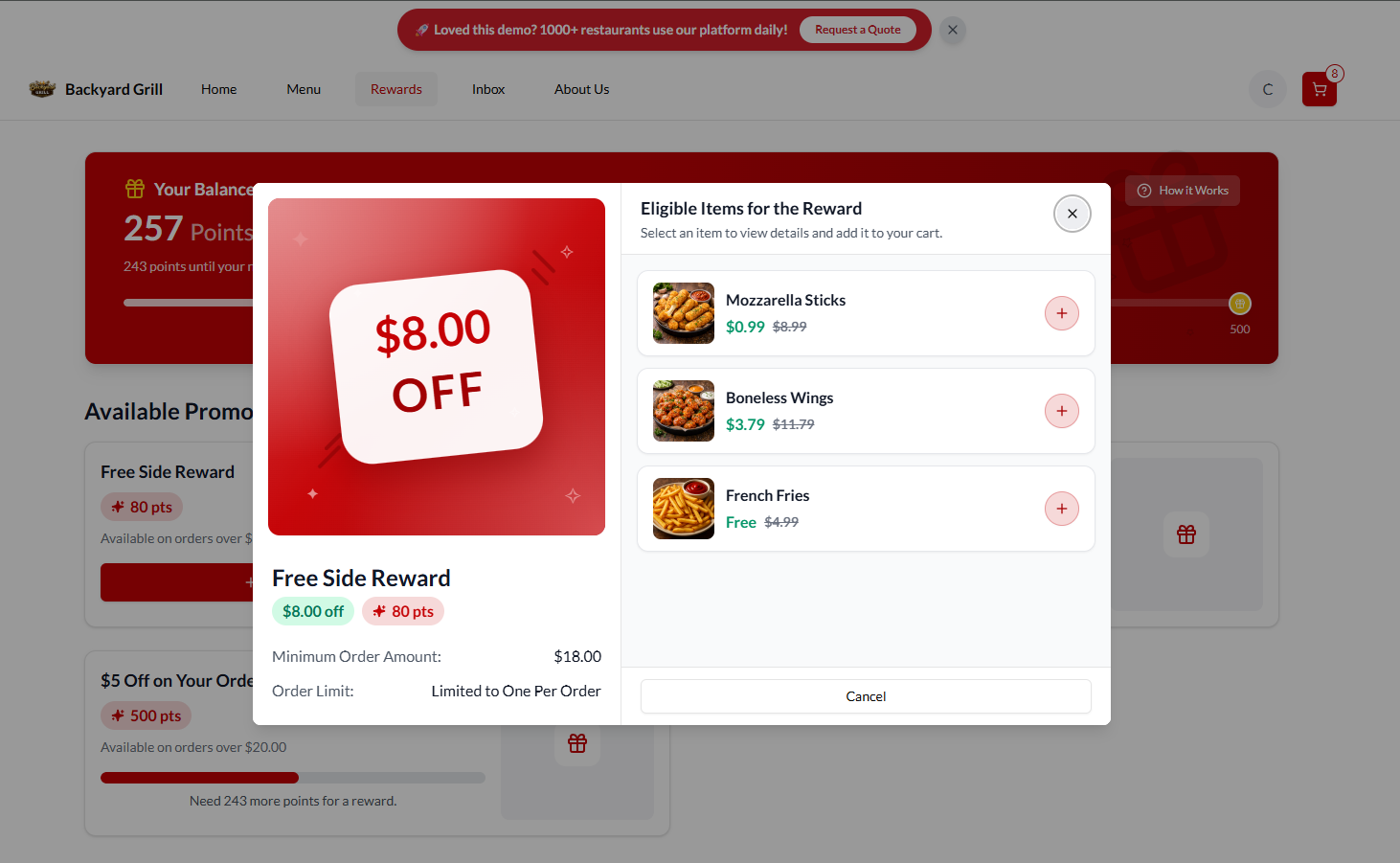
Select an available reward option and choose an eligible item from the pop-up list.
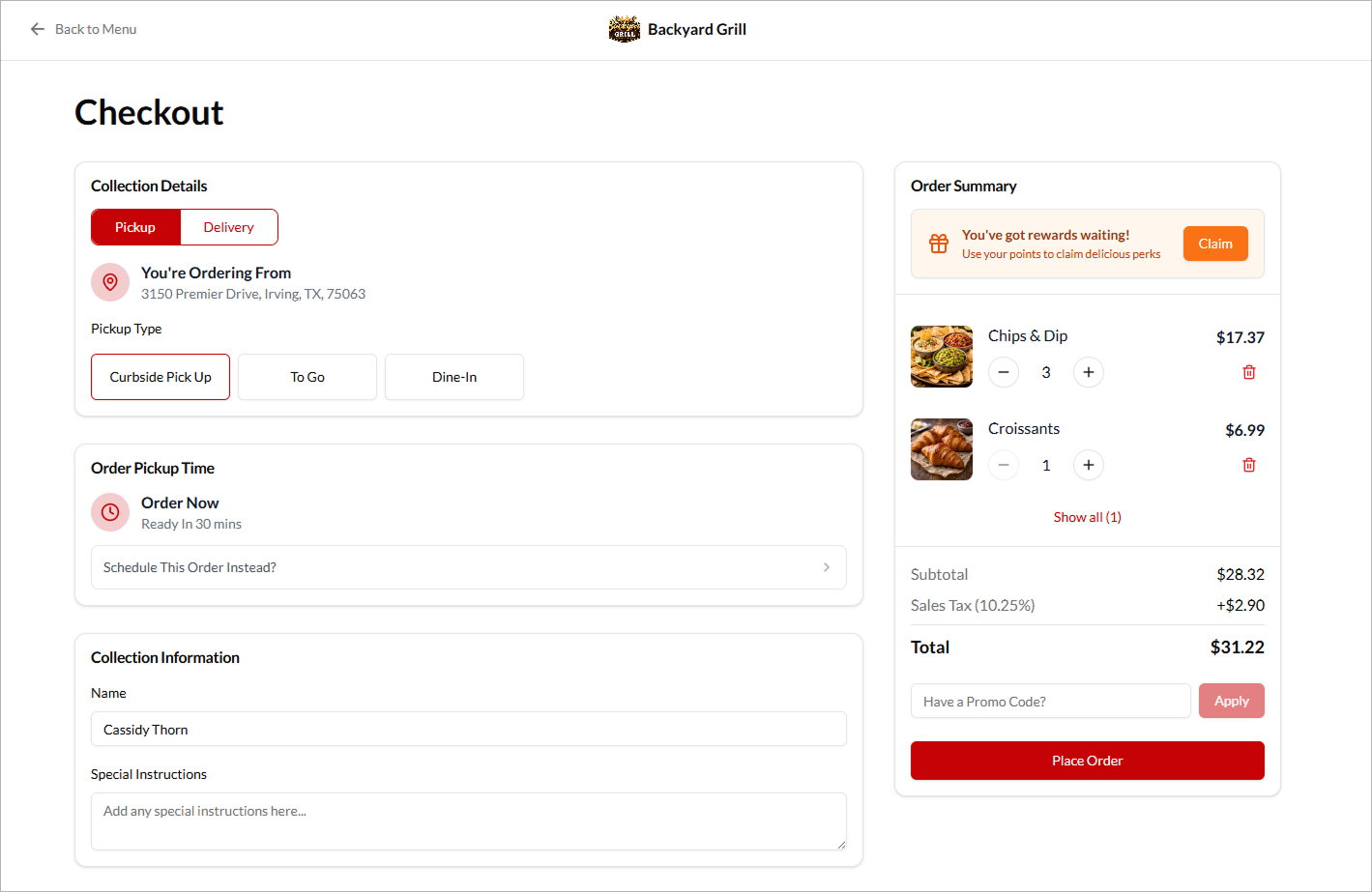
How to Redeem Rewards from Checkout?
Step 1
At checkout, click "Claim" in the rewards banner.
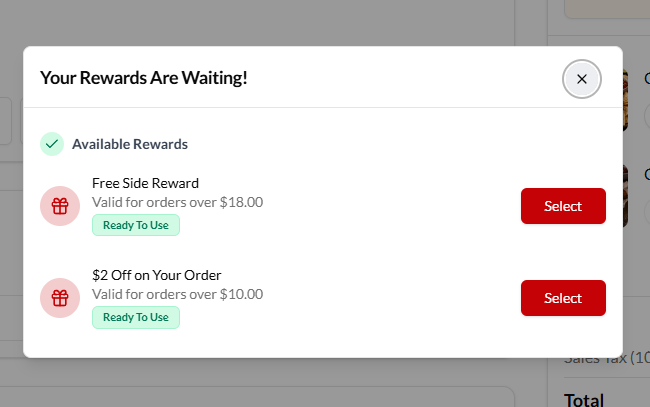
Step 2
Click "View Rewards" in the pop-up.
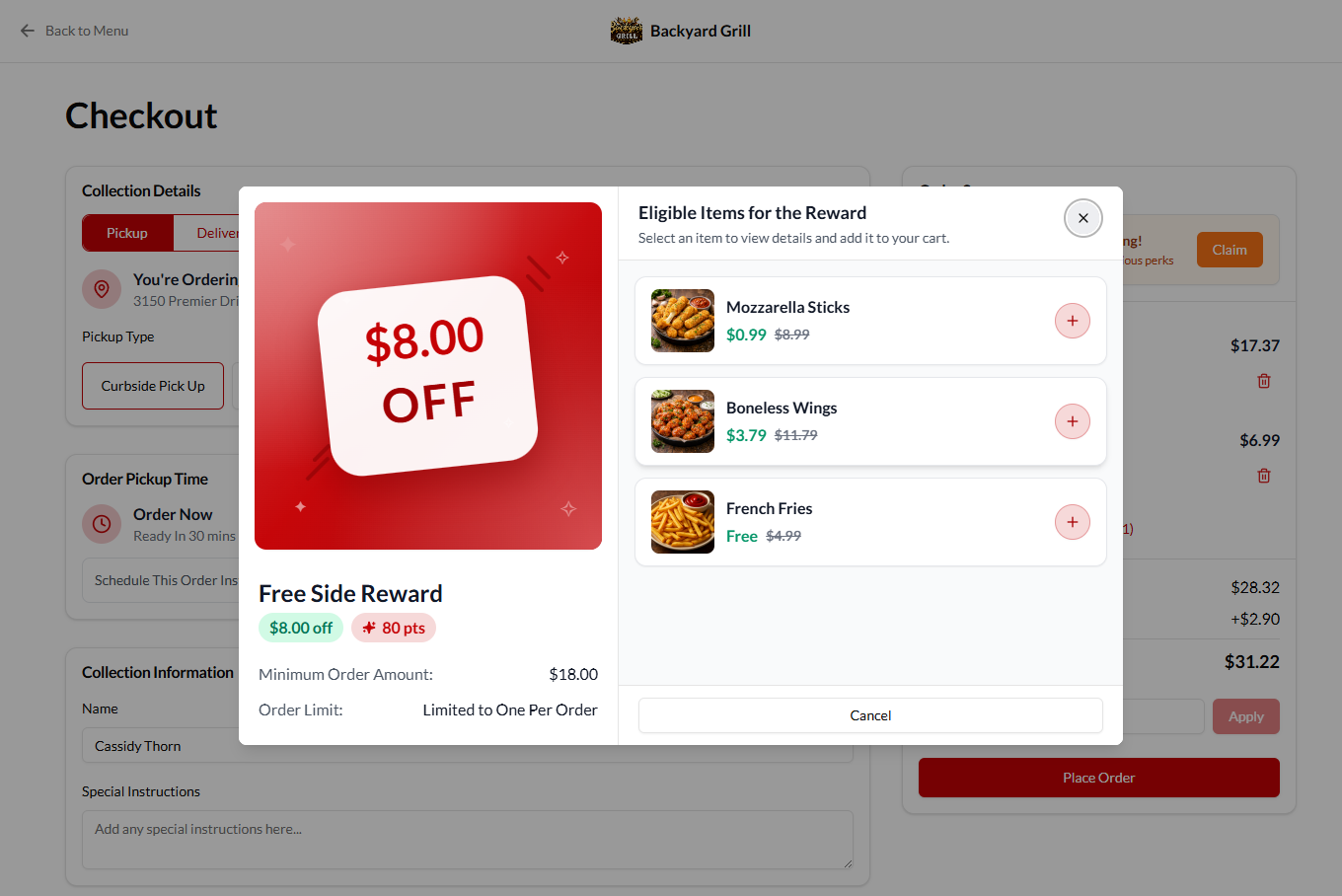
Step 3
Select an eligible reward and and choose an eligible item from the pop-up list.
Related Articles
Redeeming Item-Based Rewards on the Kiosk
Supported Domains: Square Kiosk This feature allows registered customers to log in at the self-service kiosk and redeem menu items using their earned reward points. Customers can view their available points, select eligible rewards, and redeem them ...Redeeming Item Based Rewards on the Order Ahead App
This feature allows registered customers to redeem eligible menu items using the reward points they have earned through previous purchases. Customers can view their available points, browse eligible rewards, and redeem them directly within the Order ...Redeeming Rewards on Applova POS
This allows the customers to redeem the points they earned with previous purchases against their current purchase. Prerequisite : Rewards have to be configured on the backend. Step 1 Then go to Applova POS Register, click the "⋮" icon and select “Add ...How to Manage Applova Rewards on Merchant Web Portal?
This feature is available by default Customers are enrolled in Applova Rewards by default, even if the Rewards program is not currently enabled. This ensures merchants already have an enrolled customer base when they decide to enable Rewards or ...Accumulating Rewards on Applova POS
Supported Domains : Standalone Supported From : Applova POS (1.55.0.RELEASE) Please request the Applova Support team to enable accumulating rewards feature for your business. This allows the customers to be enrolled and start earning Applova rewards ...