Redeeming Item Based Rewards on the Order Ahead App
This feature allows registered customers to redeem eligible menu items using the reward points they have earned through previous purchases. Customers can view their available points, browse eligible rewards, and redeem them directly within the Order Ahead mobile app.
This process provides a smooth and convenient way for customers to enjoy loyalty rewards while placing orders from their mobile devices.
How to Redeem Item Based Rewards on the Order Ahead App?
Step 1
Log in to the Order Ahead mobile app using a registered customer account.
Step 2
Tap on
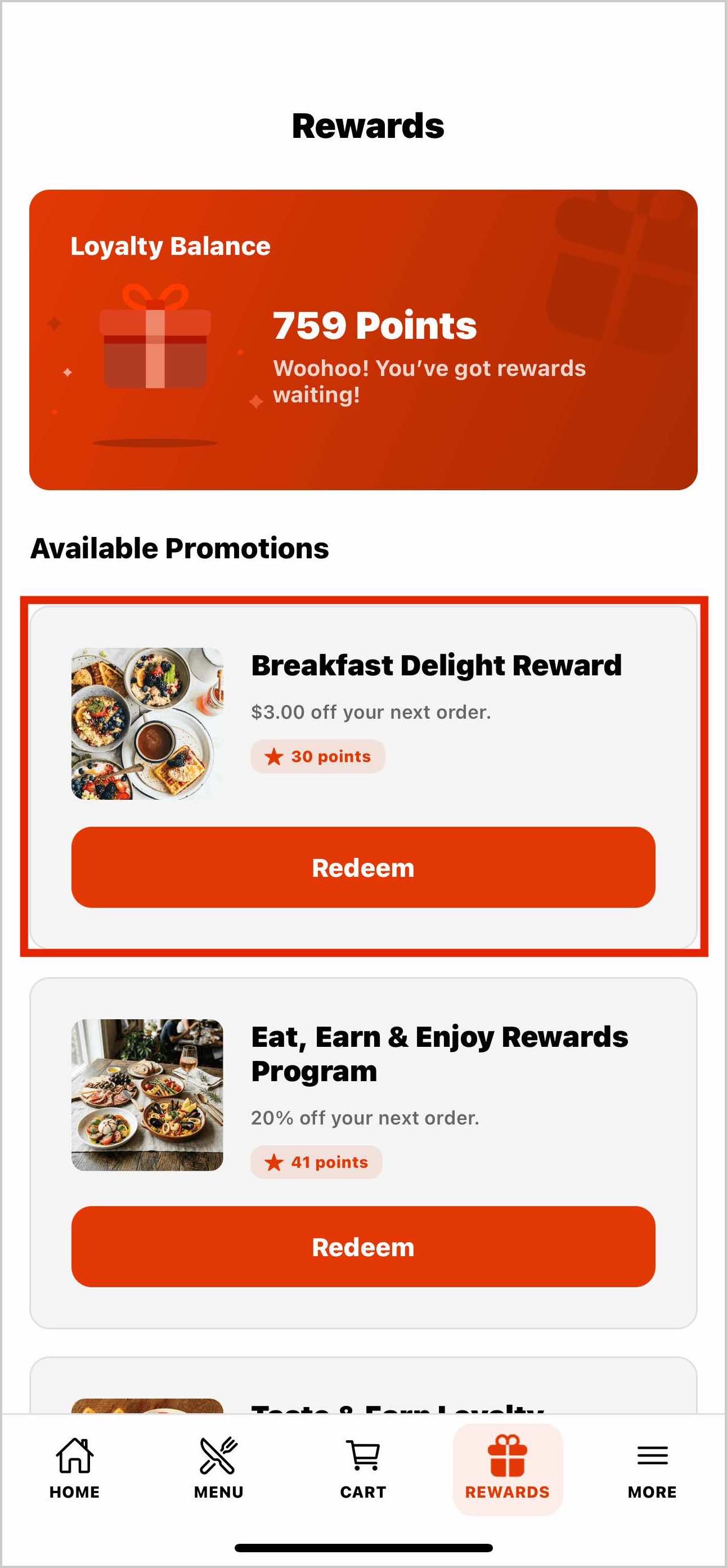
"Rewards" from the bottom navigation bar.
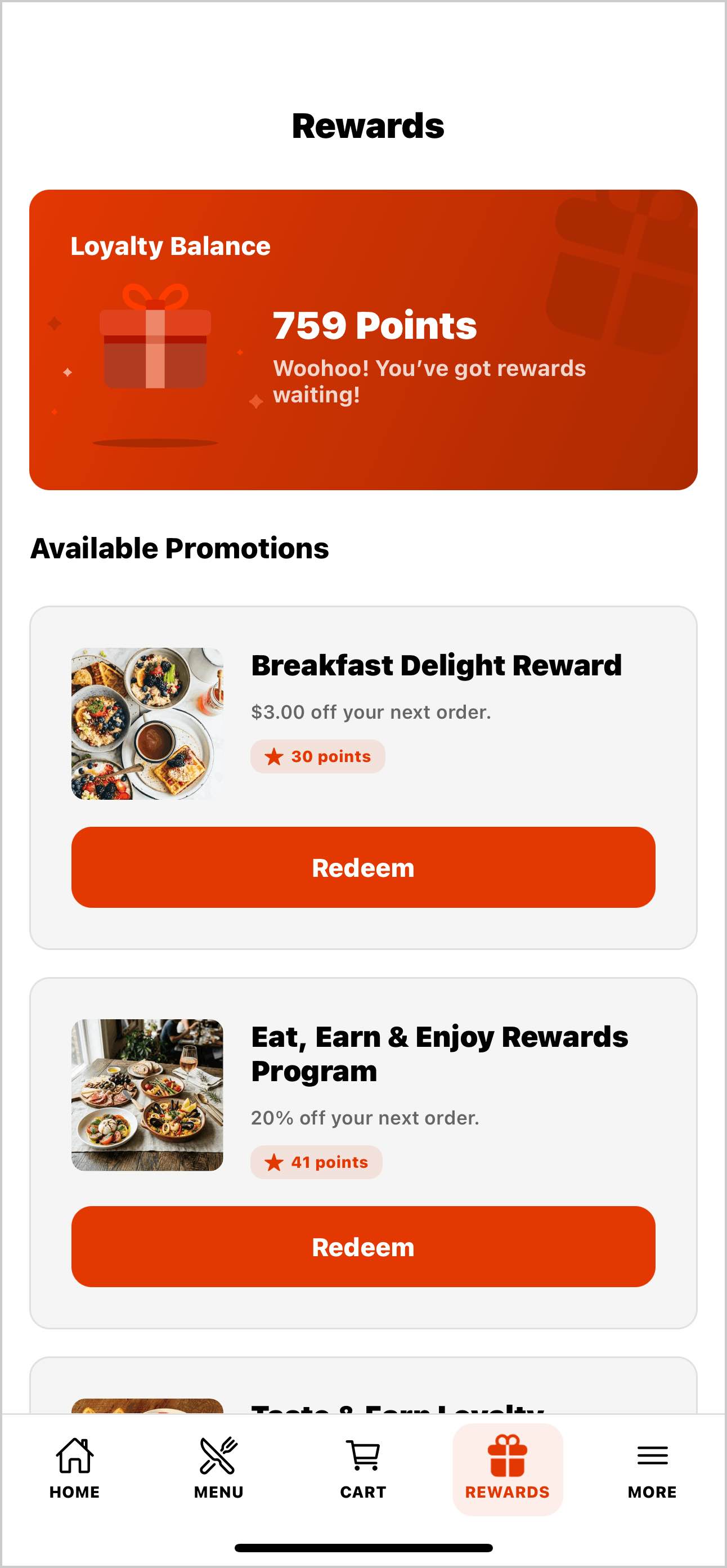 Image Link
Step 3
Browse the list of available rewards.
Step 4
Tap "Redeem Now" on an item-based reward.
 Alert:
If the customer does not have enough points to redeem a reward:
The reward card displays “You are just X points away!” indicating the additional points required.
The “Order More, Save $X” button appears in a disabled state until enough points are earned.
Step 5
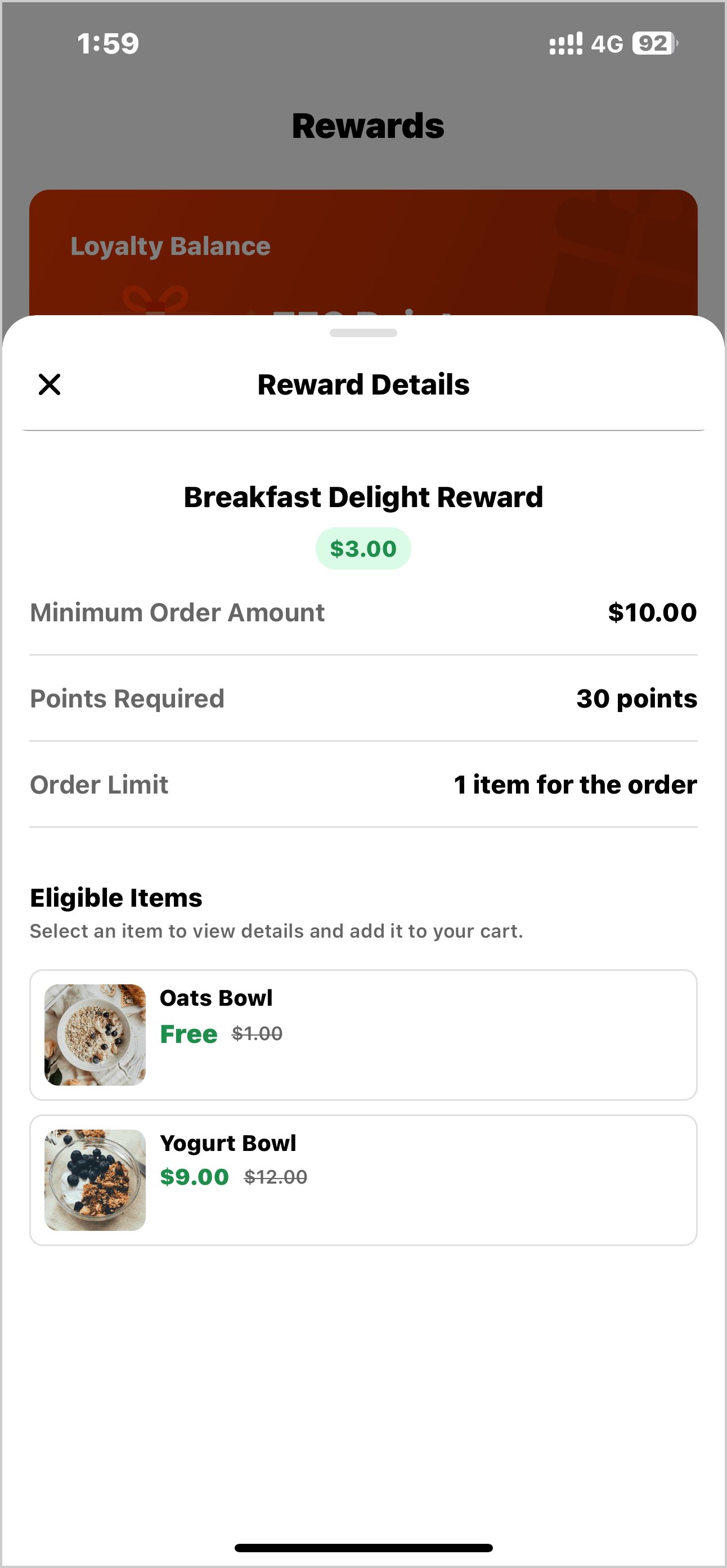
Select an eligible menu item from the list.
Step 6
Select required addons and click on "
Add to Order"
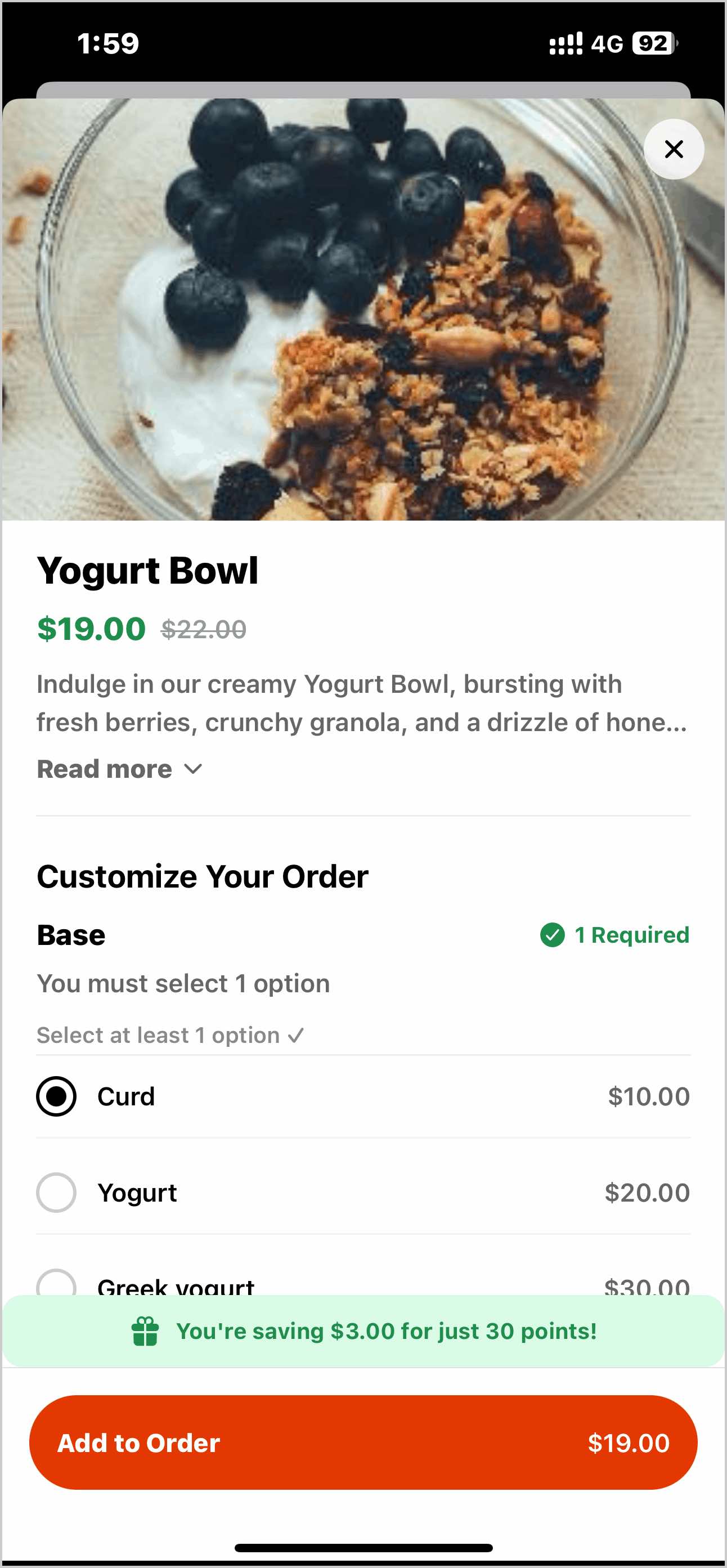

Note the following add-on rules:
Priced Add-Ons: Preselected and cannot be modified.
Free Add-Ons: Customers can add or remove these options.
Default Add-Ons: Automatically included but can be deselected.
Step 7
Click on "
Proceed to Checkout" to redeem the reward.
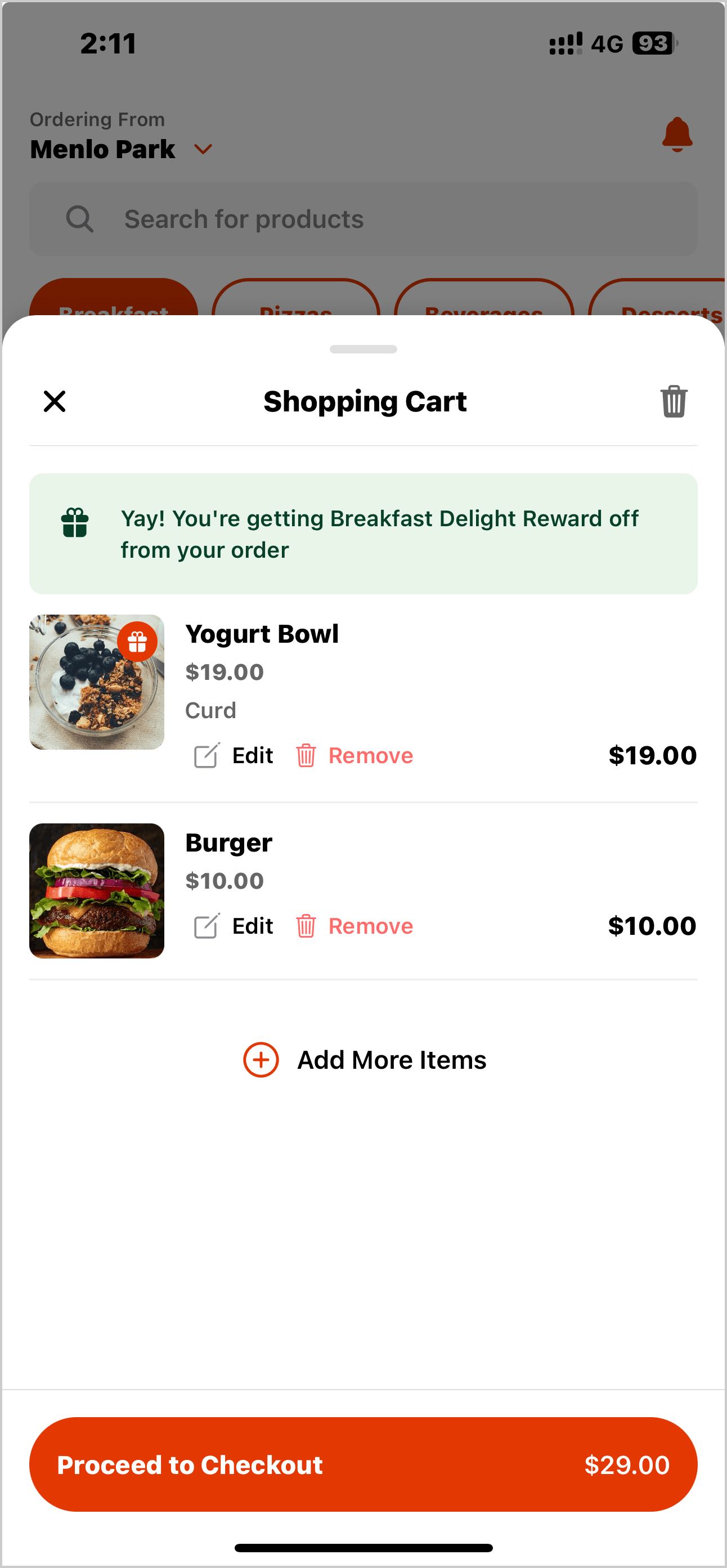 Image Link
 Important: Some item-based rewards require a minimum order value to be eligible.
The cart subtotal must meet the minimum order amount configured for the reward.
In this example, the reward requires a minimum order value of $10.
Once the minimum order value is met, the reward item (e.g., the Yogurt Bowl) is redeemable and the user can proceed to checkout.
 Tip:
Tip:Customers can also redeem rewards during checkout. If a customer adds items to the cart and navigates to the "Review Your Order" screen, a "Rewards" section will appear if eligible rewards are available.
From this section, customers can tap "Redeem Reward" to view and redeem any applicable rewards, including item-based rewards, directly from the checkout flow.
Related Articles
Redeeming Item-Based Rewards on the Kiosk
Supported Domains: Square Kiosk This feature allows registered customers to log in at the self-service kiosk and redeem menu items using their earned reward points. Customers can view their available points, select eligible rewards, and redeem them ...
Redeeming Item Based Rewards on Webstore
This feature allows registered customers to log in to Webstore and redeem eligible menu items using their earned reward points. Customers can view their available points in the "Rewards" tab, select qualifying reward options, and apply them during ...
Redeeming Rewards on Applova POS
This allows the customers to redeem the points they earned with previous purchases against their current purchase. Prerequisite : Rewards have to be configured on the backend. Step 1 Then go to Applova POS Register, click the "⋮" icon and select “Add ...
How to Manage Applova Rewards on Merchant Web Portal?
This feature is available by default Customers are enrolled in Applova Rewards by default, even if the Rewards program is not currently enabled. This ensures merchants already have an enrolled customer base when they decide to enable Rewards or ...
Accumulating Rewards on Applova POS
Supported Domains : Standalone Supported From : Applova POS (1.55.0.RELEASE) Please request the Applova Support team to enable accumulating rewards feature for your business. This allows the customers to be enrolled and start earning Applova rewards ...