How to Manage Taxes via Merchant Portal?
This feature allows merchants to create and manage tax rates based on their business requirements. Once created, the applicable tax rates can be assigned to specific products to ensure the correct tax is applied during checkout.
How to Add a Tax Rate?
Step 1
Login to "Applova Merchant Web".
Step 2
Click "Products" once you login.
Step 3
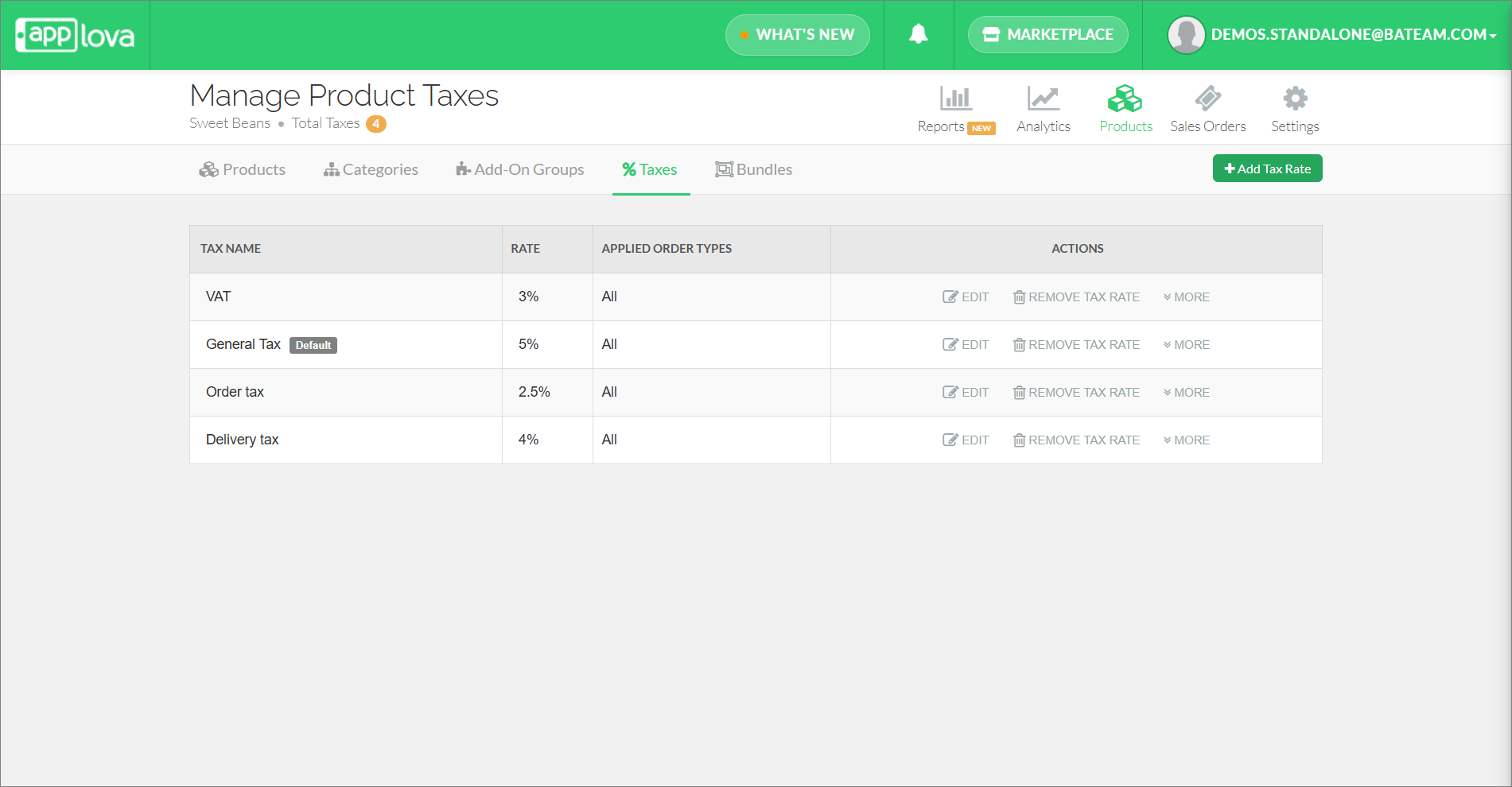
Go to the "Taxes" tab and click on "Add Tax Rate".
Step 4
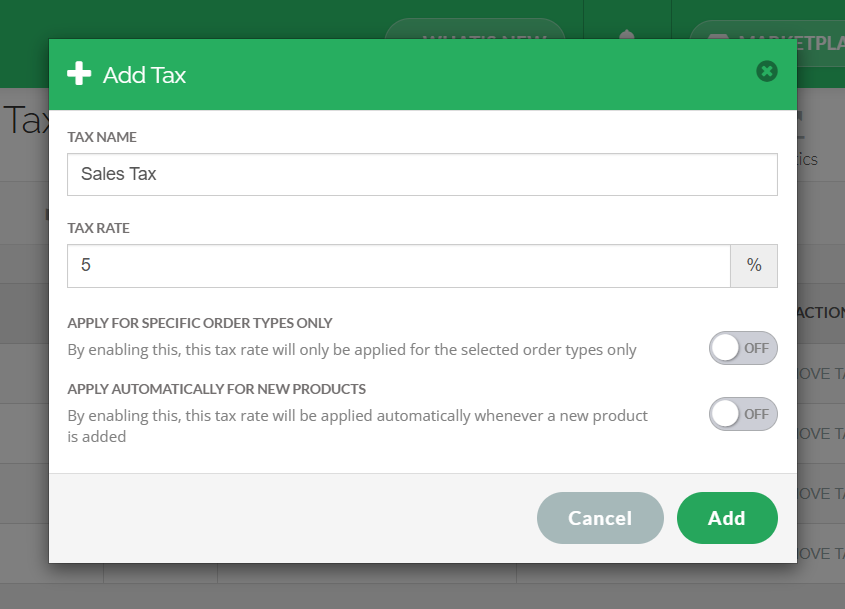
Enter a "Tax Name" and a "Tax Rate".
Step 5
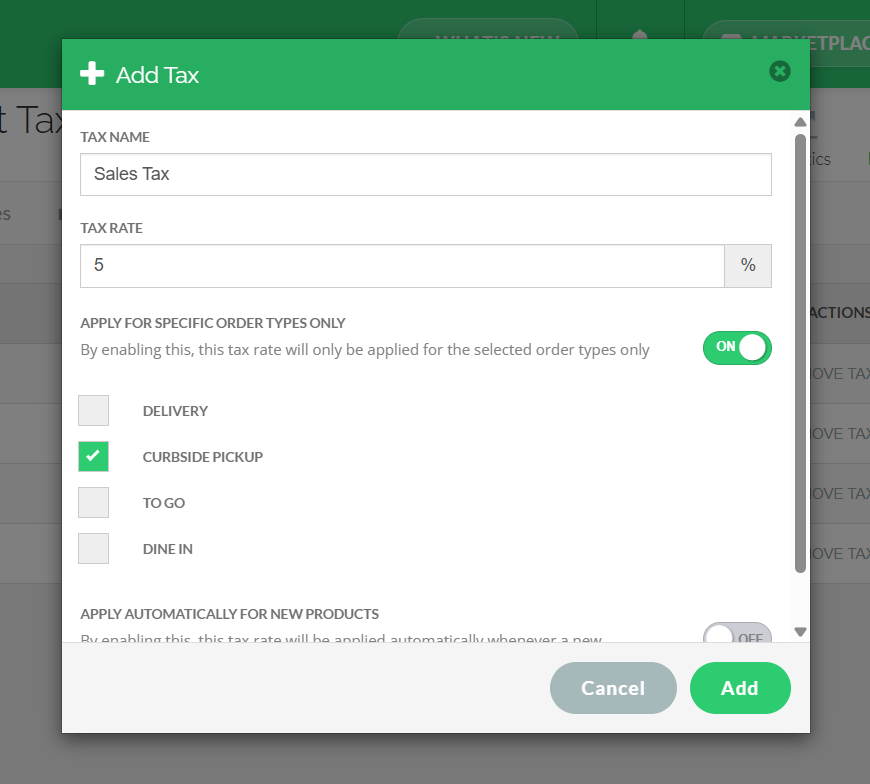
Enable "Apply for specific order types only" toggle, and select the desired order types.

Step 6
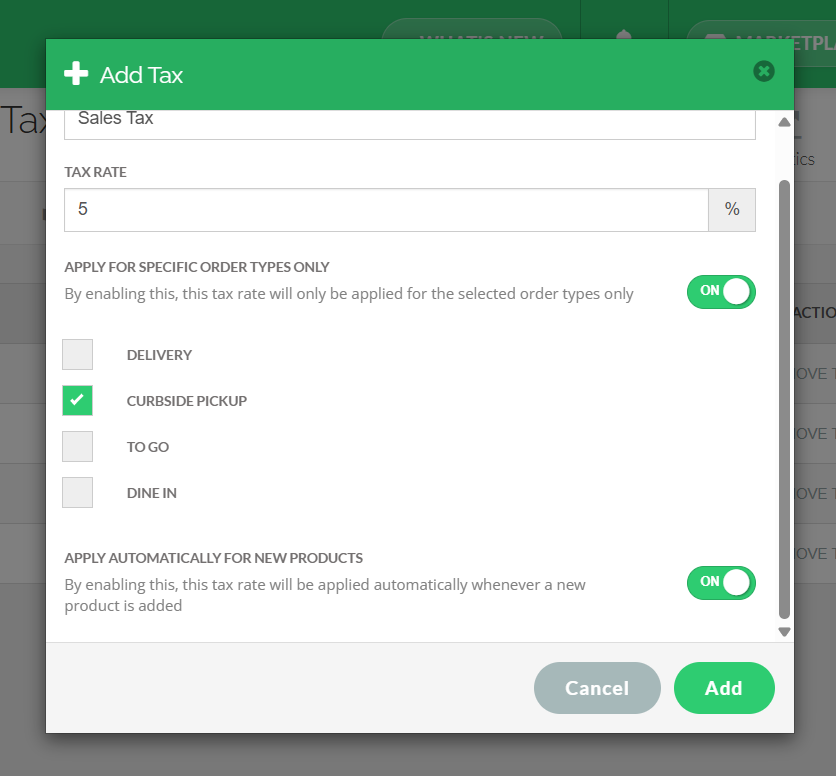
By enabling "Apply automatically for new products" the tax rate will be applied automatically whenever a new product has been added.
How to Edit a Tax Rate?
Step 1
Login to "Applova Merchant Web".
Step 2
Click "Products" once you login.
Step 3
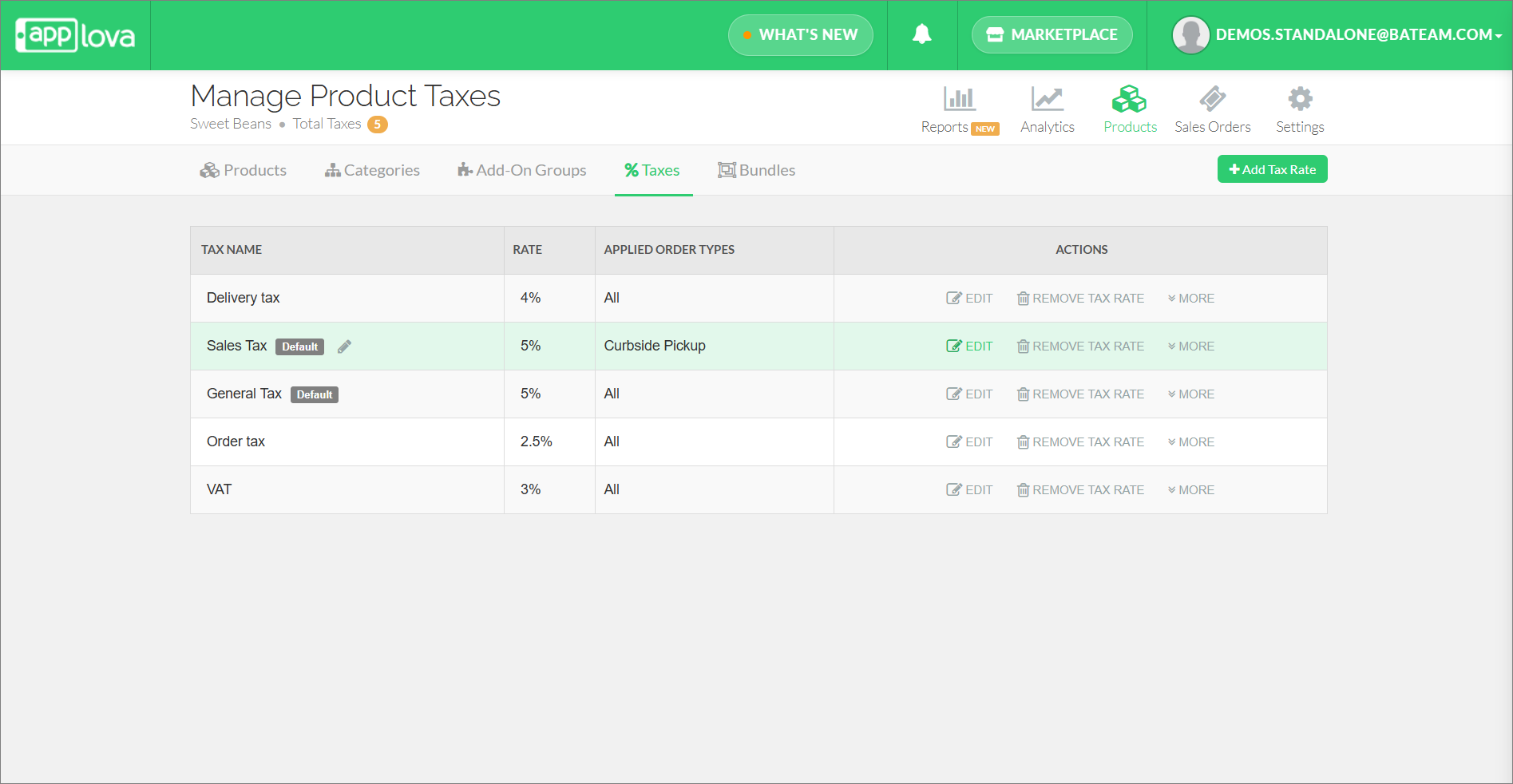
Go to the "Taxes" tab, select a tax to be edited, and click "Edit".
Step 4
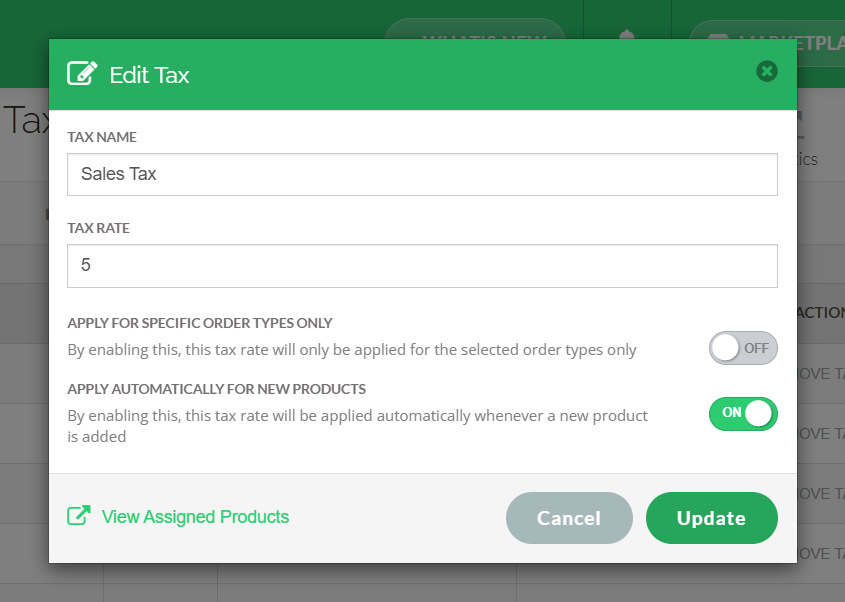
Edit the required fields and click on "Add" to save changes
How to Remove a Tax Rate?
Step 1
Login to "Applova Merchant Web".
Step 2
Click "Products" and go to the "Taxes" tab
Step 3
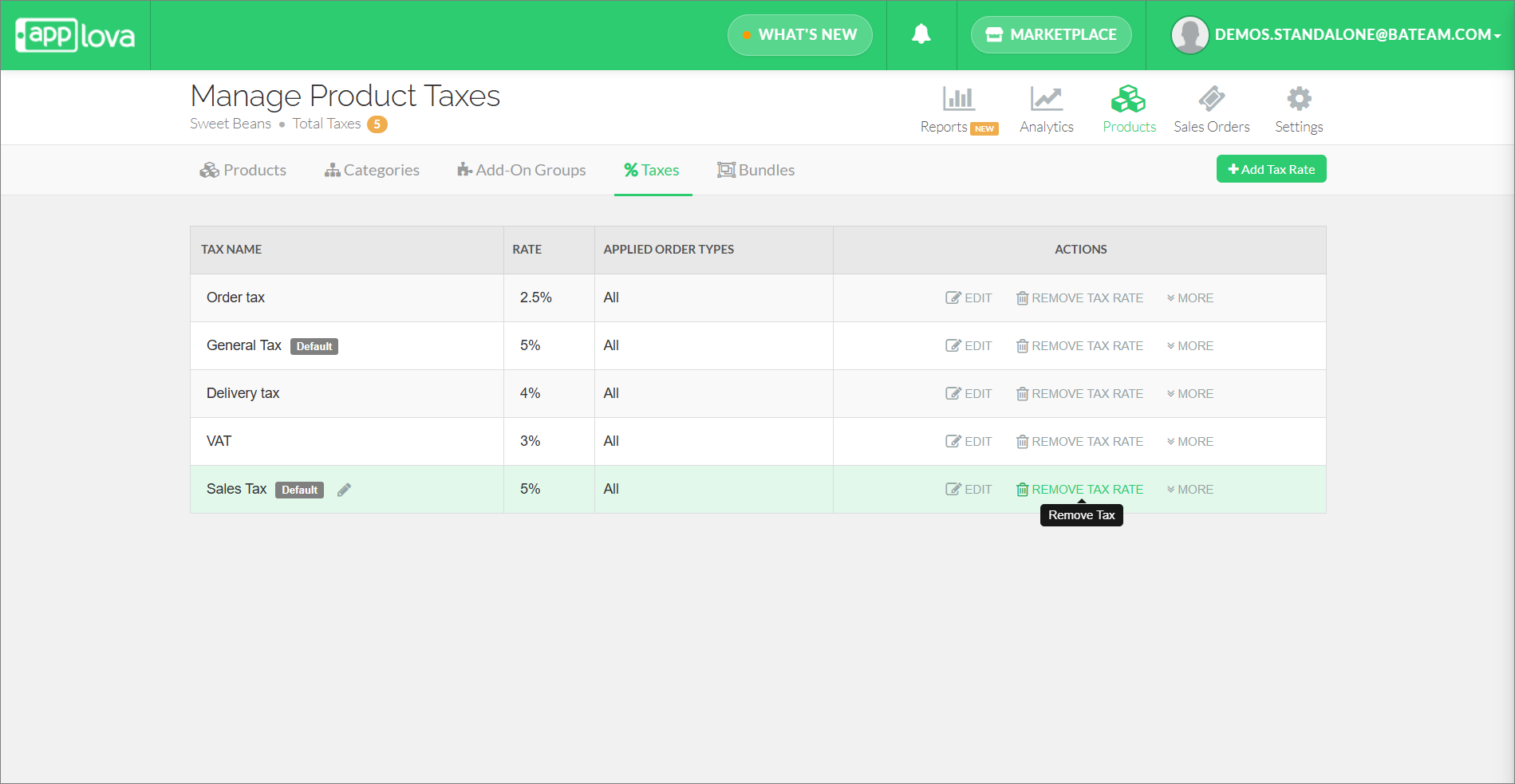
Then click on "Remove Tax Rate" on the Tax you wish to remove.
Step 4
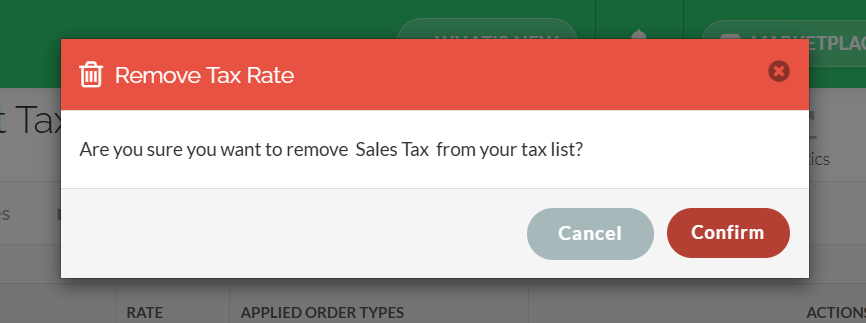
Click "Confirm" to delete the selected tax.
How to Add Multiple Taxes for a Product?
Step 1
Login to "Applova Merchant Web".
Step 2
Click "Products" once you login.
Step 3
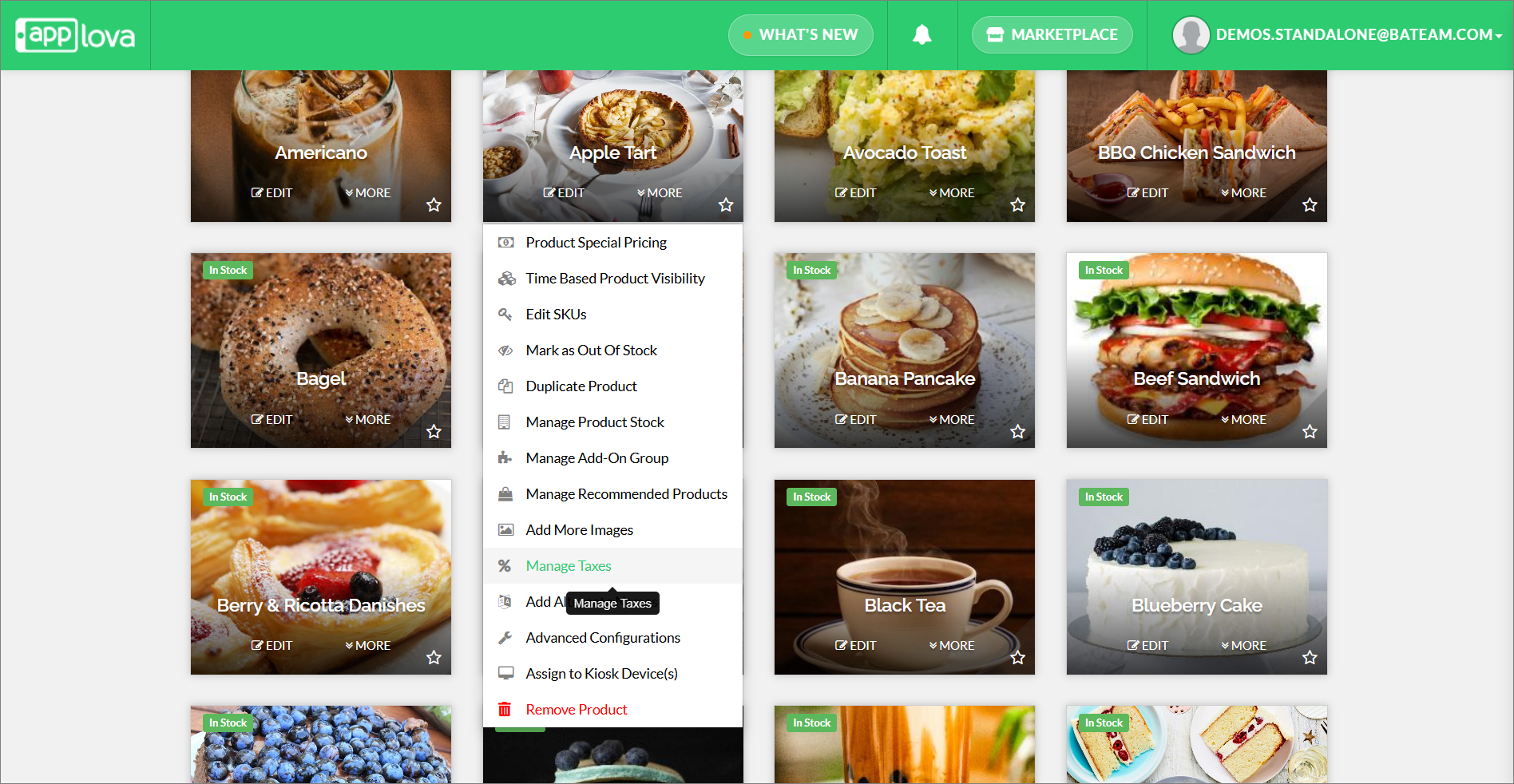
Click "More" on the desired food item and select "Manage Taxes".
Step 4
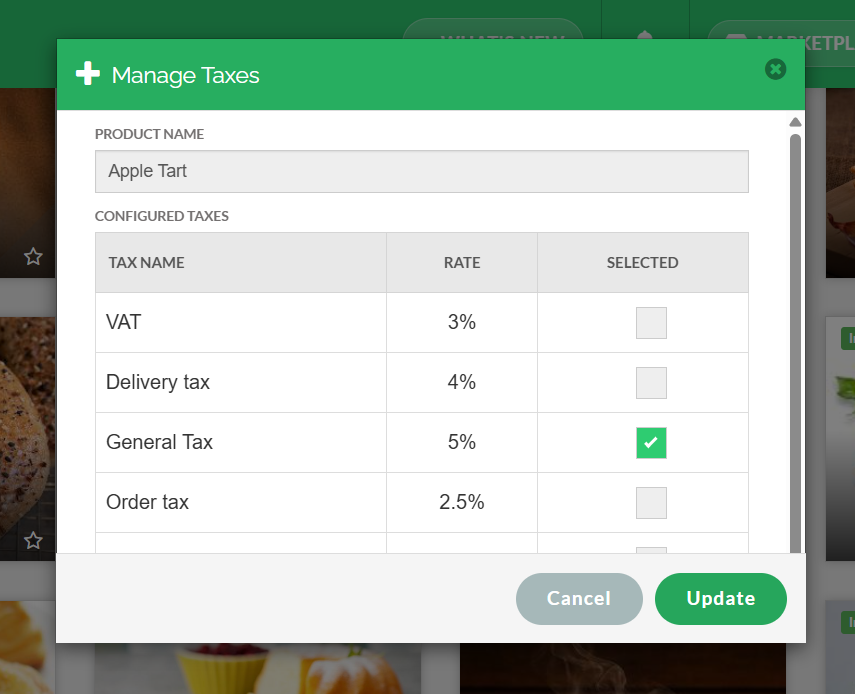
Select one or more tax rates for the selected product and click "Update".
How to Bulk Assign Products to Taxes?
With this feature, merchants can assign taxes to products in bulk.
Step 1
Login to the "Merchant Web Portal" and click on "Products".
Step 2
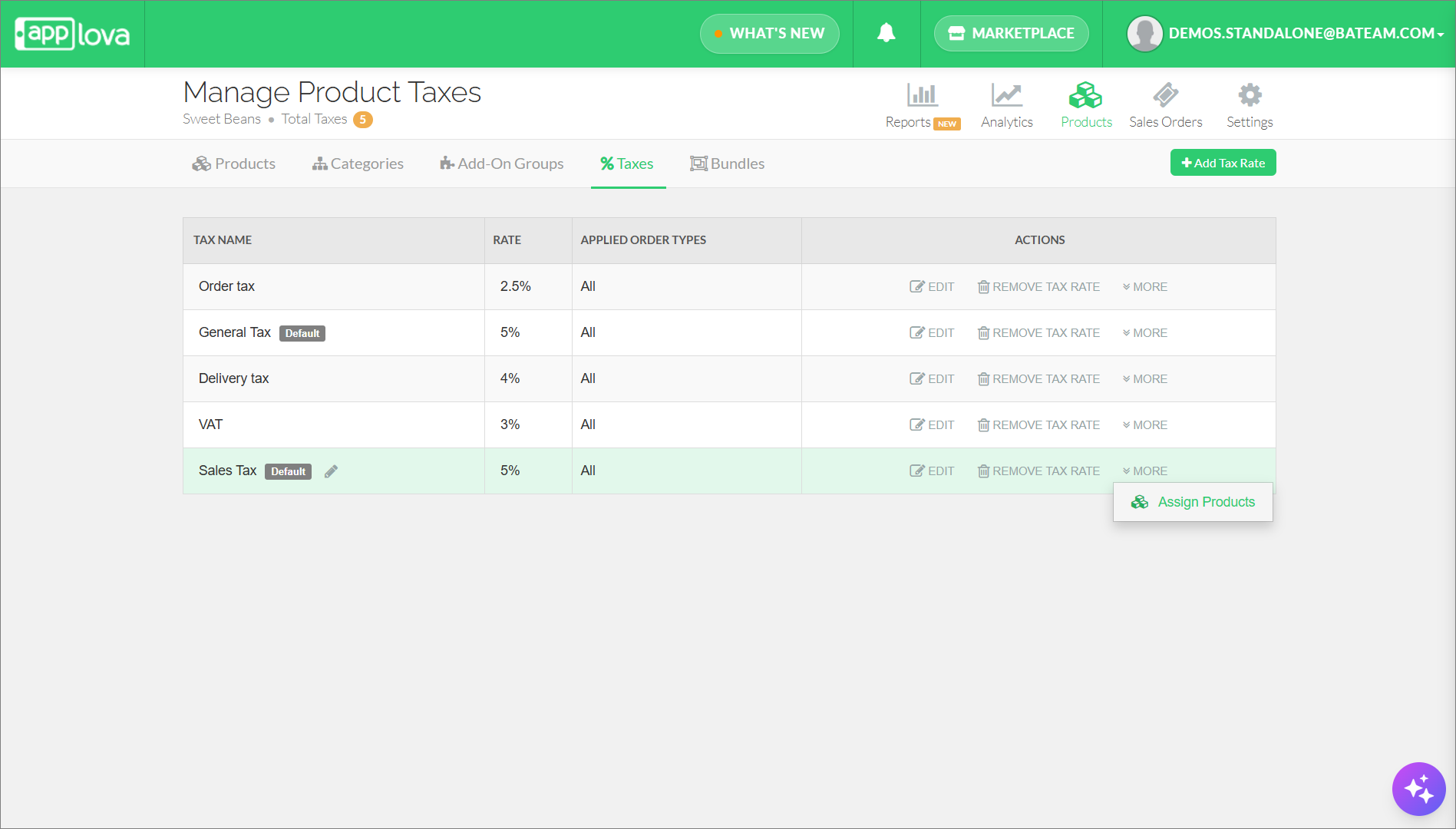
Go to "Taxes" tab and select a tax which needs to be assigned with products in bulk.
Step 3
From the "More" option, select "Assign Products".
Step 4
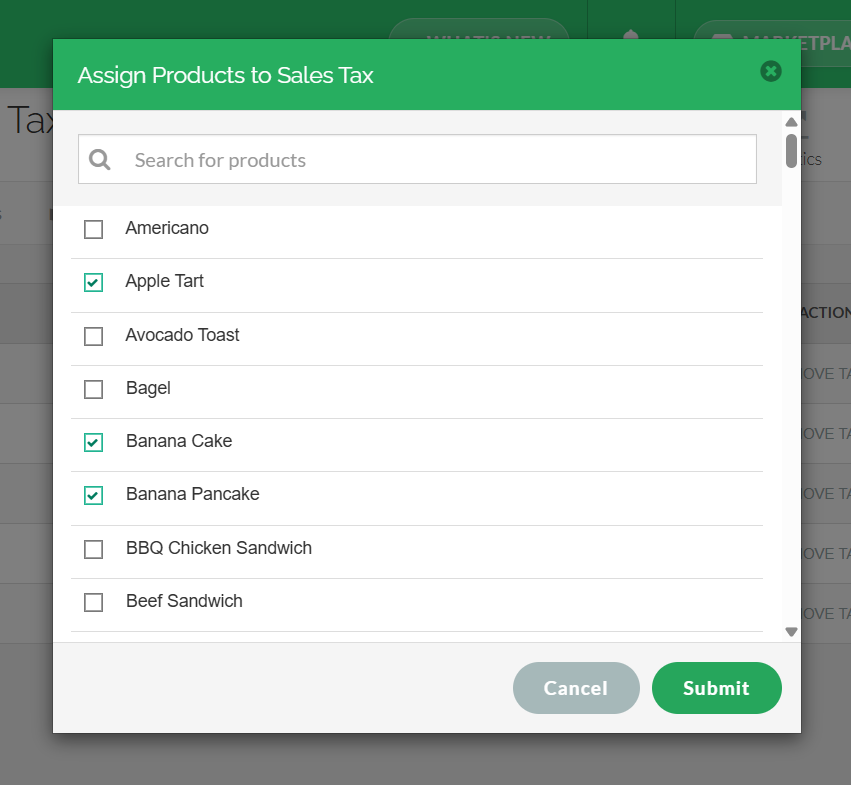
Finally, select the products that needs to be assigned to the selected tax and click on "Submit".
Related Articles
Related Articles
How to Manage Products via Merchant Web?
This article explains how merchants can add, edit, duplicate, and delete products by following the steps provided. How to Add a Product? Step 1 Login to "Applova Merchant Web". Step 2 Go to "Products" and click on "Add New Product". Step 3 Fill in ...How to Manage Categories on Merchant Portal?
In this article, you will learn how to manage category-related settings in the Merchant Portal to keep products clearly organized and displayed correctly. How to Add Category? This feature allows the merchant to add a new product category. Step 1 ...How to Manage Product Add-On(s) via Merchant Web?
What are Product Add-On(s)? Product Add-Ons are extra customizations that can be added to a product to suit the customers' needs. (i.e., Sugar levels for Coffee, Toppings for a Pizza, Colors for a Shirt). The price of an Add-On product will be an ...How to Manage Add-On Groups?
Supported Domains: Standalone Available Channels: Webstore v1, Mobile Order Ahead App (iOS & Android) By enabling this feature, merchants are allowed to add additional options or complementary items to a main product item that can be added to a core ...How to Manage Product Image via Merchant Web?
This feature allows merchants to manage product images through the Merchant Portal. Merchants can use this feature to add, update, or remove product images, helping keep their online menu visually accurate and appealing to customers. How to Add ...