How to Manage Product Add-On(s) via Merchant Web?
What are Product Add-On(s)?
Product Add-Ons are extra customizations that can be added to a product to suit the customers' needs. (i.e., Sugar levels for Coffee, Toppings for a Pizza, Colors for a Shirt).
The price of an Add-On product will be an addition to the basic product price or the variant price. Add-on(s) for products will be displayed on the product detail page.
How to Add Product Add-On(s)?
Step 1
Login to "Applova Merchant Web".
Step 2
Go to "Products" and click on "Add New Product".
Step 3
Go to "Advanced" tab and select "Add-Ons".
Step 4
Click "Add Product Specific Add-Ons".
Step 5
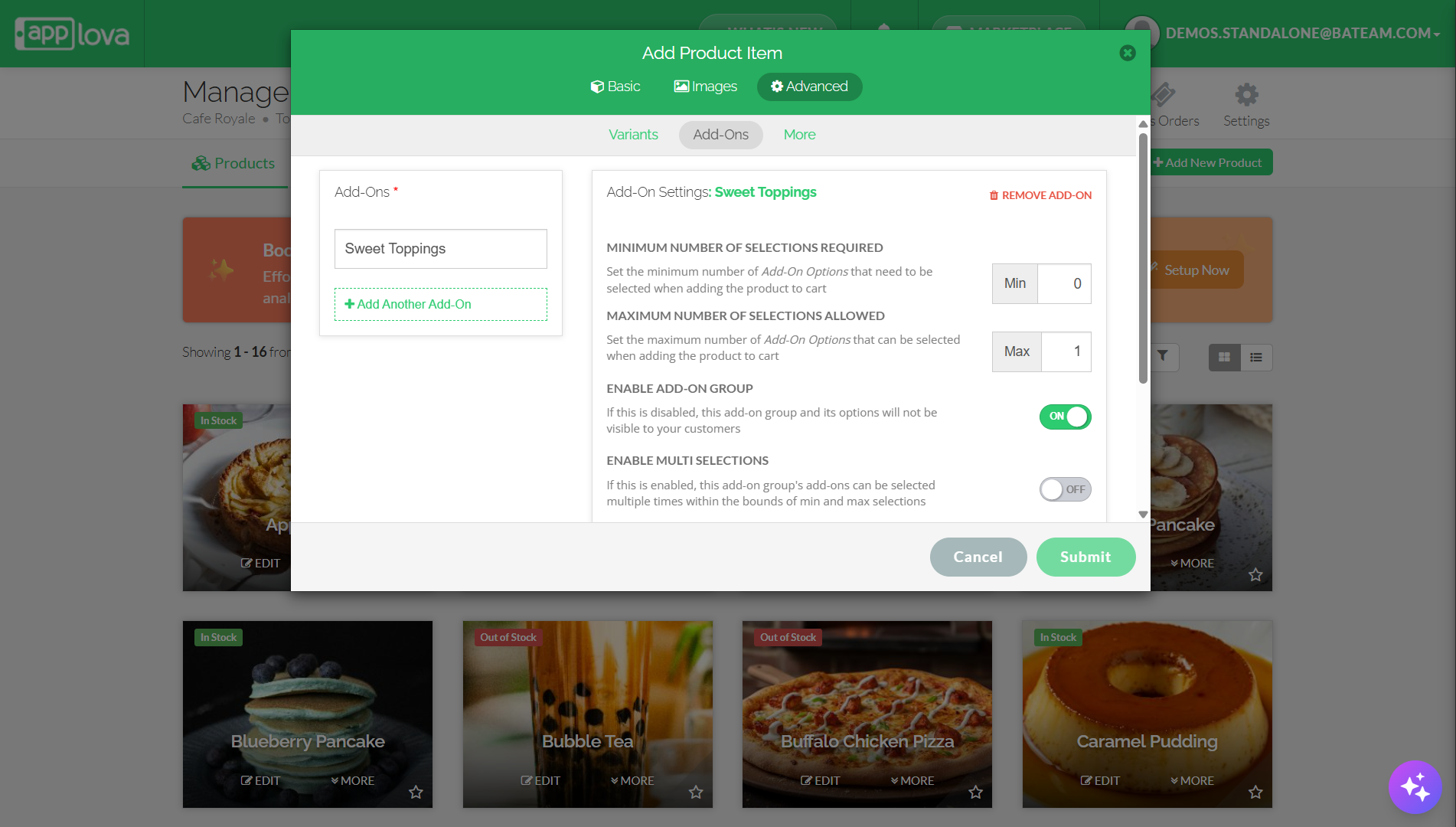
Enter the Add-On name under "Add-Ons" on the top left.
Step 6
Click "Add Another Add-On" to add multiple add-ons.
Step 7
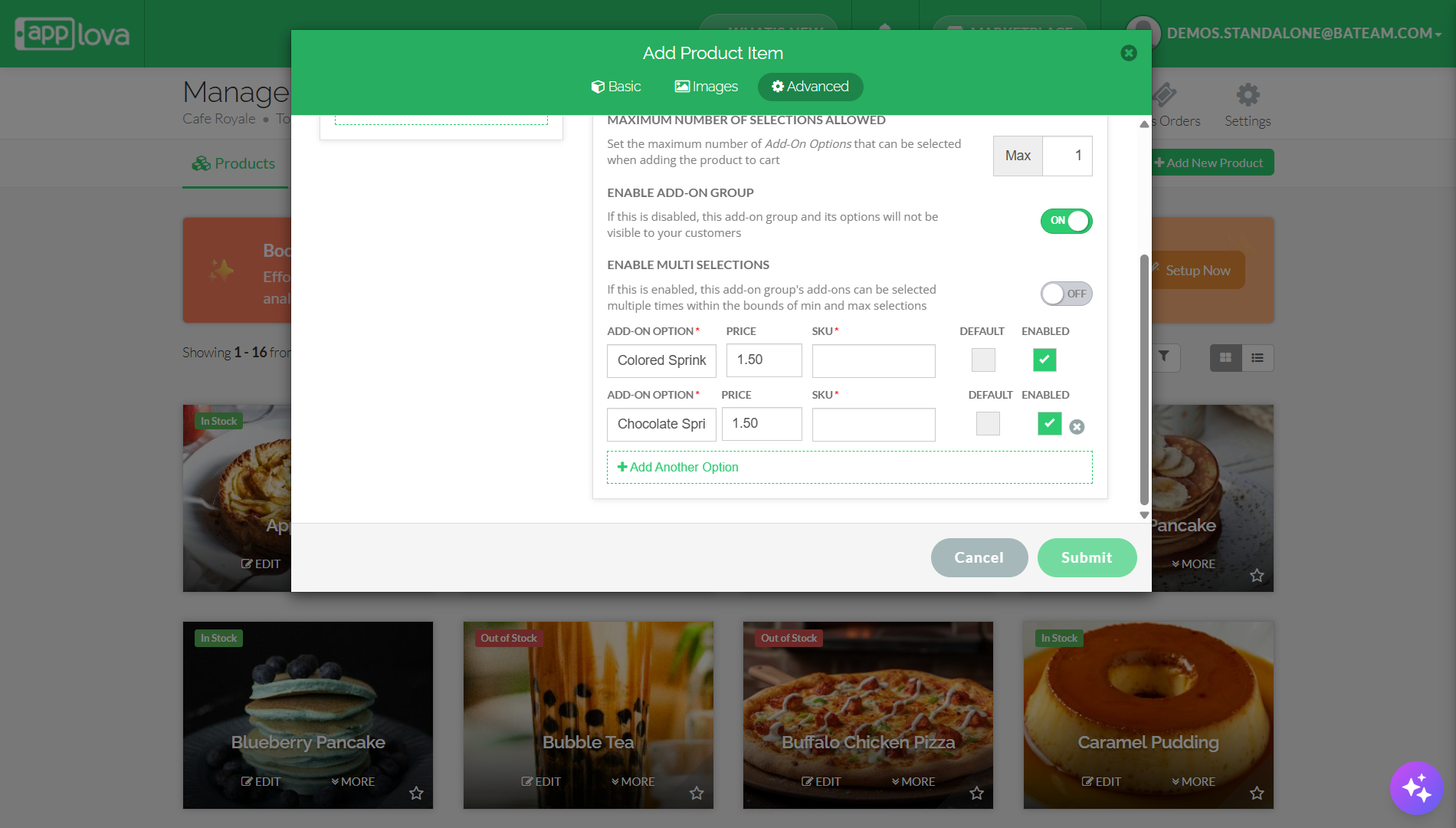
Under "Add-On Settings" enter "Add-On Option" and "Price".
Step 8
Click "Add Another Option" to add multiple options.
Step 9
Click "Submit".
How it Reflects?

How to Edit Product Add-On(s)?
Step 1
Login to "Applova Merchant Web".
Step 2
Go to "Products" and click "Edit" on the product you want to edit add-ons.
Step 3
Go to "Advanced" tab and select "Add-Ons".
Step 4
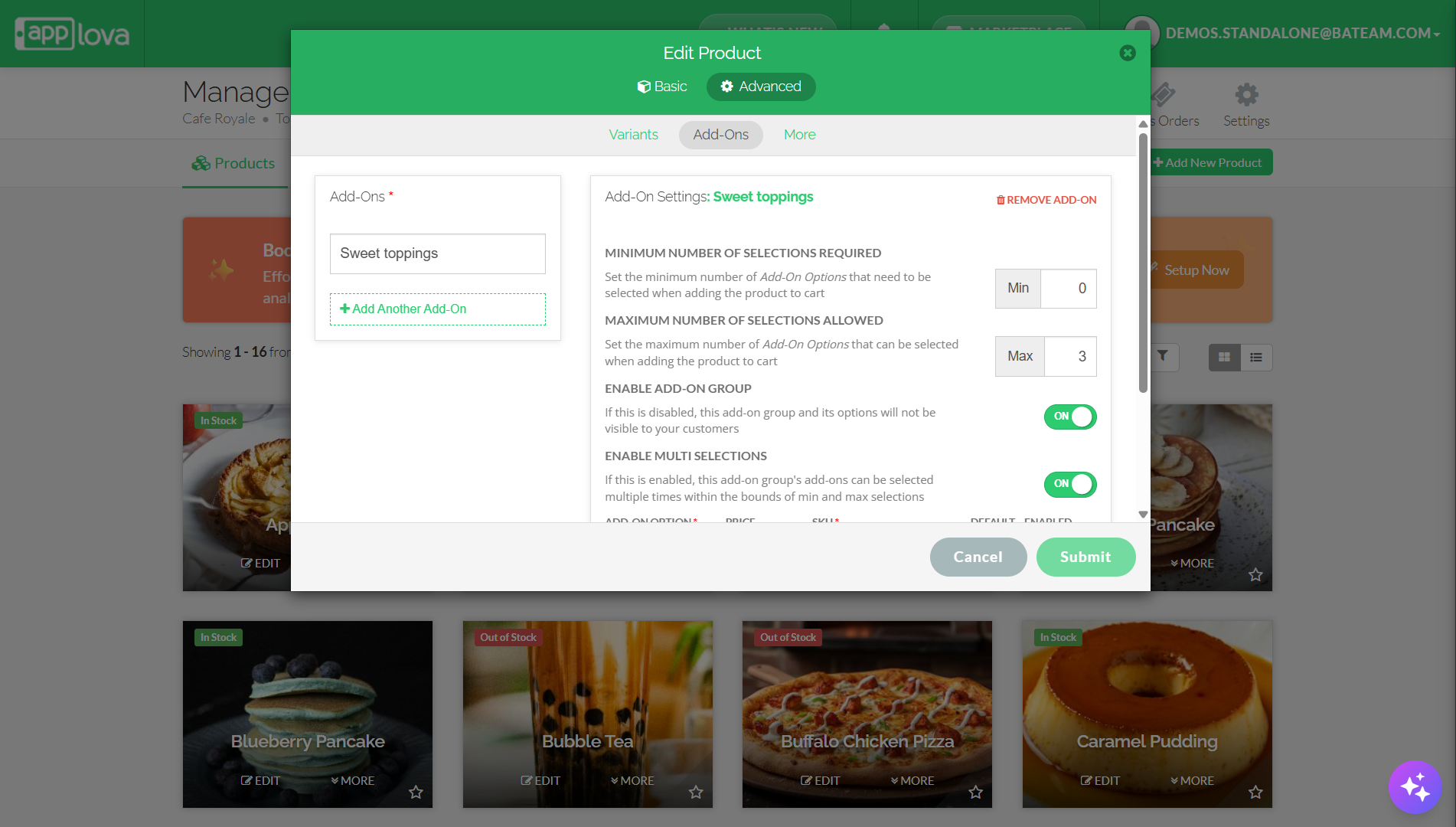
Edit the required fields and click "Submit".
How to Remove Add-on(s)?
Step 1
Login to "Applova Merchant Web".
Step 2
Go to "Products" and click "Edit" on the product you want to remove add-ons.
Step 3
Go to "Advanced" tab and select "Add-Ons".
Step 4
Click "Remove Add-On" and click "Submit".
Related Articles
How to Manage Product Specific Add-Ons as a Stock Controller User on Merchant Web?
The Stock Controller User, a merchant role with limited privileges solely for stock management, now has the capability to enable or disable the display of product add-ons via the Merchant Web. Step 1 Login to the "Merchant Web Portal" and click on ...How to Manage Products via Merchant Web?
This article explains how merchants can add, edit, duplicate, and delete products by following the steps provided. How to Add a Product? Step 1 Login to "Applova Merchant Web". Step 2 Go to "Products" and click on "Add New Product". Step 3 Fill in ...How to Manage Product Image via Merchant Web?
This feature allows merchants to manage product images through the Merchant Portal. Merchants can use this feature to add, update, or remove product images, helping keep their online menu visually accurate and appealing to customers. How to Add ...How to Add Product Tags via Merchant Web?
This is a label or keyword associated with a specific product to help identify it. This will reflect only on the Kiosk. Step 1 Login to "Applova Merchant Web". Step 2 Under the "Products" tab click "Edit" on the product you wish to add the tag. Image ...How to Manage Add-On Groups?
Supported Domains: Standalone Available Channels: Webstore v1, Mobile Order Ahead App (iOS & Android) By enabling this feature, merchants are allowed to add additional options or complementary items to a main product item that can be added to a core ...