How to Manage Product Specific Add-Ons as a Stock Controller User on Merchant Web?
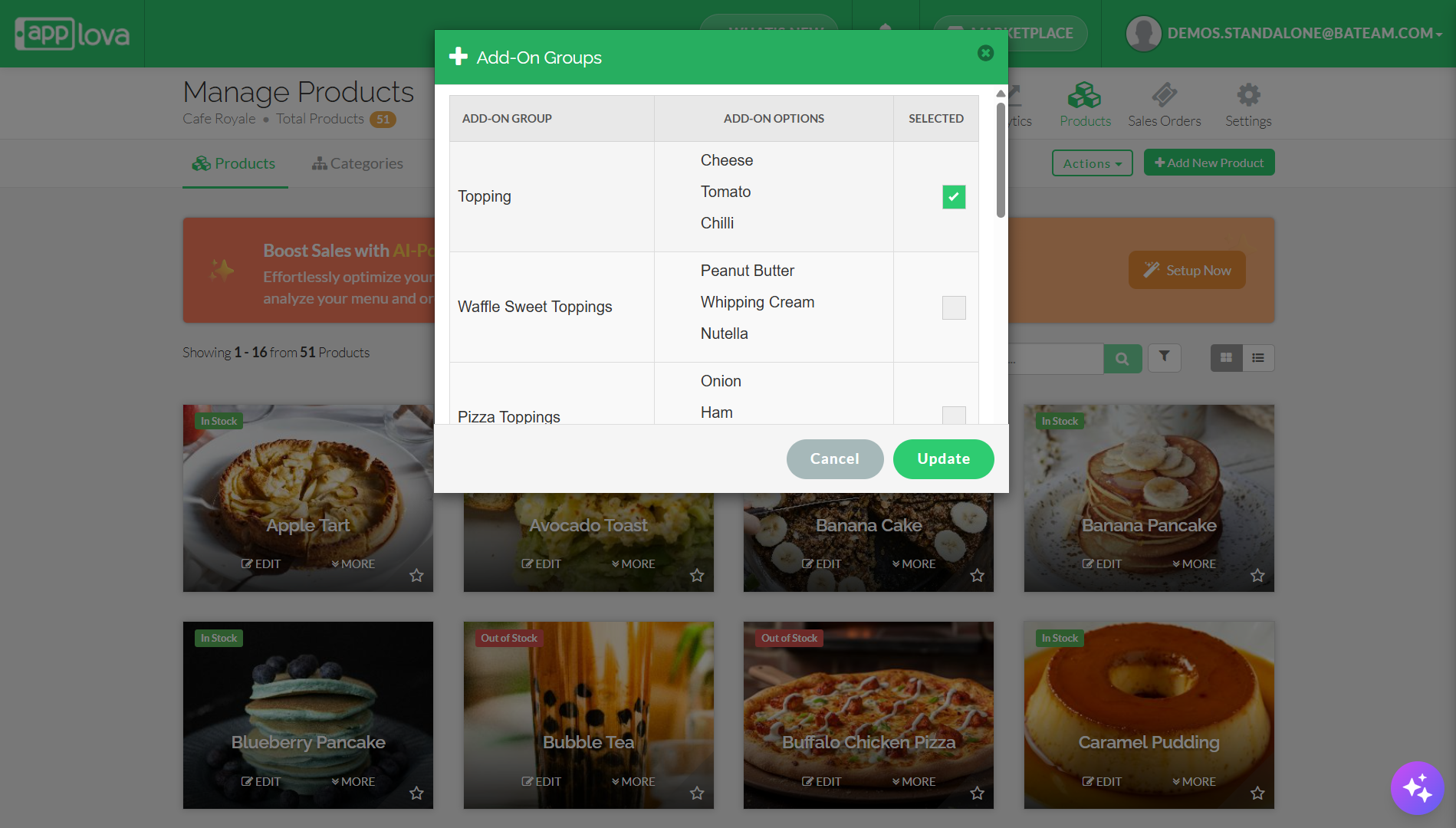
The Stock Controller User, a merchant role with limited privileges solely for stock management, now has the capability to enable or disable the display of product add-ons via the Merchant Web.
Step 1
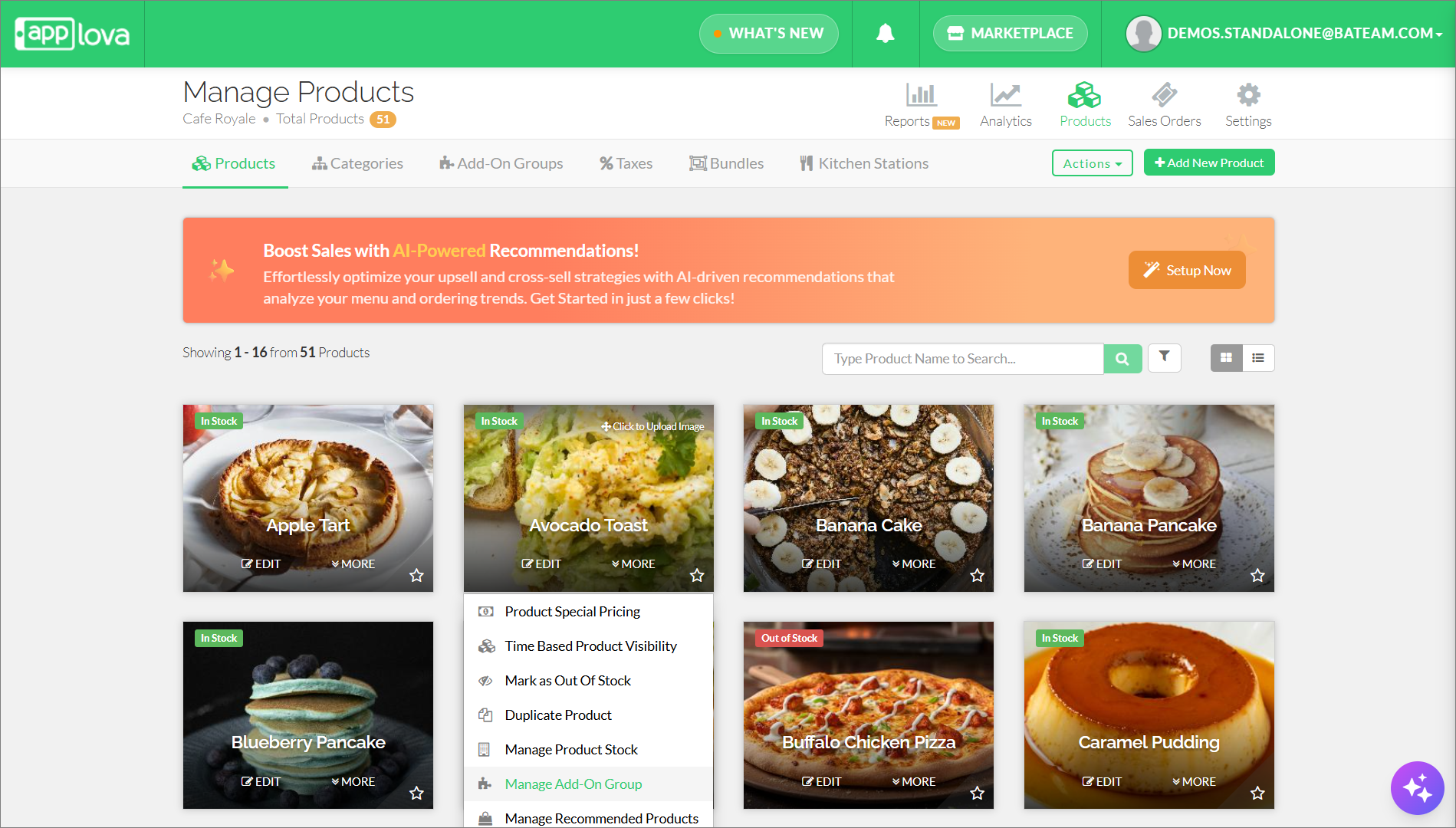
Login to the "Merchant Web Portal" and click on "Products".
Step 2
Click on "Manage Product Add-ons" on a preferred product.
Related Articles
How to Manage Product Add-On(s) via Merchant Web?
What are Product Add-On(s)? Product Add-Ons are extra customizations that can be added to a product to suit the customers' needs. (i.e., Sugar levels for Coffee, Toppings for a Pizza, Colors for a Shirt). The price of an Add-On product will be an ...How to Setup SKU via Merchant Web?
This feature was introduced to cater a requirement for Round 1 merchant What is SKU? SKU, short for Stock Keeping Unit, is used by the merchant to track the business inventories. SKU is a unique code specific to products, variants and add-ons. The ...How to Mark a Product as Out of Stock on Merchant Web?
Using this feature, merchants can mark a product as out of stock through Merchant Portal. This option can be used temporarily to make unavailable products hidden or unorderable, helping prevent customers from placing orders for products that are ...How to Manage Add-On Groups?
Supported Domains: Standalone Available Channels: Webstore v1, Mobile Order Ahead App (iOS & Android) By enabling this feature, merchants are allowed to add additional options or complementary items to a main product item that can be added to a core ...How to Add Product Tags via Merchant Web?
This is a label or keyword associated with a specific product to help identify it. This will reflect only on the Kiosk. Step 1 Login to "Applova Merchant Web". Step 2 Under the "Products" tab click "Edit" on the product you wish to add the tag. Image ...