How to Manage Purchasing Availability for Mobile App and Webstore?
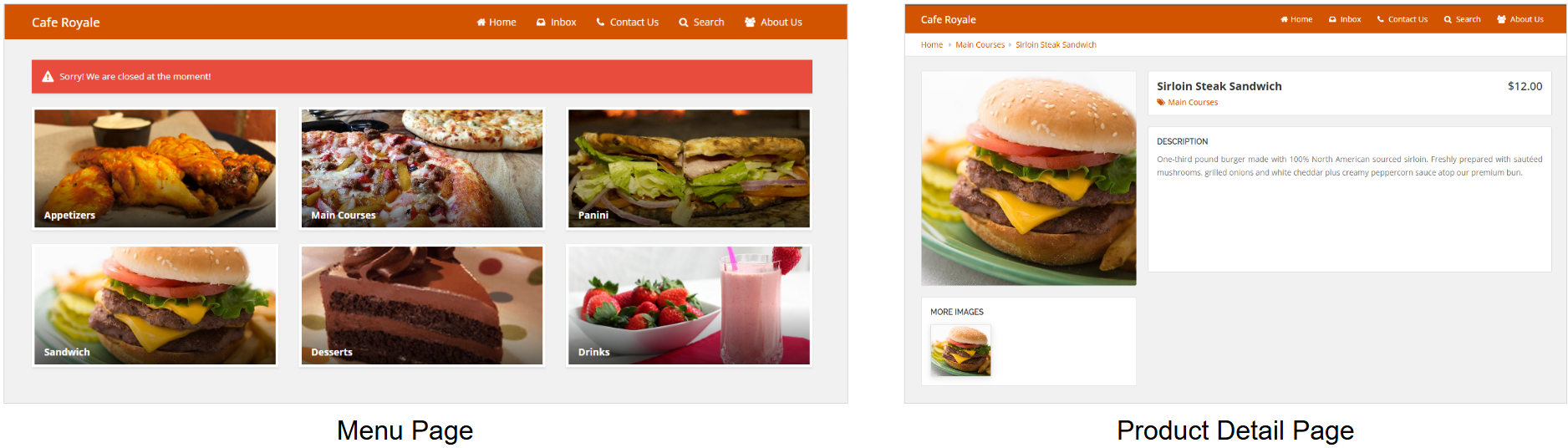
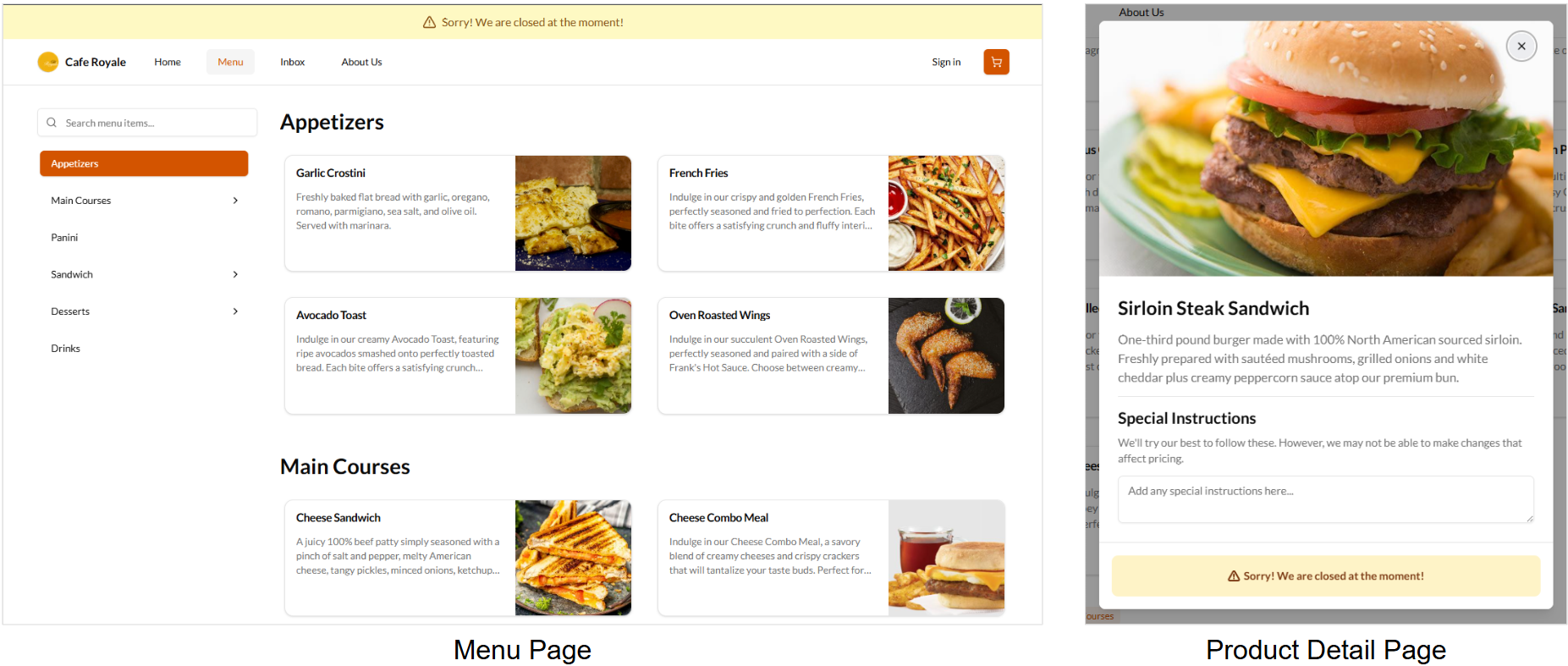
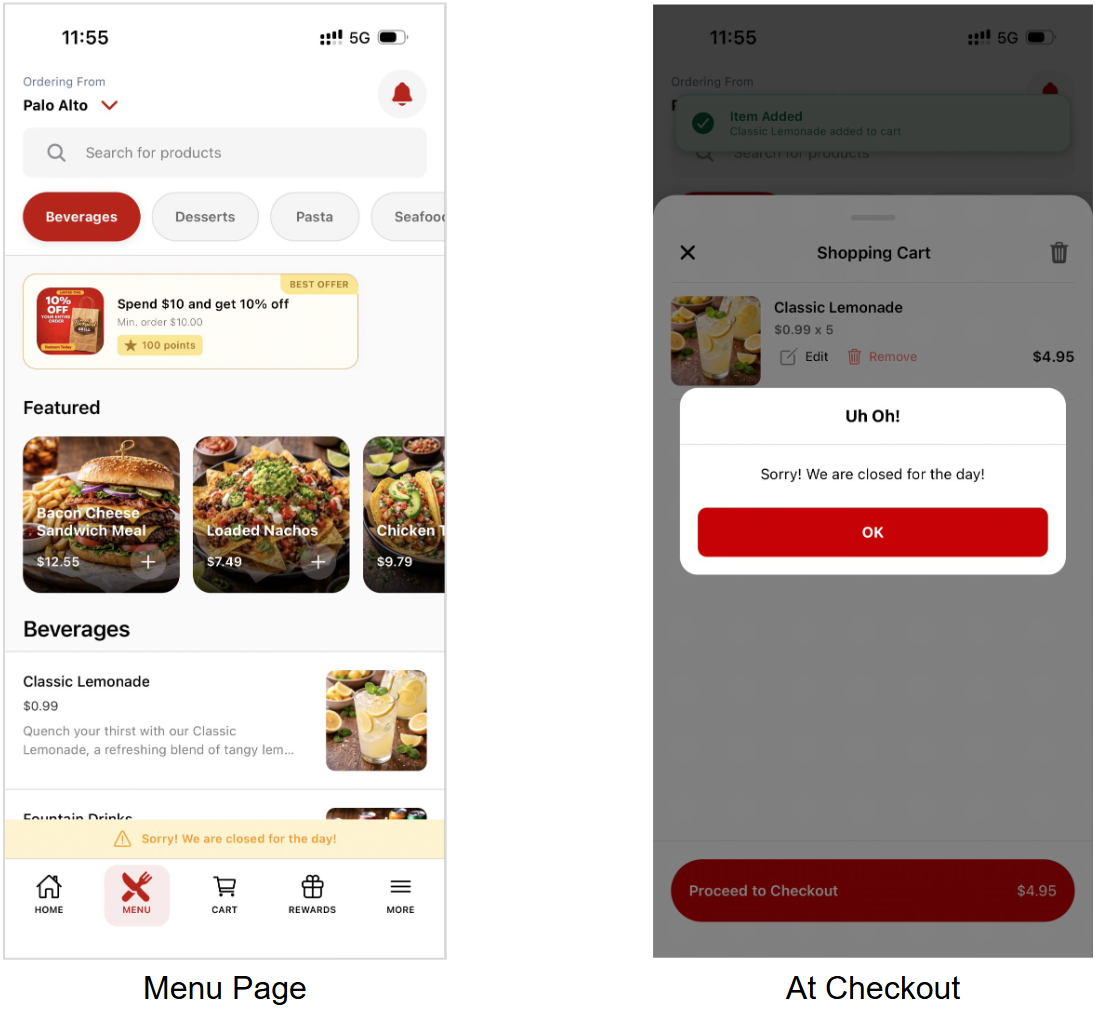
This feature allows merchants to enable or disable online ordering directly from Merchant Web for both the mobile app and webstore. When online ordering is disabled, customers will not be able to place new orders, and a store-closed message will be displayed on the mobile app and webstore. Merchants can also customize this message using the same configuration, allowing them to clearly communicate temporary closures, service interruptions, or ordering unavailability to customers.

Use Case Scenario 1: Kitchen Temporarily Overloaded
A quick-service restaurant receives a sudden rush during lunch hours and the kitchen is unable to keep up with incoming online orders. The manager disables purchasing for the mobile app and webstore until the kitchen catches up, while still allowing customers to view the menu.
Use Case Scenario 2: Payment Processing Issue
A restaurant experiences a payment processing issue that prevents orders from being completed correctly. The manager disables mobile and webstore purchasing until the issue is resolved.
How to Disable Purchasing Availability via Merchant Web?
Step 1
Log on to "Applova Merchant Web".
Step 2
Click on "Settings".
Step 3
Under the "General" tab, click on "Ordering Methods".
Step 4
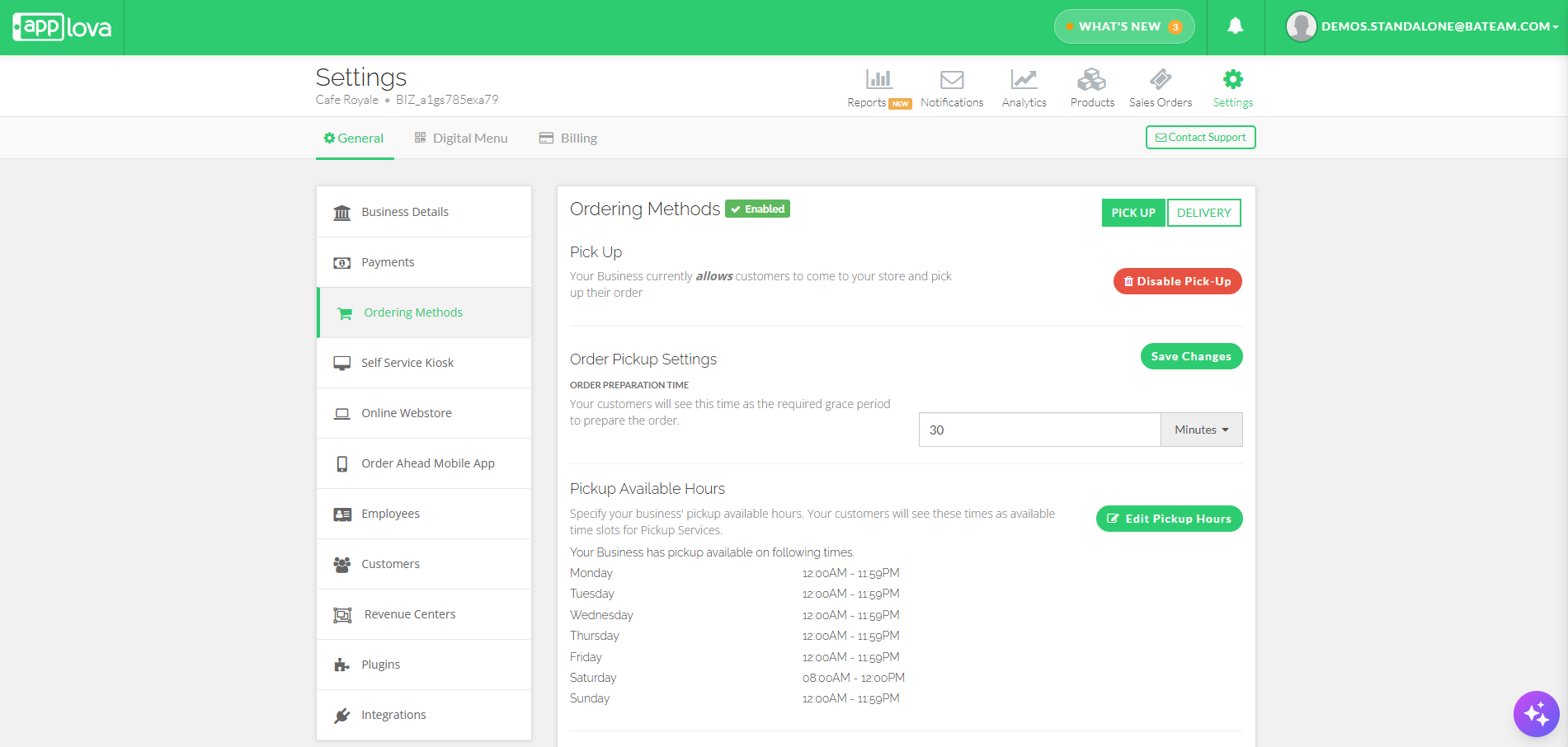
If online ordering is enabled, a label will be displayed as “Enabled”.
Step 5
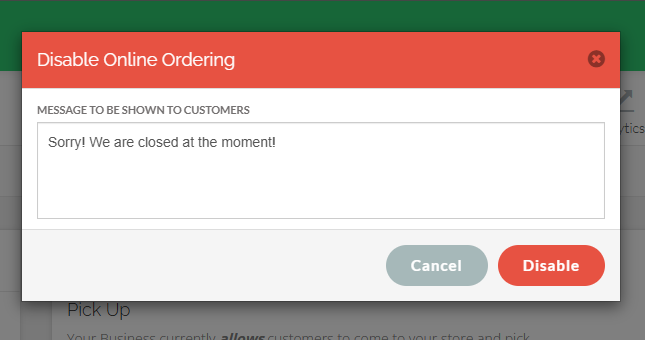
When the “Enabled” label is clicked, a popup will appear to enter the message to display on the online ordering platforms.
Then click "Disable". Once disabled, the message will be displayed on the online ordering platforms, and customers will be blocked from placing orders.
Then click "Disable". Once disabled, the message will be displayed on the online ordering platforms, and customers will be blocked from placing orders.
How to Enable Purchasing Availability via Merchant Web?
Step 1
Log on to "Applova Merchant Web".
Step 2
Click on "Settings".
Step 3
Under the "General" tab, click on "Ordering Methods".
Step 4
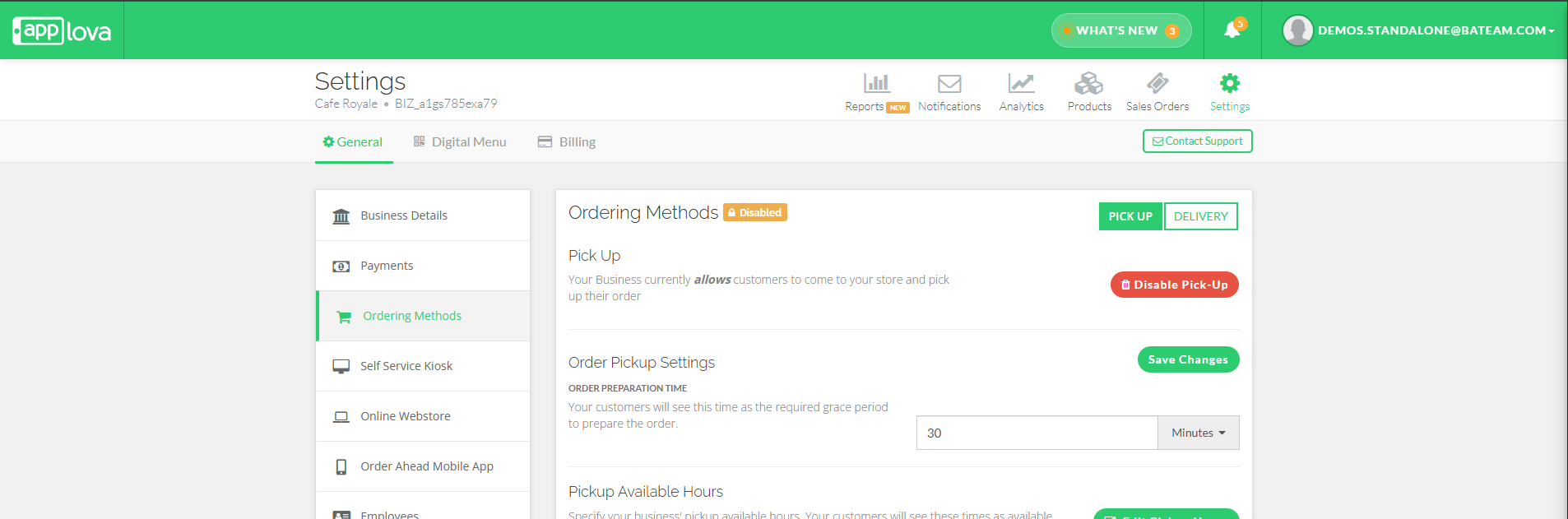
If online ordering is disabled, a label will be displayed as “Disabled”.
Step 5
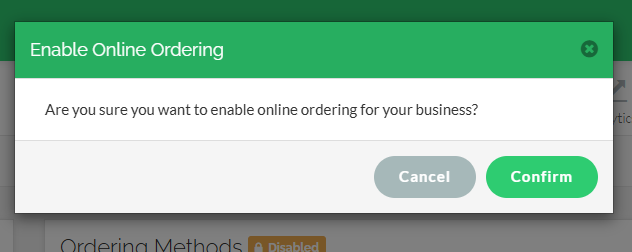
When the “Disabled” label is clicked, select “Confirm” in the popup to confirm the disabling action.
How it Reflects on Webstore
Related Articles
Order Throttling on the Merchant Portal?
Order throttling allows merchants to manage online order volume by setting limits on the maximum number of online orders accepted during specific days, hours, or recurring peak times. Usecase Scenario Bella Bistro receives a large volume of online ...Managing Order Level Promo Codes
This feature allows the merchant to add a promo discount for the whole order. A promotion can be added as a percentage and a flat amount as well. Promo code feature is enabled by default Note:Promo Codes can also be activated through the Applova ...How to Configure Promo Codes for Specific Channels via Merchant Portal?
This feature allows merchants to control which sales channels (POS/ Kiosk/ Webstore/ Mobile App/ Digital Dining) accept specific promo codes. By enabling or disabling channels, merchants can tailor promotions to the platforms that best fit their ...Redeeming Item Based Rewards on the Order Ahead App
This feature allows registered customers to redeem eligible menu items using the reward points they have earned through previous purchases. Customers can view their available points, browse eligible rewards, and redeem them directly within the Order ...How to Manage Applova Rewards on Merchant Web Portal?
This feature is available by default Customers are enrolled in Applova Rewards by default, even if the Rewards program is not currently enabled. This ensures merchants already have an enrolled customer base when they decide to enable Rewards or ...