How to Manage Customers via Merchant Portal
This feature allows merchants to quickly search for specific customers, filter customer records by a selected date range and delete inactive, duplicate, or invalid customer records from their Customer List.
How to Search for a Customer?
Step 1
Navigate to the Settings section on the Merchant Portal.
Step 2
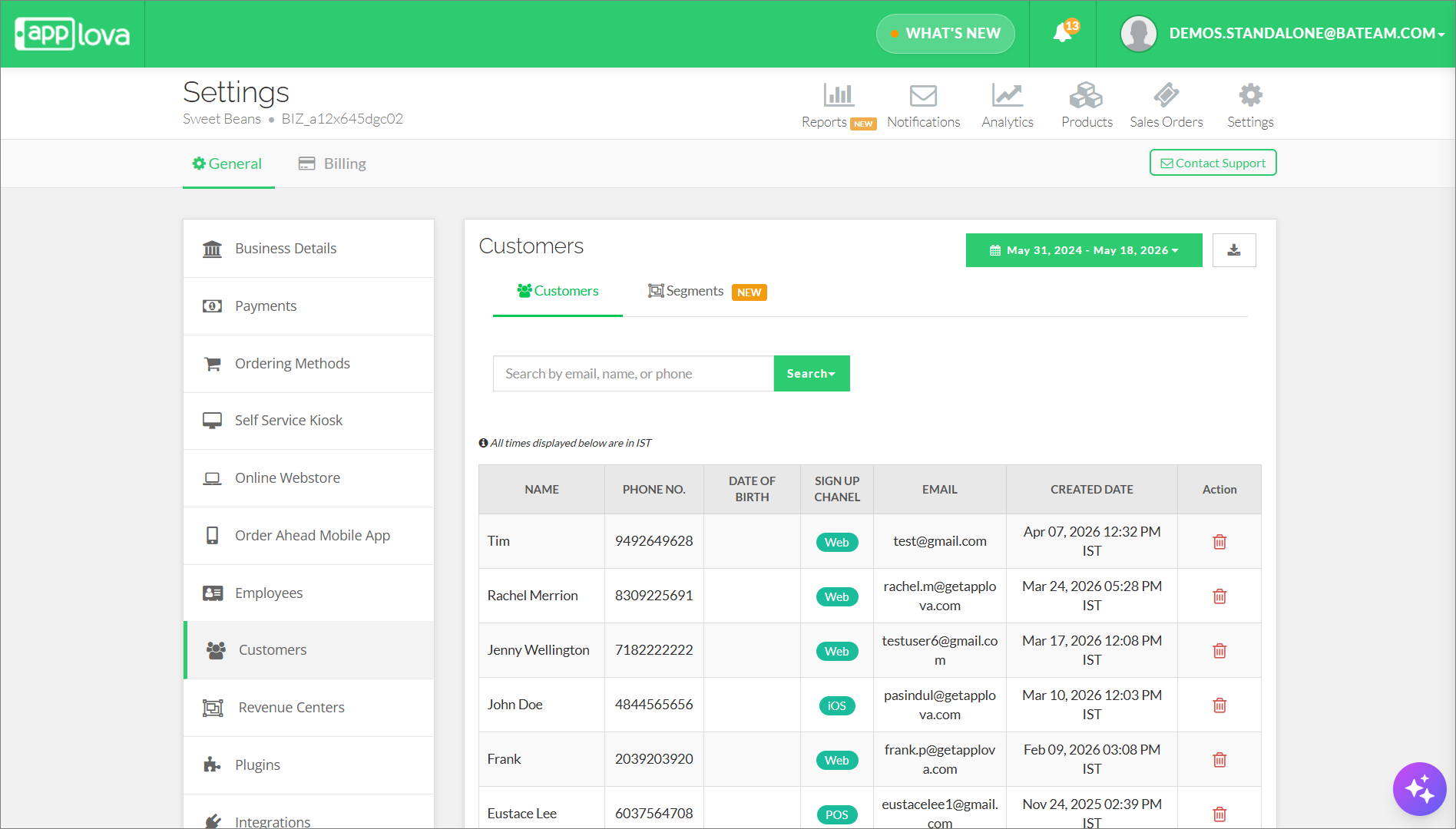
Click on "Customers".
Step 3
Search for the customer you want to locate.
Click the search dropdown and select the specific customer detail you want to search by
Merchants can search using:
- Phone Number
- Customer Name
- Email Address
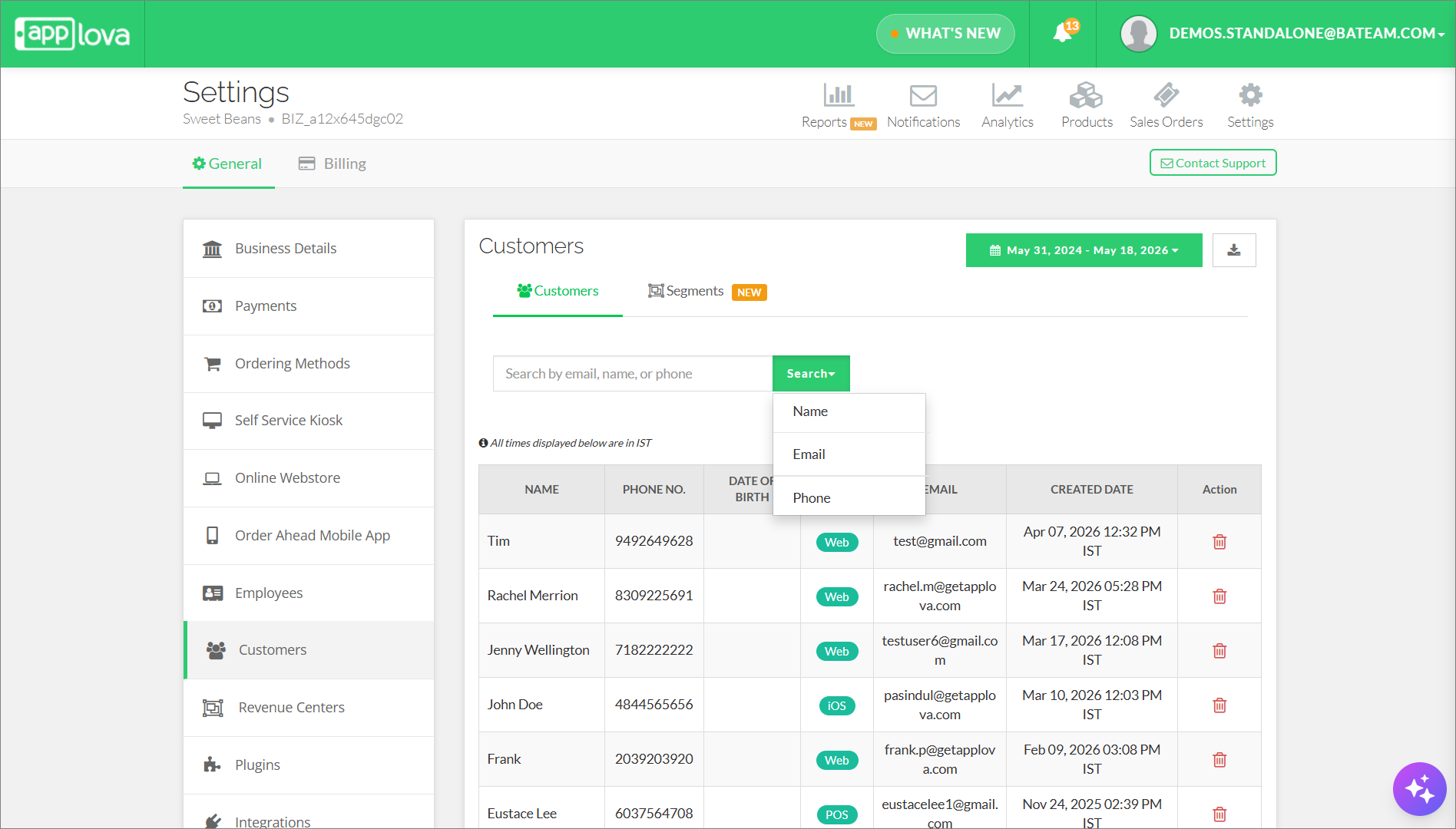
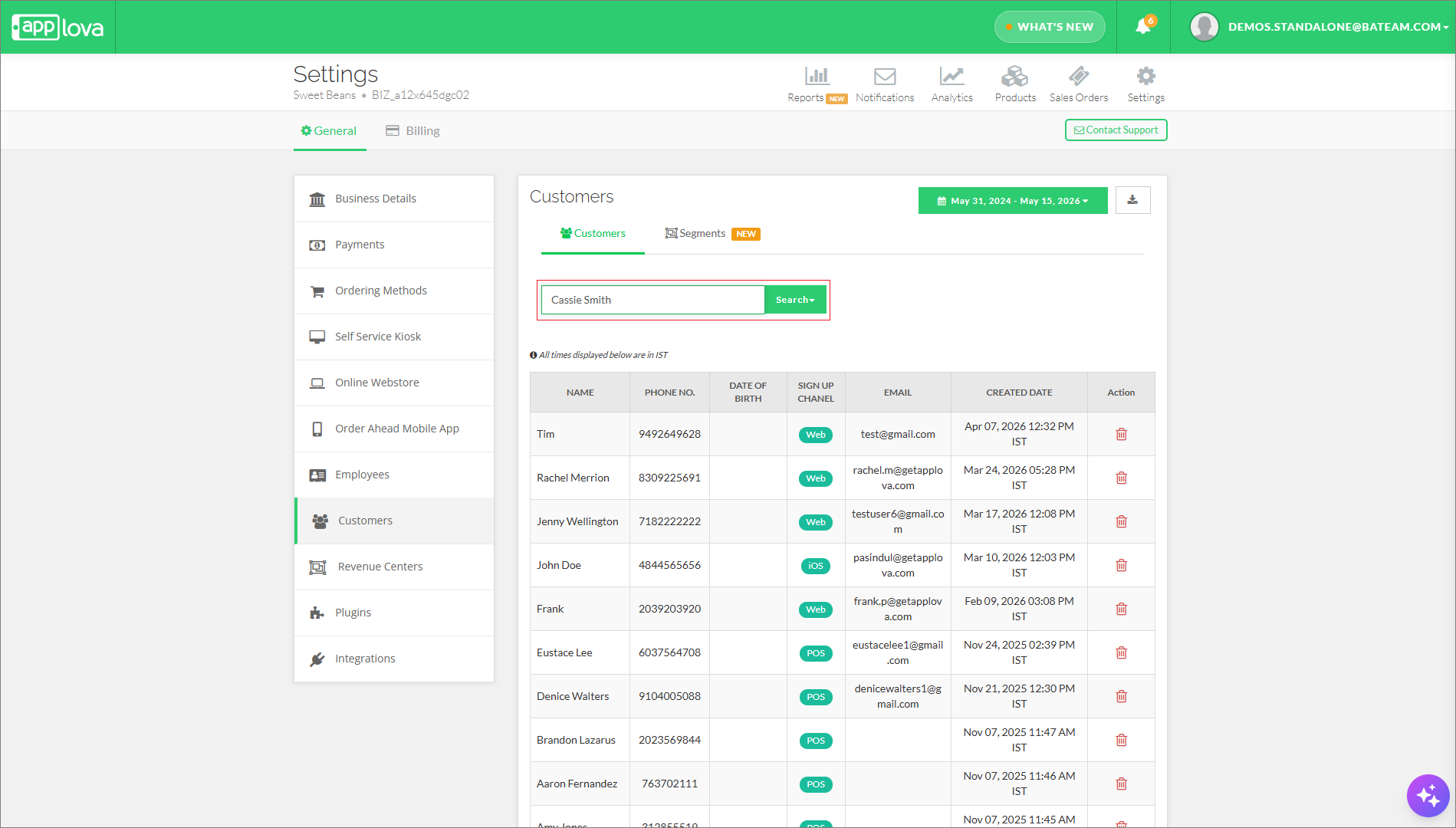
After selecting the search type, enter the relevant value in the search field.

You can only search customers associated with your own merchant account and selected business.
Step 4
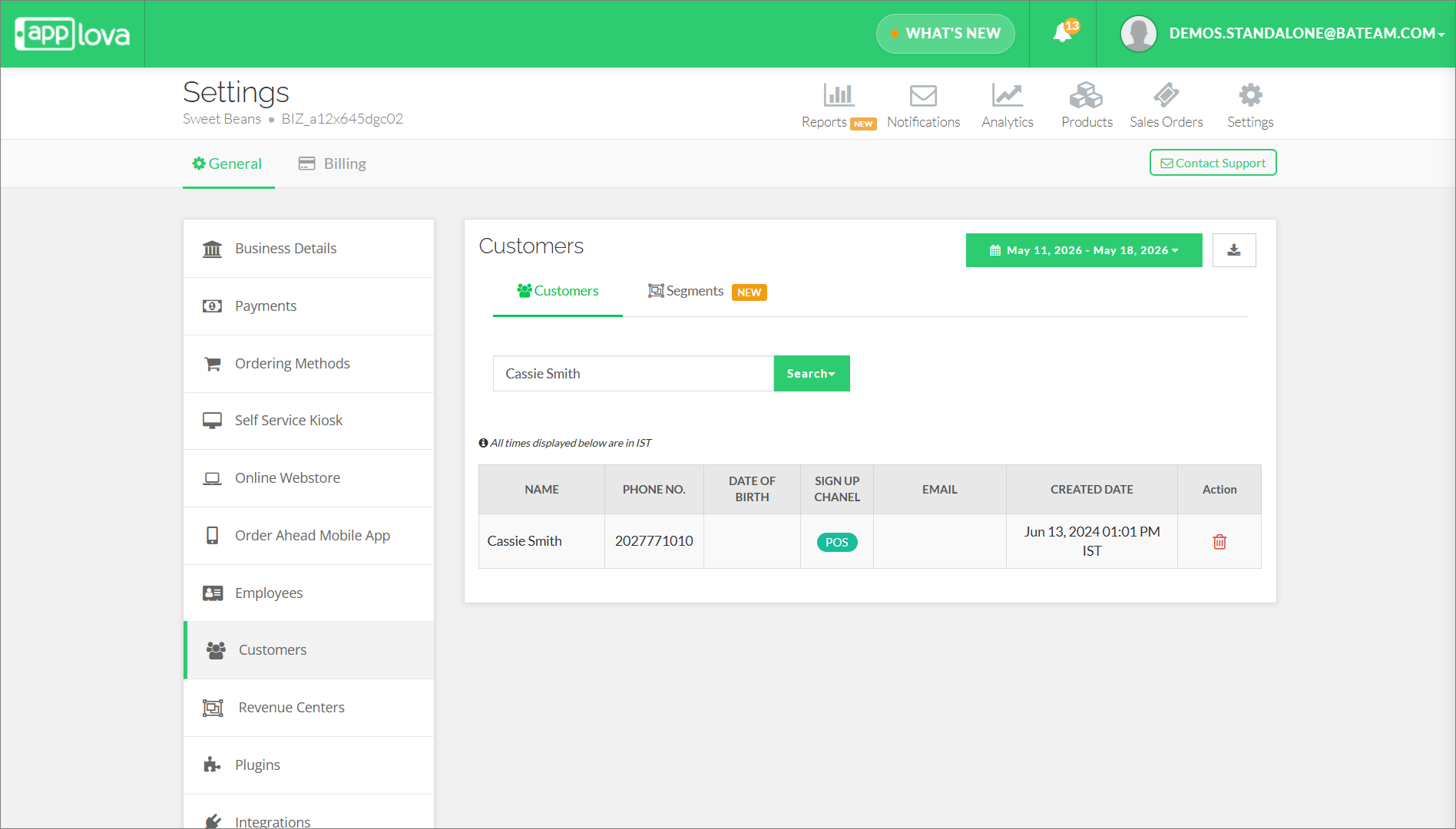
The filtered customer results will be displayed in the customer list, as shown below.
How to Export Customers CSV?
Step 1
Navigate to the Settings section on the Merchant Portal.
Step 2
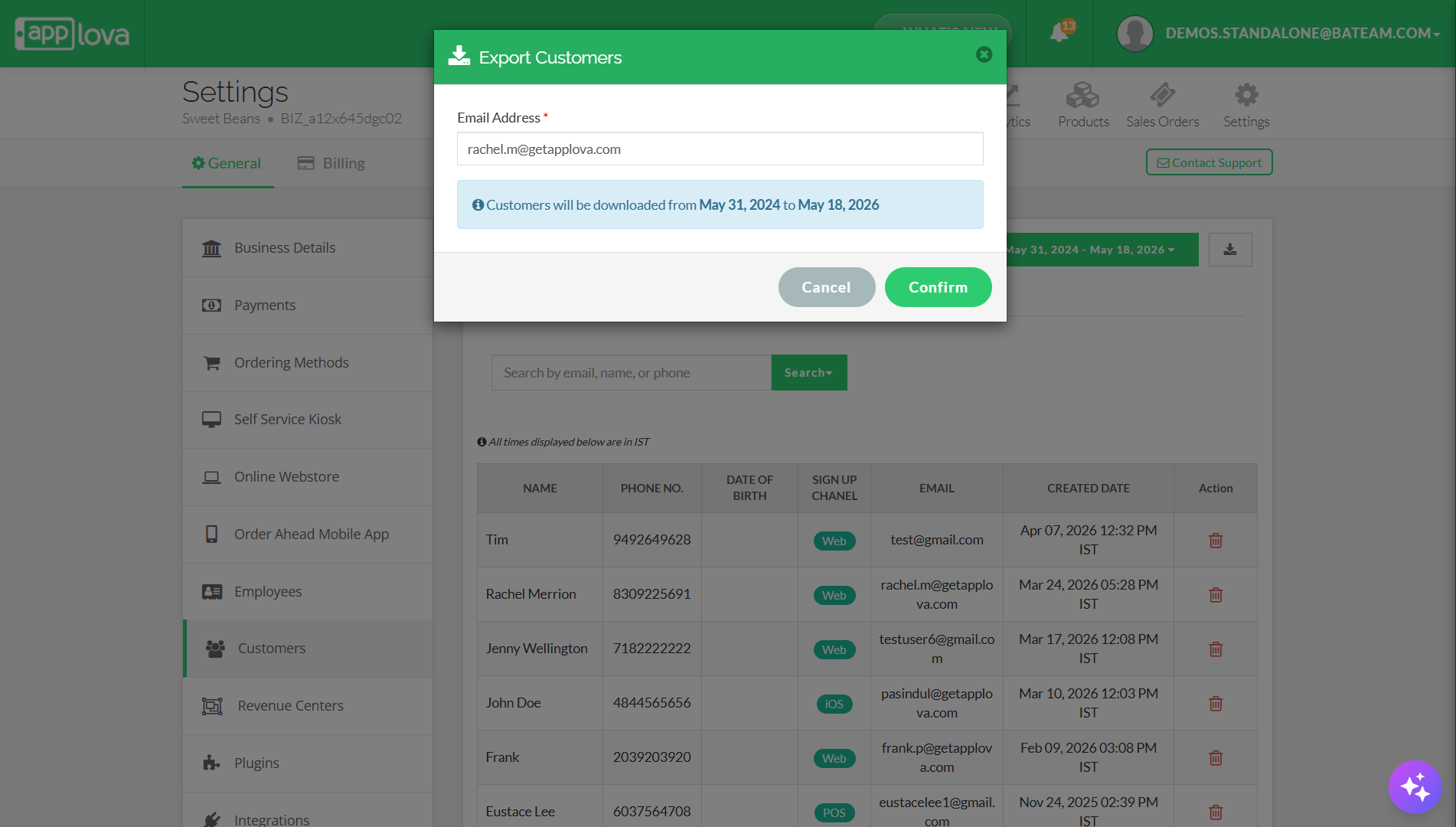
Click on "Customers" and click on the download icon.
Step 3
Enter the email address where you want to receive the exported customer list, then click “Confirm” to start the export.
The exported customer information will be according to the selected date range. Make sure to select the required date range before exporting the list.
How to Delete a Customer?
Step 1
Navigate to the Settings section on the Merchant Portal.
Step 2
Click on "Customers".
Step 3
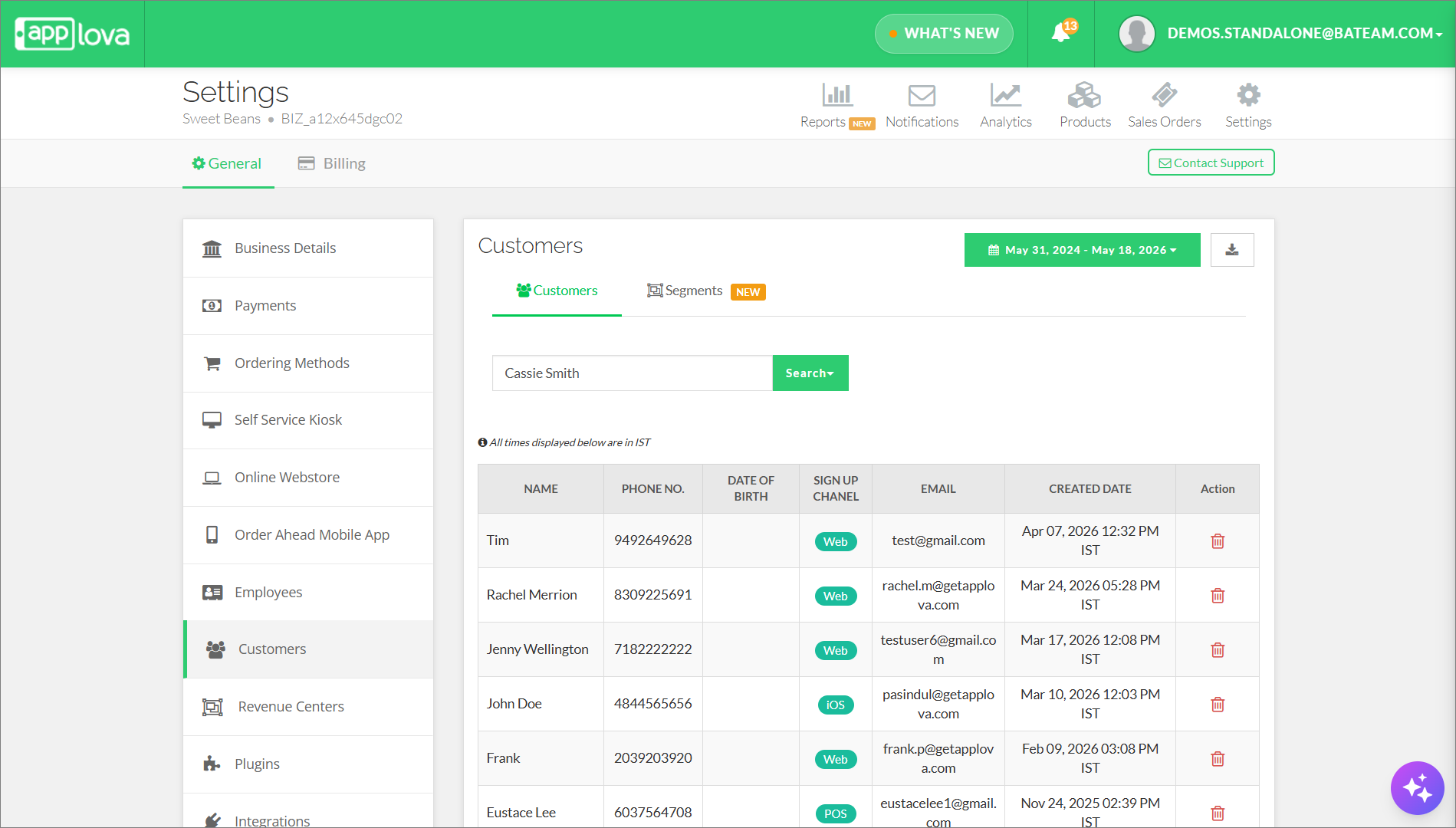
Search for the customer you want to remove.
Step 4
Click on "Remove" in the Actions column of the respective entry.
Step 5
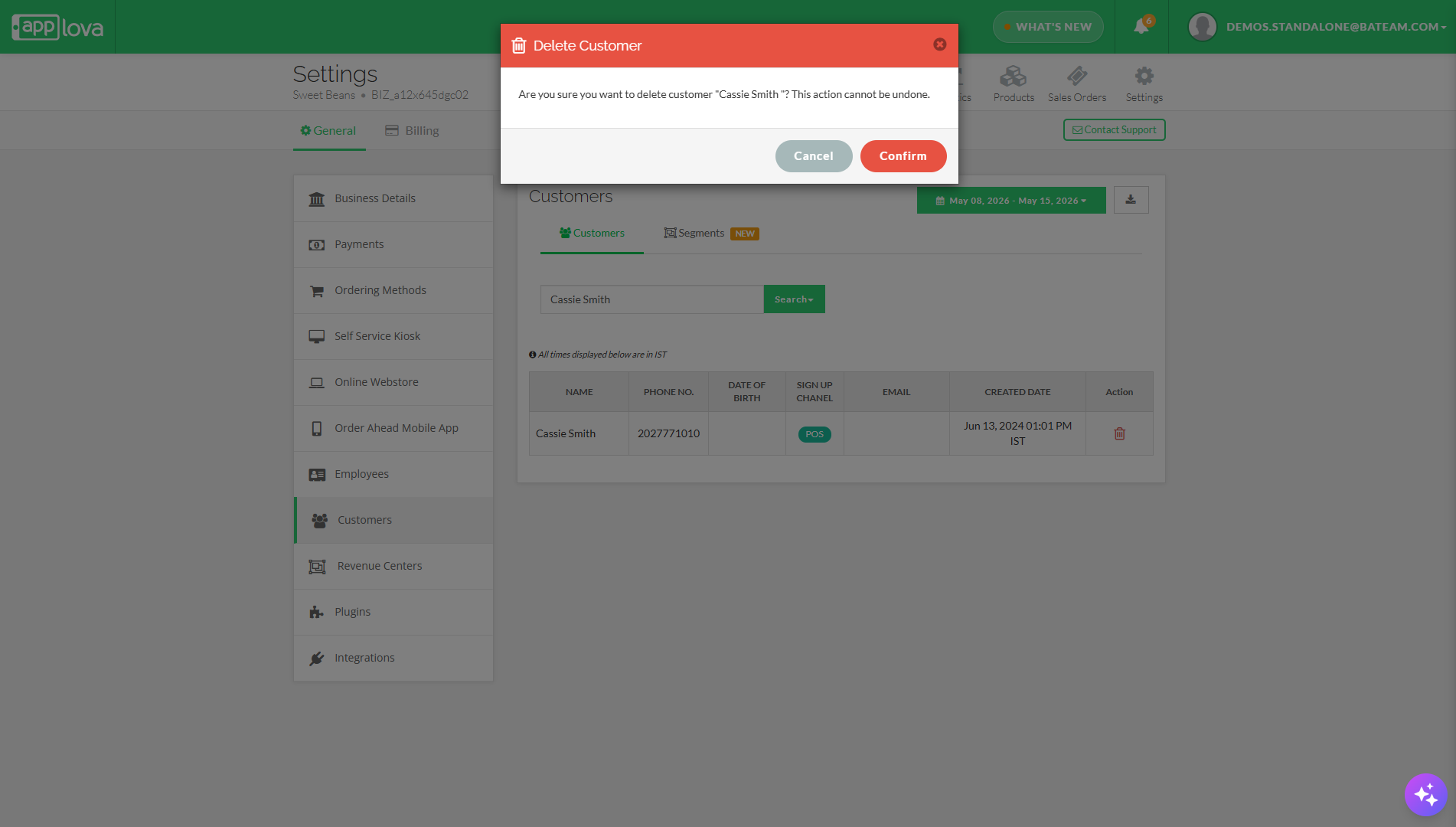
A confirmation prompt will appear. Click on "Confirm" to delete.
Step 6
The customer will then be deleted and will no longer appear in the Customers list.
The customer will then be deleted and will no longer appear in the Customers list.
Related Articles
Altering Business Details via Merchant Portal
This guide explains how to update your business information and manage the terms and conditions displayed to customers through Applova Merchant Portal. How to Update Business Details? Step 1 Login to "Applova Merchant Web". Step 2 Click "Settings" ...How to Manage Self-Service Kiosk via Merchant Portal?
With this feature merchants can manage their Self-Service Kiosk settings through the Merchant Portal. These settings help merchants configure kiosk-related options and control how the kiosk is displayed or used by customers. How to View Activated ...How to Manage Products via Merchant Web?
This article explains how merchants can add, edit, duplicate, and delete products by following the steps provided. How to Add a Product? Step 1 Login to "Applova Merchant Web". Step 2 Go to "Products" and click on "Add New Product". Step 3 Fill in ...How to Manage Product Image via Merchant Web?
This feature allows merchants to manage product images through the Merchant Portal. Merchants can use this feature to add, update, or remove product images, helping keep their online menu visually accurate and appealing to customers. How to Add ...How to Manage Categories on Merchant Portal?
In this article, you will learn how to manage category-related settings in the Merchant Portal to keep products clearly organized and displayed correctly. How to Add Category? This feature allows the merchant to add a new product category. Step 1 ...