Altering Business Details via Merchant Portal
This guide explains how to update your business information and manage the terms and conditions displayed to customers through Applova Merchant Portal.
How to Update Business Details?
Step 1
Login to "Applova Merchant Web".
Step 2
Click "Settings" and go to "General" tab.
Step 3
Click "Business Details".
Step 4
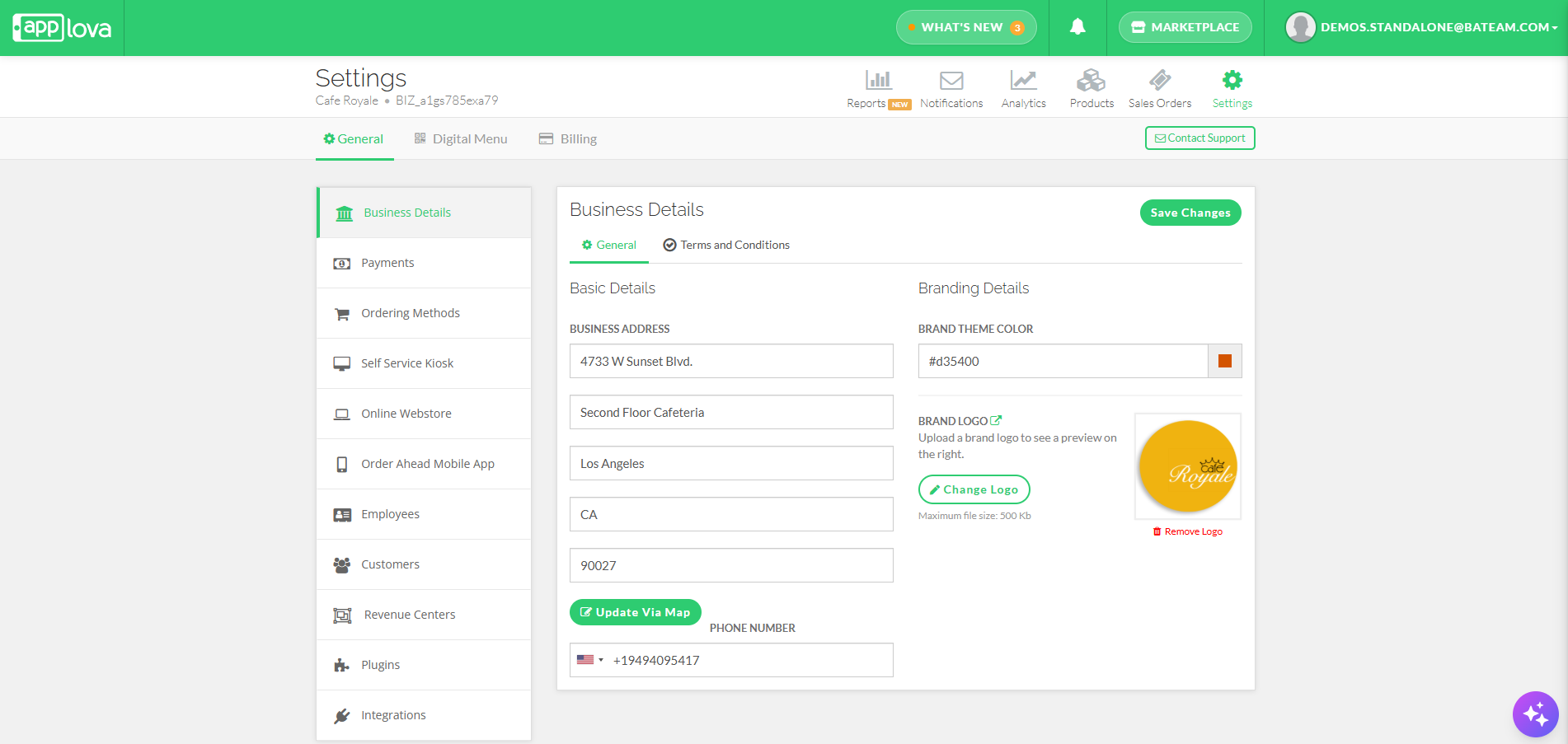
Type in your business address and phone number under the respective fields.
Step 5
Under Brand Theme Color type in the hexadecimal value of your brand theme color or select the preferred color.
Step 6
Click "Upload Logo" to add your logo.

Maximum file size should be 500 kb
Step 7
Click "Change Logo" to add a different logo, and "Remove Logo" to delete it.
How to Update Business Address via Map?
Step 1
Login to "Applova Merchant Web".
Step 2
Click "Settings" and go to "General" tab.
Step 3
Click "Business Details".
Step 4
Then click on "Update via Map" to open up the map
Step 5
From there you can search for a business address, click on a location on the map or set the location to your device location.
Step 6
Then click on "Submit" to update the business location.
Adding and Editing Terms and Conditions
Step 1
Login to "Applova Merchant Web".
Step 2
Click "Settings" and go to "General" tab.
Step 3
Click "Business Details".
Step 4
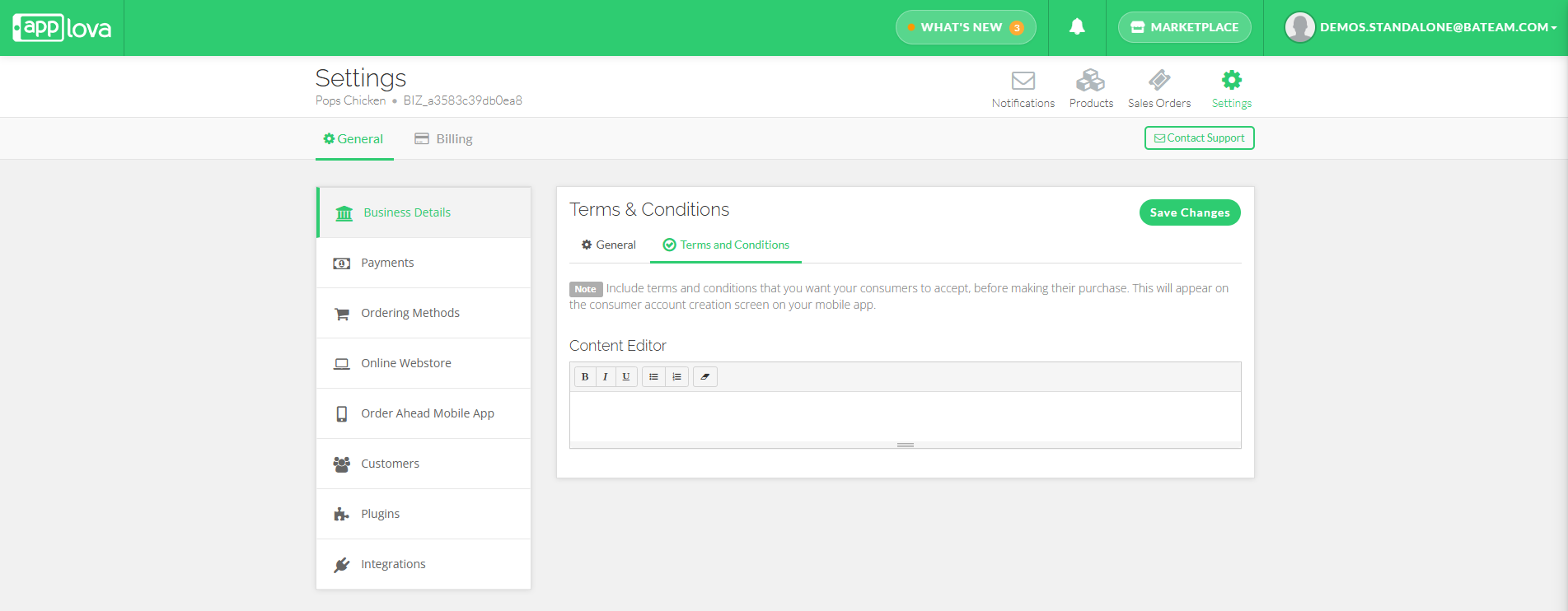
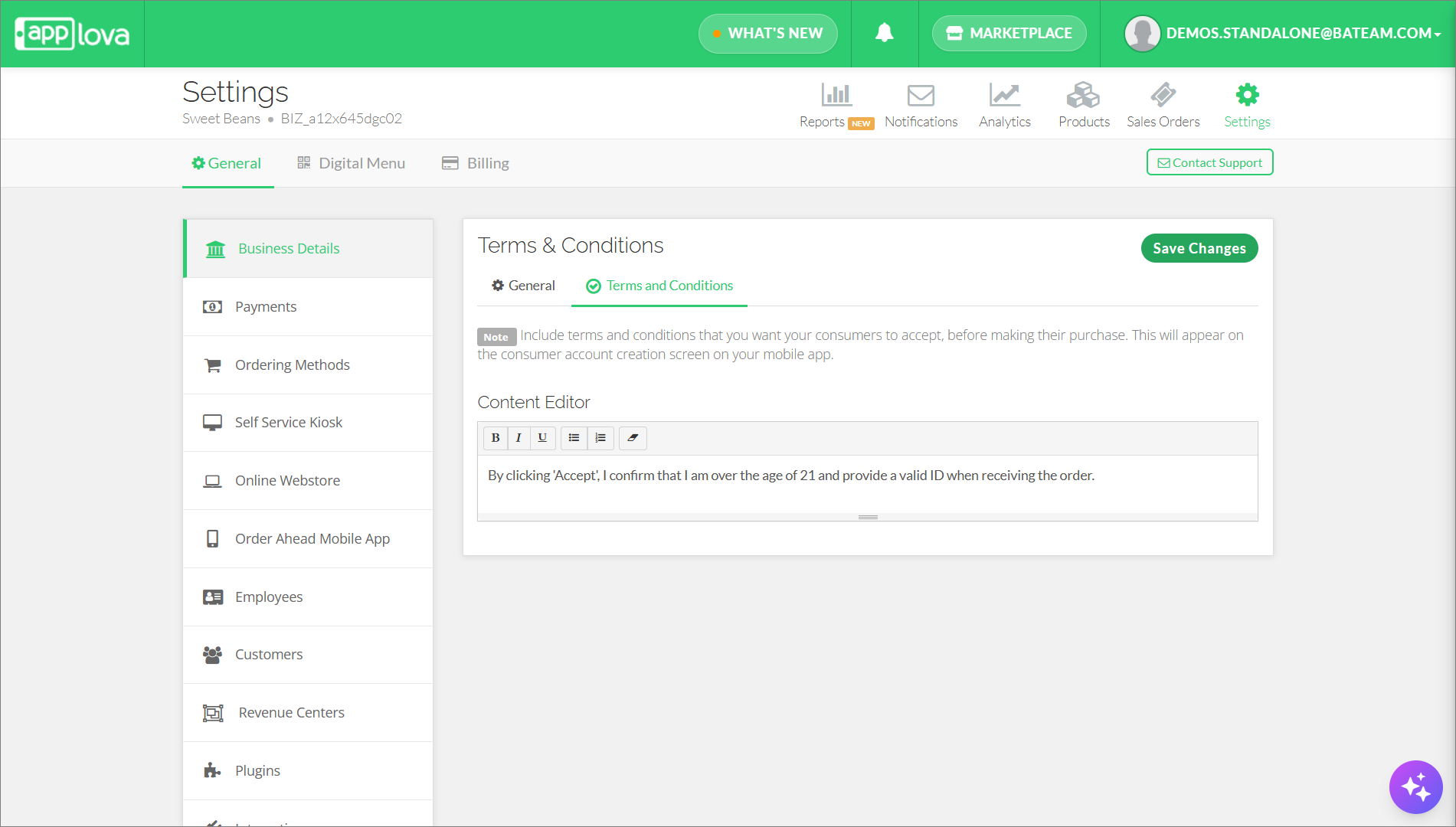
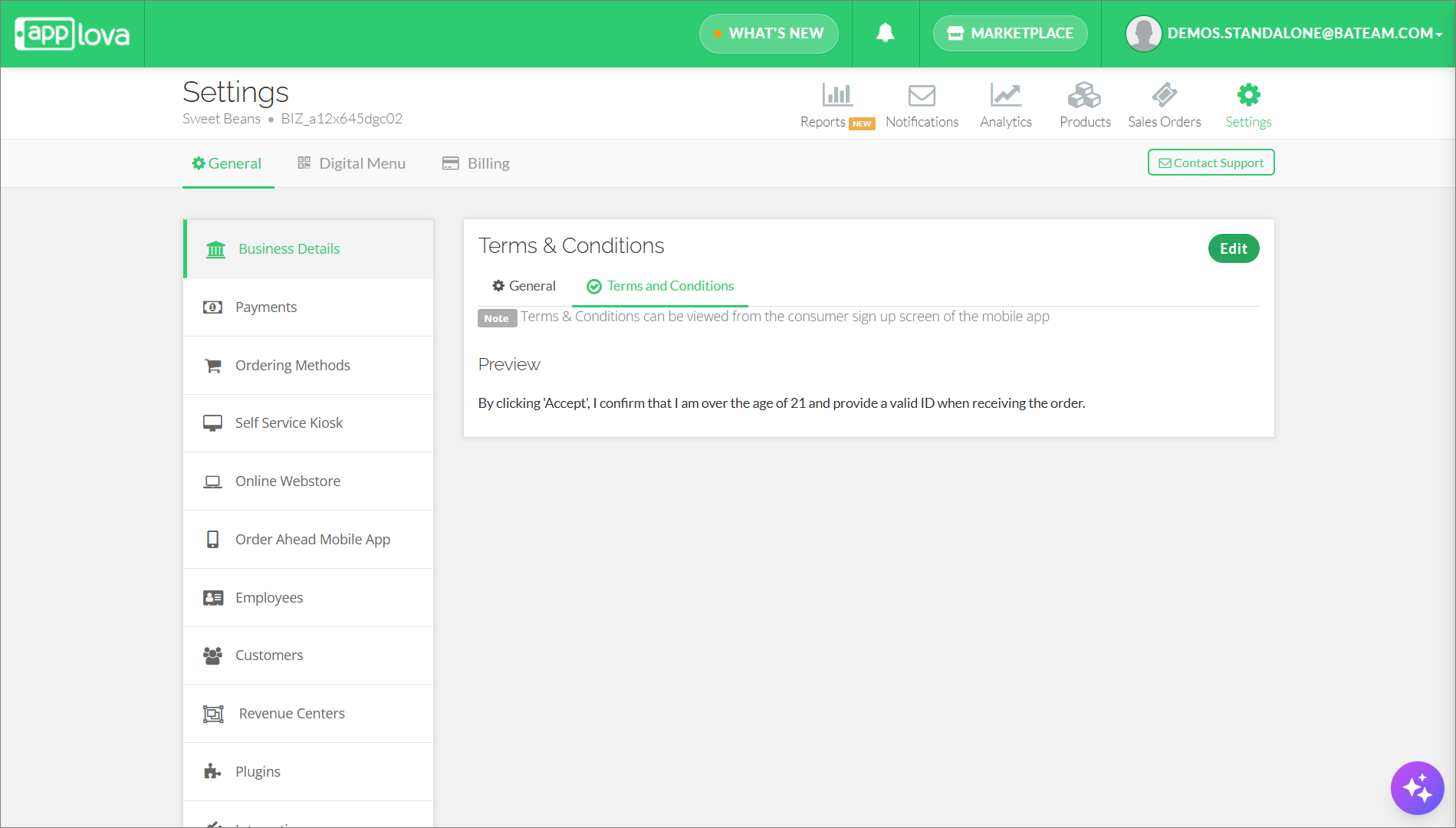
Go to the "Terms and Conditions" tab.
Step 5
Enter the terms and conditions that you want your consumers to accept before making their purchase, inside the Content Editor. Then click "Save Changes".
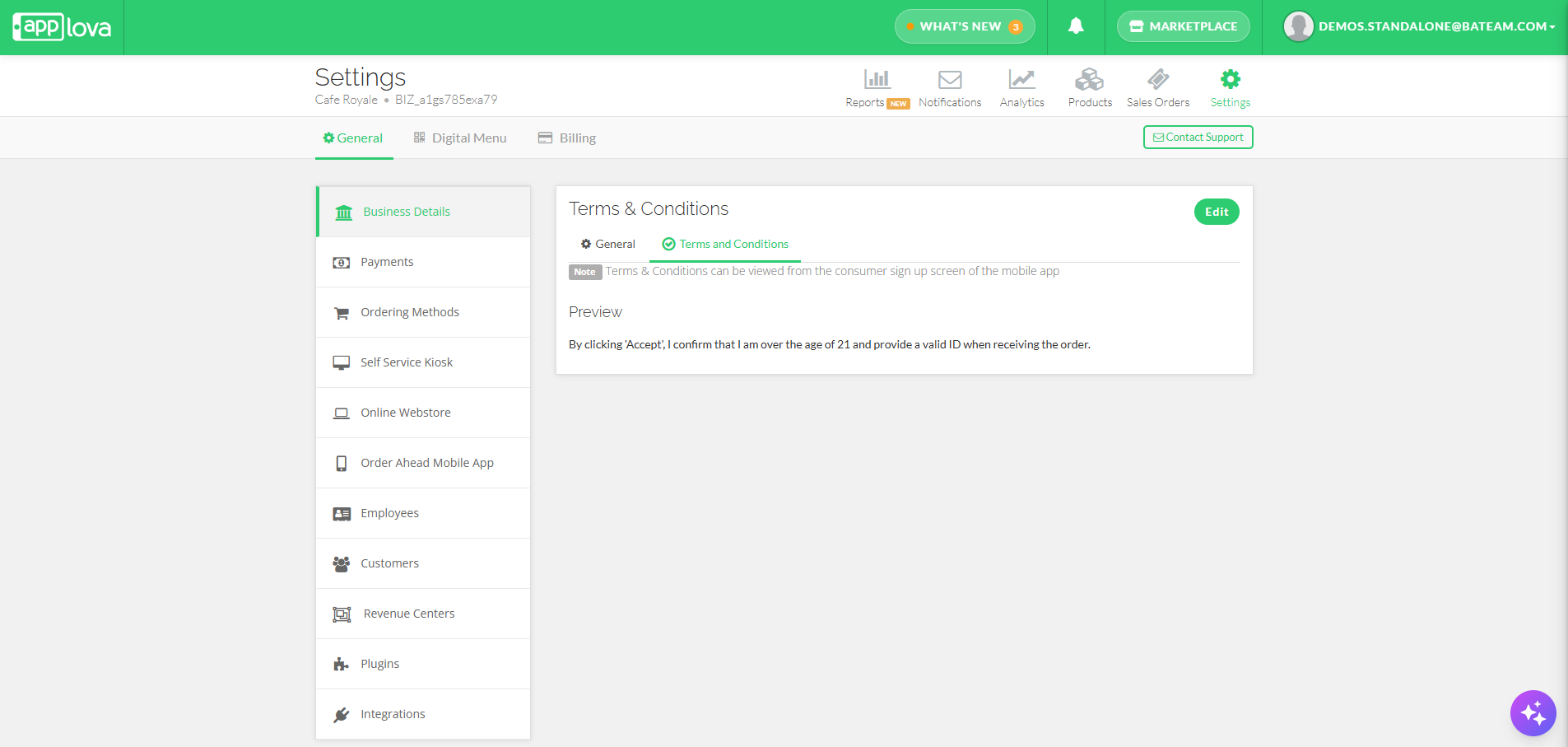
Click the "Edit" button in the top-right corner to make changes to the existing terms and conditions. And once the changes are made click on "Save Changes".
Related Articles
How to Add Merchant Bank Details on Merchant Web?
This allows the merchant to add their bank details to the Merchant Web for billing purposes. How to Add Bank Details? Step 1 Login to "Applova Merchant Web". Step 2 Click "Settings" and go to the "Billing" tab. Step 3 Under "Bank Details" click on ...How to Configure Order Pick Up Via Merchant Web?
Merchants can configure order pickup settings through Merchant Web. These settings allow merchants to manage pickup related details, and ensure customers can place pickup orders based on the business’s preferred setup. How to Enable Pick Up Option? ...How to Manage Customers via Merchant Portal
This feature allows merchants to quickly search for specific customers, filter customer records by a selected date range and delete inactive, duplicate, or invalid customer records from their Customer List. How to Search for a Customer? Step 1 ...How to Configure Order Delivery Via Merchant Web?
Merchants can configure order delivery settings through Merchant Web. These settings allow merchants to manage delivery related details, and ensure customers can place delivery orders based on the business’s preferred setup. How to Enable the ...How to View Summary Reports via Merchant Web Portal?
This feature is currently available only for Round1 merchants. This feature allows merchants to view summary reports. There are two categories of summary reports that can be viewed via the Merchant Web Portal. Real-Time Reports Daily Payment Method ...