How to Manage Advanced Settings for Digital Menu via Merchant Portal?
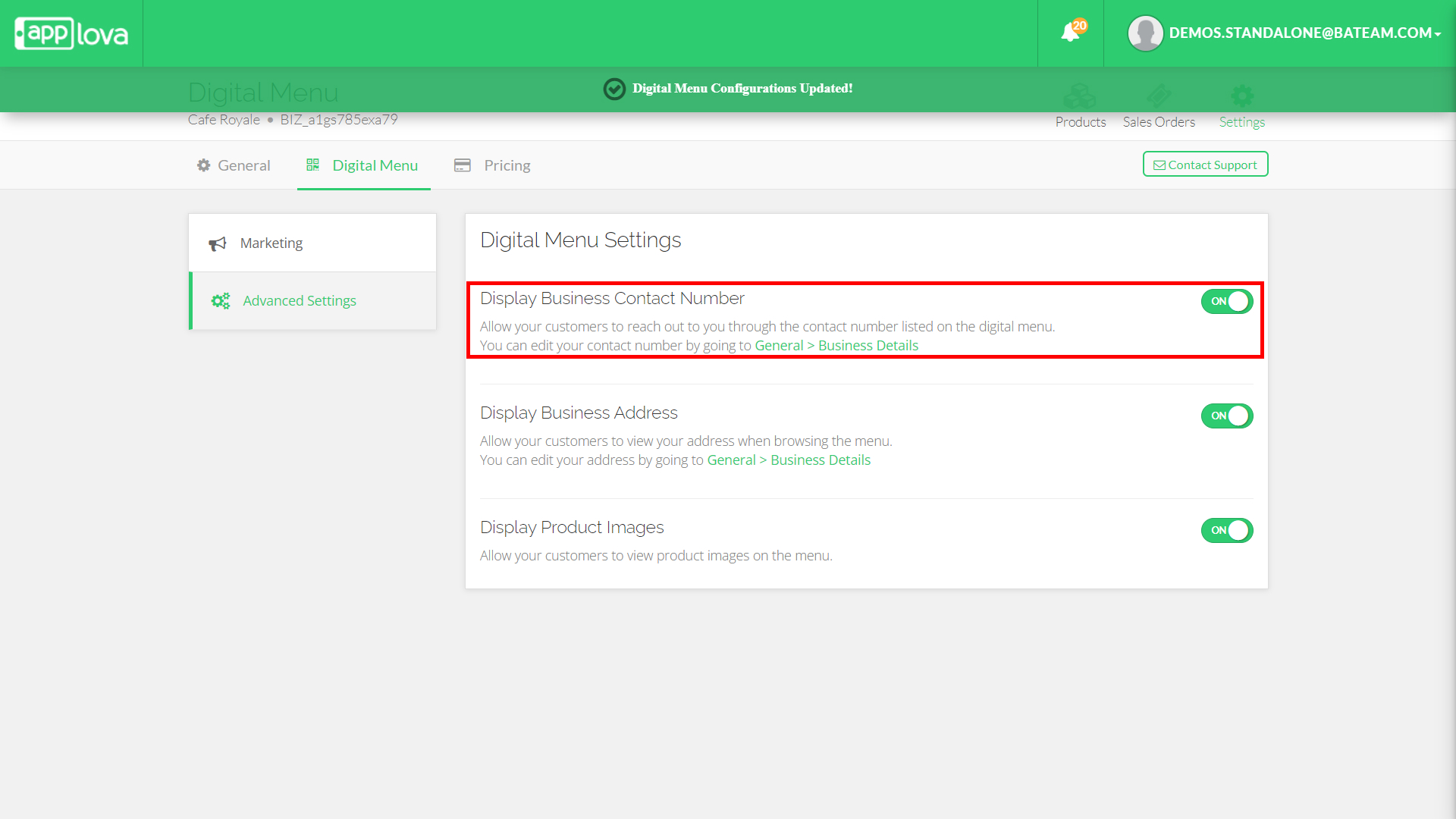
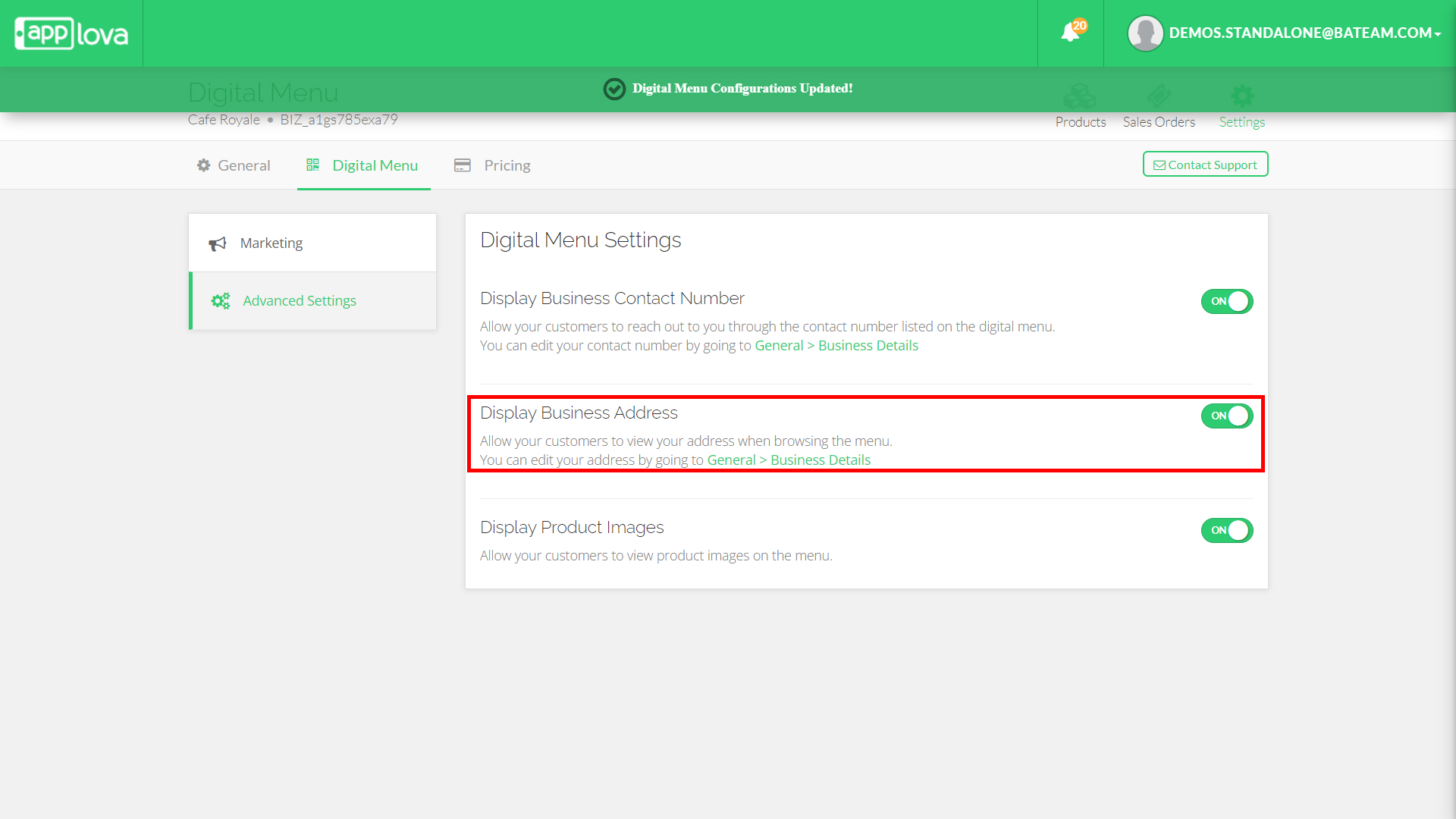
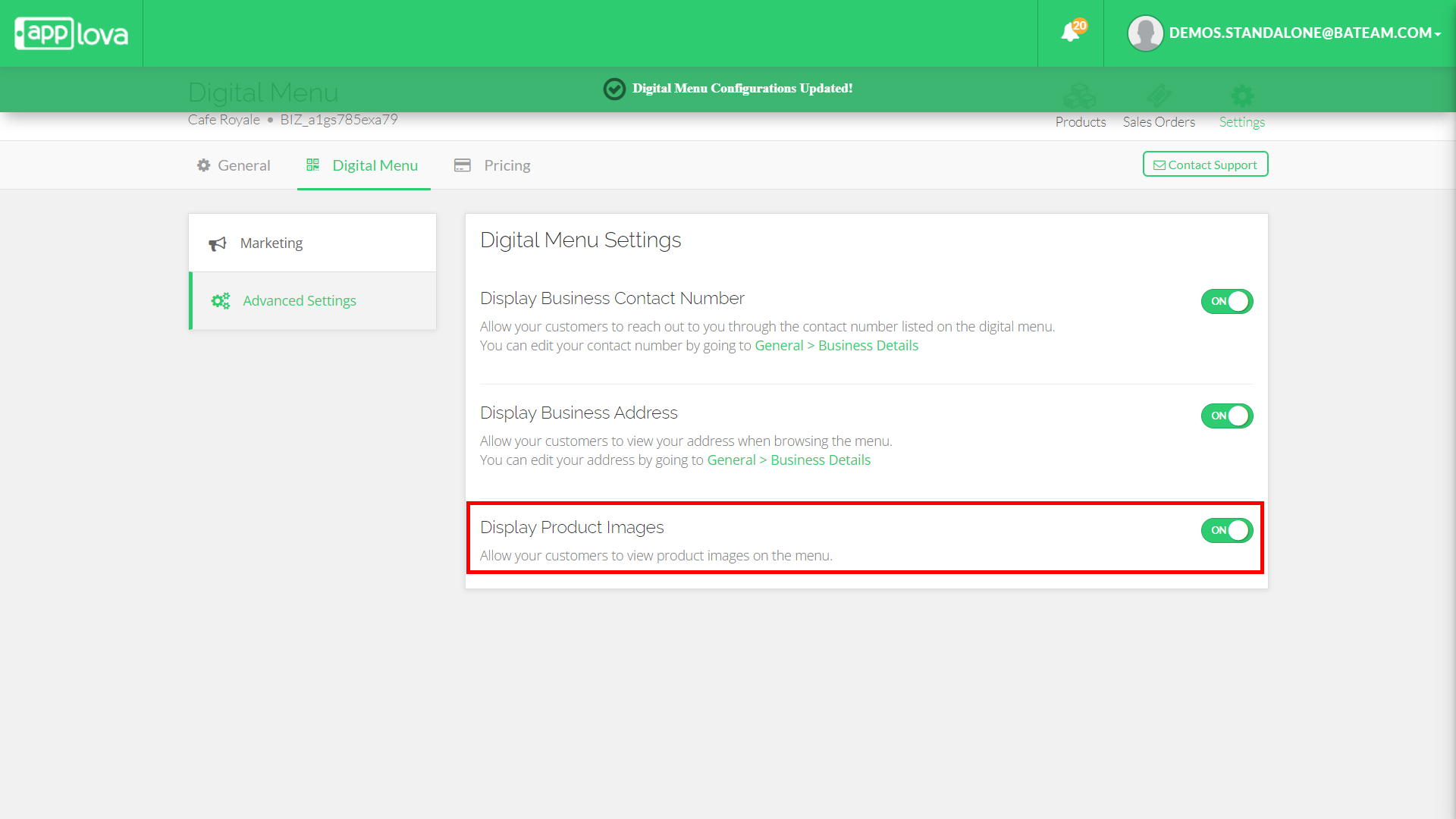
The Digital Menu Advanced Settings allow merchants to control how certain information is displayed on their digital menu. Merchants can choose whether to show or hide product images, the business contact number, and the business address based on how they want the menu to appear to customers.
How to Manage Business Contact Number of Digital Menu?
Step 1
Login to "Applova Merchant Web".
Step 2
Click "Settings" and go to "Digital Menu" tab.
Step 3
Click "Advanced Settings" and enable the toggle for "Display Business Contact Number".
How to Manage Business Address of Digital Menu?
Step 1
Login to "Applova Merchant Web".
Step 2
Click "Settings" and go to "Digital Menu" tab.
How to Manage Product Images of Digital Menu?
Step 1
Login to "Applova Merchant Web".
Step 2
Click "Settings" and go to "Digital Menu" tab.
Step 3
Click "Advanced Settings" and enable the toggle for "Display Product Image".
Related Articles
Altering Business Details via Merchant Portal
This guide explains how to update your business information and manage the terms and conditions displayed to customers through Applova Merchant Portal. Altering Business Details Step 1 Login to "Applova Merchant Web". Step 2 Click "Settings" and go ...How to Manage Customers via Merchant Portal
This feature allows merchants to quickly search for specific customers and delete inactive, duplicate, or invalid customer records from their Customer List. How to Search for a Customer? Step 1 Navigate to the Settings section on the Merchant Portal. ...How to Manage Product Specific Add-Ons as a Stock Controller User on Merchant Web?
The Stock Controller User, a merchant role with limited privileges solely for stock management, now has the capability to enable or disable the display of product add-ons via the Merchant Web. Step 1 Login to the "Merchant Web Portal" and click on ...How to Configure Alcohol Warning Message via Merchant Portal?
Supported on: Clover & Standalone Kiosks This capability enables the display of an alcohol warning message on the cart screen when alcoholic products are added to the cart. You can customize both the message's content and the text on the associated ...How to Manage Products via Merchant Web?
This article explains how merchants can add, edit, duplicate, and delete products by following the steps provided. How to Add a Product? Step 1 Login to "Applova Merchant Web". Step 2 Go to "Products" and click on "Add New Product". Step 3 Fill in ...