How to Configure Alcohol Warning Message via Merchant Portal?

Supported on: Clover & Standalone Kiosks
This capability enables the display of an alcohol warning message on the cart screen when alcoholic products are added to the cart. You can customize both the message's content and the text on the associated button.
How to Configure via Merchant Web Portal?
Step 1
Login to "Applova Merchant Web" and go to "Products".
Step 2
Select a preferred product and click on "Edit".
Step 3
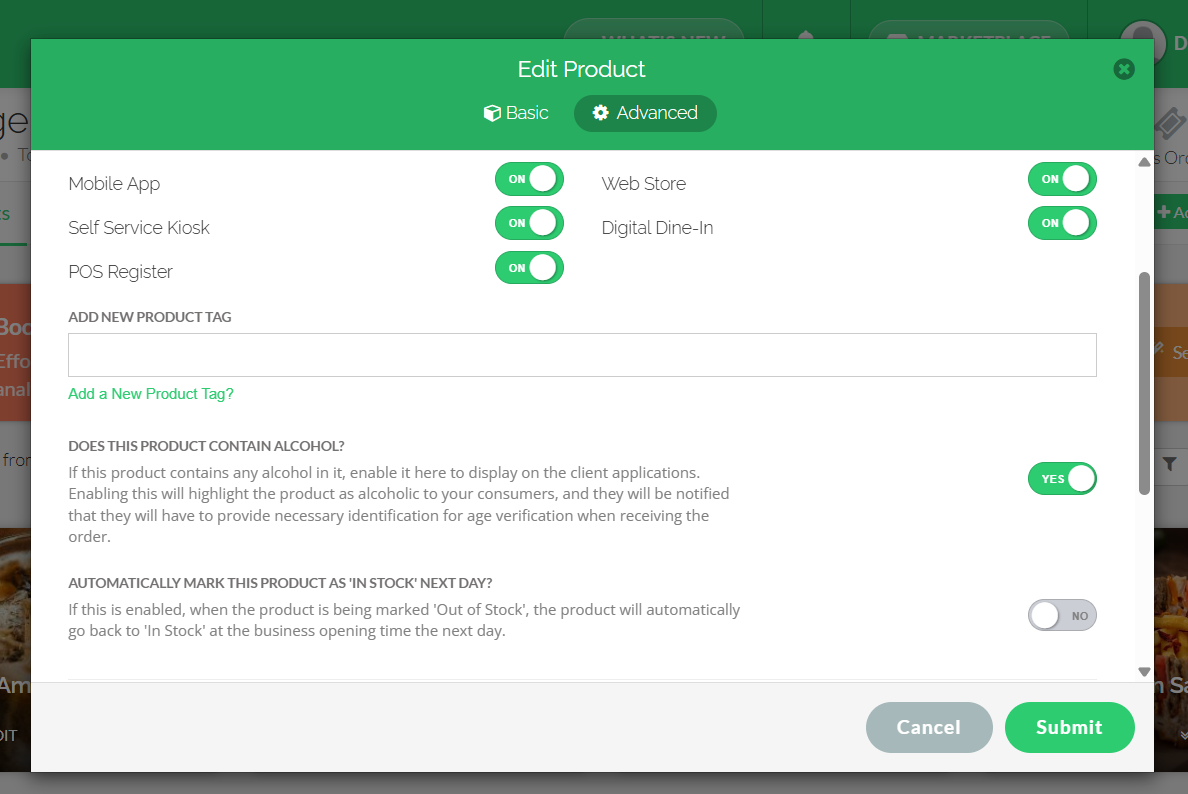
Then, go to the "Advanced" tab and select "More".
Step 4
Enable "Does this product contain alcohol" toggle option and click on "Submit".
Related Articles
How to Manage Self-Service Kiosk via Merchant Portal?
With this feature merchants can manage their Self-Service Kiosk settings through the Merchant Portal. These settings help merchants configure kiosk-related options and control how the kiosk is displayed or used by customers. How to View Activated ...How to Configure Order Delivery Via Merchant Web?
Merchants can configure order delivery settings through Merchant Web. These settings allow merchants to manage delivery related details, and ensure customers can place delivery orders based on the business’s preferred setup. How to Enable the ...How to Manage Customers via Merchant Portal
This feature allows merchants to quickly search for specific customers, filter customer records by a selected date range and delete inactive, duplicate, or invalid customer records from their Customer List. How to Search for a Customer? Step 1 ...How to Add Product Tags via Merchant Web?
This is a label or keyword associated with a specific product to help identify it. This will reflect only on the Kiosk. Step 1 Login to "Applova Merchant Web". Step 2 Under the "Products" tab click "Edit" on the product you wish to add the tag. Image ...How to Configure Order Pick Up Via Merchant Web?
Merchants can configure order pickup settings through Merchant Web. These settings allow merchants to manage pickup related details, and ensure customers can place pickup orders based on the business’s preferred setup. How to Enable Pick Up Option? ...