How to Create Your Website Using the Website Builder?

The Applova Website Builder makes it easy to create a professional website, whether you're opening a new restaurant, already have an existing business, or are an existing Applova merchant. Existing businesses can search for their restaurant in the builder and automatically import available business details, images, and customer feedback for review and editing. New restaurants can enter their details manually and let the builder create the website from there.
Before You Begin
Before creating the website, choose the setup option that best matches your business.
| Business Type | Recommended Setup |
| You are starting a new restaurant | Enter your business details manually |
| Your restaurant already exists online | Search for your business and automatically import available details |
| You are an existing Applova merchant | Sign in and update your existing website |
If your restaurant already has an online presence, the Website Builder can do most of the work for you. Simply search for your business and the builder will bring in available business details, photos, reviews, and branding that you can review and edit before generating your website.
Step 1
Open the Website Builder.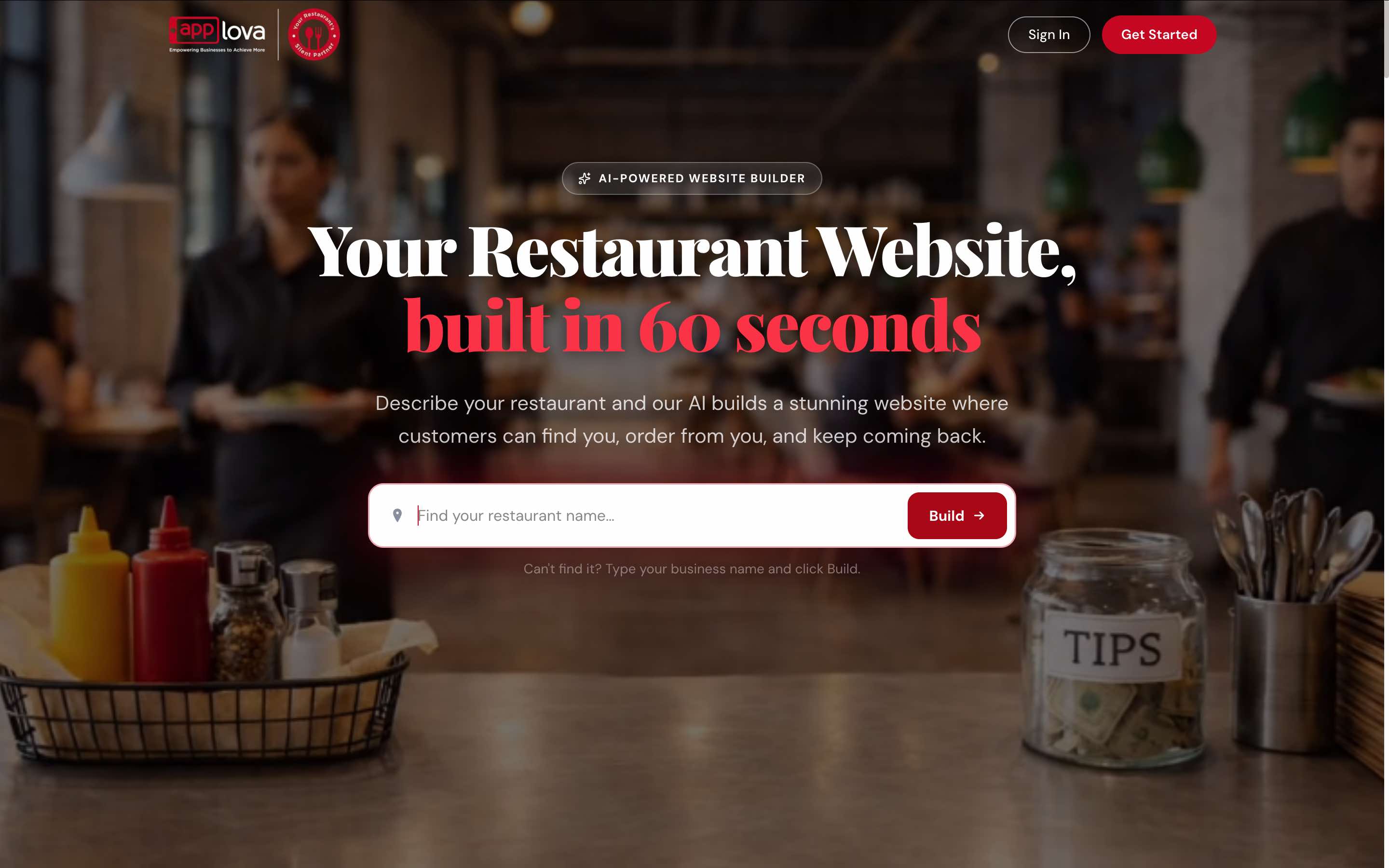
Image Link
Step 2
Search for your restaurant and select it from the search results.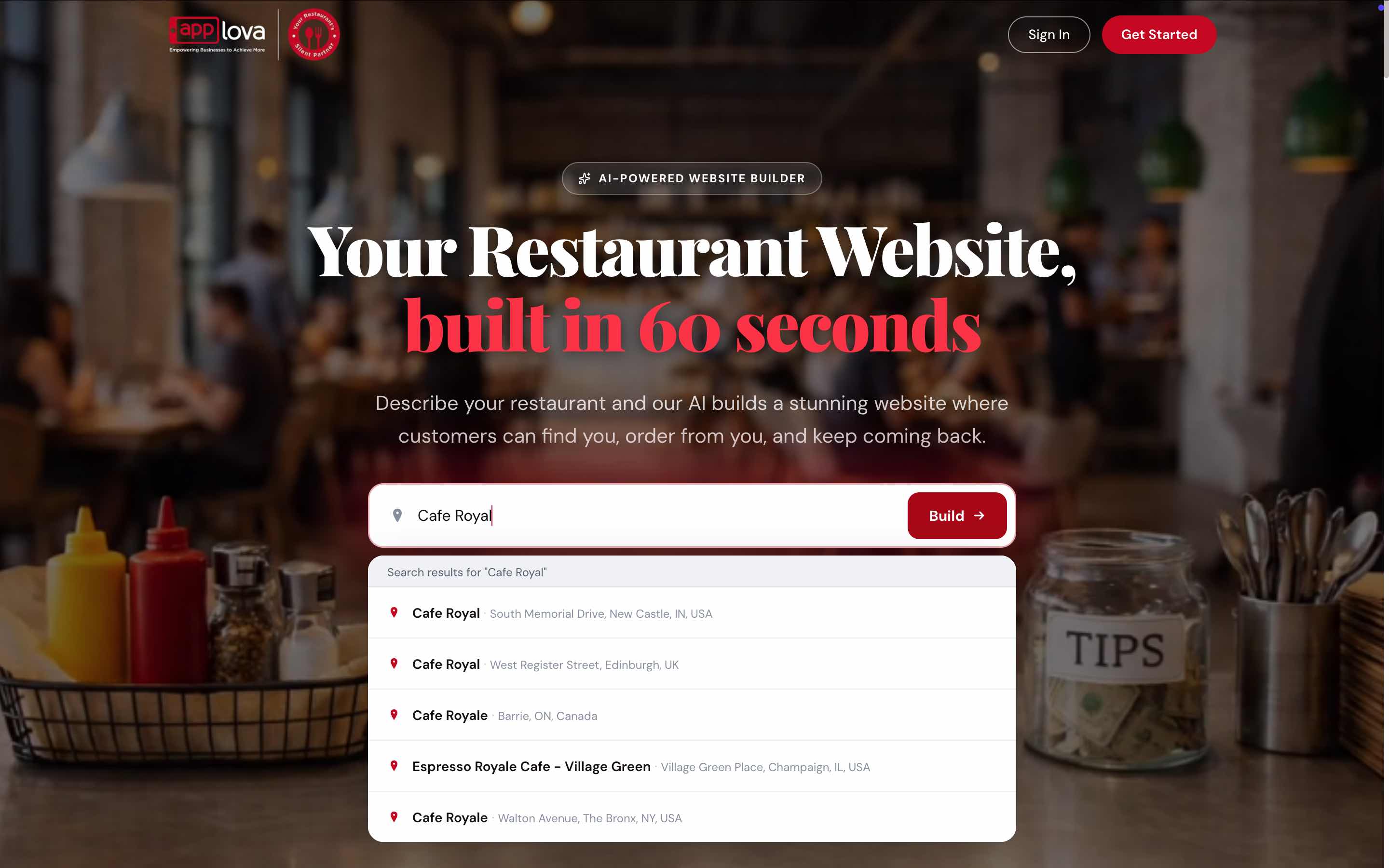
Image Link
Step 3
Review the information found for your business. You can keep it as is or update any details before continuing.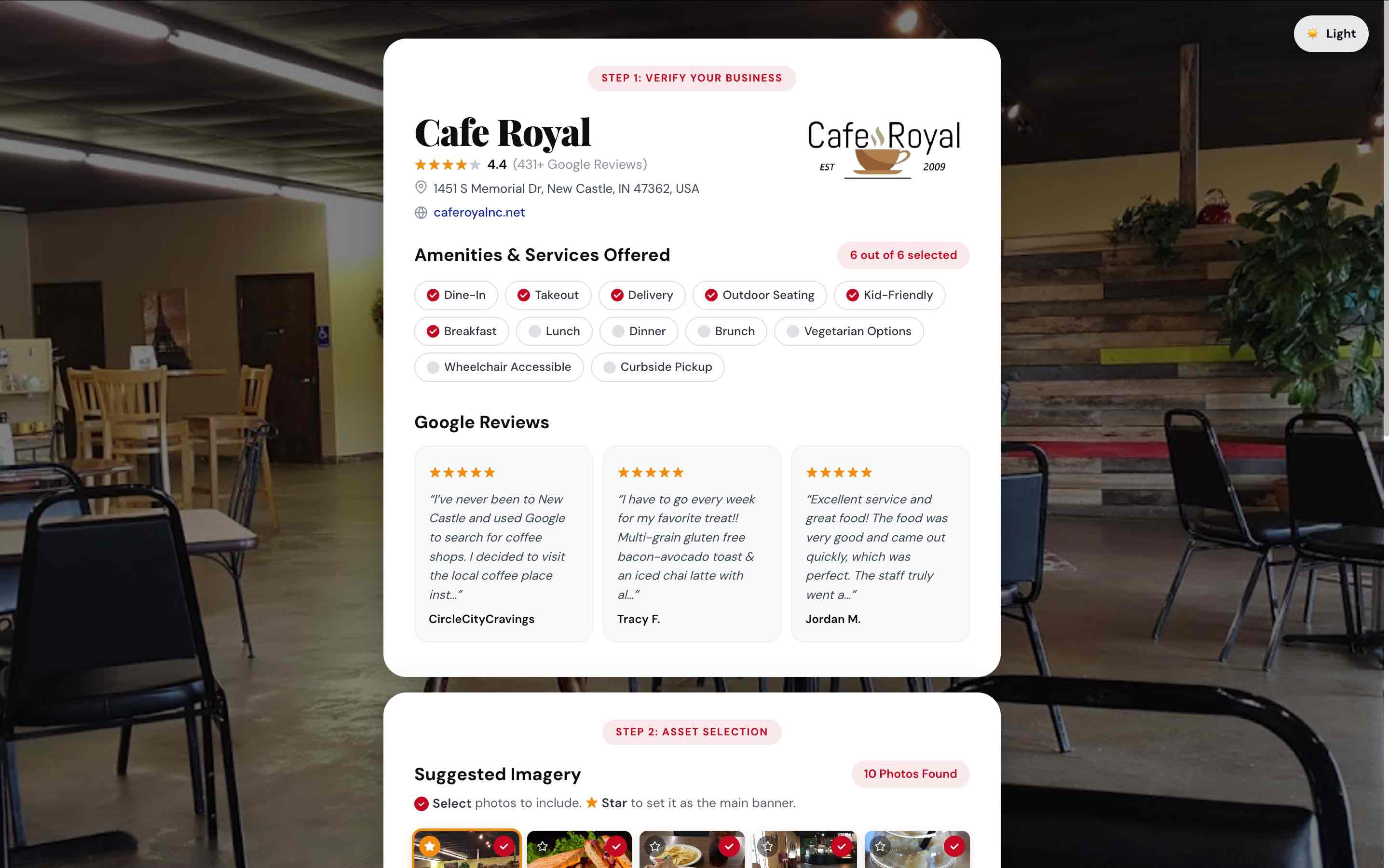
Image Link
Step 4
Choose the images and brand colors you would like your website to use.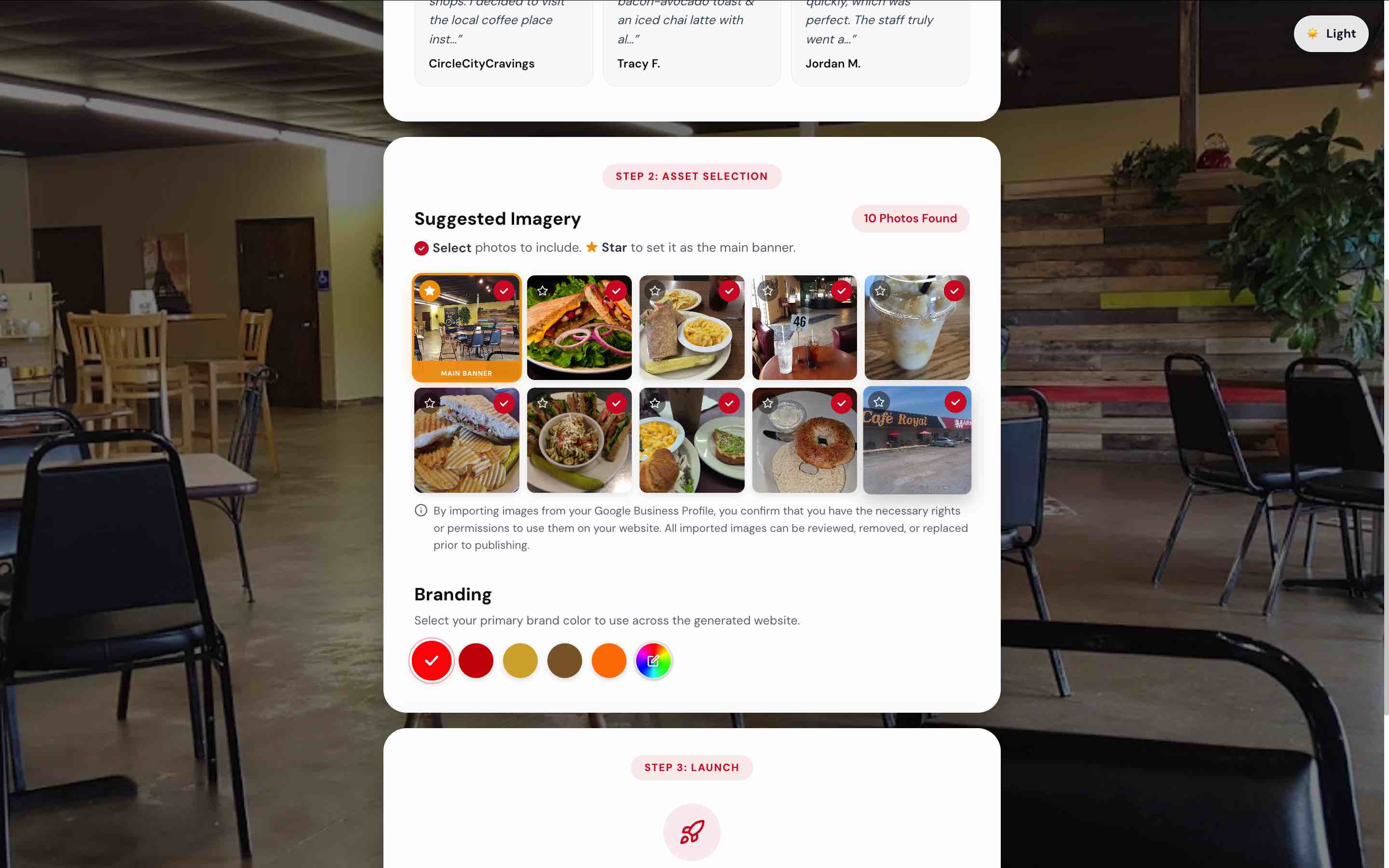
Image Link
Step 5
Click on "Yes, Build My Website"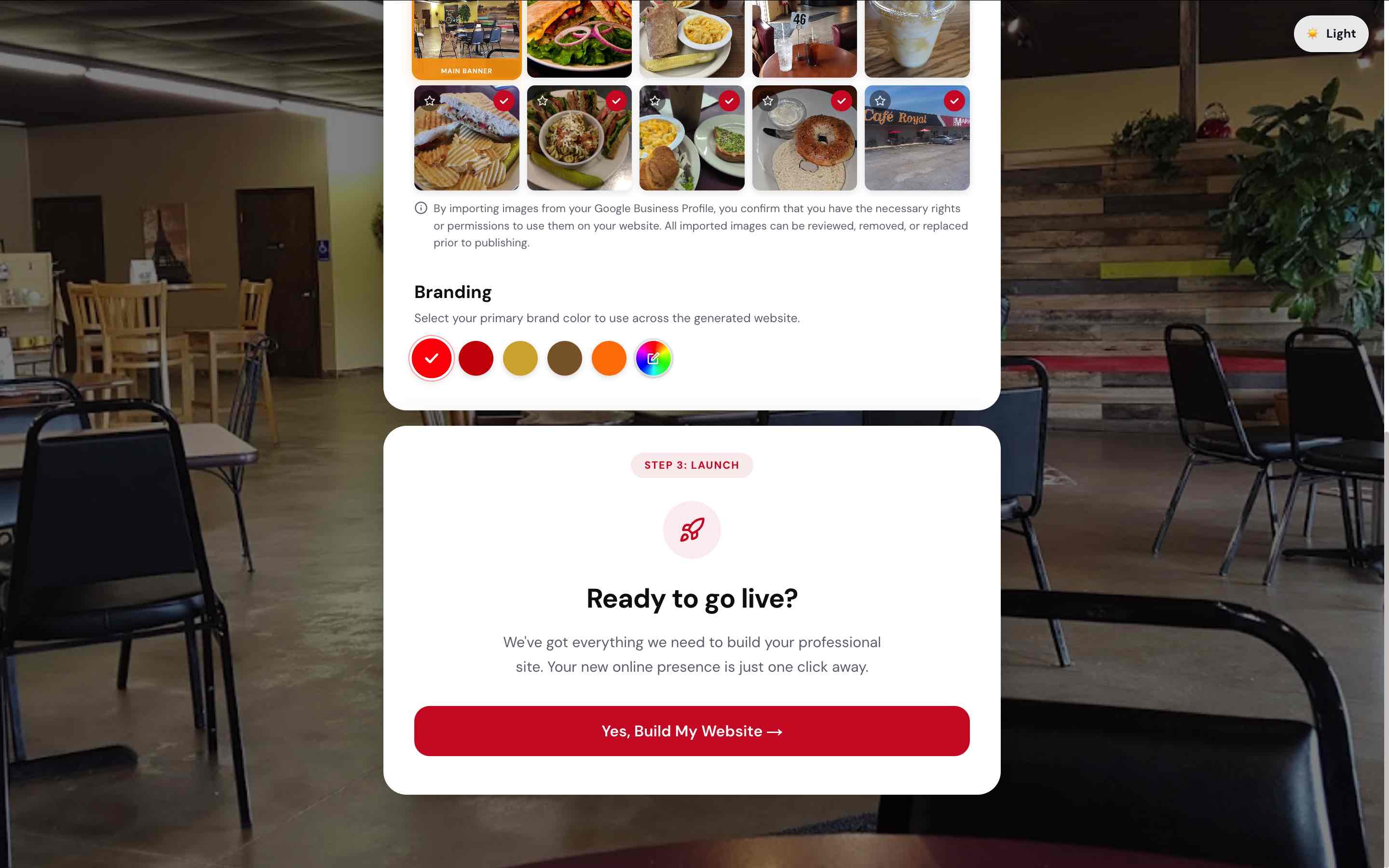
Image Link
Step 6
Enter your email address and complete the OTP verification.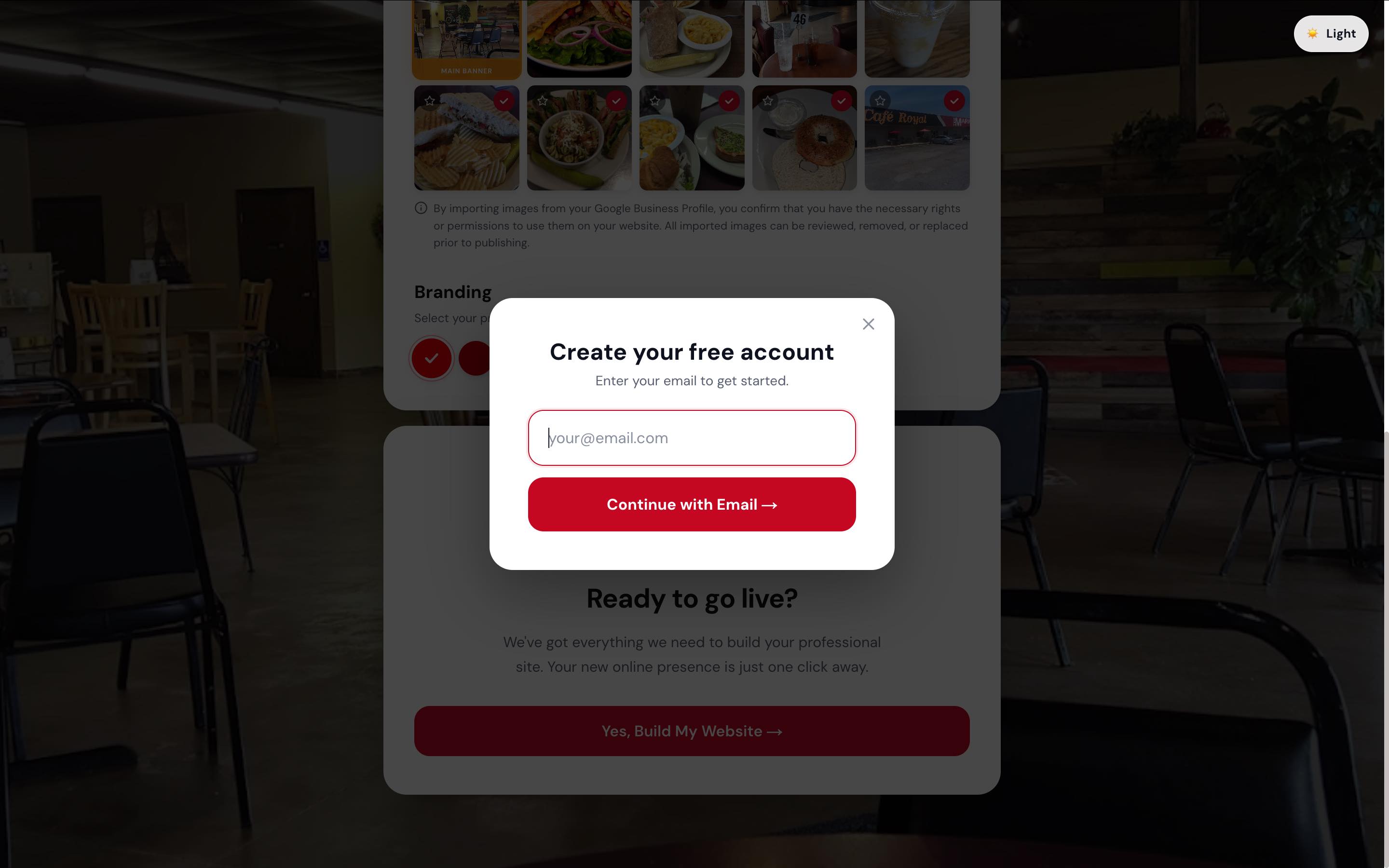
Image Link
Step 7
Complete the account registration process.
Step 8
Website Builder will create a professional website using your business information.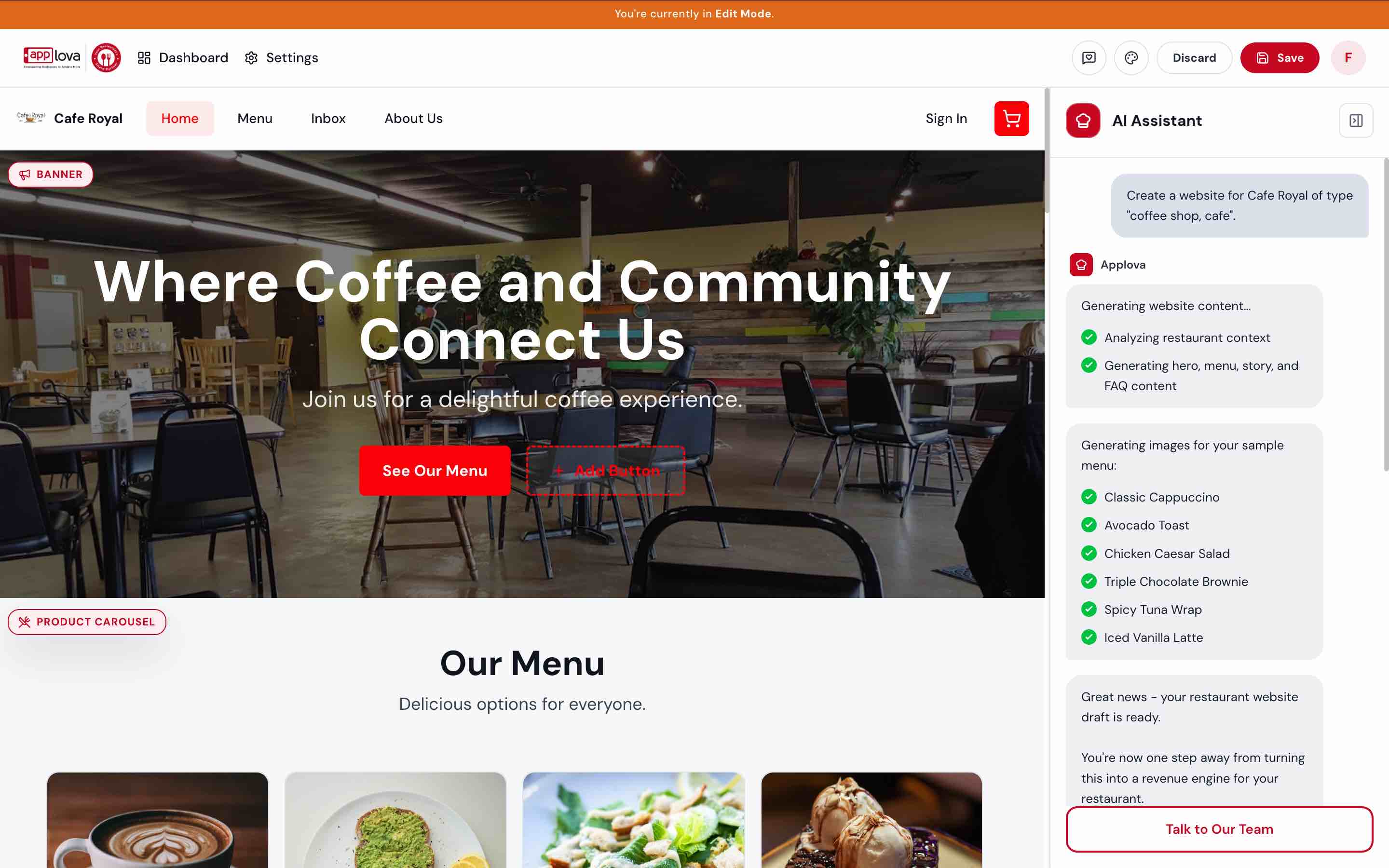
Image Link
If you don’t have an online business profile yet, simply enter your restaurant’s details manually, and the Website Builder will generate a professional website from scratch.
Step 1
Open the Website Builder.
Step 2
Enter your restaurant name and click on "Build"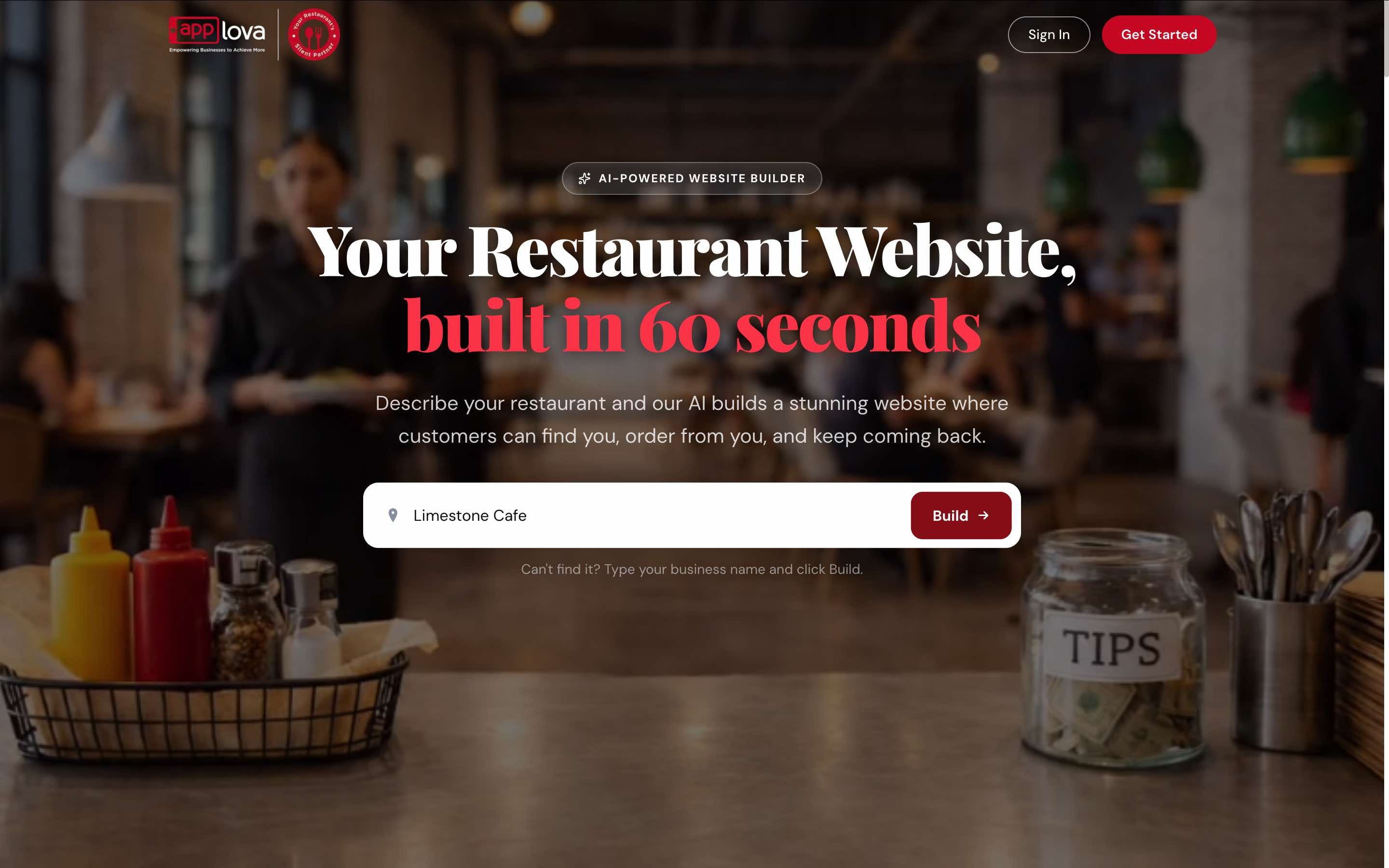
Image Link
Step 3
Choose the type of restaurant you operate.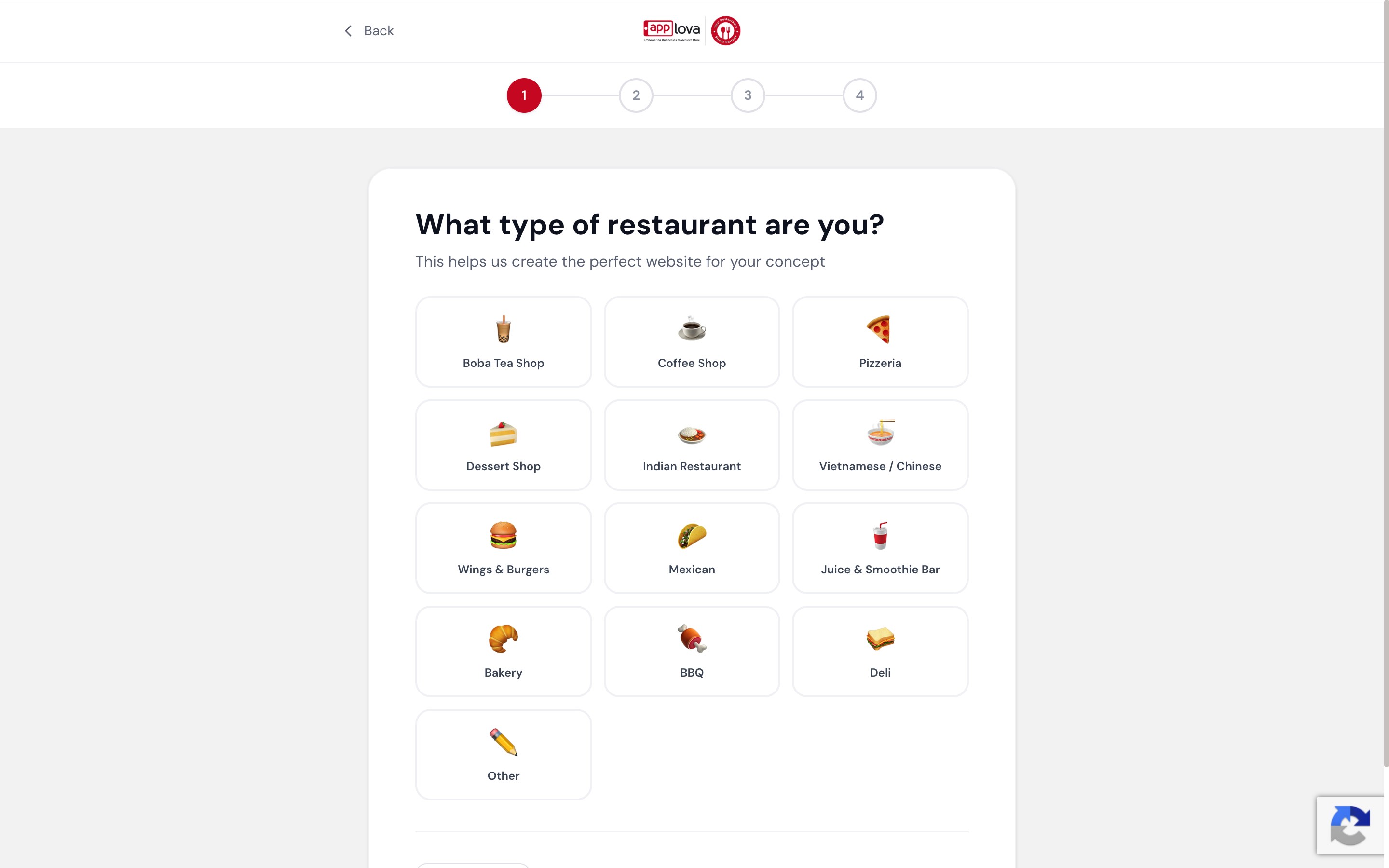
Image Link
Step 4
Tell us a little about your restaurant so AI can create content that matches your brand.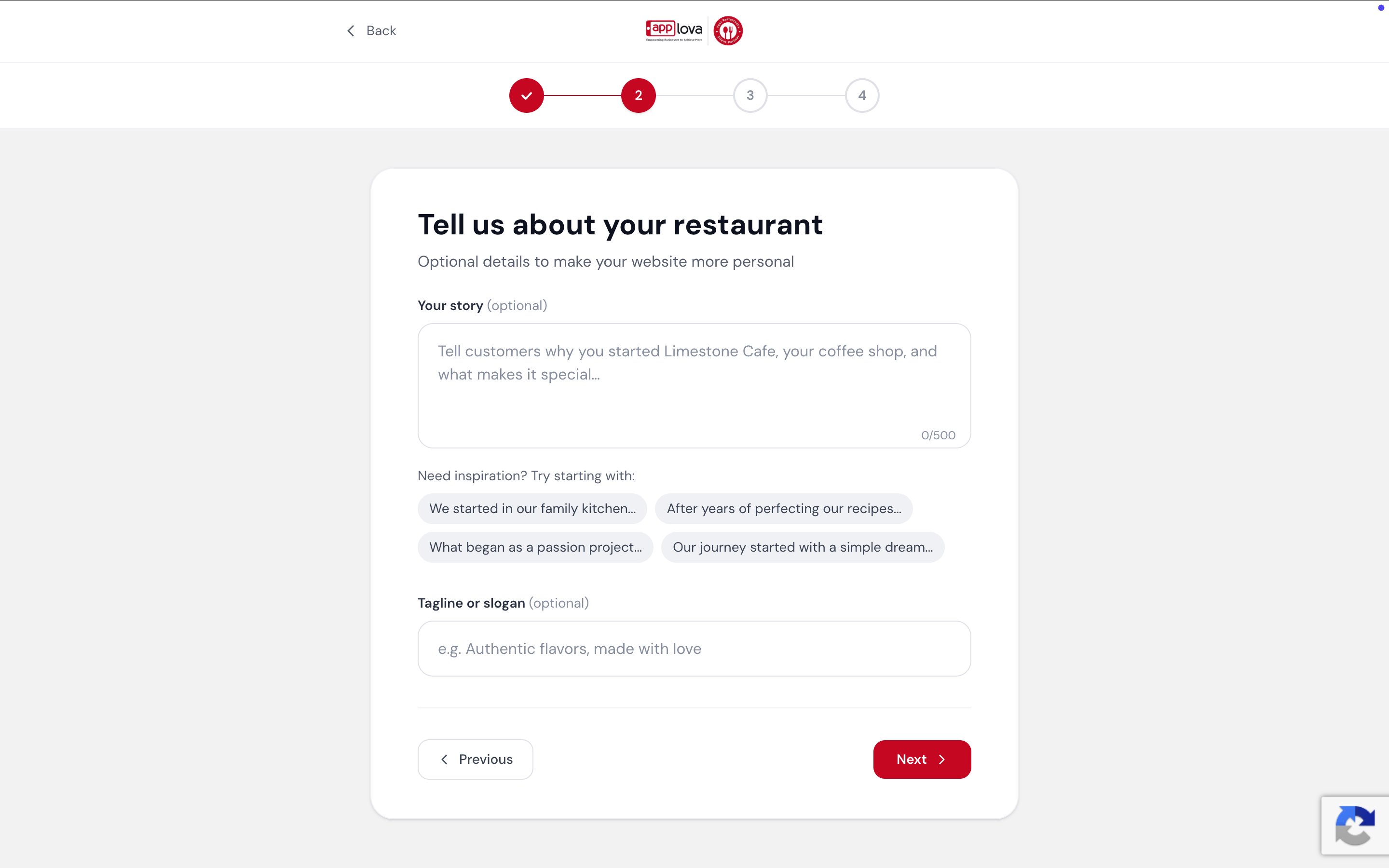
Image Link
Step 5
Upload your logo and let the builder suggest colors that match your brand.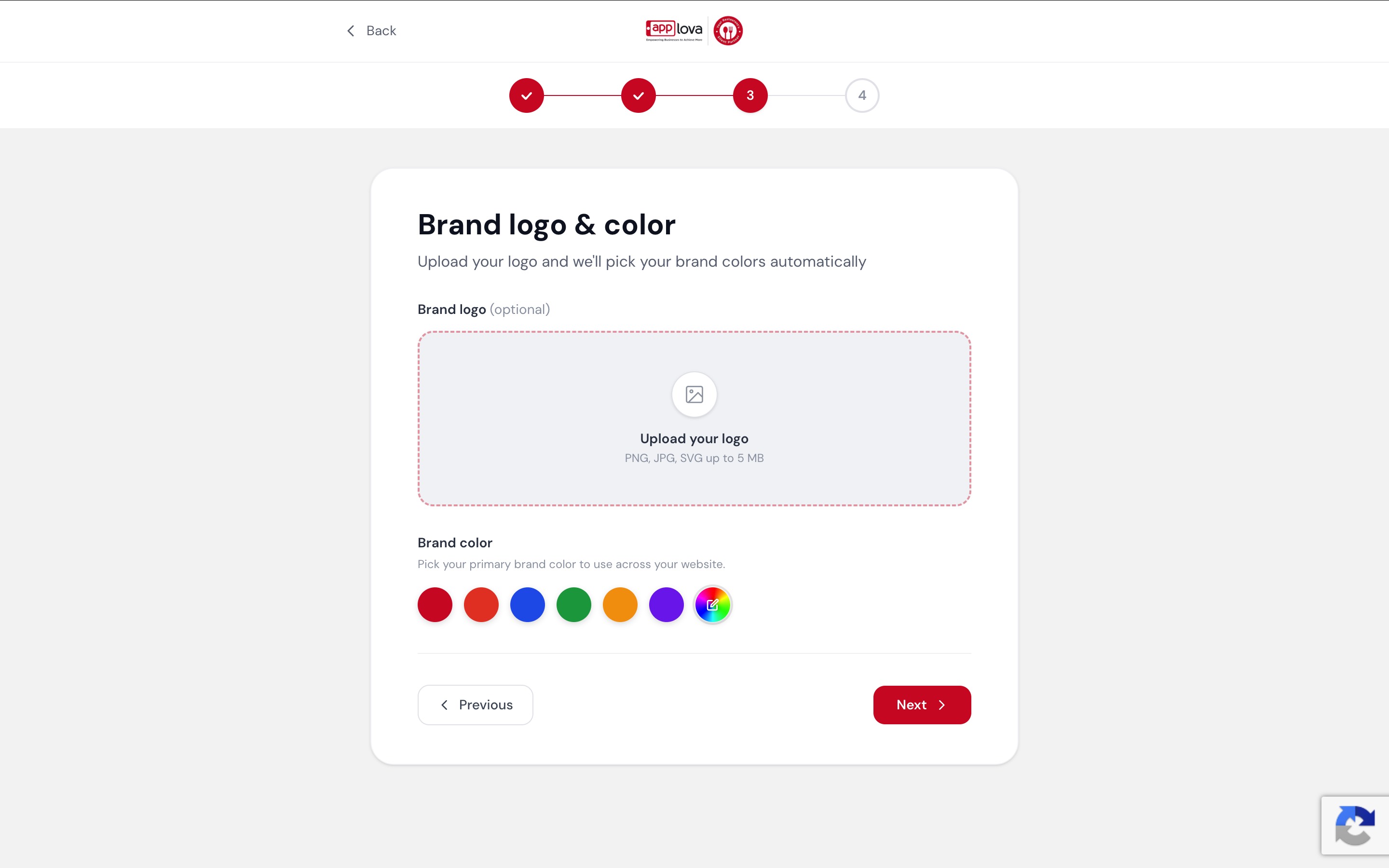
Image Link
Step 6
Select the services and amenities you offer so customers know what to expect.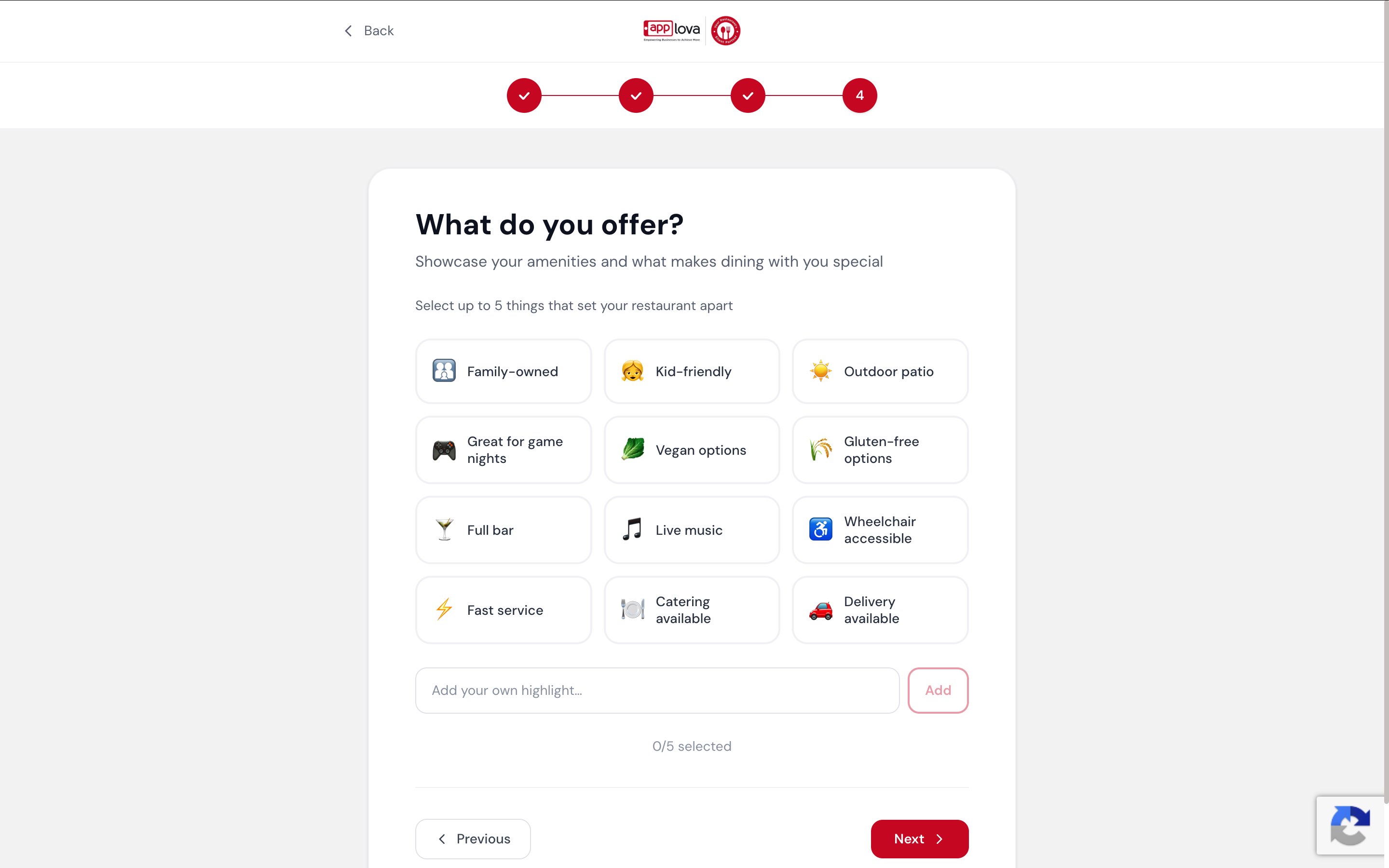
Image Link
Step 7
Click on "Continue with Email"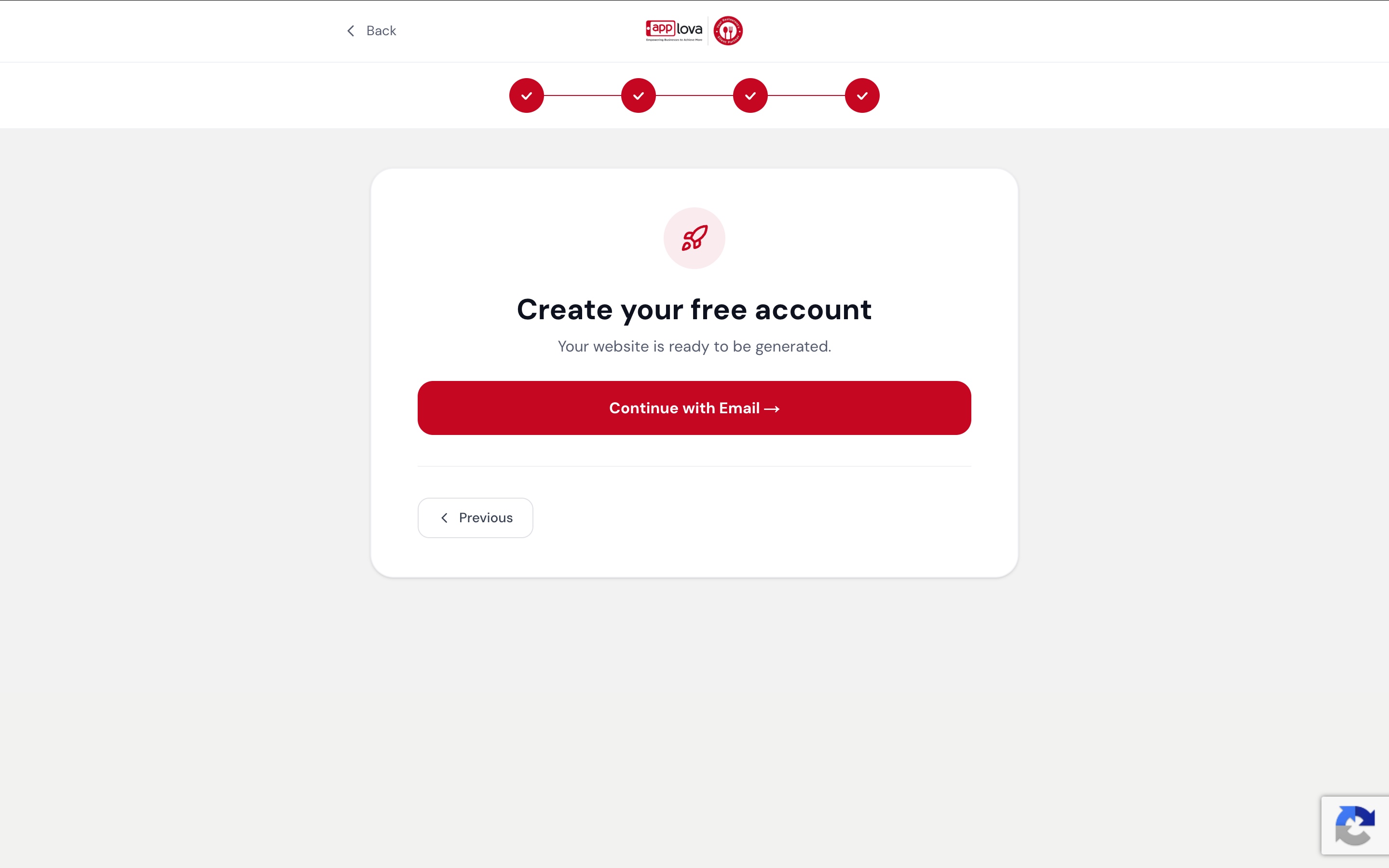
Image Link
Step 8
Enter your email address and complete the OTP verification.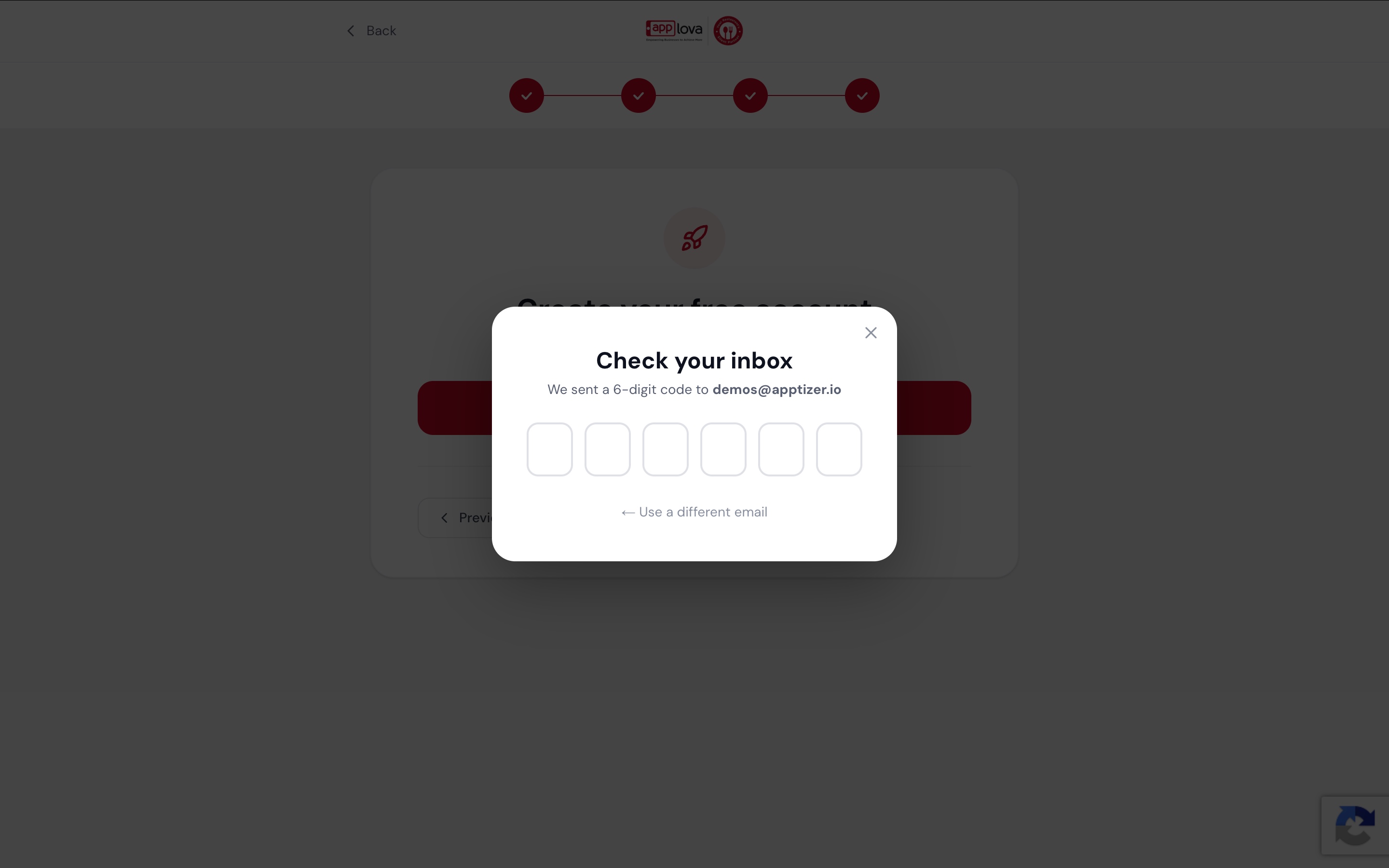
Image Link
Step 9
The Website Builder will generate a complete website based on the information you provided.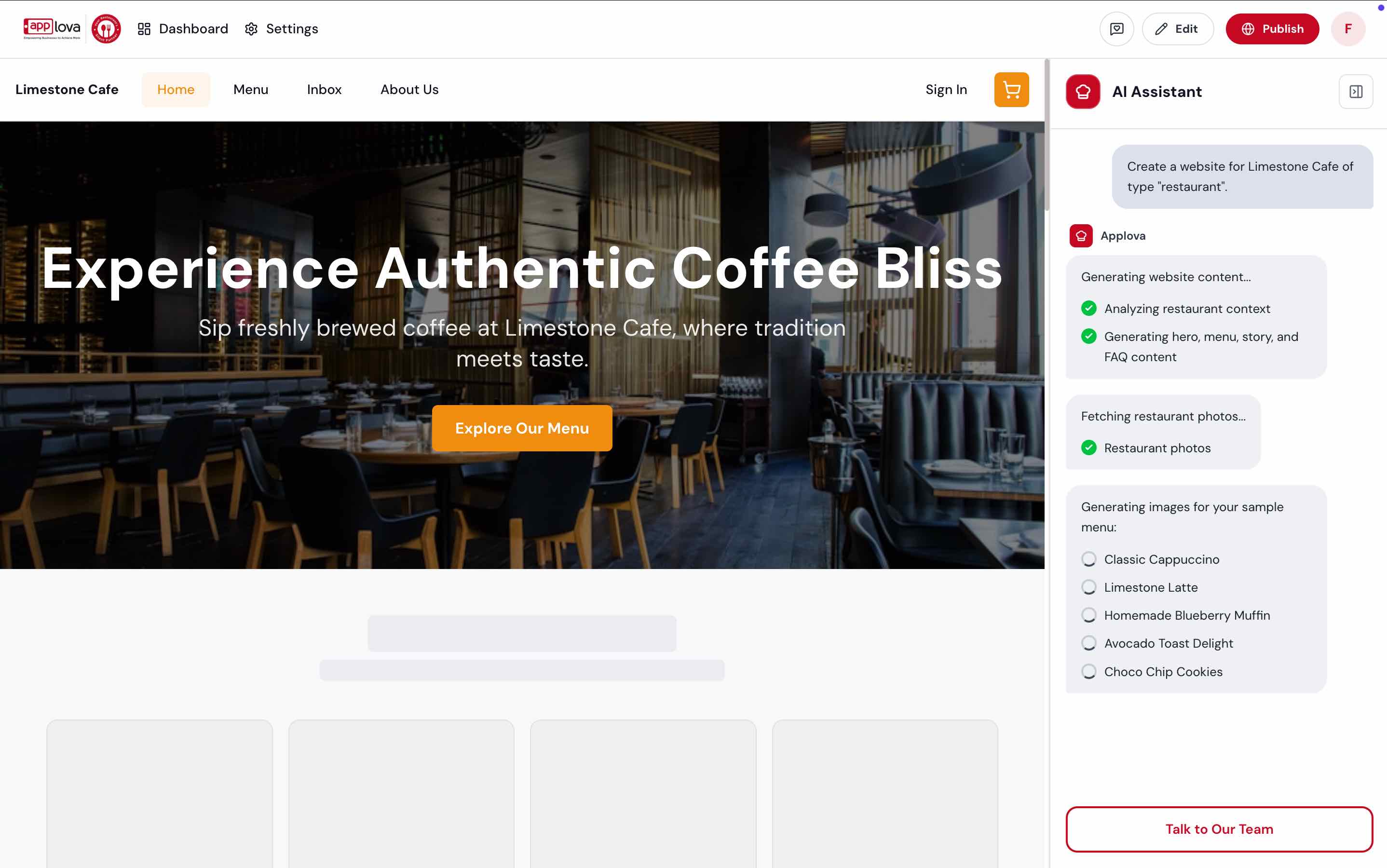
Image Link
Already using Applova? Simply sign in to continue working on your existing website. The builder loads your current website so you can make updates and publish them whenever you are ready.
Step 1
Open the Website Builder.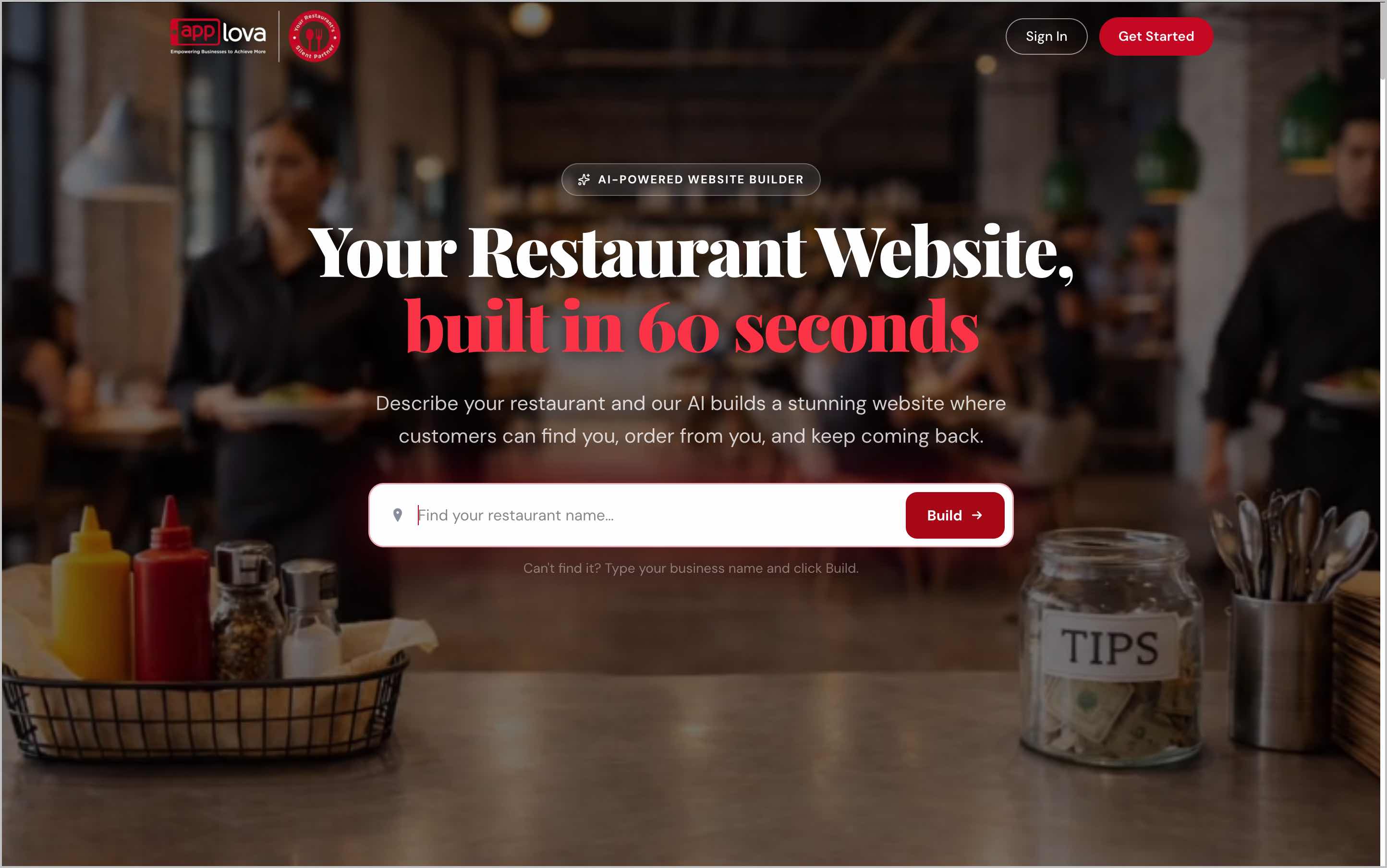
Image Link
Step 2
Click "Sign In" and enter your existing merchant account credentials.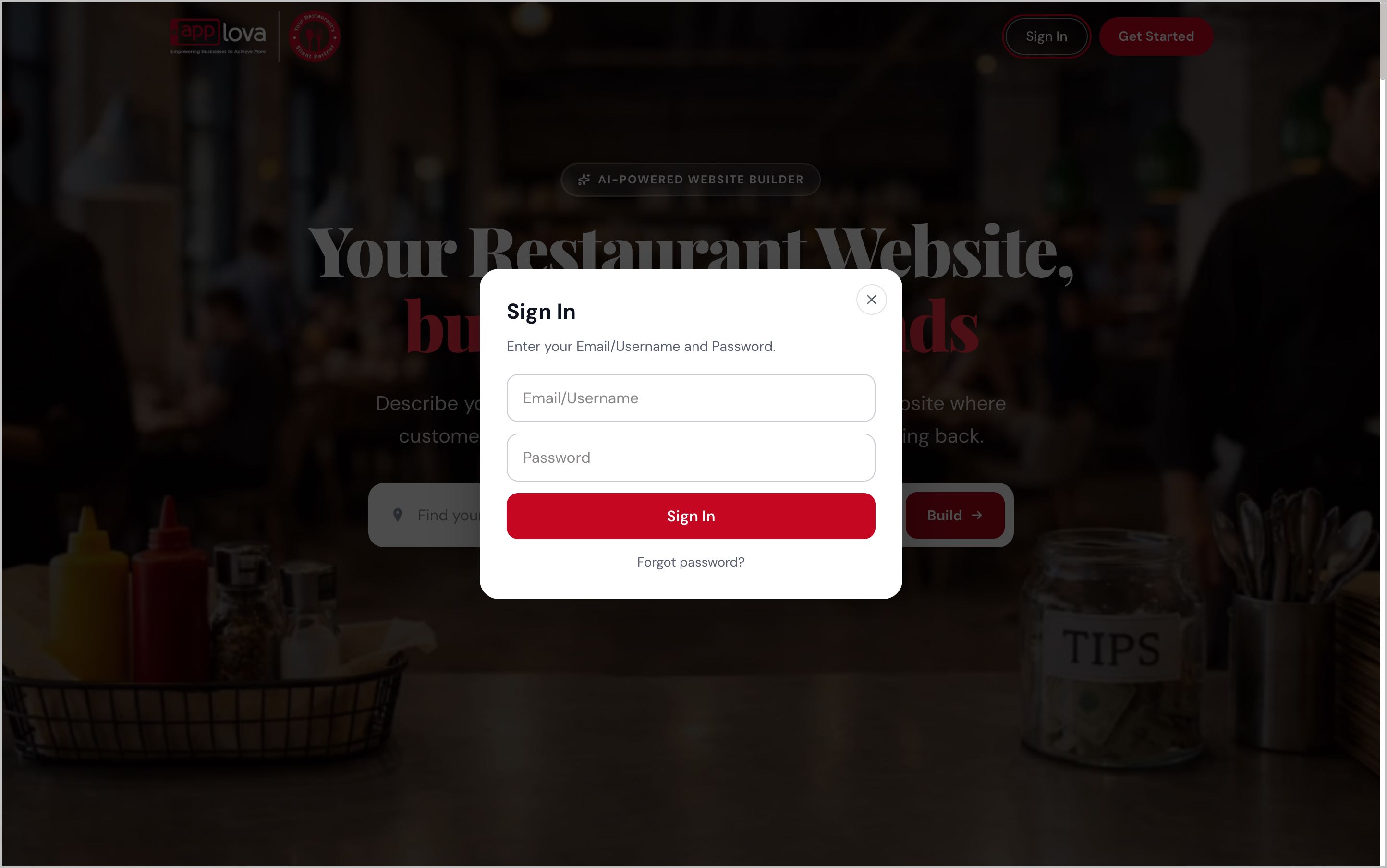
Image Link
Step 3
Your existing website will open in the builder. You can then update the content, images, sections, and publish your latest changes.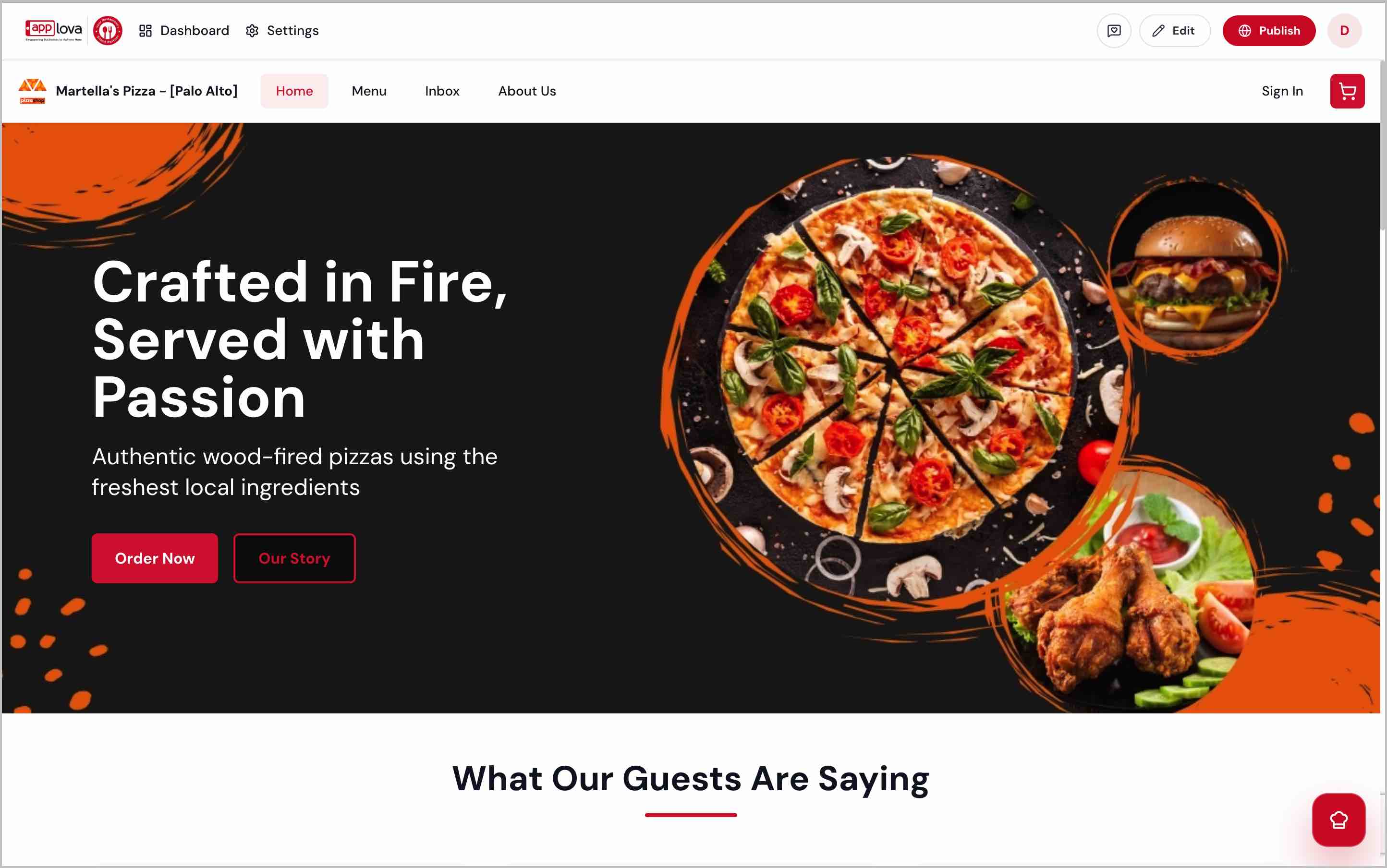
Image Link
Once your website is ready, you can publish it to make it available to customers.
Step 1
Create or customize the website using the Website Builder.
Step 2
Click "Publish".
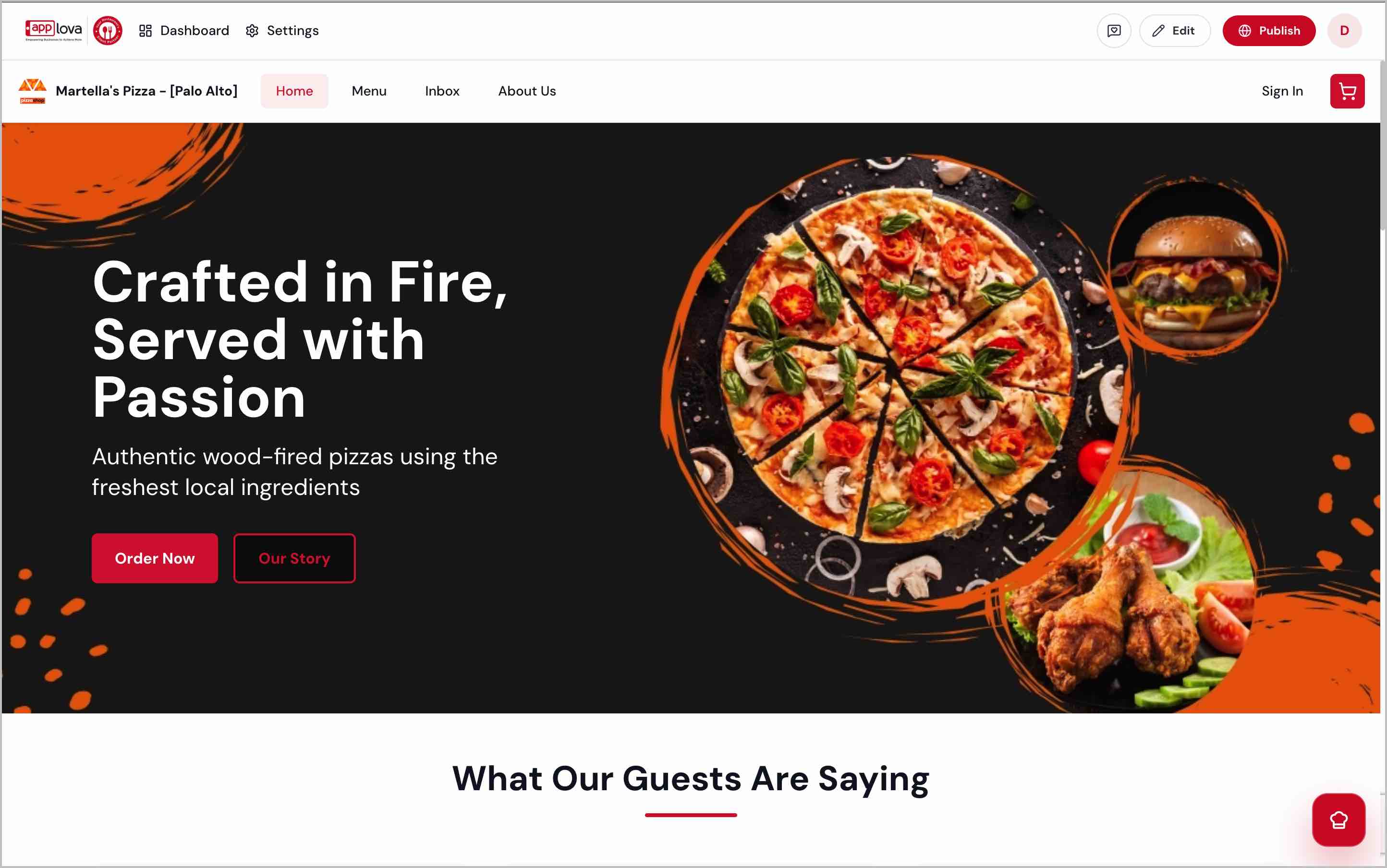
Step 3
Review the available publishing options and continue with the plan that best fits your business.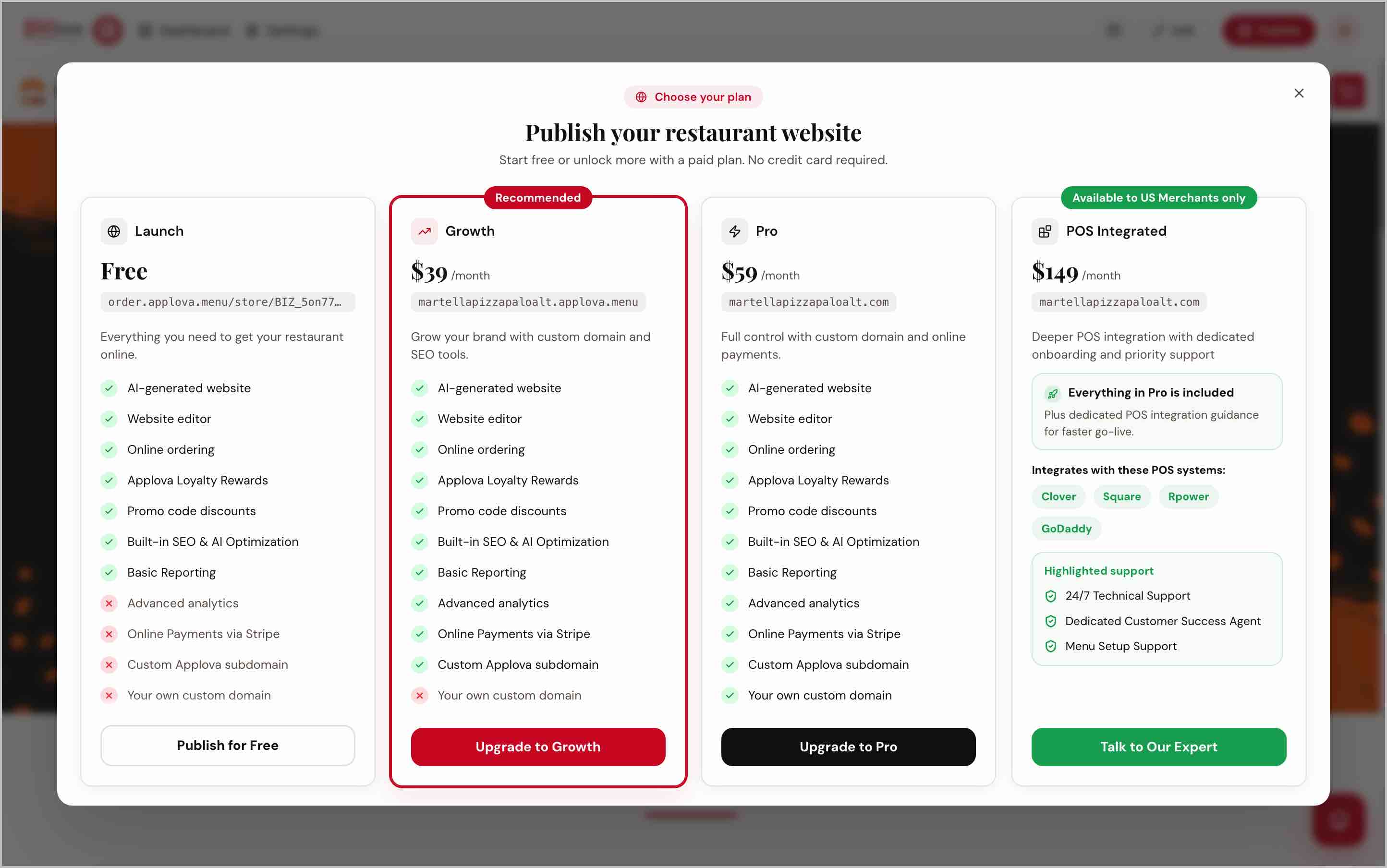
Image Link
What's Next?
Once your website has been created, you can review everything before publishing. You remain in control and can update the content, images, branding, and other details to match your restaurant.
Your generated website may already include:
- Homepage content
- About Us page content
- Sample menu items
- Business images
- Brand colors
- Customer reviews and FAQs
After reviewing the generated website, you can continue customizing your website content, images, theme colors, fonts, menu showcase, reviews, FAQs, and footer information before publishing.
For detailed instructions on editing your website, refer to "How to Customize a Website Using the Website Builder".
Related Articles
How to Configure Announcement Popups Using Website Builder?
Supported Domains: Standalone, Clover, Square, RPower, GoDaddy Announcement Popups allow merchants to display promotions, important notices, seasonal offers, and other updates in the center of their website. Merchants can customize the popup content, ...How to Customize a Website Using the Website Builder?
Supported Domains: Standalone, Clover, Square, RPower, GoDaddy The Applova Website Builder allows merchants to personalize their generated website using simple editing tools. Merchants can update the website content, images, colors, menu showcase, ...Getting Started with the Website Builder
Supported Domains: Standalone, Clover, Square, RPower, GoDaddy Applova’s Website Builder allows merchants to create and publish a website with online ordering support using a guided setup experience. The builder uses business details, branding, ...How to Enable or Disable Website Pages in the Website Builder?
Supported Domains: Standalone, Clover, Square, RPower, GoDaddy The Website Builder allows merchants to choose which pages appear on their website. Pages can be enabled or disabled at any time based on the information and services the business wants ...How to add a button with an External Link to Your Website Page Content?
Supported Domains: Standalone, Clover, Square, RPower, GoDaddy The Website Builder allows merchants to add a button to an Image and Text section and direct customers to an external webpage or form. This can be used for actions such as submitting a ...