How to add a button with an External Link to Your Website Page Content?


Use Case Scenario 1: Hiring
Beverly Sweets wants interested candidates to apply for available positions through its website. The merchant creates an external job application form and links it to an Apply Now button on the Hiring page. Candidates can then open the form directly from the website and submit their applications.
Use Case Scenario 2: Catering
Beverly Sweets wants customers to submit catering requests through its website. The merchant creates an external catering request form and links it to a Request Catering button on the Catering page. Customers can then access the form directly and provide their event and catering requirements.
How to Add a Button with an External Link?
Step 1
Open the Website Builder and Click "Sign In".
Image Link
Step 2
Enter your account credentials.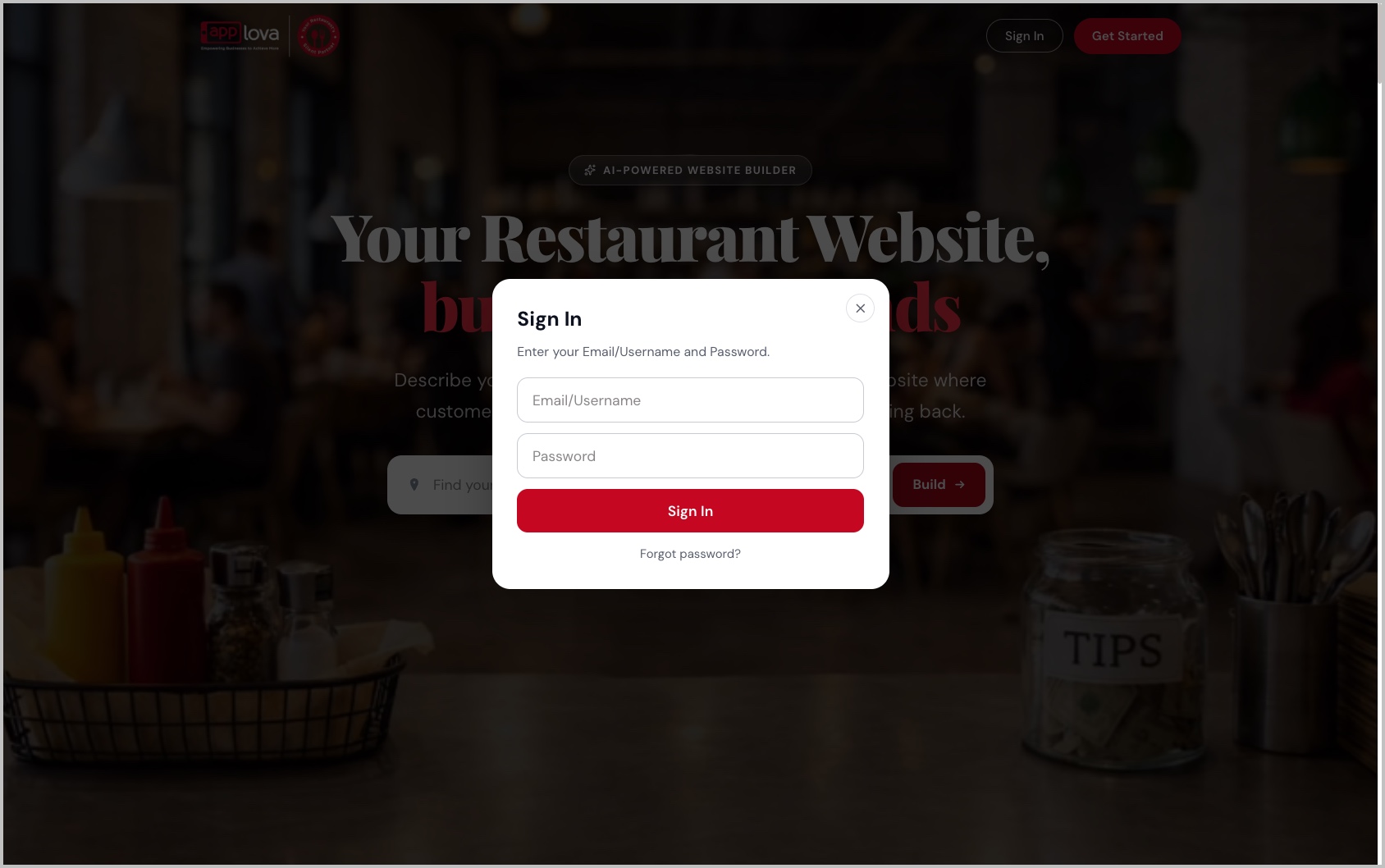
Image Link
Step 3
Click "Edit" to open your website in edit mode.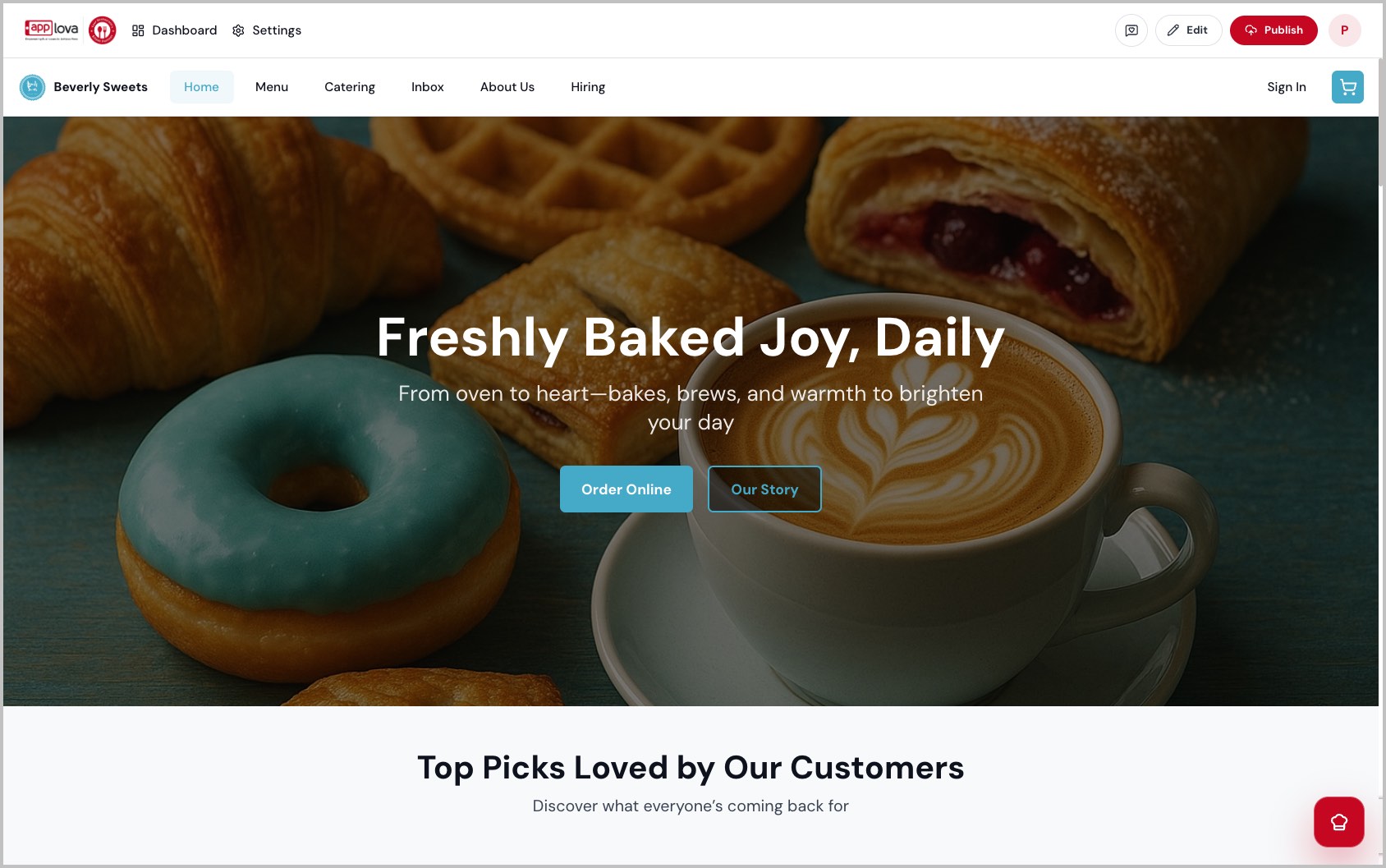
Image Link
Step 4
Open the page where you want to add the button.
Step 5
Locate the required Image and Text section and click "Add Button".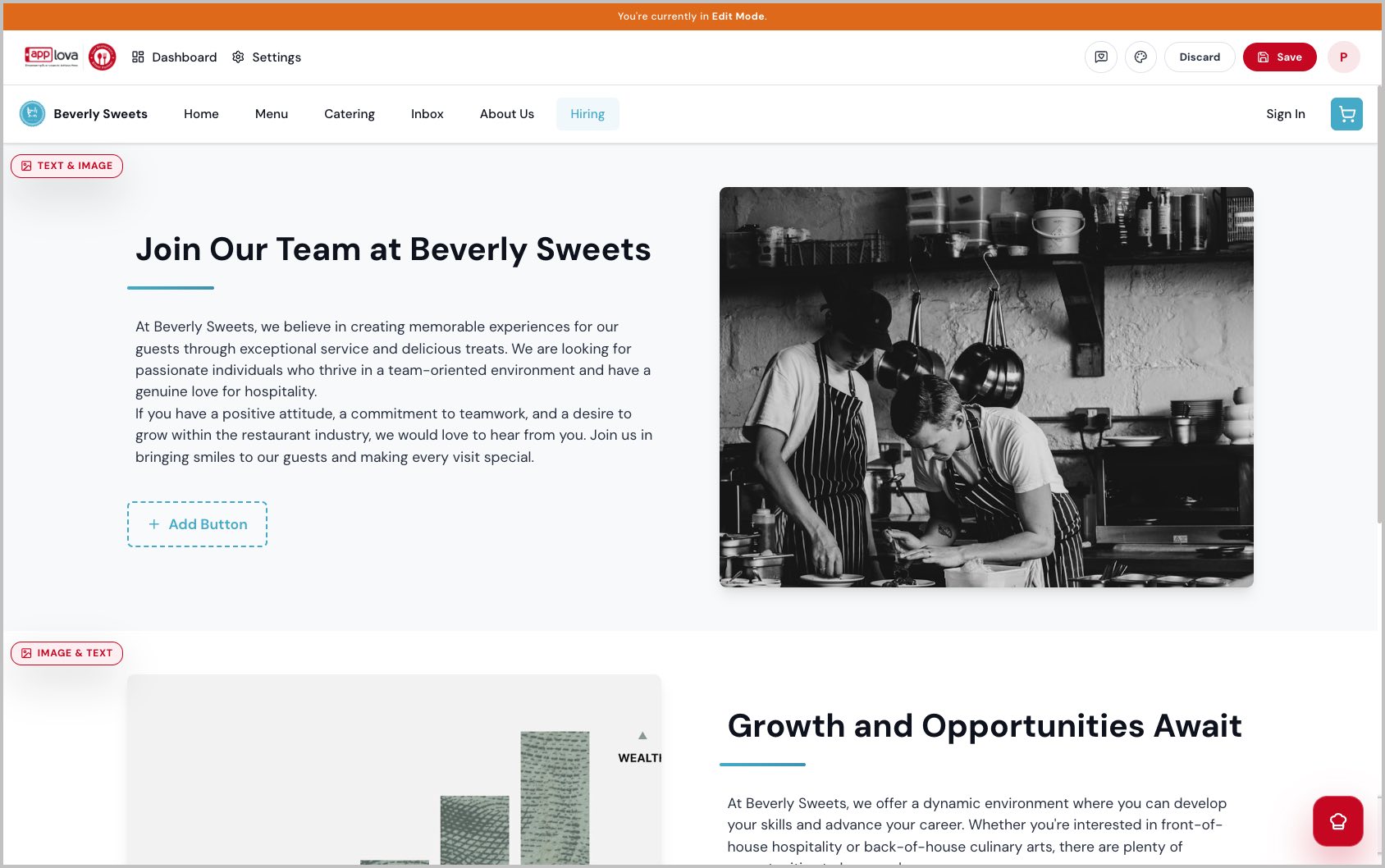
Image Link
Step 6
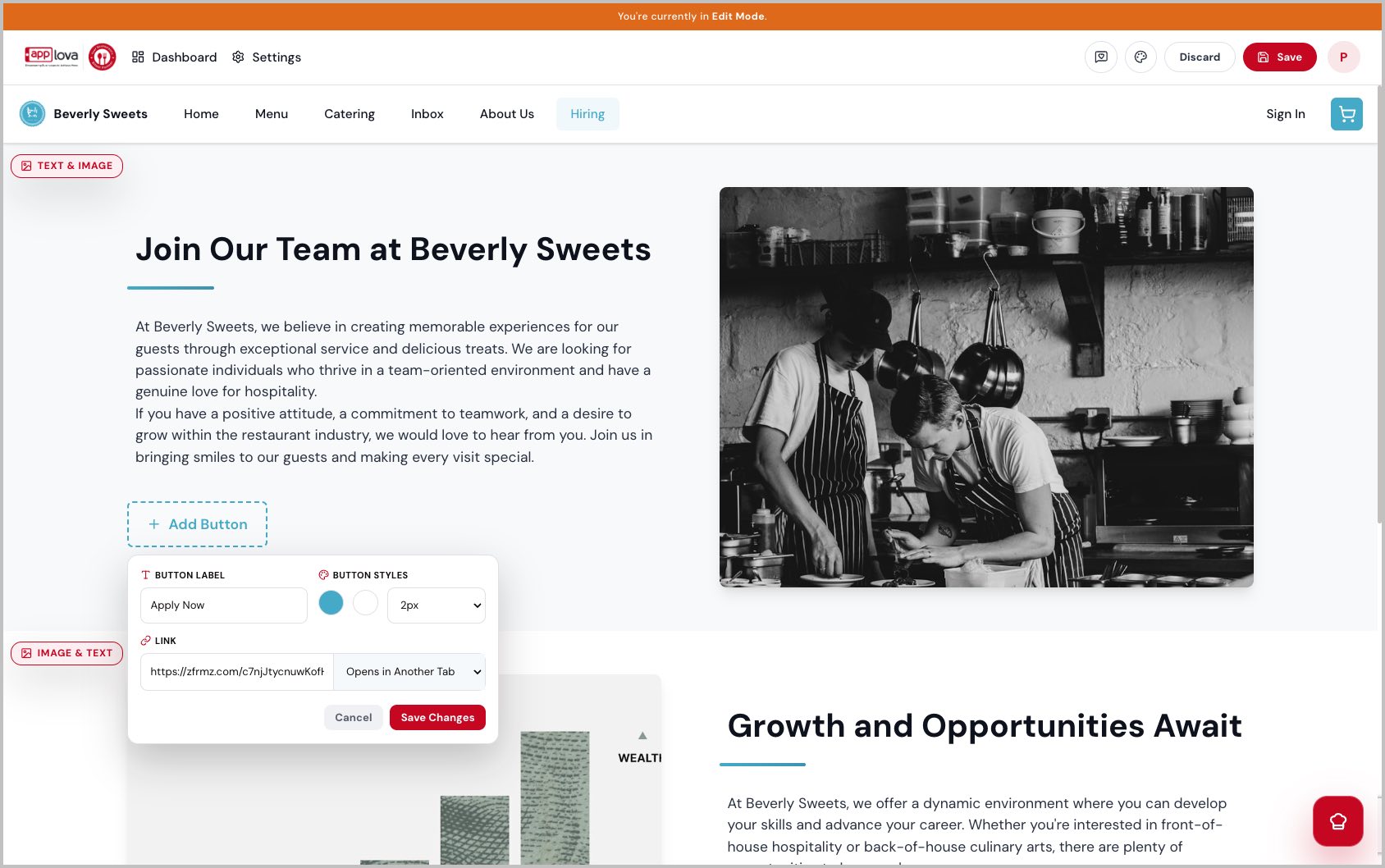
Enter the required button details:
- Button Label – Enter the text customers will see, such as Apply Now or Request Catering.
- Button Styles – Select the preferred button colors and border style.
- Link – Paste the complete external webpage or form URL.
- Link Behavior – Select whether the link opens on the same page or in another tab.
Step 7
Click "Save Changes".
Step 8
Review the button, save the website changes. 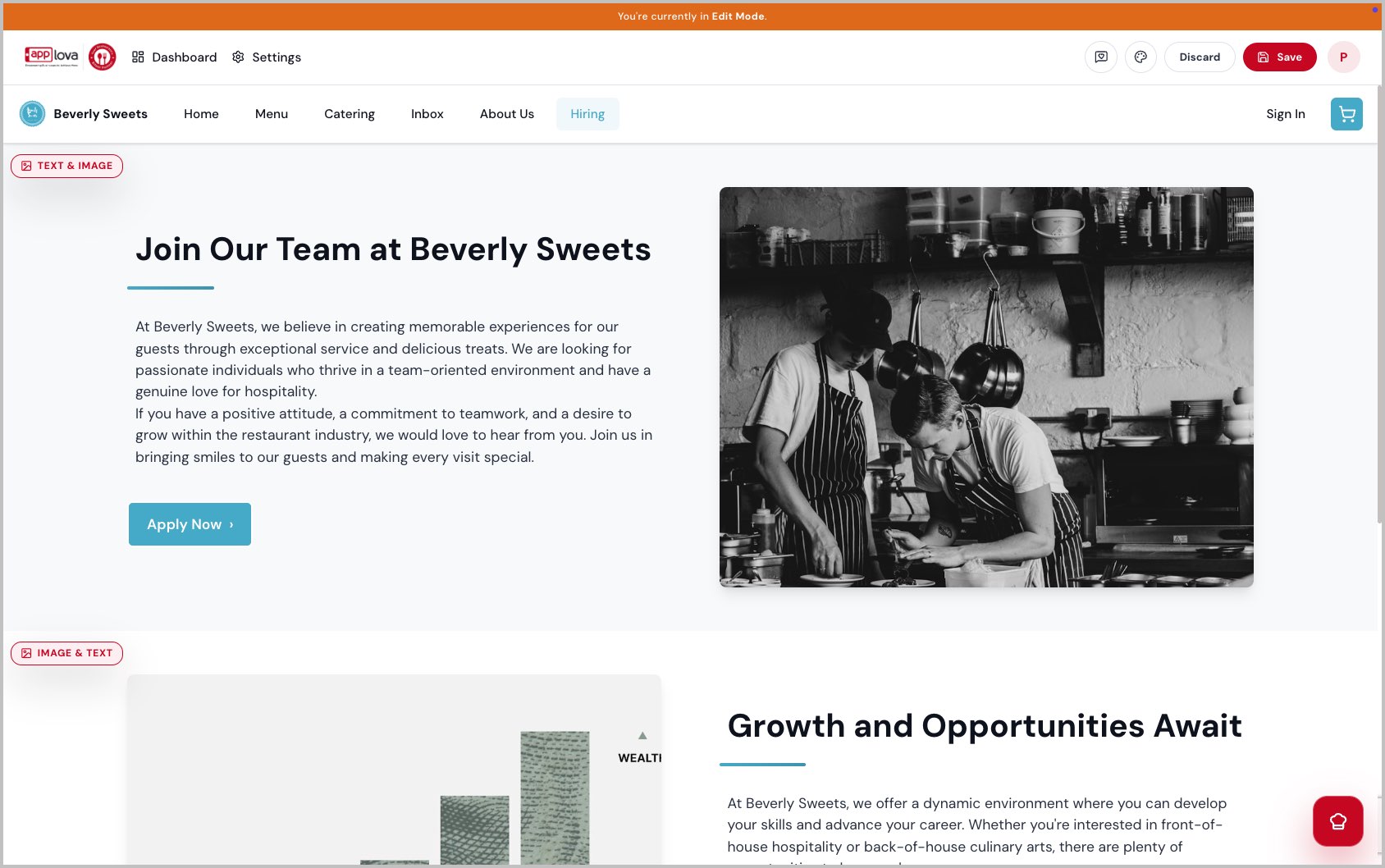
Image Link
How it Appears?
Once published, customers can click the button to open the linked external webpage or form.
Image Link
- External-link buttons can be added to any page containing an Image and Text section.
- Confirm that the external URL is correct and publicly accessible before publishing.
Related Articles
How to Enable or Disable Website Pages in the Website Builder?
Supported Domains: Standalone, Clover, Square, RPower, GoDaddy The Website Builder allows merchants to choose which pages appear on their website. Pages can be enabled or disabled at any time based on the information and services the business wants ...How to Customize a Website Using the Website Builder?
Supported Domains: Standalone, Clover, Square, RPower, GoDaddy The Applova Website Builder allows merchants to personalize their generated website using simple editing tools. Merchants can update the website content, images, colors, menu showcase, ...How to Display Calories on the Product List Page of the Webstore V3?
By using this feature, merchants can display a product’s calorie count directly on the product card as a clear label. This helps customers quickly view calorie information while browsing the menu and make more informed ordering decisions. The calorie ...How to Create Your Website Using the Website Builder?
Supported Domains: Standalone, Clover, Square, RPower, GoDaddy The Applova Website Builder makes it easy to create a professional website, whether you're opening a new restaurant, already have an existing business, or are an existing Applova ...Getting Started with the Website Builder
Supported Domains: Standalone, Clover, Square, RPower, GoDaddy Applova’s Website Builder allows merchants to create and publish a website with online ordering support using a guided setup experience. The builder uses business details, branding, ...