How to Control Stocks on Register?

Supported On: Standalone
Supported From: Applova POS (1.76.2.RELEASE)
Please request the Applova Support team to configure Stock Management plugin for your business.
Out of Stock Indication
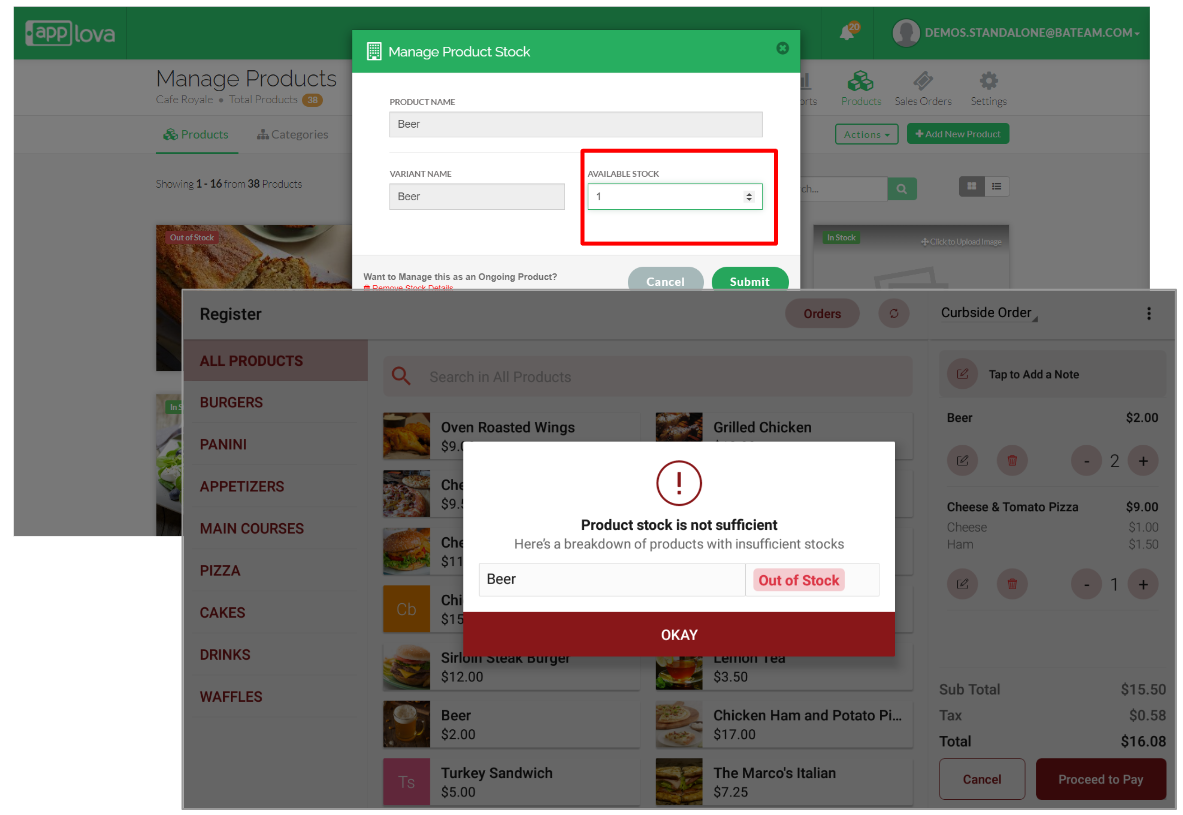
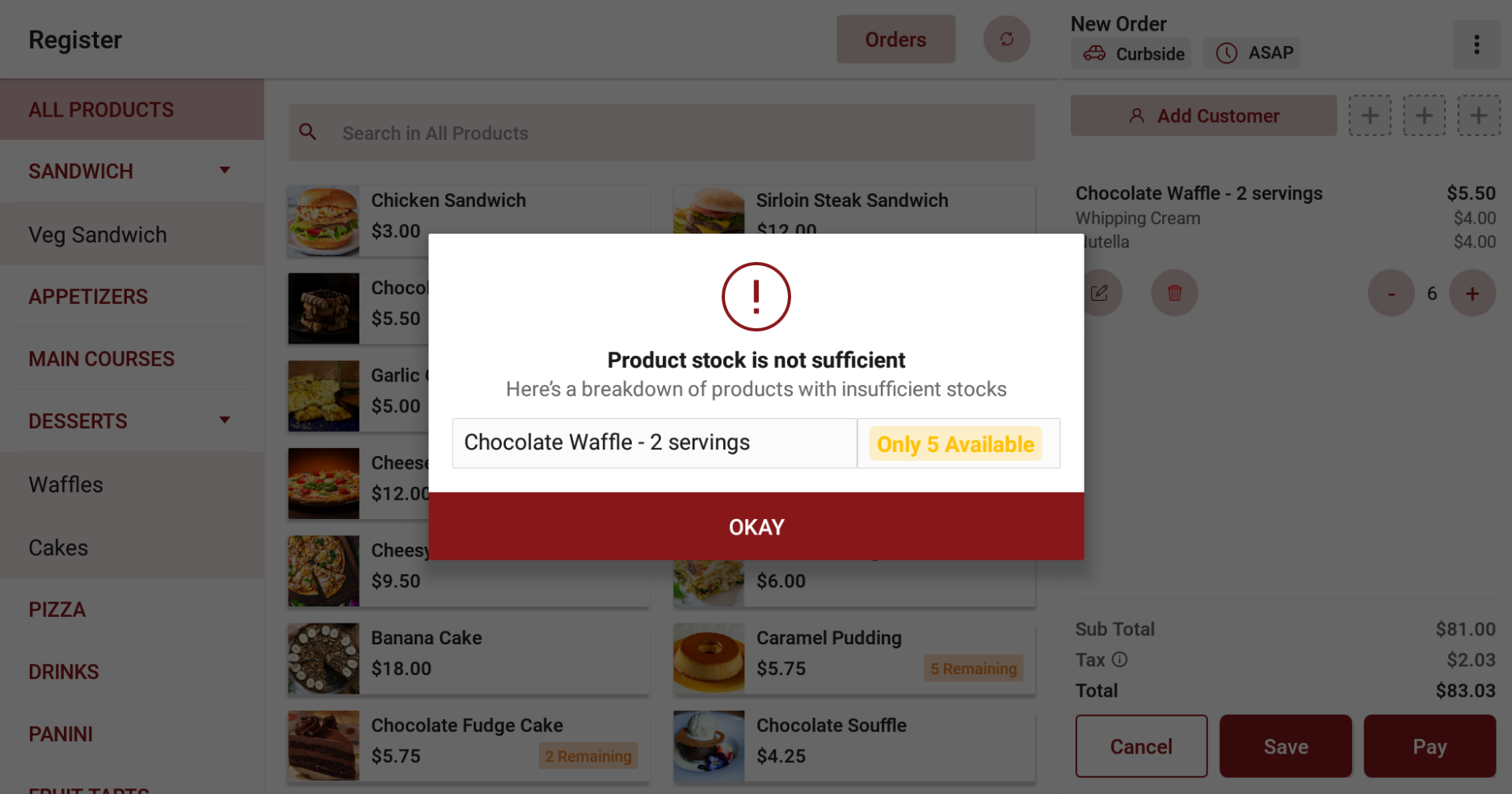
Scenario: A merchant has set the available stock for Beer at 1 unit. When 2 beers are requested from the point of sale (POS), which exceeds the available stock, an error message will be triggered, indicating "Product stock is insufficient." If the order includes other items as well, the system will provide a detailed breakdown of the specific product with insufficient stock.Step 1
Login to the Applova POS and click on "Register" from the dashboard.
Step 2
Add items to the order. If the added products are out of stock, it will prompt an error message.
Low Stock Alert
Step 1
Login to the Applova POS and click on "Register" from the dashboard.
Step 2
Add items to the order. If a product’s stock falls below the predefined threshold, a “Stock Running Low” indicator is displayed directly on the product card in the POS register.
Add items to the order. If a product’s stock falls below the predefined threshold, a “Stock Running Low” indicator is displayed directly on the product card in the POS register.
By default, the threshold is set to 5 units, however it can be changed upon merchant request.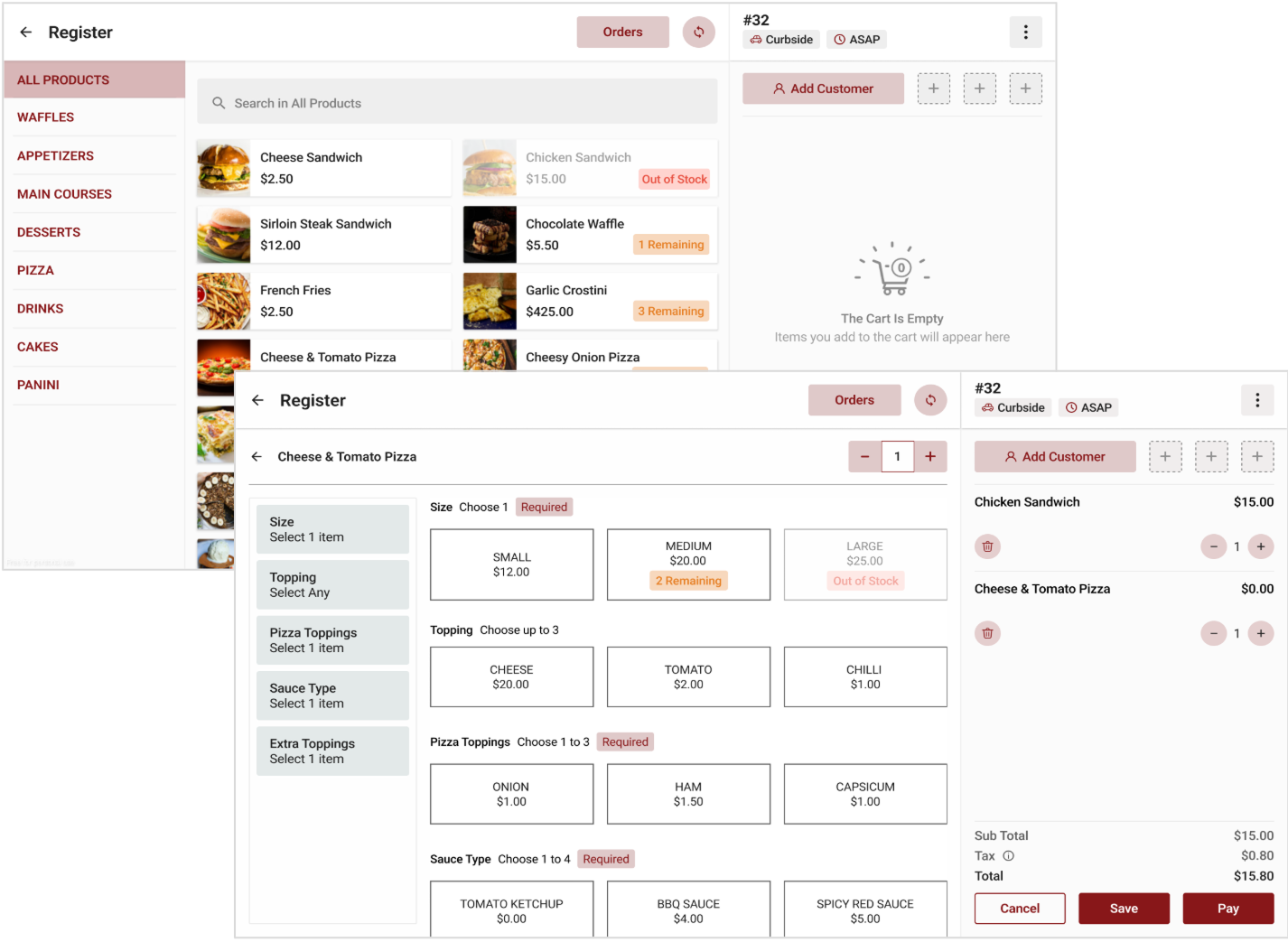
Step 3
The cashier can still add items to the cart even if the low stock indicator is displayed. This remains possible until the stock quantity reaches zero.
The cashier can still add items to the cart even if the low stock indicator is displayed. This remains possible until the stock quantity reaches zero.

At zero, the product will be marked out of stock and cannot be added.

For products with variants, the low stock indicator only appears on the variant level. When selecting a variant on the detailed product page, the cashier will see if that specific variant is running low.
Related Articles
Related Articles
Cash Management on Applova POS
Supported On: Standalone Businesses Supported From: Applova POS (1.75.0.RELEASE) What is Cash Management? Cash management involves tracking and managing cash transactions in a business which includes handling cash sales, managing the initial cash ...How to Manage Product Stock via Applova POS?
Supported Domains: Standalone Supported From: Applova POS (1.63.0.RELEASE) Prerequisite: Products.AddProducts.Enabled Previously, available stocks had to be updated only via the Merchant Web portal. But, with this feature, available product stocks ...Adding Customer Delivery Address via POS Register
Supported Domains: Standalone Supported From: Applova POS (1.65.4.RELEASE) With this feature, Scenario 1: When adding an existing customer to a delivery order, the address fields will get automatically filled in. Scenario 2: The address fields can be ...How to Add a Custom Line Item on the Applova POS Register?
Supported Domains: Standalone Supported From: Applova POS (1.53.0.RELEASE) With this feature, the merchant is allowed to add a custom product along with a custom price for an item that is not listed in the Register menu. How it Works? Step 1 Tap on ...Quick Actions on Applova POS
The Quick Actions panel is a customizable set of buttons that gives staff faster access to frequently used functions during the order-taking process. It replaces the previous More Options menu, making key actions more accessible with fewer taps. This ...