How to Apply Discounts to an Order via Register?

Supported on : Standalone
Supported From : Applova POS (1.79.0.RELEASE)
This feature allows cashiers to apply manual discounts either as a percentage or a fixed dollar amount directly through the register.
Use Case Scenario
A customer is purchasing multiple items at a café, and the manager has approved a 10% discount for customer loyalty. The cashier selects the type of discount and enters 10%. Then the system calculates the new total and displays the discount as a line item. Later, another customer disputes a price and is offered a $5 off. The cashier repeats the process using the fixed amount option. In both scenarios, the cashier completes the transaction quickly while ensuring all validations are met and the system reflects the discount accurately.
What are Manual Discounts?
Manual discounts allow the cashier to reduce the total price of an order by either entering a custom percentage or a fixed dollar amount. These discounts apply to the entire order and are displayed transparently in the order summary for both the cashier and customer.
How to Apply Discounts via Register?
Step 1
Sign into the "Applova POS" with the credentials of your business and tap on “Register” in the Dashboard.
Step 2
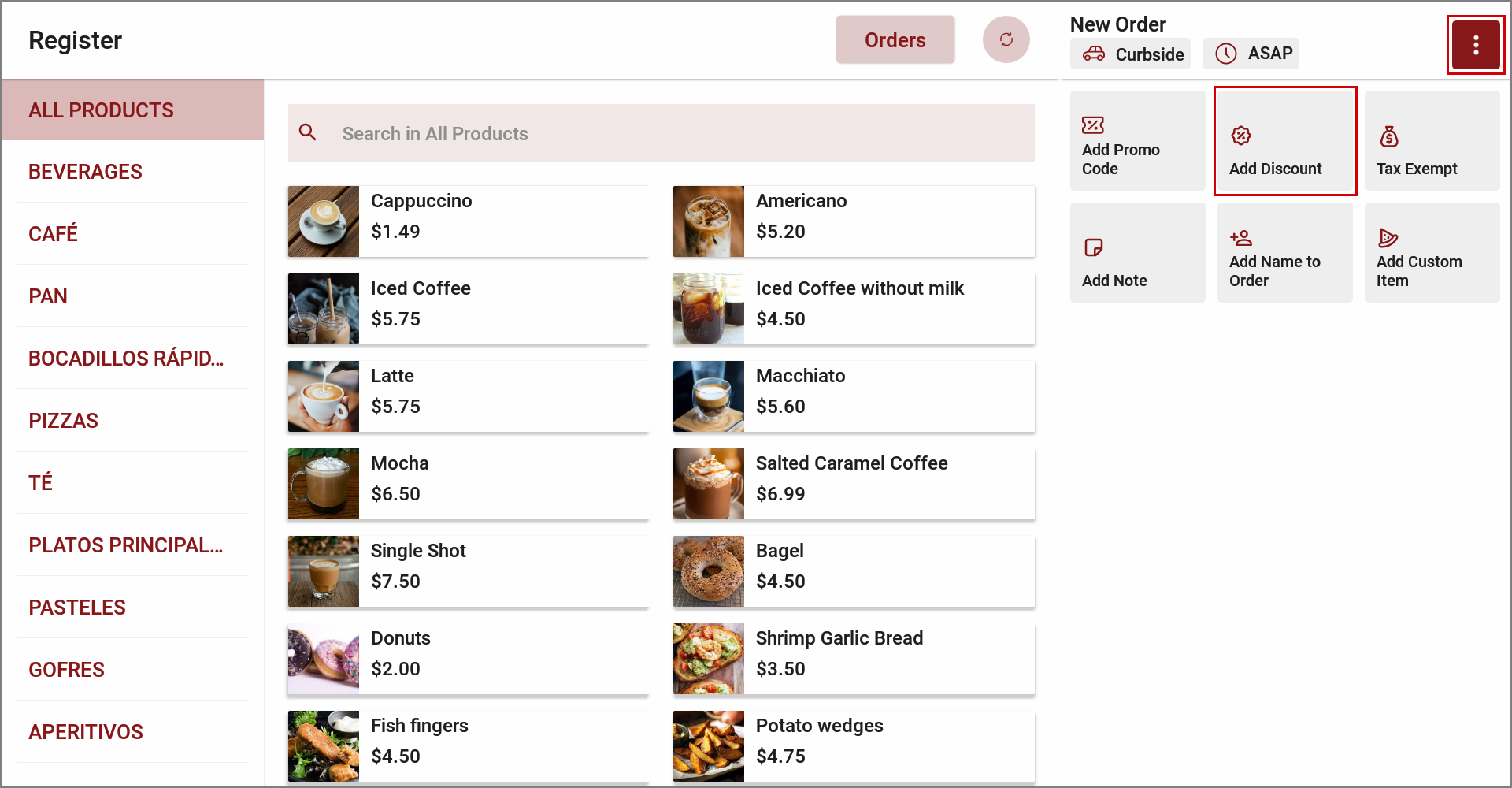
Tap on "⋮" and select "Add Discount" to open the discount pop-up.
Step 3
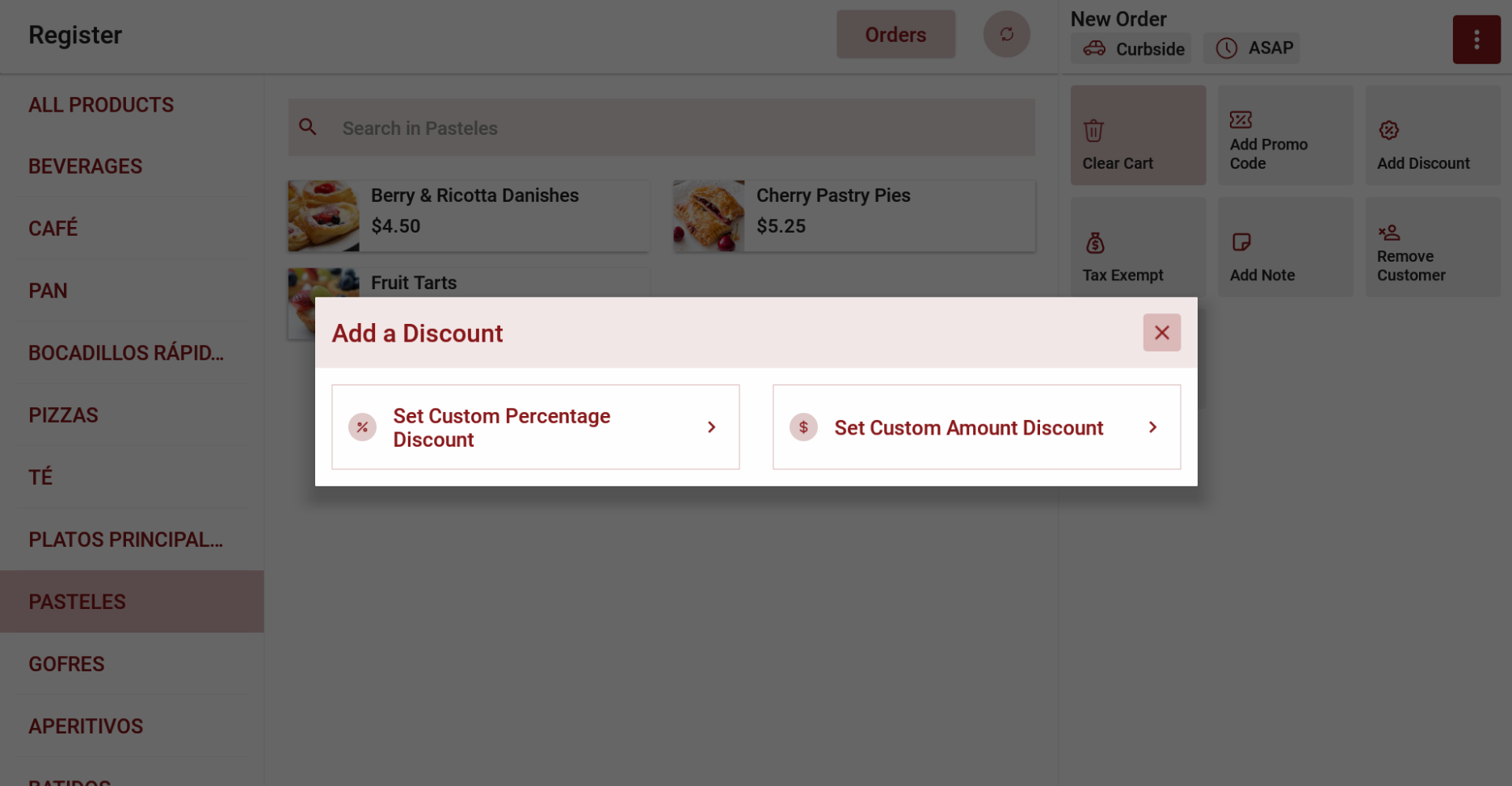
Choose between "Set Custom Percentage Discount" or "Set Custom Amount Discount".
Choose between "Set Custom Percentage Discount" or "Set Custom Amount Discount".
Step 4
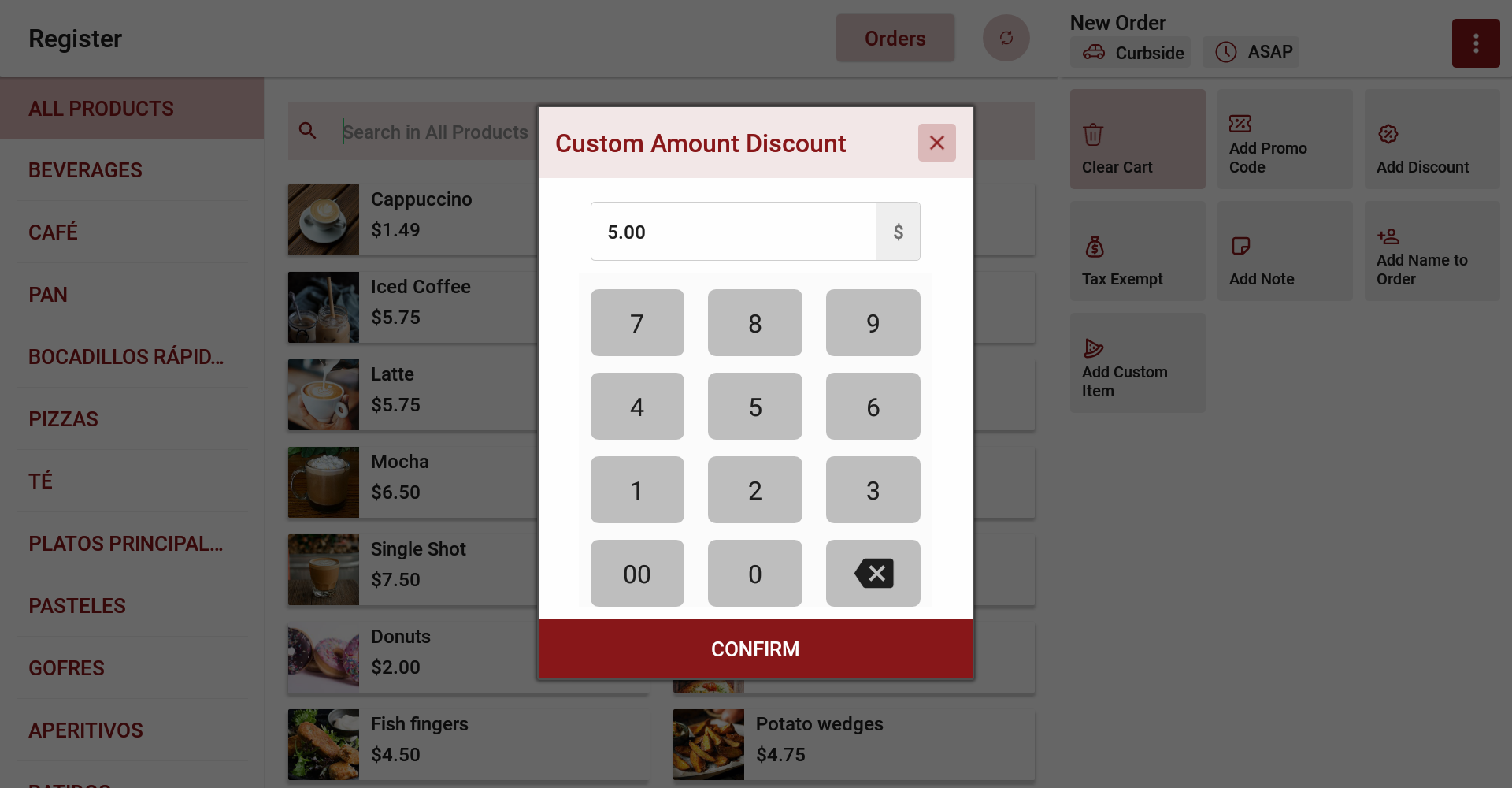
Enter the desired discount value using the numeric keypad (% or $ will appear accordingly).
Enter the desired discount value using the numeric keypad (% or $ will appear accordingly).

- For percentage discounts - only values between 0% and 100% are allowed.
- For amount-based discounts - the value cannot exceed the order subtotal.
To cancel, tap the "X" icon to close the pop-up without applying any changes.
Step 5
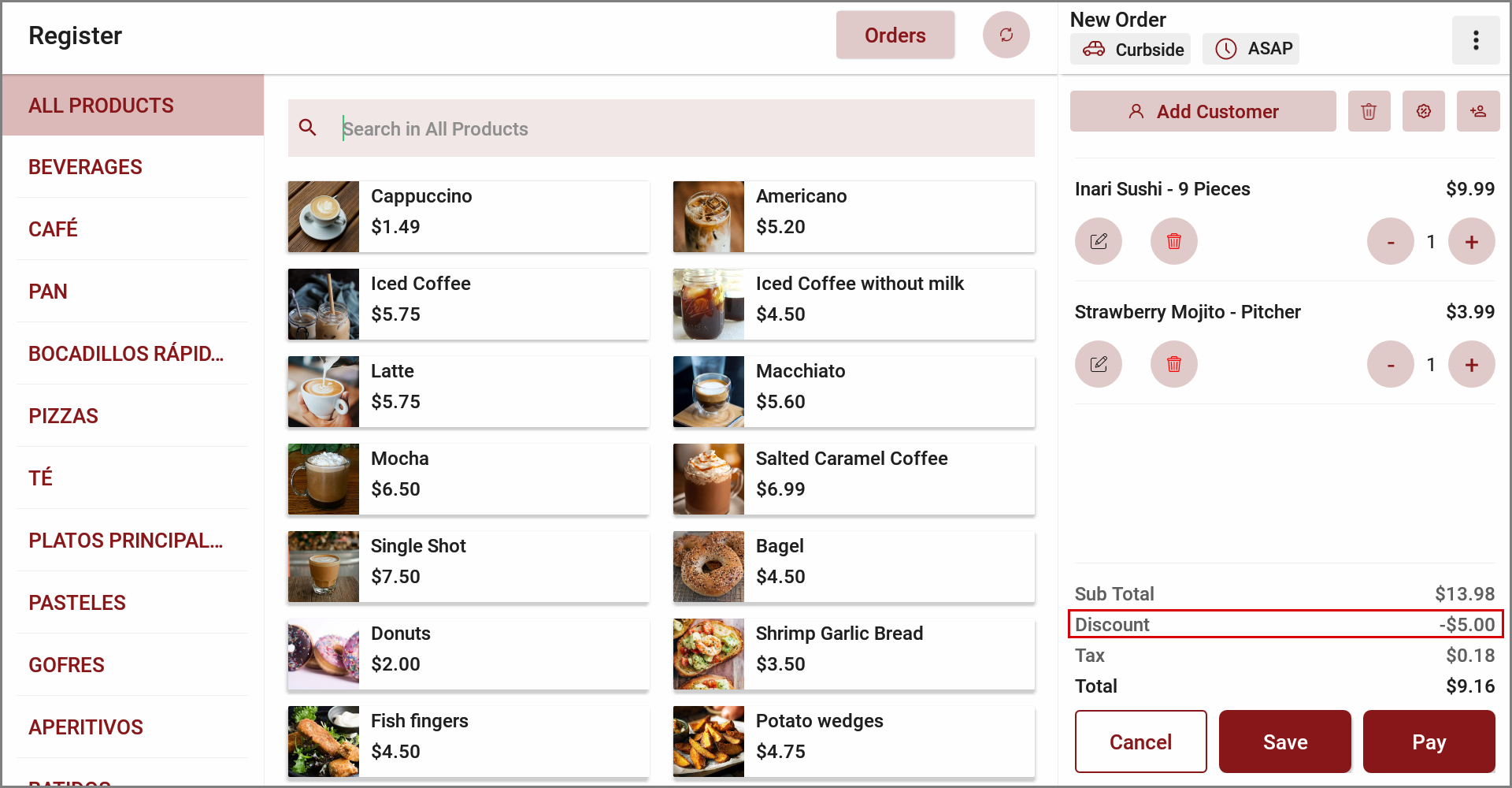
Once a valid value is entered, tap "Confirm" to apply the discount.
The discount will appear as a separate line item in the order summary.
Discounts and rewards or promo codes cannot be combined. If one is already applied, the other will be blocked with the appropriate error handling.
Related Articles
Related Articles
Daily Sales Summary Feature on Standalone Business Manager
This feature allows you to view summary reports on the daily sales. Following are the different types of sales summary reports that can be viewed via the Standalone Business Manager: 1. Daily Sales Summary Report – This report summarizes the total ...AI Based Smart Product Recommendations on Applova POS
AI-driven product recommendations displays recommendations based on the customer's past purchases and the business's fast-moving products, when a customer is added to the order. This is a default feature available only for registered customers. Step ...Adding Customer Delivery Address via POS Register
Supported Domains: Standalone Supported From: Applova POS (1.65.4.RELEASE) With this feature, Scenario 1: When adding an existing customer to a delivery order, the address fields will get automatically filled in. Scenario 2: The address fields can be ...Cash Management on Applova POS
Supported On: Standalone Businesses Supported From: Applova POS (1.75.0.RELEASE) What is Cash Management? Cash management involves tracking and managing cash transactions in a business which includes handling cash sales, managing the initial cash ...How to Add a Note Via Applova POS?
Supported Domains: Standalone Businesses With this feature, the merchant can add a note to view later on the order. Step 1 Sign into "Applova POS" with the credentials of your business. Step 2 Go to "Manage Sales Orders" and then select the preferred ...