Adding Customer Delivery Address via POS Register

Supported Domains: Standalone
Supported From: Applova POS (1.65.4.RELEASE)
With this feature,
Scenario 1: When adding an existing customer to a delivery order, the address fields will get automatically filled in.
Scenario 2: The address fields can be modified if the customer wants the order delivered to a different address that is not saved in their profile.
Scenario 3: Customers can update the originally saved address with a new one.

Currently, only one address is supported.

POS Register delivery orders are not currently integrated with DoorDash Delivery. This only supports merchant managed delivery.
How it Works?
Step 1
Sign into the "Applova POS" with the credentials of your business.
Step 2
Tap on “Register” in the Dashboard.
Step 3
Tap on ⋮ and select "Add Customer".

Step 4
Search using the customer's name to verify if the customer is already registered.

Step 5
When the customer’s profile appears, tap on it to add the customer to the order.

Step 6
Once the customer gets attached to the order, select the order type as "Delivery".
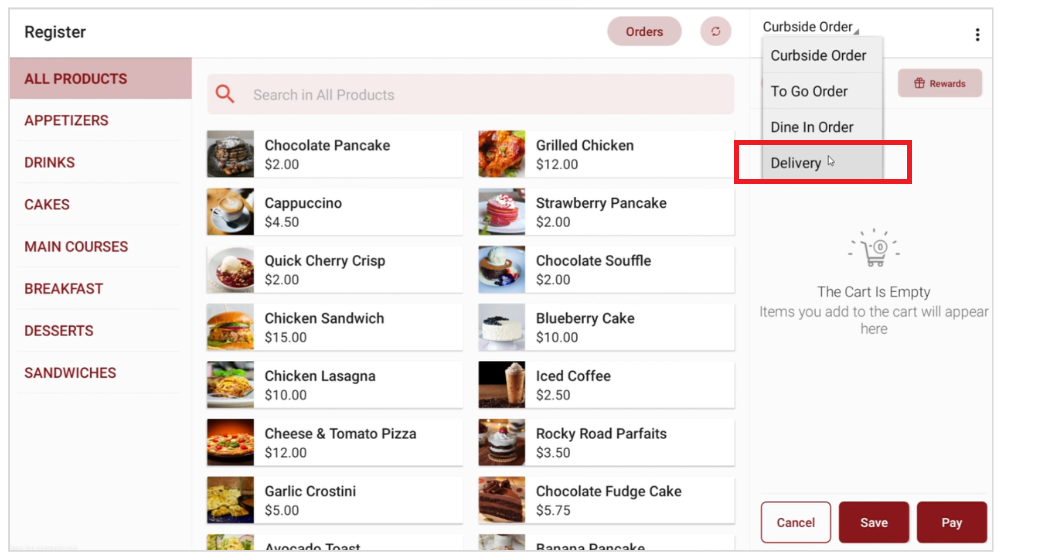
Step 7
Scenario 1
Then it will display the customer's saved delivery address.
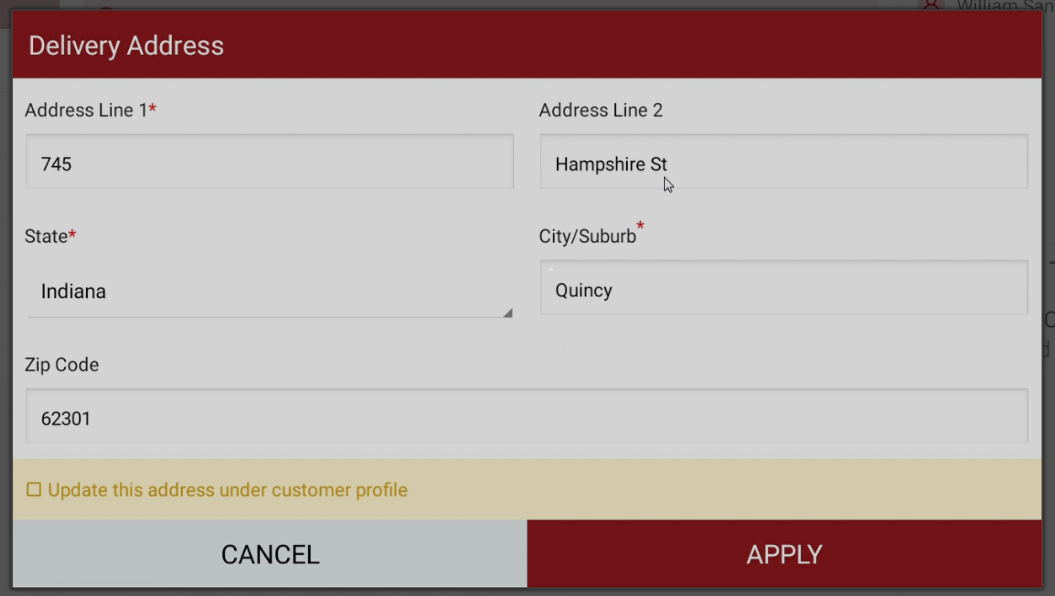
Scenario 2
If the customer wants to change the delivery address temporary, alter the address fields and then click on "Apply".
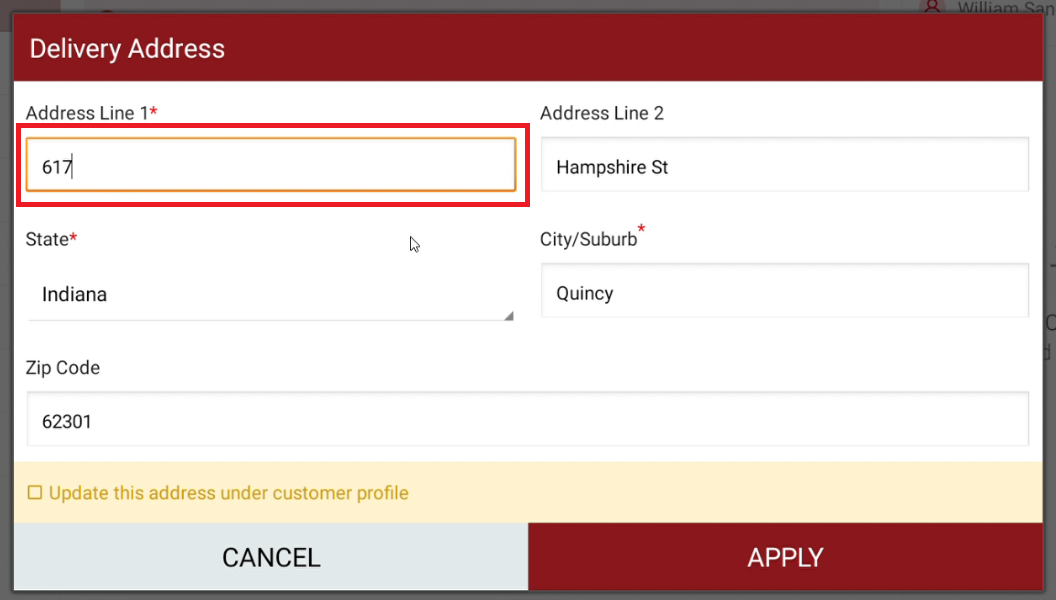
Scenario 3
If the customer wants to update the originally saved address with a new one, alter the address fields, select the checkbox as shown, and then click on "Apply".
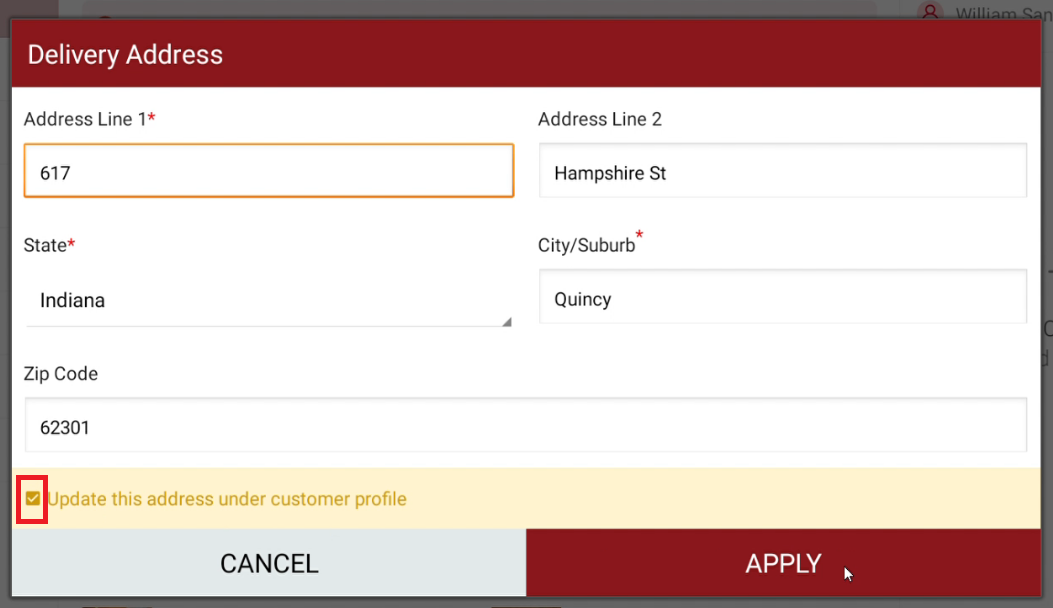
Feature in Action (Watch Video):
Related Articles
Customer Profile on Applova POS
Supported Domains : Standalone Supported From : Applova POS (1.71.0.RELEASE) The "Customers" feature displayed on the POS dashboard displays the details of customers registered with the business. How to View a Customer's Details? Tap on a customer's ...How to Add a Customer Mobile Number Via Applova POS?
Supported Domains: Standalone Businesses With this feature, the merchant can add the customer's mobile number to the order. This is mainly to notify the customer when the order is ready. Step 1 Sign into "Applova POS" with the credentials of your ...How to Add a Note Via Applova POS?
Supported Domains: Standalone Businesses With this feature, the merchant can add a note to view later on the order. Step 1 Sign into "Applova POS" with the credentials of your business. Step 2 Go to "Manage Sales Orders" and then select the preferred ...How to Apply Discounts to an Order via Register?
Supported on : Standalone Supported From : Applova POS (1.79.0.RELEASE) This feature allows cashiers to apply manual discounts either as a percentage or a fixed dollar amount directly through the register. Use Case Scenario A customer is purchasing ...AI Based Smart Product Recommendations on Applova POS
AI-driven product recommendations displays recommendations based on the customer's past purchases and the business's fast-moving products, when a customer is added to the order. This is a default feature available only for registered customers. Step ...