How to Configure Cross-Sell and Upsell Suggestions via Merchant Portal?
This feature allows the merchants to suggest products to customers when they place orders for specific items.
Types of Product Recommendations
There are two types of product recommendations.
1. Cross Sell
2. Up Sell
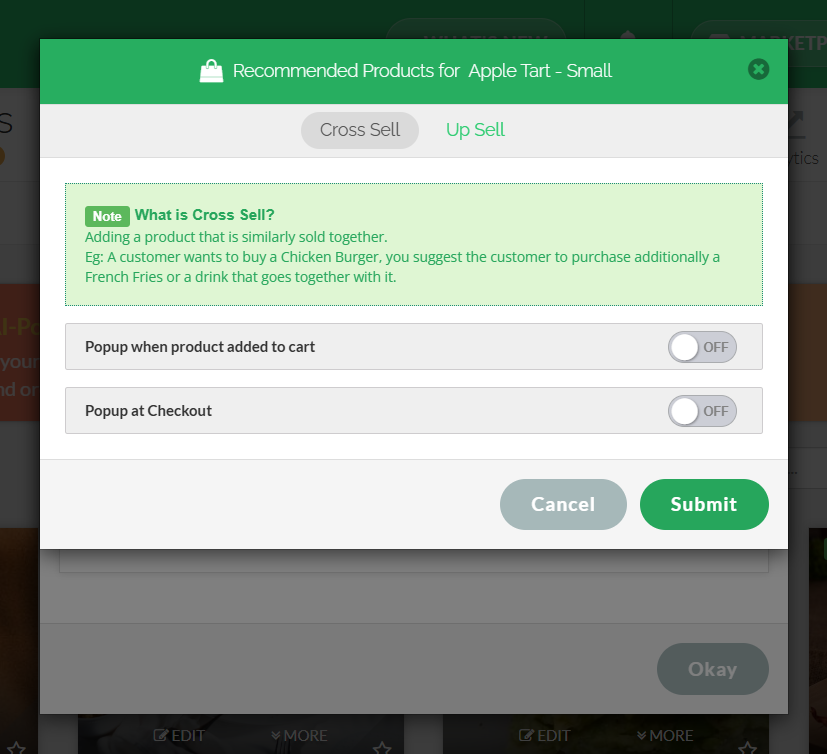
What is Cross Sell?
Cross Sell is recommending a product that is usually bought together with the product that the customer ordered.
E.g. : If the customer wants to purchase a Chicken Burger, the system will suggest to purchase French Fries along with it.
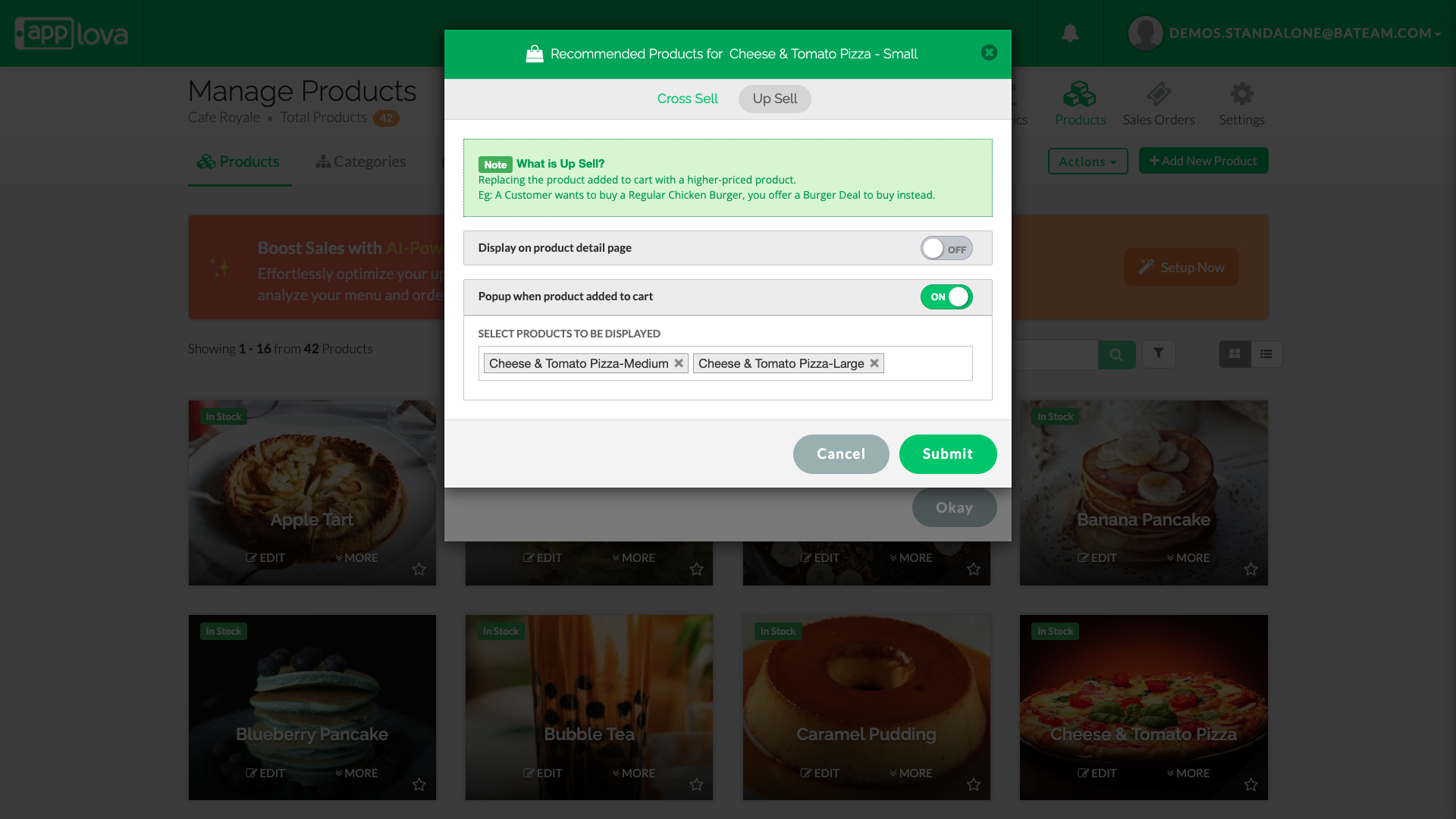
What is Up Sell?
Up Sell is recommending a product with a higher price instead of the product that the customer ordered.
E.g. : If the customer wants to purchase a Regular Chicken Burger, the system will suggest to purchase a Chicken Burger Combo instead.
Manually Configured Cross-Sell and Upsell Suggestions?
How to Configure Cross Sell via Merchant Web?
Step 1
Login to "Applova Merchant Web".
Step 2
Go to "Products"
Step 3
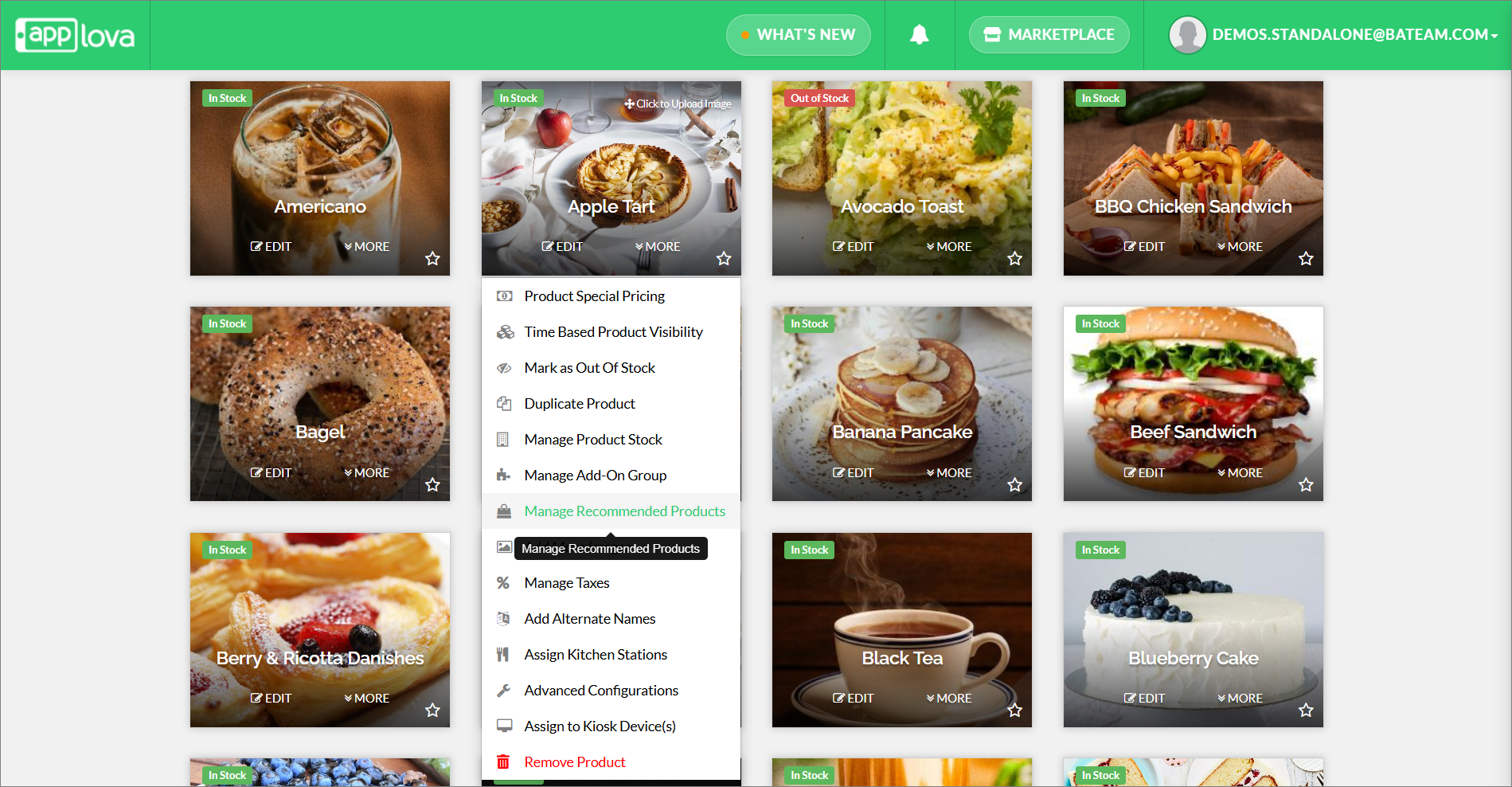
Click "More" on the product you wish to add product recommendations.
Step 4
Click "Manage Recommended Products".
Step 5
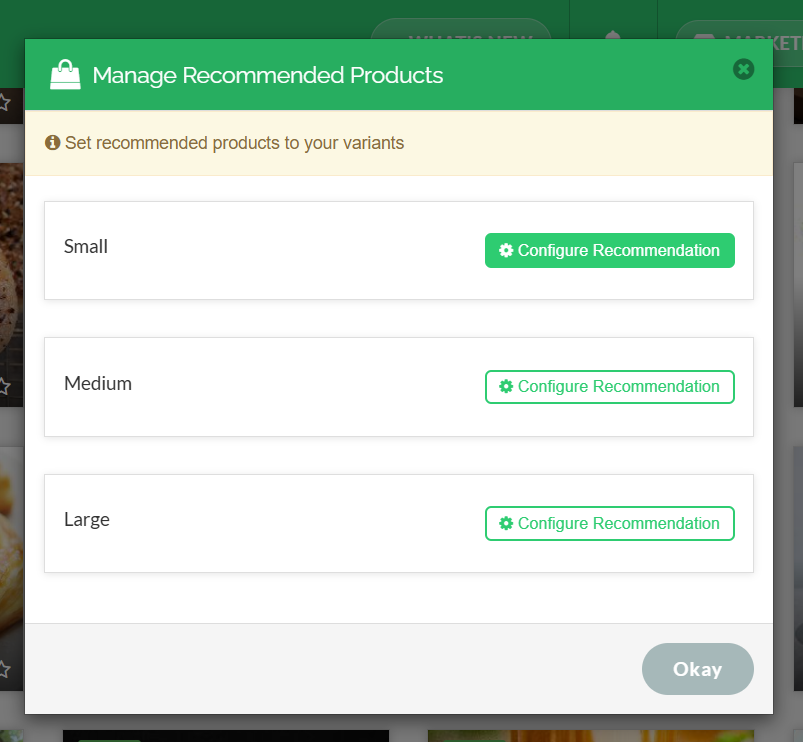
Click on "Configure Recommendation".
Step 6
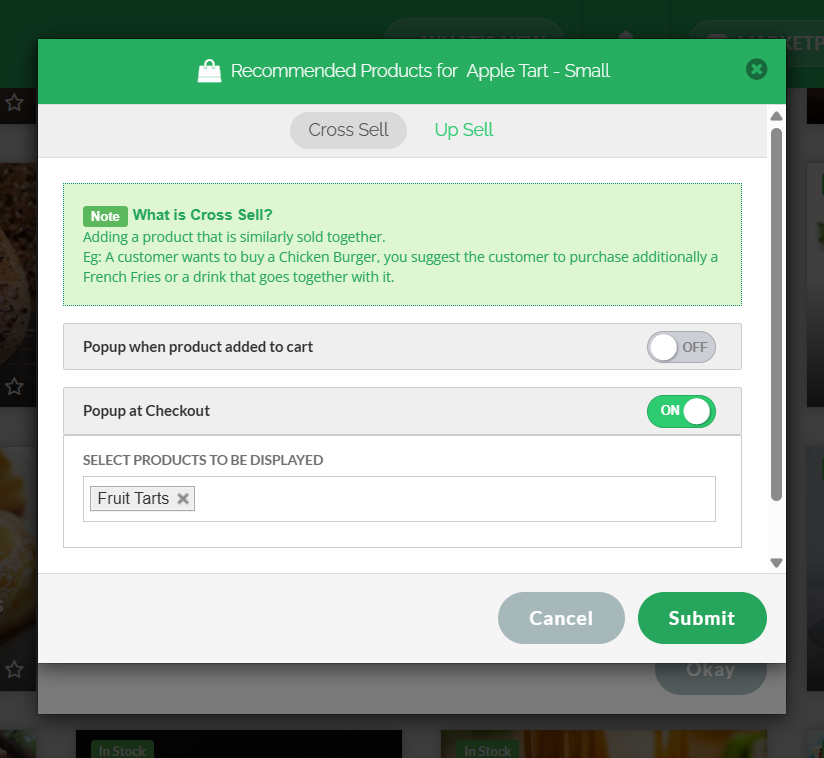
Go to "Cross Sell" tab.
Step 7
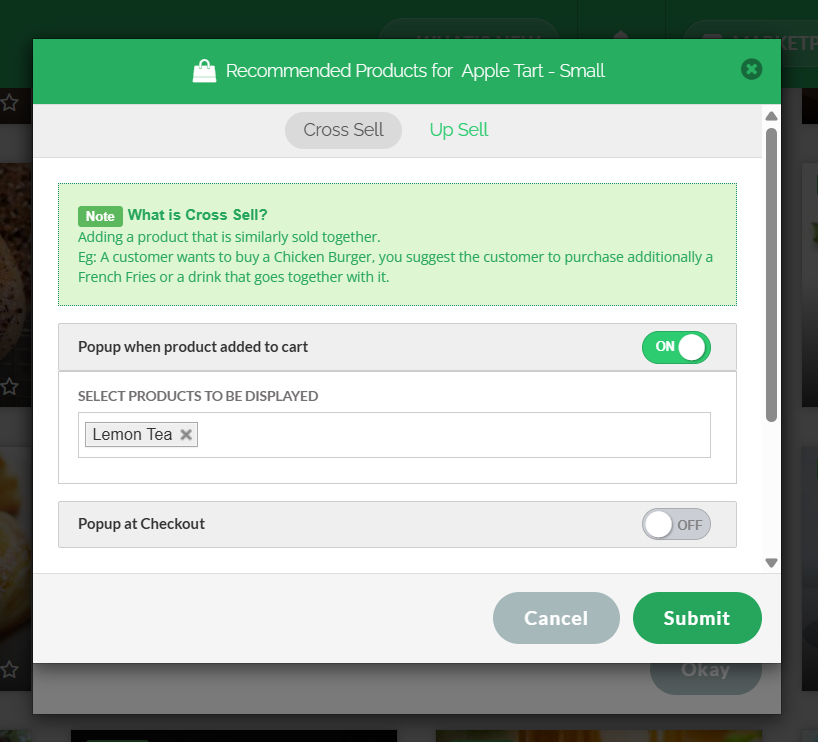
Enable "Popup when product added to cart" to display the product recommendation when the customer adds the product to the cart.
How to Configure Up Sell via Merchant Web?
Step 1
Login to "Applova Merchant Web".
Step 2
Go to "Products"
Step 3
Click "More" on the product you wish to add product recommendations.
Step 4
Click "Manage Recommended Products".
Step 5
Click on "Configure Recommendation".
Step 6
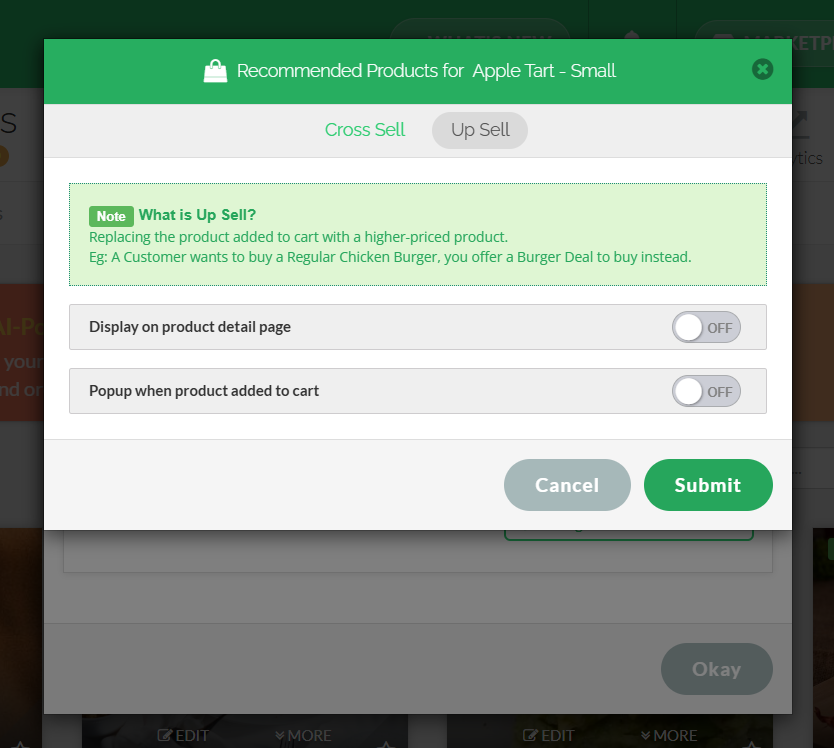
Go to "Up Sell" tab.
Step 7
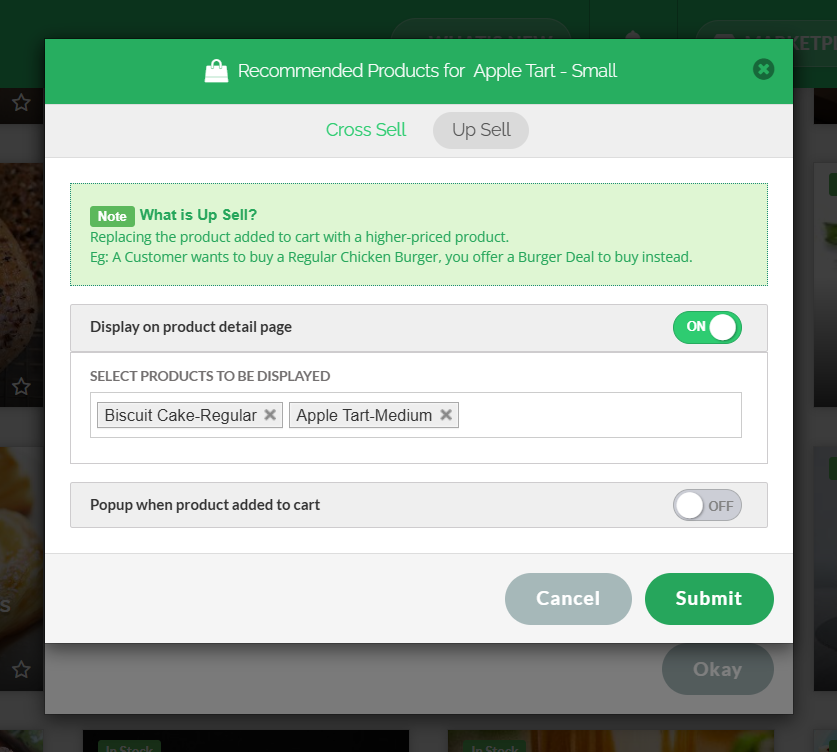
Enable "Display on Product Details Page" to display the product recommendation on the product details page.
Step 8
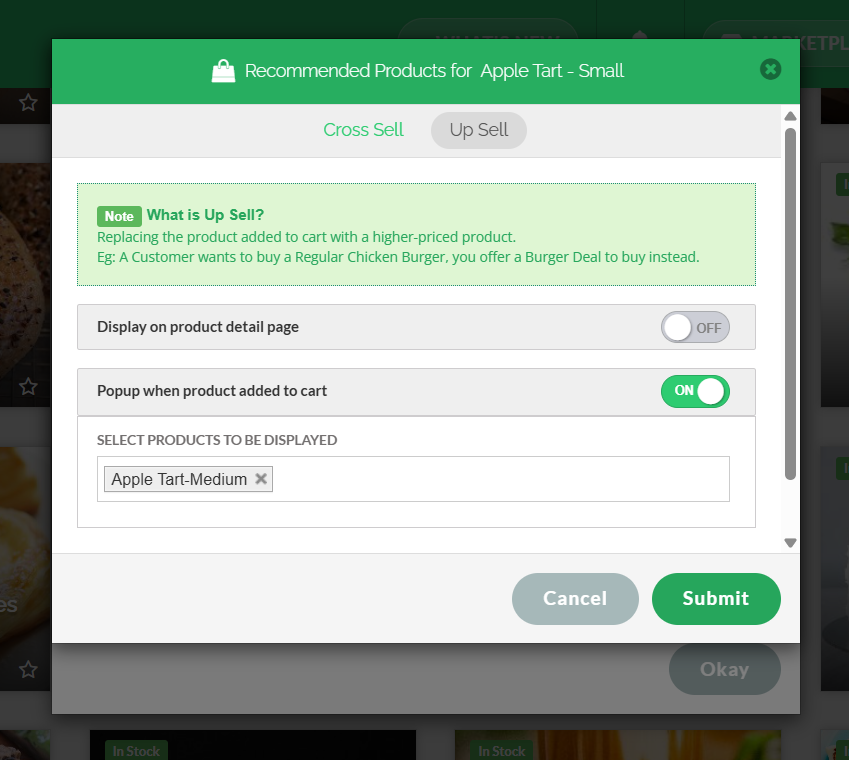
Enable "Popup at Checkout" to display the product recommendation at the checkout.
AI Curated Cross-Sell and Up-Sell Suggestions?
How to Configure AI-Based Cross-Sell via Merchant Portal?
Step 1
Login to "Applova Merchant Portal".
Step 2
Navigate to "Products".
Navigate to "Products".
Step 3
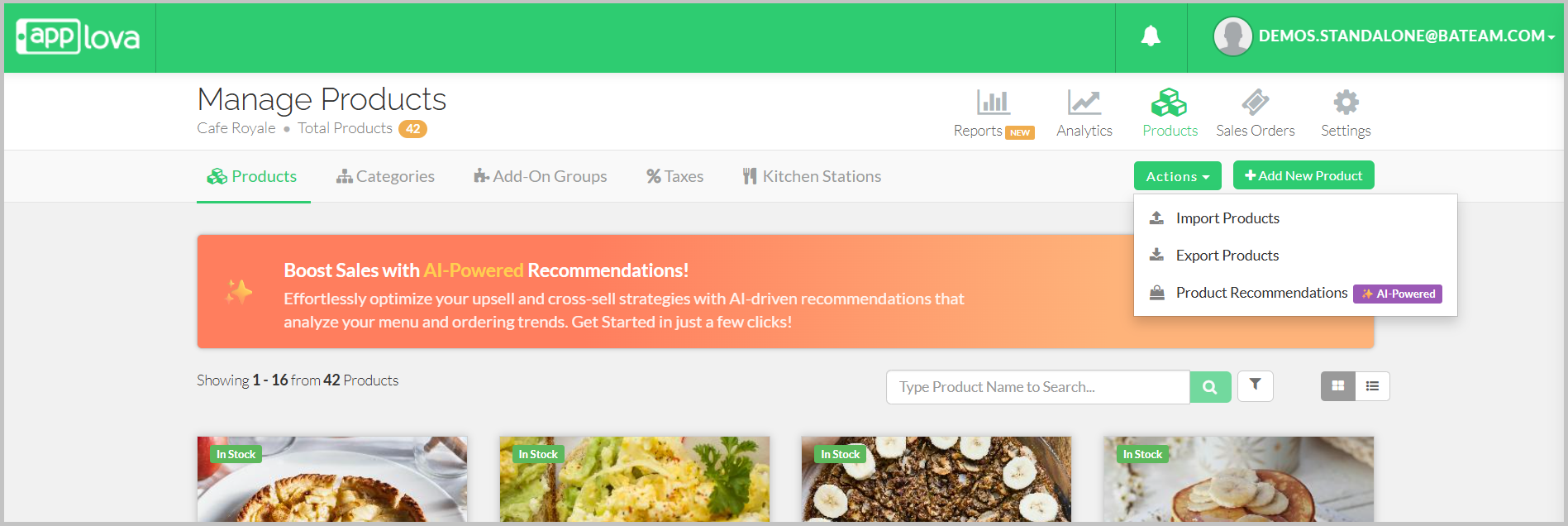
You will see a banner titled "Boost Sales with AI-Powered Recommendations!" click on "Setup Now".
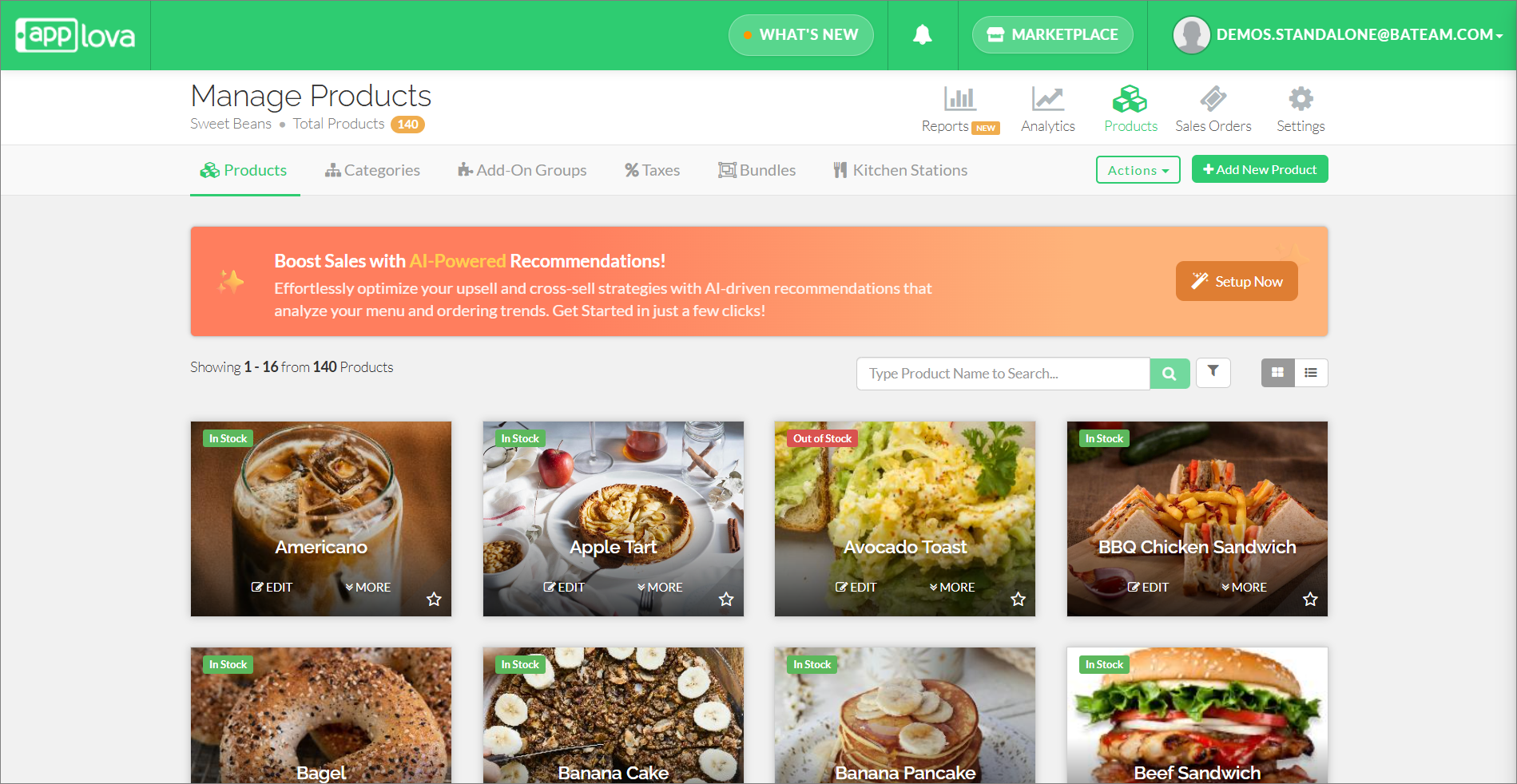

After the initial configuration, the banner will be hidden and won’t reappear for 7 days. However, you can still access the “Product Recommendation” feature anytime from the "Actions" button.
Step 4
Choose "Cross-Sell" from the modal popup.
Choose "Cross-Sell" from the modal popup.
Step 5
The system will generate AI-curated suggestions. Wait while the loading screen displays.

Step 6
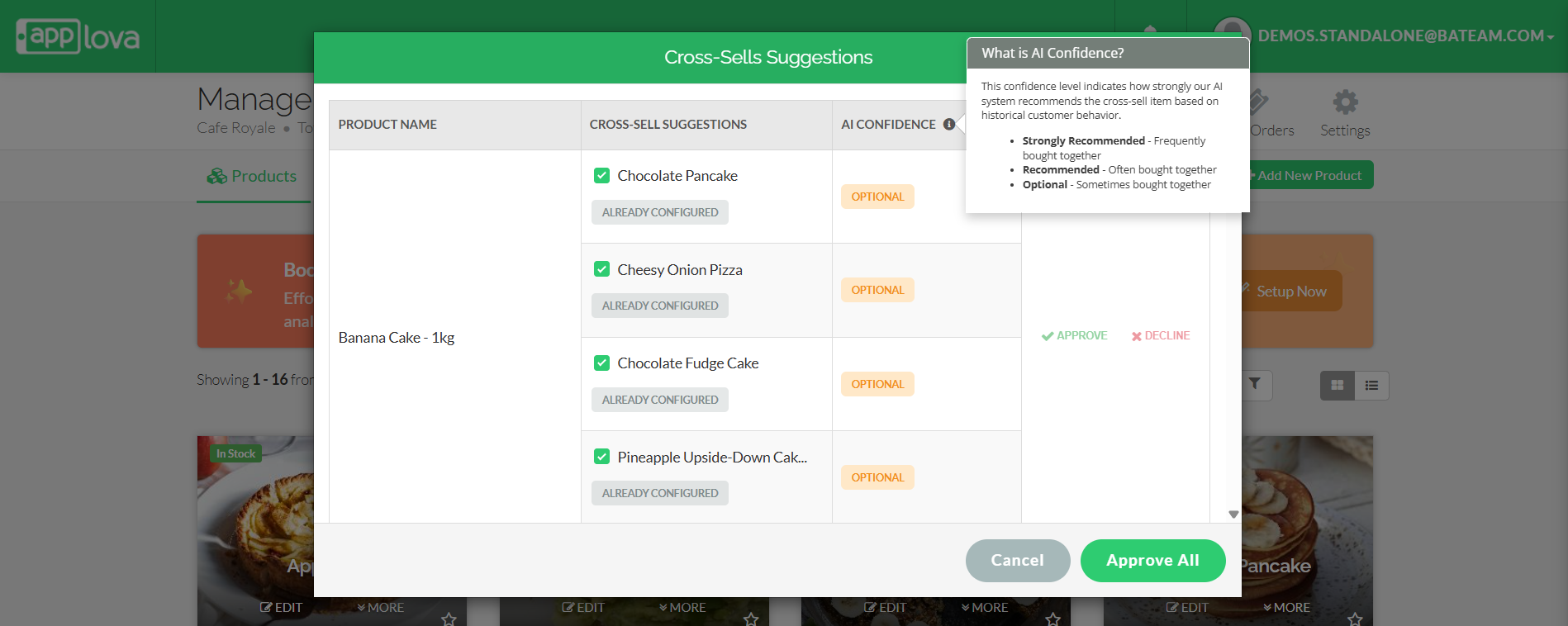
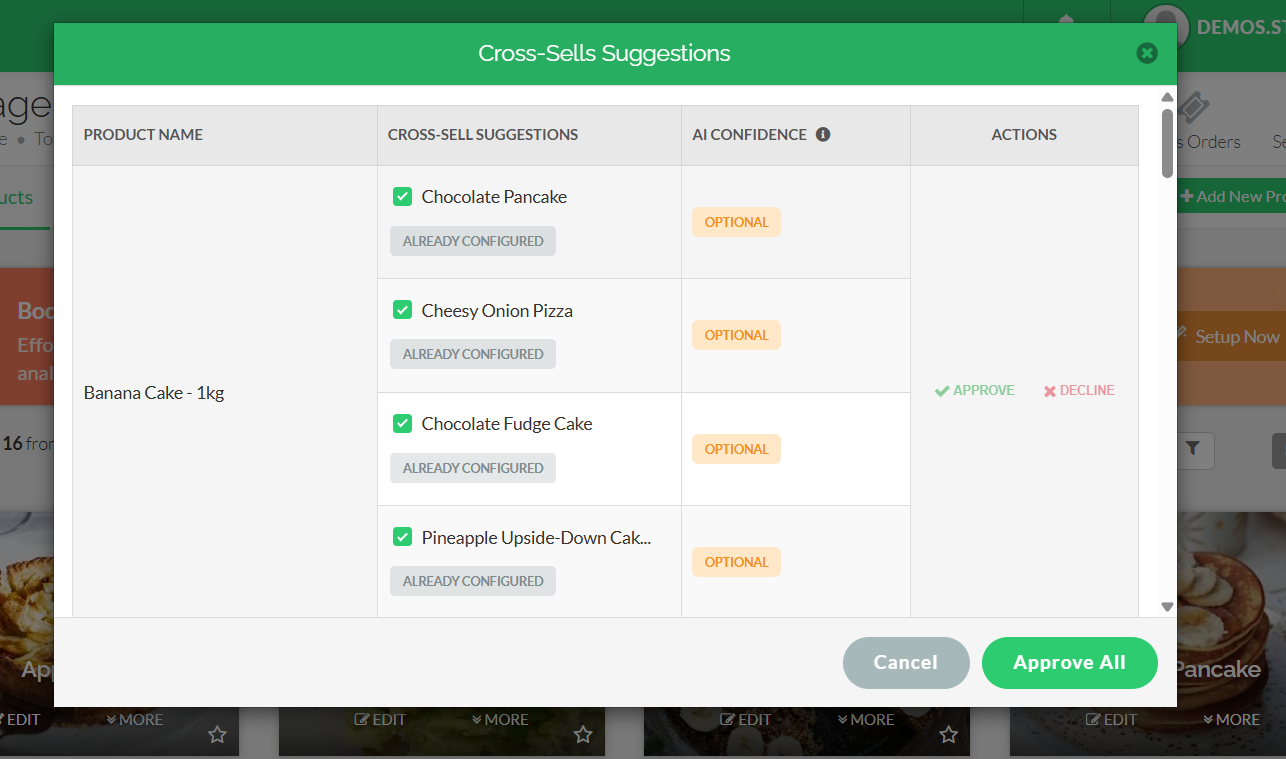
Review the table of suggestions with columns: Product Name, Cross-Sell Suggestions, AI Confidence, and Actions.
Review the table of suggestions with columns: Product Name, Cross-Sell Suggestions, AI Confidence, and Actions.
Step 7
Clicking the info icon in "AI Confidence" reveals a tooltip explaining how the recommendation strength is determined. It categorizes suggestions as Strongly Recommended, Recommended, or Optional based on how frequently the products are bought together.
- Strongly Recommended - Frequently bought together
- Recommended - Often bought together
- Optional - Sometimes bought together
Step 8
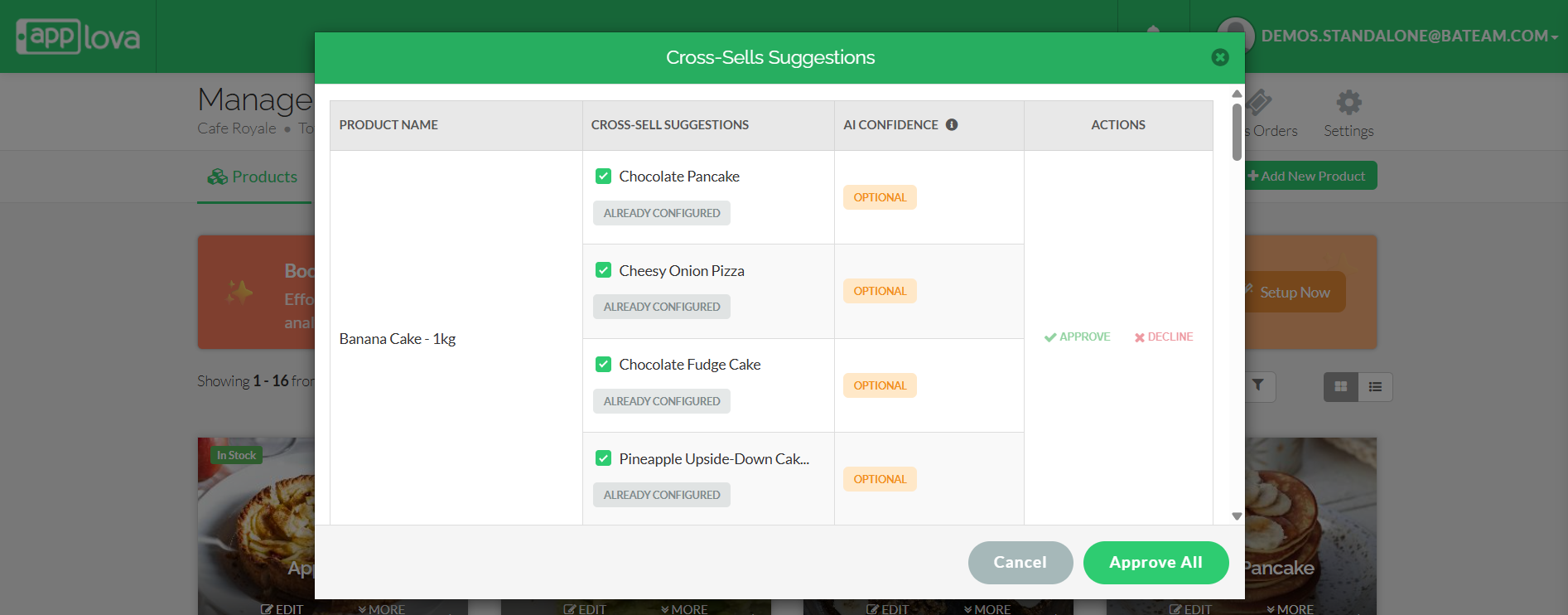
If a product is already configured as a cross-sell, it will be labelled as “Already Configured” from the AI-generated suggestions.
Note that if suggestions are already configured, the Approve and Decline Actions will be disabled
Step 9
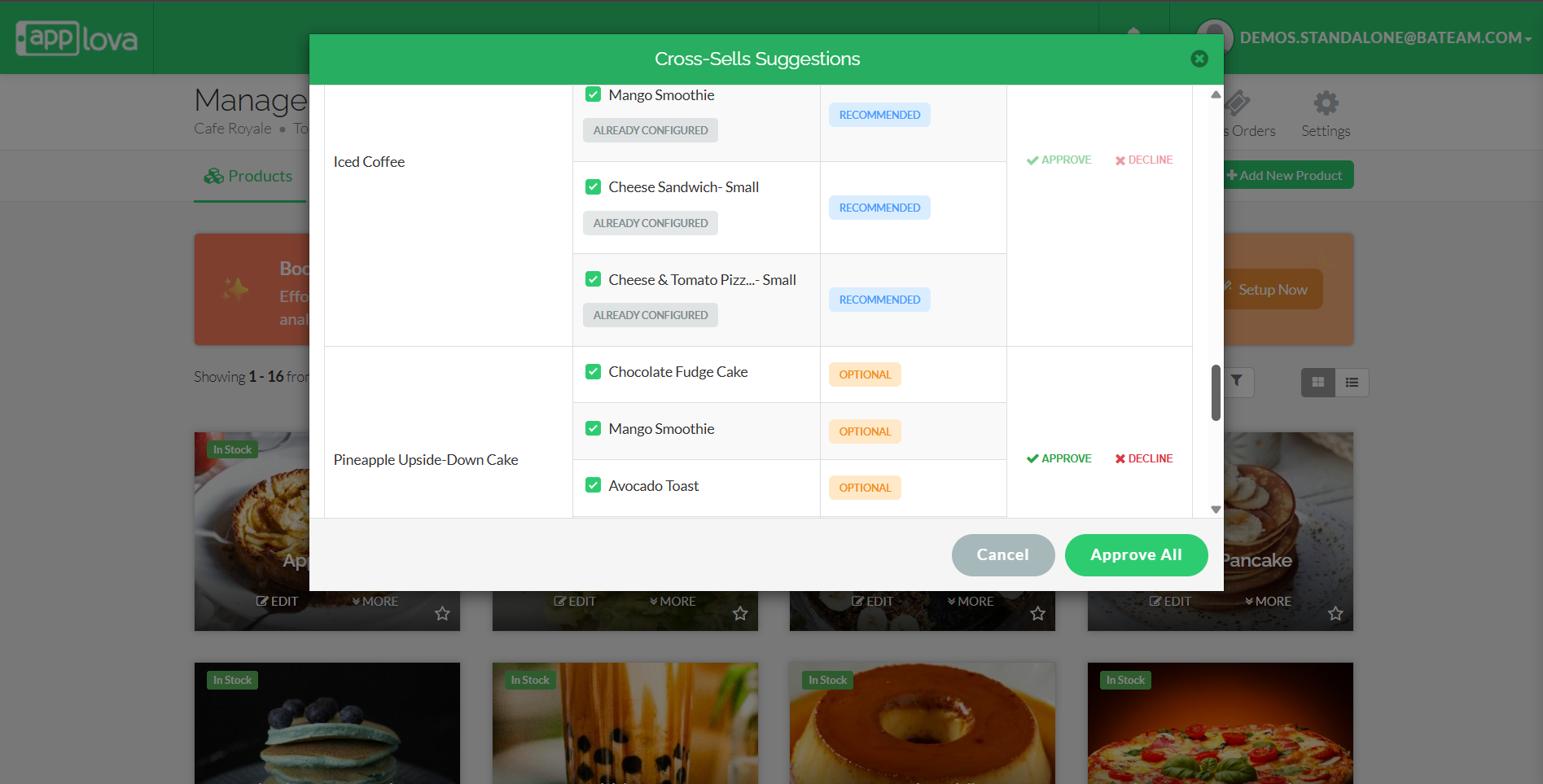
By default, suggestions are selected. You can manually approve or decline each.
Step 10
To approve in bulk, click "Approve All". Only selected suggestions will be submitted one by one.
Step 11
Declining a suggestion disables the "Actions" section.
Step 12
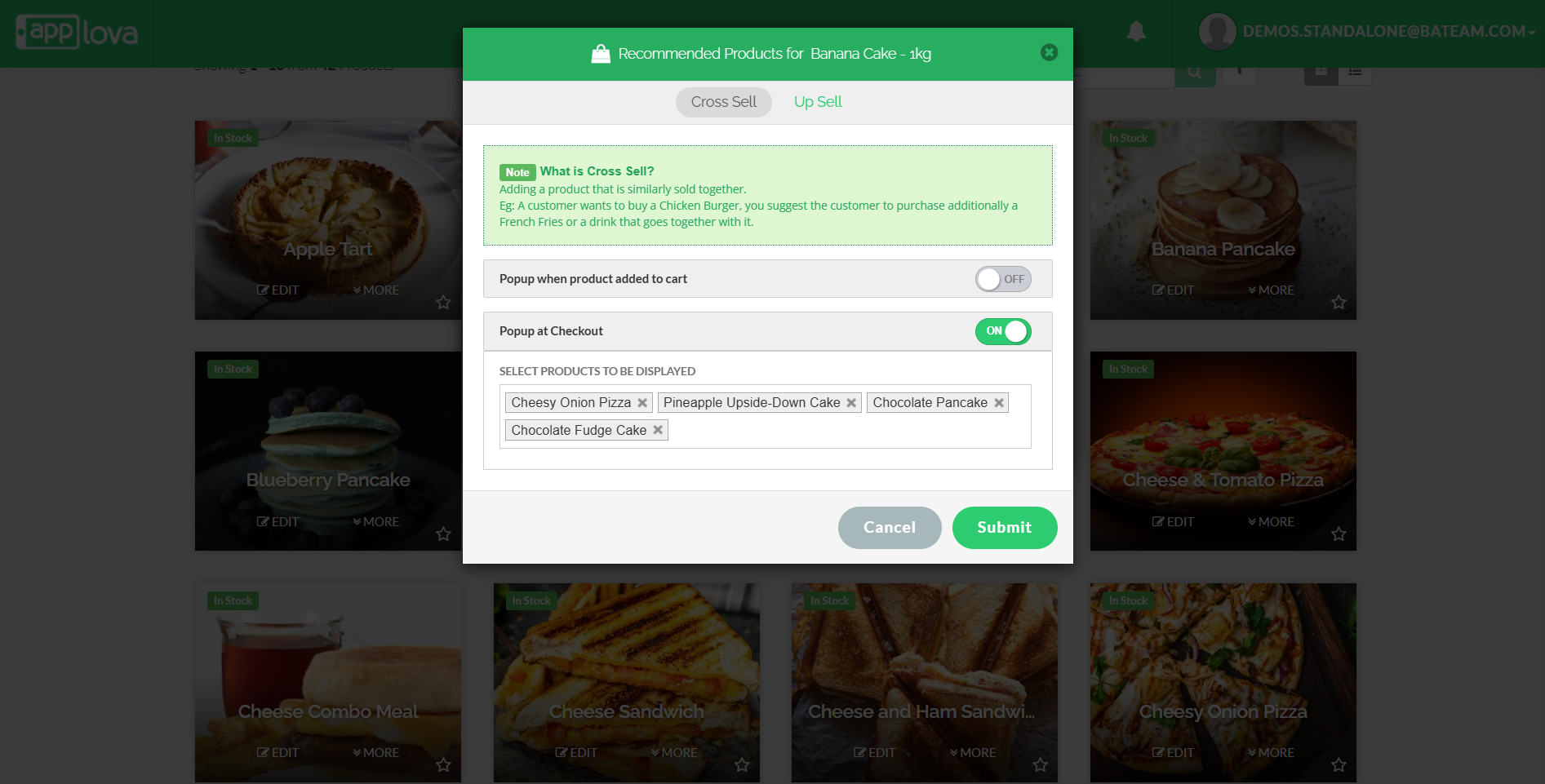
On approval, cross-sell products are auto-configured to display during checkout and reflected under: Go to the Selected Product > Select "More" > Go to "Manage Recommended Products" > Cross-Sell.

Feature in Action (Watch Video):
How to Configure AI-Curated Up-Sell via Merchant Web?
Step 1
Login to "Applova Merchant Portal".
Step 2
Navigate to "Products".
Step 3
You will see a banner titled "Boost Sales with AI-Powered Recommendations!" Click on "Setup Now".
Image Link
After the initial configuration, the banner will be hidden and won’t reappear for 7 days. However, you can still access the “Product Recommendation” feature anytime from the "Actions" button.
Step 4
Choose "Up-Sell" from the modal popup.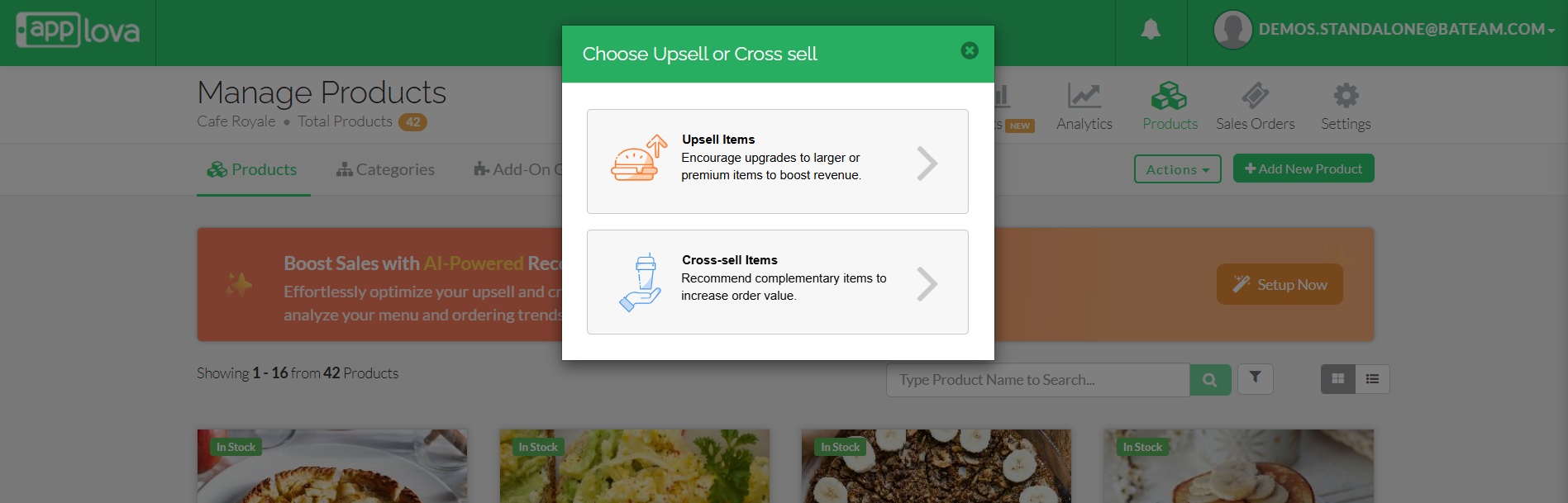
Image Link
Step 5
The system will generate the AI-curated up-sell suggestions.
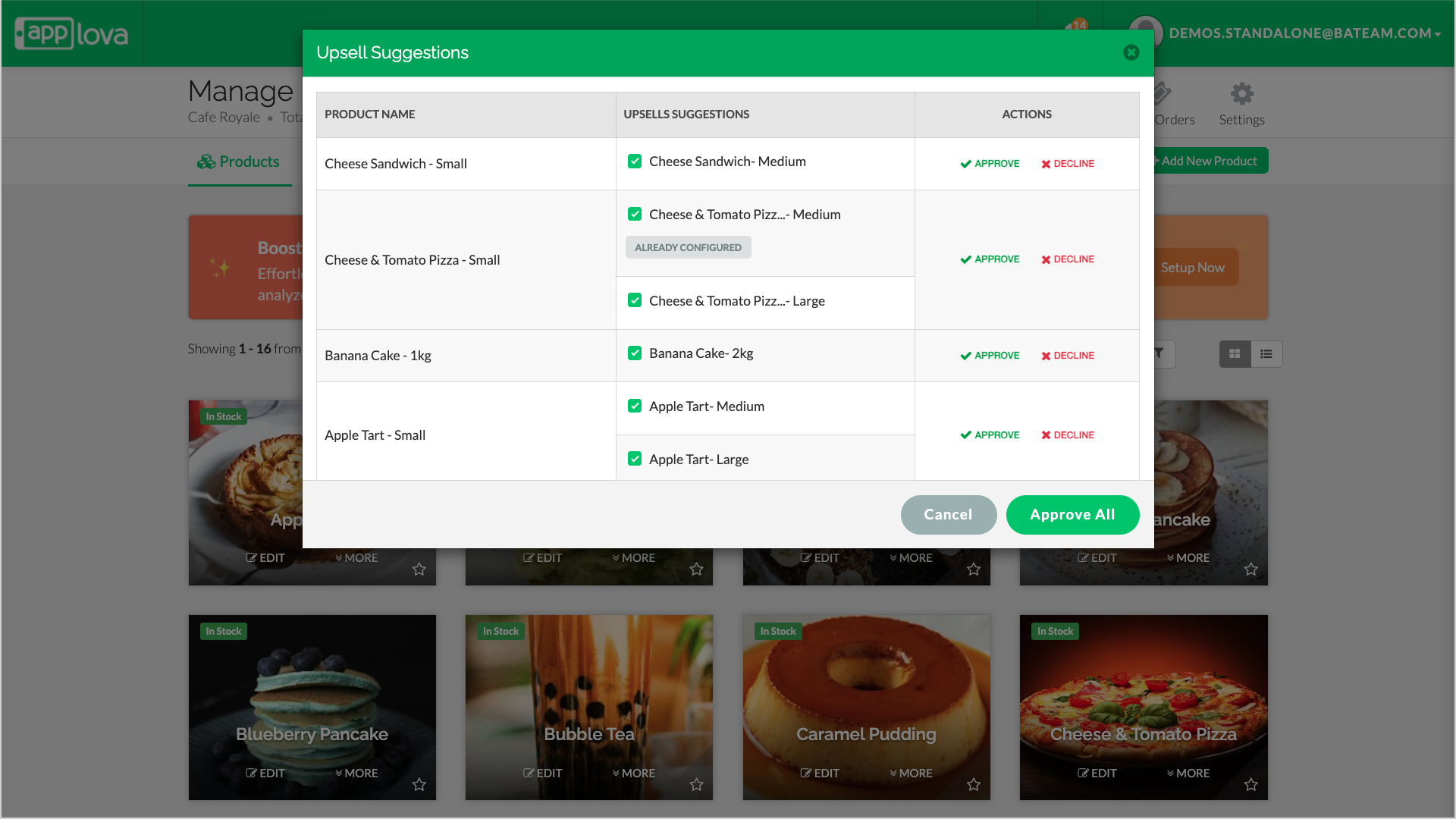
Image Link
Step 6
Recommendations can be approved manually.
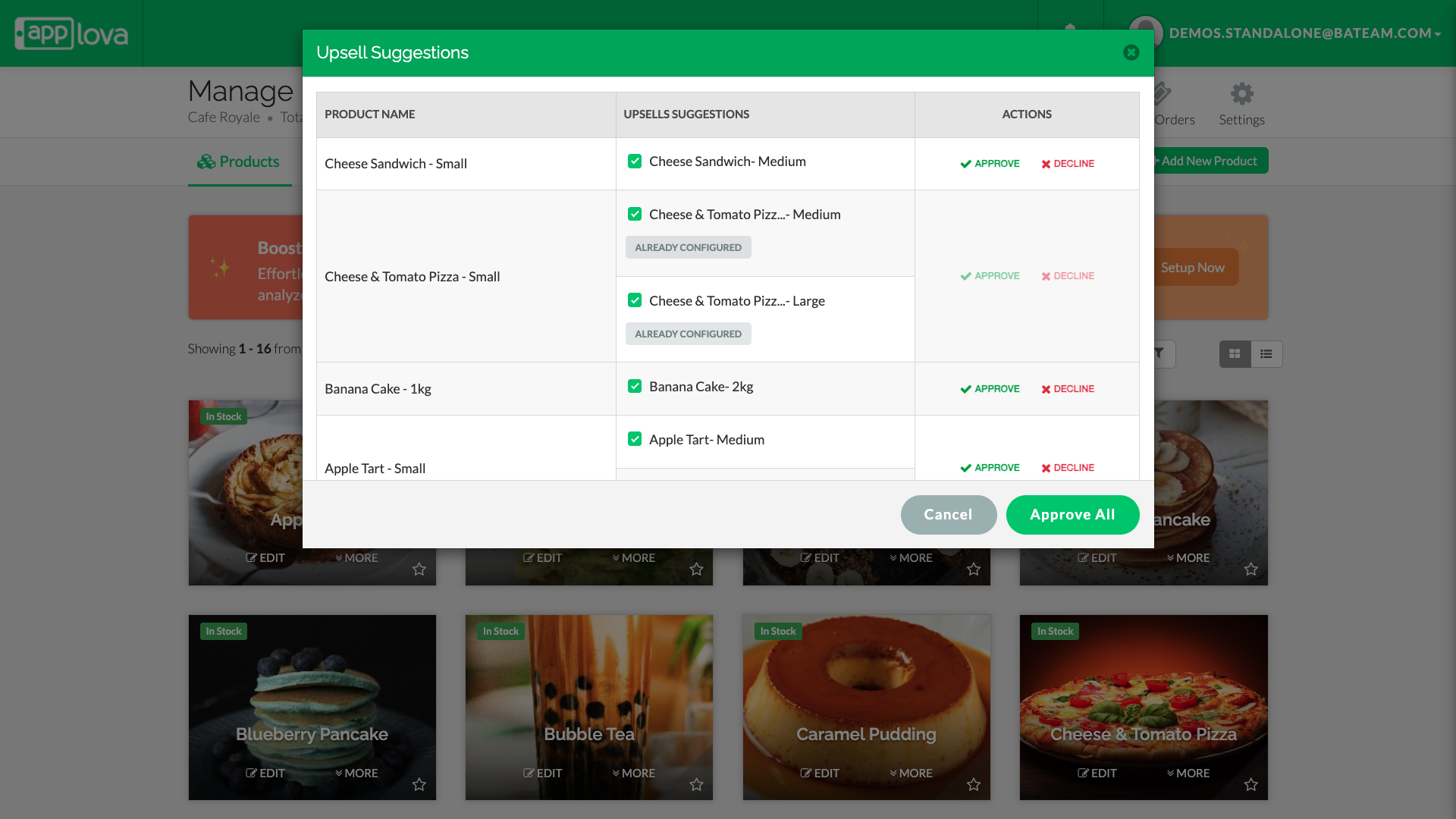
Step 7
To approve in bulk, click "Approve All". Only selected suggestions will be submitted one by one.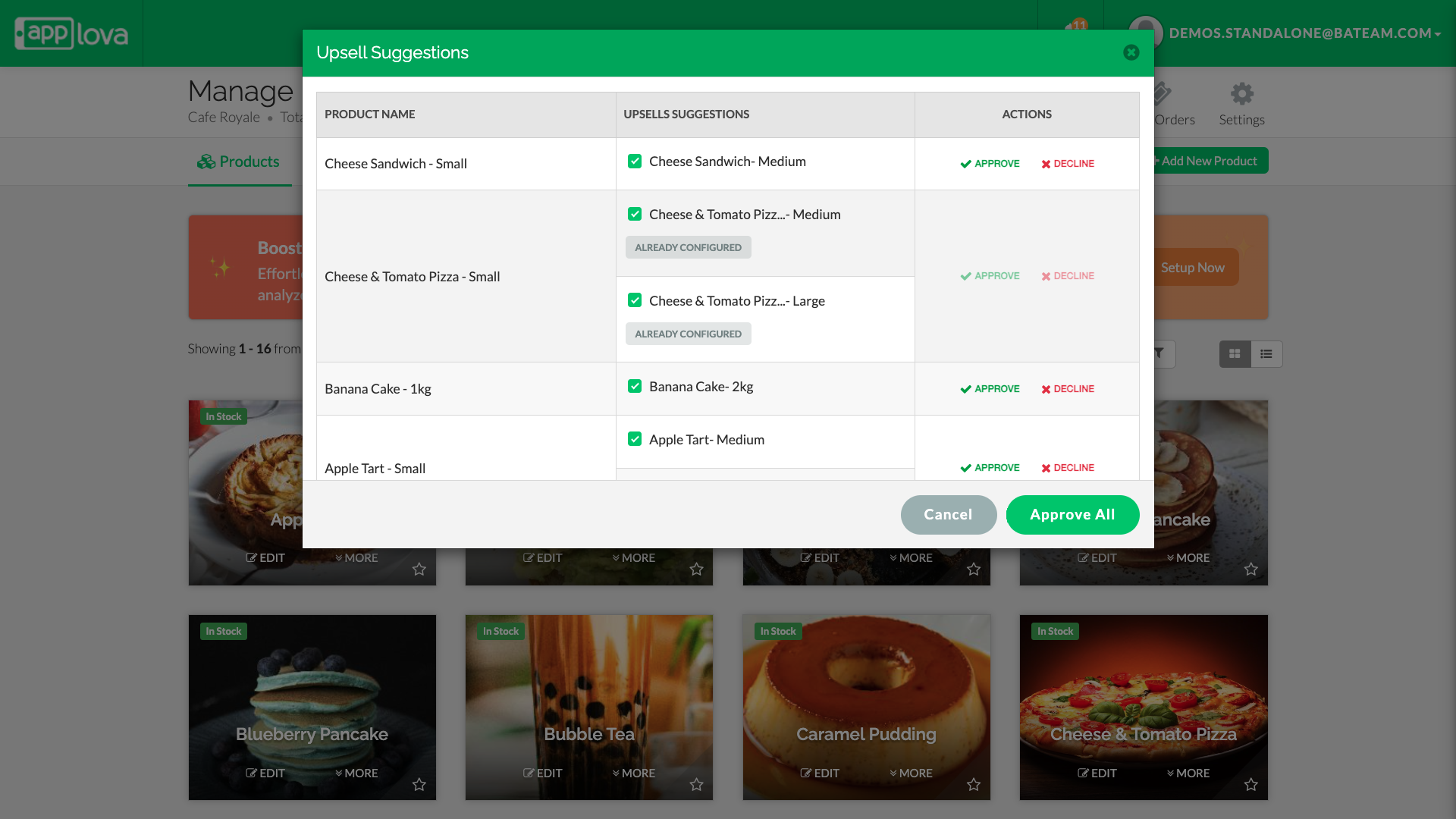
Image Link
Step 8
If a product is already configured as a up-sell, it will be labelled as “Already Configured” from the AI-generated suggestions.
Note that if suggestions are already configured, the Approve and Decline Actions will be disabled
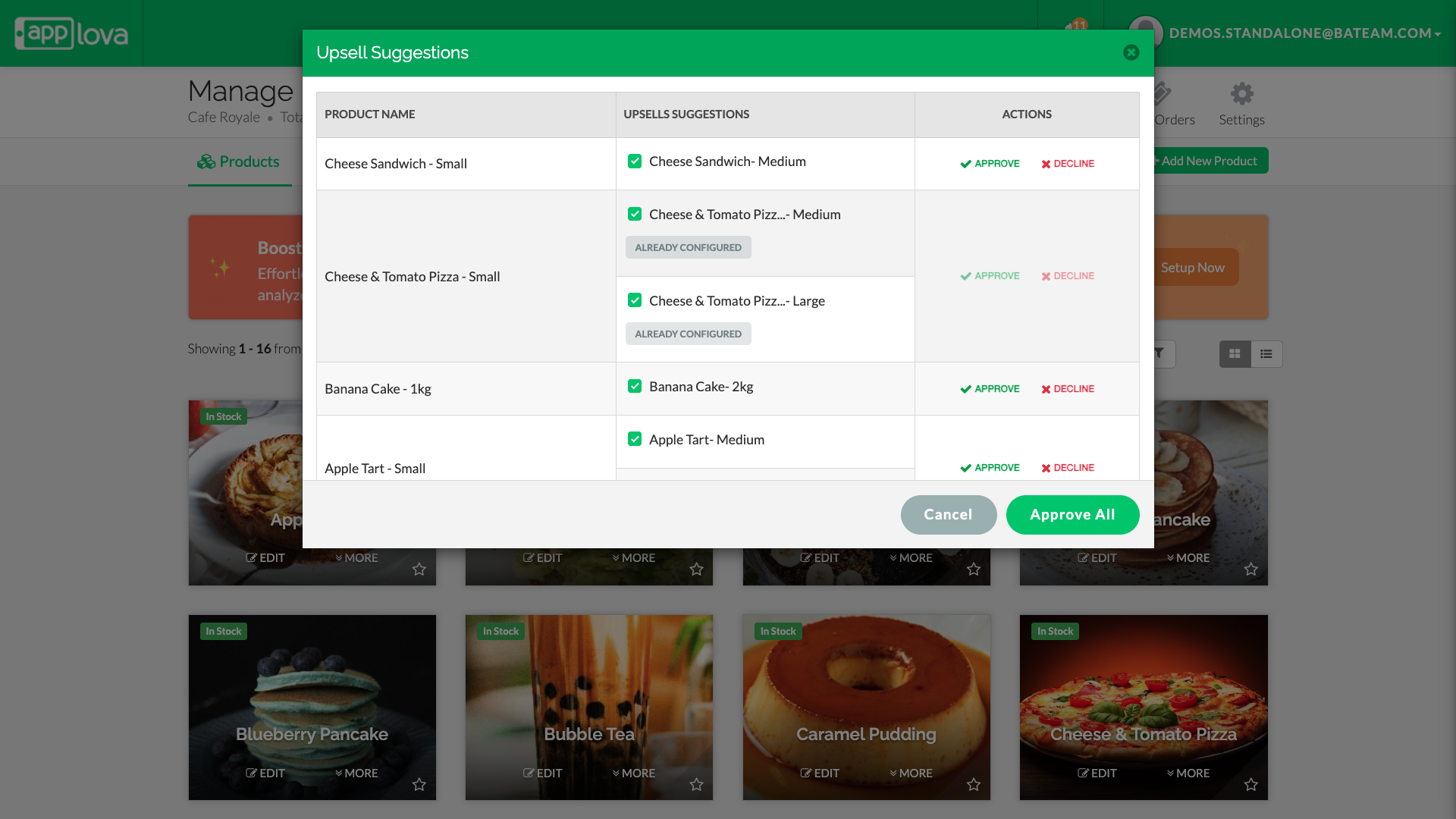
Step 9
On approval, up-sell products are auto-configured to display during checkout and reflected under: Go to the Selected Product > Select "More" > Go to "Manage Recommended Products" > up-Sell.
On approval, up-sell products are auto-configured to display during checkout and reflected under: Go to the Selected Product > Select "More" > Go to "Manage Recommended Products" > up-Sell.
Related Articles
Related Articles
How to Configure Alcohol Warning Message via Merchant Portal?
Supported on: Clover & Standalone Kiosks This capability enables the display of an alcohol warning message on the cart screen when alcoholic products are added to the cart. You can customize both the message's content and the text on the associated ...AI Text Generation in Applova Merchant Portal
This feature allows merchants to use AI-powered text generation in the Applova Merchant Portal to automatically create or refine content across key areas such as product descriptions, category descriptions, promo code descriptions, and customer ...How to Configure Order Delivery Via Merchant Web?
Merchants can configure order delivery settings through Merchant Web. These settings allow merchants to manage delivery related details, and ensure customers can place delivery orders based on the business’s preferred setup. How to Enable the ...How to Add Product Tags via Merchant Web?
This is a label or keyword associated with a specific product to help identify it. This will reflect only on the Kiosk. Step 1 Login to "Applova Merchant Web". Step 2 Under the "Products" tab click "Edit" on the product you wish to add the tag. Image ...How to Manage Special Pricing via Merchant Portal?
What is Product Special Pricing? Product special pricing defines setting different pricing to your variants on different days (E.g: Lower prices on Holidays or Weekends) How to Add Product Special Pricing? Step 1 Login to the "Applova Merchant ...