Onboarding to DoorDash Drive via Merchant Portal

Supported Domains: Standalone, Clover and Square
This allows merchants to connect with DoorDash and begin the sign-up process for enabling on-demand delivery through their Applova platform. After onboarding to DoorDash Drive, the delivery service becomes available for the merchant’s online orders.
Step 1
Log in to the Applova Merchant Portal using your merchant account credentials and go to "Settings" .
Step 2
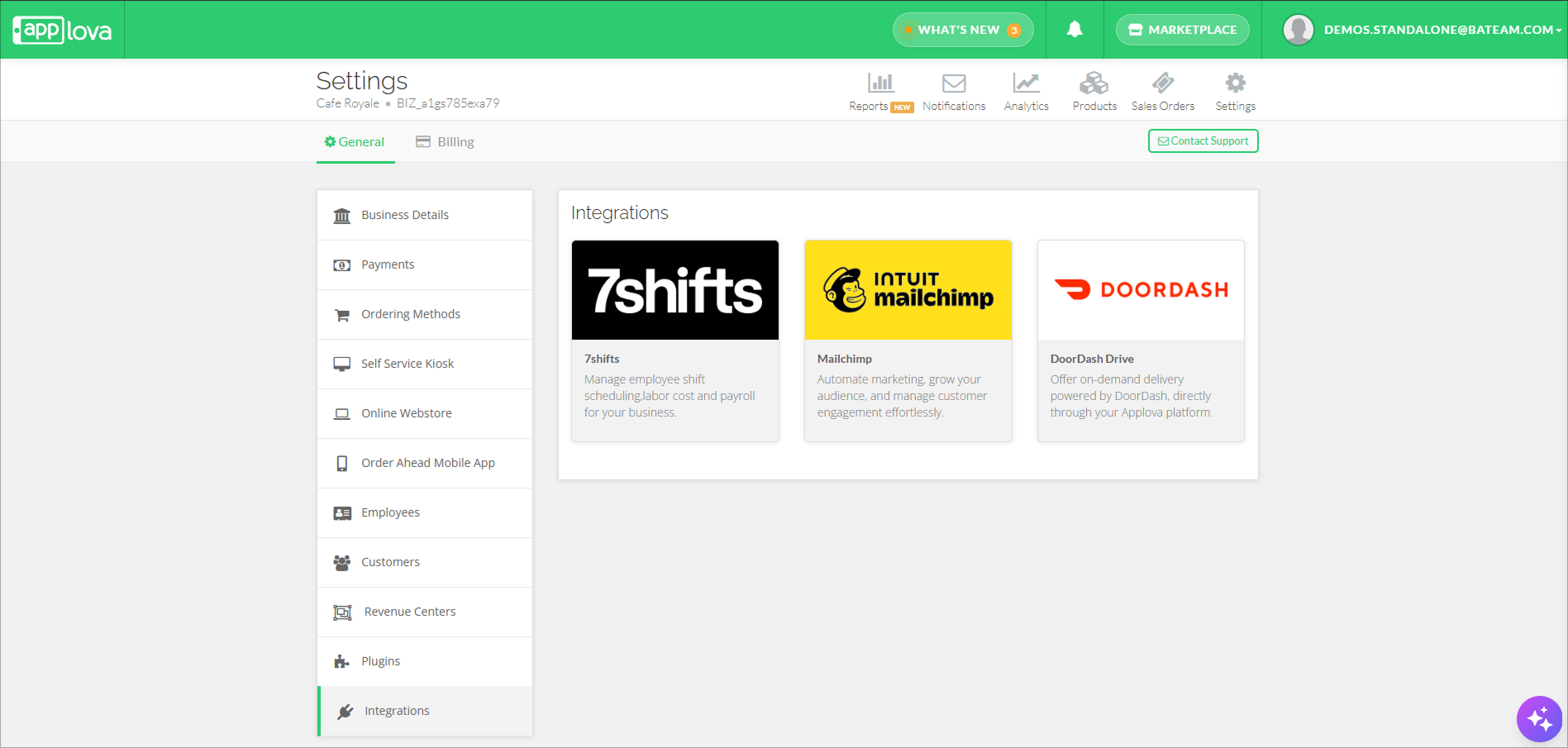
Under the "General" tab, select “Integrations” from the left-side menu.
Step 3
Then click on the "DoorDash Drive" card.

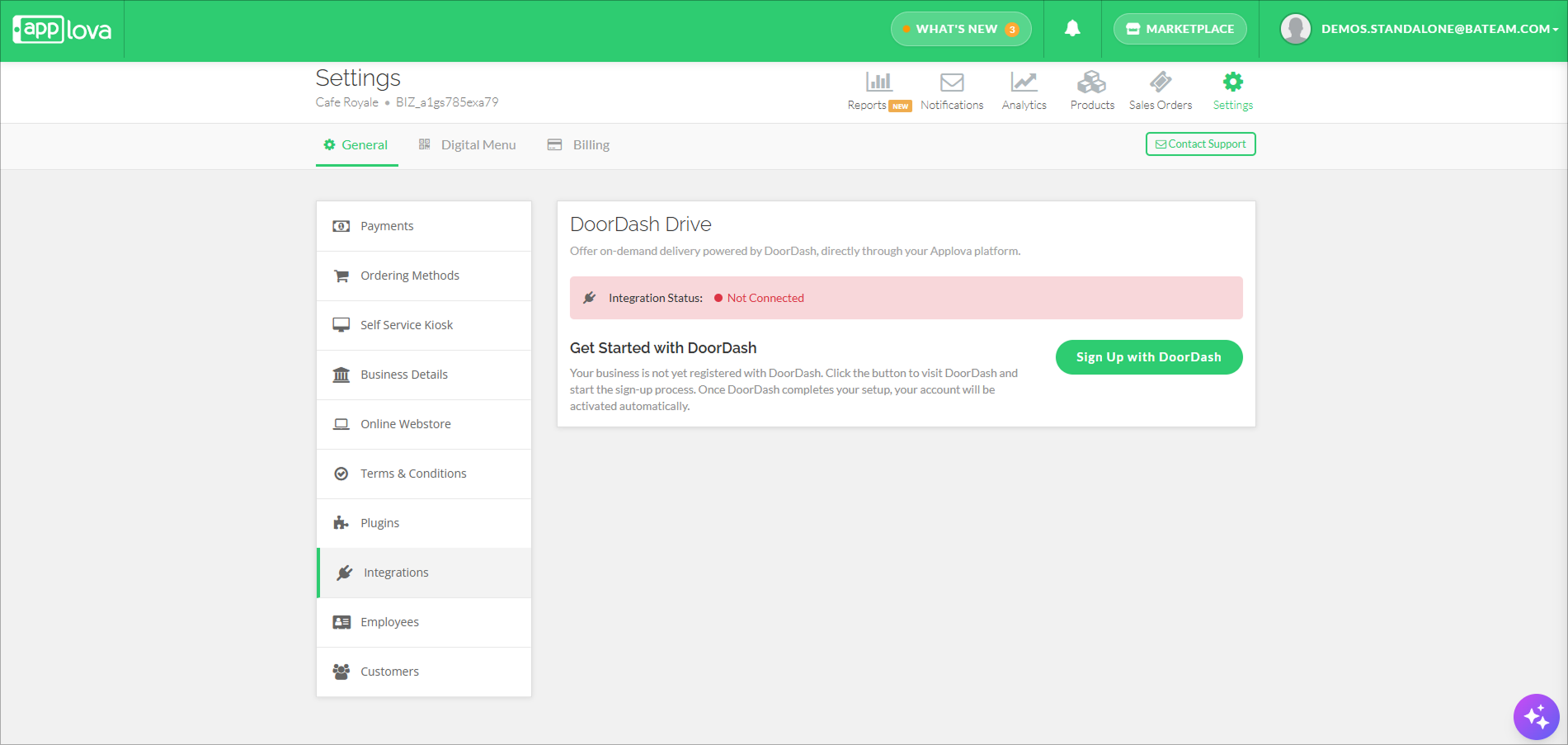
As the integration is not yet connected, the status will appear as "Not Connected".
Step 4
Click the "Sign Up with DoorDash" button.
Step 5
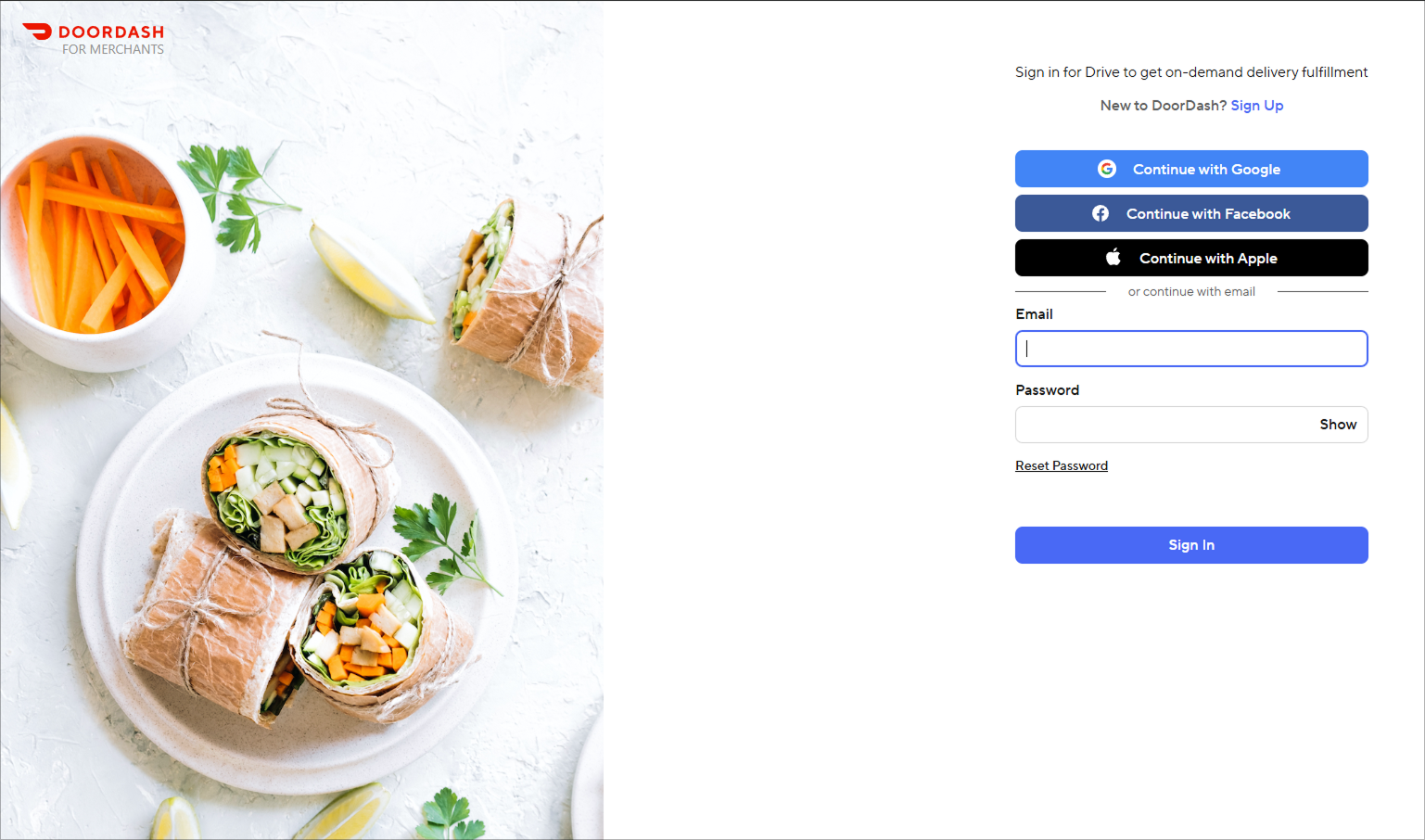
You will be redirected to the DoorDash sign-up flow. Complete the required onboarding steps with DoorDash.
You will also receive an email containing the onboarding link as a follow up to complete the sign up process.
DoorDash Drive Statuses
The DoorDash Drive integration status helps merchants understand the current state of their DoorDash onboarding and connection.
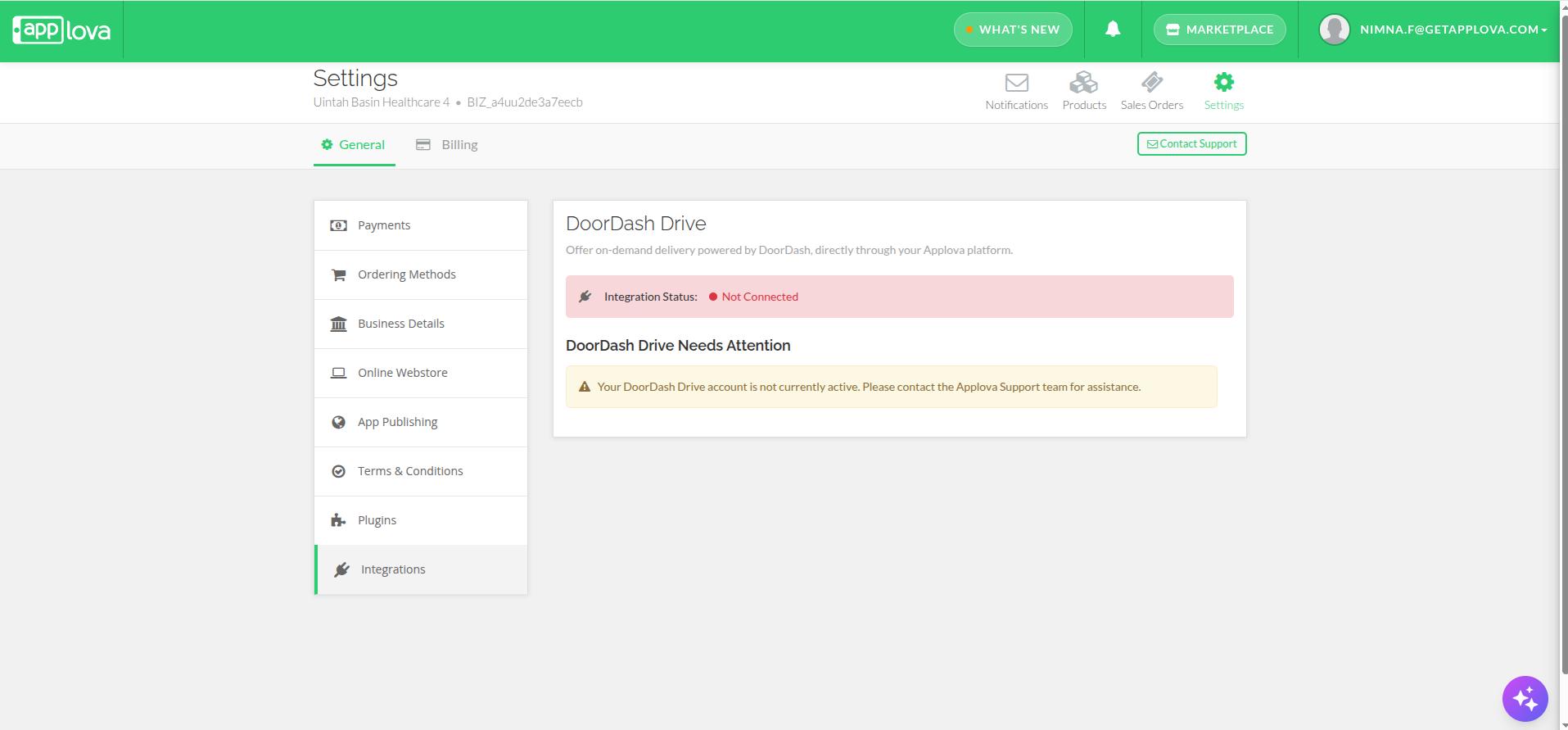
1. Not Connected
This status appears when DoorDash Drive is not currently active for the business. Depending on the scenario, this status may appear for one of the following reasons:
- Business Not Registered with DoorDash Drive -This appears when the business is not registered with DoorDash Drive yet. Merchants can click "Sign Up with DoorDash" to begin the DoorDash Drive sign-up process.
2. Partially Connected
This status appears when the DoorDash Drive setup has started, but the integration is not fully active yet. Depending on the current stage, merchants may see one of the following messages:
- DoorDash Drive Setup in Progress - This appears when the merchant has started the DoorDash Drive sign-up process but has not completed all required onboarding steps. Merchants can click "Complete Your DoorDash Onboarding" to continue the onboarding process.
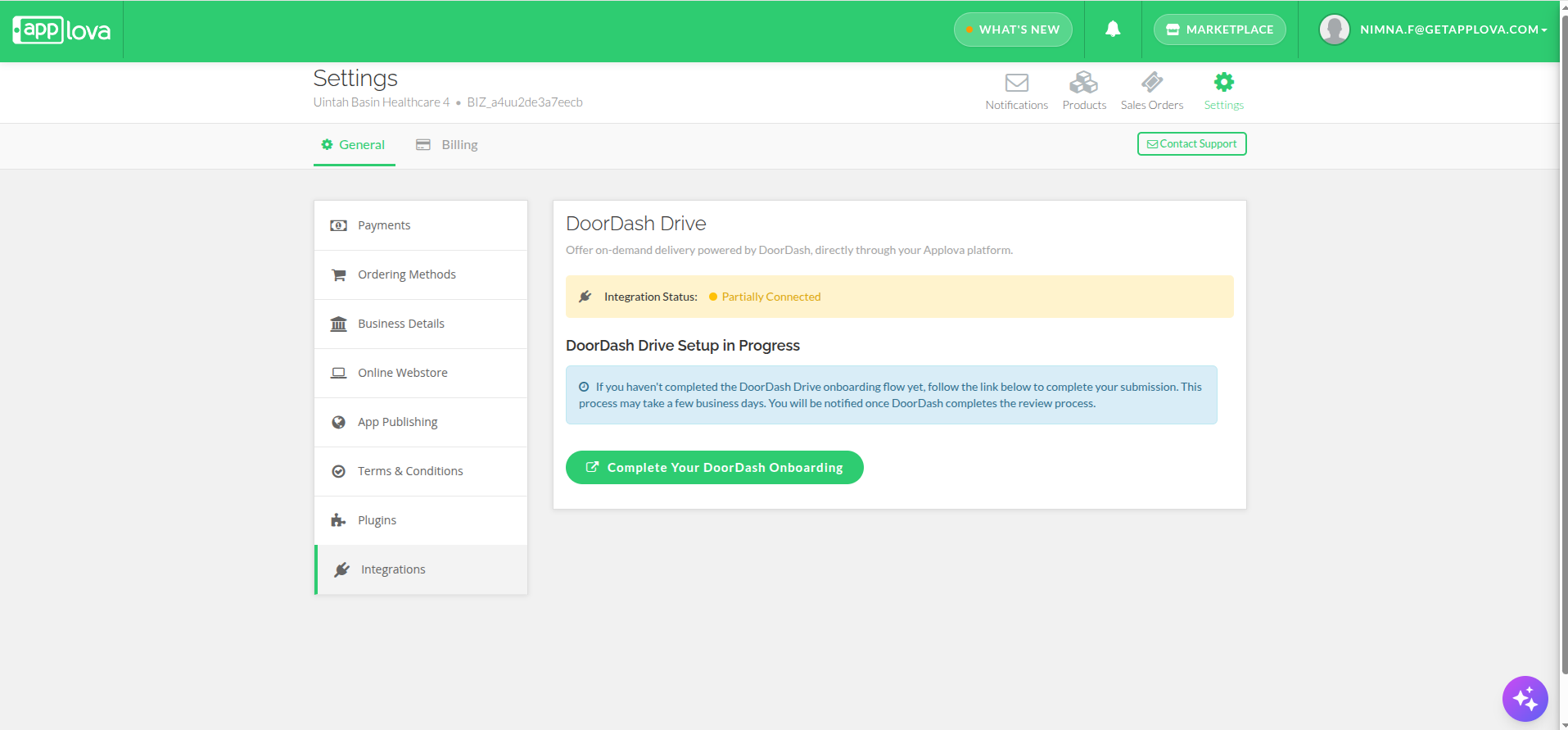
Image Link - Action Needed: Complete Your DoorDash Agreement - This appears when DoorDash needs the merchant to review and accept the required merchant legal agreement before the account can be activated. Merchants can click "Complete Agreement on DoorDash" to review and accept the agreement.
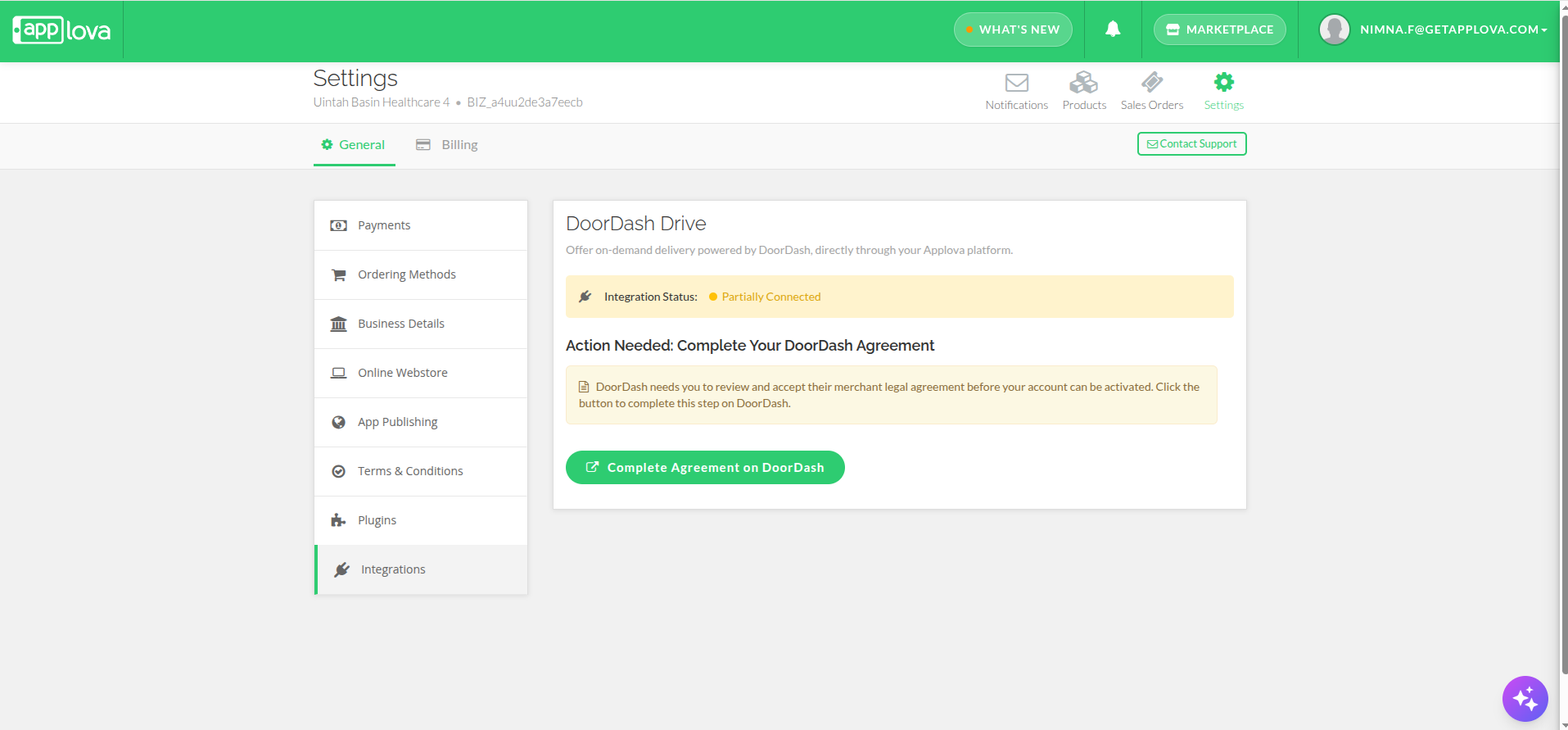
Image Link - DoorDash Drive Account Approved - This appears when DoorDash has approved the merchant account, but Applova still needs to complete the final activation steps. This usually takes 1–2 business days. The merchant will be notified once everything is ready.
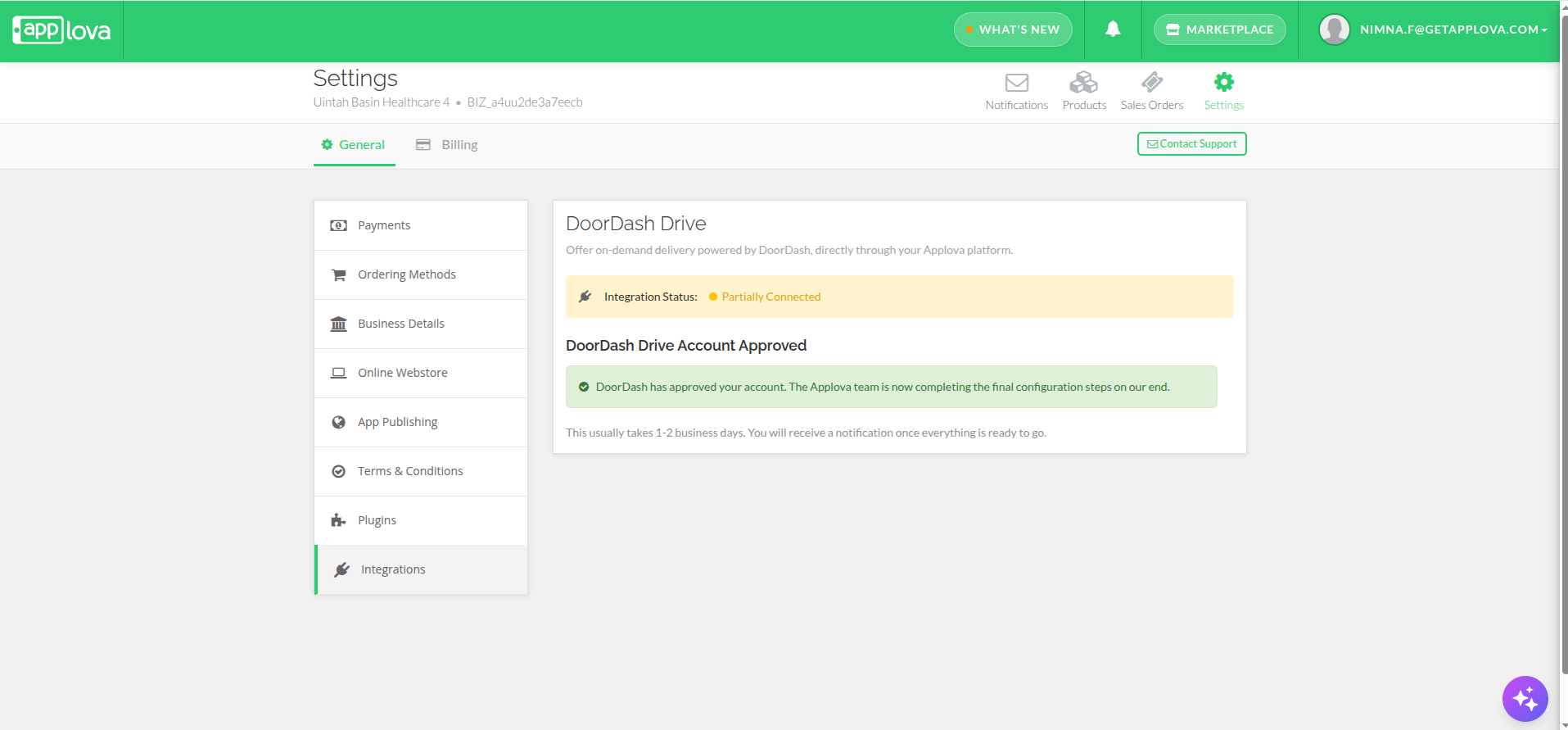
Image Link
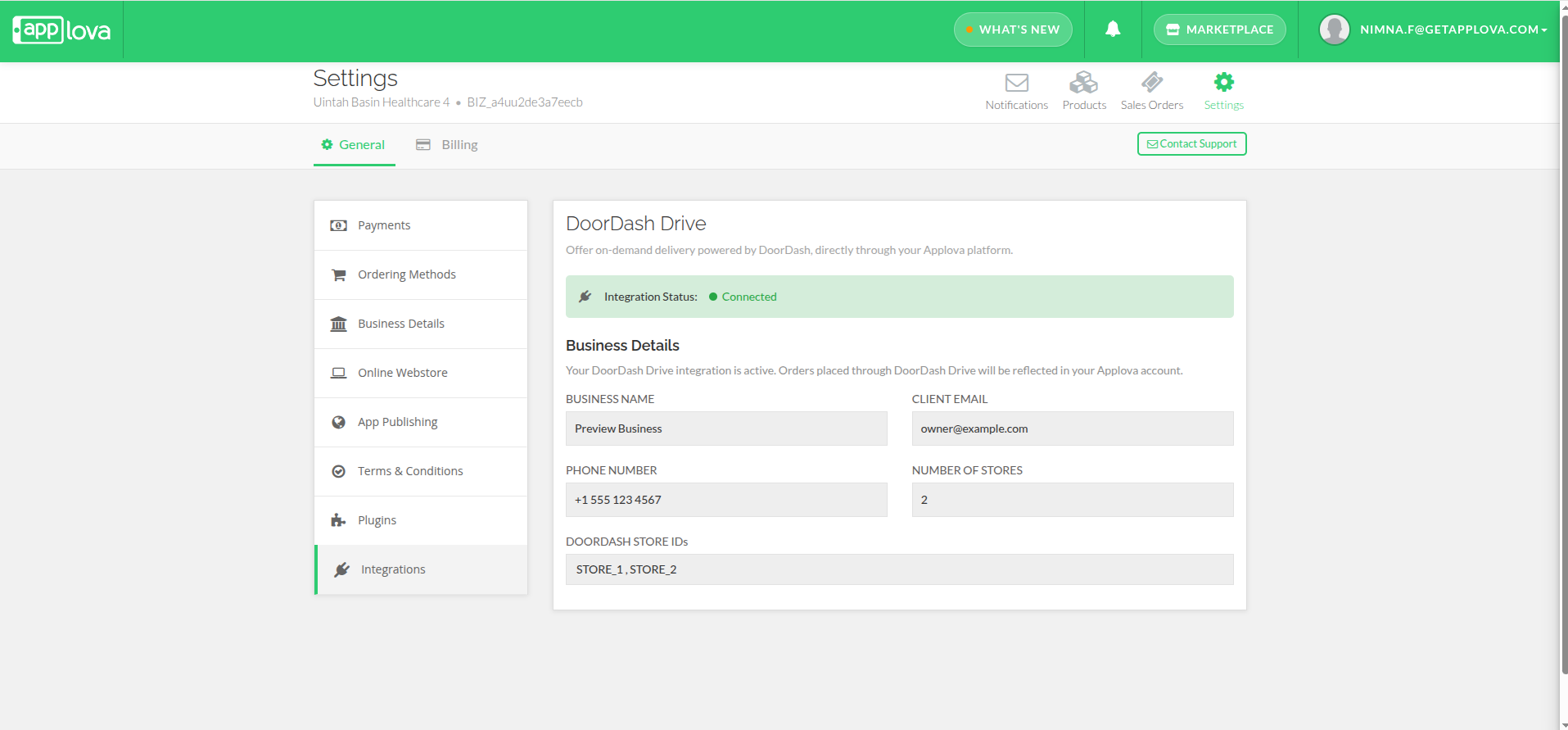
3. Connected
This status appears when the DoorDash Drive integration is fully active. Once connected, orders placed through DoorDash Drive will be reflected in the merchant’s Applova account.
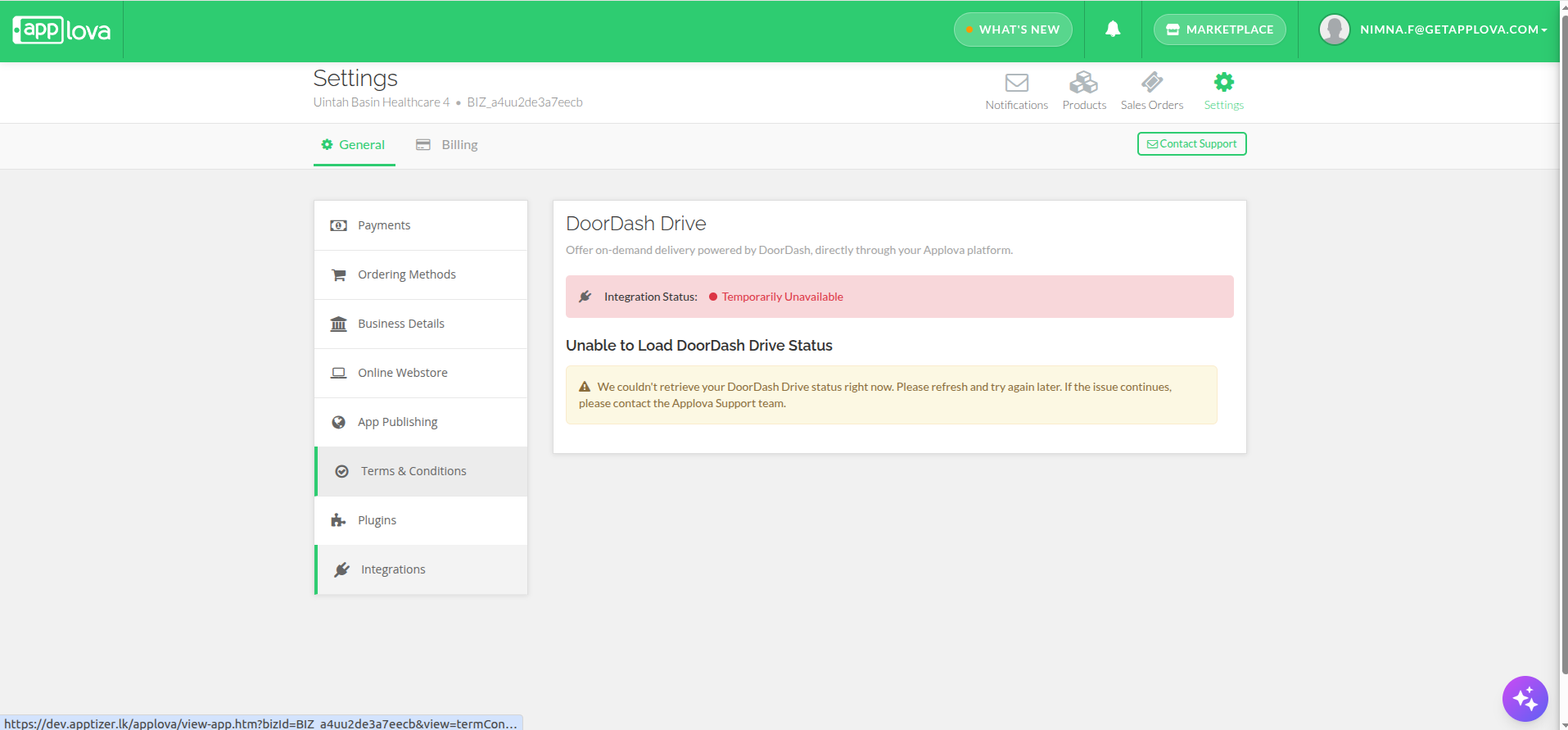
4. Temporarily Unavailable
The Temporarily Unavailable status appears when the system is unable to retrieve the merchant’s DoorDash Drive status at that moment. Merchants can refresh the page and try again later. If the issue continues, they should contact the Applova Support team for assistance.
DoorDash Drive Needs Attention
This appears when the DoorDash Drive account is not currently active and needs support assistance.
This may happen if:
- The business was previously active but is now deactivated.
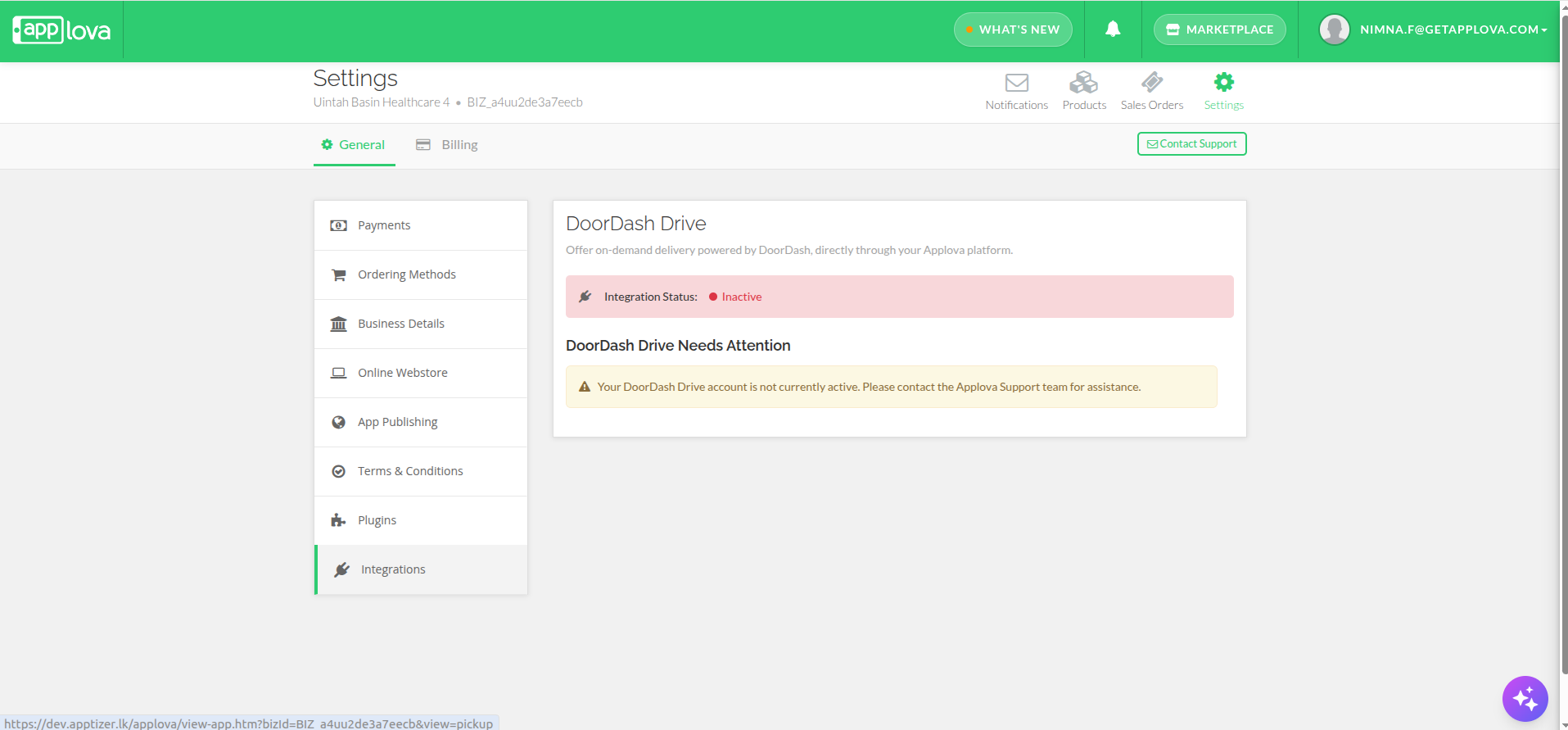
Image Link
If this status appears, the merchant should contact the Applova Support team for assistance.
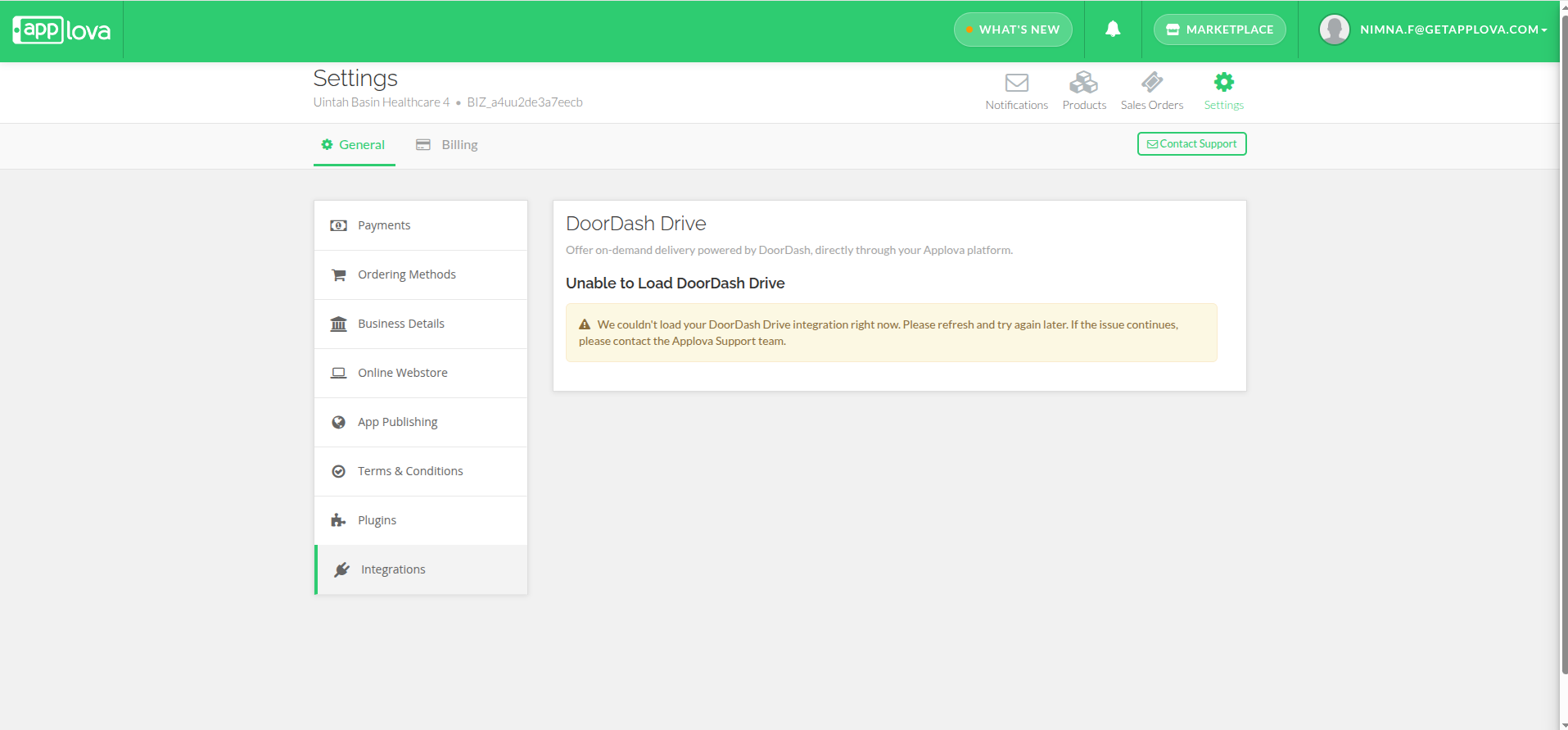
6. Unable to Load DoorDash Drive
This appears when Merchant Web is temporarily unable to load the DoorDash Drive integration details.
Merchants can refresh the page and try again later. If the issue continues, they should contact the Applova Support team for assistance.
Related Articles
Related Articles
DoorDash best practices guide
Please click on the link below to access the guide on best practices recommended by DoorDash for ensuring good delivery service for your customers. https://www.dropbox.com/s/ow4wbdbfpt9h98w/Drive%20Best%20Practices.pdf?dl=0How to Add a Manager User to Google My Business Profile?
Do not share this guide with merchants How to Add a Manager User to Google My Business Profile via the Desktop Browser? Step 1 Go to the http://business.google.com/ Image Link Step 2 Click on "⋮" and then select "Business Profile Settings". Image ...How to Add Applova User as an Admin for Merchant's Google Analytics Property?
Step 1 Log into the Google Analytics Account and click on the "Settings" icon. Image Link Step 2 Then click on "Admin". Image Link Step 3 Under "Property Settings" click on "Property Access Management". Image Link Step 4 Then click on the "+" icon to ...How to Integrate Mailchimp for Marketing Automation?
What is Mailchimp? Mailchimp is a marketing platform that helps businesses send emails, run campaigns, and connect with customers. With the Mailchimp Integration, Applova merchants can link their business to their Mailchimp account. Once connected, ...