How to Add a Manager User to Google My Business Profile?

Do not share this guide with merchants
How to Add a Manager User to Google My Business Profile via the Desktop Browser?
Step 1
Go to the http://business.google.com/
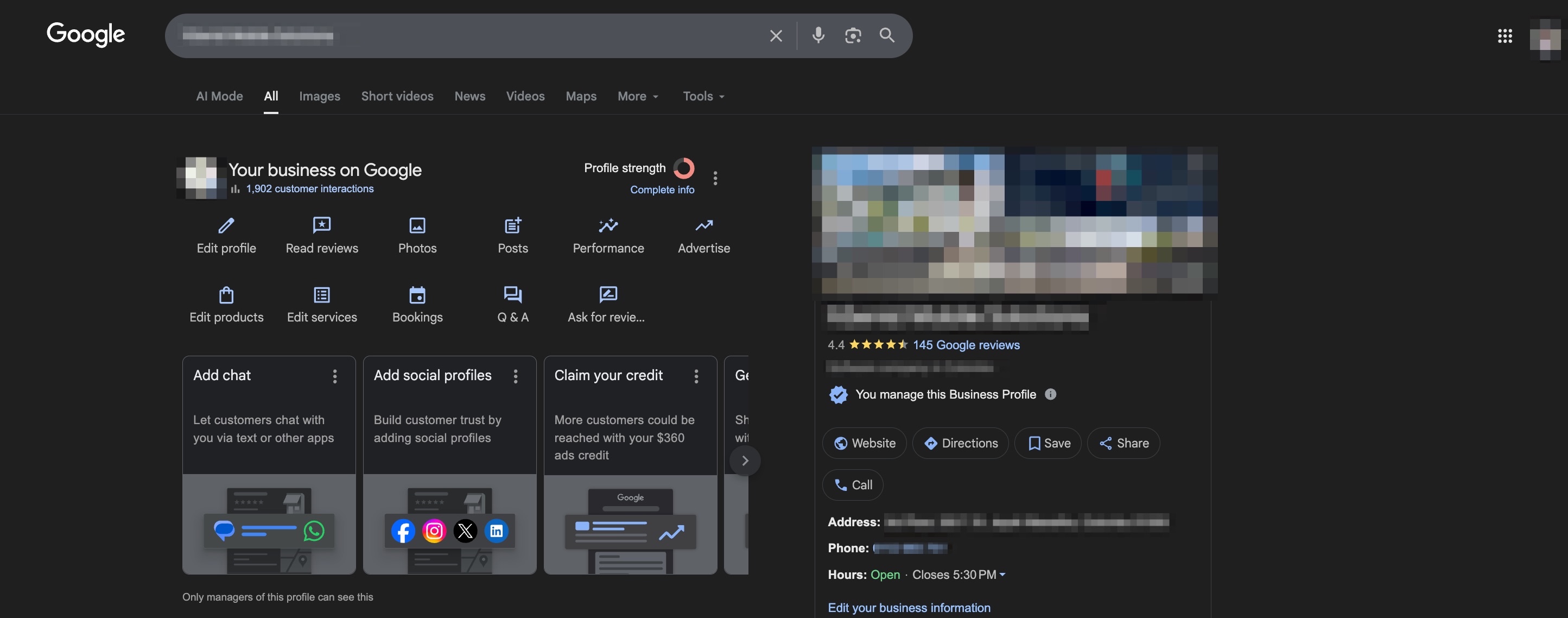
Step 2
Click on "⋮" and then select "Business Profile Settings".
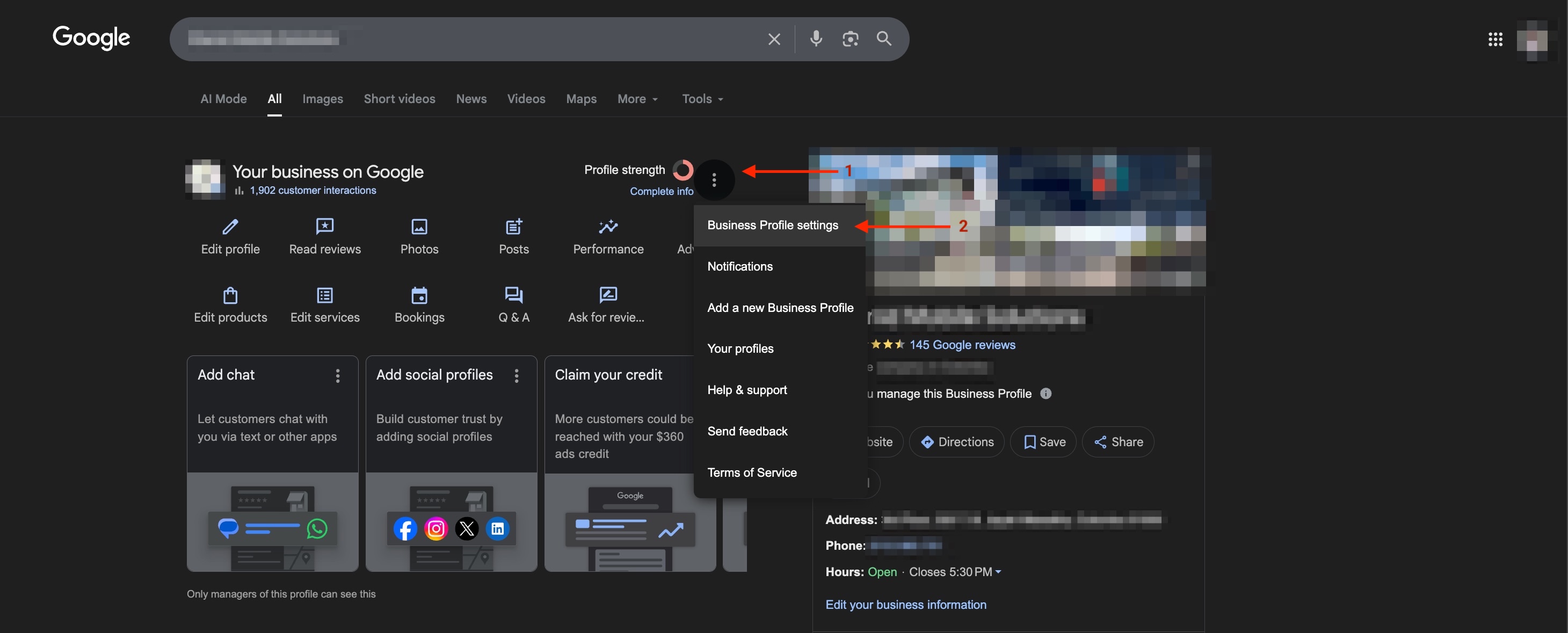
Step 3
Then click on "People and Access".
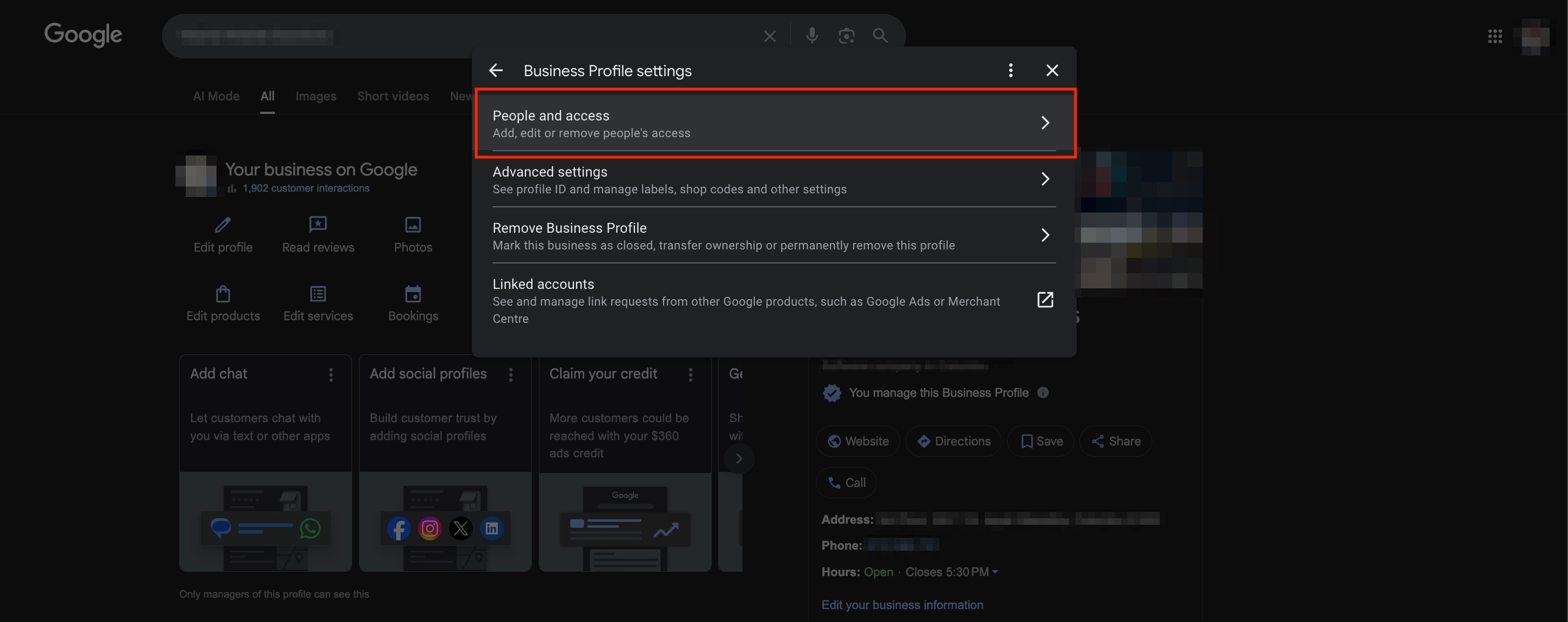
Step 4
Click on "Add".
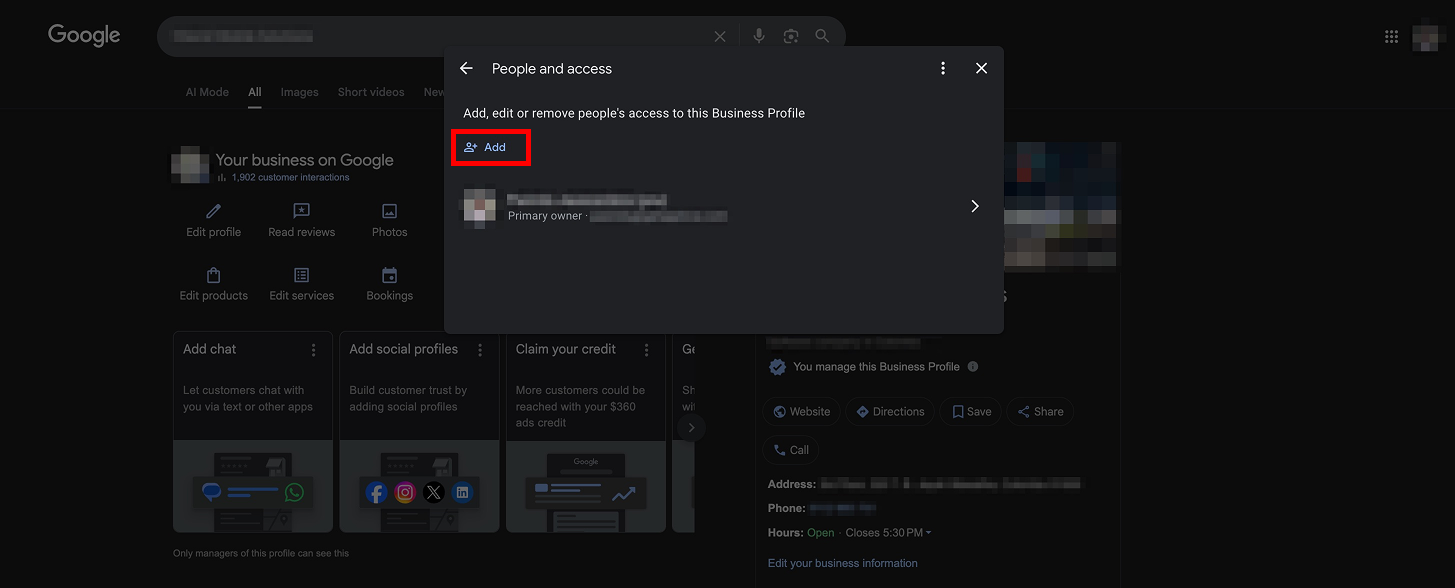
Step 5
Enter the following address as the "Manager" and click on "Invite".

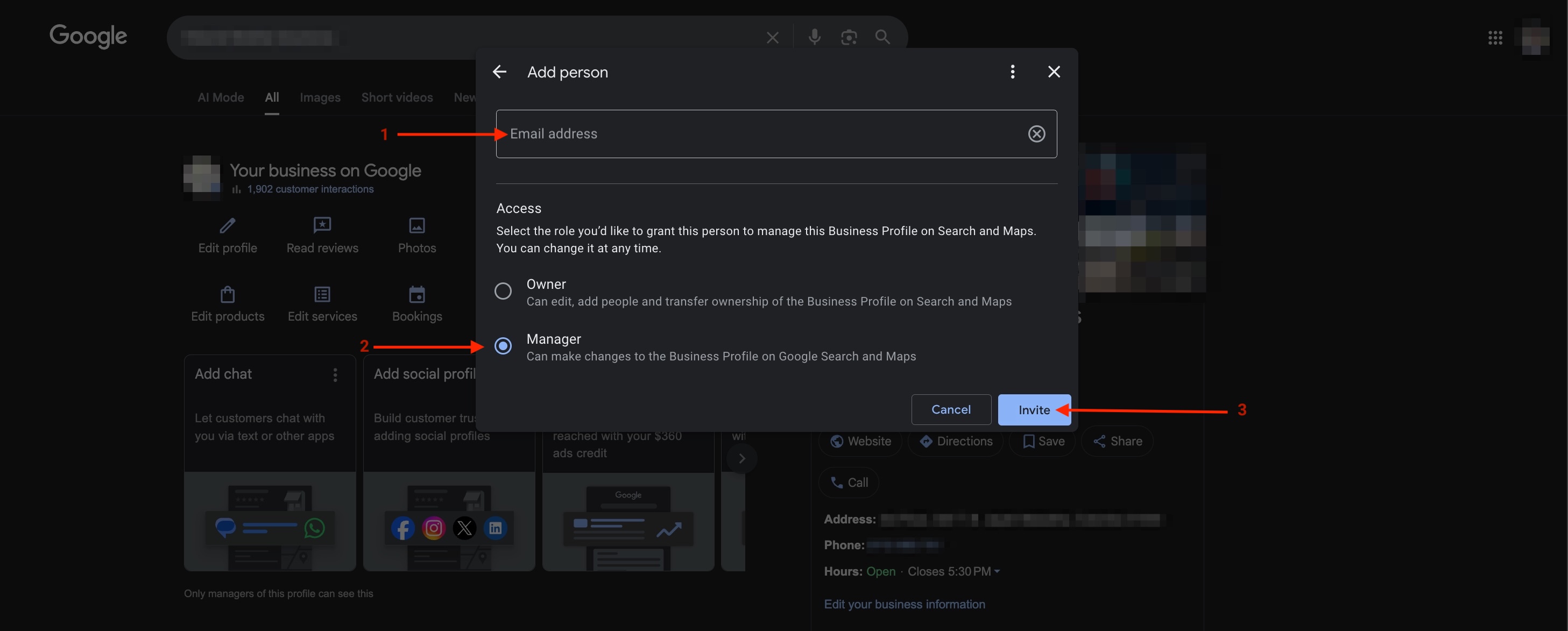
Step 6
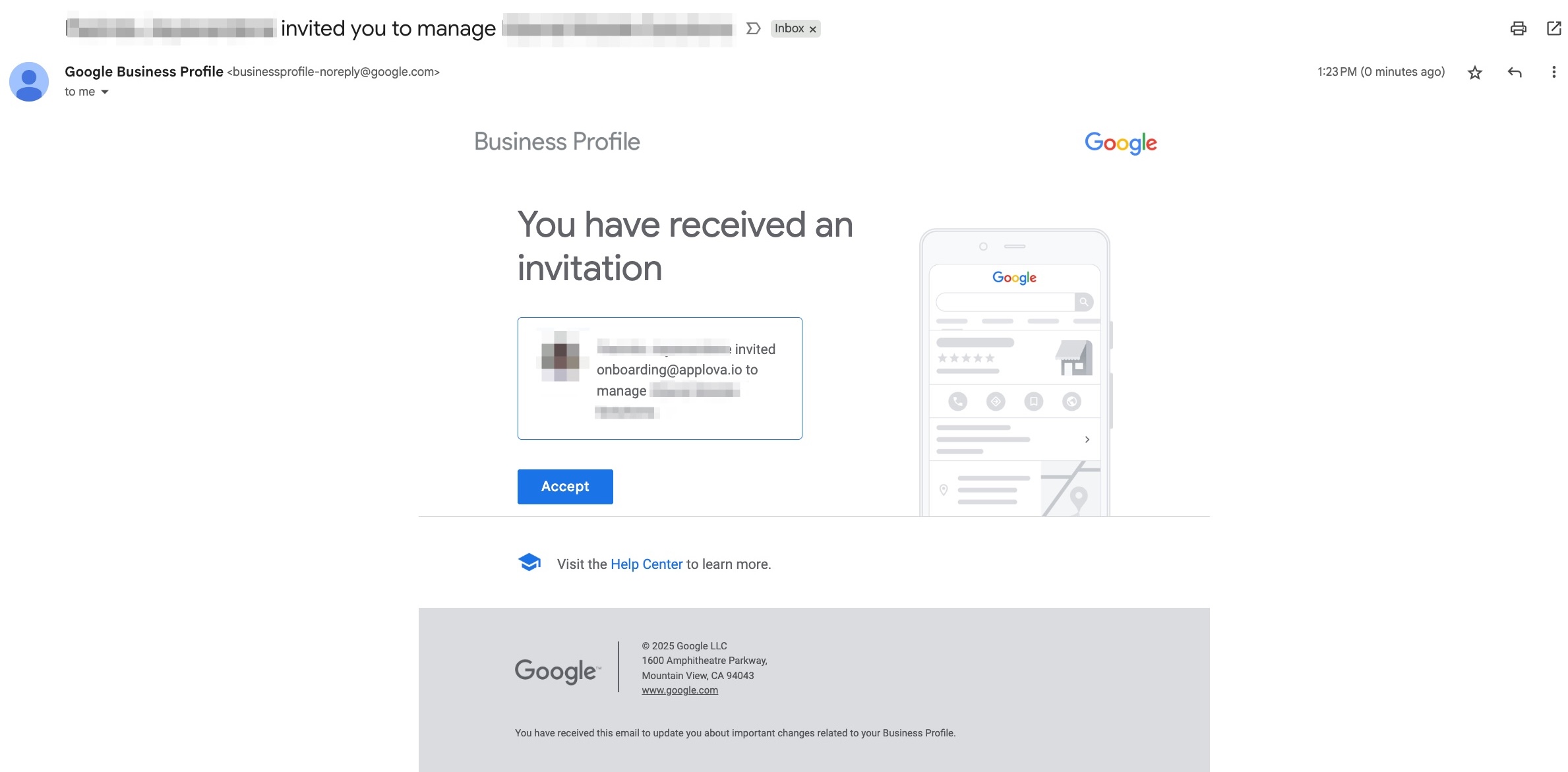
Once the above steps are completed successfully, the onboarding team will receive an email to the email address mentioned in step 5.
How to Add a Manager User to Google My Business Profile via the Google Maps App on the Mobile?
Step 1
Open the Google Maps app on your mobile
device.
Step 2
Search for your business name or tap the
business listing if it's shown on the map. If you manage the business, you’ll
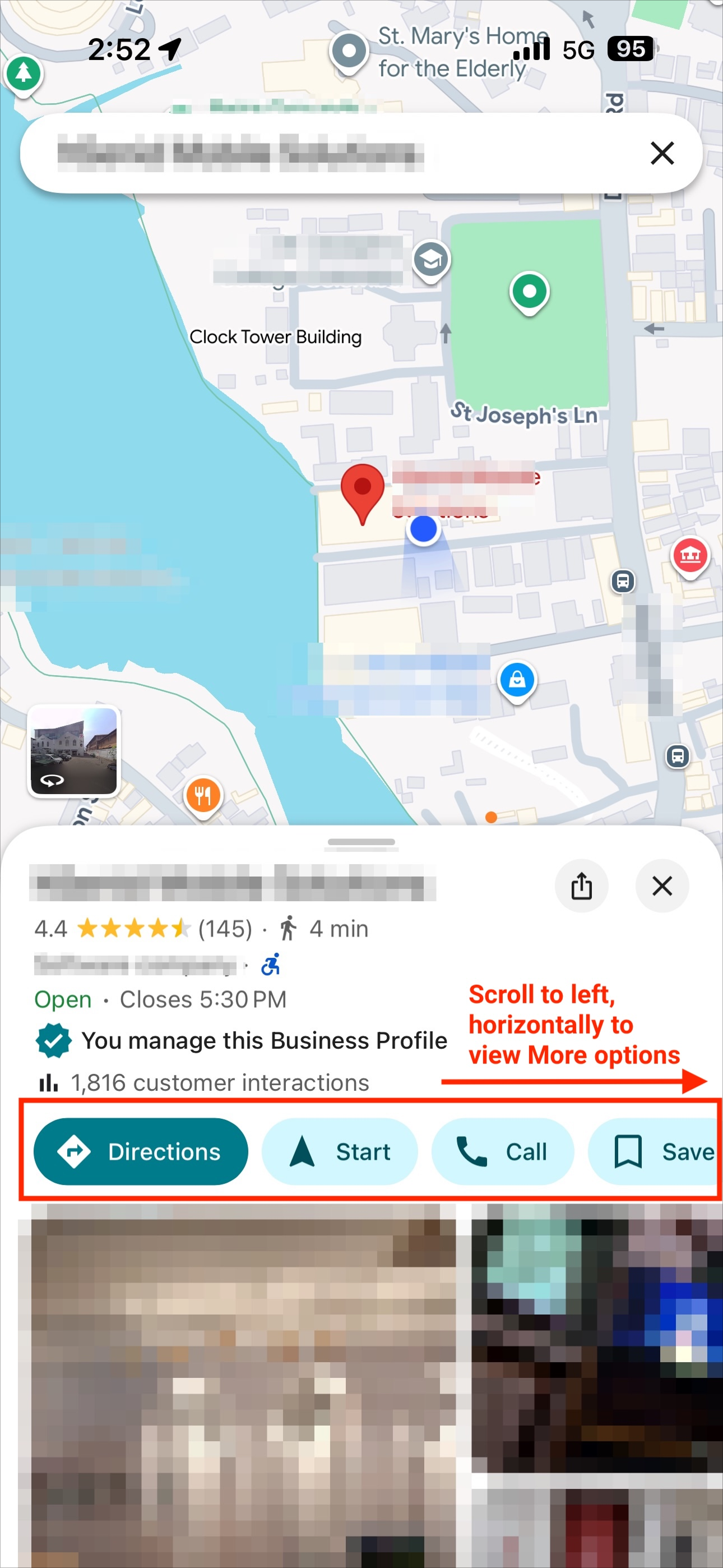
see a label: “You manage this Business Profile”.
Step 3
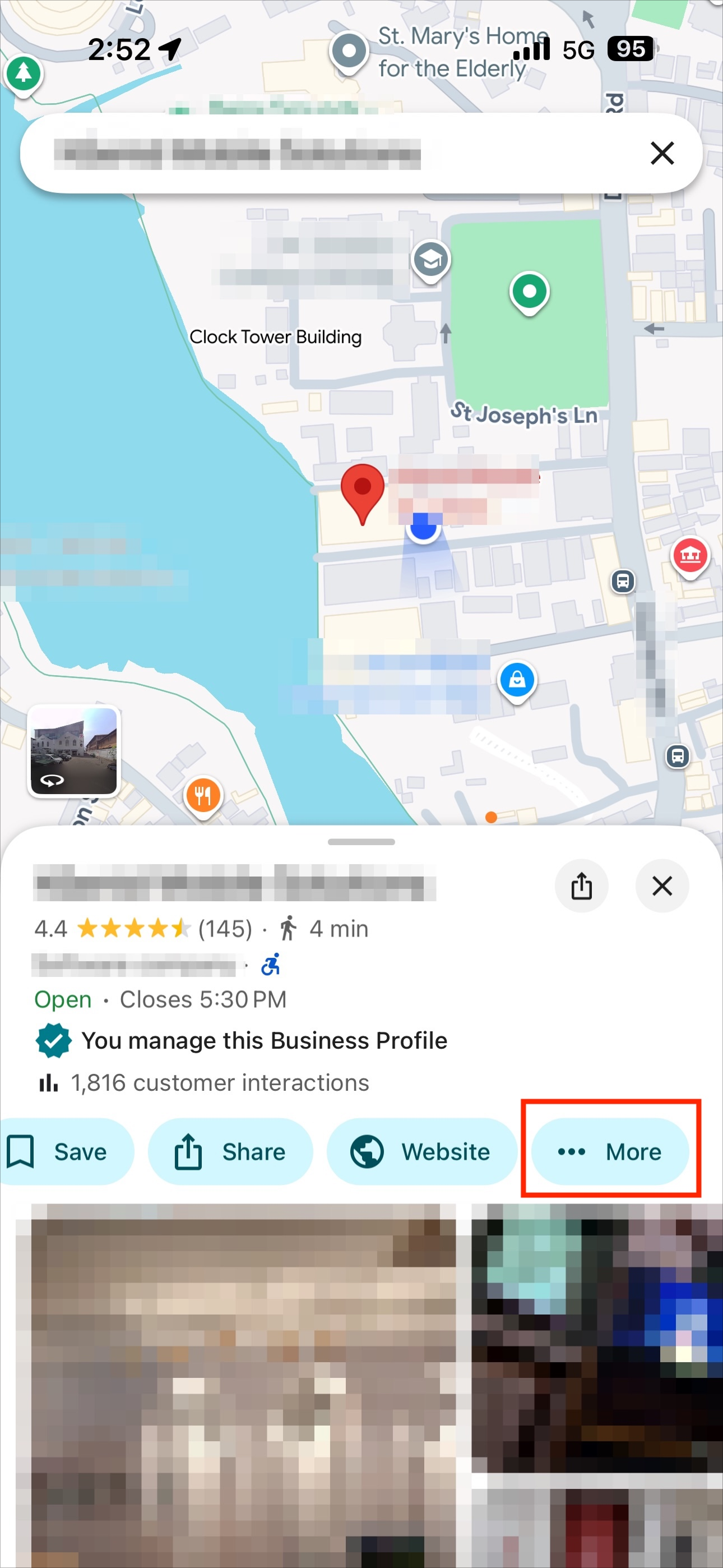
Scroll horizontally across the action
buttons (e.g., “Directions”, “Start”, “Call”) and tap “More”.
Step 4
In the expanded menu, tap “Business
Profile Settings”.
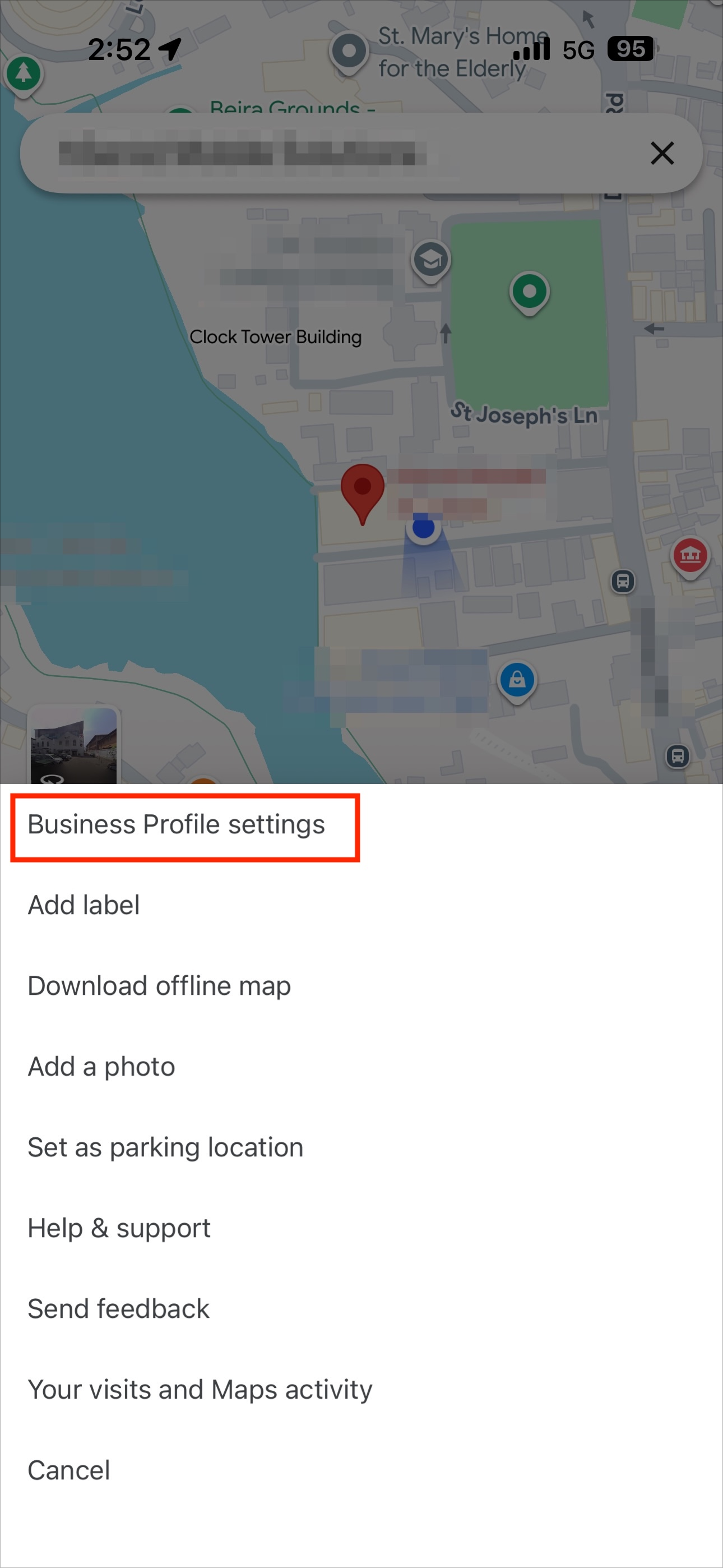
Step 5
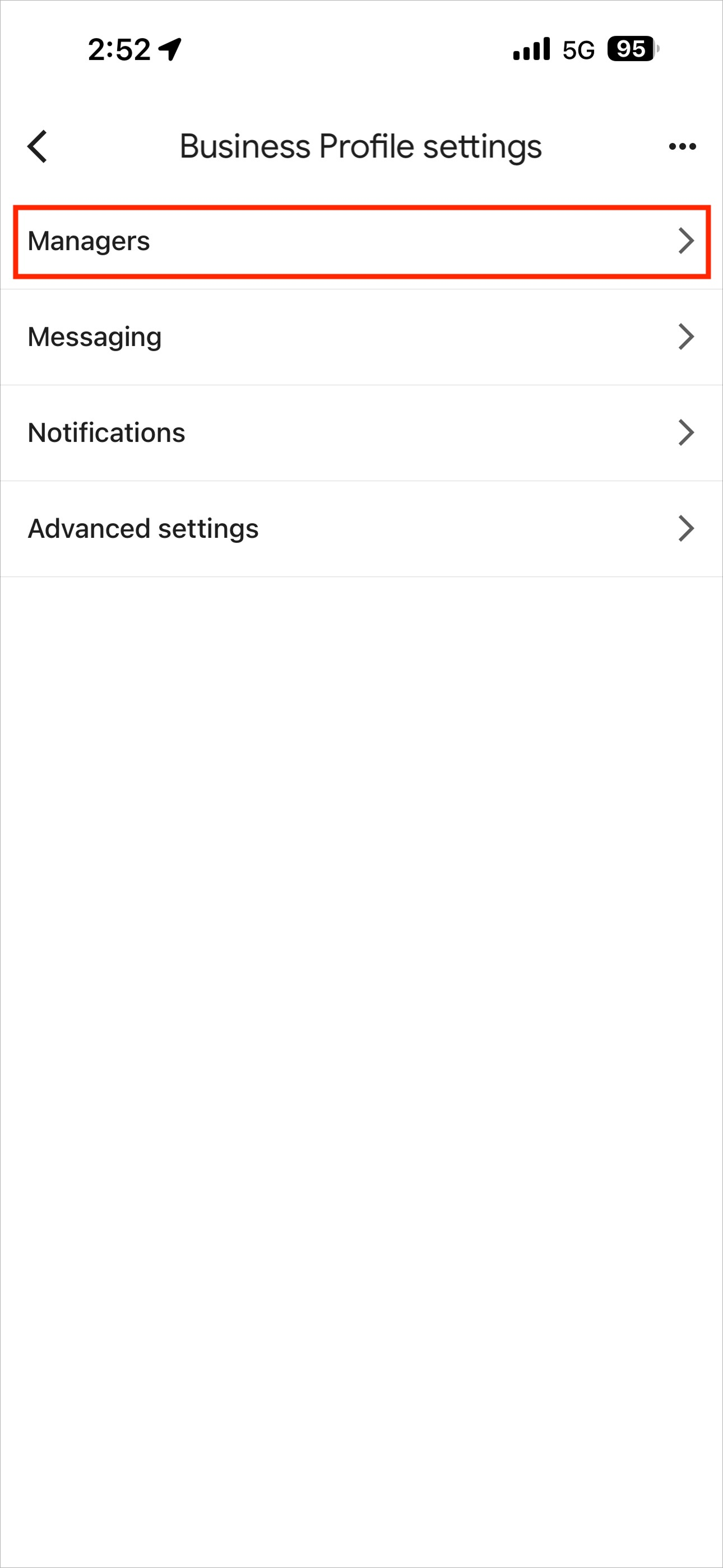
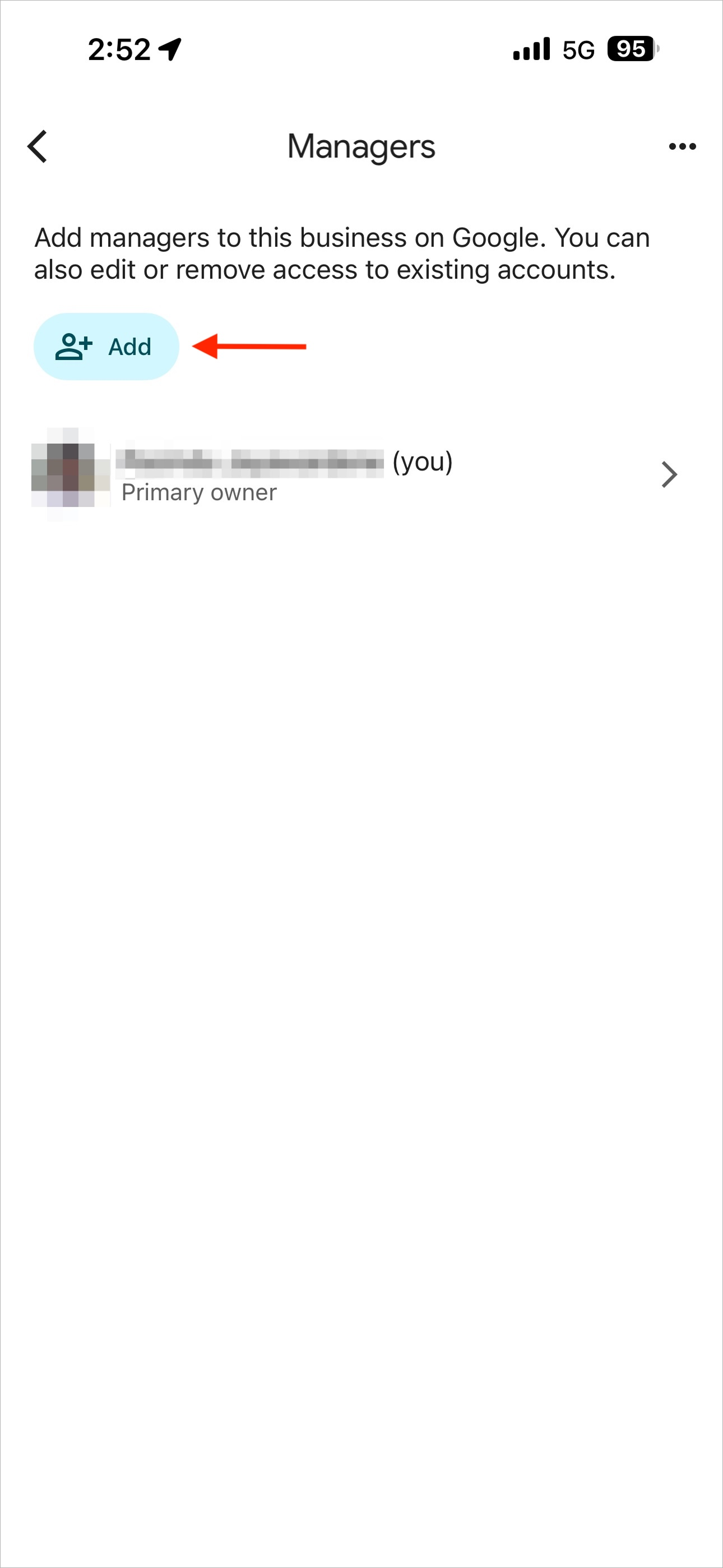
Step 6
Tap the “Add” button to invite a
new manager.
Step 7
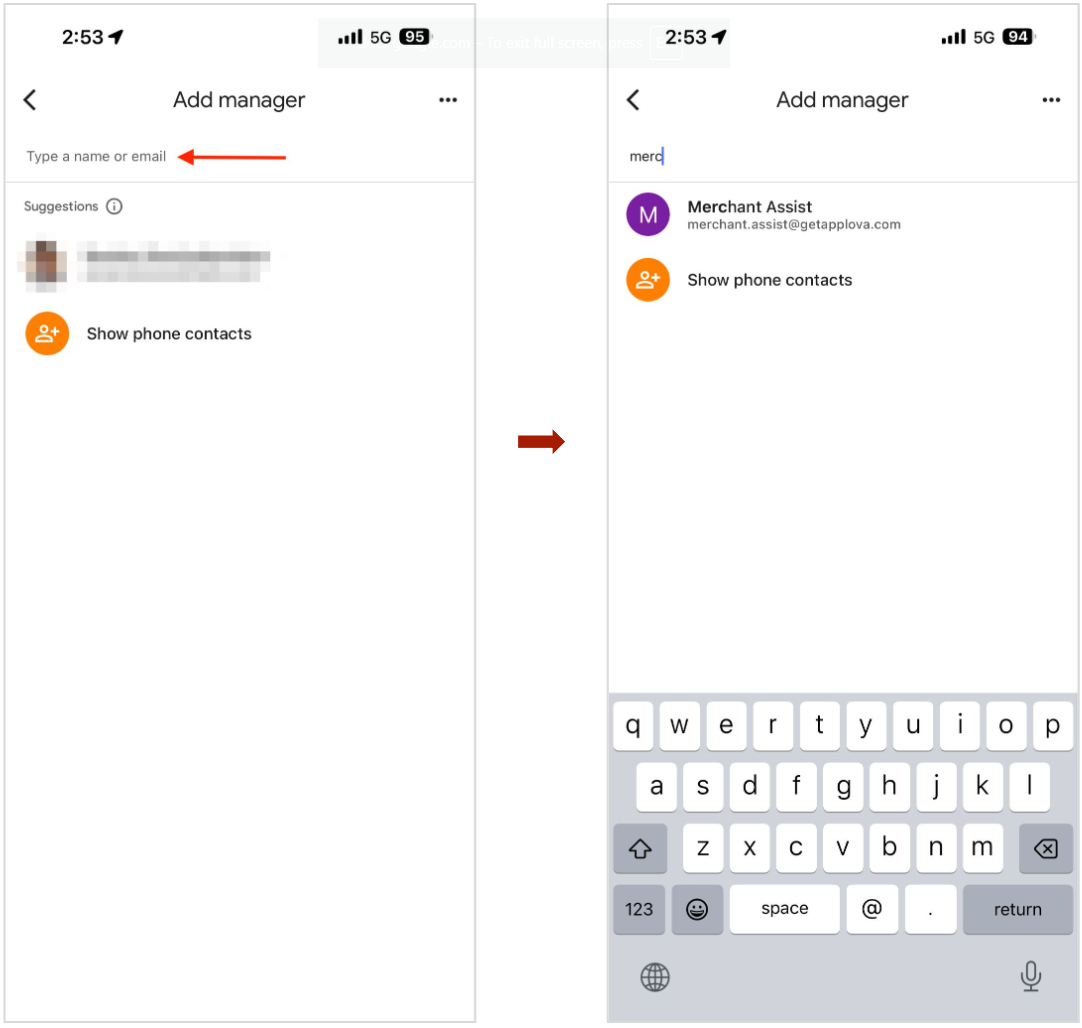
Step 8
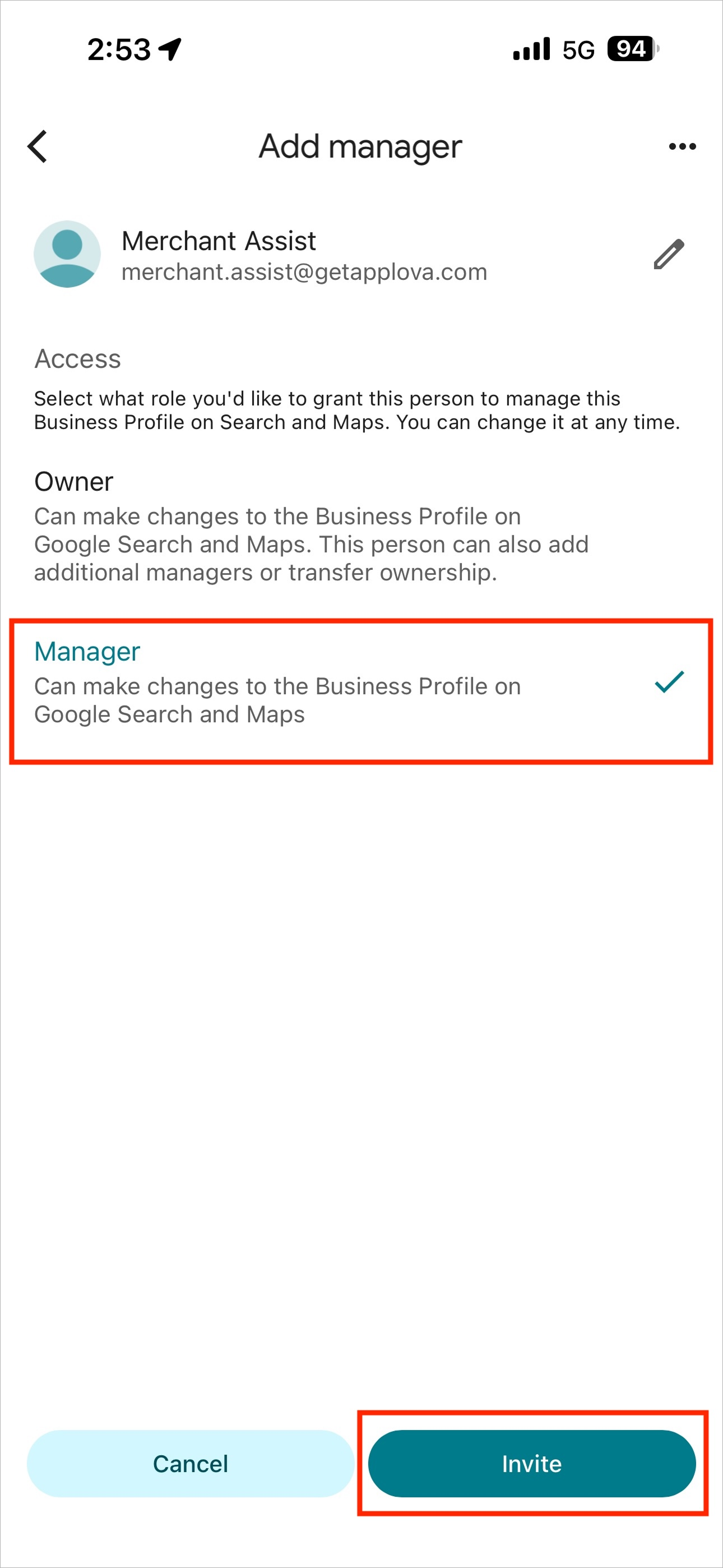
Choose the role as “Manager”, then tap “Invite”.
Related Articles
How to Add Applova User as an Admin for Merchant's Google Analytics Property?
Step 1 Log into the Google Analytics Account and click on the "Settings" icon. Image Link Step 2 Then click on "Admin". Image Link Step 3 Under "Property Settings" click on "Property Access Management". Image Link Step 4 Then click on the "+" icon to ...How to Get the "Ask for Review" Link on Google Business Listing?
Step 1 Go to http://business.google.com/ and "Sign In" with the Google account that owns the Google Business Listing. Image Link Step 2 Click on "Ask for Review" button. Image Link Step 3 Copy the "Review Link". Image LinkHow to Create a Google Analytics Property and Get the Measurement ID?
Step 1 Log into Google Analytics (https://analytics.google.com/) account and click on "Start measuring". Image Link Step 2 Then add the business name as the account name under "Account details". Image Link Step 3 Then add the business name suffixed ...How to Integrate Mailchimp for Marketing Automation?
What is Mailchimp? Mailchimp is a marketing platform that helps businesses send emails, run campaigns, and connect with customers. With the Mailchimp Integration, Applova merchants can link their business to their Mailchimp account. Once connected, ...Onboarding to DoorDash Drive via Merchant Portal
Supported Domains: Standalone, Clover and Square This allows merchants to connect with DoorDash and begin the sign-up process for enabling on-demand delivery through their Applova platform. After onboarding to DoorDash Drive, the delivery service ...