How to Sign In to the Kiosk?
Step 1
Tap on the Kiosk App to open it.
Step 2
Step 2
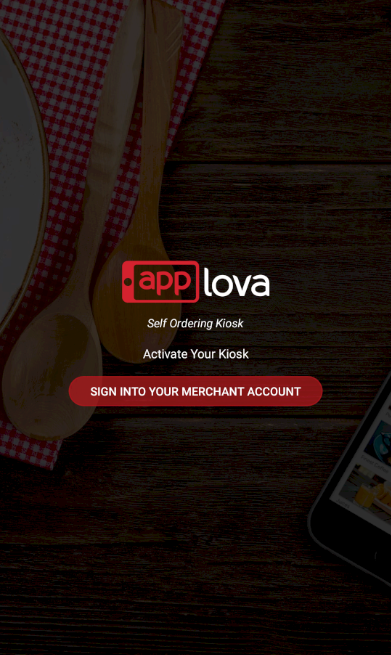
Step 3
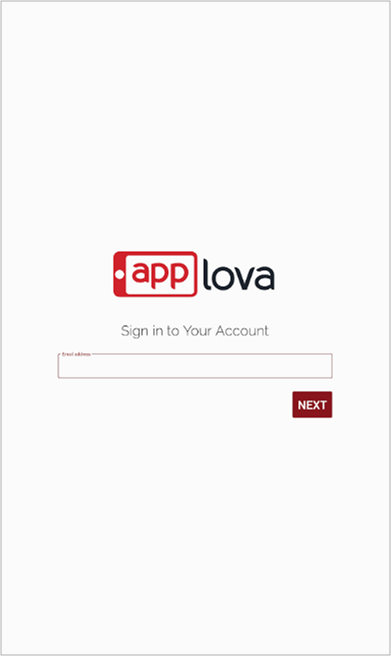
Step 4
Select the business and enter the password. Then tap on "Next".
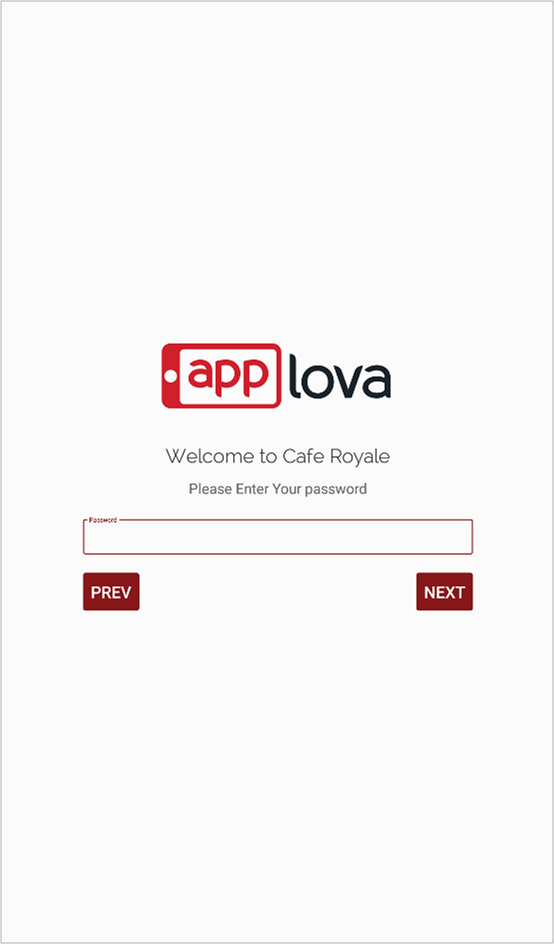
Step 5
Enter the Device Alias and tap on "Continue".
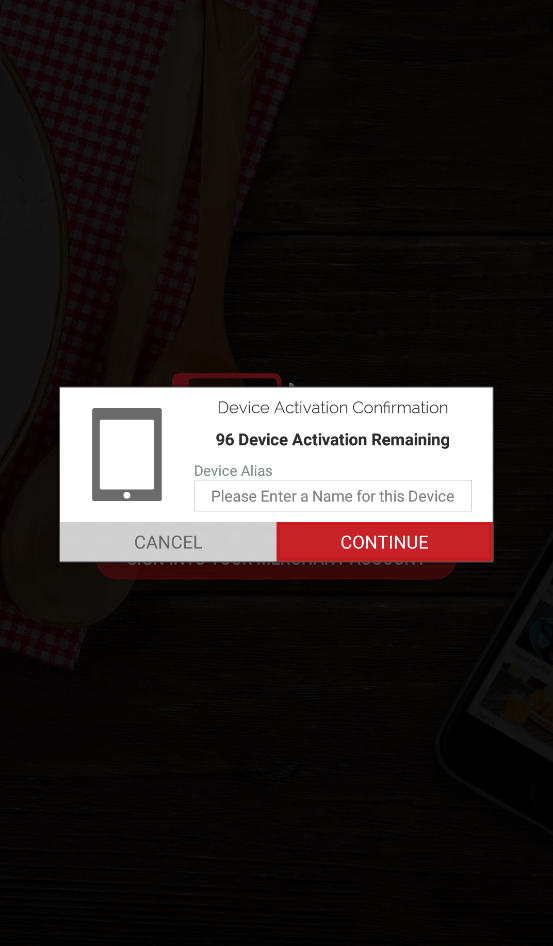
Related Articles
How to Pair a Square Terminal to Applova Kiosk for Payments?
Supported Domains : Square Kiosk Supported From : Square Kiosk (2.59.0.RELEASE) Step 1 On the Kiosk, enter the email address and password to login to the merchant account. Image Link Step 2 Select the business. Image Link Step 3 Tap the top-left ...Configuring Product Code/SKU for Menu Items Displayed on Grab & Go Scanner Kiosk
You must configure either the product code or the SKU for the menu items so that your customers can scan and add items to the cart using the scanner option available in the Grab & Go scanner kiosk. Please request the Applova Support team to enable ...Order Total Rounding Up for Donations on Kiosk
Supported Domains: Clover Supported On: Samsung Kiosk When placing an order, customers will have the option to round up their total order value to the nearest dollar. The rounded-up amount will be added to their order total and donated to a charity ...Enabling Clover Remote Payments for Clover Advanced Kiosk
By enabling Clover remote payments for your advanced kiosk, you will be able to accept payments on the Clover Flex device for orders placed via the kiosk. Please inform Applova Support team to configure Clover remote payments for your business. ...How to Onboard with Clover Kiosk?
Step 1 Go to the App Market on the Clover Device. Image Link Step 2 Search for Applova Kiosk and download the app. Image Link Step 3 Open the App and click on "Activate this Device". Image Link