How to Manage Stocks via Merchant Web?
Using this feature, merchants can manage product stock availability through Merchant Portal. By using the steps provided, merchants can update stock status and control item availability with no issue.

Usecase Scenario:
Joe’s Burger House runs out of its signature Cheeseburger Deluxe during the lunch rush. Instead of removing the item from the menu, the merchant has already set a stock quantity for the item and once the stock reaches zero, the item is automatically marked as unavailable. This helps prevent customers from placing orders for out-of-stock items and keeps the online menu accurate.
How to Configure Product Stock?
Step 1
Login to the "Merchant Web Portal" and click on "Products".
Step 2
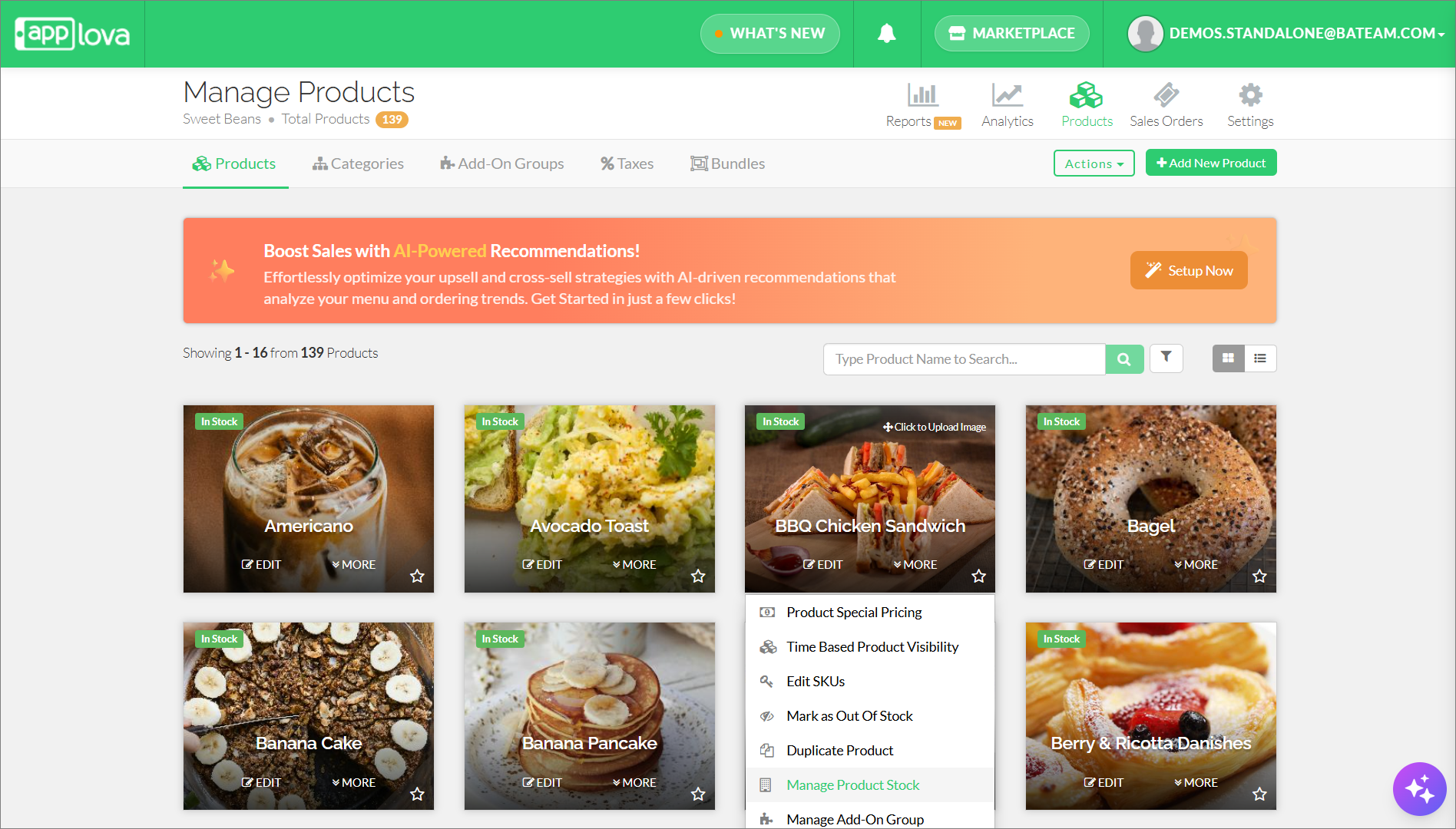
Click on "Manage Product Stock" on the product that stock needs to be managed.
Step 3
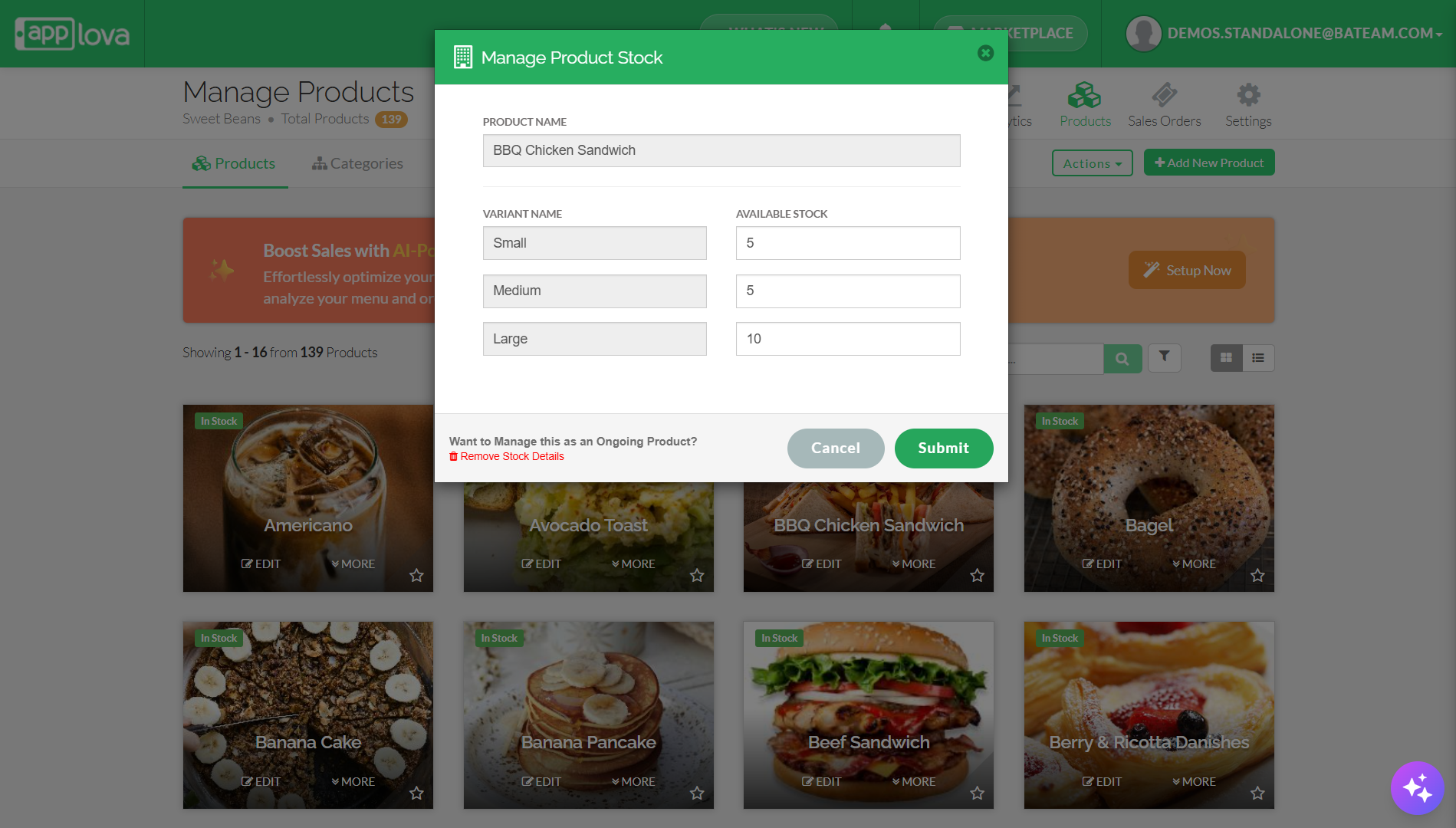
Enter the Available Stock Number and click "Submit".
Managing Product Auto-Restock
This functionality enables merchants to automatically transition products marked as "Unavailable" to the "Available" state, without the need for enabling the products manually each morning

The toggle for newly added items will activate automatically, but merchants have the flexibility to deactivate it at any time. This option is also available for existing items, allowing merchants to individually set the toggle based on their preferences for each product
Step 1
Login to the "Merchant Web Portal" and click on "Products".
Step 2
Click "Edit" on the product that needs to enable auto restock feature.
Step 3
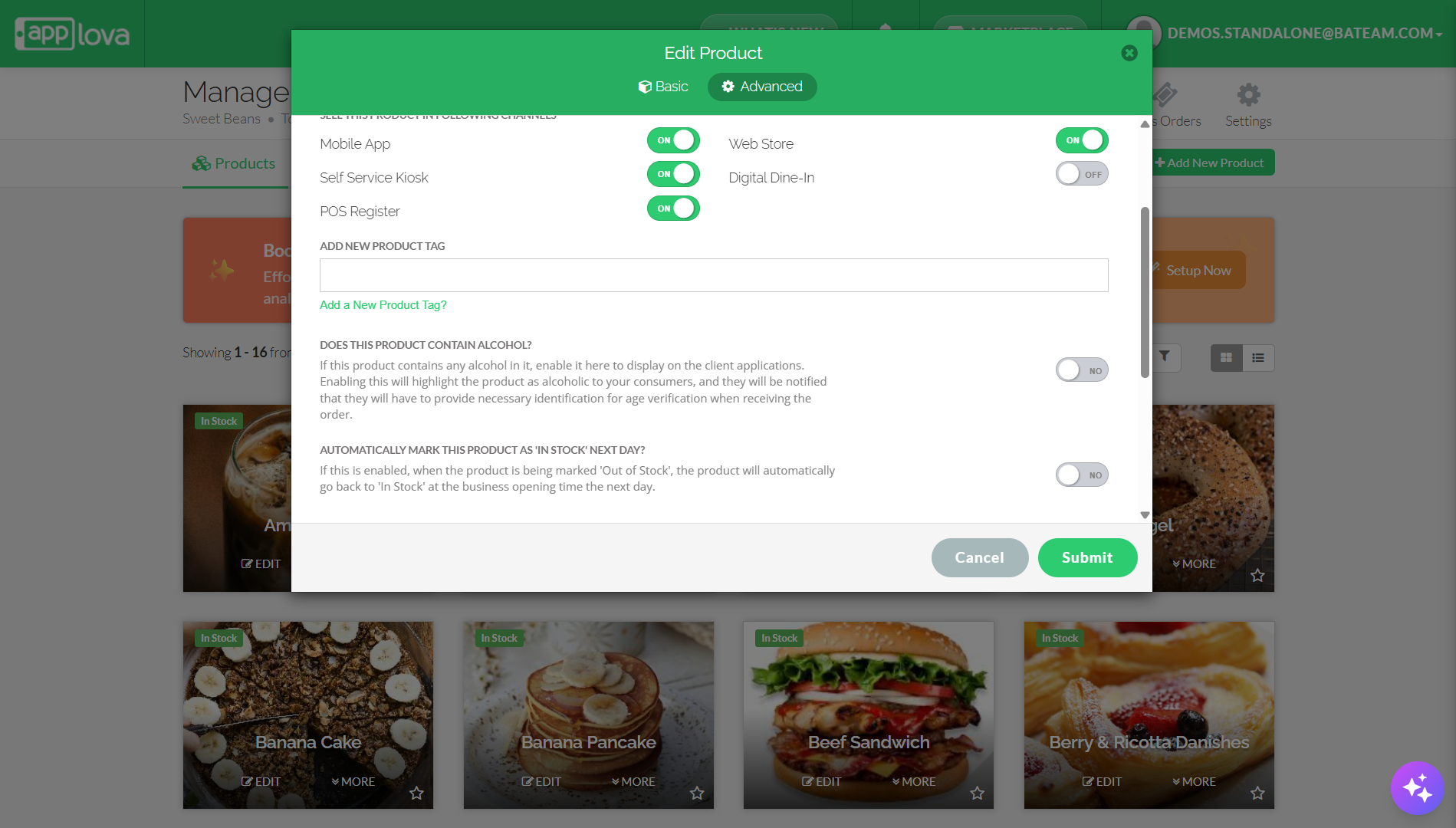
From "Advanced", go to "More" and, then enable the toggle for "Automatically mark this product as 'in stock' next day".
Related Articles
Related Articles
How to Manage Product Specific Add-Ons as a Stock Controller User on Merchant Web?
The Stock Controller User, a merchant role with limited privileges solely for stock management, now has the capability to enable or disable the display of product add-ons via the Merchant Web. Step 1 Login to the "Merchant Web Portal" and click on ...How to Mark a Product as Out of Stock on Merchant Web?
Using this feature, merchants can mark a product as out of stock through Merchant Portal. This option can be used temporarily to make unavailable products hidden or unorderable, helping prevent customers from placing orders for products that are ...How to Manage Product Image via Merchant Web?
This feature allows merchants to manage product images through the Merchant Portal. Merchants can use this feature to add, update, or remove product images, helping keep their online menu visually accurate and appealing to customers. How to Add ...How to Manage Products via Merchant Web?
This article explains how merchants can add, edit, duplicate, and delete products by following the steps provided. How to Add a Product? Step 1 Login to "Applova Merchant Web". Step 2 Go to "Products" and click on "Add New Product". Step 3 Fill in ...How to Setup SKU via Merchant Web?
This feature was introduced to cater a requirement for Round 1 merchant What is SKU? SKU, short for Stock Keeping Unit, is used by the merchant to track the business inventories. SKU is a unique code specific to products, variants and add-ons. The ...