How to Manage Product Stock via Applova POS?
Supported Domains: Standalone
Supported From: Applova POS (1.63.0.RELEASE)
Prerequisite: Products.AddProducts.Enabled
Previously, available stocks had to be updated only via the Merchant Web portal. But, with this feature, available product stocks can be managed by the store manager through the POS itself.
 Applova Stock Management plugin should be enabled.
Step 1
Login into the "Applova POS" with the credentials of your business.
Step 2
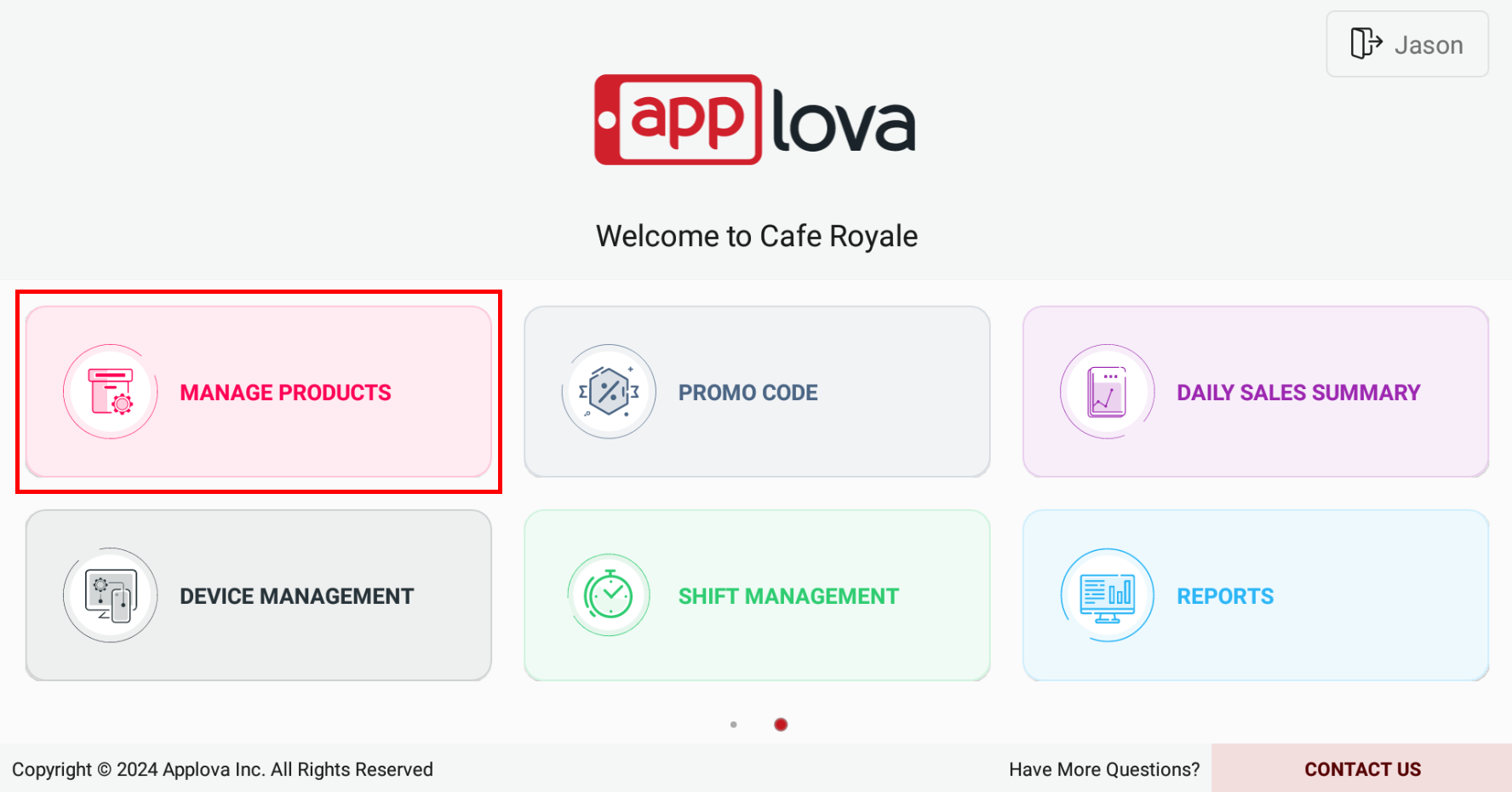
Tap on "Manage Products".
Step 3
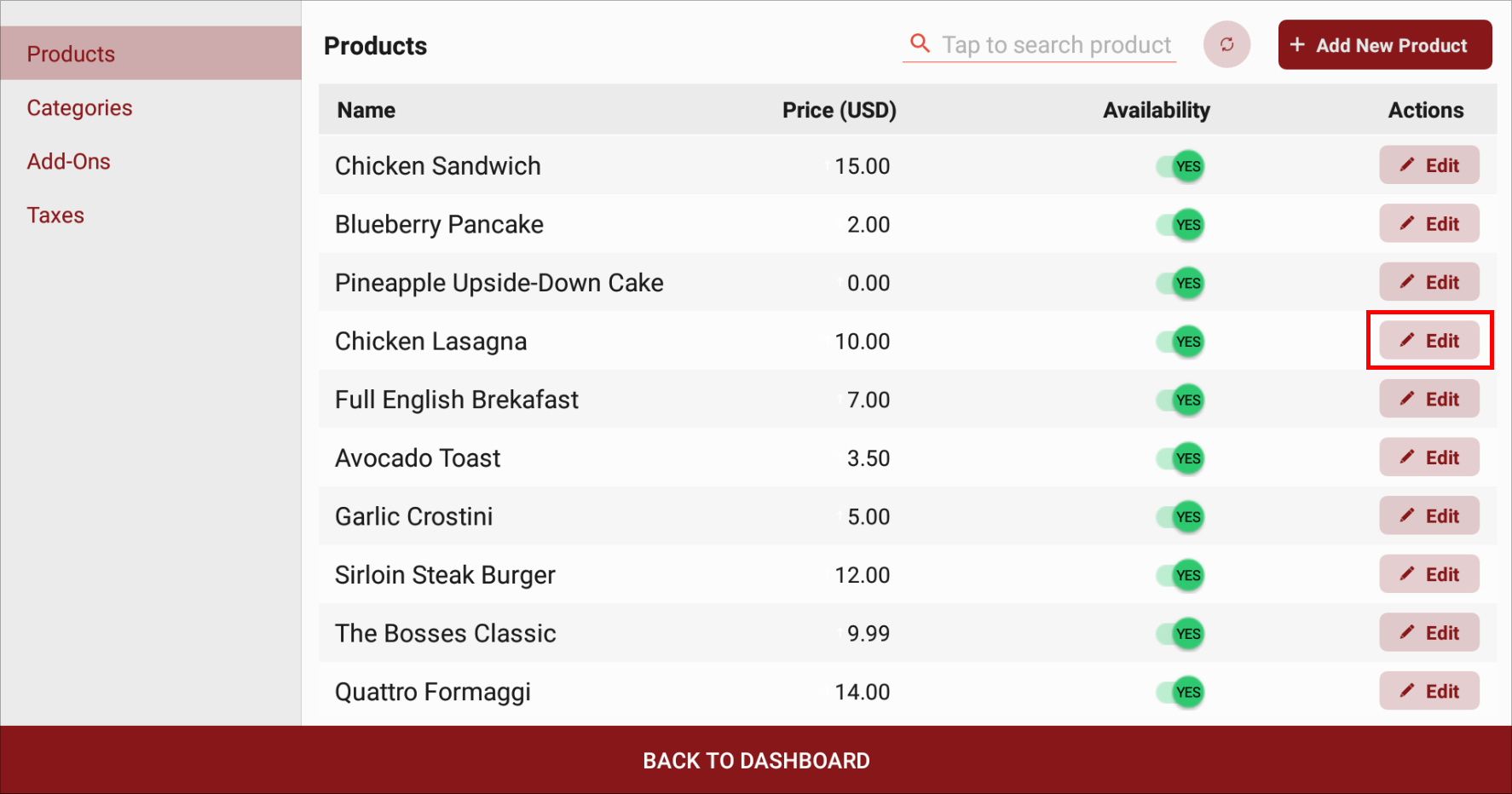
Tap "Edit" on the product you wish to update stock availability.
Step 4
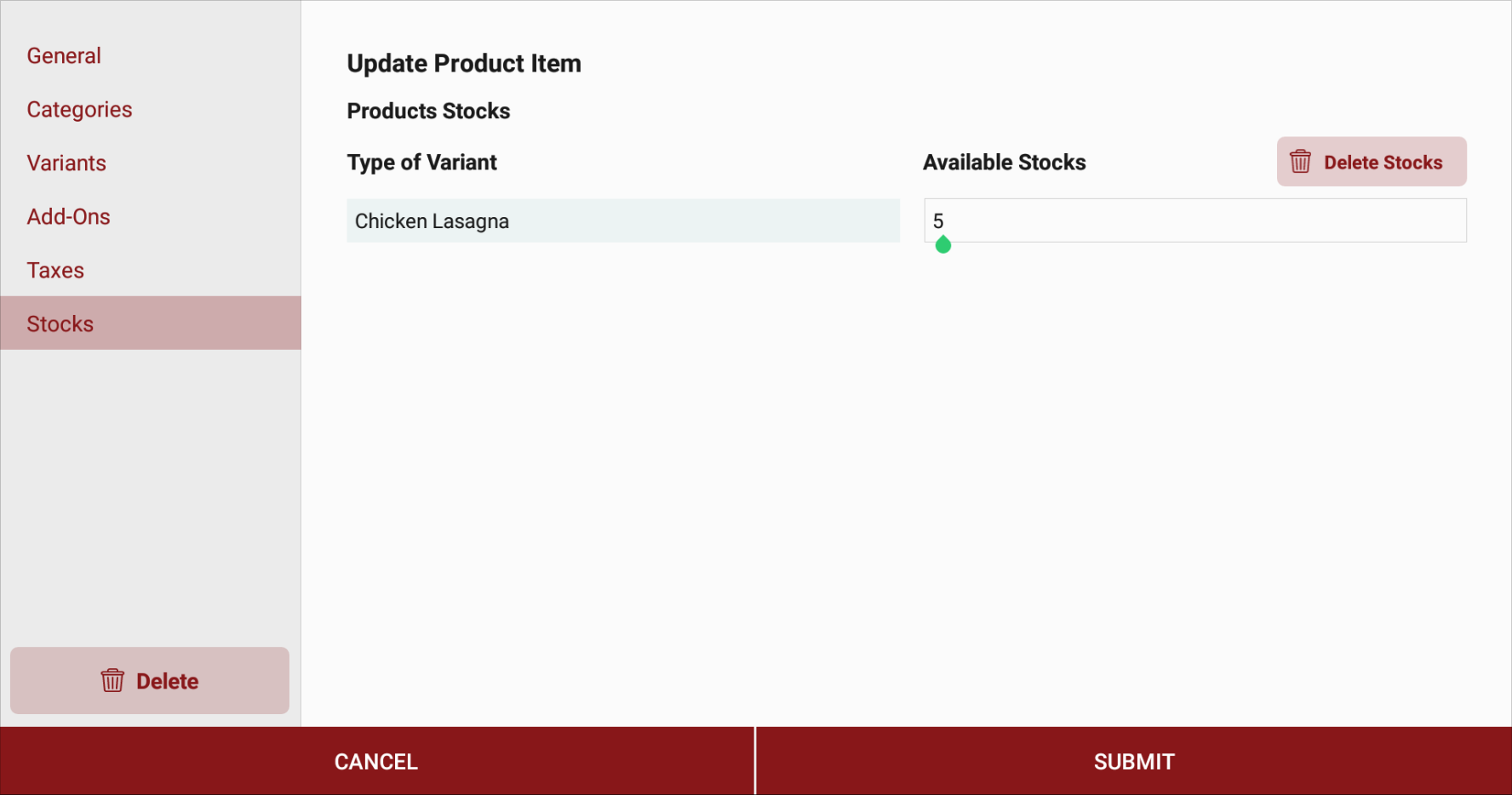
Go to the "Stocks" tab and enter values for available stocks and click on "Submit".
Related Articles
Related Articles
AI Based Smart Product Recommendations on Applova POS
AI-driven product recommendations displays recommendations based on the customer's past purchases and the business's fast-moving products, when a customer is added to the order. This is a default feature available only for registered customers. Step ...Quick Quantity Entry on Applova POS Register
This feature allows cashiers to tap directly on an item’s quantity in the order screen and enter a value using a numeric keypad. It enables faster and more accurate quantity updates without repeatedly tapping the “+” or “–” buttons. Cashiers can ...How to Add a Note Via Applova POS?
Supported Domains: Standalone Businesses With this feature, the merchant can add a note to view later on the order. Step 1 Sign into "Applova POS" with the credentials of your business. Step 2 Go to "Manage Sales Orders" and then select the preferred ...How to Add a Customer Mobile Number Via Applova POS?
Supported Domains: Standalone Businesses With this feature, the merchant can add the customer's mobile number to the order. This is mainly to notify the customer when the order is ready. Step 1 Sign into "Applova POS" with the credentials of your ...How to Manage Taxes on Applova POS?
This can be performed only by the Store Manager. Supported Domains: Standalone Supported From: Applova POS (1.55.0.RELEASE) Please request the Applova Support team to enable the Manage Products feature for your business. Step 1 Sign into the Applova ...