Quick Quantity Entry on Applova POS Register
This feature allows cashiers to tap directly on an item’s quantity in the order screen and enter a value using a numeric keypad. It enables faster and more accurate quantity updates without repeatedly tapping the “+” or “–” buttons.

Cashiers
can still use these buttons for incremental changes.

Use Case Scenario:
At Metro Deli in Chicago, a busy downtown quick-service restaurant, cashiers frequently manage large catering orders during lunch rush hours. With the Quick Quantity Entry feature, staff can now tap directly on an item’s quantity, enter the desired number using the on-screen keypad, and instantly update the totals—eliminating the need for repetitive taps on the “+” button. This has significantly reduced order entry time, improved accuracy for bulk items, and ensured real-time stock synchronization, allowing the team to serve customers faster and keep the checkout line moving smoothly.
Step 1
Go to the Register and tap on the product you wish to add to the cart.
Step 2
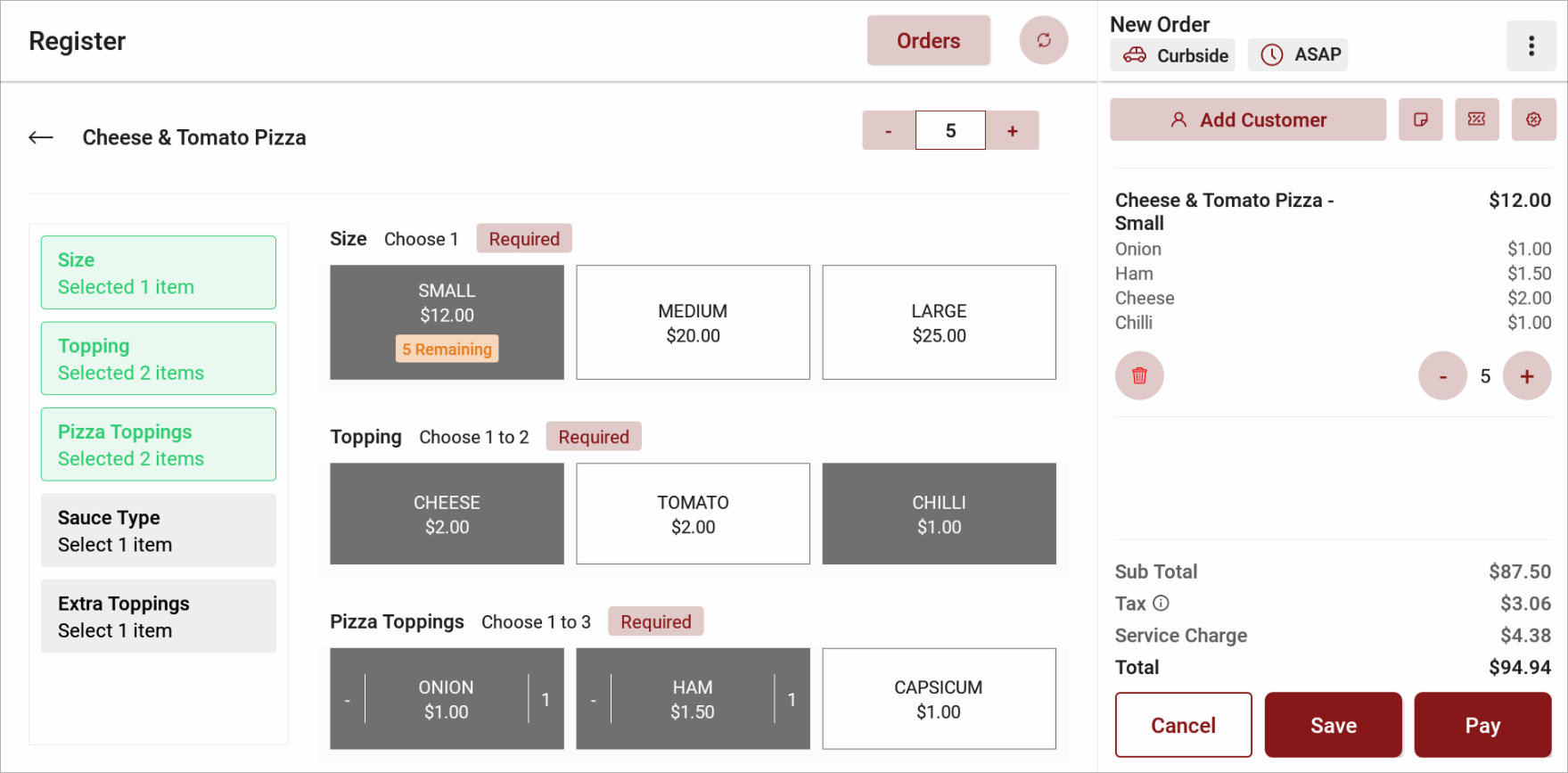
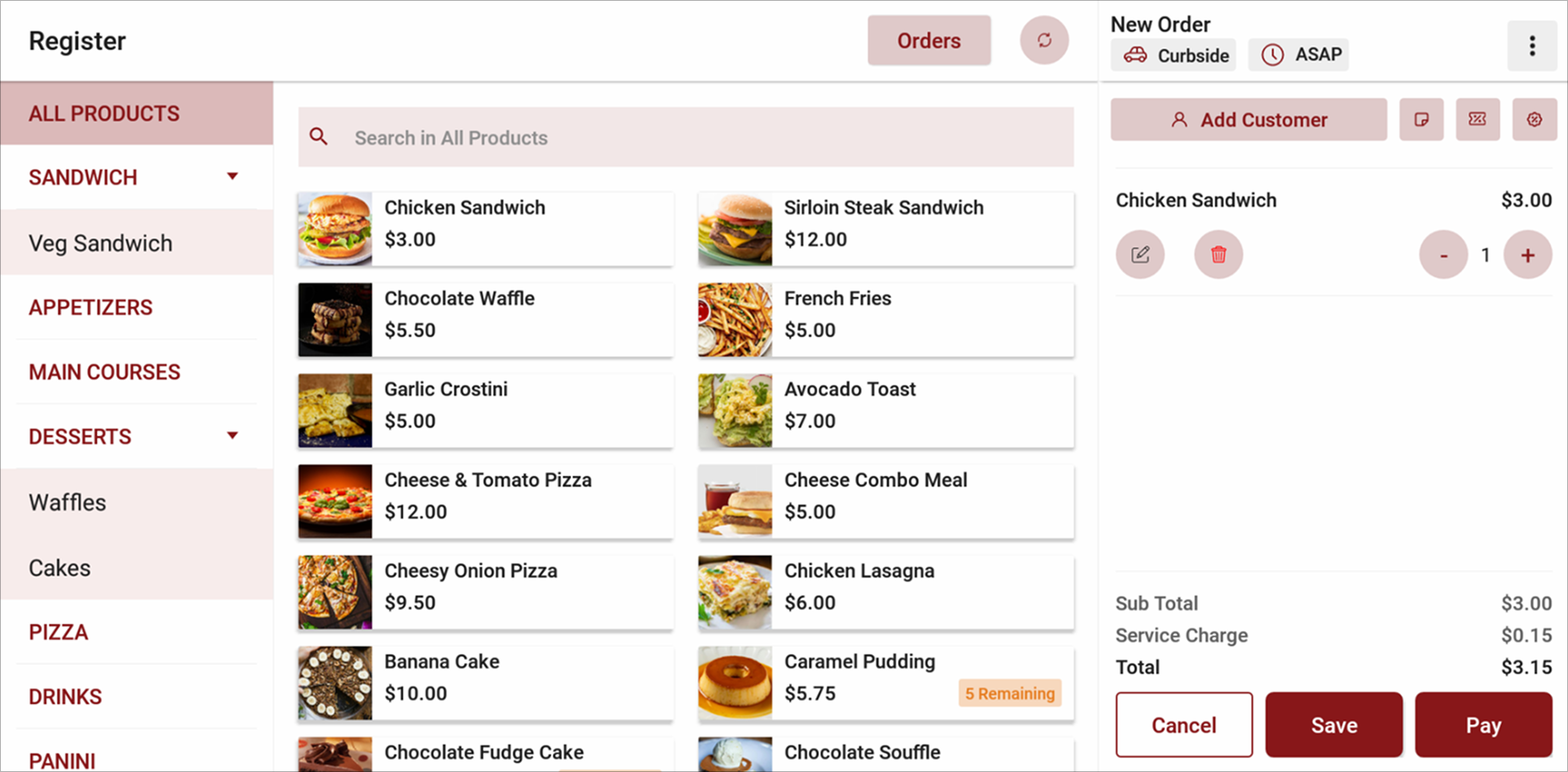
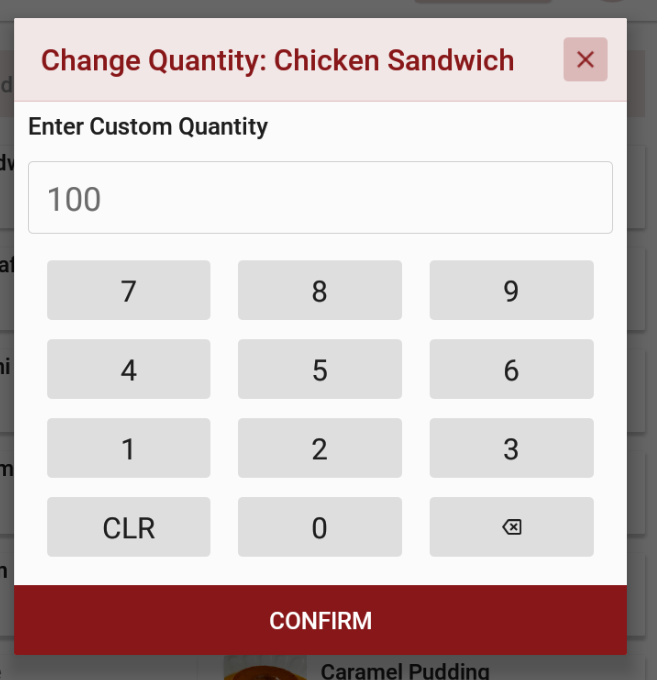
The quantity can be modified by tapping on the digit between the "+" and "-" icons. A numeric keypad will be displayed to enter the quantity.
1. For Items with Addons/ Variants
Quantity can be modified via the Cart and via the Product Detail Screen
2. For Items without Addons/ Variants
Quantity can be modified only via the Cart
Step 3
Enter the desired quantity and tap on "Confirm".
Step 4
Once confirmed, the new quantity is instantly reflected in the order list. All dependent totals, such as item subtotal and order total, are recalculated in real time.
Related Articles
Quick Actions on Applova POS
The Quick Actions panel is a customizable set of buttons that gives staff faster access to frequently used functions during the order-taking process. It replaces the previous More Options menu, making key actions more accessible with fewer taps. This ...How to Add a Customer Mobile Number Via Applova POS?
Supported Domains: Standalone Businesses With this feature, the merchant can add the customer's mobile number to the order. This is mainly to notify the customer when the order is ready. Step 1 Sign into "Applova POS" with the credentials of your ...Cash Management on Applova POS
Supported On: Standalone Businesses Supported From: Applova POS (1.75.0.RELEASE) What is Cash Management? Cash management involves tracking and managing cash transactions in a business which includes handling cash sales, managing the initial cash ...How to Add a Note Via Applova POS?
Supported Domains: Standalone Businesses With this feature, the merchant can add a note to view later on the order. Step 1 Sign into "Applova POS" with the credentials of your business. Step 2 Go to "Manage Sales Orders" and then select the preferred ...How to Add a Custom Line Item on the Applova POS Register?
Supported Domains: Standalone Supported From: Applova POS (1.53.0.RELEASE) With this feature, the merchant is allowed to add a custom product along with a custom price for an item that is not listed in the Register menu. How it Works? Step 1 Tap on ...