How to Manage Taxes on Applova POS?

This can be performed only by the Store Manager.

Supported Domains: Standalone
Supported From: Applova POS (1.55.0.RELEASE)
Please request the Applova Support team to enable the Manage Products feature for your business.
Step 1
Sign into the Applova POS with the credentials of your business.
Step 2
Tap on “Manage Products” in the Dashboard.
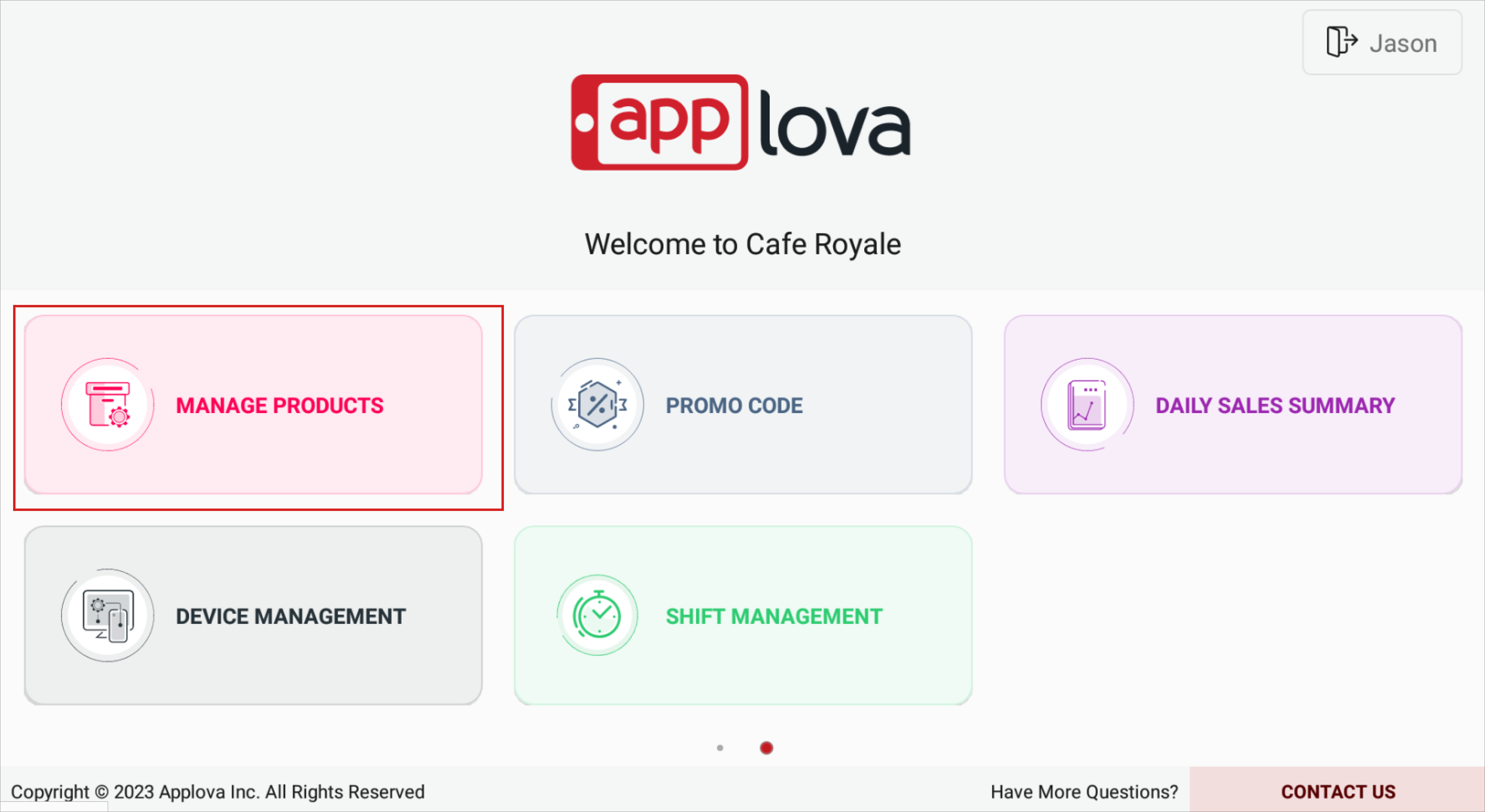
Please follow the steps given below to manage taxes.
Adding Taxes
Step 1
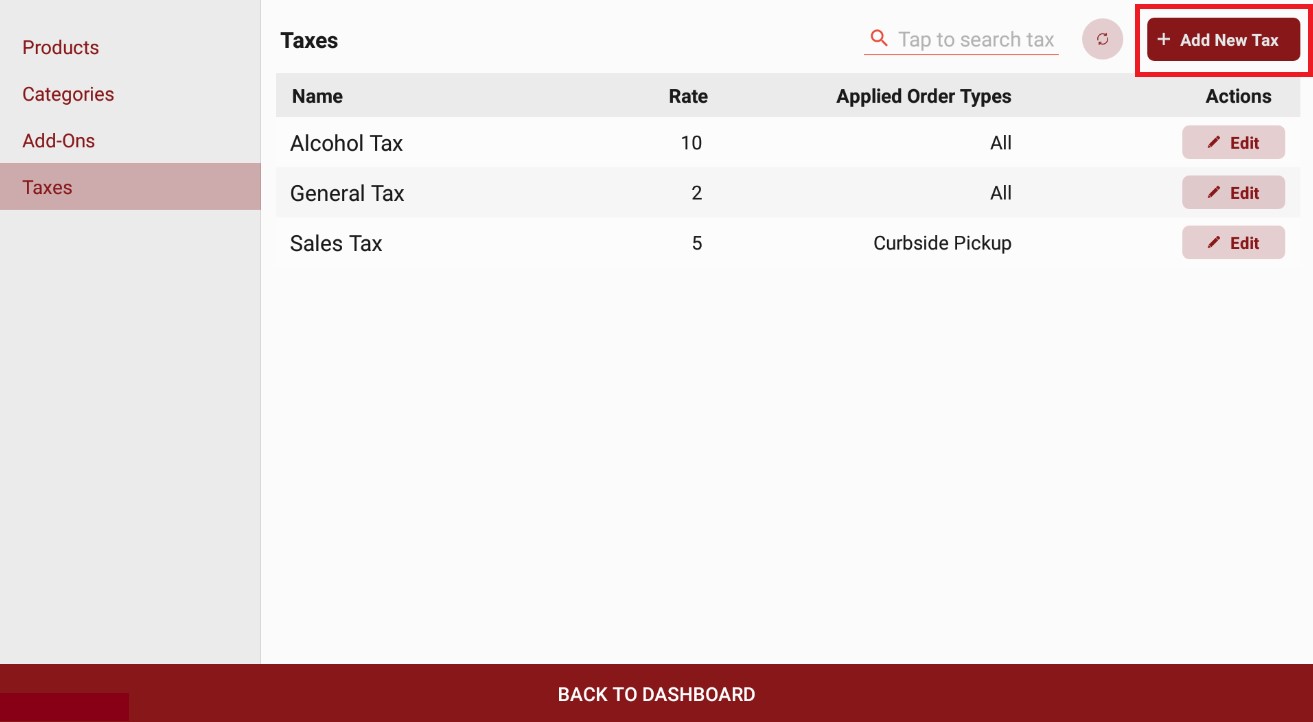
From the “Taxes” tab, go to “Add New Tax”.
Step 2
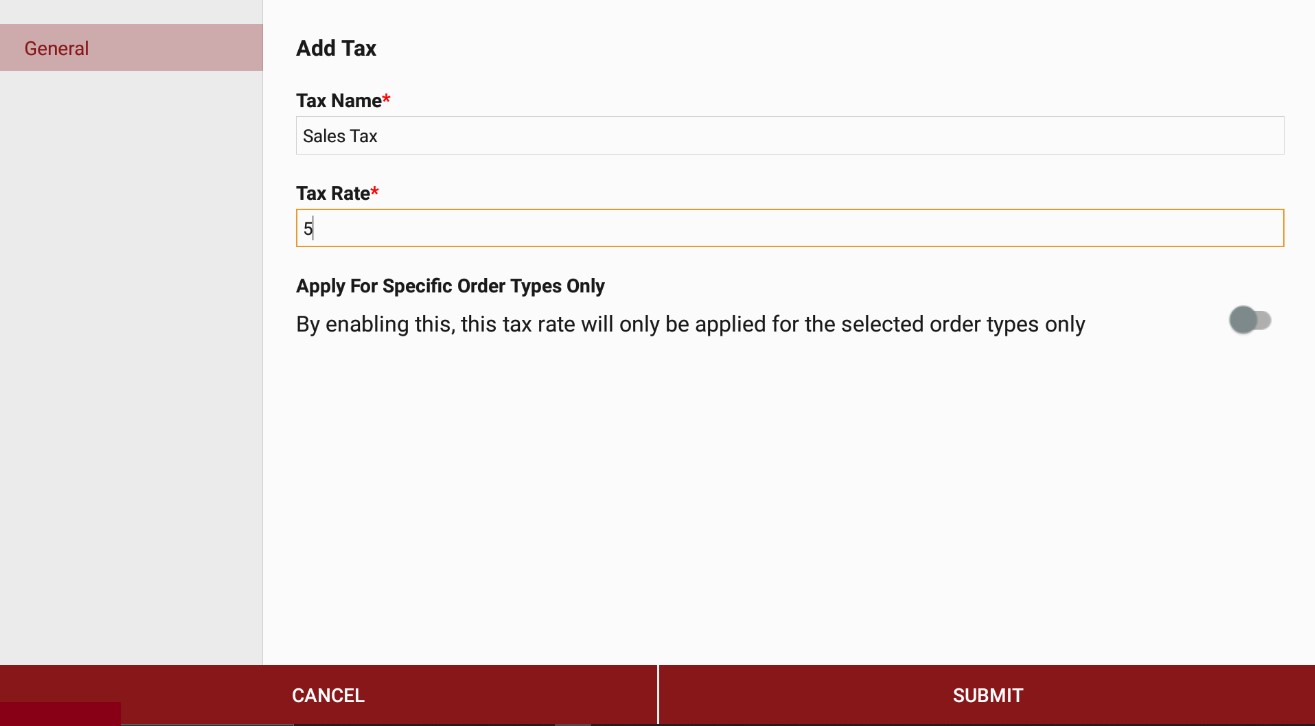
Fill in the required fields.
Step 3
Toggle “Apply For Specific Order Types Only” if needed.
Step 4
Tap “Submit”.
Editing Taxes
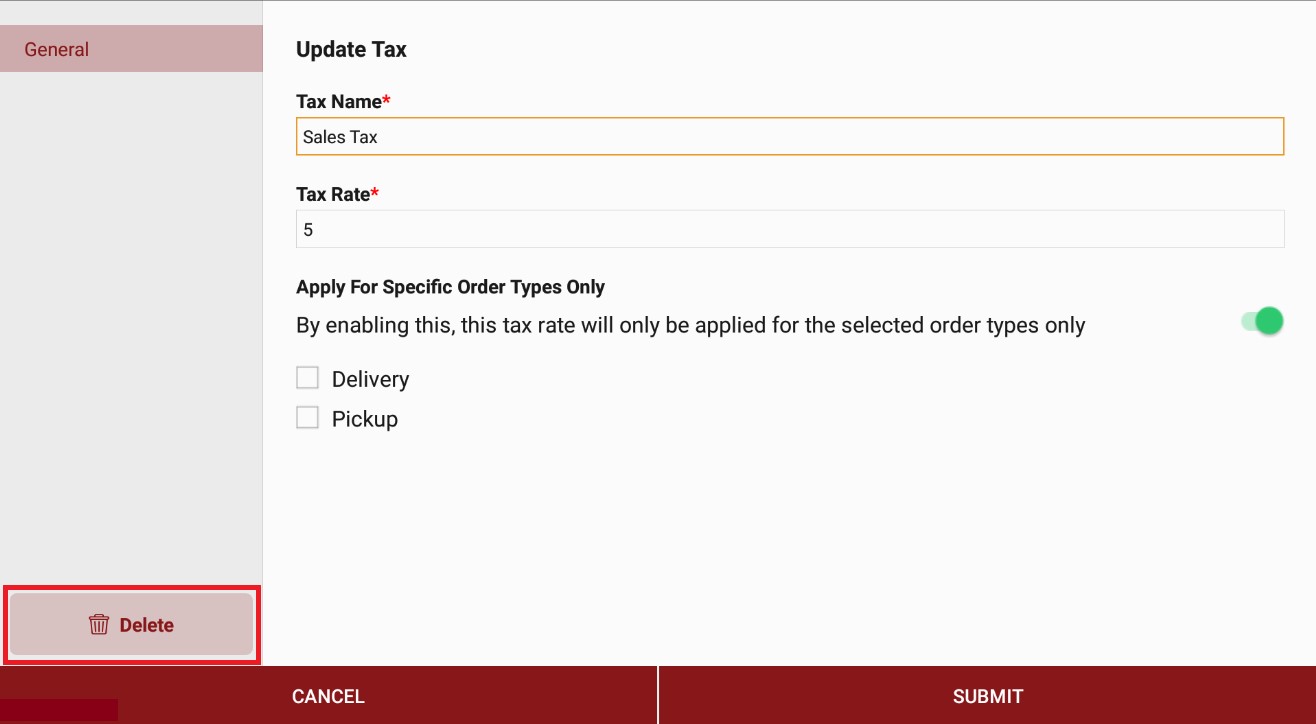
Deleting Taxes
Step 1
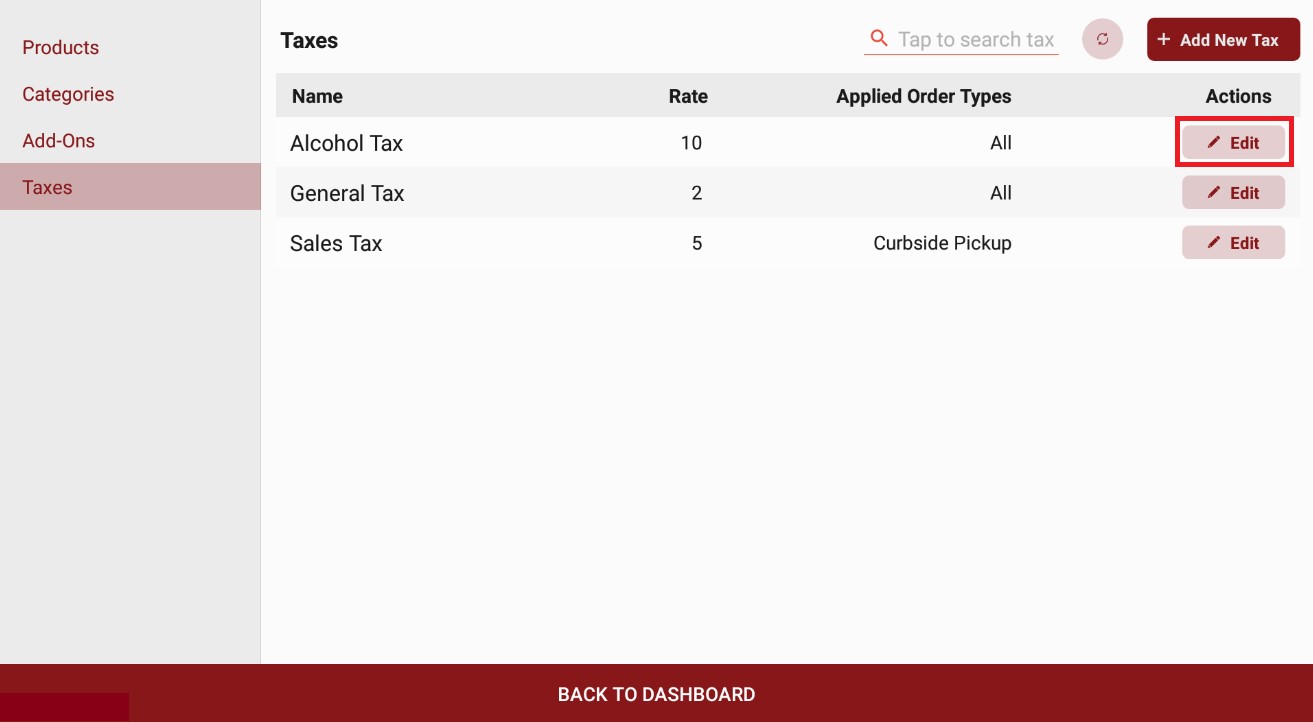
Tap on ”Edit”, and then tap “Delete” from side navigation.
Related Articles
How to Add a Note Via Applova POS?
Supported Domains: Standalone Businesses With this feature, the merchant can add a note to view later on the order. Step 1 Sign into "Applova POS" with the credentials of your business. Step 2 Go to "Manage Sales Orders" and then select the preferred ...How to Add a Customer Mobile Number Via Applova POS?
Supported Domains: Standalone Businesses With this feature, the merchant can add the customer's mobile number to the order. This is mainly to notify the customer when the order is ready. Step 1 Sign into "Applova POS" with the credentials of your ...Cash Management on Applova POS
Supported On: Standalone Businesses Supported From: Applova POS (1.75.0.RELEASE) What is Cash Management? Cash management involves tracking and managing cash transactions in a business which includes handling cash sales, managing the initial cash ...Customer Profile on Applova POS
Supported Domains : Standalone Supported From : Applova POS (1.71.0.RELEASE) The "Customers" feature displayed on the POS dashboard displays the details of customers registered with the business. How to View a Customer's Details? Tap on a customer's ...How To Enable a Default Tax Rate on POS
By enabling this feature, a default tax rate can be applied automatically to newly created products on the POS. This also ensures that the same default tax configuration defined in the Merchant Portal is accurately reflected on the POS interface. Use ...