How to Manage Kitchen Stations?
What is a Kitchen Station?
A Kitchen Station is a designated area in a restaurant kitchen where a certain type of food is prepared. Merchants can add and assign Kitchen Stations to products through the Merchant Web, and once the Kitchen Stations are assigned, the products in the order will be split into the respective Kitchen Stations when a customer places an order.

Usecase Scenario
Sunrise Café is a restaurant with separate preparation areas for hot food, beverages, and desserts. To keep kitchen operations organized, the merchant creates kitchen stations such as "Hot Kitchen," "Beverage Station," and "Dessert Station" in Merchant Web.
Once the stations are created, the merchant assigns the relevant products or categories to each station so that each item is directed to the appropriate preparation area based on how it is made.
When a customer places an order, the ordered items are split and routed to the correct kitchen stations, helping the restaurant prepare items more efficiently and reduce confusion during busy hours.
How to Add Kitchen Stations?
Step 1
Login to "Applova Merchant Web".
Step 2
Click "Products" once you login.
Step 3
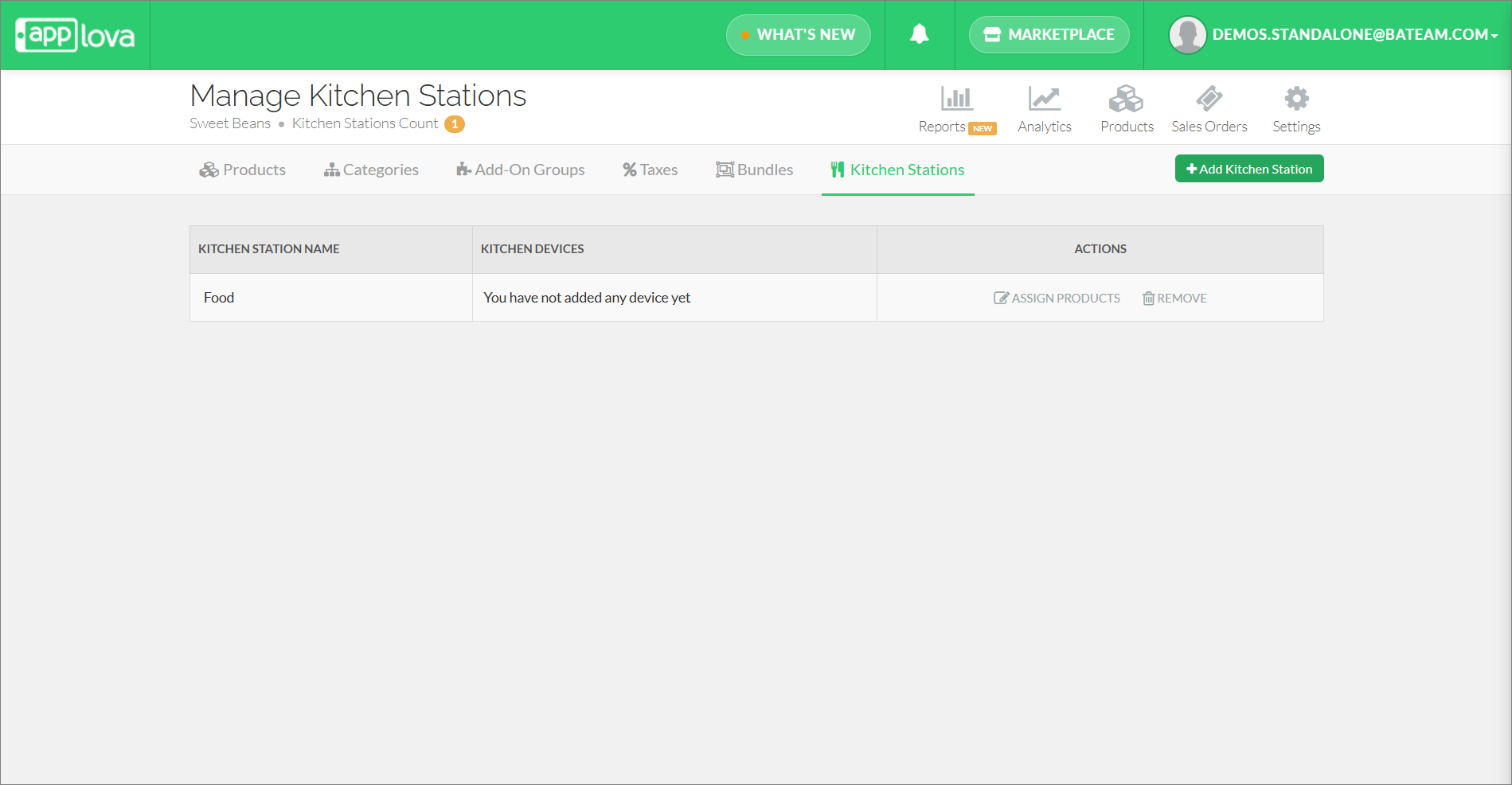
Go to the "Kitchen Stations" tab and click "Add Kitchen Station" on the Kitchen Station you wish to add.
Step 4
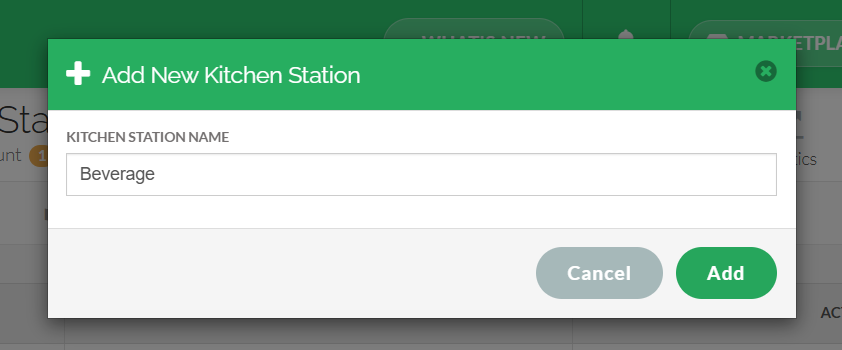
Type a name to the Kitchen Station that you suggest and then click "Add".
How to Add Products/Categories to Kitchen Stations?
Step 1
Login to "Applova Merchant Web".
Step 2
Click on "Products" once you log in.
Step 3
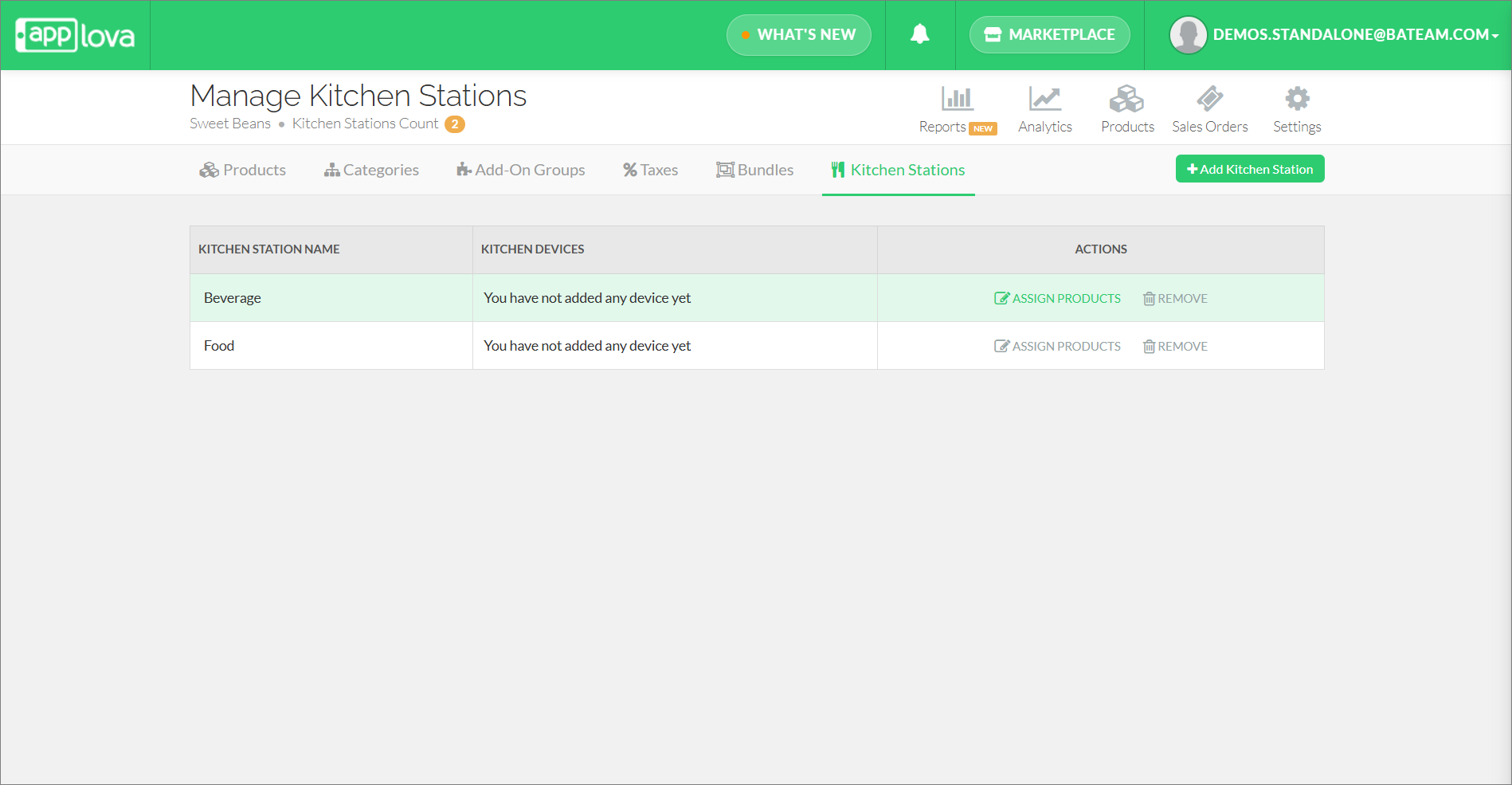
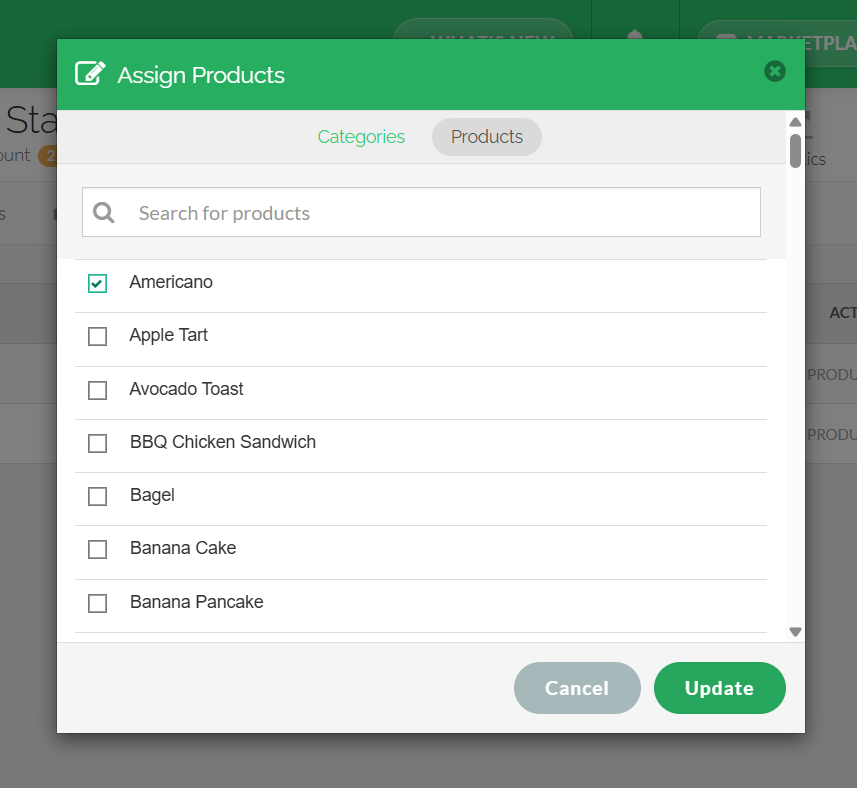
Go to the "Kitchen Stations" tab and click "Assign Products" option under actions column of the Kitchen Station.
Step 4
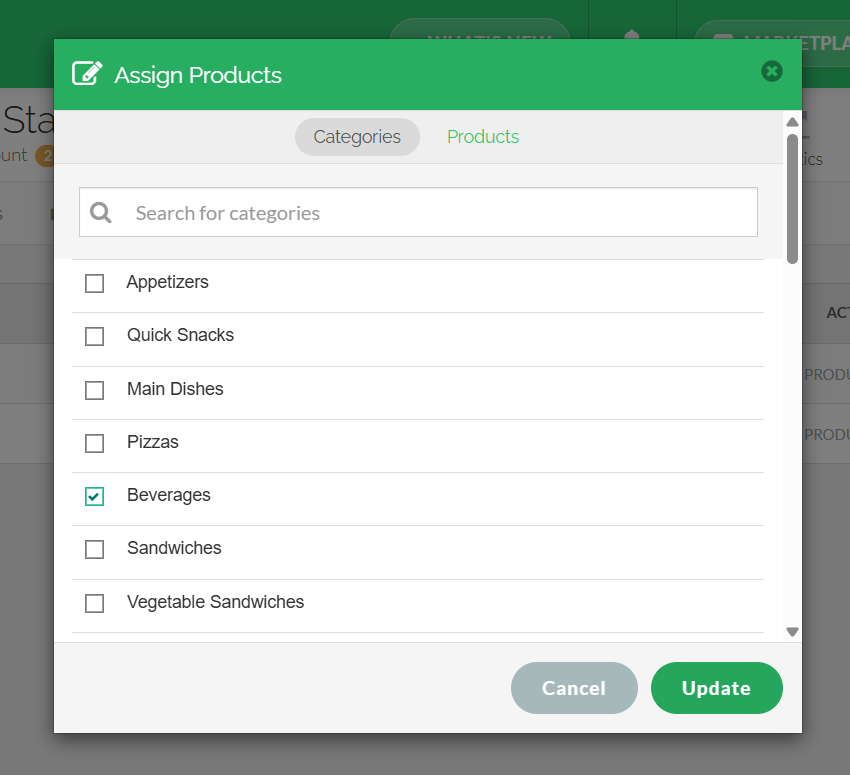
Select the desired food type from either Products or Categories and click "Update".
Categories
Products
How to Remove Kitchen Stations?
Step 1
Login to "Applova Merchant Web".
Step 2
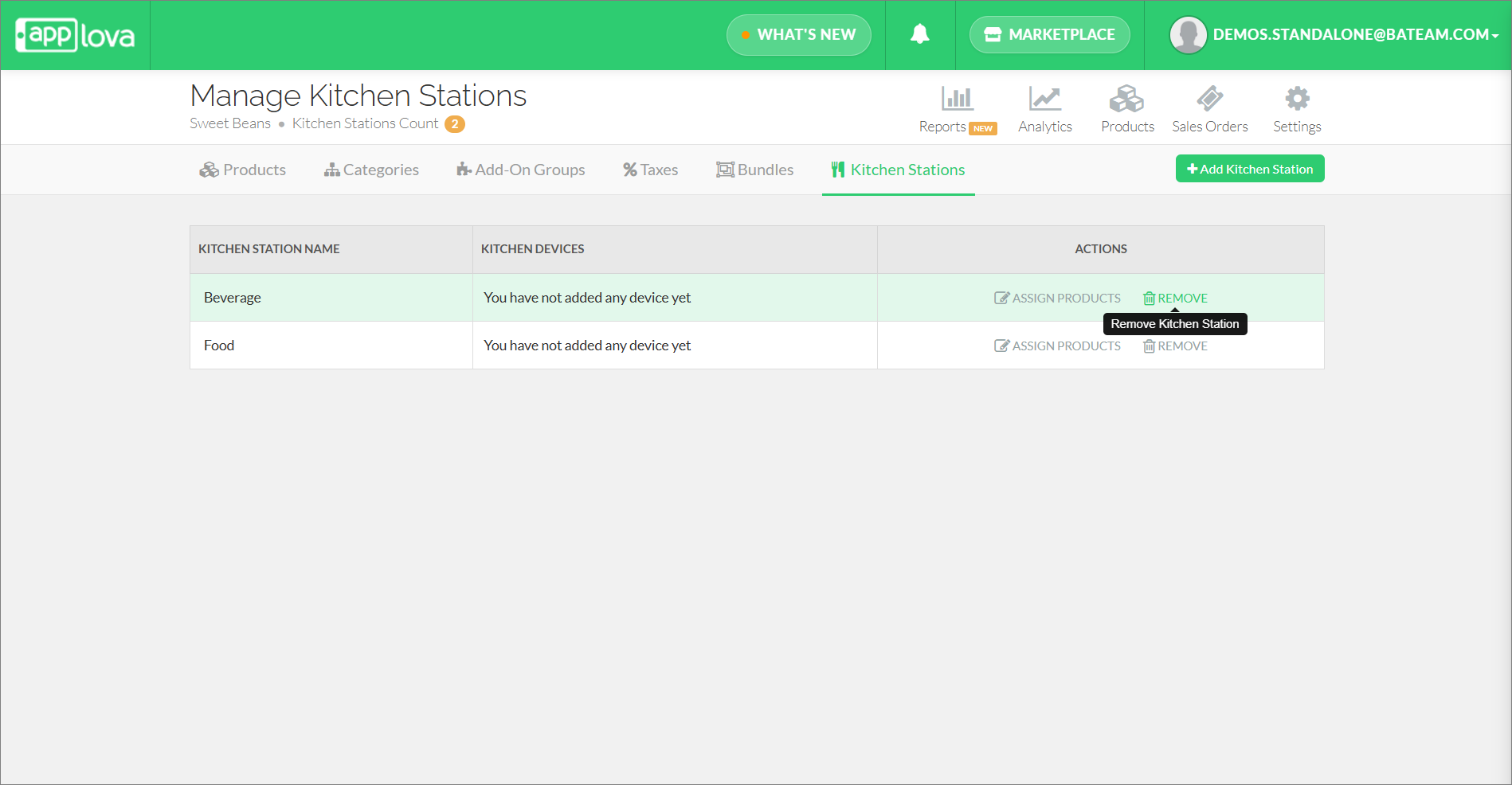
Click "Products" and go to the "Kitchen Stations" tab
Step 3
Then click on "Remove" on the Kitchen Station you wish to remove.
Step 4
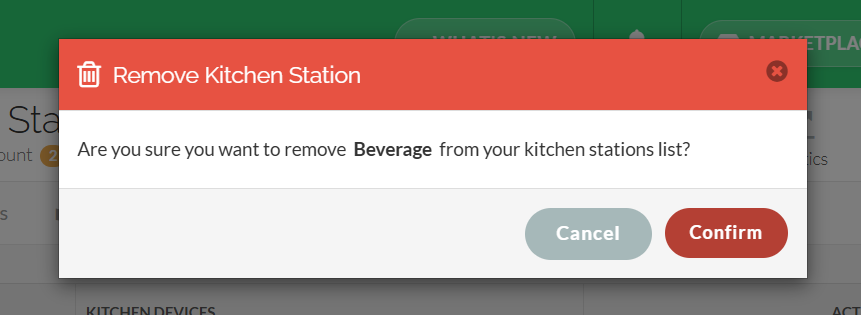
Click "Confirm" to delete the selected kitchen station.
Related Articles
Related Articles
How to Assign a Kitchen Station to a Product?
This feature allows merchants to assign a kitchen station to each product individually. Step 1 Login to "Applova Merchant Web". Step 2 Click the "Products" icon once you login. Step 3 Select "More" option from the desired food item and click "Assign ...How to Manage Categories on Merchant Portal?
In this article, you will learn how to manage category-related settings in the Merchant Portal to keep products clearly organized and displayed correctly. How to Add Category? This feature allows the merchant to add a new product category. Step 1 ...How to Assign Categories and Products to Specific Kiosk Devices?
Supported From : Advanced Android Kiosk, Samsung Kiosk (1.7.0.RELEASE) Once this feature is enabled, you can select the specific kiosk devices where the categories or products should be visible. Use Case Scenario: Urban Bites is a restaurant that ...How to Manage Products via Merchant Web?
This article explains how merchants can add, edit, duplicate, and delete products by following the steps provided. How to Add a Product? Step 1 Login to "Applova Merchant Web". Step 2 Go to "Products" and click on "Add New Product". Step 3 Fill in ...How to Manage Taxes via Merchant Portal?
This feature allows merchants to create and manage tax rates based on their business requirements. Once created, the applicable tax rates can be assigned to specific products to ensure the correct tax is applied during checkout. How to Add a Tax ...