How to Assign a Kitchen Station to a Product?
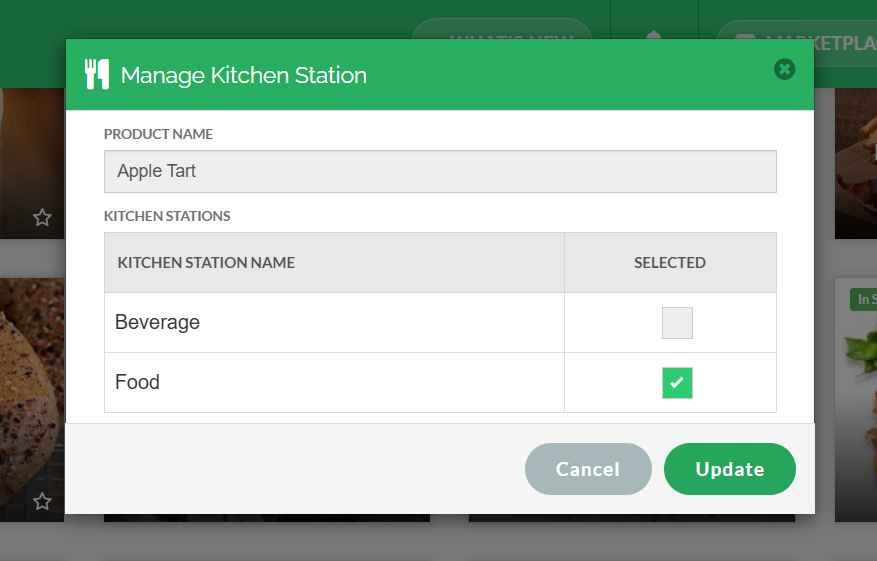
This feature allows merchants to assign a kitchen station to each product individually.
Step 1
Login to "Applova Merchant Web".
Step 2
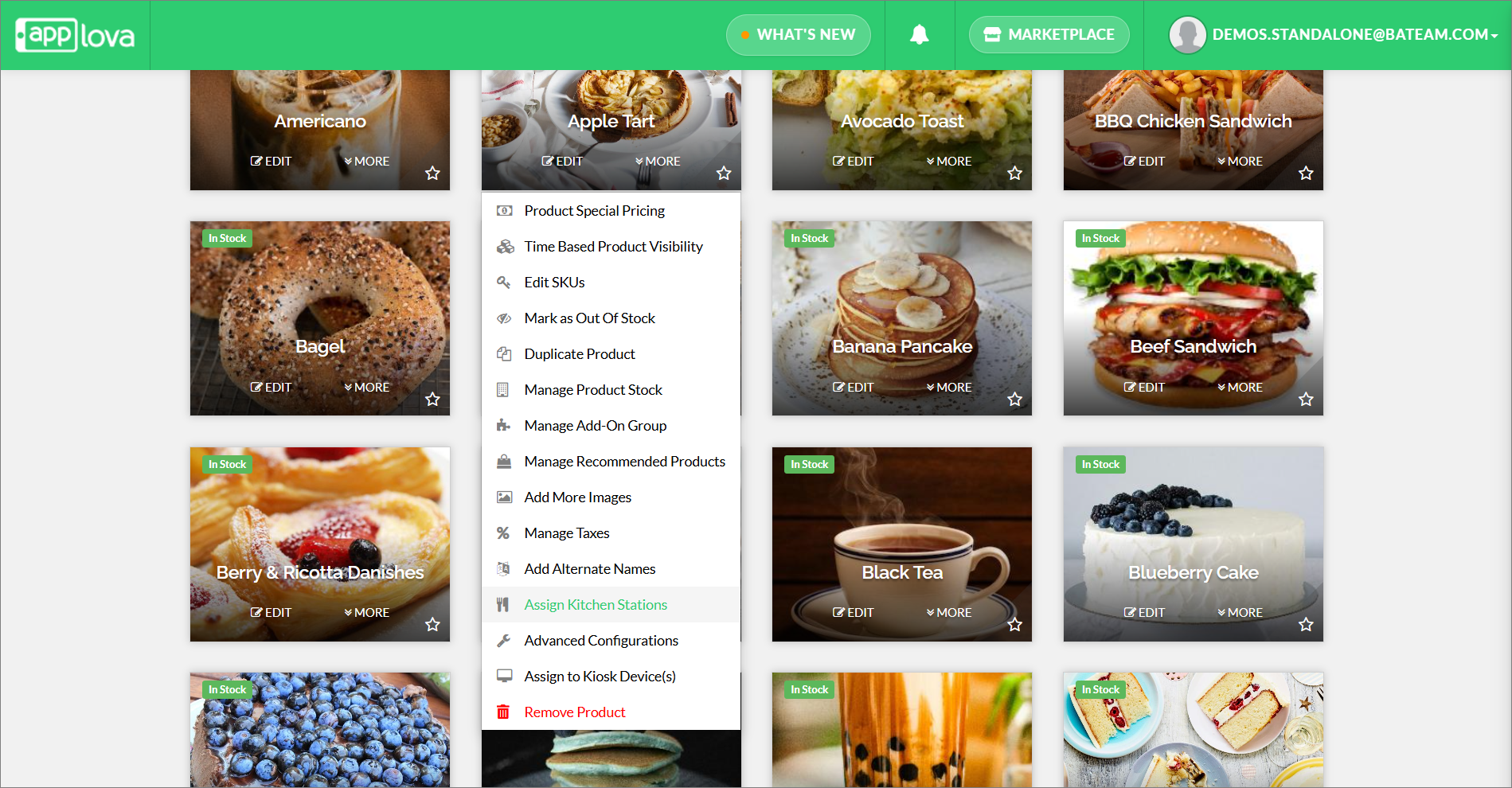
Click the "Products" icon once you login.
Step 3
Select "More" option from the desired food item and click "Assign Kitchen Stations".
Related Articles
Related Articles
How to Manage Kitchen Stations?
What is a Kitchen Station? A Kitchen Station is a designated area in a restaurant kitchen where a certain type of food is prepared. Merchants can add and assign Kitchen Stations to products through the Merchant Web, and once the Kitchen Stations are ...How to Assign Categories and Products to Specific Kiosk Devices?
Supported From : Advanced Android Kiosk, Samsung Kiosk (1.7.0.RELEASE) Once this feature is enabled, you can select the specific kiosk devices where the categories or products should be visible. Use Case Scenario: Urban Bites is a restaurant that ...How to Manage Products via Merchant Web?
This article explains how merchants can add, edit, duplicate, and delete products by following the steps provided. How to Add a Product? Step 1 Login to "Applova Merchant Web". Step 2 Go to "Products" and click on "Add New Product". Step 3 Fill in ...How to Mark Products as Featured on Merchant Web?
This feature allows merchants to select a set of products to be prominently displayed on the Webstore or Kiosk, helping highlight key offerings, promote special products, or draw attention to popular and seasonal items. Please note that alcohol ...How to Configure Alcohol Warning Message via Merchant Portal?
Supported on: Clover & Standalone Kiosks This capability enables the display of an alcohol warning message on the cart screen when alcoholic products are added to the cart. You can customize both the message's content and the text on the associated ...