How to Mark Products as Featured on Merchant Web?
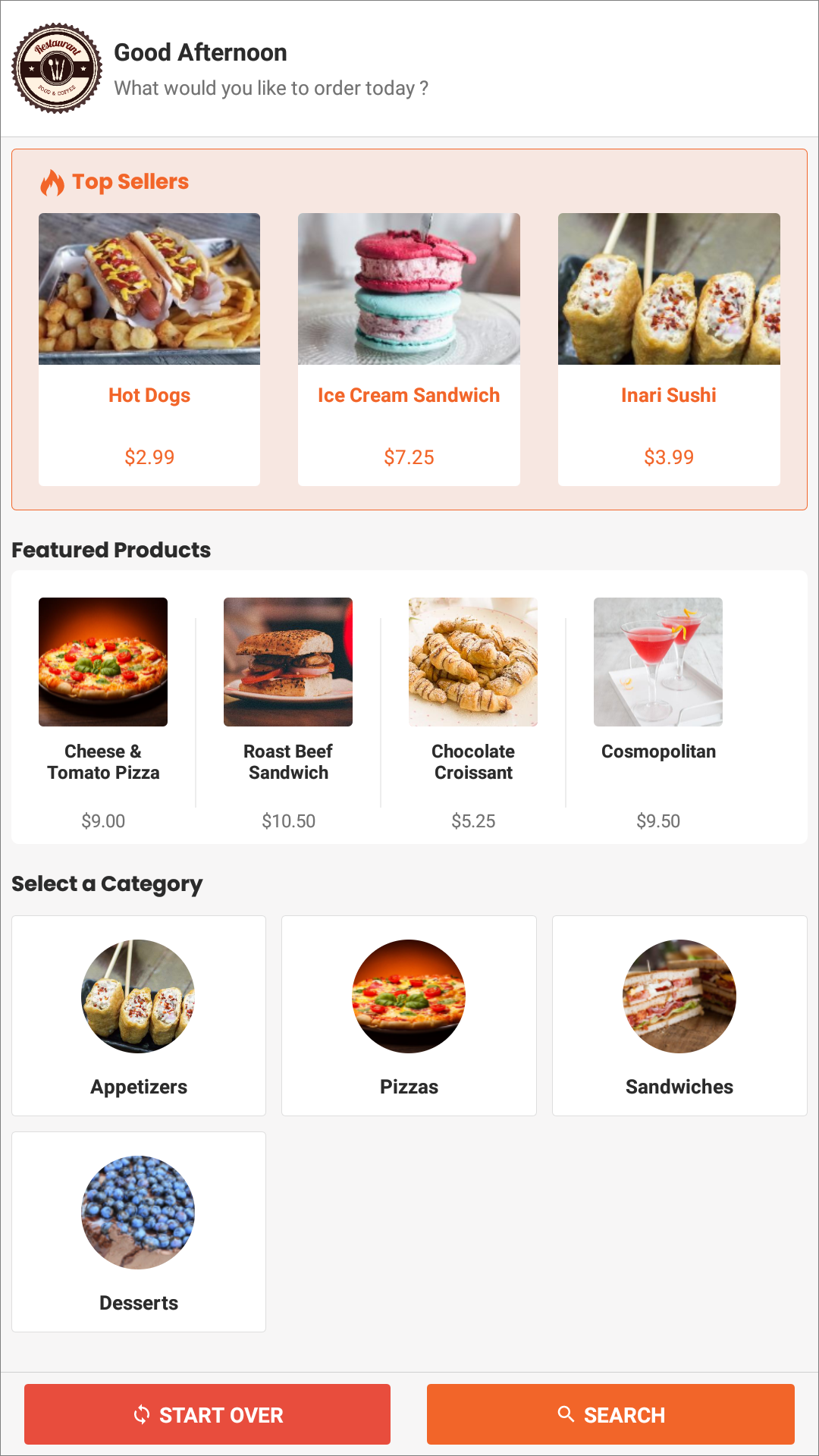
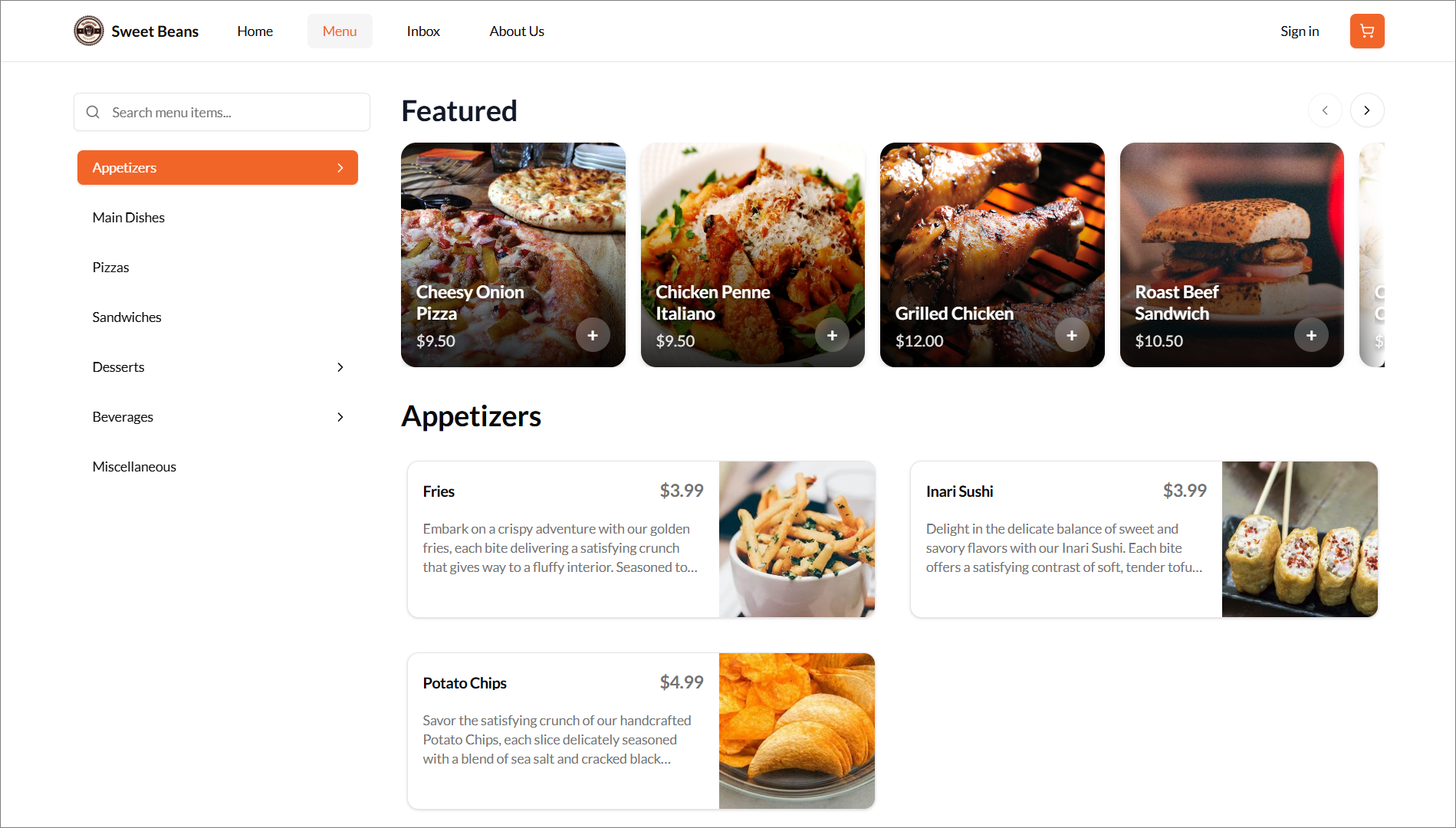
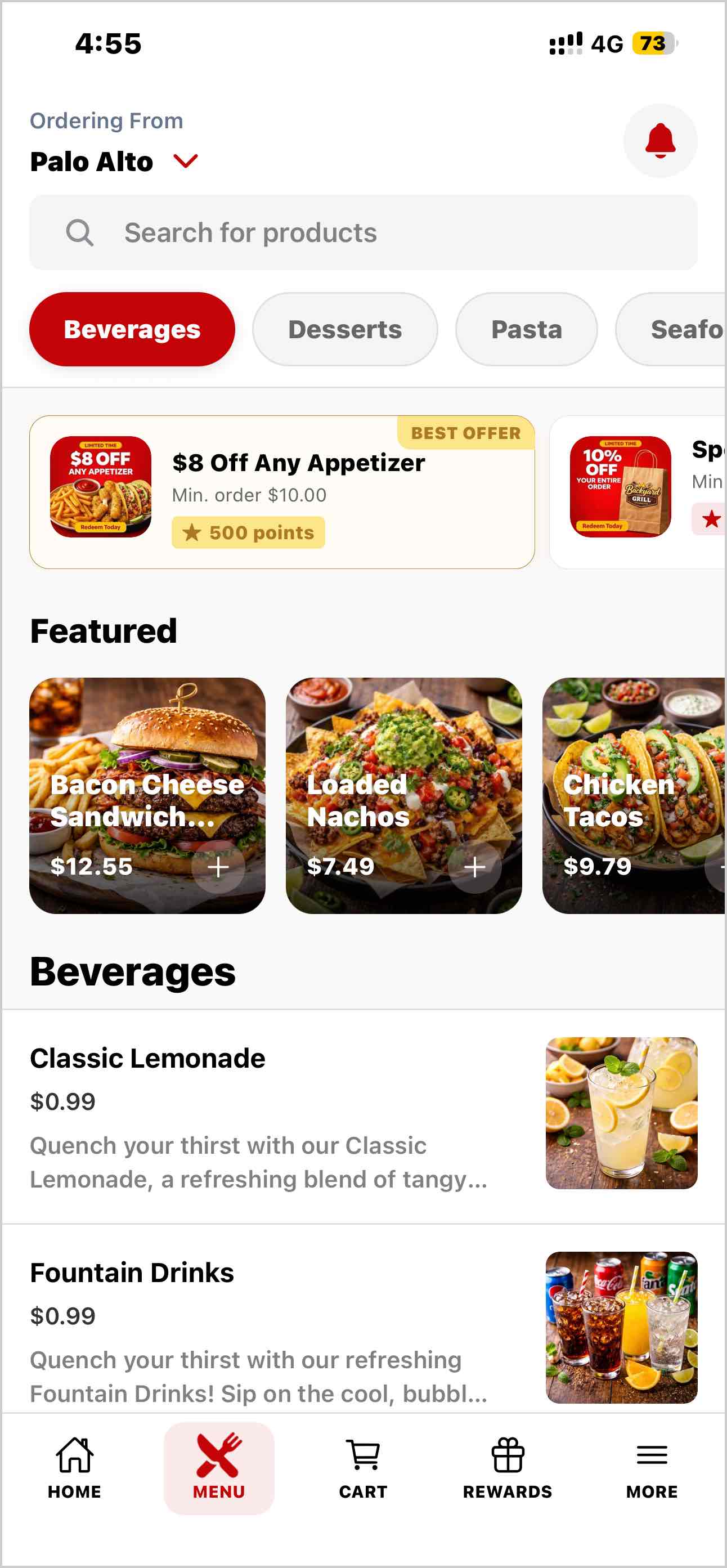
This feature allows merchants to select a set of products to be prominently displayed on the Webstore or Kiosk, helping highlight key offerings, promote special products, or draw attention to popular and seasonal items.

Please note that alcohol products cannot be displayed as featured.
Step 1
Login to "Applova Merchant Portal".
Step 2
Navigate to "Products".
Navigate to "Products".
Step 3
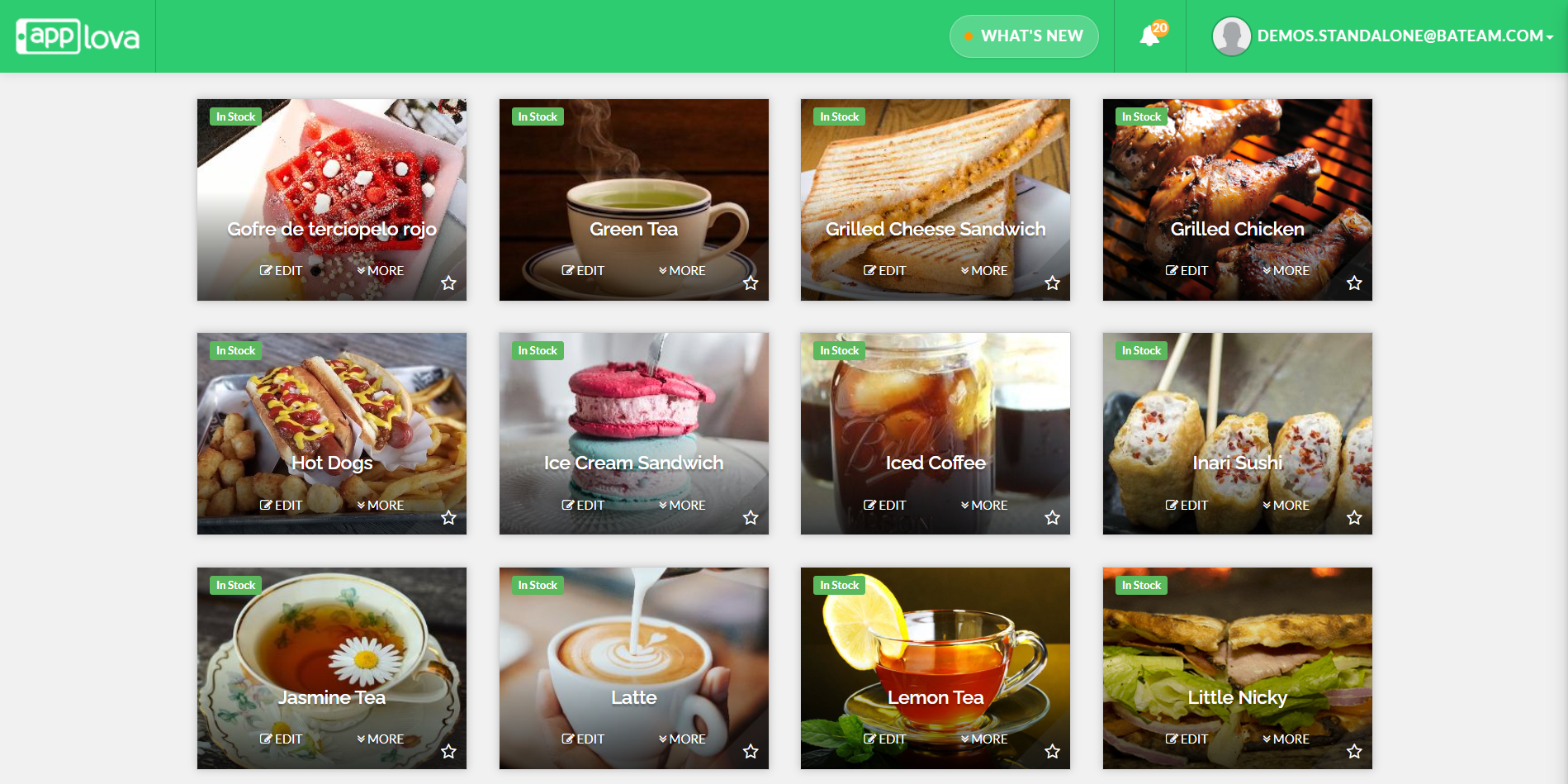
You will see a star icon at the bottom right of the desired product card.
Step 4
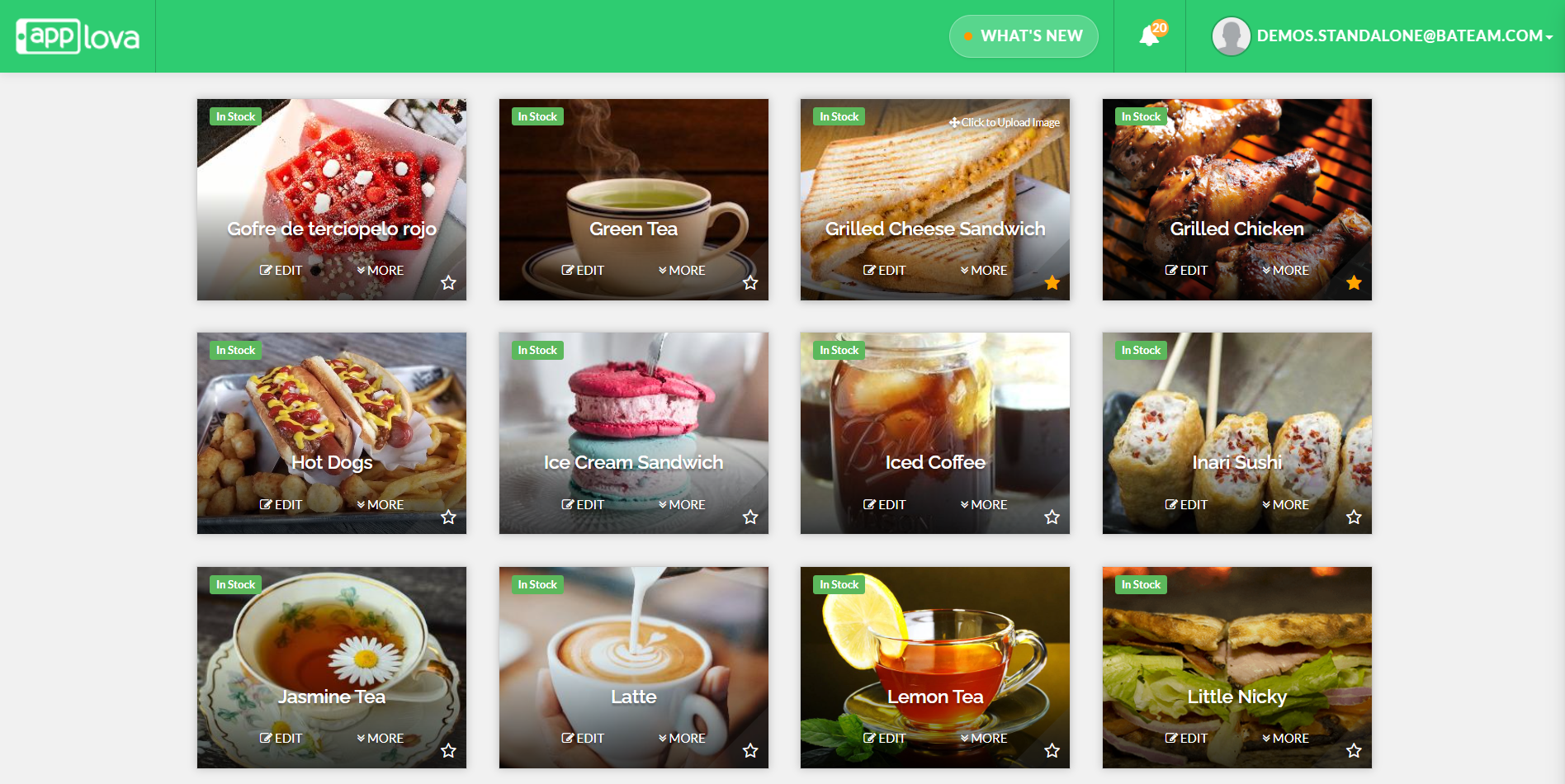
Click on the star icon to mark the product as a featured product.
How it Appears on the Kiosk?
How it Appears on the Webstore V3?
Related Articles
How to Mark a Product as Out of Stock on Merchant Web?
Using this feature, merchants can mark a product as out of stock through Merchant Portal. This option can be used temporarily to make unavailable products hidden or unorderable, helping prevent customers from placing orders for products that are ...How to Manage Products via Merchant Web?
This article explains how merchants can add, edit, duplicate, and delete products by following the steps provided. How to Add a Product? Step 1 Login to "Applova Merchant Web". Step 2 Go to "Products" and click on "Add New Product". Step 3 Fill in ...How to Filter Products on Merchant Web?
The Category Filter allows merchants to easily locate products by selecting a specific category or filtering by stock status (In Stock or Out of Stock) from a dropdown list within the Merchant Web Portal. This feature is designed to reduce scrolling ...How to Manage Product Image via Merchant Web?
This feature allows merchants to manage product images through the Merchant Portal. Merchants can use this feature to add, update, or remove product images, helping keep their online menu visually accurate and appealing to customers. How to Add ...How to Add Nutritional Information of Products on Merchant Web?
You can enable the nutritional information feature for your business if you want to display nutritional information for the products on your menu. You will be able to display nutritional information for each product on its product detail page by ...