How to Disable the Promo List View on Webstore V3

Do not share this guide with merchants

Supported On: Webstore V3
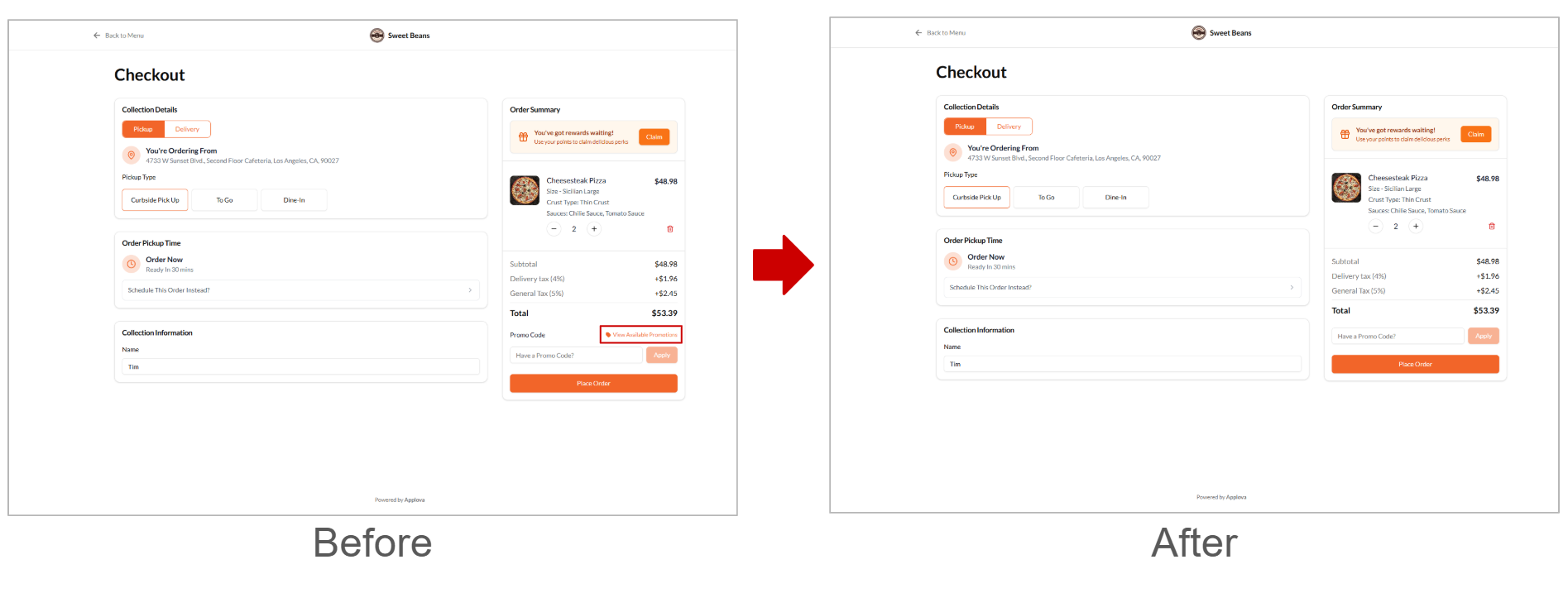
This feature allows support to disable the "View Available Promotions" option on the webstore v3 checkout page when a merchant does not want customers to view available promotions.
How to Configure via Admin Web?
Step 1
Log in to the "Admin Web Portal" and search for the business using the Business ID or Business Name.
Step 2
Navigate to the "Store Front Configurations" tab and tap on “Add Additional Info”.
Step 3
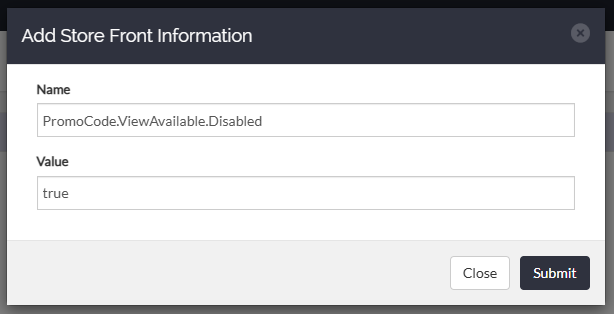
Select the following configuration from the drop-down and click on "Submit".

PromoCode.ViewAvailable.Disabled = true/false
How it Reflects?
Related Articles
How to Use Promo Codes on Webstore V3?
With Webstore V3, customers can easily apply promo codes during checkout to receive discounts or special offers on their purchases. By entering a valid promo code in the “Have a Promo Code?” field and clicking Apply, eligible discounts are ...How to Display Calories on the Product List Page of the Webstore V3?
By using this feature, merchants can display a product’s calorie count directly on the product card as a clear label. This helps customers quickly view calorie information while browsing the menu and make more informed ordering decisions. The calorie ...Displaying Add-On Groups on Webstore V3
Add-on groups are now supported on the Webstore V3, providing a structured way to present available add-ons and allowing customers to easily review and select the options that best fit their needs. With Image and quantity selector support for product ...Top Sellers on Webstore V3
The Top Sellers feature on the Webstore highlights a restaurant’s most frequently purchased items. This allows customers to quickly identify and order trending products without needing to browse through the entire menu. By automatically showcasing ...Building an Effective Webstore: Webstore V3 Layout Options
Webstore V3 provides restaurants with a modern, flexible online storefront. Each section is designed to highlight food, share the brand story, and guide customers toward placing orders. The following overview presents all available layout options and ...