How to Add Alternative Names for Products, Variants, and Add-Ons via Merchant Web
This feature allows to add alternate names for products, variants, variant types, group add-ons and product specific add-ons. Objectives of setting alternative names are;
- To shorten the Kitchen Receipt
- For the kitchen staff to identify the products easily (This is designed for kitchen staff who are more fluent in their native language than in English).
Product alternative names are valid for;
- Products
- Product Variants & Variant types
- Add-On & Add-Ons groups
- Product specific add-ons & Add-On groups
How to Add Alternative Names to Products, Variants & Variant Types Via Merchant Web
Step 1
Login to the "Merchant Web Portal" and click on "Products".
Step 2
Step 3
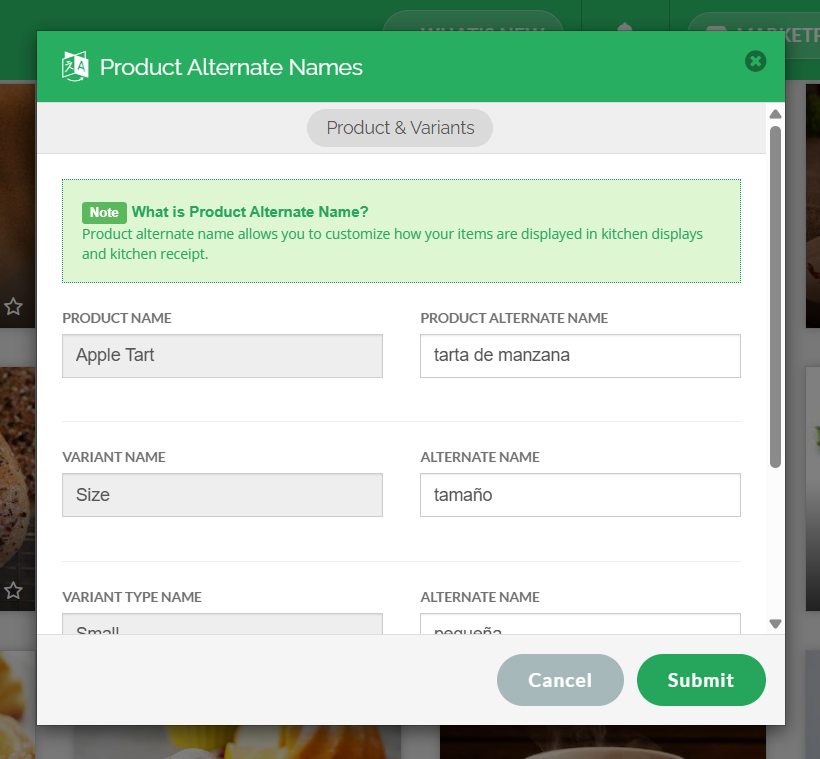
Add alternate names to preferred fields (product name/ variant name/ variant type name) and click on "Submit".
How to Add Alternative Names to Product Specific Add-Ons Via Merchant Web
This feature allows the merchant to add alternative names to add-on groups and their add-ons that are specific to a certain product.
Step 1
Login to the "Merchant Web Portal" and click on "Products".
Step 2
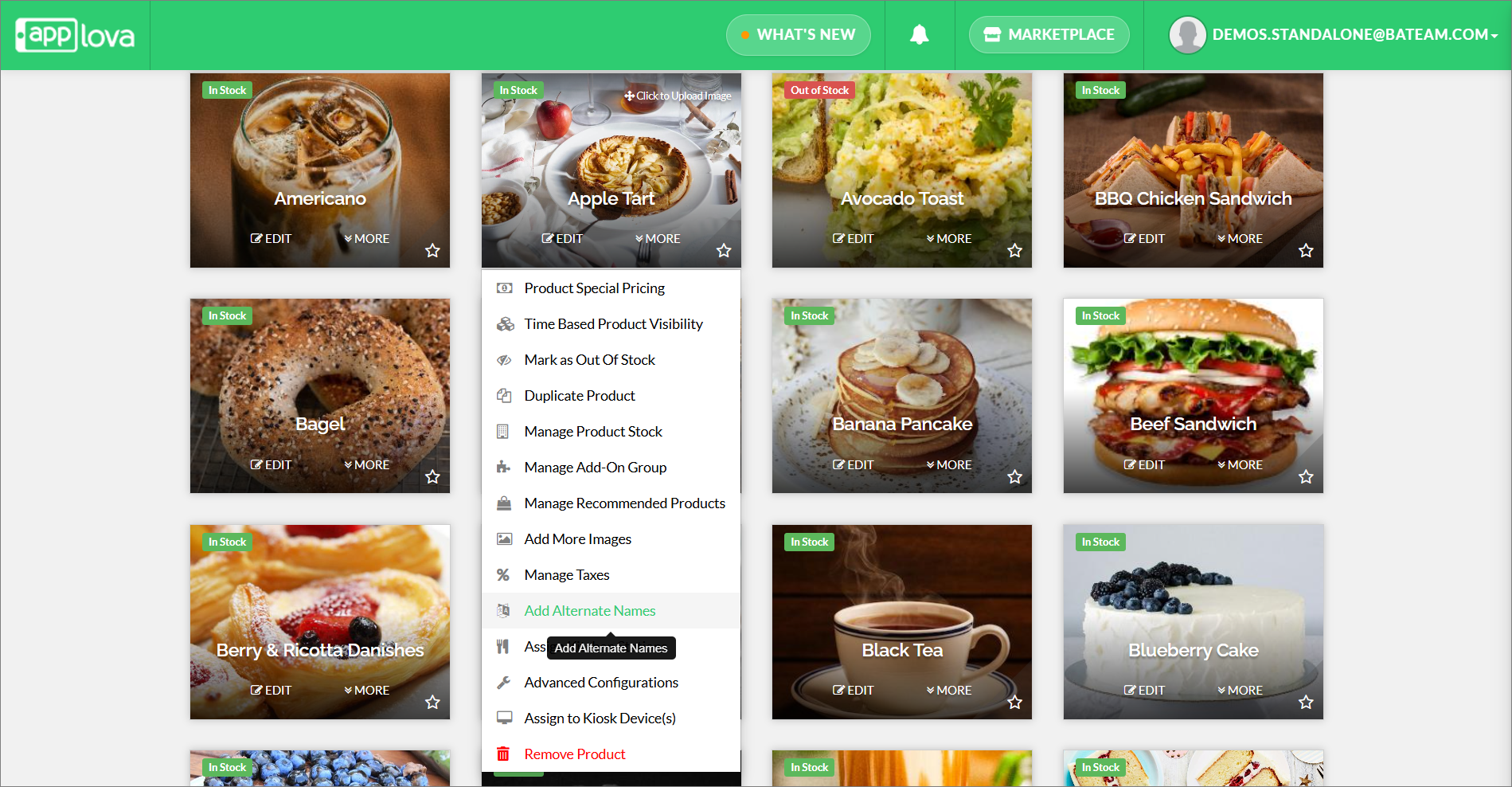
Click on "More" of the preferred product and select "Add Alternate Names".
Step 3
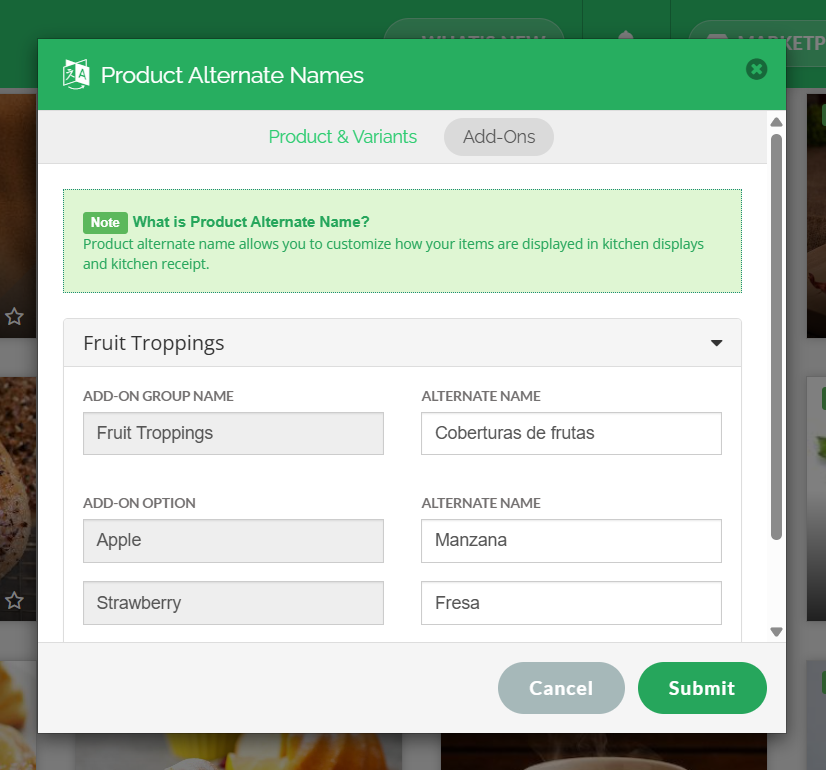
Click on the "Add-Ons" tab.
Step 4
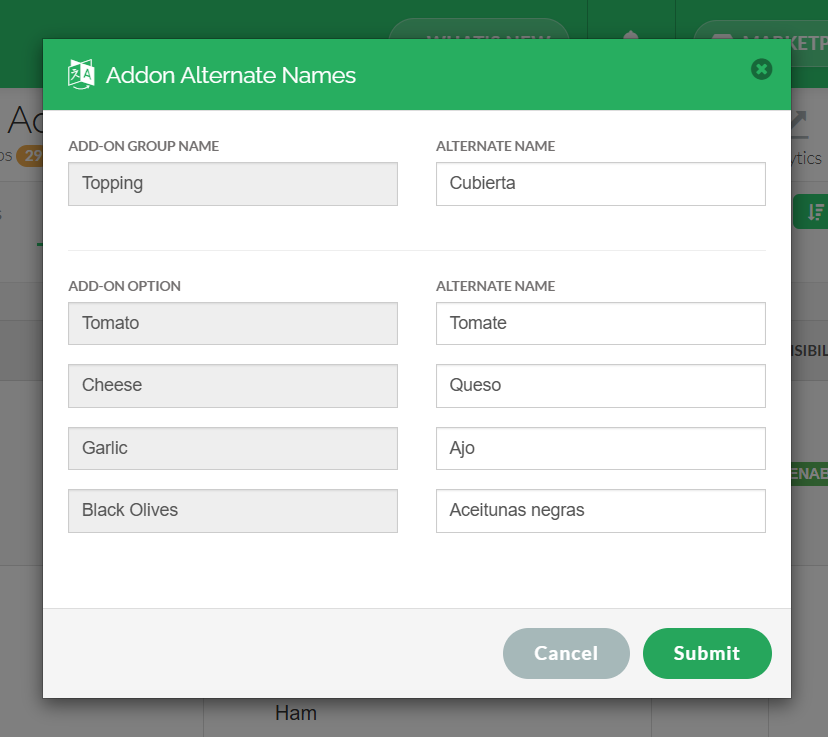
Add alternate names to preferred fields (add-ons/ add-on groups) and click on "Submit".
How to Add Alternative Names to Add-On Groups Via Merchant Web
This feature allows the merchant to add alternative names to general add-on groups and add-ons.
Step 1
Login to the "Merchant Web Portal" and click on "Products".
Step 2
Click on the "Add-On Groups" tab.
Step 3
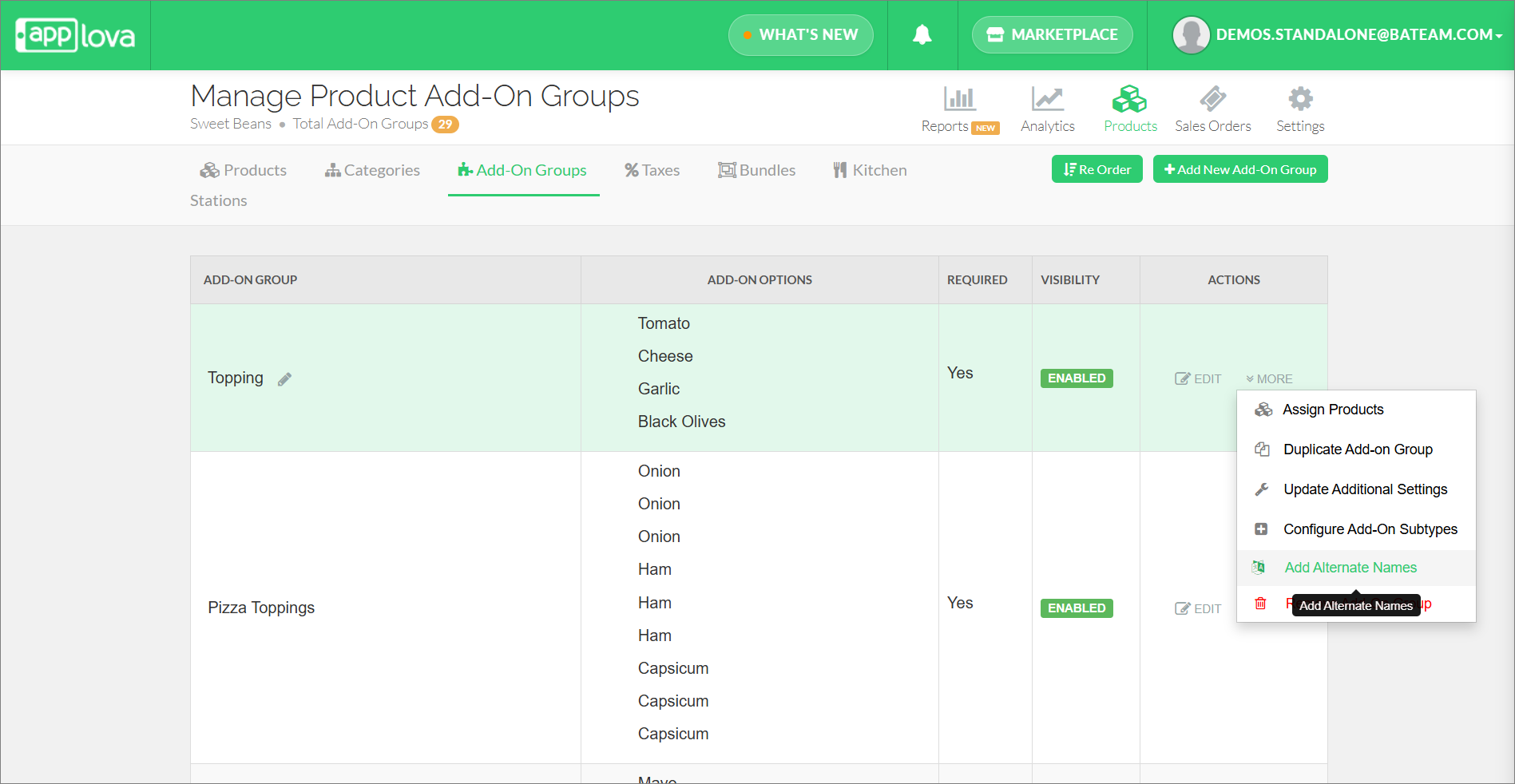
Click on "More" of a preferred add-on group and select "Add Alternate Names" from the dropdown.
Step 4
Add an alternative name to a preferred field (add-on group/ add-on) and click on "Submit".
Related Articles
How to Manage Add-On Groups?
Supported Domains: Standalone Available Channels: Webstore v1, Mobile Order Ahead App (iOS & Android) By enabling this feature, merchants are allowed to add additional options or complementary items to a main product item that can be added to a core ...How to Setup SKU via Merchant Web?
This feature was introduced to cater a requirement for Round 1 merchant What is SKU? SKU, short for Stock Keeping Unit, is used by the merchant to track the business inventories. SKU is a unique code specific to products, variants and add-ons. The ...How to Manage Product Add-On(s) via Merchant Web?
What are Product Add-On(s)? Product Add-Ons are extra customizations that can be added to a product to suit the customers' needs. (i.e., Sugar levels for Coffee, Toppings for a Pizza, Colors for a Shirt). The price of an Add-On product will be an ...How to Manage Product Variants?
What is a Product Variant? Product Variants are different options of your product such as varying sizes e.g. small, medium and large with the corresponding prices. The customer can only select one variant out of the listed options such as ...How to Manage Products via Merchant Web?
This article explains how merchants can add, edit, duplicate, and delete products by following the steps provided. How to Add a Product? Step 1 Login to "Applova Merchant Web". Step 2 Go to "Products" and click on "Add New Product". Step 3 Fill in ...