Age Confirmation Banner on Webstore V3
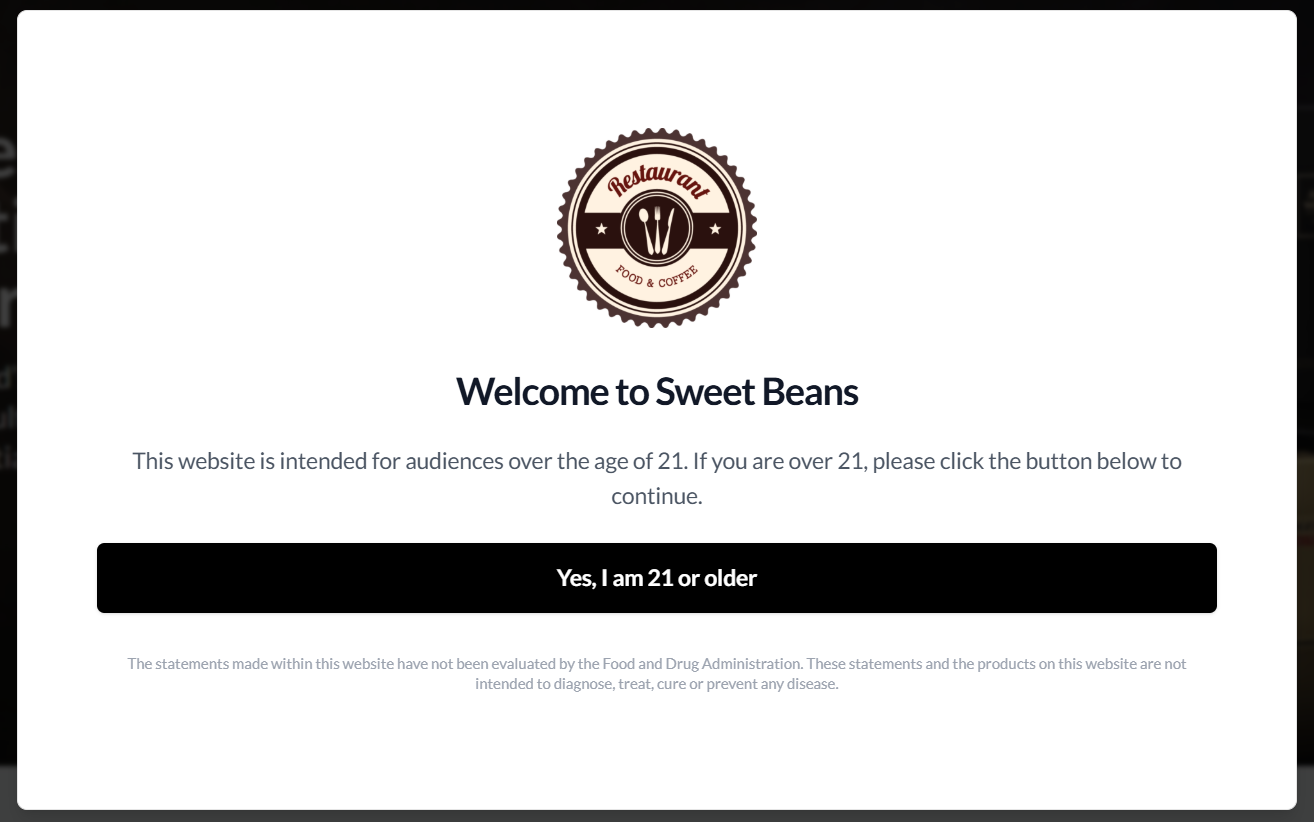
This feature was introduced to ensure that only users who meet the required age (e.g., 21 or older) can access and interact with the Webstore. It does this by displaying an age confirmation banner as soon as the site is opened and requiring users to confirm their age before proceeding.
When a user opens the Webstore, an age confirmation banner appears immediately, asking them to confirm that they are 21 or older before they can continue. The user must click "Yes, I am 21 or older" to proceed, as the banner blocks access until this confirmation is given. Even if the user opens the site in a new tab or browser, the same check will appear again to ensure compliance. Additionally, during signup, if the users are required to enter their date of birth, the system then verifies their age, allowing only eligible users to complete registration while preventing underage users from signing up.
Reflections?
Related Articles
Building an Effective Webstore: Webstore V3 Layout Options
Webstore V3 provides restaurants with a modern, flexible online storefront. Each section is designed to highlight food, share the brand story, and guide customers toward placing orders. The following overview presents all available layout options and ...How to Change the Ordering Location from the Menu Page on Webstore V3
This feature improves location visibility by displaying the active ordering location directly on the Menu Page Banner on Webstore V3. The banner shows "Ordering From" followed by the selected store address, allowing customers to confirm the current ...How to use Guest Checkout on Webstore V3?
This feature allows customers to place orders quickly without signing in or creating an account, improving checkout speed and convenience. Step 1 Log in to the Webstore and add your desired products to the cart. Step 2 After clicking on the cart, a ...How to Configure Announcement Popups Using Website Builder?
Supported Domains: Standalone, Clover, Square, RPower, GoDaddy Announcement Popups allow merchants to display promotions, important notices, seasonal offers, and other updates in the center of their website. Merchants can customize the popup content, ...Search Products via Webstore
This allows to search a product typing a product name on the search bar in the taskbar instead of browsing through all the products. Step 1 Go to "Webstore". Step 2 Click on the "Search" button on the top right corner of the taskbar. Image Link Step ...