Managing Order Level Promo Codes on Clover
 Supported From: Clover Business Manager (1.15.0.CLV.RELEASE)
This feature enables merchants to apply a promotional discount to an entire order via the Clover Business Manager. Merchants can choose to apply the promotion either as a percentage of the total order value or as a fixed flat amount.
Step 1
Open the "Applova Business Manager" app and tap on "Manage Your Business".
Step 2
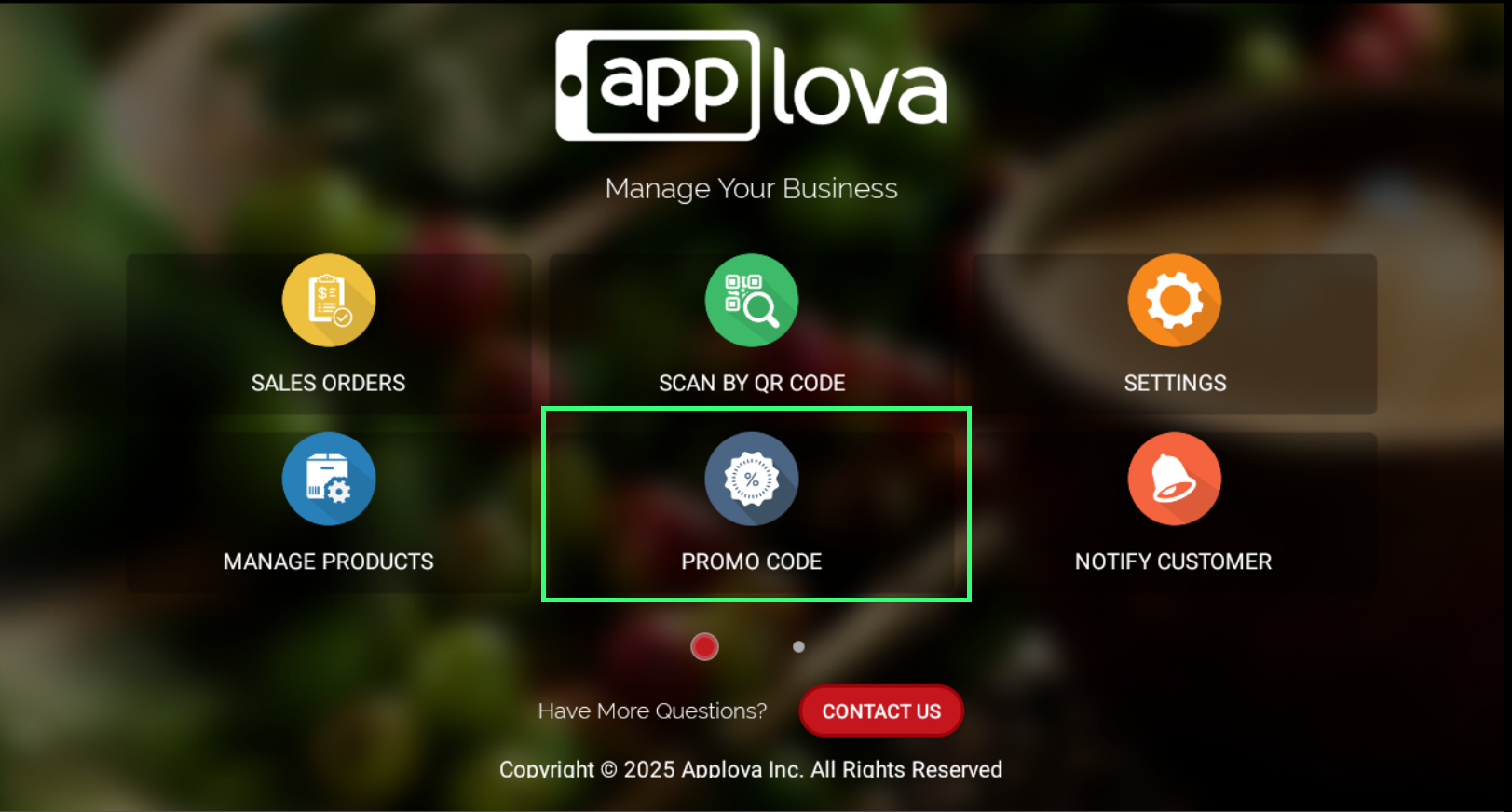
Then, tap on "Promo Code".
Step 3
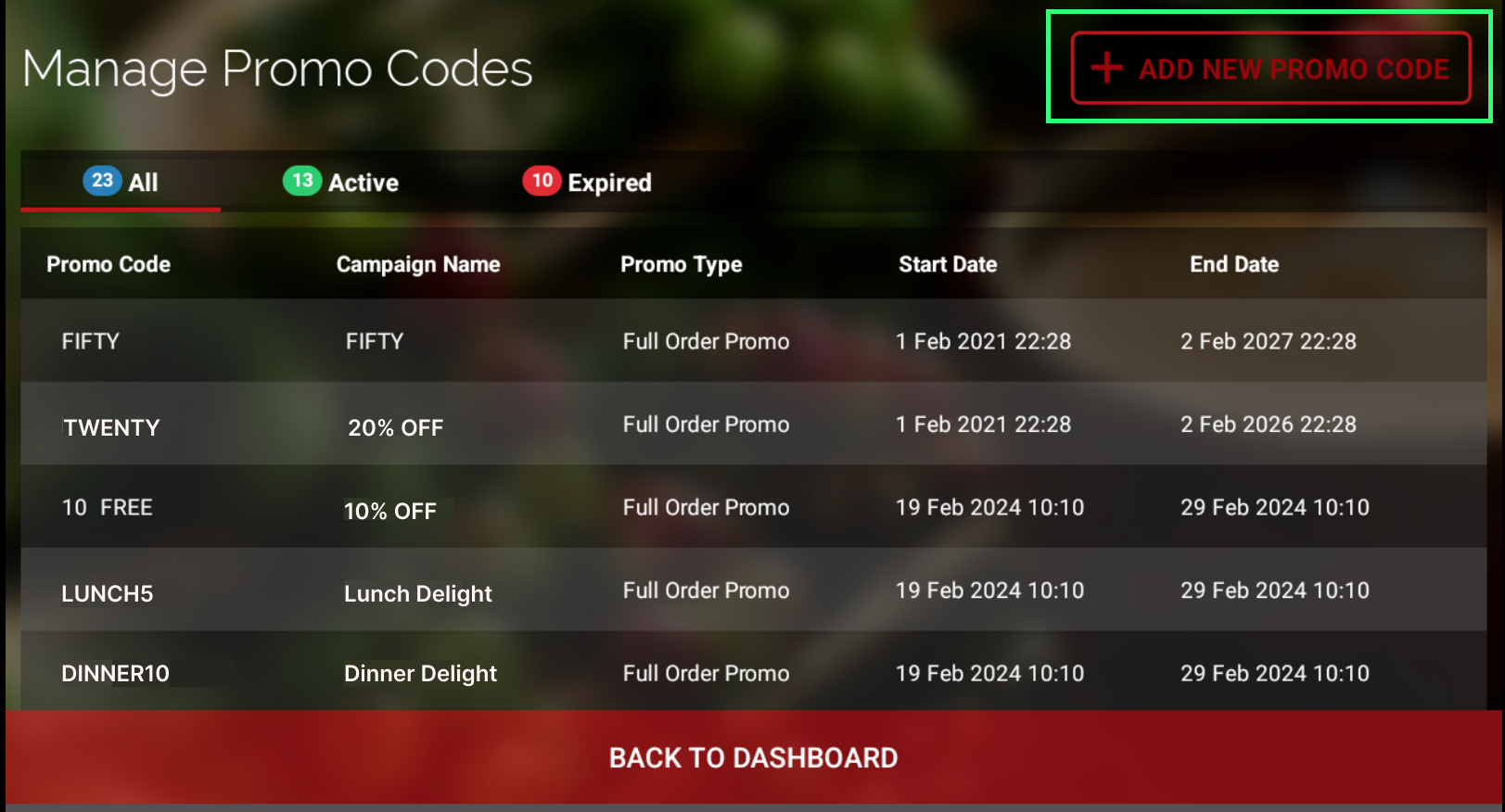
Tap on "Add New Promo Code" to create a promotion.
Step 4
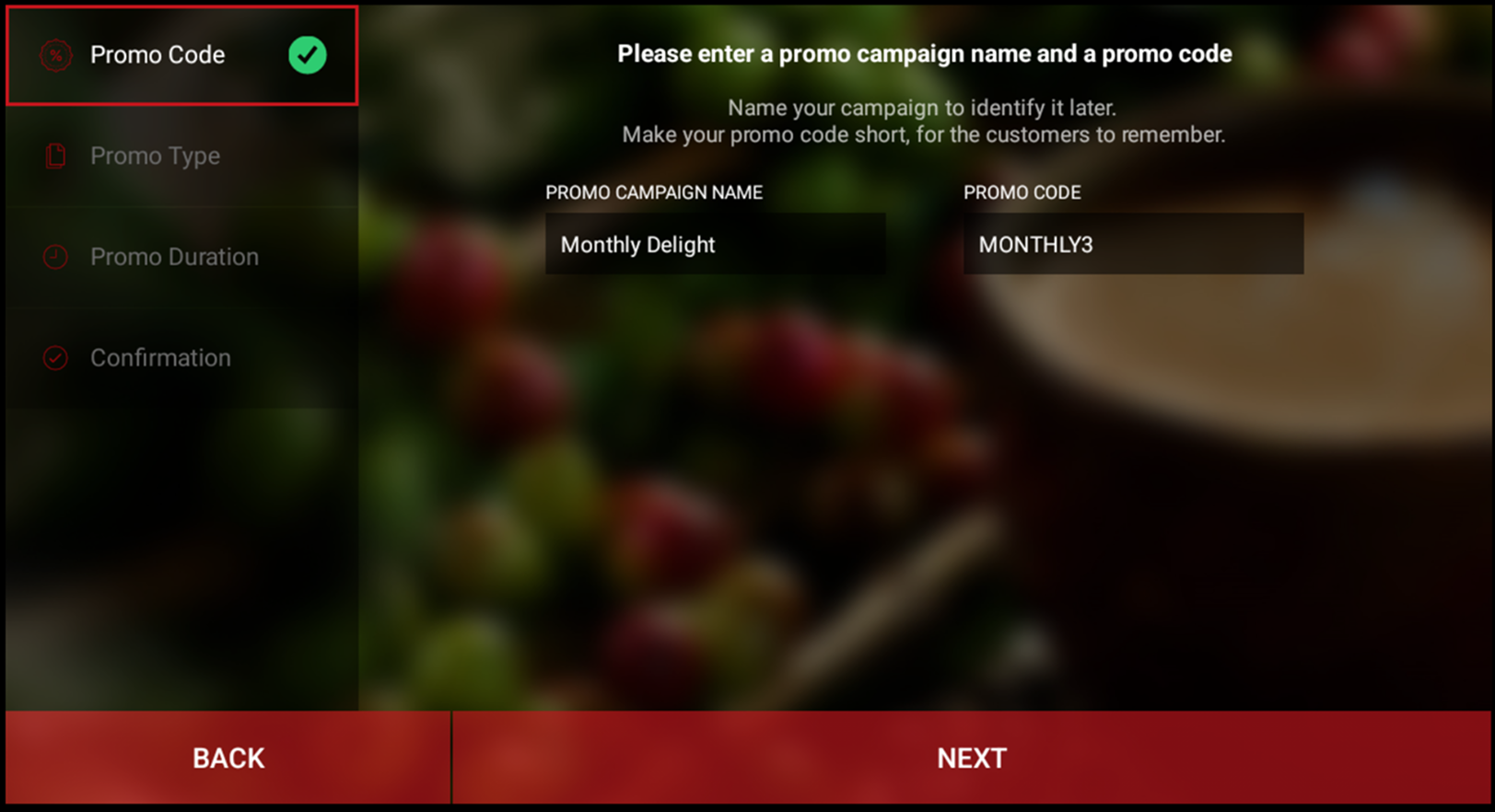
In the "Promo Code" tab, enter a campaign name along with a short, easy-to-remember promo code. Then tap on "Next" to move to the next tab.
Step 5
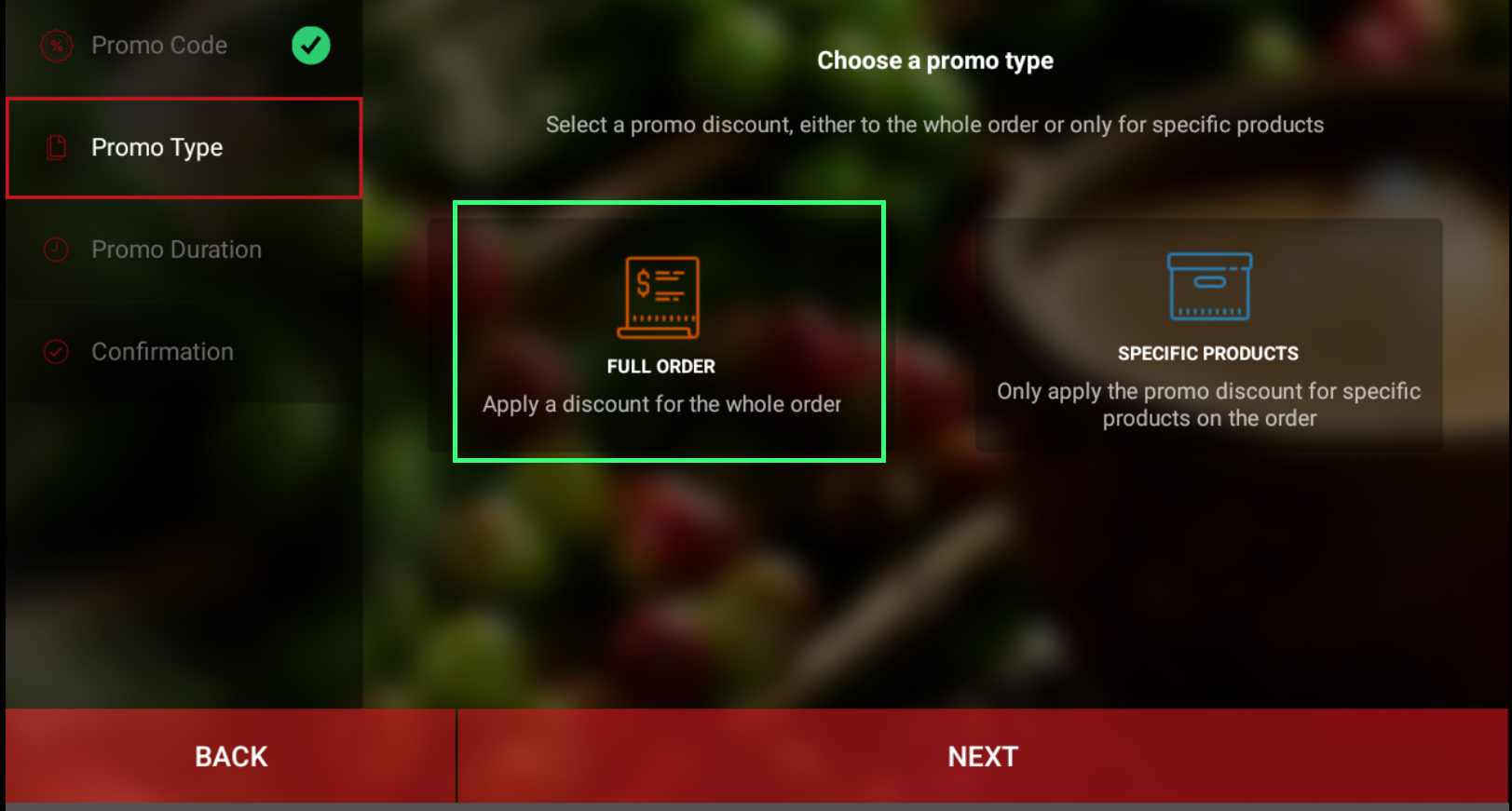
Under the "Promo Type" tab, tap on "Full Order" to apply the promotional discount for the whole order and tap on "Next".
Step 6
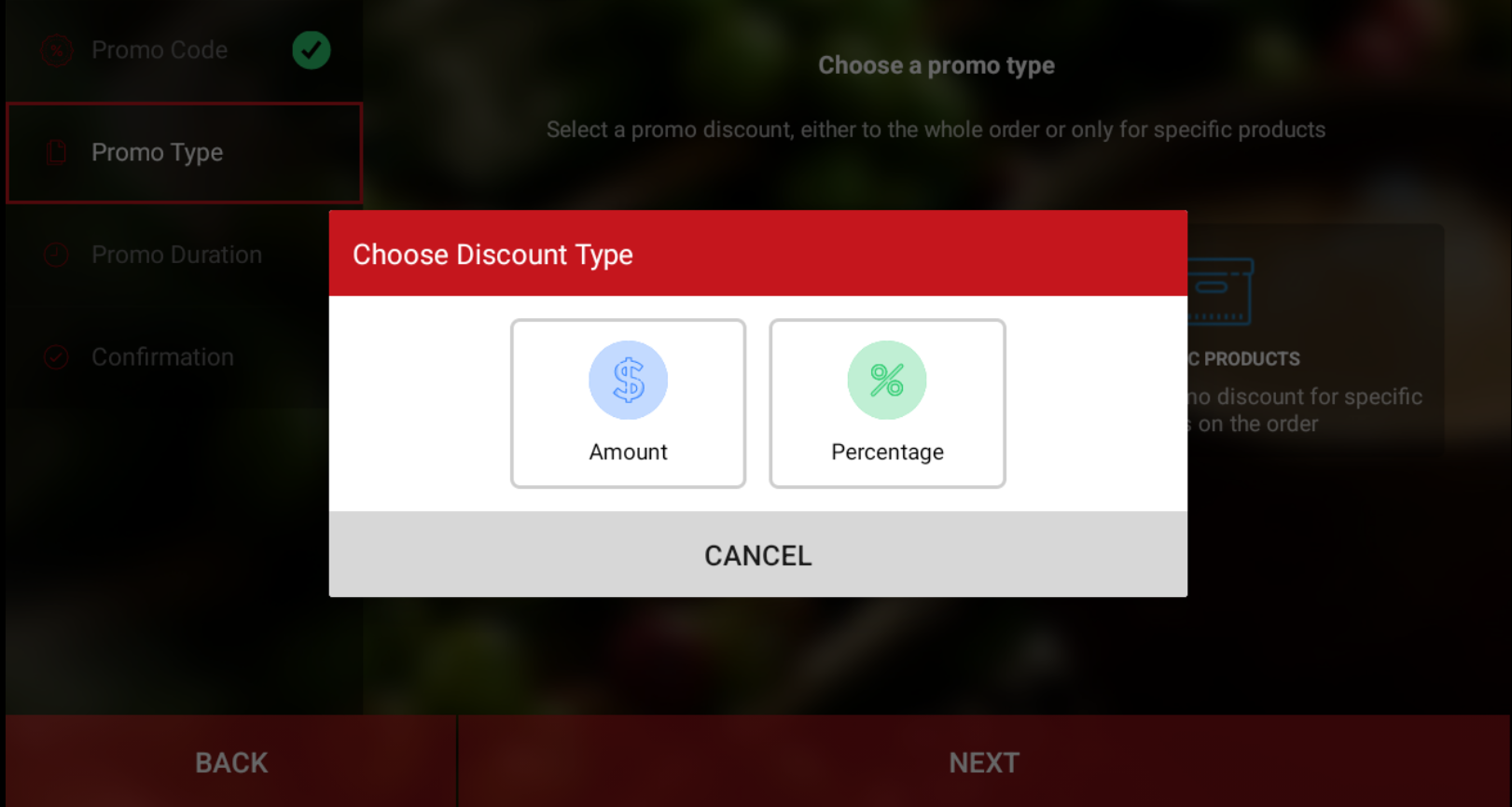
Select the preferred "Discount Type" out of the 2 discount types and enter the value. Tap on "Next" to move to the next tab.
Step 7
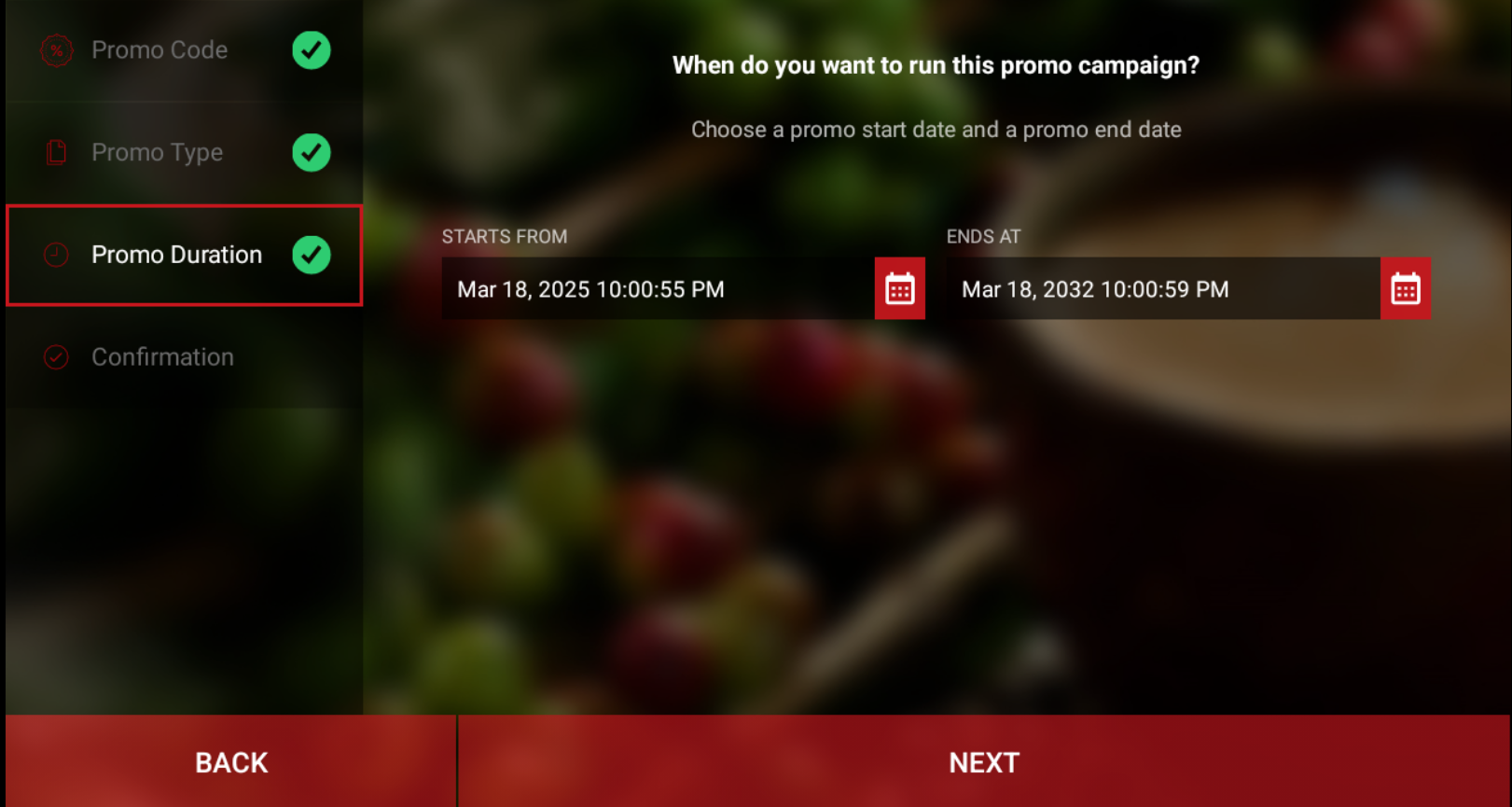
Then select the start and end dates and tap on "Next".
Step 8
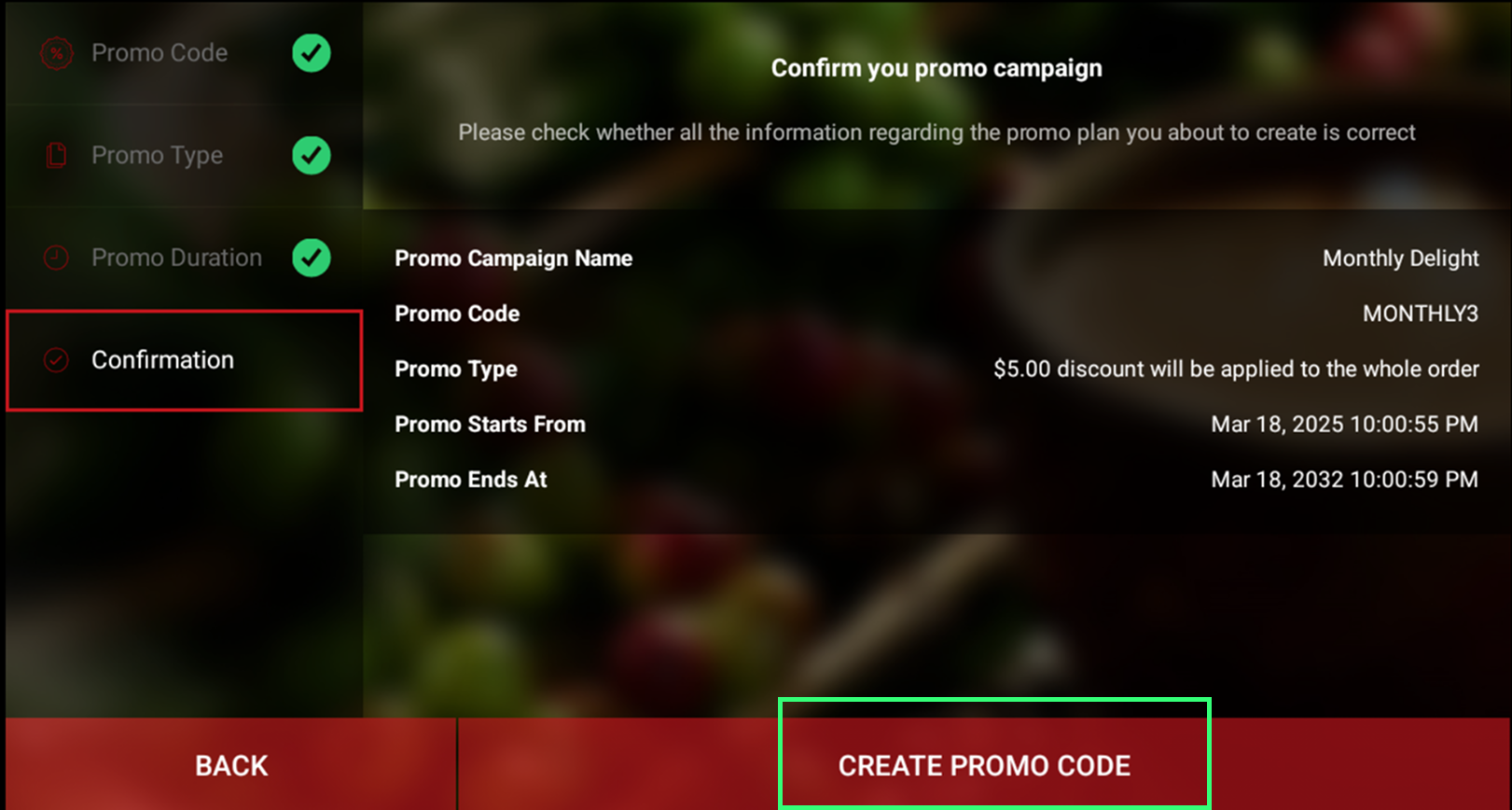
The "Confirmation" tab will display all the entered details. Tap on "Create Promo Code" to confirm and create the Promotion.
Related Articles
Managing Order Level Promo Codes
This feature allows the merchant to add a promo discount for the whole order. A promotion can be added as a percentage and a flat amount as well. Promo code feature is enabled by default Note:Promo Codes can also be activated through the Applova ...Managing Product Level Promo Codes
This feature allows the merchant to add promo discount for a selected product. Promo code feature is enabled by default Note: Promo Codes can also be activated through the Applova Marketplace aswell. Once activated, Promo Codes will be enabled as a ...How to Add / Delete a Promo Code on Register via Applova POS?
Supported Domains: Standalone Businesses This functionality allows the cashier to apply a promotional offer to the order. Prerequisite : Promocodes have to be configured on the backend. How to Add a Promo Code via Register? Step 1 Sign into "Applova ...Managing Promo Codes for Guest Users of a Business
You can use this plugin to let your guest users apply promo codes for their orders. Please check with Applova Support team to ensure that the promo code and guest checkout features are enabled for your business. Step 1 Login to "Applova Merchant ...How to Edit / Delete / Copy Promo Codes Via Applova POS?
Supported Domains: Standalone Businesses With this feature, the promo code can be deleted, copied or edited via Applova POS. Editing a Promo Code In this case the promo code name will be edited Step 1 Sign into "Applova POS" with the credentials of ...