How to Add / Delete a Promo Code on Register via Applova POS?
 Supported Domains: Standalone Businesses
This functionality allows the cashier to apply a promotional offer to the order.
 Prerequisite : Promocodes have to be configured on the backend.
How to Add a Promo Code via Register?
Step 1
Sign into "Applova POS" with the credentials of your business.
Step 2
Go to "Register", then add items to the order.
Step 3
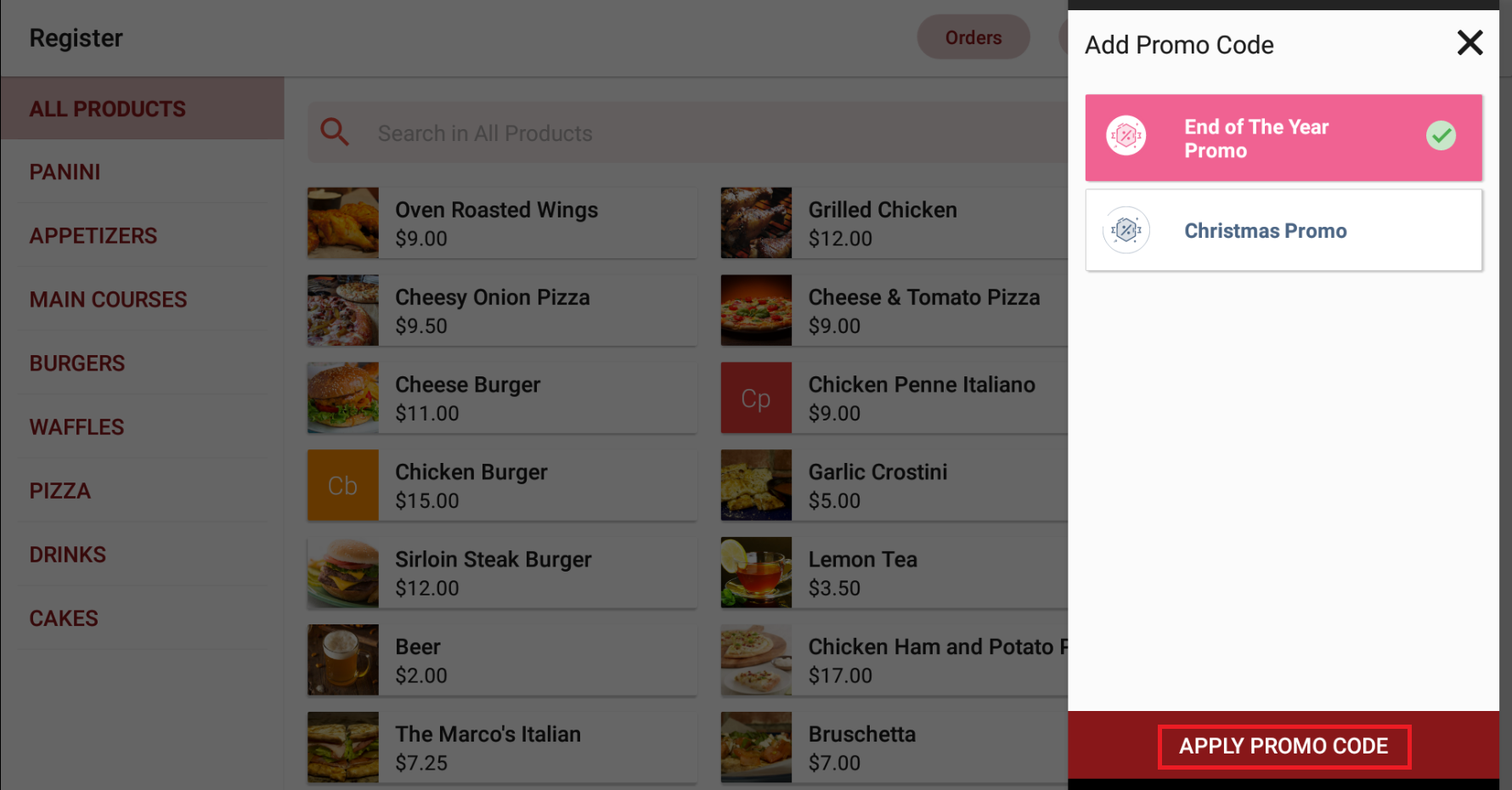
Then tap on the ⋮ icon and select “Add Promo Code” to see if any promotions are available.

Step 4
Select an available promo from the list and tap on "Apply Promo Code".

How to Delete a Promo Code via Register?
The Promo Code which was added to the order can be removed through the POS register.
Step 1
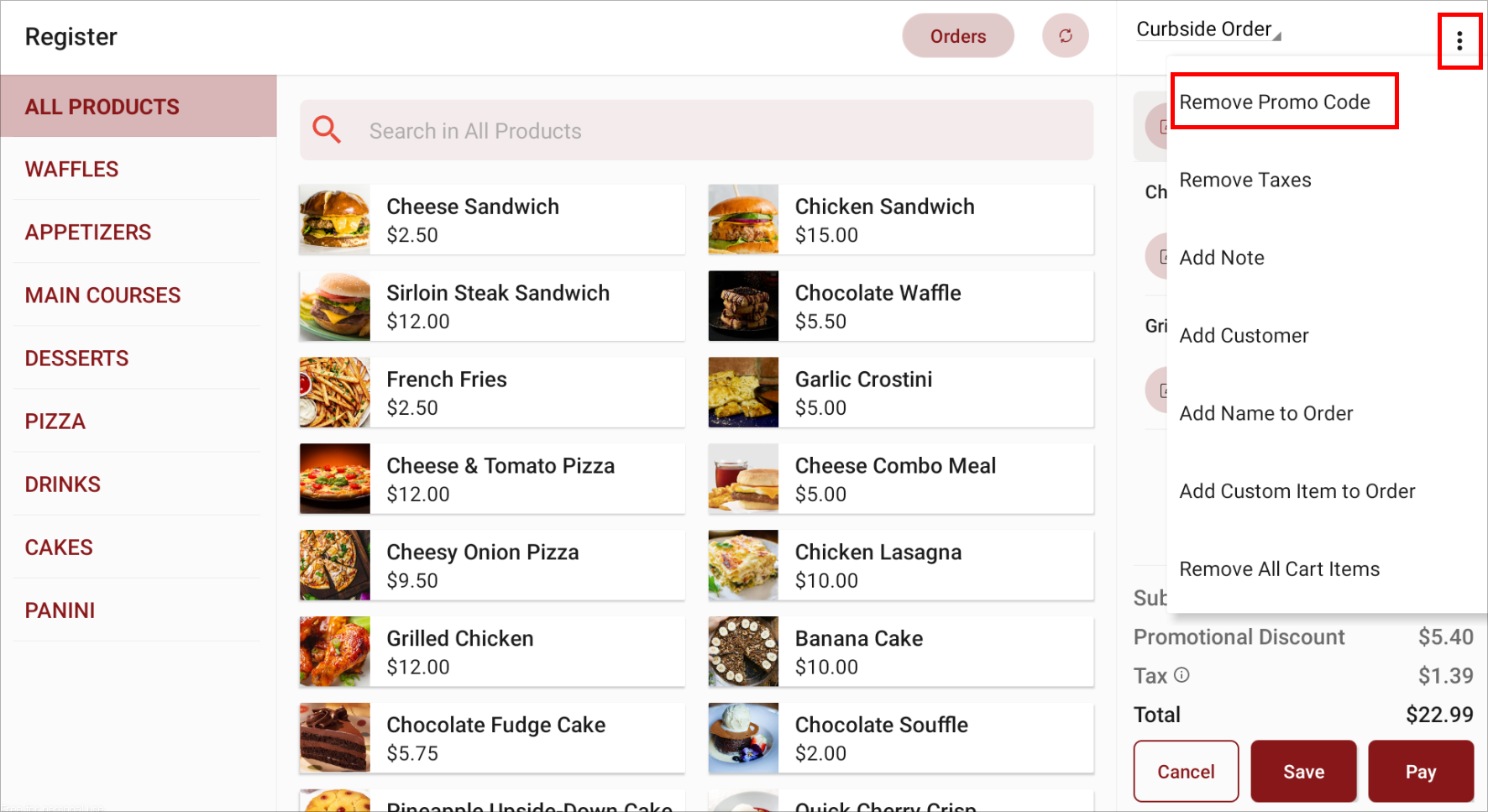
Tap on the "⋮" on the top right hand corner and then tap on "Remove Promo Code".
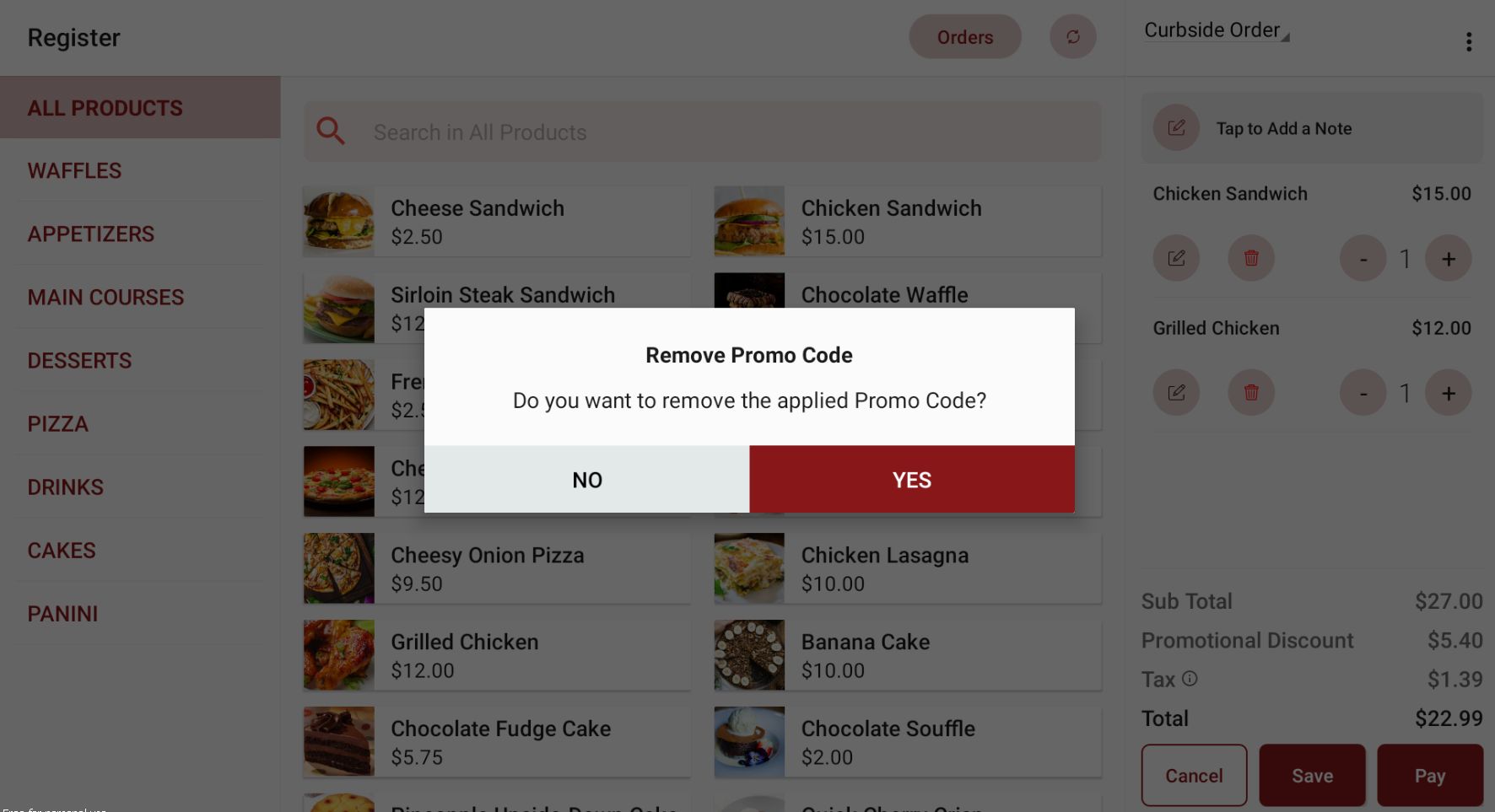
Step 3
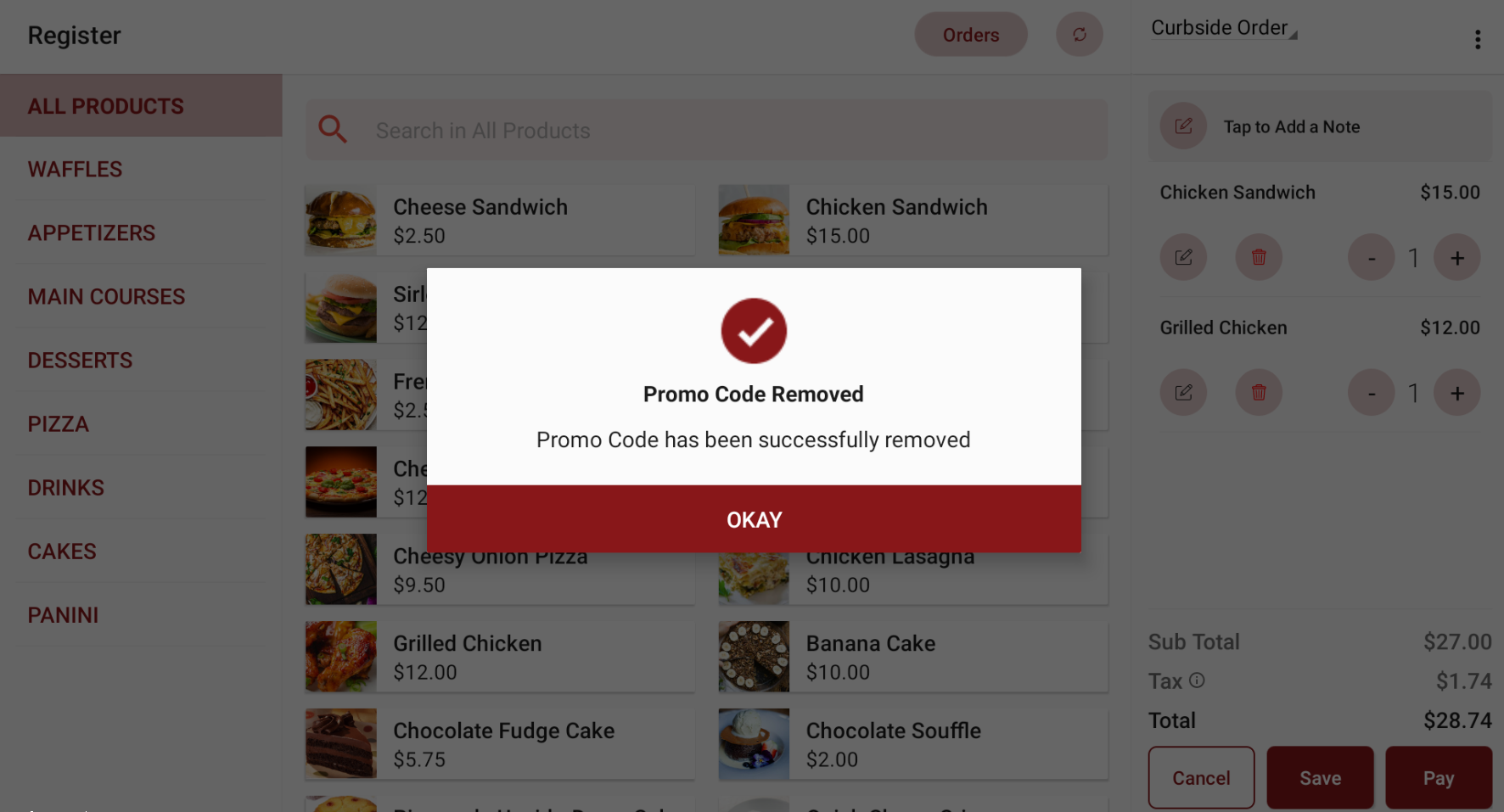
If the Promo Code deletion is successful, a pop up with a success message will be displayed as shown below "Yes" on the popup that appears, to confirm the deletion of the Promo Code.
Related Articles
Related Articles
How to Add a Promo Code Via Applova POS?
Supported Domains: Standalone Businesses Using this feature, promo codes can be created and managed via Applova POS. Step 1 Sign into "Applova POS" with the credentials of your business. Step 2 Then go to "Promo Code" to access the promo code ...How to Edit / Delete / Copy Promo Codes Via Applova POS?
Supported Domains: Standalone Businesses With this feature, the promo code can be deleted, copied or edited via Applova POS. Editing a Promo Code In this case the promo code name will be edited Step 1 Sign into "Applova POS" with the credentials of ...How to Manage Allowed Time Ranges for Promo Codes?
This feature will allow the merchant to enable the promotion within the specified time ranges. There are 2 promocode time range types to select from. They are, Specific Day Range - allows to select a specific day in the week along with the time ...Managing Order Level Promo Codes
This feature allows the merchant to add a promo discount for the whole order. A promotion can be added as a percentage and a flat amount as well. Promo code feature is enabled by default Note:Promo Codes can also be activated through the Applova ...Managing Product Level Promo Codes
This feature allows the merchant to add promo discount for a selected product. Promo code feature is enabled by default Note: Promo Codes can also be activated through the Applova Marketplace aswell. Once activated, Promo Codes will be enabled as a ...