How to Search and Delete Customers via Merchant Portal
This feature allows merchants to quickly search for specific customers and delete inactive, duplicate, or invalid customer records from their Customer List.
How to Delete a Customer?
Step 1
Navigate to the Settings section on the Merchant Portal.
Step 2
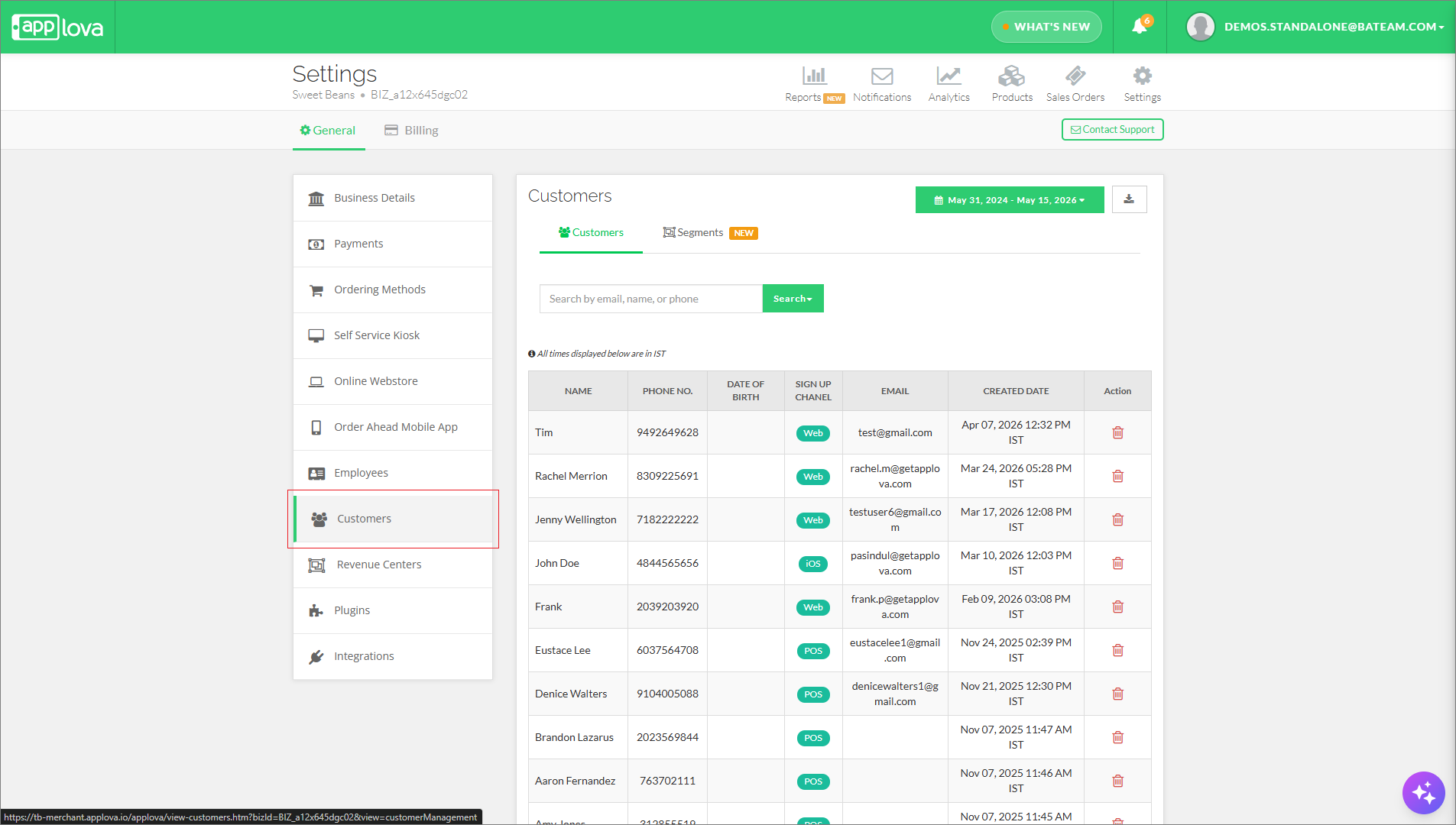
Click on "Customers".
Step 3
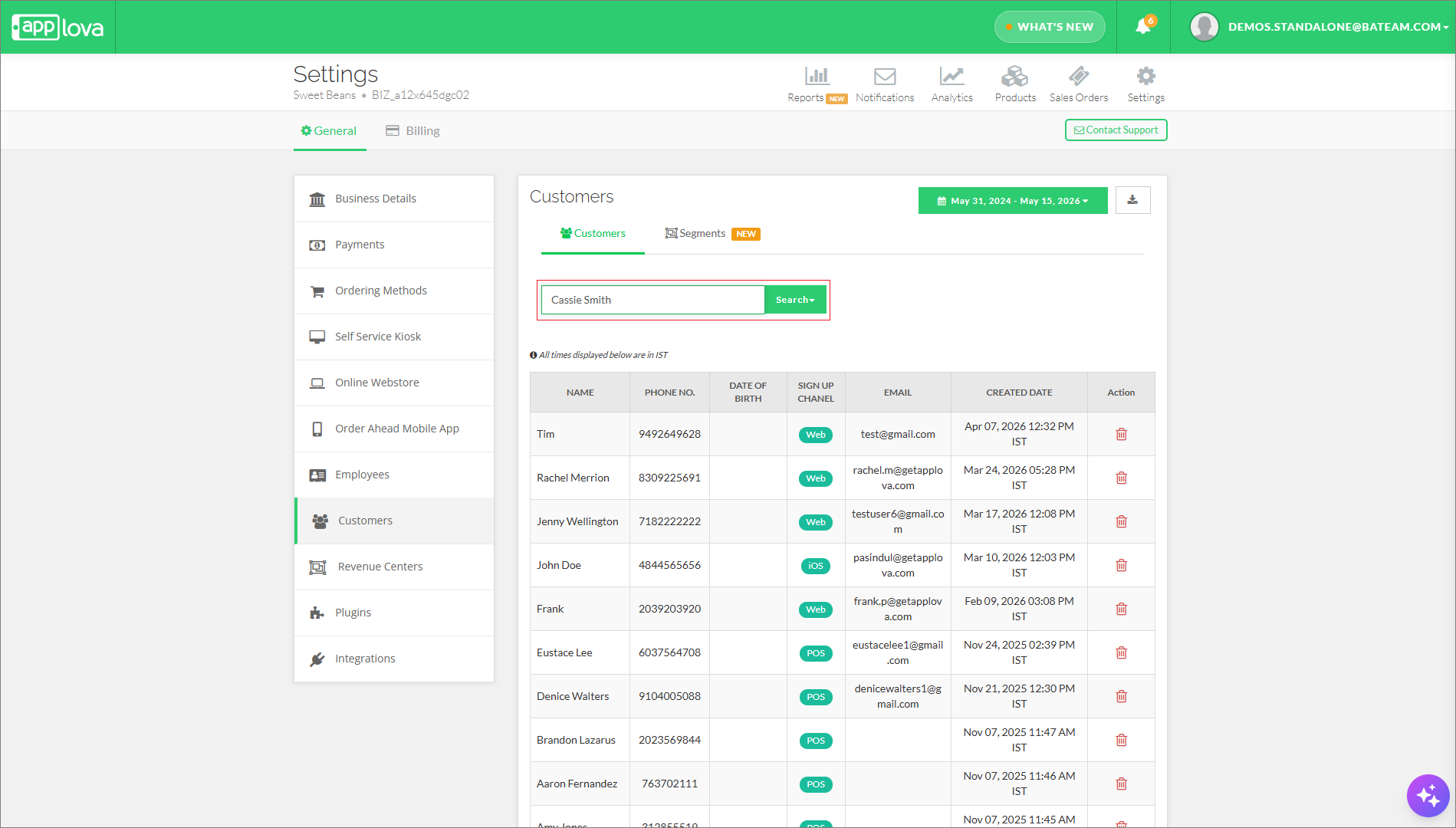
Search for the customer you want to remove.

Click the search dropdown and select the specific customer detail you want to search by [Image Link]
Merchants can search using:
- "Phone Number."
- "Customer Name."
- "Email Address."
After selecting the search type, enter the relevant value in the search field.

You can only search & delete customers associated with your own merchant account and selected business.
Step 4
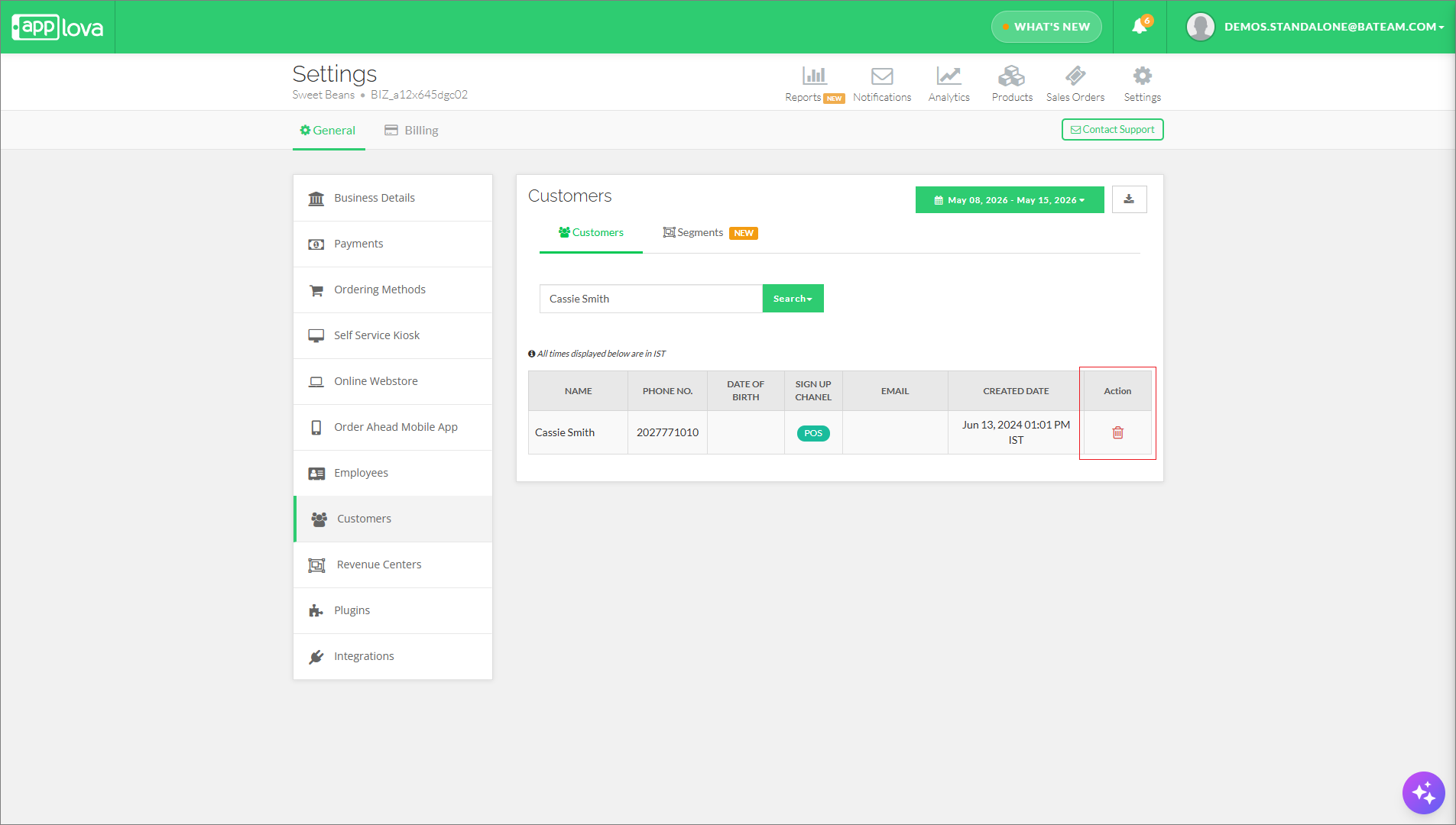
Click on "Remove" in the Actions column of the respective entry.
Step 5
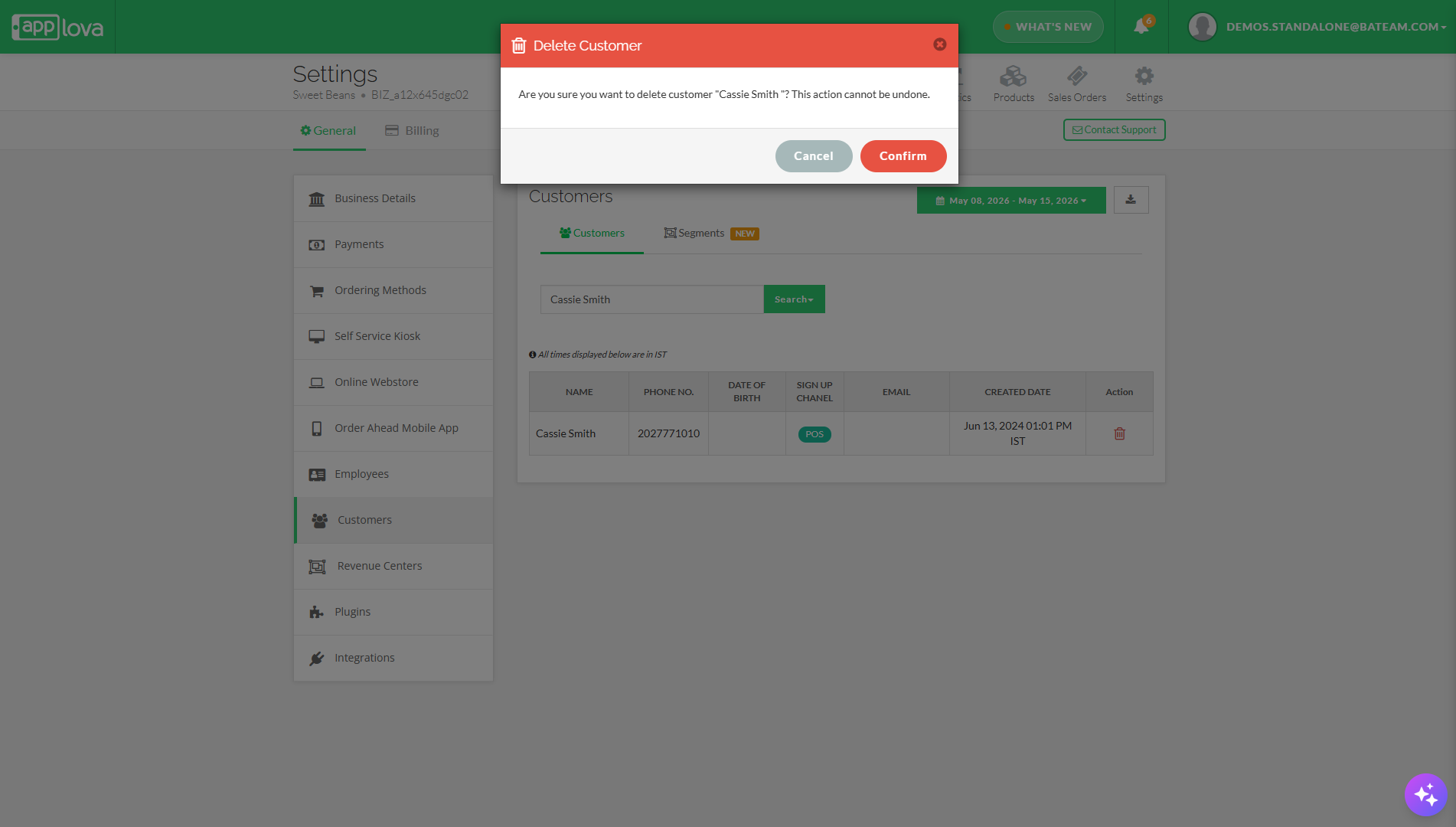
A confirmation prompt will appear. Click on "Confirm" to delete.
Step 6
The customer will then be marked as deleted and will no longer appear in the Customers list.
The customer will then be marked as deleted and will no longer appear in the Customers list.
Related Articles
Managing Food Truck Settings for a Business
If you own a food truck, you can enable the food truck feature for your business. You can use this feature to specify when your food truck will be open for business and when it will be closed, as well as where your food truck will be parked, so that ...AI-Curated Cross-Sell Suggestions via Merchant Portal
This feature helps merchants boost sales by using AI to suggest complementary products through cross-sell recommendations directly in the Merchant Portal. What is Cross-Sell? Cross-sell is the practice of recommending additional products that are ...Configuring Tips via Merchant Web Portal
This feature allows the merchant to configure tip settings through the Merchant Web so that tips can be selected and applied during the checkout process. Step 1 Login to "Applova Merchant Web". Step 2 Go to "Settings" and then "General" tab Step 3 ...How to Remove a Product via Merchant Web?
Step 1 Login to "Applova Merchant Web". Step 2 Go to "Products" and click "More" on the product you want to delete. Image Link Step 3 Click "Remove Product". Image Link Step 4 Click "Confirm". Image LinkHow to Send Notifications for Your Customers?
This feature will allow merchants to send notifications on promotions, discounts and announcements to their customers. Step 1 Login to "Applova Merchant Portal". Step 2 Click "Settings" and go to "General" tab. Step 3 Click on "Notifications". Image ...