How to Send Notifications for Your Customers?
This feature will allow merchants to send notifications on promotions, discounts and announcements to their customers.
Step 1
Login to "Applova Merchant Portal".
Step 2
Click "Settings" and go to "General" tab.
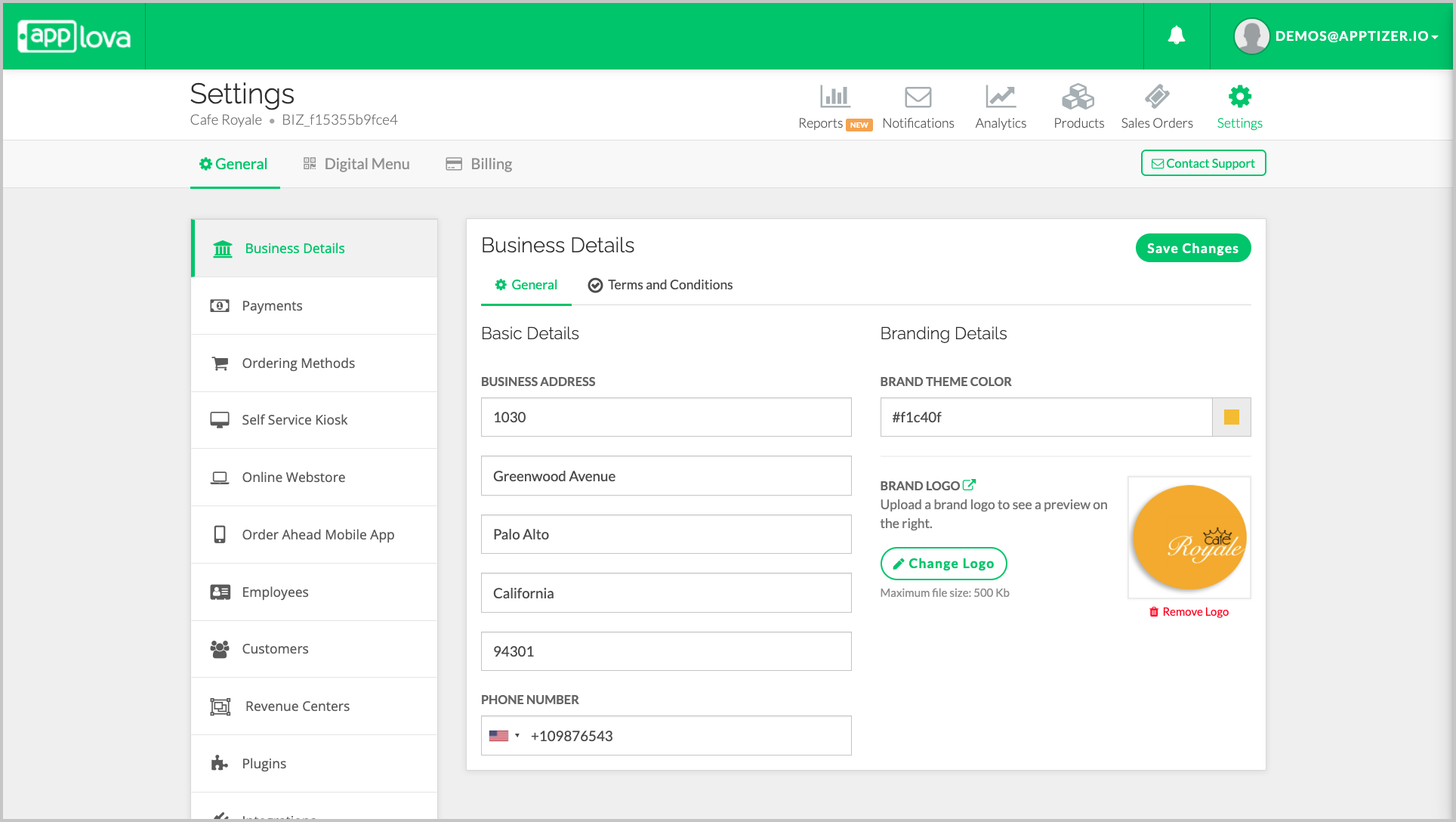
Step 4
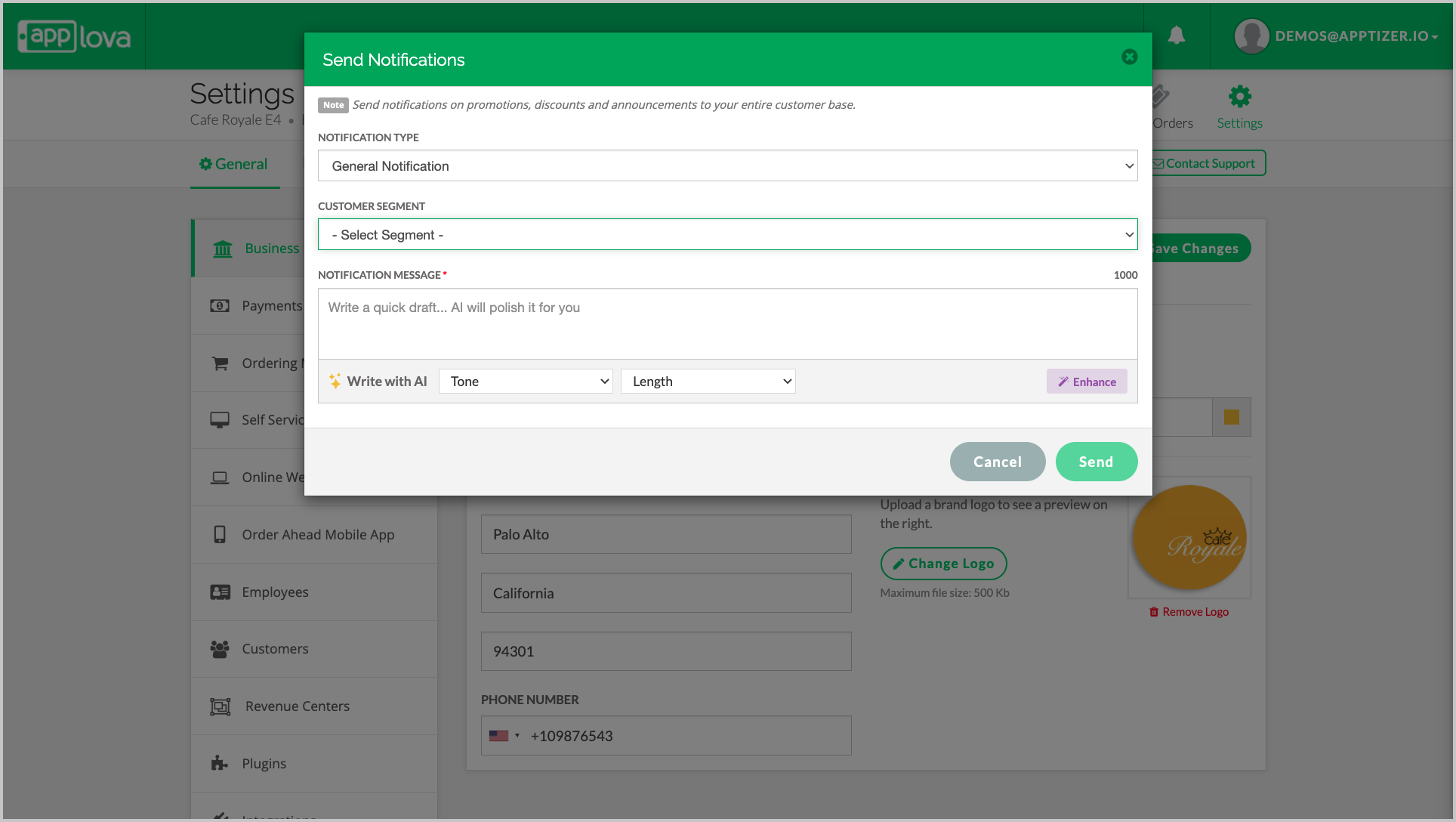
Enter the Notification message and click on "Send".

Push Notification Options Overview
Notification Type
-
Single-store businesses: This field appears as General Notification since notifications are sent from a single location.
-
Multi-store businesses: Additional options appear, allowing you to choose All Locations, Selected Locations, or This Location depending on where the notification should be delivered.
-
- Customer Segment Selector
When segments are created, the customer segment can be selected to determine which group the message should be sent to. - AI Description Generator
Use the built-in AI assistant to draft, refine, or enhance your notification message by adjusting tone and length for a more polished and engaging communication.
Related Articles
How to Manage Customers via Merchant Portal
This feature allows merchants to quickly search for specific customers, filter customer records by a selected date range and delete inactive, duplicate, or invalid customer records from their Customer List. How to Search for a Customer? Step 1 ...Altering Business Details via Merchant Portal
This guide explains how to update your business information and manage the terms and conditions displayed to customers through Applova Merchant Portal. How to Update Business Details? Step 1 Login to "Applova Merchant Web". Step 2 Click "Settings" ...How to Configure Order Pick Up Via Merchant Web?
Merchants can configure order pickup settings through Merchant Web. These settings allow merchants to manage pickup related details, and ensure customers can place pickup orders based on the business’s preferred setup. How to Enable Pick Up Option? ...Order Ahead App Settings on Merchant Web
This guide explains how to manage the Order Ahead Mobile App settings through Applova Merchant Web. Merchants can upload, update, or remove the app banner image and submit a request to publish the mobile app on the Google Play Store and Apple App ...Customer Insights in Applova Analytics
The Customers section helps merchants review customer activity and engagement. Merchants can use this section to understand new customer signups, new customers served, returning customers, guest users, top customers, and all-time active customer ...