How to Change Employee Login PIN?
Step 1
Login to "Applova Merchant Web".
Step 2
Click "Settings" and go to "General" tab.
Step 3
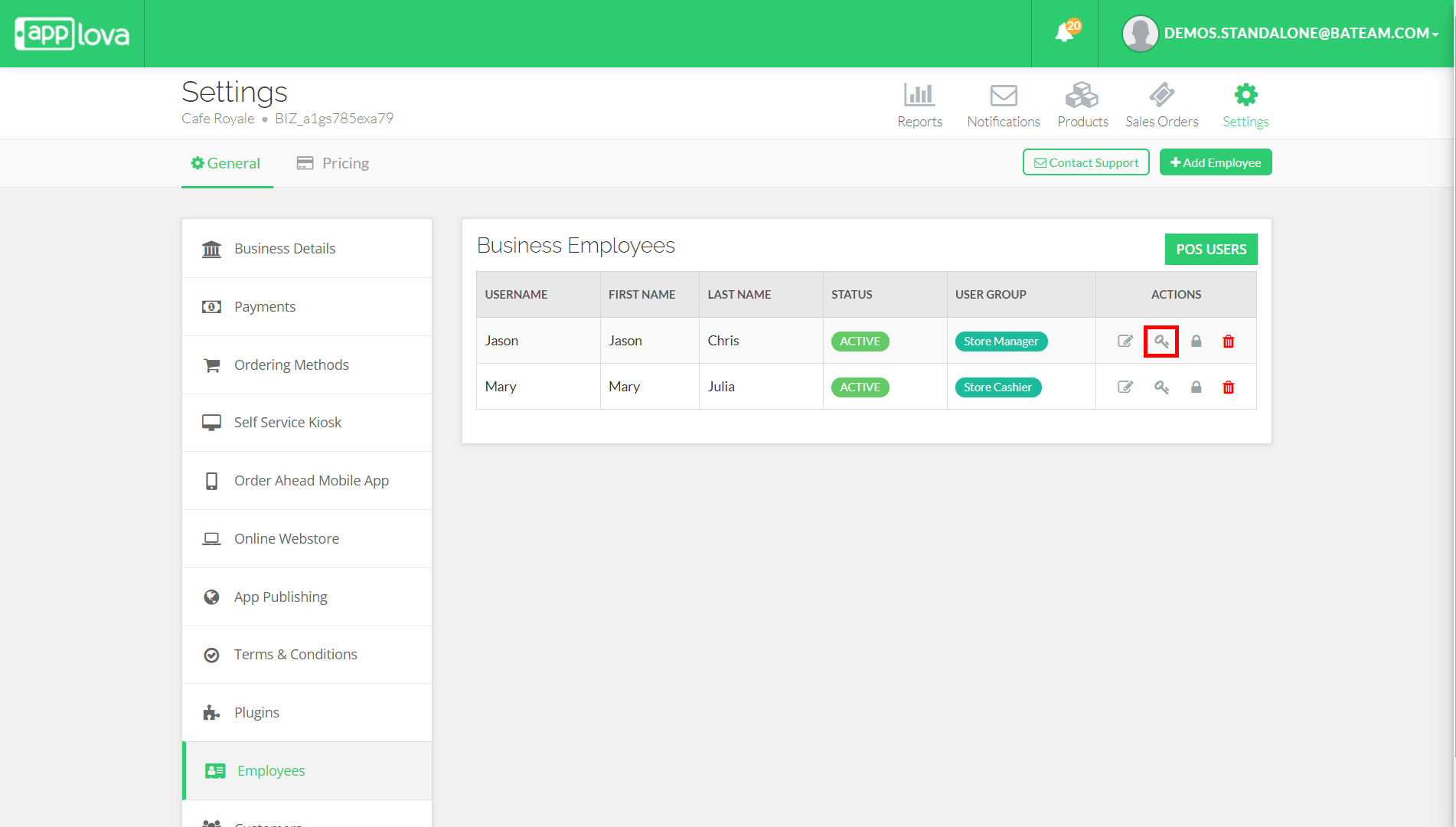
Click "Employees" and click "Change PIN" icon.
Step 4
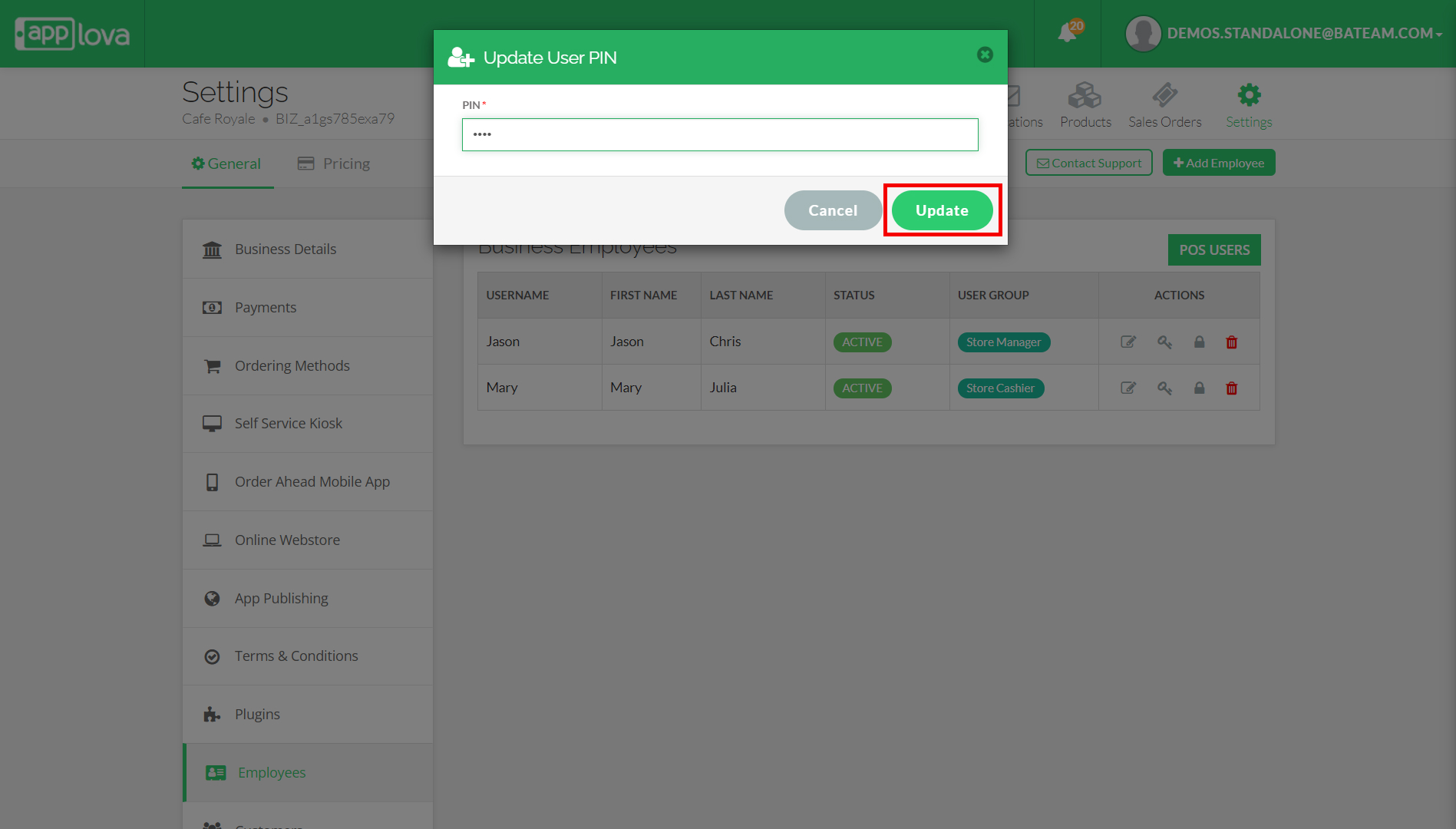
Enter the new PIN and click "Update".
Related Articles
How to Add New Employees?
Step 1 Login to "Applova Merchant Web". Step 2 Click "Settings" and go to "General" tab. Step 3 Click "Employees" and then click on the "Add Employee" button. Image Link Step 4 Fill in the required fields, select the user group from the drop down and ...How to Suspend an Employee?
Step 1 Login to "Applova Merchant Web". Step 2 Click "Settings" and go to "General" tab. Step 3 Click "Employees" and click "Suspend User" icon. Image Link Step 4 Click "Confirm". Image LinkHow to Edit Existing Employees?
Step 1 Login to "Applova Merchant Web". Step 2 Click "Settings" and go to "General" tab. Step 3 Click "Employees" and click "Edit User" icon. Image Link Step 4 Edit the required fields. Username will remain un-editable. Image Link Step 5 Click ...How to Manage Product Image via Merchant Web?
This feature allows merchants to manage product images through the Merchant Portal. Merchants can use this feature to add, update, or remove product images, helping keep their online menu visually accurate and appealing to customers. How to Add ...How to Edit Category Details via Merchant Web?
Step 1 Login to "Applova Merchant Web". Step 2 Click "Products" and go to "Categories" tab. Step 3 Click "Edit" and select "Edit Category Details". Image Link Step 4 Edit the required fields and click "Update". Image Link