How to Download and Use Promo QR Codes at the Kiosk?
 Supported Domain: Standalone, Clover(elo+clover), Square
Promo Qr codes allow merchants to share promo codes with customers in a scannable format. Customers can scan the QR code at the kiosk checkout to apply the promo code automatically. Manual promo code entry will still remain available for customers who prefer to enter the promo code directly.

Use Case Scenario:
HarborGrill is running a lunch promotion and wants kiosk customers to apply the discount without manually entering a promo code. The restaurant downloads the promo QR code from the Merchant Portal and displays it near the kiosk, allowing customers to scan or hold up the QR code at checkout so the discount can be applied automatically.
By using this feature, HarborGrill is able to:
Let customers apply promo codes faster at the kiosk.
Reduce manual promo code entry errors.
Keep manual promo code entry available for customers who do not have the QR code.
Make printed promotions easier to use during in-store campaigns.
Ultimately, this helps HarborGrill improve the kiosk checkout experience and make promo campaigns easier for customers to redeem.
How to Download a Promo QR Codes via the Merchant Portal?
Step 1
Log in to the Applova Merchant Portal.
Log in to the Applova Merchant Portal.
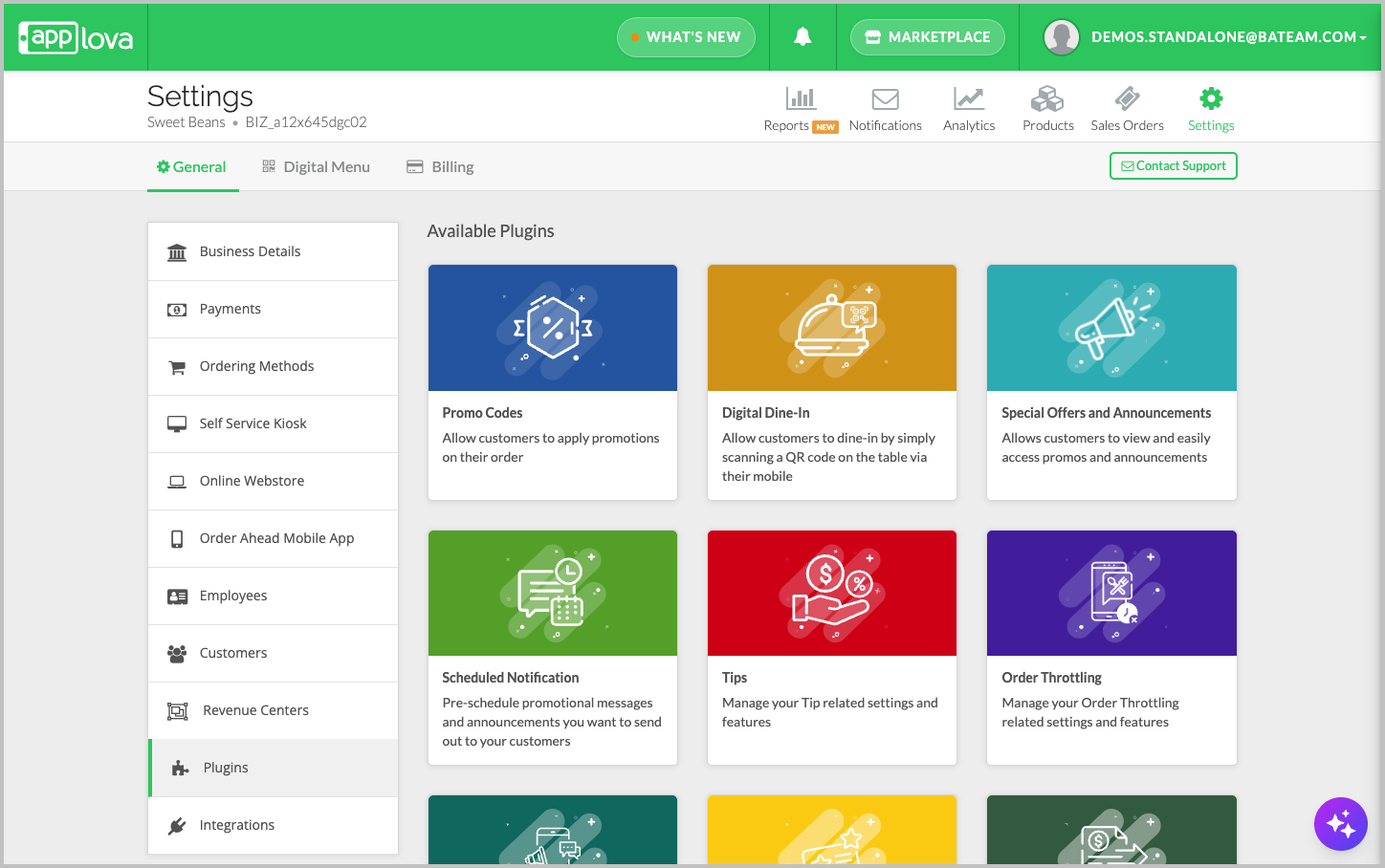
Step 3
In the Manage Promo Codes screen, click on "More" in the required promo code
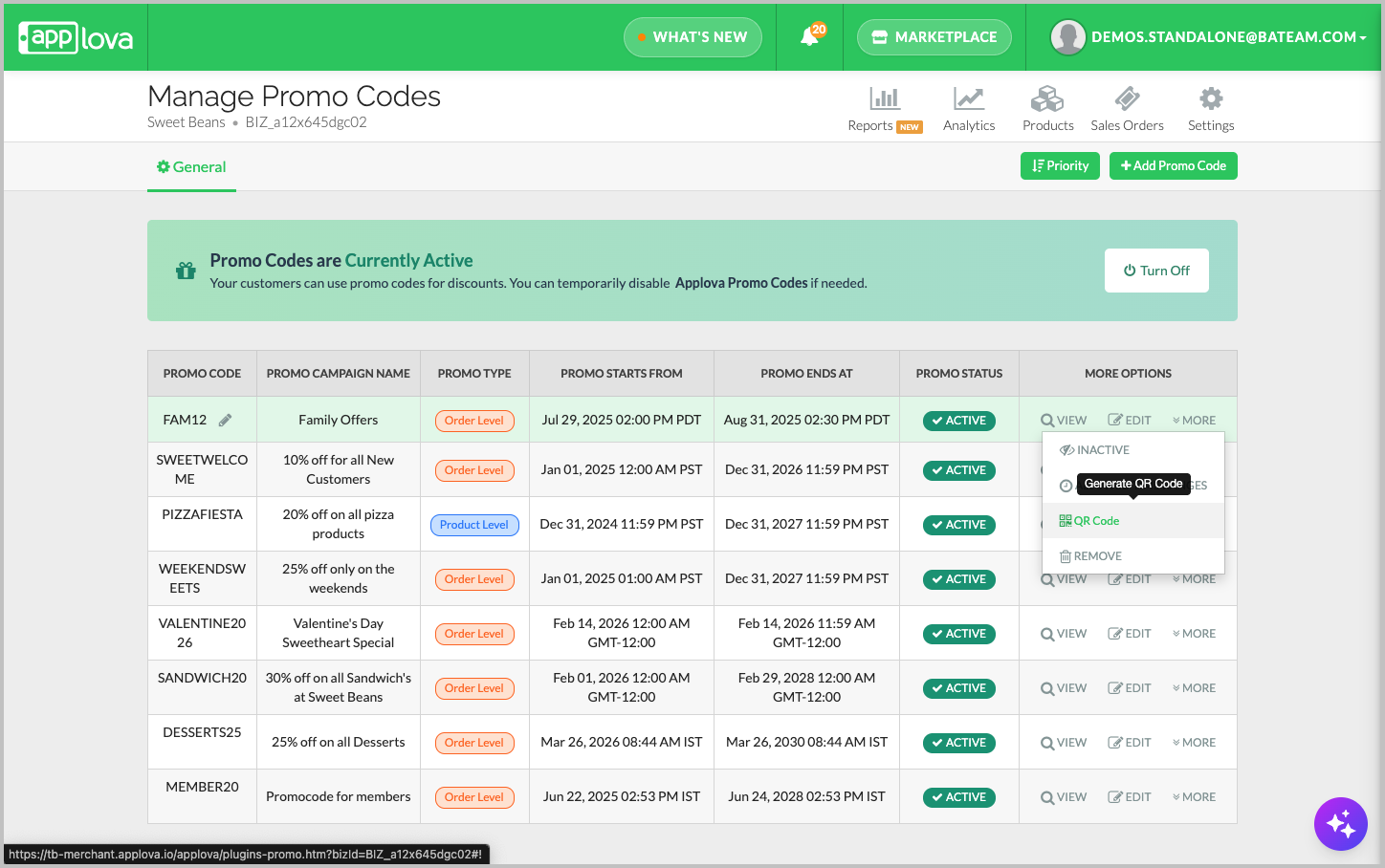
Step 4
Click “Download QR Code”
Step 5
A QR Code popup will appear with the selected promo QR code.
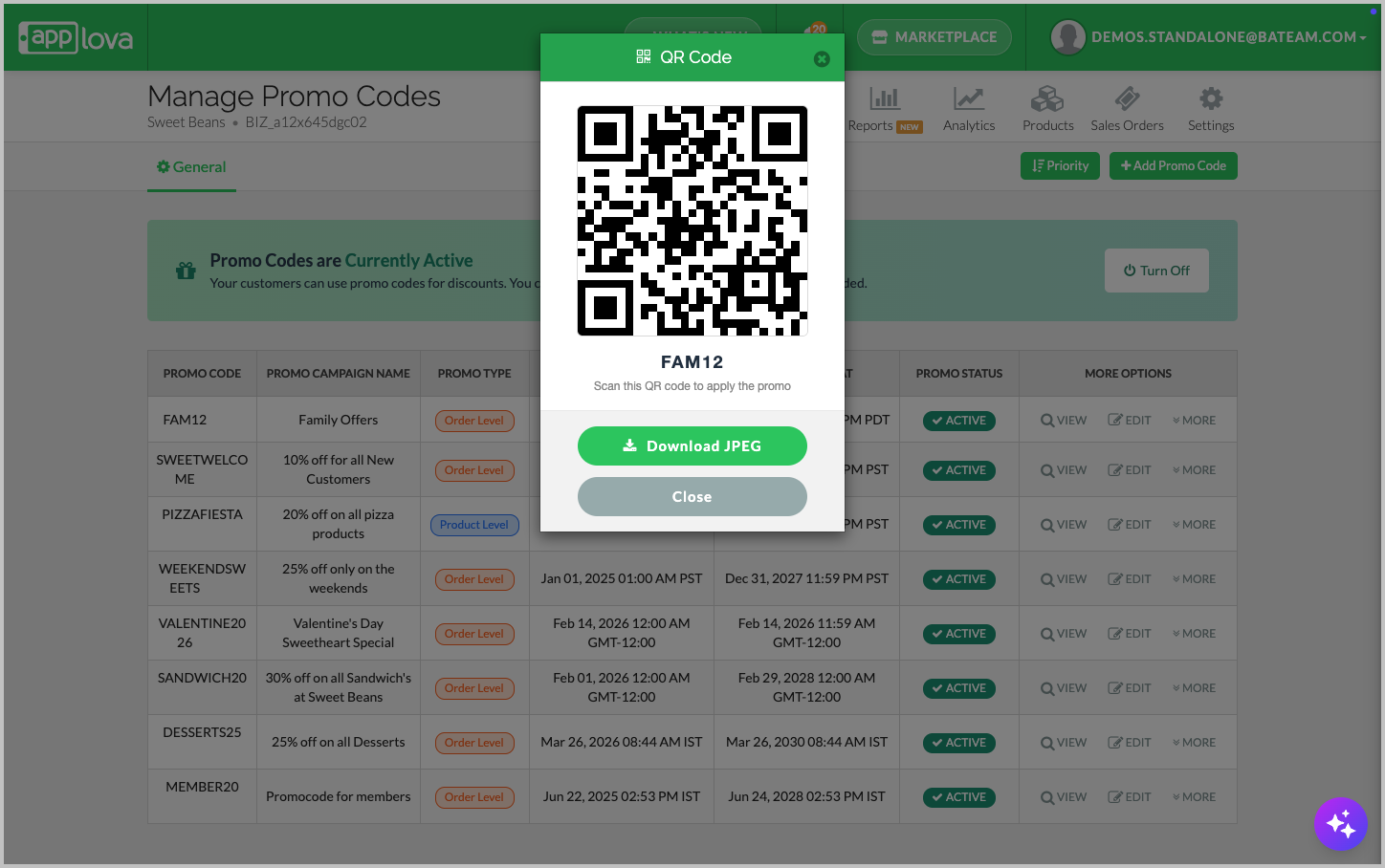
Step 6
Click “Download JPEG” to download the QR code.
Note: The downloaded QR code can be printed, displayed near the kiosk, or shared with customers so they can scan it during kiosk checkout.
How to Use the Promo QR Codes at the Kiosk?
Step 1
At the Kiosk checkout screen, click on “Have a promo code?”
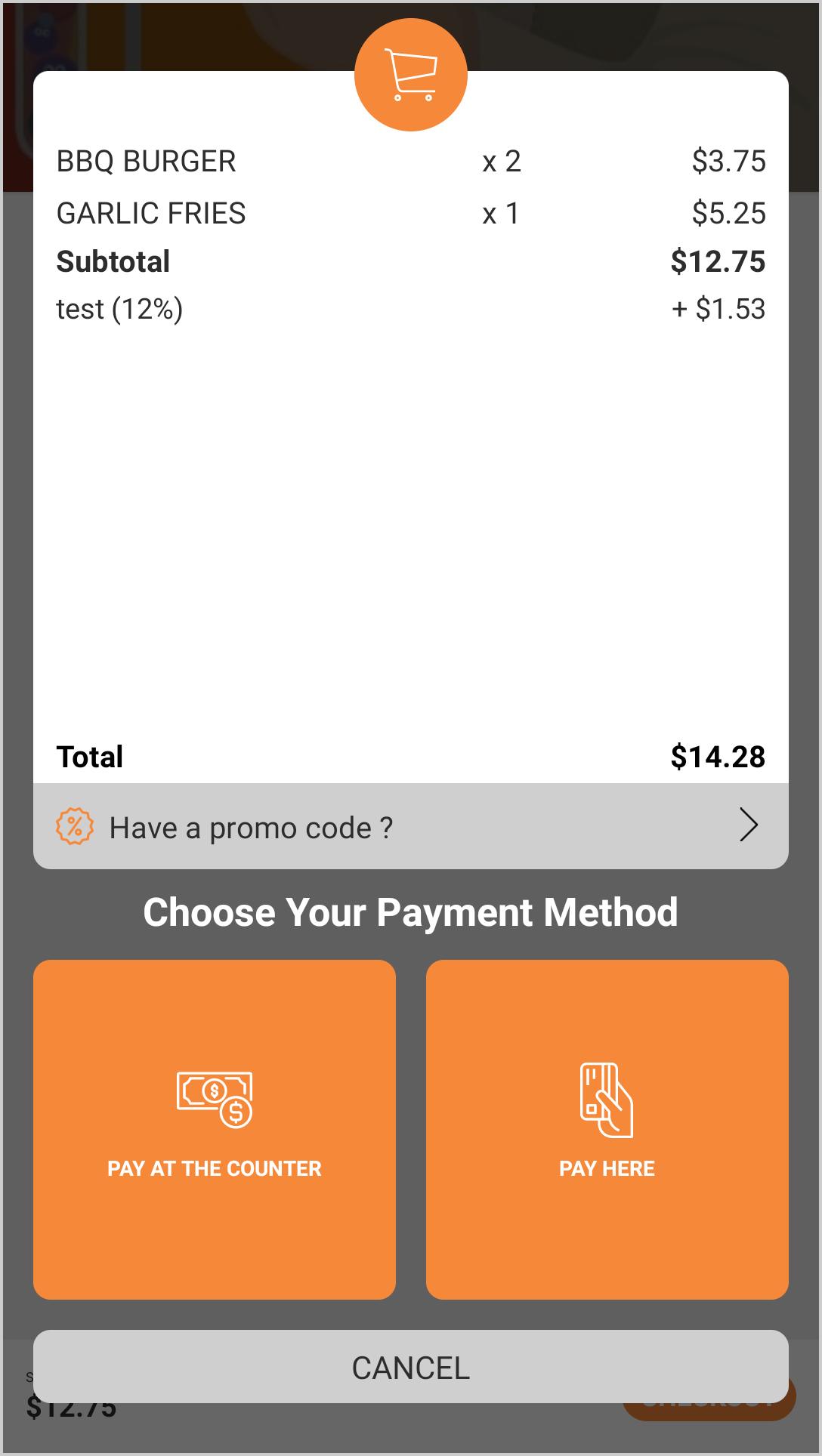
Step 2
Click “Scan a Promo Discount QR.”
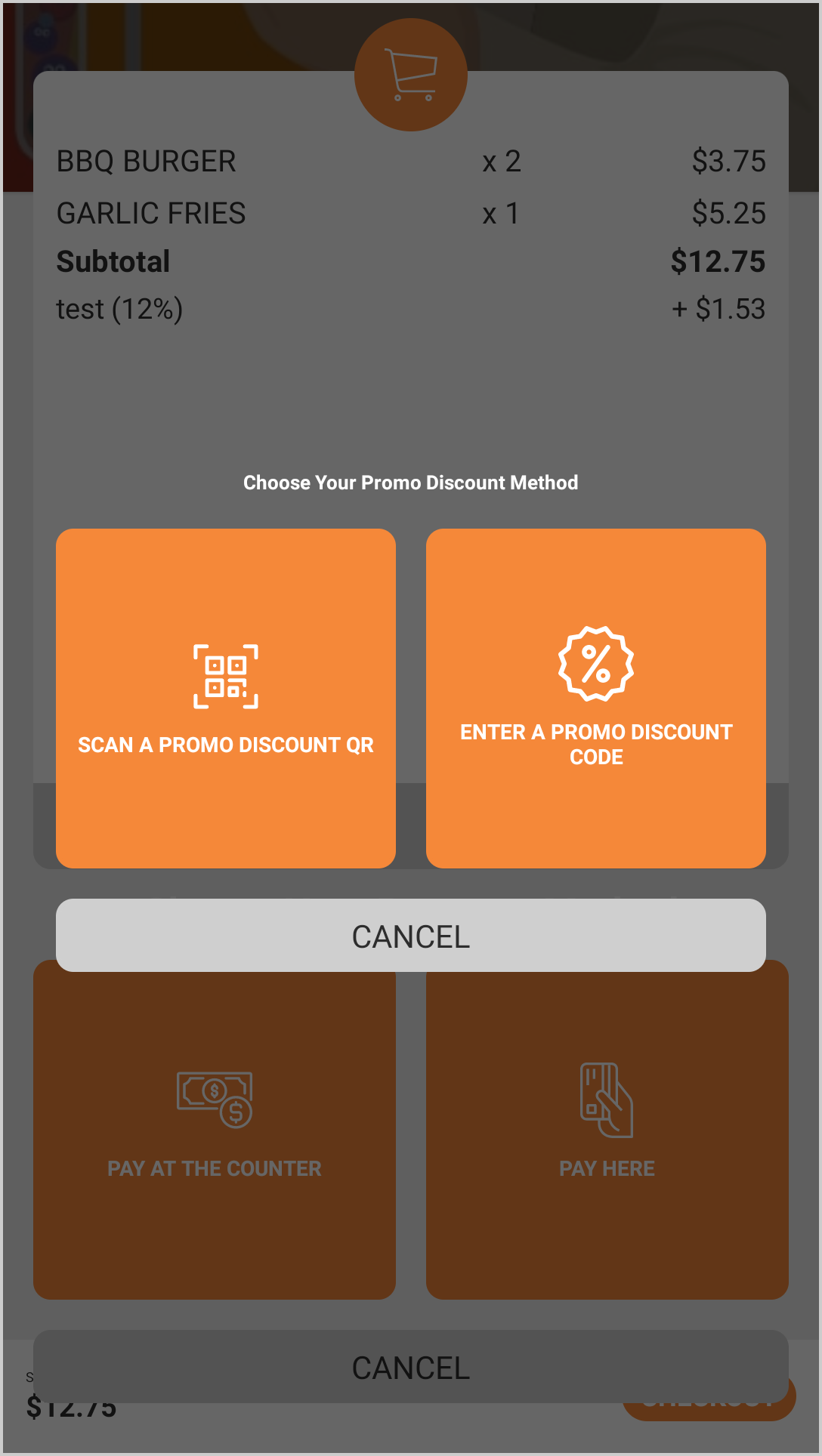
Step 3
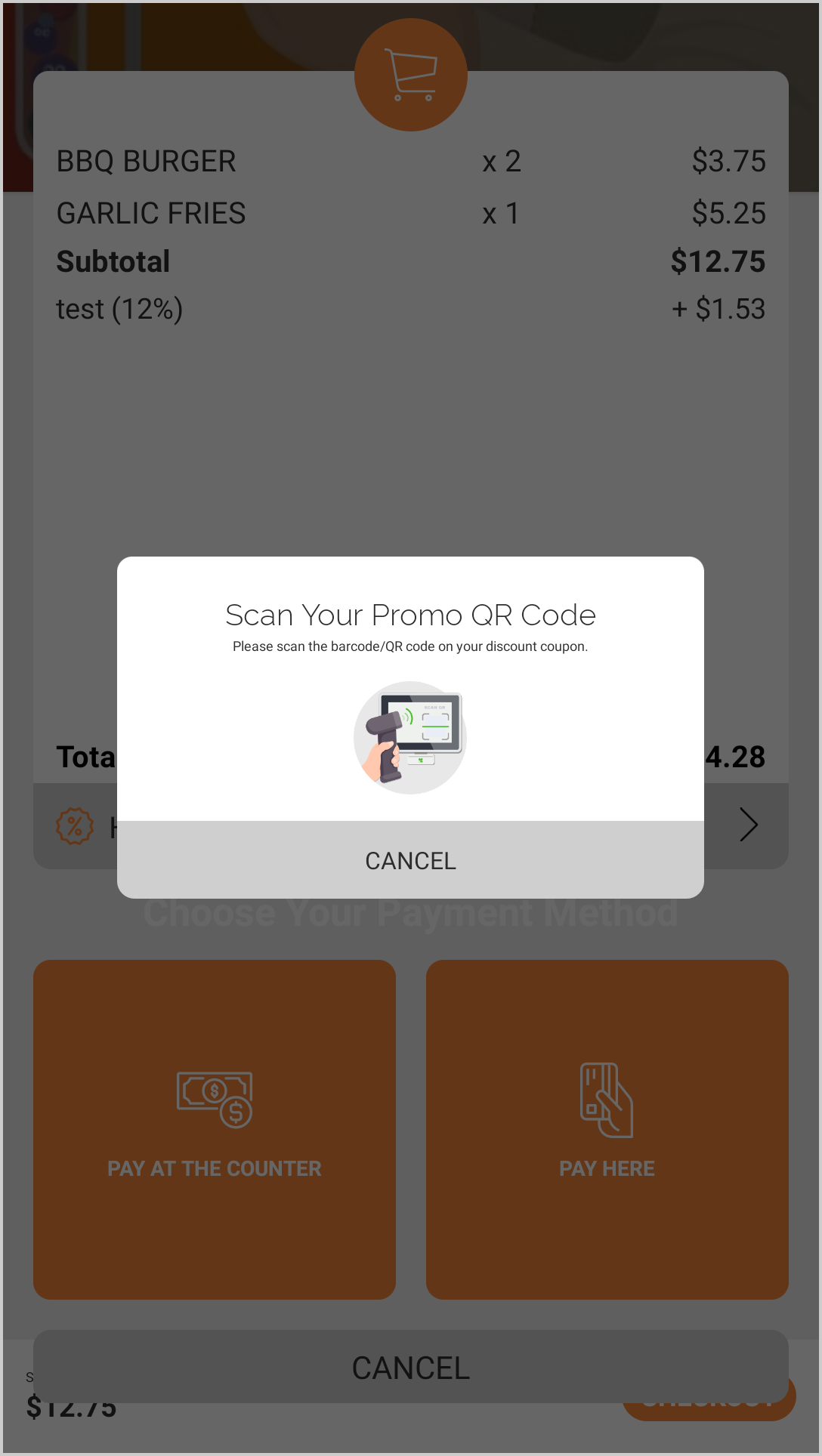
Step 4
If the promo code is valid and applicable to the order, the discount will be applied to the cart and reflected in the order total.
 Customers can also hold up the promo QR code at the checkout screen. The kiosk will automatically detect and apply the promo code without requiring the customer to click “Have a promo code?”.
Related Articles
Related Articles
Managing Order Level Promo Codes
This feature allows the merchant to add a promo discount for the whole order. A promotion can be added as a percentage and a flat amount as well. Promo code feature is enabled by default Note:Promo Codes can also be activated through the Applova ...How to Configure Promo Codes for Specific Channels via Merchant Portal?
This feature allows merchants to control which sales channels (POS/ Kiosk/ Webstore/ Mobile App/ Digital Dining) accept specific promo codes. By enabling or disabling channels, merchants can tailor promotions to the platforms that best fit their ...How to Show Promo Codes in the Webstore Promo List View
The promo list view feature on the Webstore checkout page allows customers to browse and apply available promotions without needing to manually enter promo codes. This improves the ordering experience by making discounts more visible and accessible. ...Managing Product Level Promo Codes
This feature allows the merchant to add promo discount for a selected product. Promo code feature is enabled by default Note: Promo Codes can also be activated through the Applova Marketplace aswell. Once activated, Promo Codes will be enabled as a ...Managing Promo Codes for Guest Users of a Business
You can use this plugin to let your guest users apply promo codes for their orders. Please check with Applova Support team to ensure that the promo code and guest checkout features are enabled for your business. Step 1 Login to "Applova Merchant ...