How to Add the Merchant's Credit Card on Merchant Web?
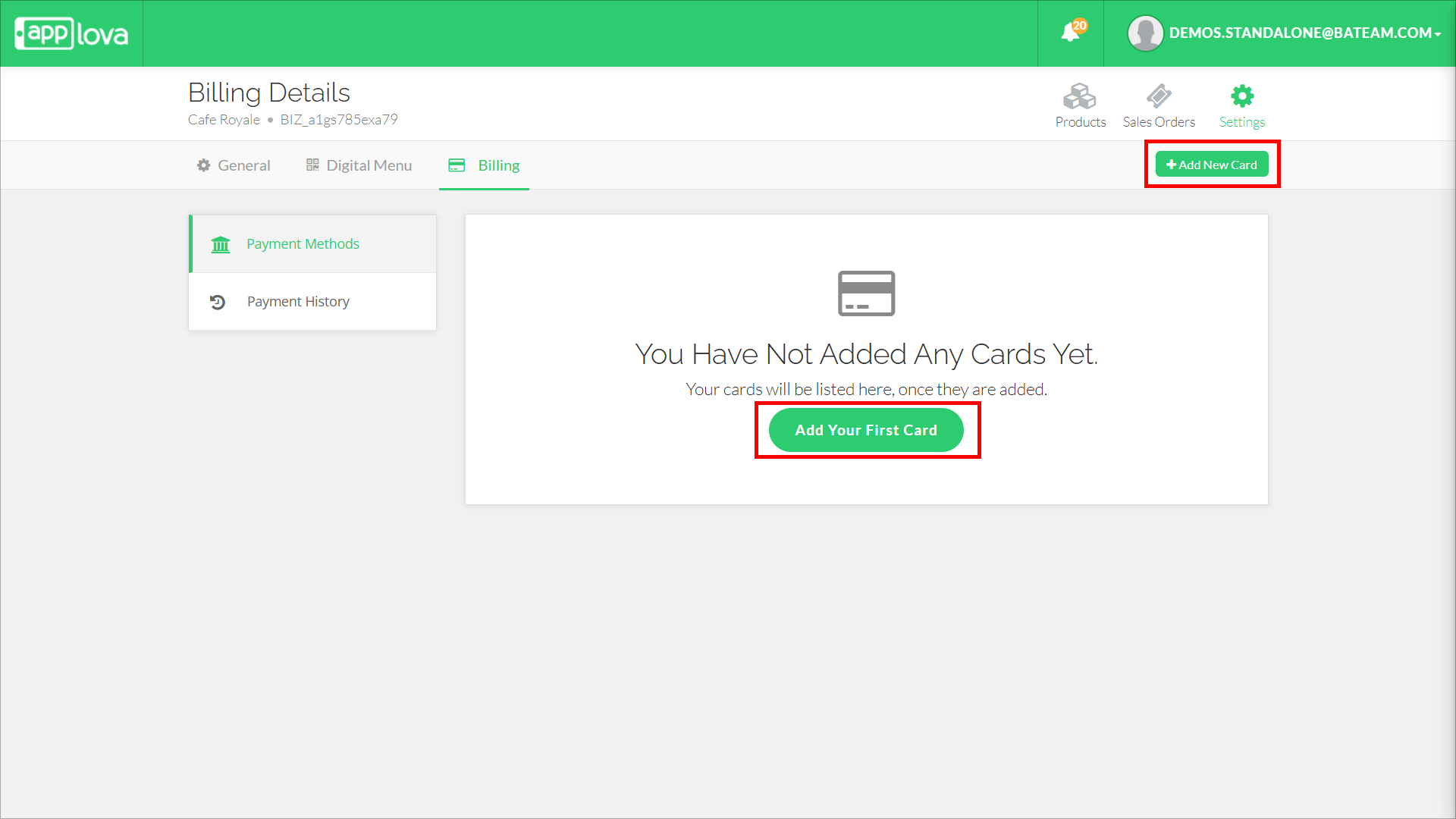
This allows the merchant to add multiple credit cards to the Merchant Web for billing purposes.
How to Add a Credit Card?
Step 1
Login to "Applova Merchant Web".
Step 2
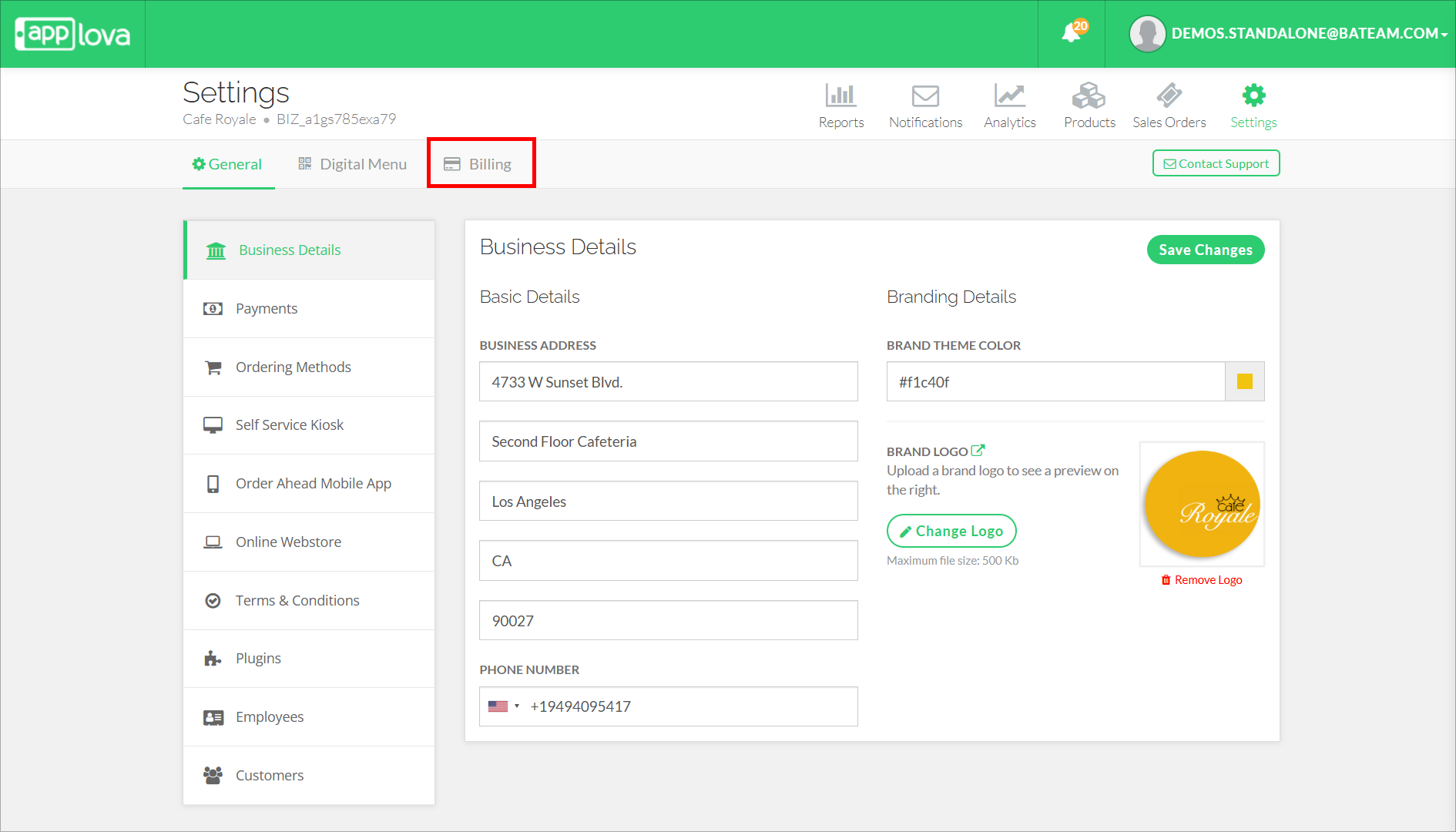
Click "Settings" and go to the "Billing" tab.
Step 4
Enter the card number, expiry date of the card, CVV and click on "Proceed" to add the card.
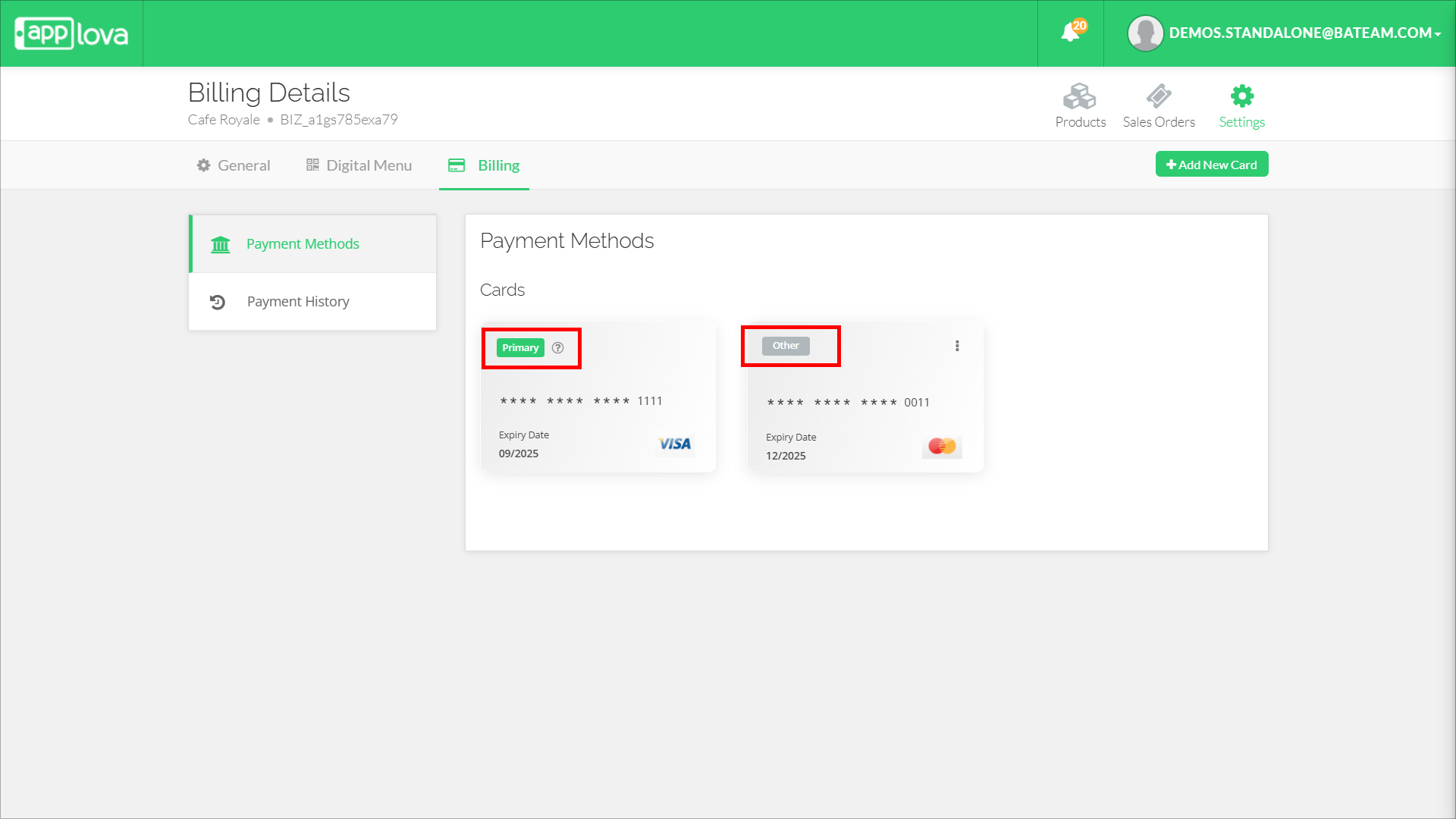
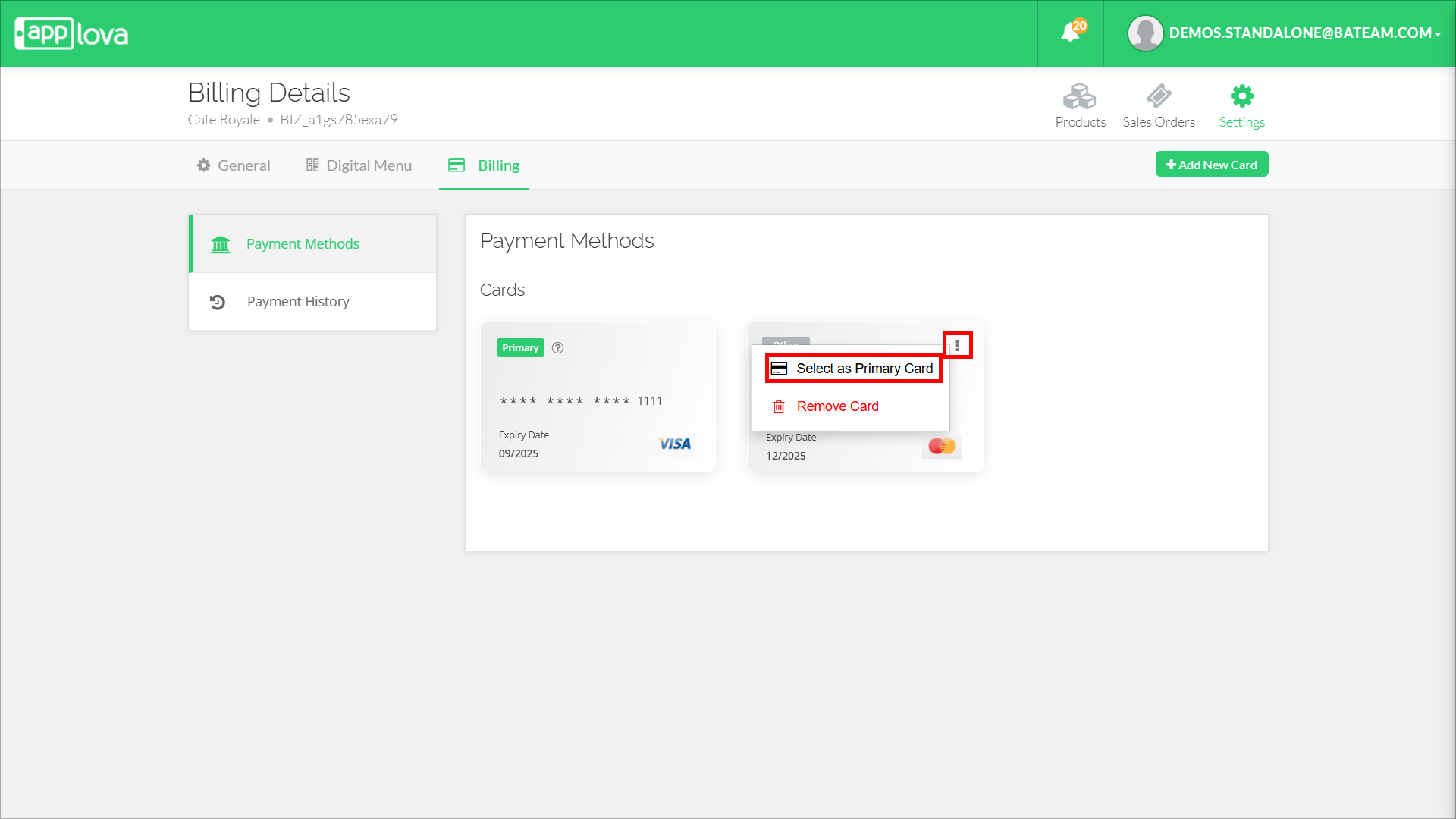
 The first card added will be considered as the "Primary" card. All the other cards added afterwards will be displayed as "Other".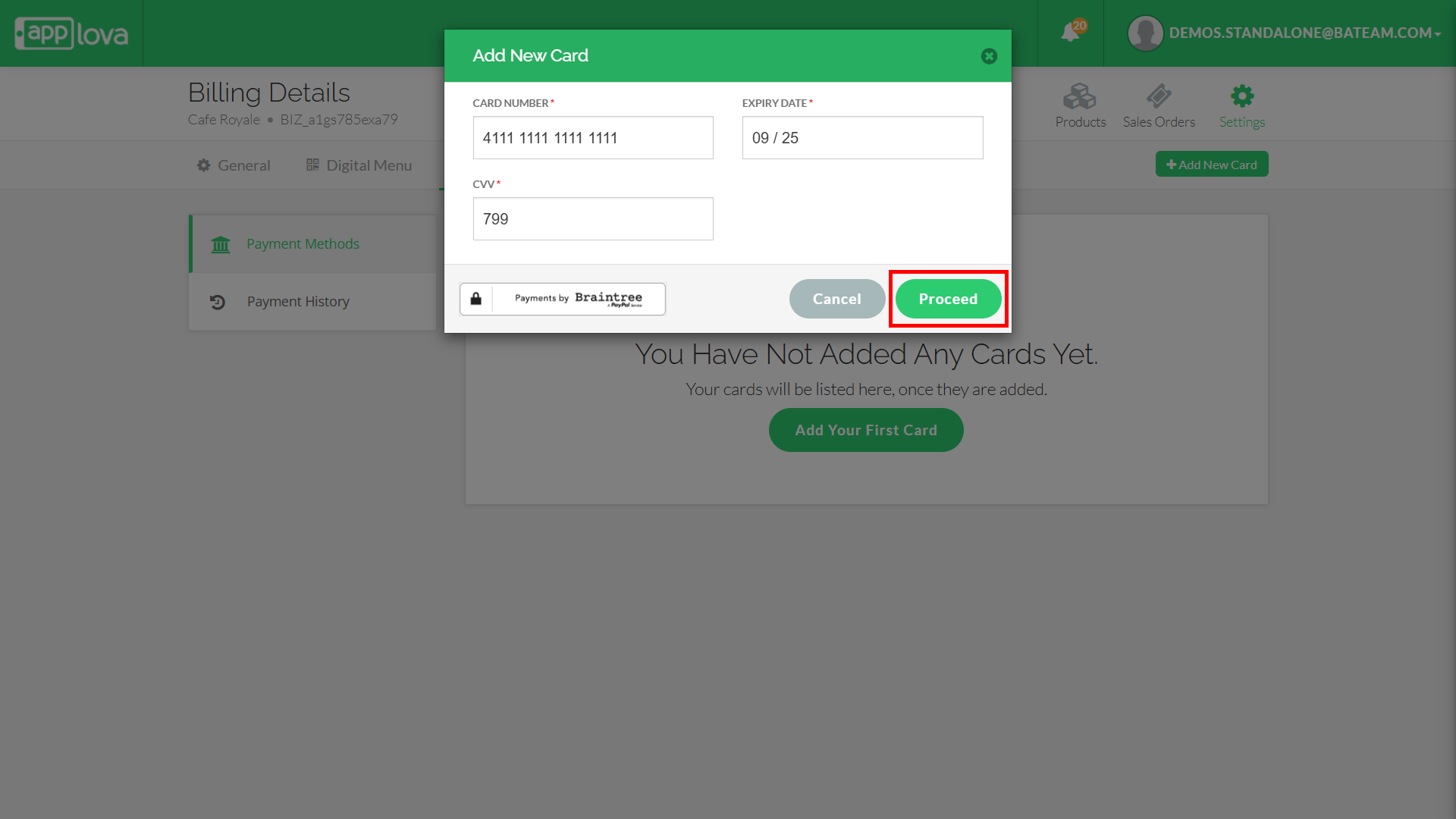
How to Change the Primary Card?
Click "፧" on the card you wish to set as the Primary card and then click on "Select as Primary Card".
How to Delete an Added Credit Card?

The Primary card cannot be deleted. Only a card that is marked as "Other" can be deleted
Related Articles
How to Add Merchant Bank Details on Merchant Web?
This allows the merchant to add their bank details to the Merchant Web for billing purposes. How to Add Bank Details? Step 1 Login to "Applova Merchant Web". Step 2 Click "Settings" and go to the "Billing" tab. Step 3 Under "Bank Details" click on ...How to Manage Product Add-On(s) via Merchant Web?
What are Product Add-On(s)? Product Add-Ons are extra customizations that can be added to a product to suit the customers' needs. (i.e., Sugar levels for Coffee, Toppings for a Pizza, Colors for a Shirt). The price of an Add-On product will be an ...How to Manage Products via Merchant Web?
This article explains how merchants can add, edit, duplicate, and delete products by following the steps provided. How to Add a Product? Step 1 Login to "Applova Merchant Web". Step 2 Go to "Products" and click on "Add New Product". Step 3 Fill in ...How to Add Nutritional Information of Products on Merchant Web?
You can enable the nutritional information feature for your business if you want to display nutritional information for the products on your menu. You will be able to display nutritional information for each product on its product detail page by ...How to Add Product Tags via Merchant Web?
This is a label or keyword associated with a specific product to help identify it. This will reflect only on the Kiosk. Step 1 Login to "Applova Merchant Web". Step 2 Under the "Products" tab click "Edit" on the product you wish to add the tag. Image ...