Activating Text Message Marketing via Marketplace
1. Through the Applova Marketplace
2. Directly through the Merchant Portal - Onboarding to Text Message Marketing via the Merchant Portal
This guide explains how to access the onboarding flow from the Applova Marketplace.
Scroll down to the "Add-ons" section and go to the "Marketing" section.
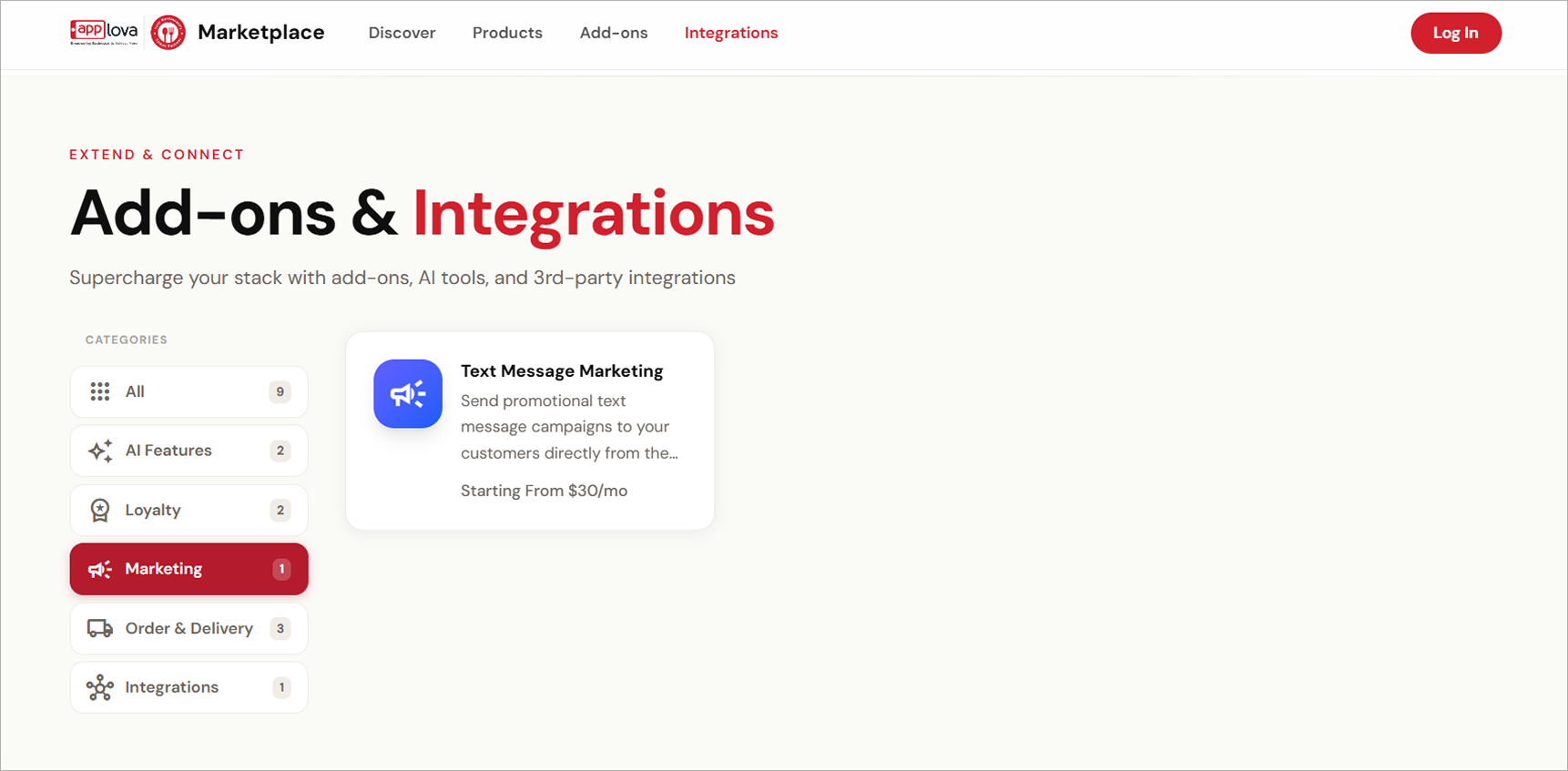
Click on the "Text Message Marketing" card.
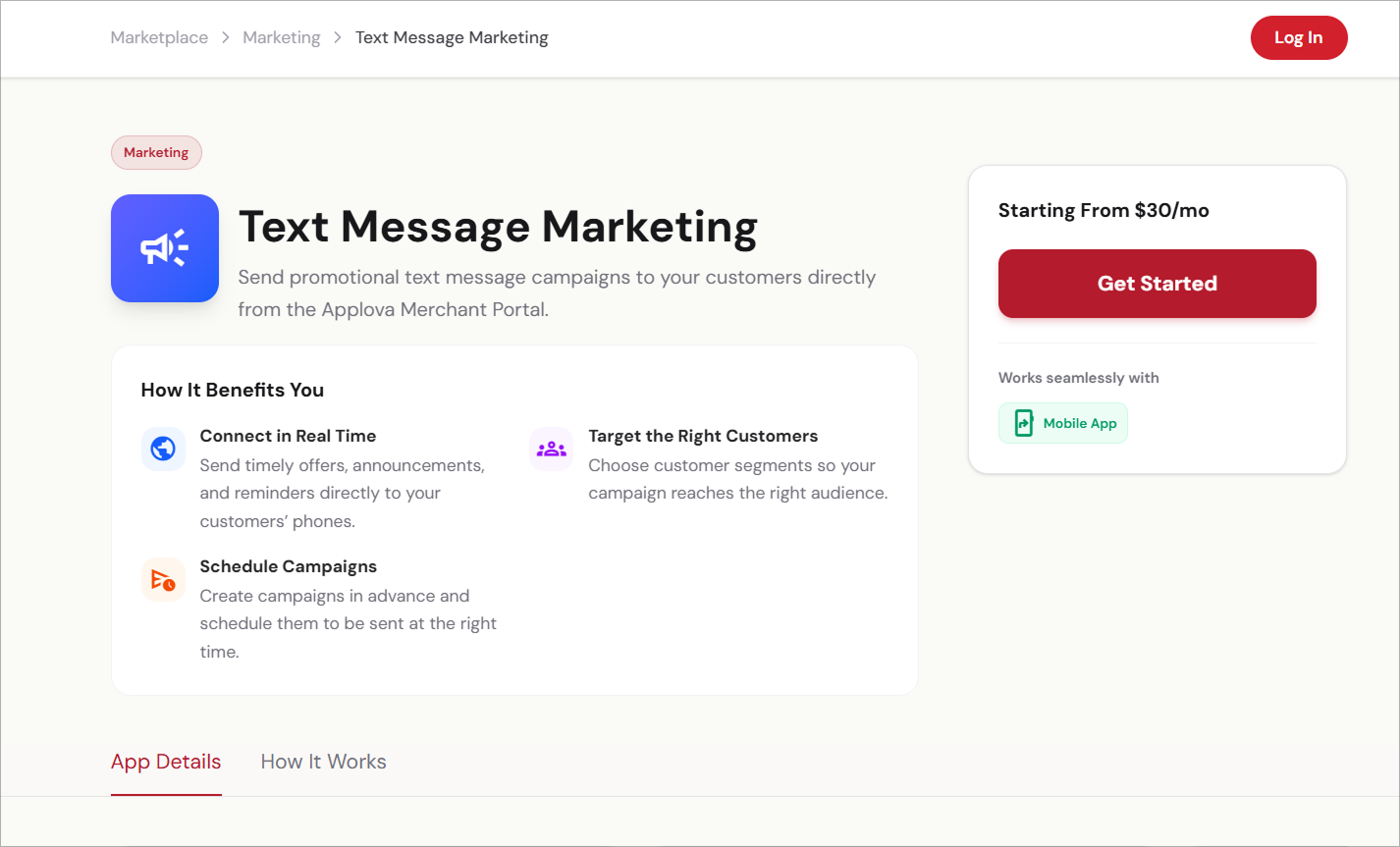
Then click on the "Get Started" button and you will be redirected to the Text Message Marketing "Packages" tab in Merchant Portal.
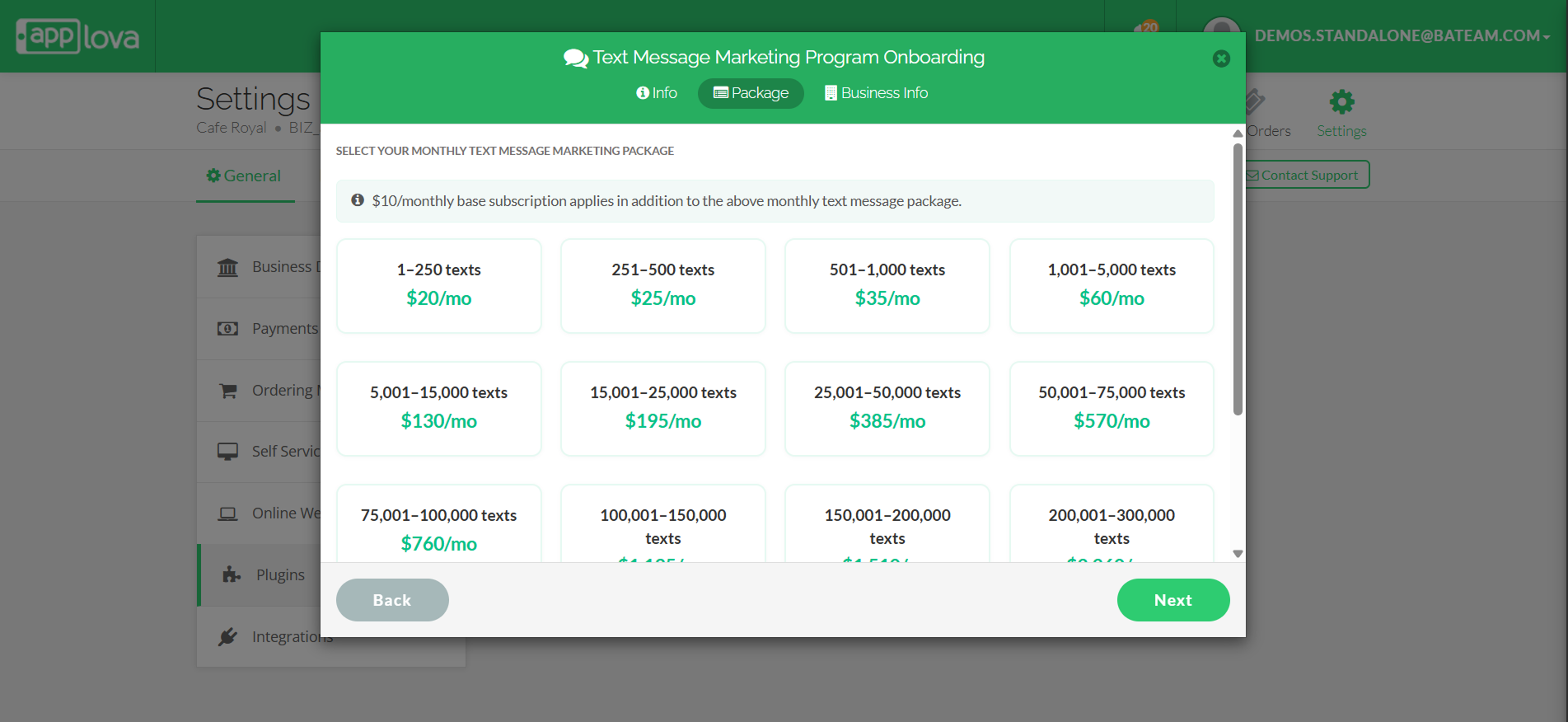
No. of Text Message that can be Sent | Package Price |
1–250 texts | $30/mo |
251–500 texts | $35/mo |
501–1,000 texts | $45/mo |
1,001–5,000 texts | $70/mo |
5,001–15,000 texts | $140/mo |
15,001–25,000 texts | $205/mo |
25,001–50,000 texts | $395/mo |
50,001–75,000 texts | $580/mo |
75,001–100,000 texts | $770/mo |
100,001–150,000 texts | $1,145/mo |
150,001–200,000 texts | $1,520/mo |
200,001–300,000 texts | $2,270/mo |
300,001–400,000 texts | $3,020/mo |
400,001–500,000 texts | $3,770/mo |
More than 500,000 texts | Contact us |
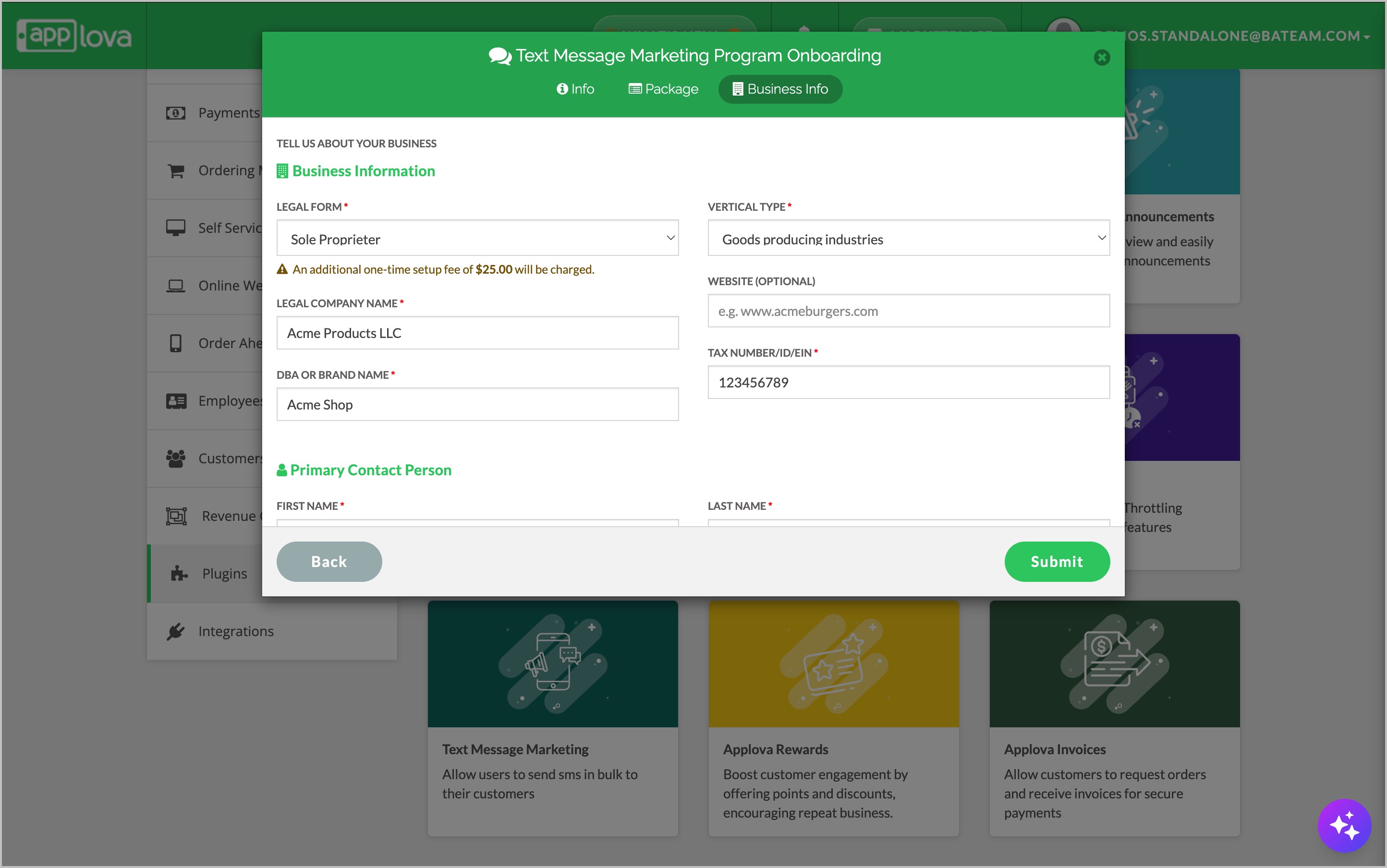
- Government: $50
- Non Profit: $50
- Private Profit: $50
- Public Profit: $60
- Sole Proprietor: $25
Business Information Field Definitions
These fields are used to verify the business, confirm ownership, and support compliance requirements for U.S. restaurant merchants.
Legal Form - The official business structure under which the restaurant is registered.
Options:
Government
Non Profit
Private Profit
Public Profit
Sole Proprietor
Vertical Type - The industry category of the business.
Options:
Travel, Hospitality and Transportation
Goods producing industries
Consumer products and services including Retails and eTails
Legal Company Name - The official registered name of the business as listed on tax, registration, or legal documents.
DBA or Brand Name - The public-facing business name that customers recognize.
Website - The official website or online ordering page for the restaurant. This field is optional.
Tax Number / ID / EIN - The business tax identification number used for official verification.
Primary Contact Person - The details of the main person responsible for completing the onboarding process and receiving communication about the Text Message Marketing Program.
Step 7
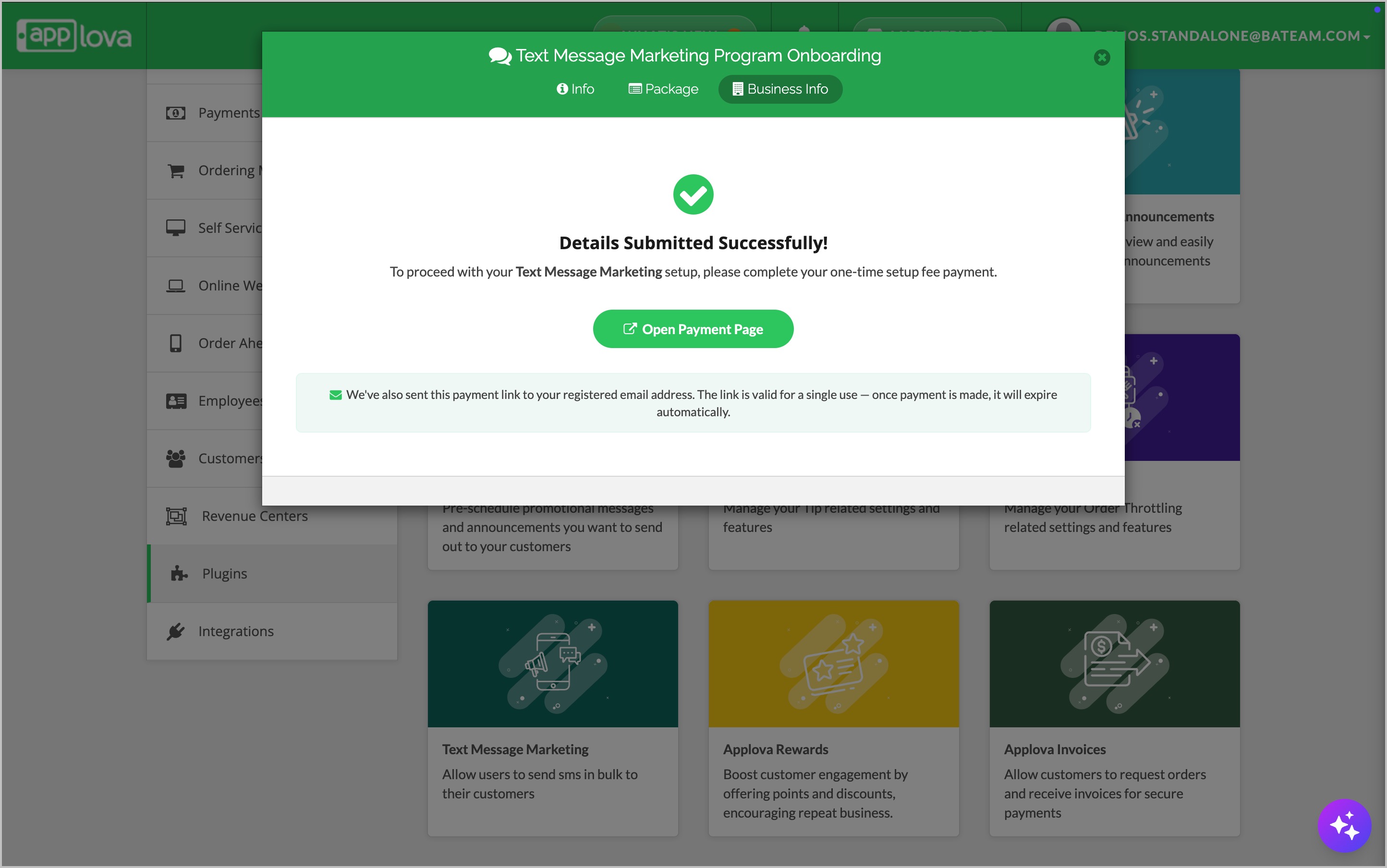
Step 8
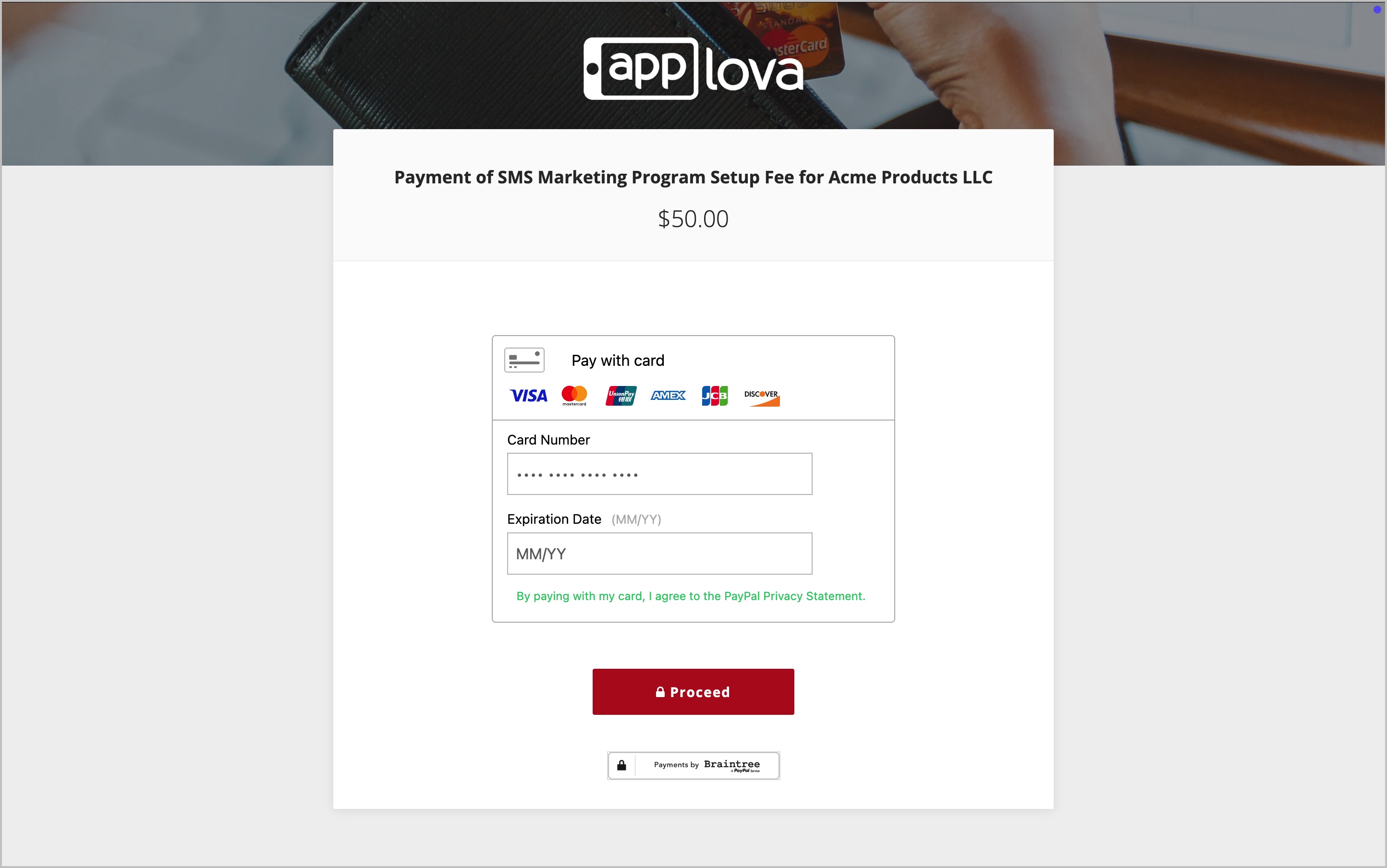
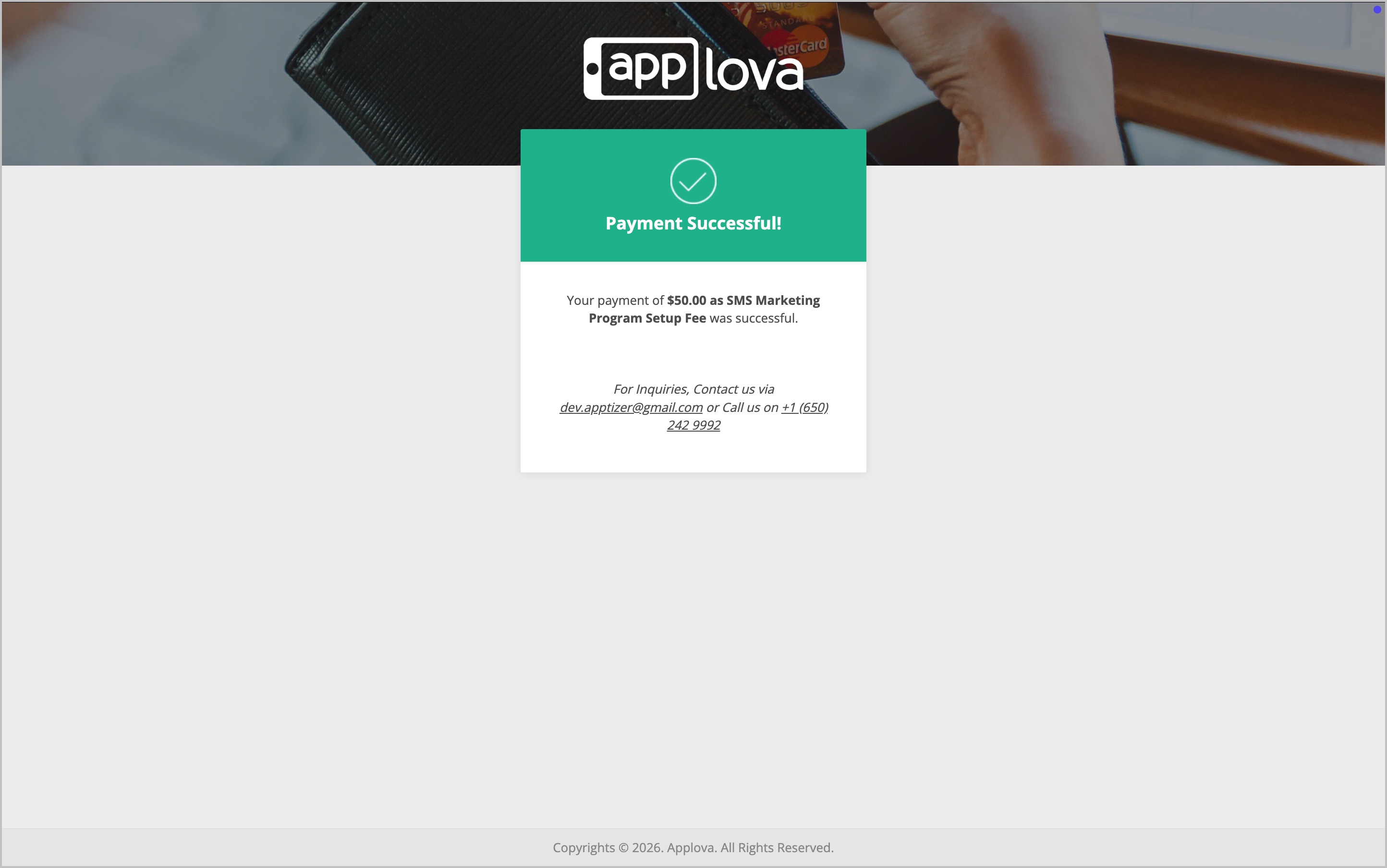
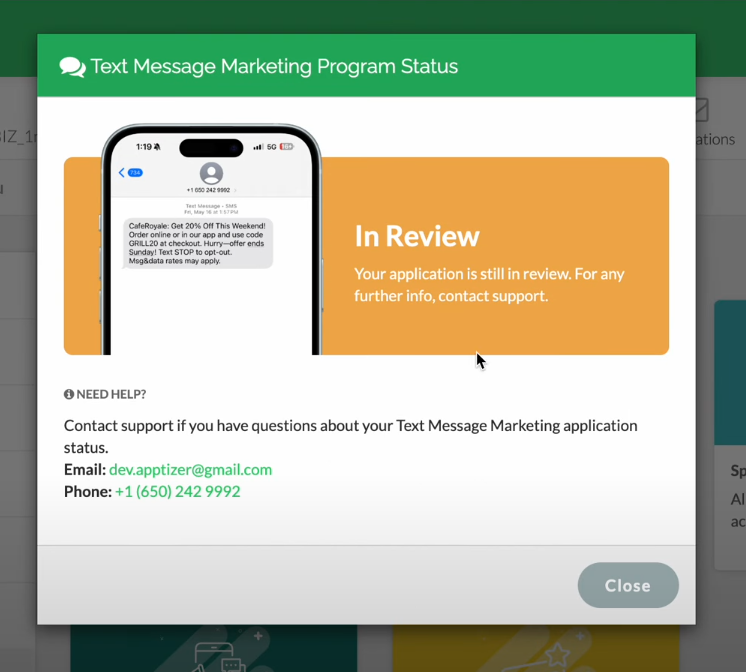
If payment is not completed, the “Setup Fee Required” popup will remain visible.
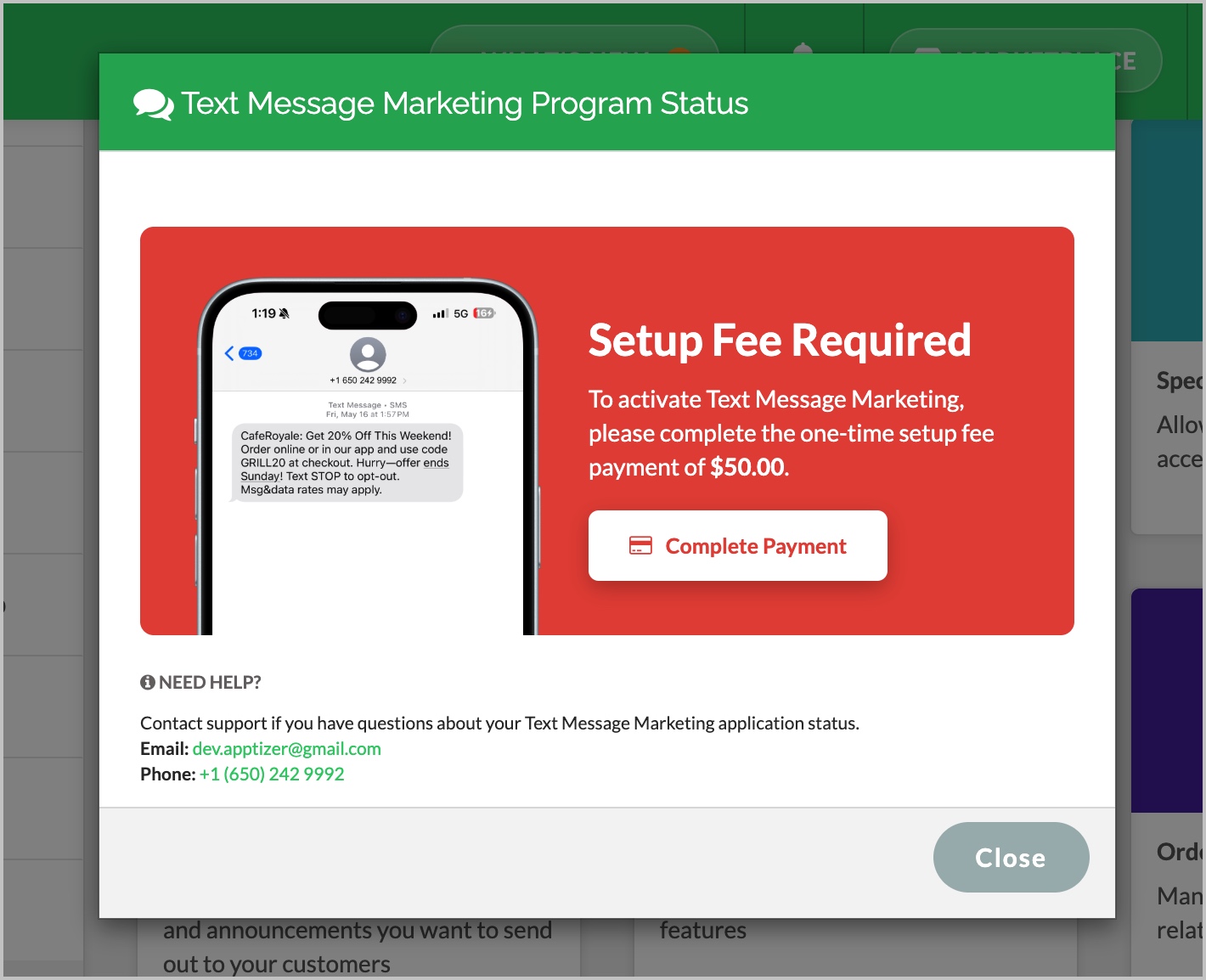
Image Link
Related Articles
Activating Analytics Dashboard via Marketplace
This guide explains how to self onboard to the Analytics Dashboard via the Applova Marketplace. Step 1 Go to the Applova Marketplace. Step 2 Then go to the “Add-ons” tab. Image Link Step 3 Locate and click on the “Analytics Dashboard” card. Image ...Activating Applova Tipping via Marketplace
This guide explains how to self onboard to the Tipping feature via the Applova Marketplace. Step 1 Go to the Applova Marketplace. Step 2 Then go to the “Add-ons” tab. Image Link Step 3 Locate and click on the “Tipping” card. Image Link Step 4 Then ...How to Access the Applova Marketplace via Merchant Portal?
This feature allows merchants to quickly access the Applova Marketplace directly from the Merchant Portal. Step 1 Log in to the Merchant Portal. Step 2 Click on “Marketplace” from the top navigation bar. Image Link Step 3 You will be redirected to ...Applova Marketplace
Applova Marketplace is a centralized platform where merchants can discover, browse, and self-onboard to Applova products, plugins, add-ons, and integrations. Image Link Products Products are core Applova solutions that help merchants run, manage, or ...