Top Sellers on Order Ahead App
The Top Sellers feature on the Mobile App highlights a restaurant’s most frequently purchased items. This allows customers to quickly identify and order trending products without needing to browse through the entire menu. By automatically showcasing popular choices, restaurants can guide new or indecisive customers towards items that are tried, tested, and well-loved.

This feature is enabled by default
How it Works?
Step 1
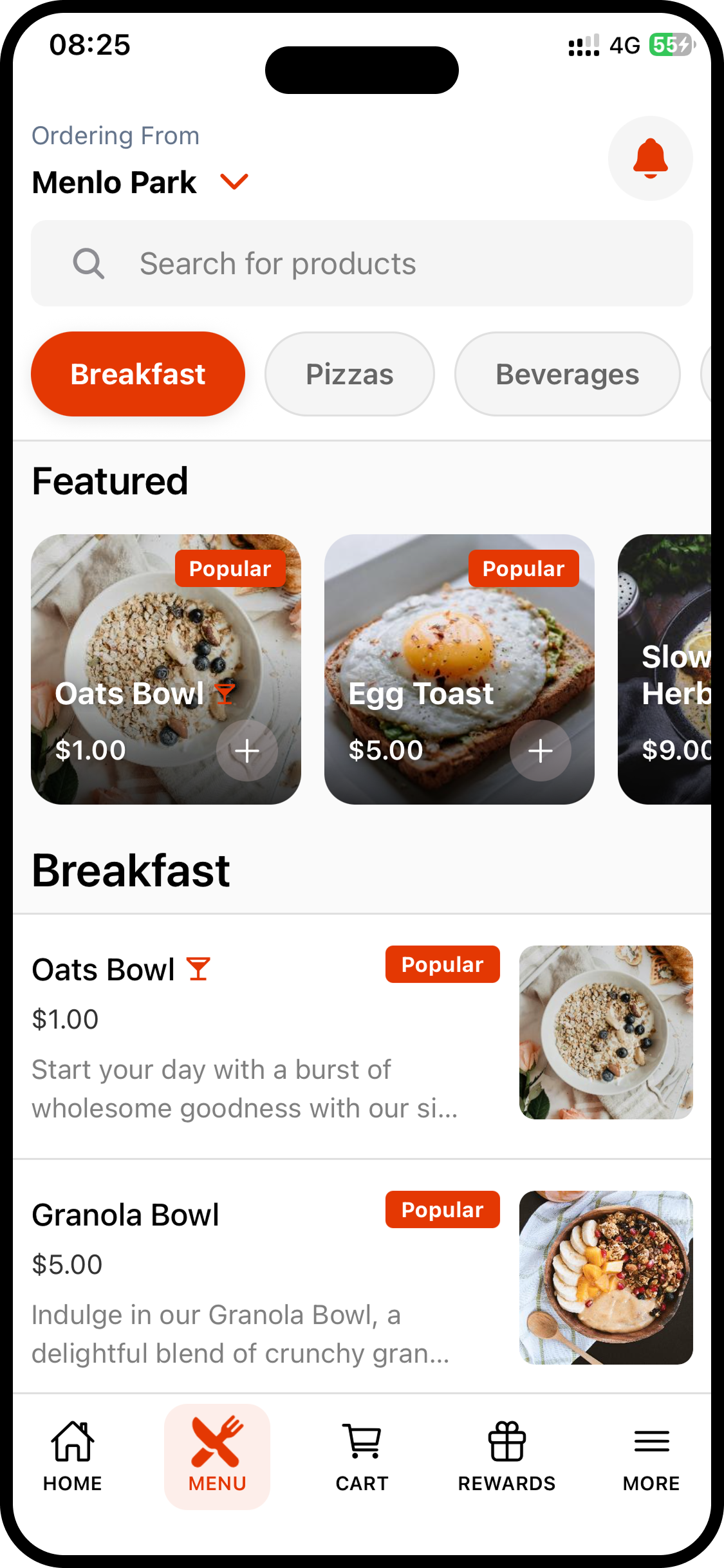
Login to the mobile app and navigate to the "Menu Page", then scroll through the product list. You will notice certain items highlighted with a "Best Sellers" tag, making them easier to identify.
The term "Popular" can be customized based on the business need.
Step 2
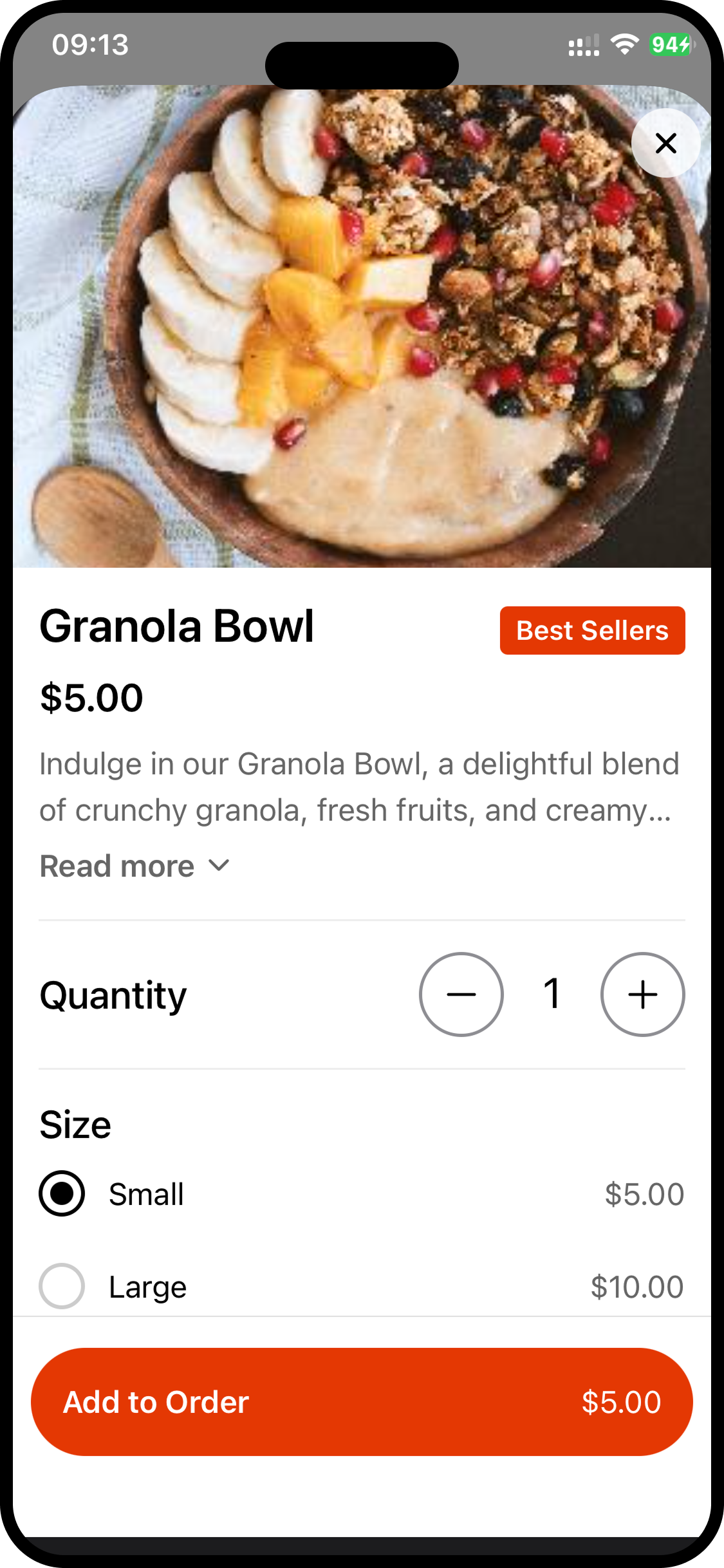
The customer can tap on any of the labelled products to instantly add it to their cart, eliminating the need to search or scroll through the menu.
The customer can tap on any of the labelled products to instantly add it to their cart, eliminating the need to search or scroll through the menu.
Step 3
The customer can then proceed to checkout and complete payment using their preferred payment method.
The customer can then proceed to checkout and complete payment using their preferred payment method.
Related Articles
Smart Product Recommendations on the Order Ahead App
This is a default feature available only for registered customers. Smart Picks brings a personalized ordering experience by using AI to highlight products they’re most likely to enjoy based on their past purchase history. This feature helps repeat ...Product Subscriptions on the Order Ahead App
Product Subscription allows restaurants to offer membership-style plans for specific menu items. Instead of customers buying the same item every time they visit, they can subscribe to a plan and redeem that item during a set time period. Restaurants ...Displaying Dynamic Fields on Order Ahead App
Business Dynamic Fields give merchants a flexible way to collect and manage custom information inside the Order Ahead app. Instead of being limited to standard, system-defined fields, merchants can create their own inputs to match their operational ...How to Delete the Customer Account on the Order Ahead App?
Follow the steps given below to delete the customer account on the Order Ahead App. Once a customer account is deleted, all associated information will be permanently lost and cannot be recovered. Step 1 Tap on the app to open it and click on "Sign ...How to Use OTP-Based Sign-in on Order Ahead App?
The OTP Sign-In feature introduces a secure, password-free login flow where users authenticate themselves through a One-Time Password (OTP) sent via SMS. This feature enhances convenience and security by allowing both existing and new customers to ...