How to Mark Products as Featured on Merchant Web?
 Supported Domains : Kiosk (Argon Theme), Webstore V2, Webstore V3
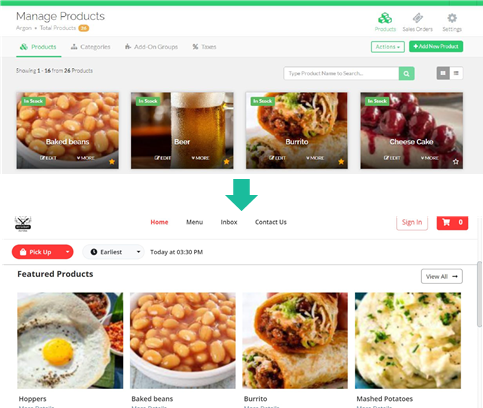
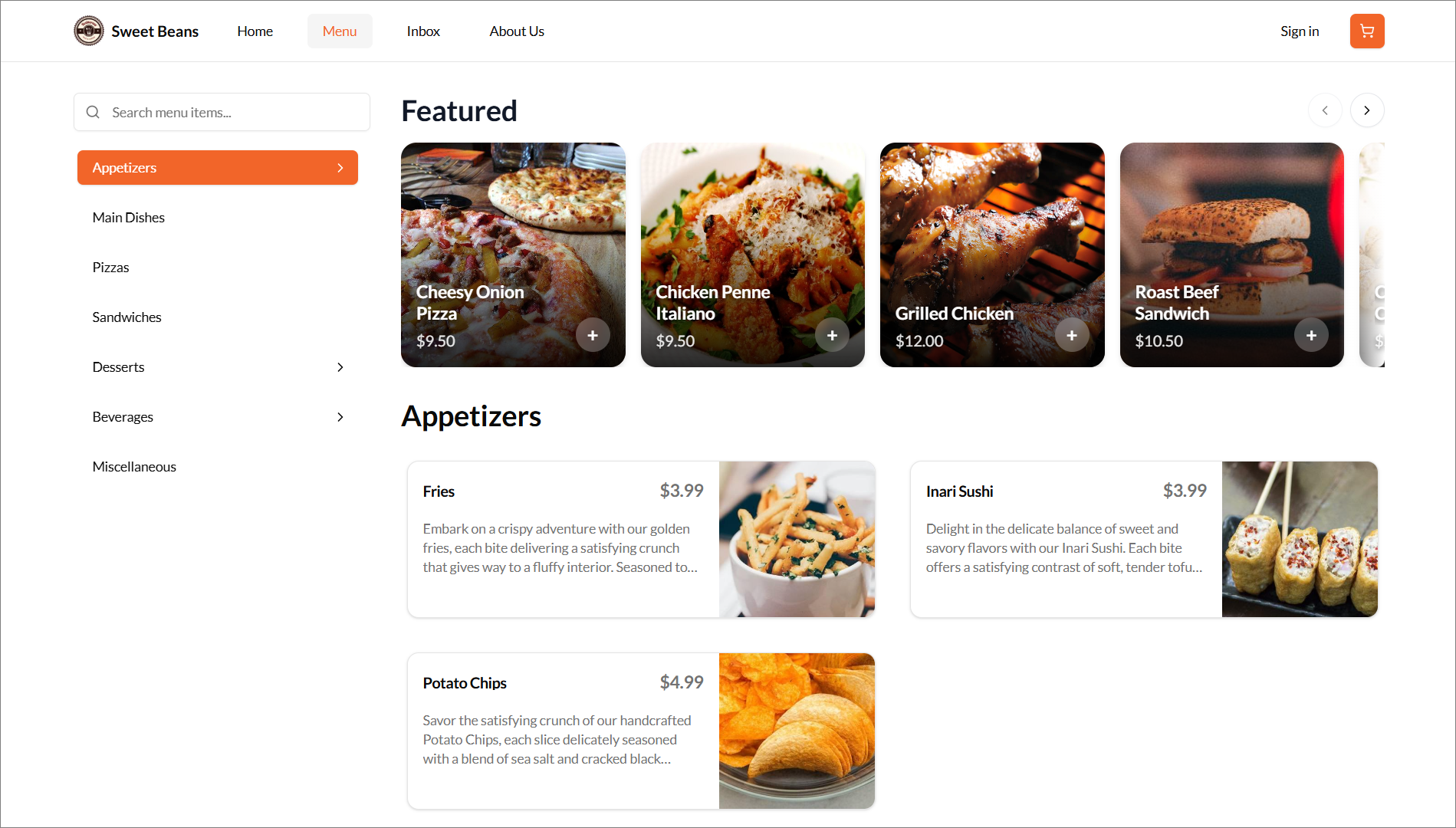
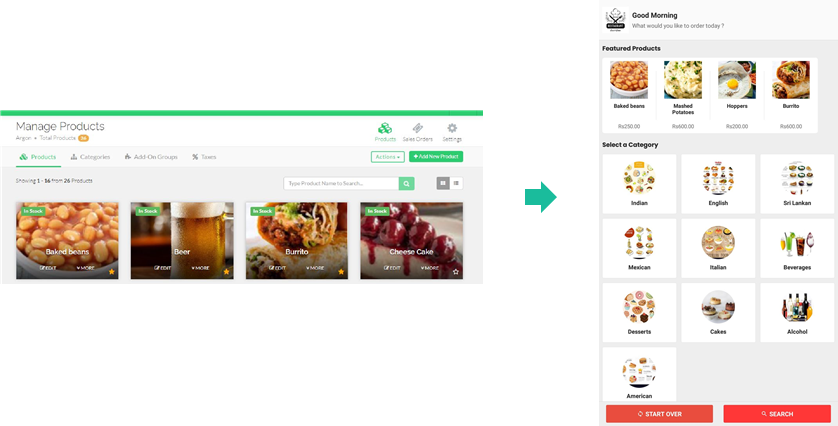
 This feature allows merchants to choose products to be displayed as “Featured Products” by starring them.

Please note that alcohol products cannot be displayed as featured.
Step 1
Go to the “Basic Details” tab to configure adding a new customer.
Step 2
Under the "Merchant Web Configurations" section, click on the “Add Additional Info” button.
Step 3
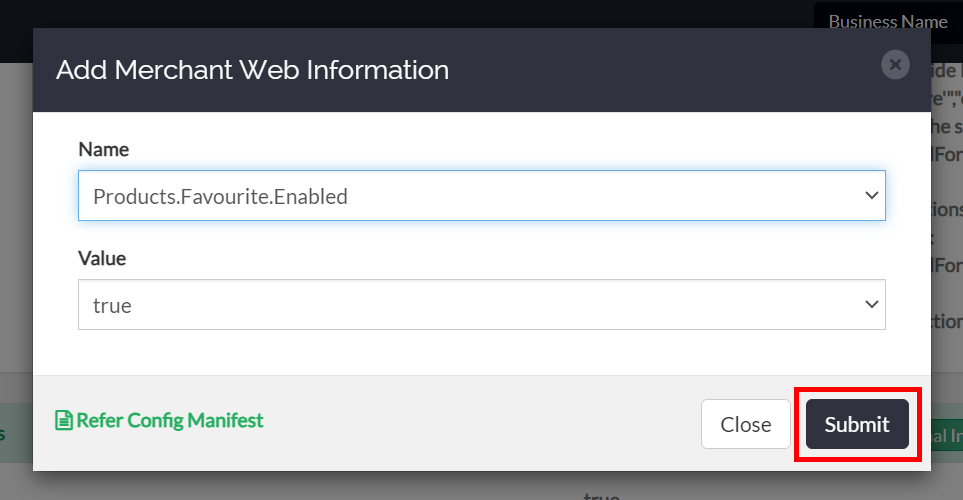
Select the following configuration from the dropdown and click "Submit".

Products.Favourite.Enabled = true
How it Appears on Webstore V2
How it Appears on the Webstore V3
How it Appears on Argon Themed Kiosk
Related Articles
How to Mark a Product as Out of Stock on Merchant Web?
Step 1 Login to "Applova Merchant Web". Step 2 Go to "Products" and click "More" on the product you wish to mark as out of stock. Step 3 Select "Mark as Out of Stock". Image Link Step 4 Click "Confirm". Image LinkHow to Filter Products on Merchant Web?
The Category Filter allows merchants to easily locate products by selecting a specific category or filtering by stock status (In Stock or Out of Stock) from a dropdown list within the Merchant Web Portal. This feature is designed to reduce scrolling ...How to Import Products via Merchant Web?
This feature allows the merchant to import the menu without having to add products individually. Step 1 Log on to "Applova Merchant Web". Step 2 Click on "Products". Step 3 Click on the "Actions" button and then click on "Import Products" to upload ...Re-ordering Products in a Category via Merchant Web
Step 1 Login to "Applova Merchant Web". Step 2 Click "Products" and go to the "Categories" tab. Step 3 Click "More" and select "Re-order Products". Image Link Step 4 Drag the products using the handles to re-order the products. Image Link Step 5 ...How to Manage Product Image via Merchant Web?
Adding Product Image Follow the steps given below to add a product image for the first time. Step 1 Login to "Applova Merchant Web". Step 2 Go to "Products" and then click "Click to Upload Image" at the top right corner of the product. Image Link ...