Download an Enhanced Sales Order CSV with Gross and Net Sales Columns


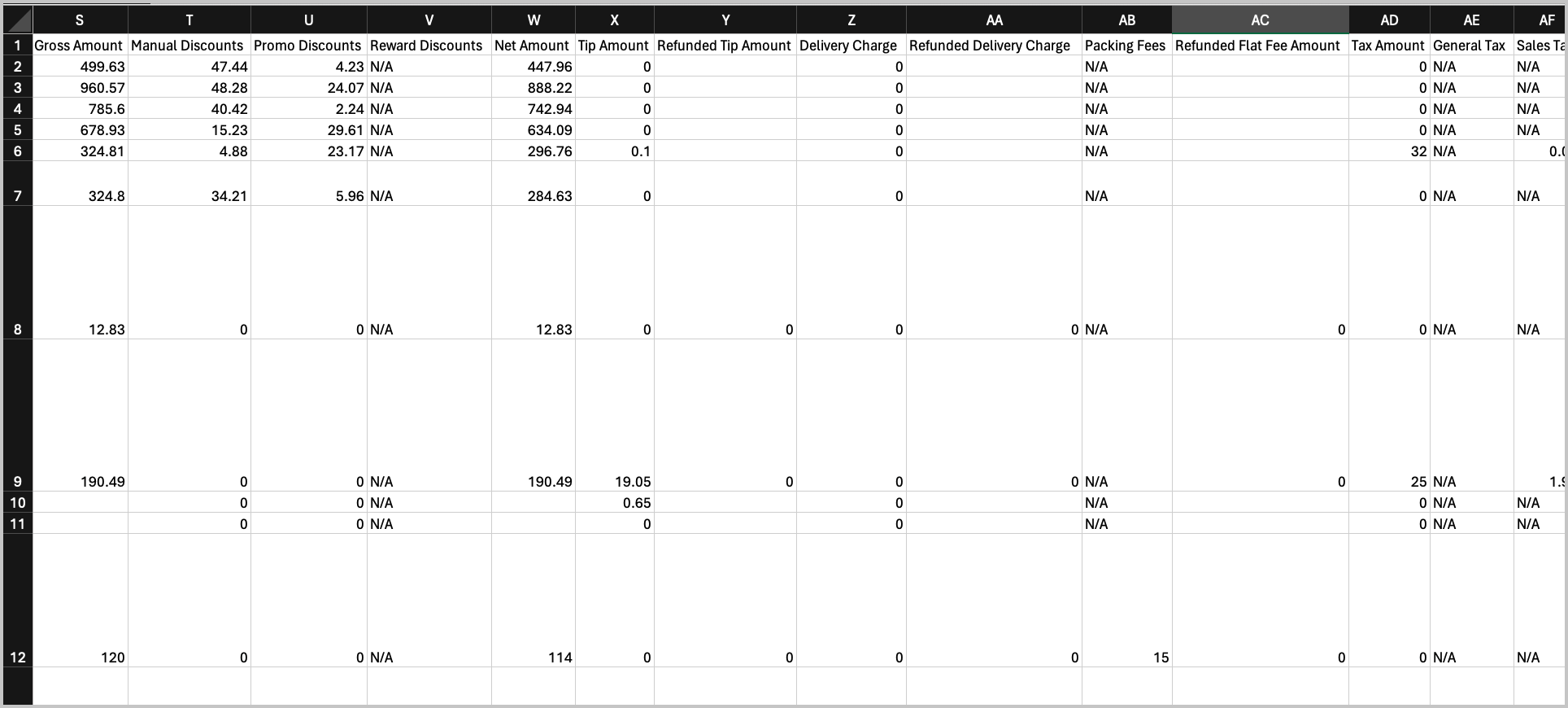
Urban Café’s management team wants to compare net sales against gross sales to ensure their exported sales data matches the figures shown in the sales reports. Previously, this level of comparison wasn’t possible because the Sales Order Export CSV didn’t include gross and net sales data. With the new checkbox enabled, the exported CSV now contains these values, allowing merchants to verify that the export file tallies accurately with the in-platform reports.
How to Export Sales Orders with Gross and Net Sales Columns
Step 1
Login to the Applova Merchant Portal.
Step 2
Navigate to "Sales".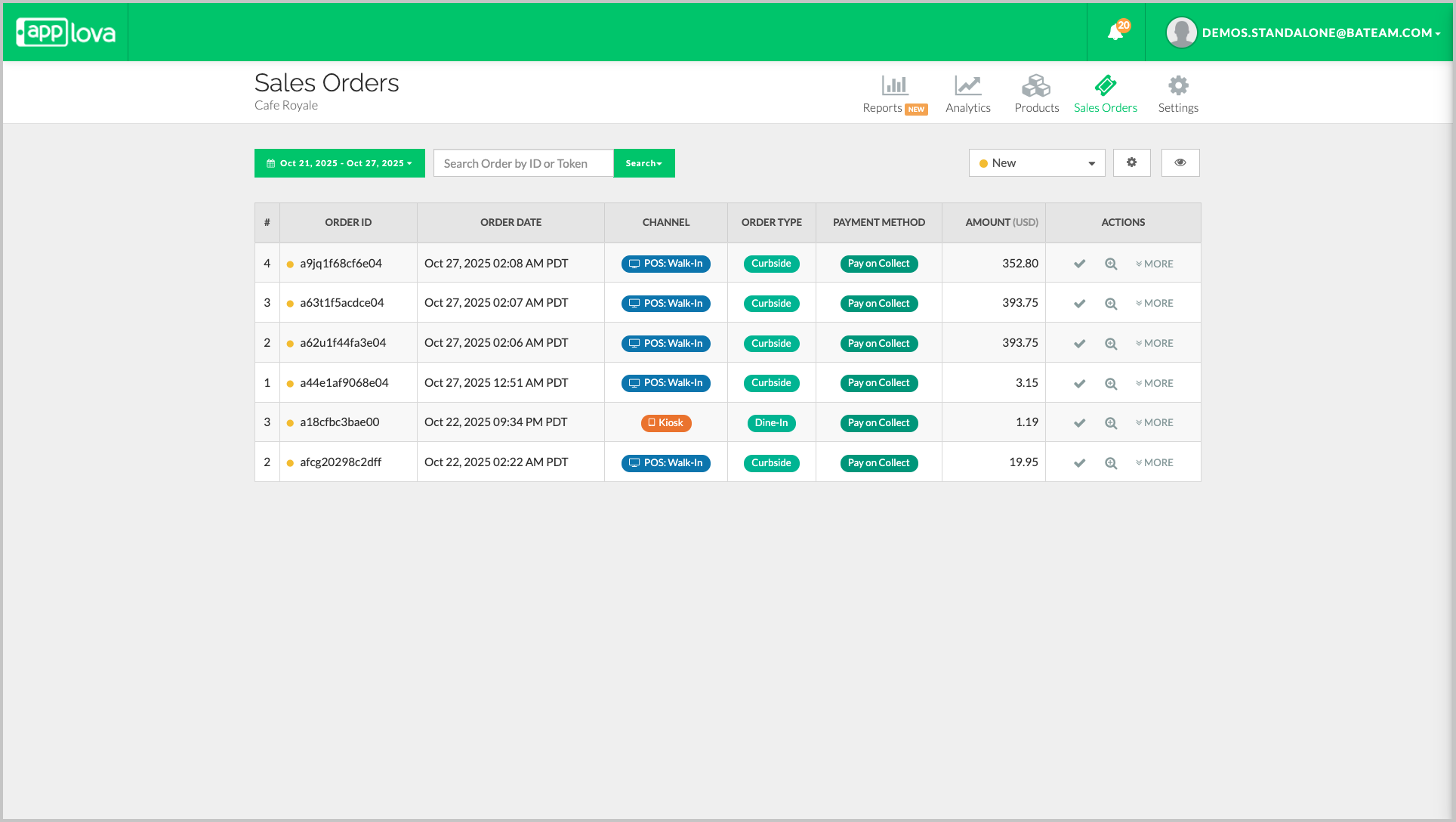
Image Link
Step 3
Select "All" on the order filter dropdown.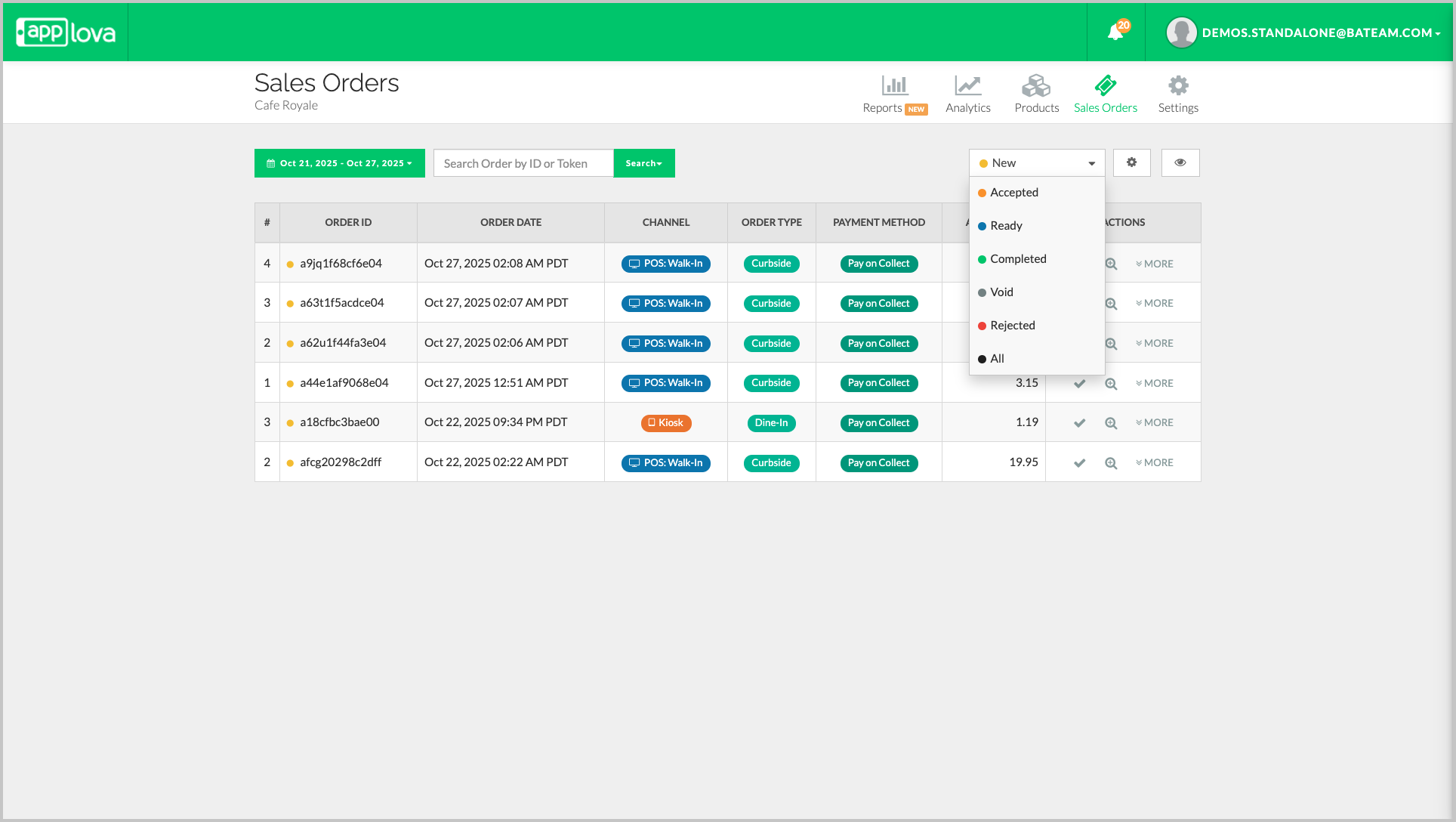
Image Link
Step 4
Select the setting icon and click "Export Orders as CSV"
Image Link
Step 5
Select the checkbox "Include additional details (gross sales, net sales, refunds, etc.)" and click on "Confirm".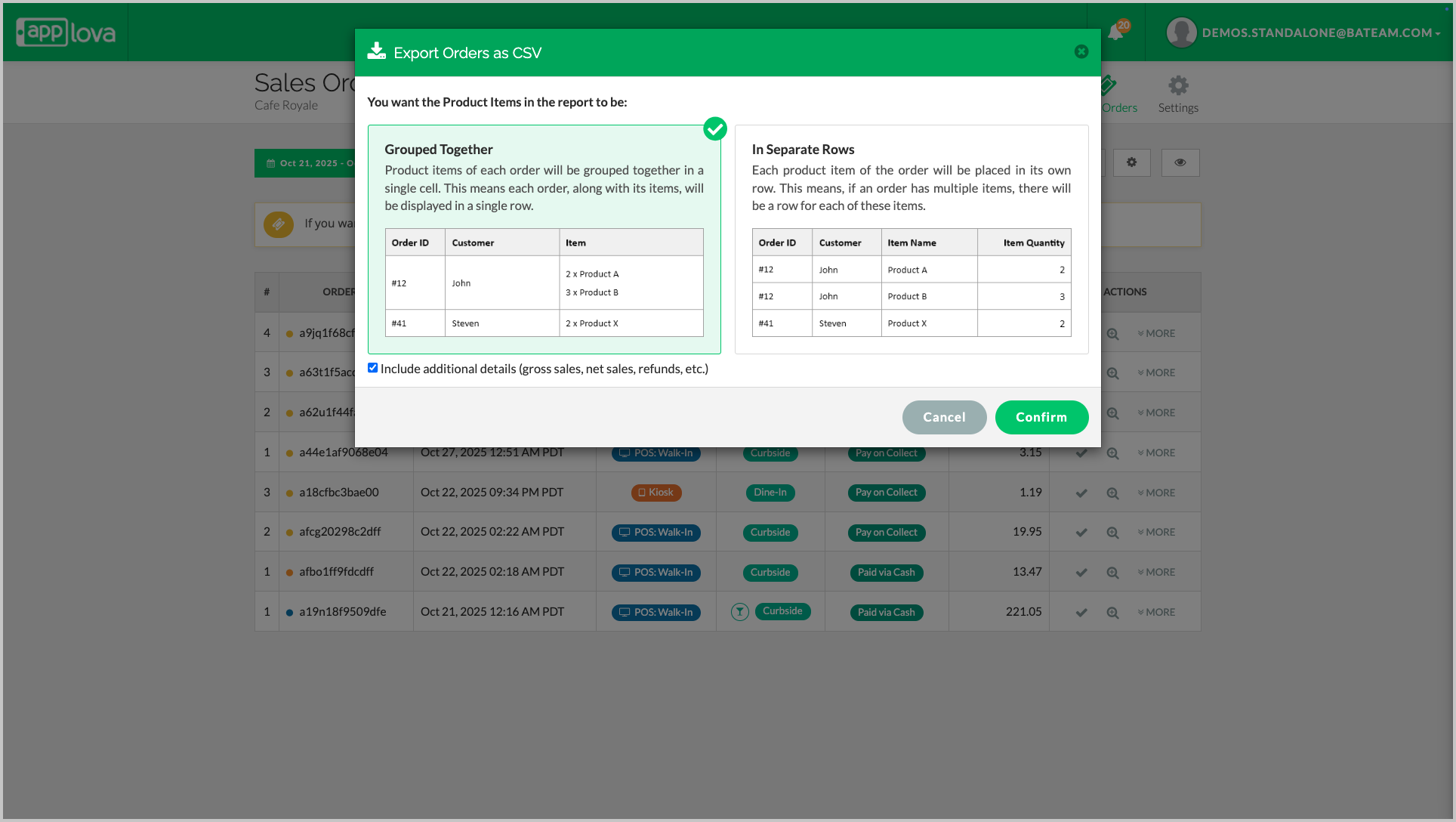
Image Link
Reflection in Sales Order CSV
Link
Related Articles
Enhanced Reports on Merchant Web Portal?
This feature allows merchants to view detailed Reports from the Merchant Portal. Sales Summary - Provides an overview of total sales, order count, discounts, refunds, taxes, tips, and net sales for the selected time period. Unpaid Orders - Displays a ...How to Change Order Statuses via Merchant Portal?
This feature allows merchants to update an order’s status throughout the order lifecycle, such as New, Accepted, Ready, Completed, Void, or Rejected. This helps merchants clearly track order progress and manage each order based on its current stage. ...How to View Summary Reports via Merchant Web Portal?
This feature is currently available only for Round1 merchants. This feature allows merchants to view summary reports. There are two categories of summary reports that can be viewed via the Merchant Web Portal. Real-Time Reports Daily Payment Method ...Sales Insights in Applova Analytics
The Sales section helps merchants review sales performance in more detail. Merchants can use this section to understand sales trends, sales by channel, product and category performance, tax details, payment methods, and collected amounts. How to ...How to Configure Order Delivery Via Merchant Web?
Merchants can configure order delivery settings through Merchant Web. These settings allow merchants to manage delivery related details, and ensure customers can place delivery orders based on the business’s preferred setup. How to Enable the ...