How to Complete an Online Order Using Apple Pay for Clover Businesses?
Apple Pay provides a convenient
and secure way for customers to pay for online food orders without manually
entering credit card information. When Apple Pay is available on the
restaurant's online ordering page, customers using supported Apple devices can
complete payment using the cards stored in their Apple Wallet.
Instead of typing card numbers,
expiration dates, and security codes, Apple Pay allows customers to
authenticate the payment using Touch ID, Face ID, or their device passcode.
This makes the checkout process faster and reduces the chance of input errors during
payment.
How to Pay with Apple Pay in the Webstore?
Step 1
Add items to your cart from the restaurant's online ordering page and proceed to checkout. On the checkout page, review the order total and select your payment method.
Step 2
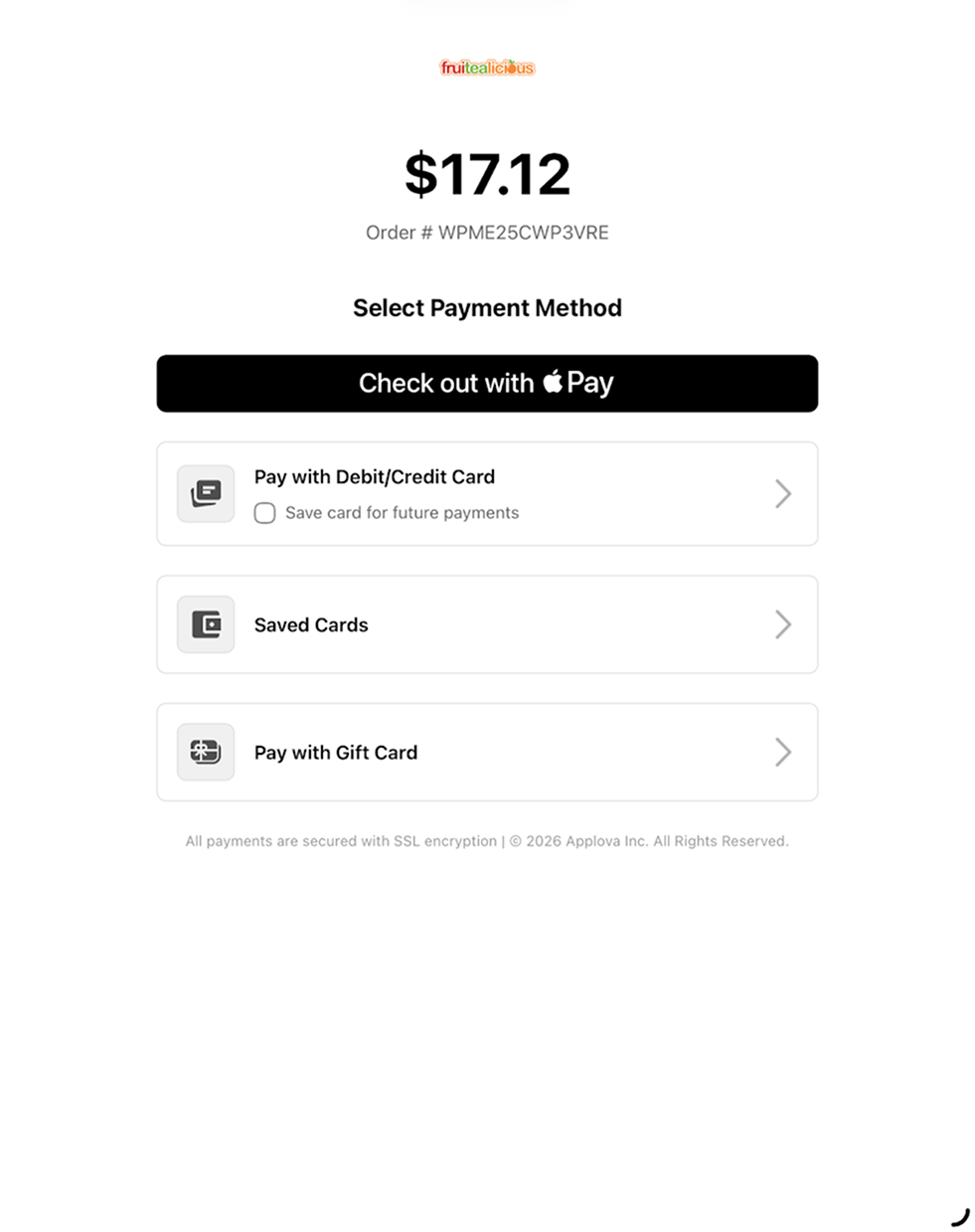
Under "Select Payment Method", click "Check out with Apple Pay". The Apple Pay checkout process will begin.
Step 3
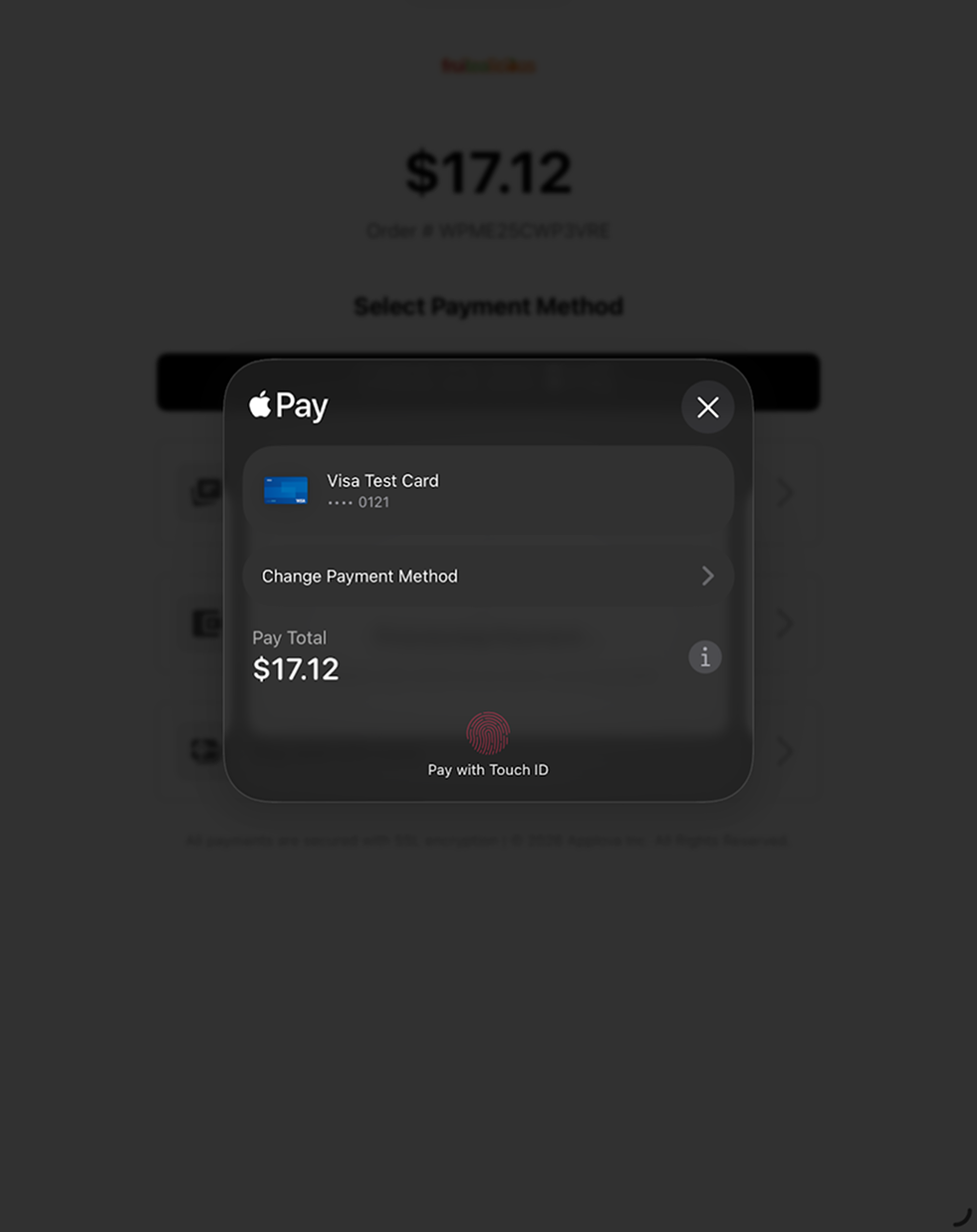
The Apple Pay payment window will appear showing the selected card from your Apple Wallet, the total payment amount, and an option to change the payment method if multiple cards are saved. Review the payment details before confirming.
Step 4
Authenticate the payment using Touch ID, Face ID, or your device passcode. Once authentication is completed, Apple Pay securely processes the payment.
Step 5
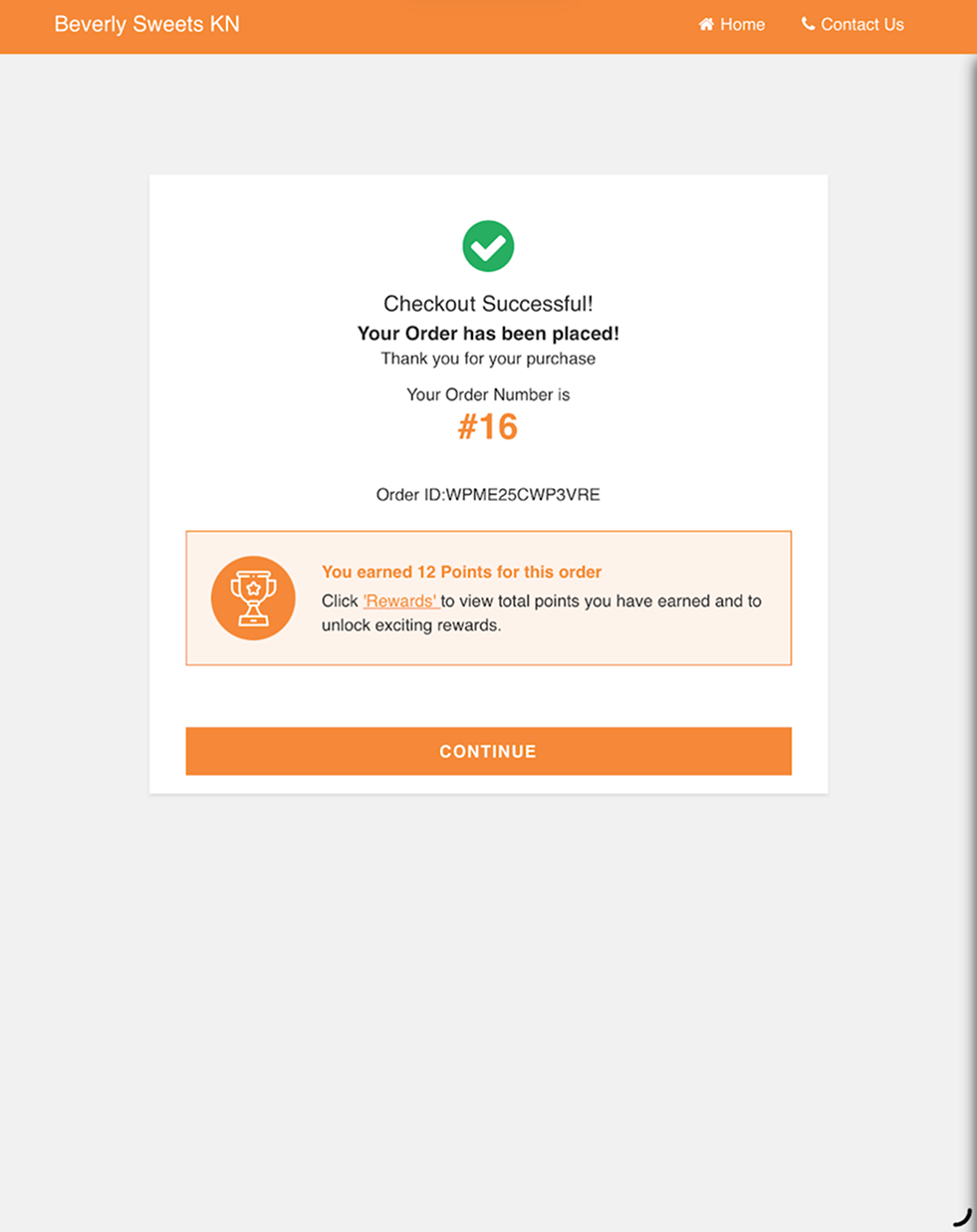
After the payment is approved, the system displays a "Checkout Successful" message. The confirmation page will show your order number and confirm that the order has been placed successfully. Click "Continue" to finish the checkout process.
How to Pay with Apple Pay in the Order Ahead App?
Step 1
Add items to your cart from the restaurant's Order Ahead App and proceed to checkout.
Step 2
In the order review screen, tap the "Payment Type" section to open the list of available payment methods.

Step 3
Select "Apple Pay". The app returns to the order review screen and updates the payment summary to show Apple Pay as the selected payment type.
Step 4

Step 5
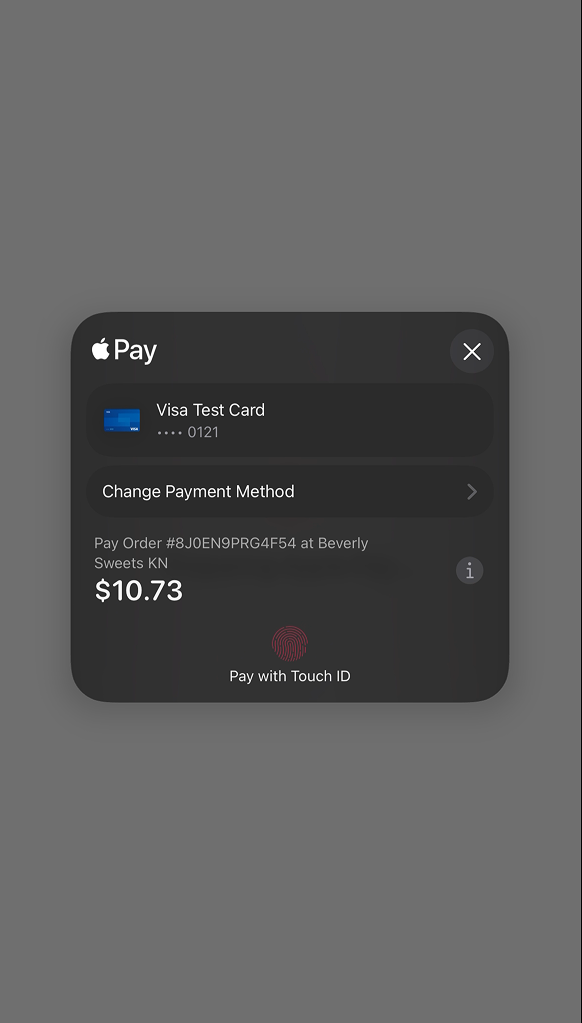
Authenticate the payment using Touch ID, Face ID, or the device passcode. After authentication is completed, Apple Pay securely authorizes the transaction.
Step 7
Once the payment is successful, the order is placed and the customer sees the order confirmation screen.